Blurry prints almost always come from a file that is too small or too compressed. Cropped prints almost always come from a shape mismatch between the picture and the paper, or from borderless printing quietly zooming in. Fix those two things and most home printers turn out sharp, complete pictures, whether it is a holiday photo, a child’s coloring page or a printable for the fridge.
This guide is for anyone who has hit Print and got back something soft, chopped off at the edges, or both. We will start with the picture file, then the shape of the paper, then the settings that cause most cropping. After that come photo paper tips, phone printing, and the same rules applied to printable pages like coloring books and alphabet sheets. Every step is practical and works on an ordinary inkjet or laser printer.
Quick picks: printables made to print cleanly
| Product | Best for | Price | Link |
|---|---|---|---|
| Letter Parade Alphabet Coloring Book A to Z | Kids’ alphabet pictures with a toddler edition | $3.99 | View |
| Cozy Cottage Coloring Book | Bold home and garden scenes for adults | $3.49 | View |
| Porchlight Memories Large Print Coloring Book | Seniors who need thick lines and large text | $8.99 | View |
Why pictures print blurry
Every digital picture is a grid of tiny squares called pixels. Your printer spreads those pixels across the paper. If there are plenty of them, each one is tiny and the picture looks smooth. If there are too few, each pixel gets stretched and you see soft edges, jagged lines or a general fuzz.
The sweet spot for most prints is about 300 pixels per inch. You can go down to around 200 and still be happy with a photo held at arm’s length. Below 150, most people notice softness.
Quick pixel guide
| Print size | Pixels for a sharp print | Minimum for an okay print |
|---|---|---|
| 4 x 6 inches | 1200 x 1800 | 800 x 1200 |
| 5 x 7 inches | 1500 x 2100 | 1000 x 1400 |
| 8 x 10 inches | 2400 x 3000 | 1600 x 2000 |
| US Letter, full page | 2550 x 3300 | 1700 x 2200 |
| A4, full page | 2480 x 3508 | 1650 x 2340 |
A modern phone photo is usually 3000 to 4000 pixels on its long side, which is plenty for an 8 x 10. So why do phone photos often print blurry? Because the file that reaches the printer is not the original.
Find the original, not a shrunken copy
Pictures shrink every time they pass through an app that wants to save space. These are the usual culprits:
- Messaging apps. A photo sent through most chat apps is compressed, sometimes down to a quarter of its original size. If Grandma sent the picture in a chat, ask her to email it as a file or share it from a cloud album instead.
- Social media downloads. Saving a picture from a social feed gives you the web version, often around 1000 to 2000 pixels and heavily compressed.
- Screenshots. A screenshot captures your screen, not the photo. On a phone, that might be 1170 pixels wide and include bits of the app around it.
- Email with “small” or “medium” size chosen. Some phones ask what size to attach. Always pick actual size.
- Preview images on websites. Right-clicking a picture on a page often saves a thumbnail. Use the site’s download button for the full file.
A real example: a parent wants to print a school photo shared in a class group chat. Printed at 8 x 10, it looks smeared. The same photo, downloaded from the school’s photo website, prints crisp. Same picture, very different file.
To check size on Windows, right-click the file, choose Properties, then Details. On a Mac, open it in Preview and choose Tools, then Show Inspector. On iPhone, open the photo and swipe up; on Android, tap the info icon.
Why pictures print cropped
Cropping has three common causes. Find the one that matches your problem and the fix is usually one click.
Cause 1: the shapes do not match
Most phone photos have a 4:3 shape. Standard 4 x 6 photo paper has a 3:2 shape. US Letter is roughly 4.25:5.5, and A4 is different again. When a picture and paper are different shapes, something has to give: either white bars on two sides, or part of the picture trimmed off.
Printers set to Fill or Crop to fit will trim. Printers set to Fit will add white bars. Choose Fit if you want the whole picture, and trim the white edges with scissors afterwards.
Cause 2: borderless printing
Borderless printing sounds perfect but has a catch. To avoid a thin white line at the edge, the printer enlarges the picture slightly, often by a few percent, and prints part of it off the paper. Heads, feet and text near the edge vanish. Many printers call the setting “amount of extension” or “expansion”. Set it to minimum, or turn off borderless and print with a small border.
Cause 3: the printer’s unprintable margin
Most home printers cannot print right to the edge of plain paper. If a coloring page or printable runs very close to the edge, the outer few millimeters disappear. Use Fit to page, or scale to 95 percent.
Settings that give sharp, complete prints
- Open the original file in your photo app or PDF reader, not a browser preview.
- Choose the paper size you actually loaded: 4 x 6, 5 x 7, Letter or A4.
- Choose Fit to keep the whole picture, or Fill only if you are happy to lose edges.
- Turn off borderless, or set its extension to minimum.
- Set quality to Best or High.
- Set paper type to match: glossy photo, matte photo, plain or cardstock.
- Check the print preview. If the preview shows the picture cut off, the print will be too.
That last step catches most problems before you waste ink. A five-second look at the preview can save a sheet of glossy photo paper and a lot of grumbling.
Printing photos on photo paper
Photo paper is coated so ink sits on top and dries crisp. Plain paper soaks ink in and softens it. For photos worth keeping, photo paper makes a visible difference.
- Load it the right way up. The shiny or coated side is the printing side. Most printers print on the side facing down in the front tray, but check yours.
- Tell the printer what it is. Selecting glossy photo paper changes how much ink is used. Leaving it on plain paper gives pale, streaky photos.
- Do not touch the surface. Fingerprints leave marks that show in the print. Hold sheets by the edges.
- Let it dry. Leave inkjet photos face up for at least 15 minutes before stacking, and longer before framing.
If the print looks darker than your screen, that is normal. Phone and laptop screens glow and are usually set very bright. Turn your screen brightness down to about half when judging photos, and the print will match better. If prints still come out dark, many photo apps have a simple brightness slider worth nudging up by 10 to 15 percent before printing.
Printing from a phone without cropping
Phones are where cropping problems are most common, because many print dialogs hide the scaling options.
On an iPhone, open the photo, tap Share, then Print. Tap the options line to choose paper size and, on some printers, Fit or Fill. On Android, open the photo, tap the three-dot menu, then Print. Choose your printer, then tap the small arrow to open paper size and orientation. If you do not see a Fit option, try your printer maker’s own app, which often has more control.
When in doubt, crop the photo yourself first. Most phone photo editors have a crop tool with preset shapes like 3:2 or 4:5. Crop to the shape of your paper, and nothing important gets cut by the printer.
Printing coloring pages and printables for kids
The same rules apply to printable pages. A coloring page or worksheet usually comes as a PDF designed for US Letter or A4. If you print the Letter file on A4, or the other way round, the printer either trims the edge or shrinks the page. Pick the file that matches your paper and print at actual size.
Kids’ alphabet and picture pages are especially sensitive to cropping, because the letter, the picture and the tracing rows are often laid out close to the edges. A trimmed tracing row is no use at all.
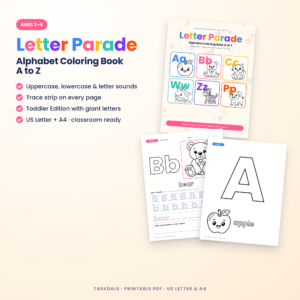
Letter Parade Alphabet Coloring Book
Price: $3.99 | Best for: toddlers to kindergarteners learning letters
Letter Parade has one page per letter with a big uppercase and lowercase letter to color, a picture that starts with that sound, the word, and three tracing rows on handwriting lines. A separate Toddler Edition gives each letter its own extra-large page for ages 2 to 4. It comes in US Letter and A4, and includes a one-teacher classroom licence. Print letter A at actual size first to check that the tracing rows land fully on the page.
For more ideas on pictures children love to color and print, see our guide to printable pictures for kids.
Getting crisp lines on adult coloring pages
Line art is less forgiving than photos. A slightly soft photo still looks fine. A slightly soft outline looks gray and broken. For coloring pages:
- Print in black and white or grayscale, so the printer uses true black ink.
- Choose Best quality, never Draft.
- Use bright white paper, 24 lb or heavier, so lines stand out.
- Print one test page before printing a batch.
Bold designs make this easy. Thick outlines stay crisp even when a file or printer is not perfect, which is a big part of why cozy bold books are so popular for home printing.
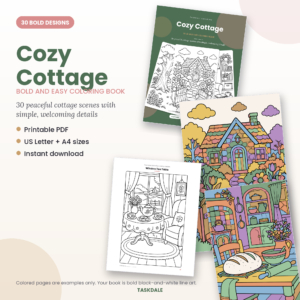
Cozy Cottage Coloring Book
Price: $3.49 | Best for: adults wanting slow, bold home scenes
Cozy Cottage has 30 bold, easy scenes of home and garden life: a cottage garden gate, a window tea table, a fireplace evening, a vegetable patch and a rainy cottage window. Thick outlines and large shapes print cleanly, and separate US Letter and A4 files mean no resizing. Start with the Window Tea Table and print it on 28 lb paper for markers.
We cover settings for coloring pages in more depth in how to print free printable adult coloring pages.
Large print pages for older eyes
If you print activity pages for a parent or grandparent, cropping and blur matter even more. A faint line or a cut-off question at the bottom can make a page frustrating rather than relaxing. Choose files designed with big shapes and large text, print them at actual size, and use bright white paper for the best contrast.
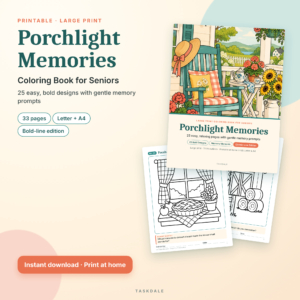
Porchlight Memories Large Print Coloring Book
Price: $8.99 | Best for: seniors and family coloring visits
Porchlight Memories has 25 easy, nostalgic pictures with thick outlines and a large print Memory Moment question under each, such as a front porch at evening, a 1950s diner and a pie on a windowsill. There is a Bold-Line Edition for people with low vision or less steady hands. Print the front porch page at actual size on bright white paper and check the question at the bottom prints in full.
Common mistakes and quick fixes
| Problem | Likely cause | Fix |
|---|---|---|
| Soft or fuzzy photo | Small or compressed file | Find the original; check pixels |
| Heads or edges cut off | Fill mode or borderless extension | Choose Fit; reduce extension |
| White bars on two sides | Picture shape differs from paper | Crop to paper shape first, or trim bars |
| Coloring page edges missing | Printer margin or wrong paper size file | Use matching file; Fit to page |
| Prints darker than screen | Screen brightness too high | Lower screen brightness; brighten slightly |
| Streaks across the print | Clogged inkjet nozzles | Run head cleaning and a nozzle check |
Frequently asked questions
Why are my printed photos blurry when they look fine on my phone?
Phone screens are small, so even a low-resolution image looks sharp. Printed larger, the missing pixels show. The file was probably compressed by a chat app or saved from social media. Print from the original photo instead.
How do I stop my printer from cutting off the edges?
Turn off borderless printing or set its extension to minimum, choose Fit instead of Fill, and make sure the paper size in the print settings matches the paper in the tray.
What resolution do I need to print a photo at 4 x 6?
About 1200 by 1800 pixels for a sharp print. Around 800 by 1200 still looks acceptable at normal viewing distance.
Should I use Fit or Fill when printing pictures?
Use Fit to keep the whole picture, accepting white bars you can trim. Use Fill only when you are happy for the printer to trim part of the edges.
Why do my prints come out darker than on screen?
Screens glow and are usually set bright. Lower your screen brightness to about half to judge photos, and brighten the picture slightly before printing if needed.
Can I print a US Letter PDF on A4 paper?
Yes, with Fit to page, though the design shrinks slightly and margins change. If the printable offers an A4 file, use that instead for the best result.
Your next step
Pick one picture you want to print today. Check its pixel size, open the print preview, choose Fit and turn borderless off. If you are printing for a little one, try letter A from the Letter Parade Alphabet Coloring Book at actual size, and see how clean a well-made file looks on plain paper.