Every classroom library starts the year looking perfect. Bins are full, labels are straight, and kids are excited. By February, half the graphic novels are gone and nobody remembers who took them. A simple classroom library checkout system fixes that without turning you into a full-time librarian. This guide walks through how to set one up in an afternoon, and you can download our free classroom library checkout tracker for Excel and Google Sheets below.

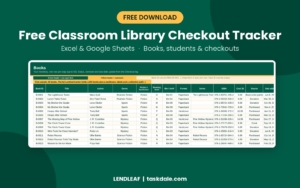
Free Classroom Library Checkout Tracker (Lendleaf Lite)
Free Excel and Google Sheets classroom library tracker: 50 books, 15 students and 100 checkouts with live book status, due dates, overdue flags and checkout warnings.

Want everything unlocked?
The free file is a sample. The full version has every page, tab and feature, plus the user guide.
See the full versionWhy your classroom library needs a checkout system
Most teachers run their library on the honor system for a while. It feels kind, and it is easy. The trouble is that books leave quietly. One goes home in a backpack, one ends up in the lost and found, three get loaned to a sibling. You only notice when a student asks for the second book in a series and the bin is empty.
A checkout system gives you three things the honor system cannot:
- A record of who has what. When a book is missing, you know which student to ask.
- Due dates. Kids return books faster when there is a date to beat.
- Data you can use. You see which books get borrowed every week and which never leave the shelf.
Step 1: Give every book an ID
This is the single most useful thing you can do. Give each copy a short ID, like B-0001, and write or tape it inside the front cover. If you own three copies of the same title, each copy gets its own ID. That way the tracker can tell you exactly which copy is out and who has it.
Our free tracker already numbers the Book ID column for you, so you only need to match the stickers to the rows. In the full Lendleaf tracker, a Labels tab prints 30 labels per page with the Book ID, reading level, title, bin and your name, which saves a lot of handwriting.
Step 2: Build a simple inventory
You do not need every detail on day one. Start with these columns:
- Book ID
- Title
- Genre
- Reading level (guided reading, Lexile or grade, whatever your school uses)
- Bin or shelf
Author, ISBN, cost and condition can come later. Cost is worth adding for books you buy, though. A teacher with 400 books can easily have a few thousand dollars of her own money sitting on those shelves, and a total is handy for insurance, a grant request or a classroom move.
Tip: one row per copy
It is tempting to type “Comet Kids, 3 copies” in one row. Resist it. Three rows means three IDs, three borrowers and three due dates. Your popularity numbers can still add the copies together later.
Step 3: Add your class roster
List each student once. Add their reading level if you track one, and a parent or guardian contact if you plan to send reminders. Set a default limit, such as three books at a time, and adjust it for individual readers. A student who devours chapter books can have five. A student who keeps losing books might be better at one.
Step 4: Make checkout take ten seconds
If checkout is slow, kids skip it. Keep it to three things: the date, the Book ID and the student’s name. In Excel and Google Sheets, Ctrl + ; types today’s date. Dropdowns for Book ID and student name stop typos before they happen.
The free tracker fills in the title, due date and status on its own the moment you enter those three cells. It also flags common mistakes in a Check column:
- A Book ID that is not in your inventory
- A book that is already checked out on another row
- A student who is over their book limit
- A missing checkout date
Let students run it
Many teachers turn checkout into a classroom job. A student librarian sits at the classroom computer during independent reading and logs books in and out. Because the formula columns are locked, a curious helper cannot break the math.
Step 5: Handle returns, late books and lost books
When a book comes back, type the return date and pick a condition: Good, Worn, Damaged or Lost. The tracker marks the loan as Returned or Returned late and works out how many days late it was.
For lost books, choose Lost and enter the date it was reported. The tracker charges the book’s cost, or a default fee you set, and you can mark the fee as paid, unpaid or waived. Many teachers waive fees for younger kids and only track them so the family knows a book is missing.
Sending overdue reminders
A friendly note home works better than a public list on the board. Keep it short: the student’s name, the title and the due date, plus a thank you. The Lendleaf Classroom Library Tracker writes these notes for you. Its Overdue tab lists every late book, oldest first, with the family contact and a reminder ready to copy into an email or class app.
Step 6: Use your data to build a better library
After a month of checkouts, your tracker knows things you cannot see by looking at the bins:
- Which titles are always out. If all four copies of a series are borrowed every week, buy a fifth before you buy anything new.
- Which readers have gone quiet. A student who has not borrowed in three weeks may need a personal recommendation.
- Where your shelves are thin. If eight students read at level P and you own twelve level P books, those kids run out of choices fast.
- Your fiction and nonfiction balance. Many K-5 teachers aim for close to half informational text, and many classroom libraries lean toward fiction.
The free sample covers the core: inventory, roster and checkout log with live status and warnings. The full version adds a dashboard and a Collection Audit that does this analysis for you, including a chart that puts your share of books at each level next to your share of readers.
Free sample vs the full Lendleaf tracker
| Feature | Free sample | Full Lendleaf tracker |
|---|---|---|
| Books in the inventory | 50 | 1,000 |
| Students on the roster | 15 | 60 |
| Checkout log rows | 100 | 2,000 |
| Live status, due dates and checkout warnings | Yes | Yes |
| Dashboard with 10 live stats and charts | No | Yes |
| Overdue tab with ready-to-send reminder notes | No | Yes |
| Library Desk: look up any book or student | No | Yes |
| Collection Audit: genres, reading levels, fiction balance, bins | No | Yes |
| Wish List with book budget check | No | Yes |
| Printable Book ID labels and sign-out sheet | No | Yes |
| Step-by-step user guide | No | Yes |

Common questions
Should I use a spreadsheet or an app?
Apps are great until the free plan ends or the school blocks them. A spreadsheet is yours, works offline in Excel, opens in Google Sheets, and does not need student accounts.
How often should I do an inventory count?
Twice a year works for most rooms: once before winter break and once before the last weeks of school. The full tracker has a Shelf check column so you can mark each copy Found or Missing as you go.
Can I use this for a homeschool or church library?
Yes. Anywhere books go out and come back, the same system works.
Ready to run your whole classroom library?
Start with the free tracker above, then upgrade when you outgrow 50 books. The full Lendleaf Classroom Library Tracker adds the dashboard, overdue reminder notes, printable labels, the Collection Audit and room for 1,000 books.