The best Gantt chart planner is the one that matches the device you already plan on. Projectory is the pick if you want a timeline that reschedules itself when you drag a task. The GoodNotes and Kindle Scribe planners suit people who prefer to write with a pen and keep everything in one hyperlinked file.
Choosing a planner can feel harder than the project itself, with timelines, task boards and budgets all competing for attention. We'll keep this simple: three options, what separates them, and a clear rule at the end.
Key facts at a glance
- A Gantt chart planner shows each task as a bar on a calendar, so you can see start dates, end dates and overlaps in one view.
- Projectory is the only option here described as rescheduling linked tasks automatically, and it works offline in your browser.
- The Digital Project Planner for GoodNotes & iPad holds up to 6 projects, with 27 linked pages for each.
- The Kindle Scribe Project Planner holds up to ten projects, with 24 linked pages each and a 12-week timeline.
- Browse all 3 options below to compare them against your own device and working style.
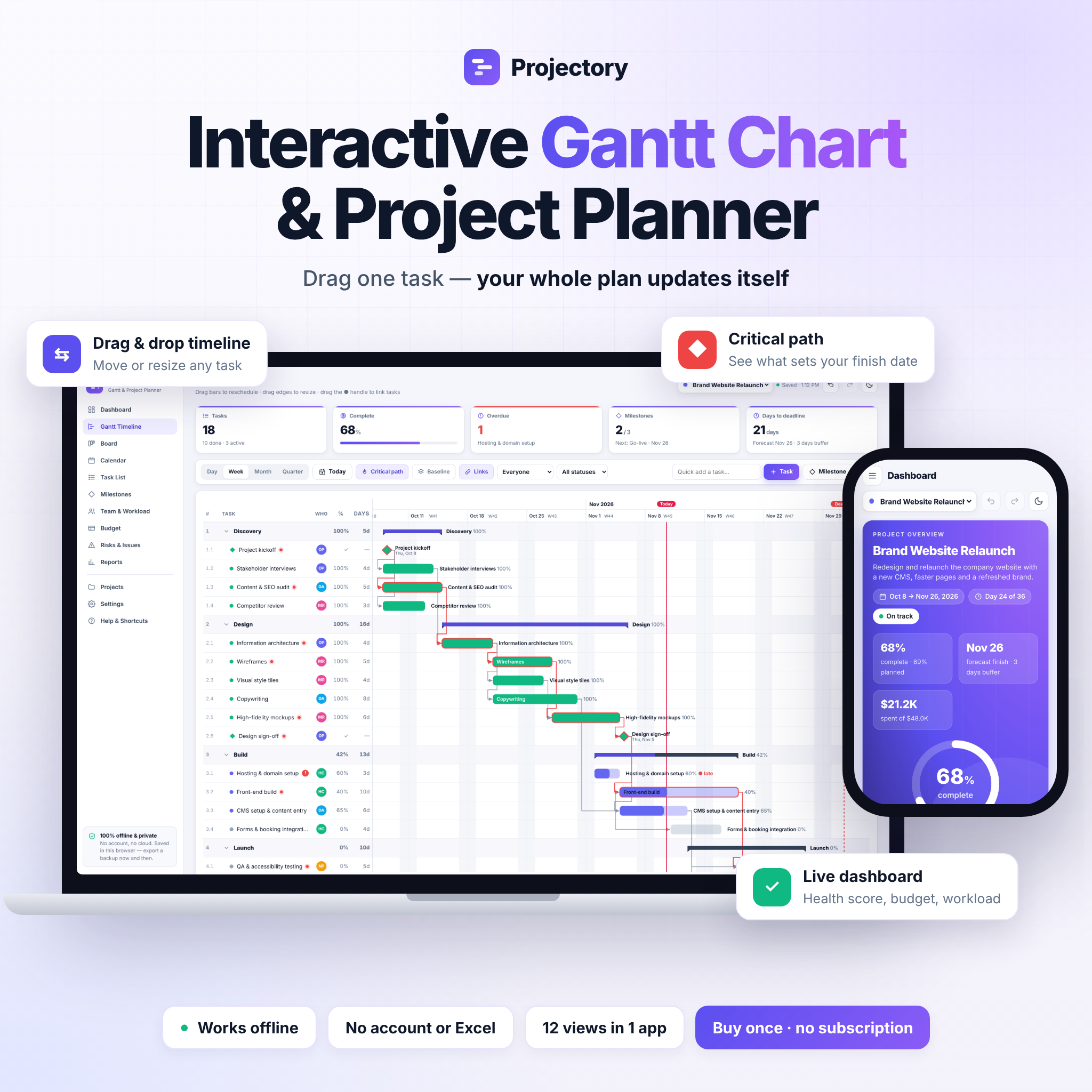 Gantt Chart Planner App | Projectory Interactive Project Timeline & Task Tracker with Critical Path, Live Dashboard, Kanban Board, Team Workload & Budget | Works Offline
Table of Contents
Toggle
- What makes a good Gantt chart planner?
- How do the best Gantt chart planners compare?
- Which Gantt chart planner suits which person?
- How do you use a Gantt chart planner well?
- What mistakes should you avoid?
- What affects the price of a Gantt chart planner?
- Common questions
What makes a good Gantt chart planner?
A good Gantt chart planner shows your tasks against time, makes changes easy, and fits the device you'll open every day. A Gantt chart is a bar chart where each bar is a task, its length is how long the task takes, and its position is when it happens. Five factors decide how well one works for you.
Does it handle task dependencies?
A dependency is a link that says one task can't start until another finishes. Projectory handles this for you: move one task and every linked task reschedules itself. In the two planners for tablets and e-readers, the timeline is a page you fill in, so you'll adjust the dates yourself if something slips.
Does it account for weekends, holidays and the critical path?
The critical path is the longest chain of linked tasks, and any delay on it delays the whole project. Projectory handles weekends, holidays and the critical path automatically. If you plan in a notebook-style file, you'll need to mark non-working days and spot the critical path by eye.
Which device will you plan on?
The right device decides almost everything else. Projectory opens as a file in your browser. The Digital Project Planner for GoodNotes & iPad is built for an iPad running GoodNotes. The Kindle Scribe Project Planner is built for the Kindle Scribe, with a colour edition for the Colorsoft and a black-and-white edition.
How many projects can it hold?
Capacity differs. The GoodNotes planner keeps up to 6 projects in one file. The Kindle Scribe planner keeps up to ten. If you only run one or two projects at a time, either is generous. If you juggle a dozen small jobs, the Kindle Scribe file gives you more room.
What else comes with the timeline?
A timeline rarely works alone. Projectory adds 12 synced views, including a live dashboard, Kanban board, calendar, team workload, budget, risks and auto-written status reports. The GoodNotes planner adds scope planning, a Kanban board, budget tracking and a close-out section. The Kindle Scribe planner adds a brief, milestones, a Kanban board, 78-task lists, a budget, a time log, meetings, risks and a final review.
How do the best Gantt chart planners compare?
The three planners differ mainly in format and in how much the timeline does for you. This table sets out what the product details say.
| Product | Format | Timeline approach | Best suited to |
|---|---|---|---|
| Gantt Chart Planner App | Projectory Interactive Project Timeline & Task Tracker with Critical Path, Live Dashboard, Kanban Board, Team Workload & Budget | Works Offline | Offline app opened as a file in your browser | Drag a task and linked tasks reschedule; critical path, weekends and holidays handled | Teams or individuals who want automatic scheduling |
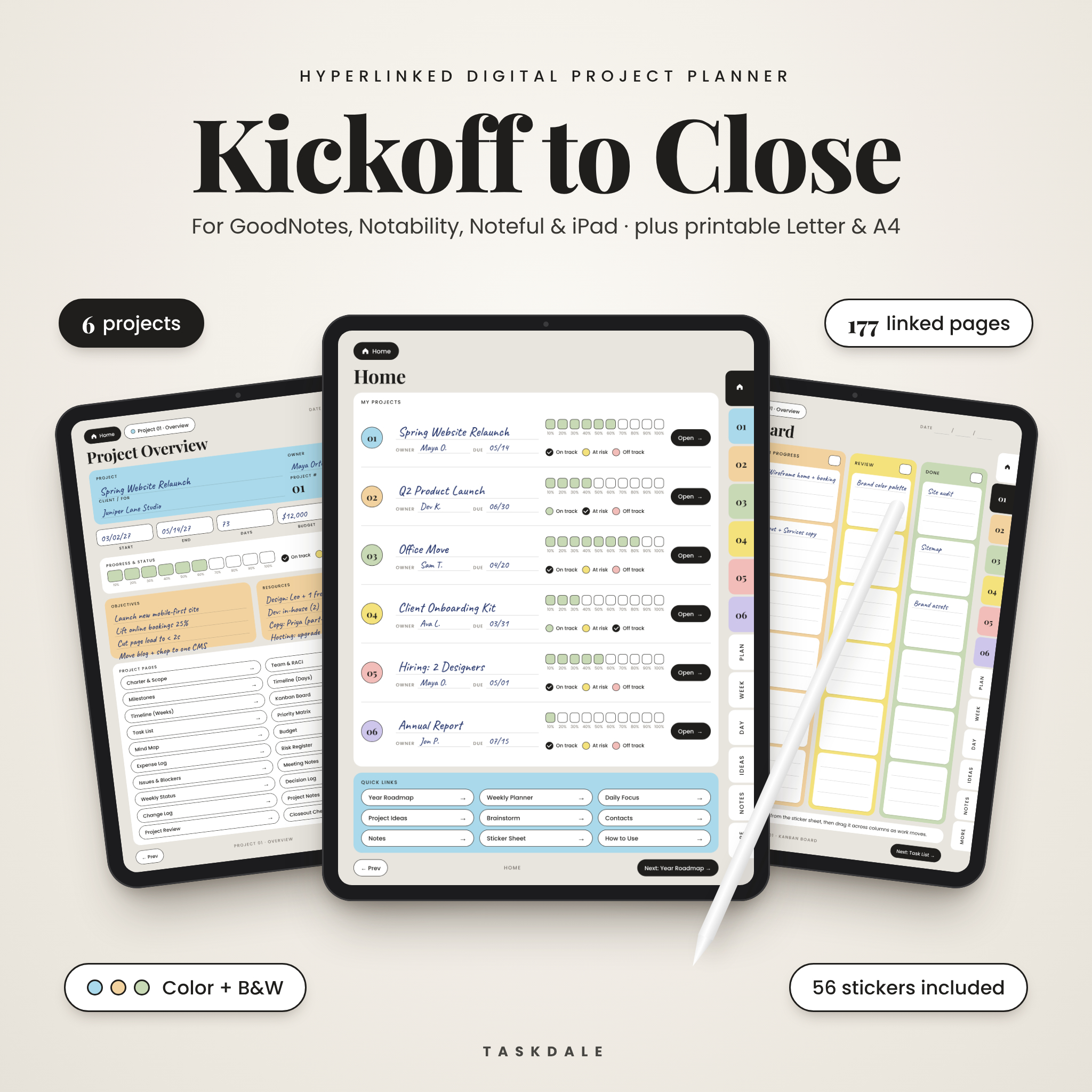 Digital Project Planner for GoodNotes & iPad | Kickoff to Close Hyperlinked Project Management Template with Kanban, Gantt, Budget & Printable PDF | Hyperlinked PDF for GoodNotes and iPad, plus printable PDFs | Gantt page you complete yourself; up to 6 projects, 27 linked pages each | iPad users who like handwriting and stickers |
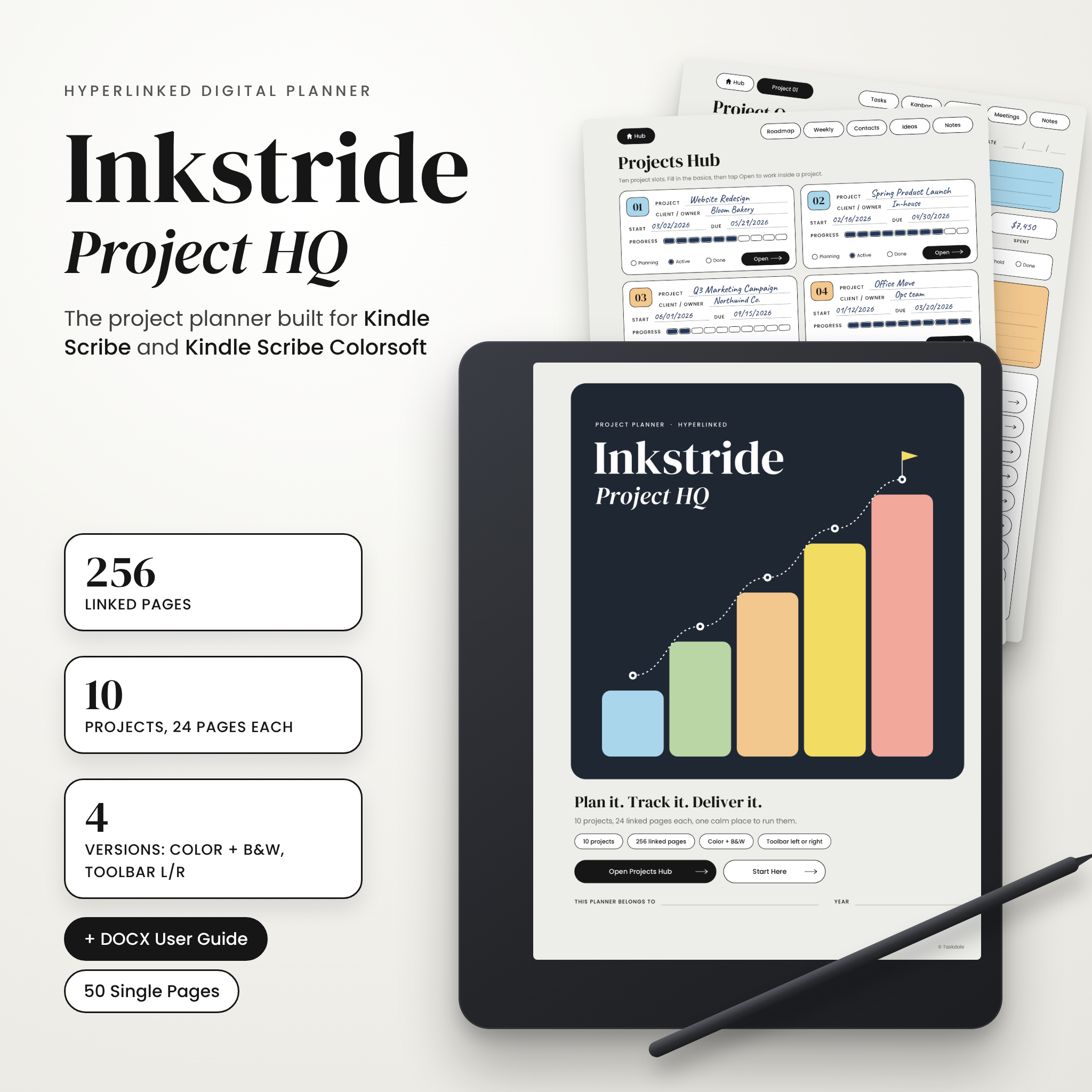 Kindle Scribe Project Planner | Inkstride Project HQ Hyperlinked PDF Project Management Template for Kindle Scribe Colorsoft with Kanban Board, Gantt Timeline, Task Tracker & Budget | Hyperlinked PDF for Kindle Scribe, colour and black-and-white editions | 12-week timeline you complete yourself; up to ten projects, 24 linked pages each | Kindle Scribe owners who want a distraction-light device |
Which Gantt chart planner suits which person?
Each planner suits a different working style, and the right one is usually obvious once you know whether you want automation or a pen in your hand.
Who should choose Projectory?
Projectory suits anyone whose plans change often. Because linked tasks move together, a slipped deadline doesn't mean redrawing the chart. It also suits people who want to avoid spreadsheets and accounts: there's no Excel, no account and no subscription, and you buy once. The team workload view makes it the natural choice if you're managing other people as well as yourself.
Who should choose the Digital Project Planner for GoodNotes & iPad?
The Digital Project Planner for GoodNotes & iPad suits iPad owners who think better with a stylus. It has 177 pages, in colour and black-and-white, with 56 digital stickers and a step-by-step user guide. The printable US Letter and A4 sets are useful if you like to pin a plan to the wall or keep a paper copy for a meeting.
Who should choose the Kindle Scribe Project Planner?
The Kindle Scribe Project Planner suits people who want to plan away from a busy tablet screen. You write with the pen, tap with a fingertip, and reach any page in two taps. The toolbar space can sit on the left or right, and the file includes 3 single templates and a DOCX user guide. Its 12-week timeline fits projects that run for a quarter or less.
A simple rule: if you want the chart to do the work, choose Projectory. If you want to do the work by hand, choose the planner that matches your tablet or e-reader.
How do you use a Gantt chart planner well?
You use a Gantt chart planner well by listing tasks first, then setting order and durations, then checking the result against your deadline. These steps work in all three products.
- Write down every task, however small, before you touch the timeline.
- Estimate how long each task takes, using days or weeks rather than hours.
- Mark which tasks depend on others, such as "paint" waiting on "plaster".
- Place the tasks on the timeline in order and look for overlaps you can use.
- Identify the longest chain of dependent tasks. That's your critical path.
- Add milestones for the dates that matter, such as a sign-off or a delivery.
- Review weekly and adjust. In Projectory, drag the task. In the handwritten planners, update the bars yourself.
On the GoodNotes and Kindle Scribe files, start with the brief or scope page, because it gives the timeline something to be measured against. In Projectory, the live dashboard and its health score give you a quick read on whether you're on track.
What mistakes should you avoid when choosing a Gantt chart planner?
The most common mistakes are buying for features you won't use and ignoring the device you actually own. A few others catch people out.
- Choosing the wrong device format. A planner built for the Kindle Scribe won't help if you work on an iPad.
- Expecting automatic rescheduling from a handwritten planner. Only Projectory is described as moving linked tasks for you.
- Skipping dependencies. A chart of unlinked bars looks tidy but hides the delays that matter.
- Planning too far ahead. The Kindle Scribe timeline covers 12 weeks. Break longer projects into phases.
- Overloading one file. Having room for 6 or ten projects doesn't mean you should start them all at once.
What affects the price of a Gantt chart planner?
The price of a Gantt chart planner depends mainly on how much it automates, how many views it includes, and whether you pay once or keep paying. We don't quote figures here because they change, and the live product cards show the current price.
An app with automatic scheduling, a dashboard and reporting does more work than a template, and that usually costs more up front. A template file is simpler and may cost less. The payment model matters too: Projectory is bought once, with no subscription, so there's no ongoing charge. Compare what you'd realistically use, not the longest feature list.
Common questions
Is a Gantt chart planner better than a to-do list?
A Gantt chart planner is better when tasks depend on each other or run against dates. A to-do list simply records what needs doing. If you only have a handful of independent jobs, a list is enough. Once order and timing matter, the chart earns its place.
Can I use a Gantt chart planner without an internet connection?
Projectory works offline: you open the file in your browser and plan without an account. The GoodNotes and Kindle Scribe planners are PDF files used on their own devices, so you work with them in the same way once they're loaded.
Do these planners suit small personal projects?
Yes. A home renovation, a house move or a family event all have tasks that depend on each other. The handwritten planners keep things light for these jobs, while Projectory helps if the plan keeps changing.
Can I print a Gantt chart planner?
The Digital Project Planner for GoodNotes & iPad includes printable PDF sets in US Letter and A4 sizes. The product details for the other two don't mention printing, so cheque their listings before relying on paper copies.
How long does it take to set up a first project?
Projectory states you can start planning in 60 seconds after opening the file. The hyperlinked planners take as long as it takes to fill in the brief and list your tasks. Set aside time for your first project so the dependencies are right.