If you carry more than one credit card, the hard part is not the spending. It is keeping track of five different statement dates, five due dates, a 0% offer that ends sometime next spring, and a balance that quietly creeps past 30% of the limit right before the statement closes. A free credit card tracker spreadsheet puts all of that on one screen, so you can see what you owe, what is due next, and which card needs attention first.
This guide shows you how to set up a credit card tracker that actually works, which columns matter, how to read your utilization, and how to keep it current in a few minutes a month. You can follow along with our free template, the Cardcrest Credit Card Manager Lite.
Why a credit card tracker beats checking each app
Every card issuer has an app, and every app shows one card. That is the problem. When your information is spread across several logins, you cannot answer simple questions quickly:
- What is my total credit card balance right now?
- What is my overall credit utilization across every card?
- Which payment is due next, and how much is the minimum?
- Which card should get my extra payment this month?
A spreadsheet answers all four at once. It also keeps a history that apps usually hide after a few months, so you can see whether your balances are actually going down.
What to track for every credit card
Keep the setup short. These fields cover almost everything you need, and most of them only change a few times a year:
- Card nickname: a short, unique name such as “Everyday Cash” or “Store Card”. Avoid full card numbers; the last four digits are plenty.
- Credit limit: needed to calculate utilization.
- APR: the purchase interest rate. You need it to decide which card to pay first.
- Statement closing day: the day of the month the statement is cut. This is usually the balance reported to the credit bureaus.
- Payment due day: the day of the month the payment is due.
- Current balance: update it from your statement or app.
- Minimum payment: the amount on your latest statement.
- Annual fee and rewards type: helpful when you decide whether a card is worth keeping.
The statement date is the column most trackers forget
Most people only watch the due date. But the balance on your statement closing date is typically what gets reported, so it is what lenders see. If you pay a card down a few days before the statement closes, the reported balance is lower, even though you still pay on time by the due date. A good tracker shows both dates side by side for every card.
How to calculate credit utilization (per card and overall)
Credit utilization is your balance divided by your credit limit. A card with a $1,950 balance and a $2,500 limit is at 78%. Overall utilization adds up the balances on all your open cards and divides by all your open limits.
A common rule of thumb is to keep utilization under 30%, and many people aim for 10% or less when they are preparing to apply for a loan. Scoring models look at both the overall figure and individual cards, so one maxed-out card can stand out even when your total looks fine.
In a spreadsheet, the formula is simple: =Balance / Limit. The useful part is what you do next. Add two more calculations for each card:
- Pay to reach 30%:
=MAX(0, Balance - Limit * 30%) - Pay to reach 10%:
=MAX(0, Balance - Limit * 10%)
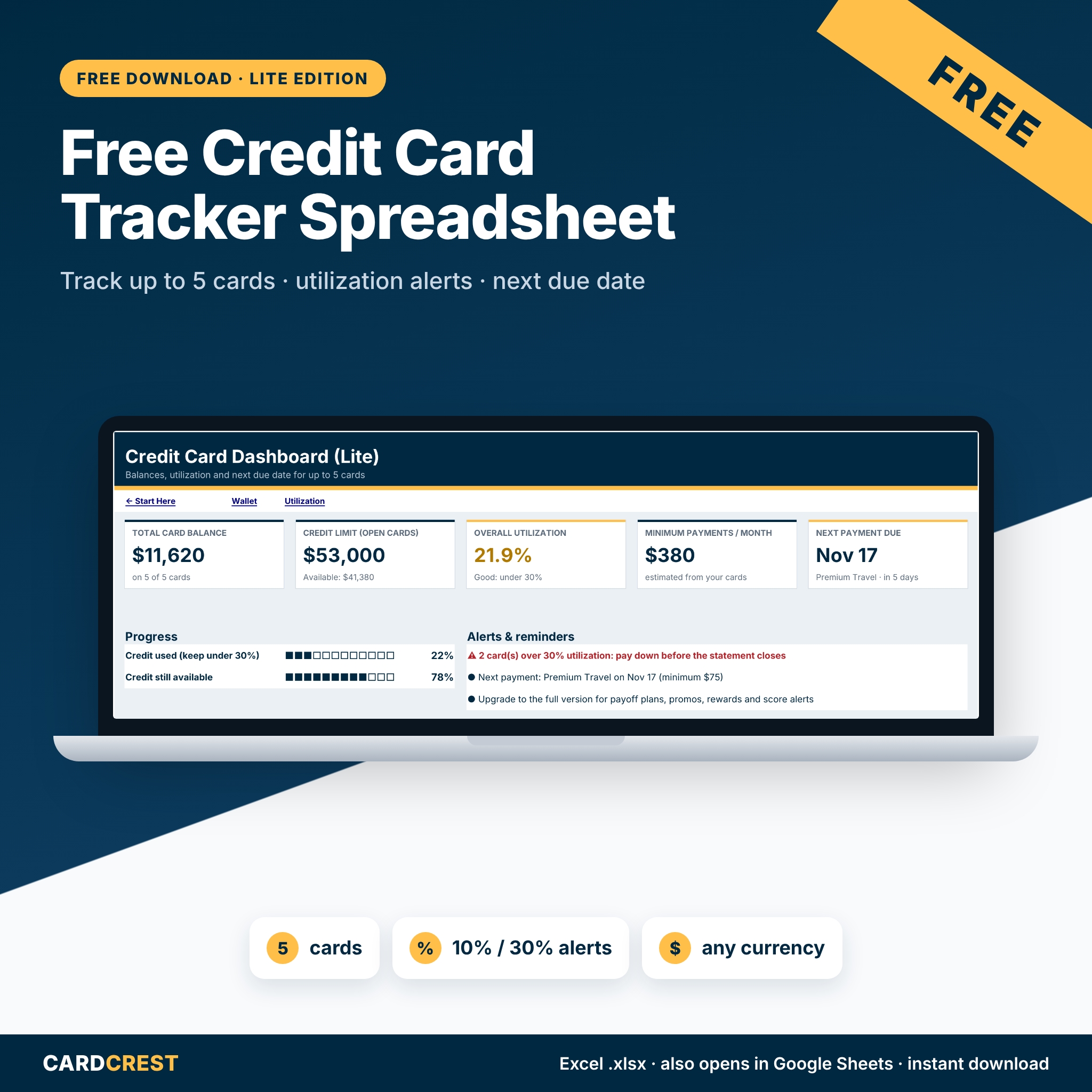
Now the tracker tells you exactly how much to pay, and on which card, before the next statement closes. Add color alerts (green at or under 10%, amber up to 30%, red above 30%) and problem cards jump out immediately. The free Lite template does all of this for up to five cards.
Step-by-step: set up the free credit card tracker
- Download the template. Get the free Cardcrest Credit Card Manager Lite. Downloading needs a free Taskdale account, and free downloads are limited to 3 per day.
- Pick your currency. On the Settings tab, type your currency symbol. It starts as $, and every money label follows it.
- Add your cards. On the Card Wallet tab, fill in the yellow cells: nickname, limit, APR, statement day, due day and current balance.
- Check the Utilization tab. Each card gets a usage bar, an alert band and the amount to pay to get under 30% and 10%.
- Open the Dashboard. You will see your total balance, total limit, overall utilization, monthly minimums and the next payment due, plus two charts.
White cells are formulas and are locked so nothing breaks by accident. The sheets are protected without a password, so you can still unprotect them if you want to change the design.
Keep it current in five minutes a month
A tracker only helps if it is up to date. The easiest routine:
- When a statement arrives, update that card’s balance and minimum payment.
- A few days before each statement date, check the Utilization tab and pay down any card in the red.
- Once a month, look at the dashboard and confirm the next payment due.
Setting up autopay for at least the minimum on every card is a simple safety net. Your tracker then becomes the place where you plan extra payments rather than chase deadlines.
When a free tracker is not enough
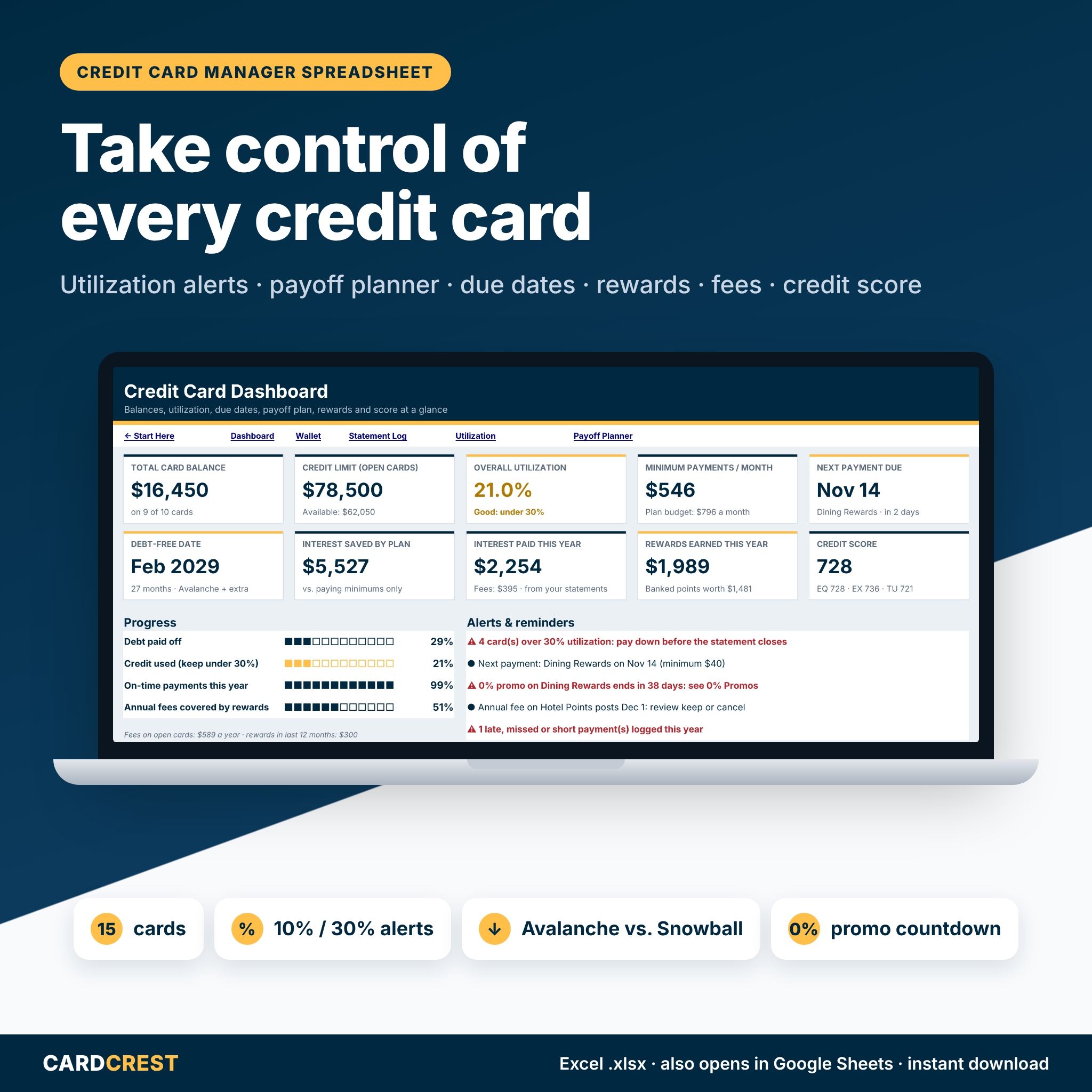
The Lite template is built for a quick, clean overview. If you are paying down balances, juggling 0% offers or collecting points, you will want more than five cards and a snapshot. That is where the full Cardcrest Credit Card Manager spreadsheet comes in. It adds:
- A payoff planner that compares the Avalanche method (highest APR first) with the Snowball method (smallest balance first), adds your extra monthly payment, and shows months to debt-free, total interest and interest saved.
- A statement and payment log with automatic due dates and on-time status for every statement.
- A 0% APR promo tracker with a countdown and the monthly payment needed to clear each balance before the promo ends, including a warning for deferred-interest offers.
- A rewards and points tracker that values your balances and shows the cents per point you actually got when you redeemed.
- An annual fee review that suggests keep, downgrade or cancel, and shows what closing a card would do to your utilization.
- A credit score log by bureau with a trend chart, and a due-date calendar for every card.
Free vs Full
| Feature | Free Lite | Full Cardcrest |
|---|---|---|
| Cards tracked | 5 | 15 |
| Utilization alerts (10% / 30%) | Yes | Yes |
| Dashboard | 5 tiles, 2 charts | 10 tiles, 4 progress bars, 5 alerts, 6 charts |
| Statement and payment log | No | 600 rows with on-time status |
| Avalanche vs. Snowball payoff planner | No | Yes, with extra payment and debt-free dates |
| 0% APR promo tracker | No | Yes |
| Rewards and points tracker | No | Yes |
| Annual fee keep-or-cancel review | No | Yes |
| Credit score log and due-date calendar | No | Yes |
| User guide | Instructions tab | Full DOCX guide |
Avalanche or Snowball: which should you use for credit cards?
Both methods pay the minimum on every card and put any extra money on one target card. When that card is paid off, its payment rolls to the next one.
- Avalanche targets the highest APR first. With credit cards, where rates are high and vary a lot between cards, it usually costs the least interest.
- Snowball targets the smallest balance first. You clear whole cards sooner, which can keep you motivated.
The honest answer is that the best method is the one you stick with. The difference depends on your own balances and rates, which is why a side-by-side comparison is so useful. The full Cardcrest payoff planner runs both with your real numbers, so you can see the interest difference before you choose. It also accounts for 0% promo end dates, so a card at 0% today is treated correctly when its promo expires.
Common mistakes to avoid
- Only watching due dates. Track statement closing dates too, so you can lower the reported balance.
- Ignoring per-card utilization. One card near its limit can matter even when your overall number is low.
- Forgetting 0% end dates. Write the end date down the day you open the offer, and divide the balance by the months left.
- Closing old cards on impulse. Check what it does to your overall utilization and the length of your credit history first. Ask about a no-fee version of the card before you cancel.
- Letting points expire. Log your balances so you notice them before they lapse.
Frequently asked questions
Is the credit card tracker really free?
Yes. The Cardcrest Credit Card Manager Lite is free. You need a free Taskdale account to download it, and free downloads are limited to 3 per day.
Does it work in Google Sheets?
The file is an Excel-format .xlsx for Microsoft Excel. It was tested in LibreOffice Calc and is built with standard functions that also work when you open it in Google Sheets.
Does the spreadsheet connect to my bank?
No. You type in your own numbers, and your data stays in your file.
What utilization should I aim for?
A common guideline is under 30% overall and on each card, and lower is generally better. You can change the 30% and 10% alert levels on the Settings tab to match your own goal.
What does the full version add?
Fifteen cards, a statement and payment log, an Avalanche vs. Snowball payoff planner with extra payments, a 0% promo tracker, rewards and points tracking, an annual fee review, a credit score log, a due-date calendar and a larger dashboard. See the full Cardcrest Credit Card Manager for details.
Is this financial advice?
No. The tracker is a record-keeping and planning tool, and payoff figures are estimates. Always check your card statements and agreements.
Start tracking today
Pick a quiet half hour, gather your latest statements and fill in your cards. By the end you will know your total balance, your utilization on every card and exactly what is due next. Download the free Cardcrest Credit Card Manager Lite to get started, and upgrade to the full Cardcrest Credit Card Manager when you are ready to plan your payoff, protect your 0% deadlines and get more from your rewards.