

A donor tracker spreadsheet that does the year-end work for you
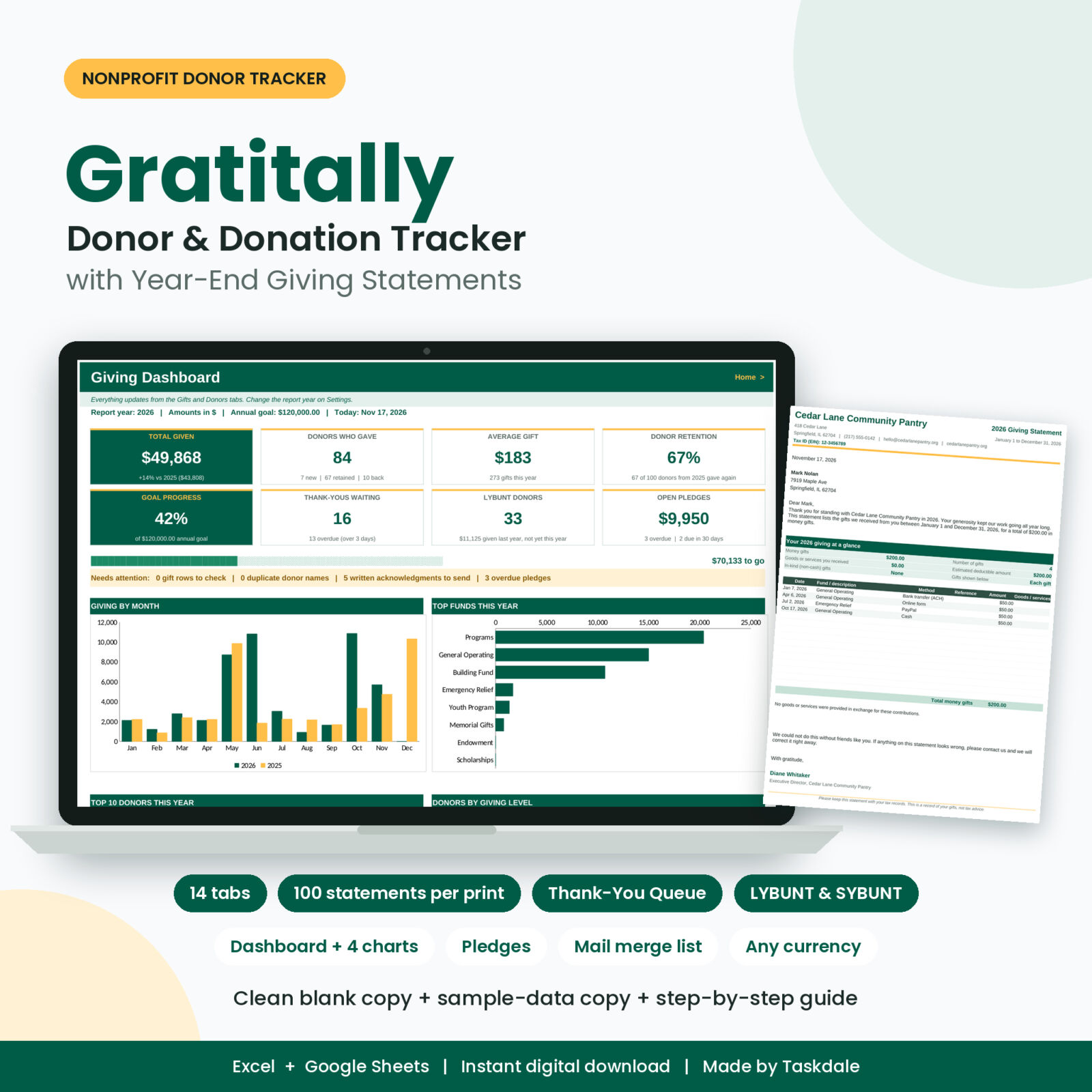
Gratitally is a donor tracker spreadsheet for small nonprofits that want clean records without paying for donor software every month. You keep one donor list and one gift log. The workbook does the counting, reminds you who still needs a thank-you, and turns every donor’s year into a one-page giving statement.
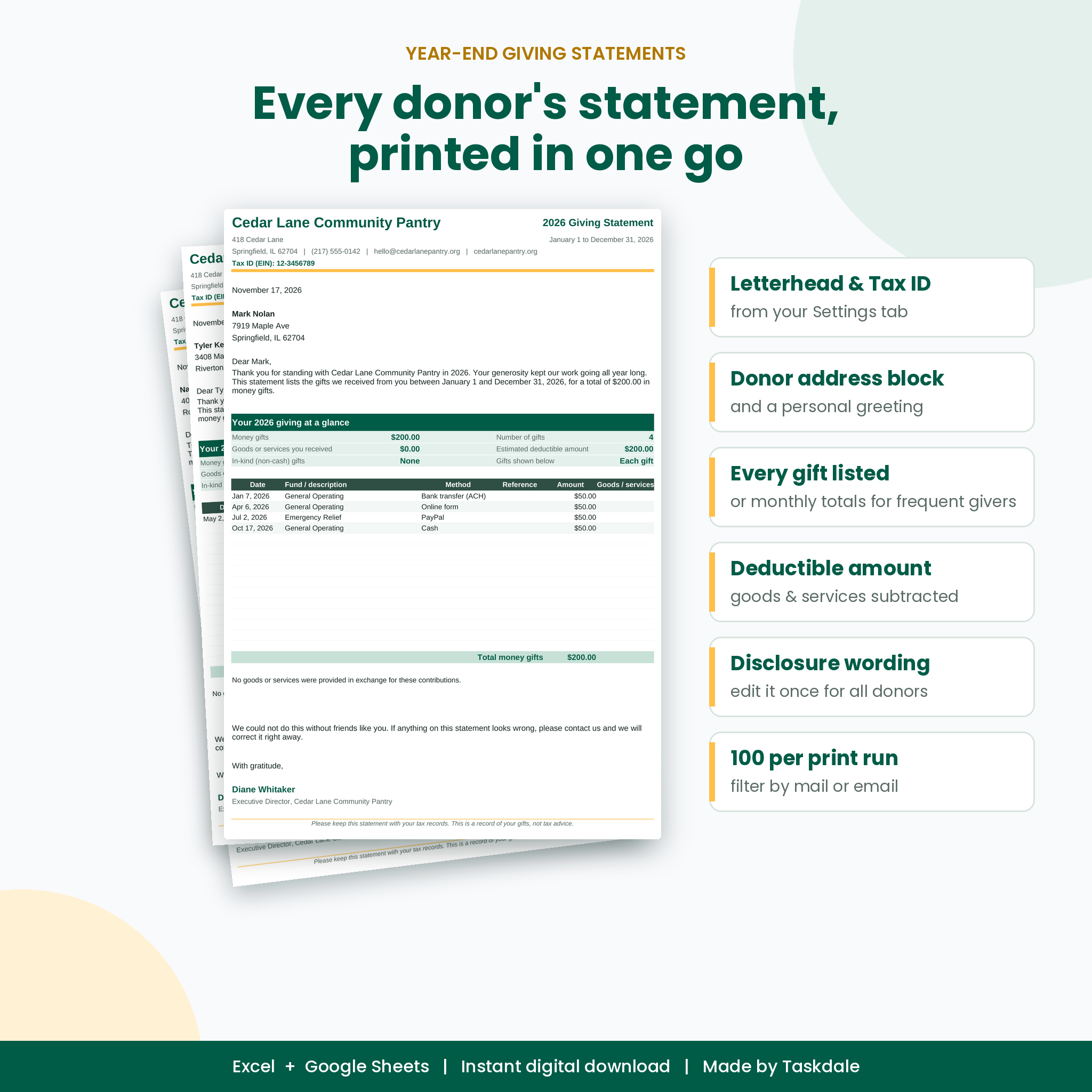
The part most people dread is January. With Gratitally you set the report year, pick who gets a paper copy and who gets an email, and print up to 100 statements in one go. Each lands on its own page with your letterhead, the donor’s address, the gift list and your signature.
Who it is for
- Church treasurers and giving secretaries who send contribution statements
- Food pantries, shelters, animal rescues and community groups
- PTAs, booster clubs, schools and youth sports teams
- Any small team with up to 500 donors and 3,000 gifts per workbook
What you get
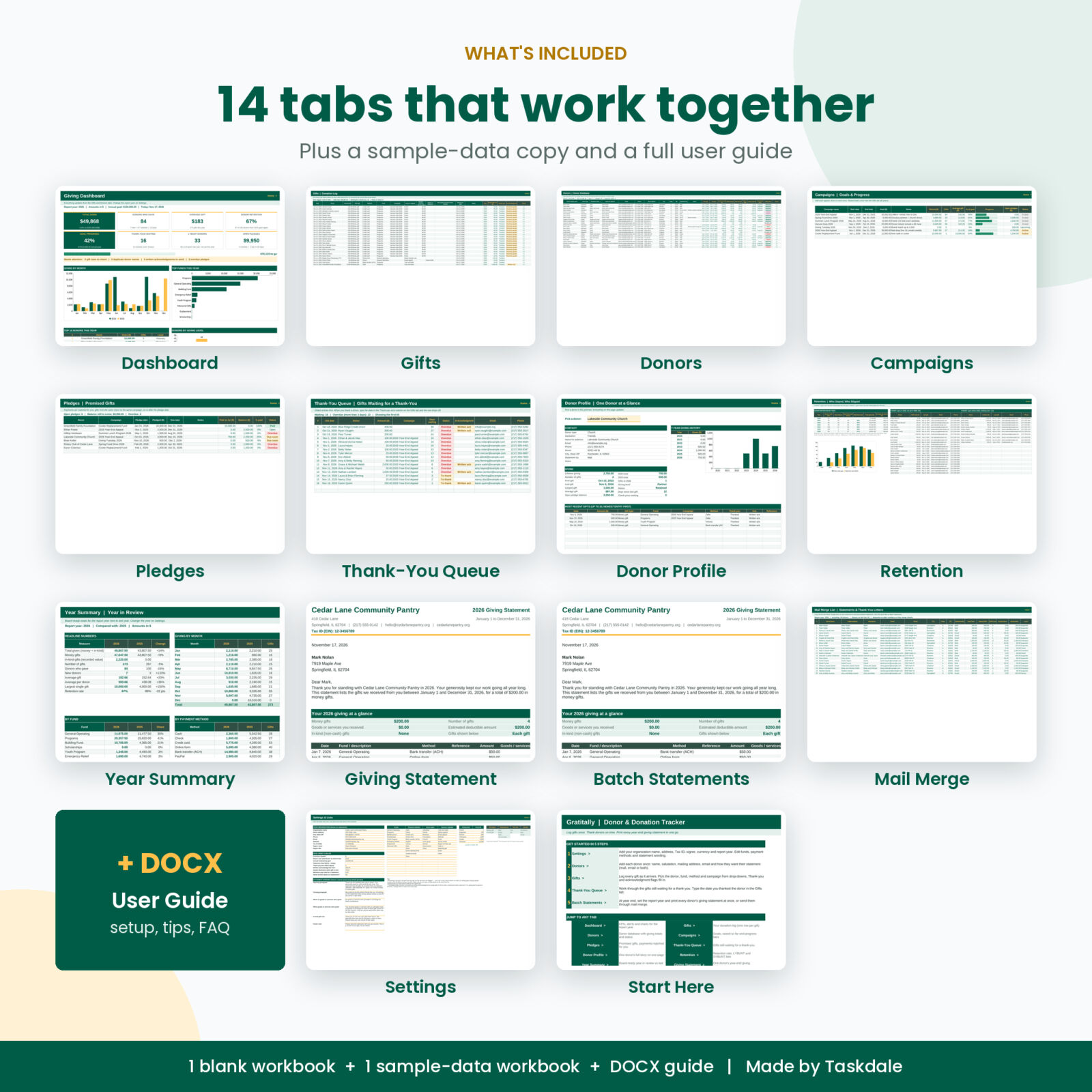
Fourteen connected tabs, each with one clear job:
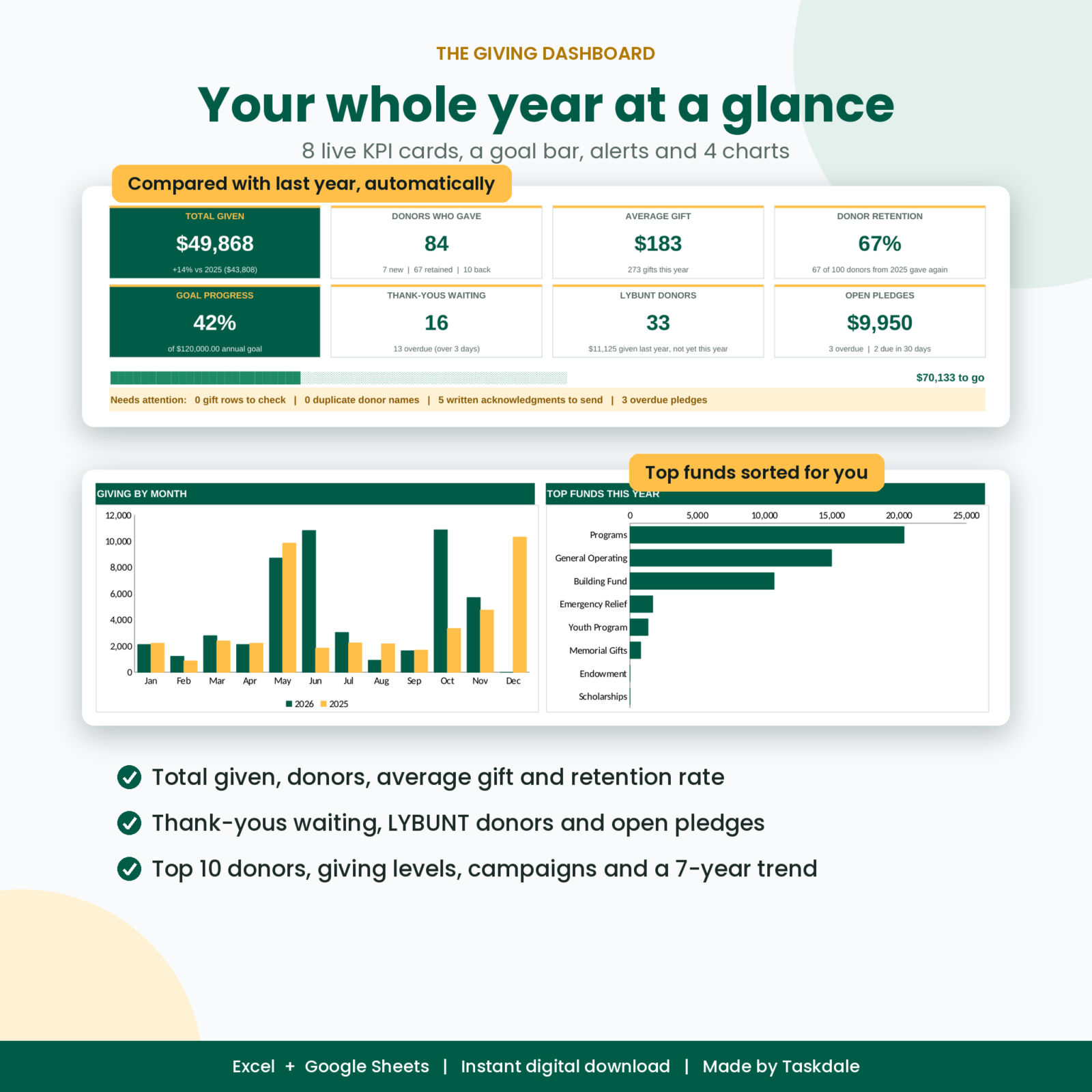
- Dashboard: 8 KPI cards (total given vs last year, donors, average gift, retention rate, goal progress, thank-yous waiting, LYBUNT donors, open pledges), a goal bar, a “needs attention” strip and 4 charts.
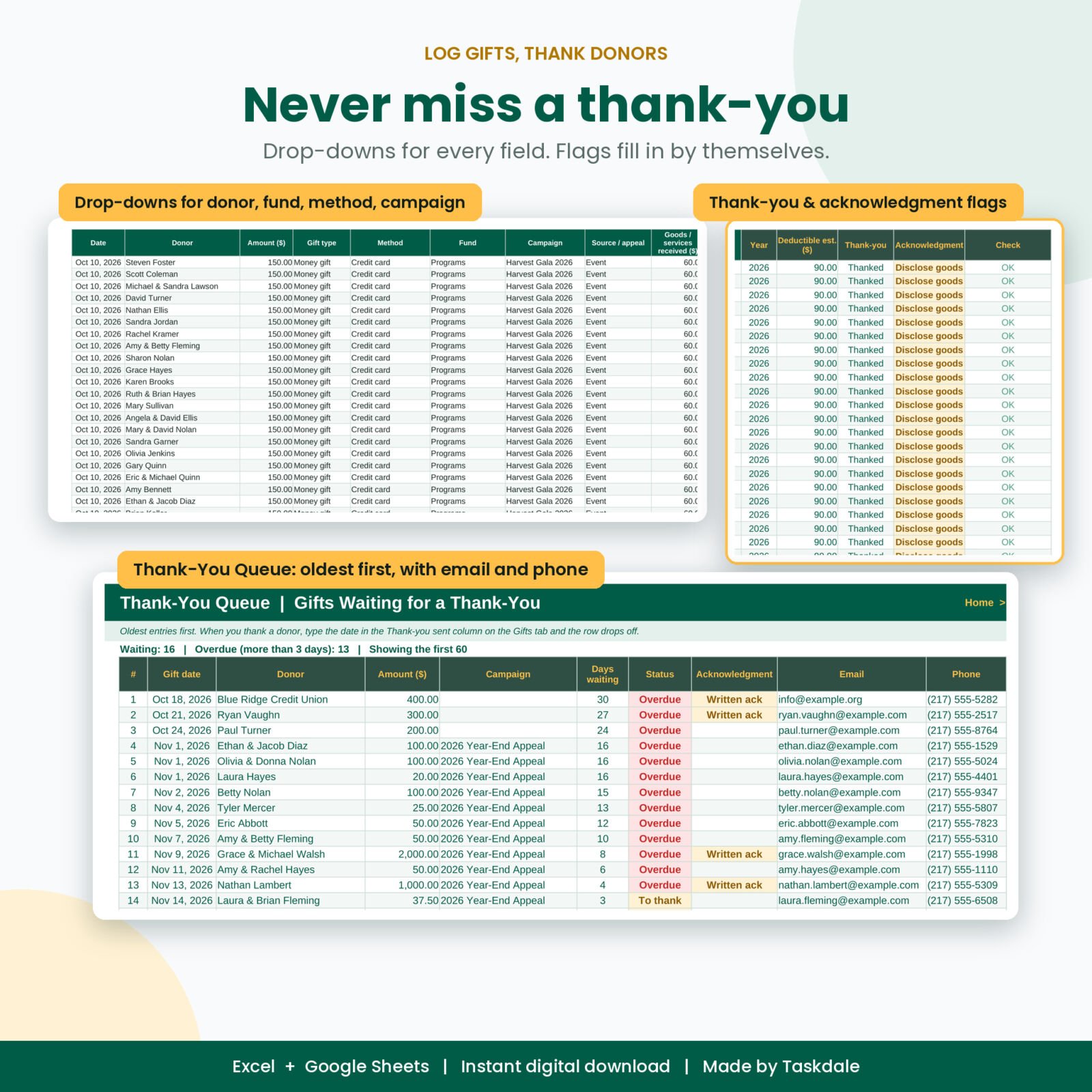
- Gifts: your donation log with drop-downs for donor, gift type, method, fund, campaign and source. The year, deductible estimate, thank-you status, acknowledgment flag and a check column fill in.
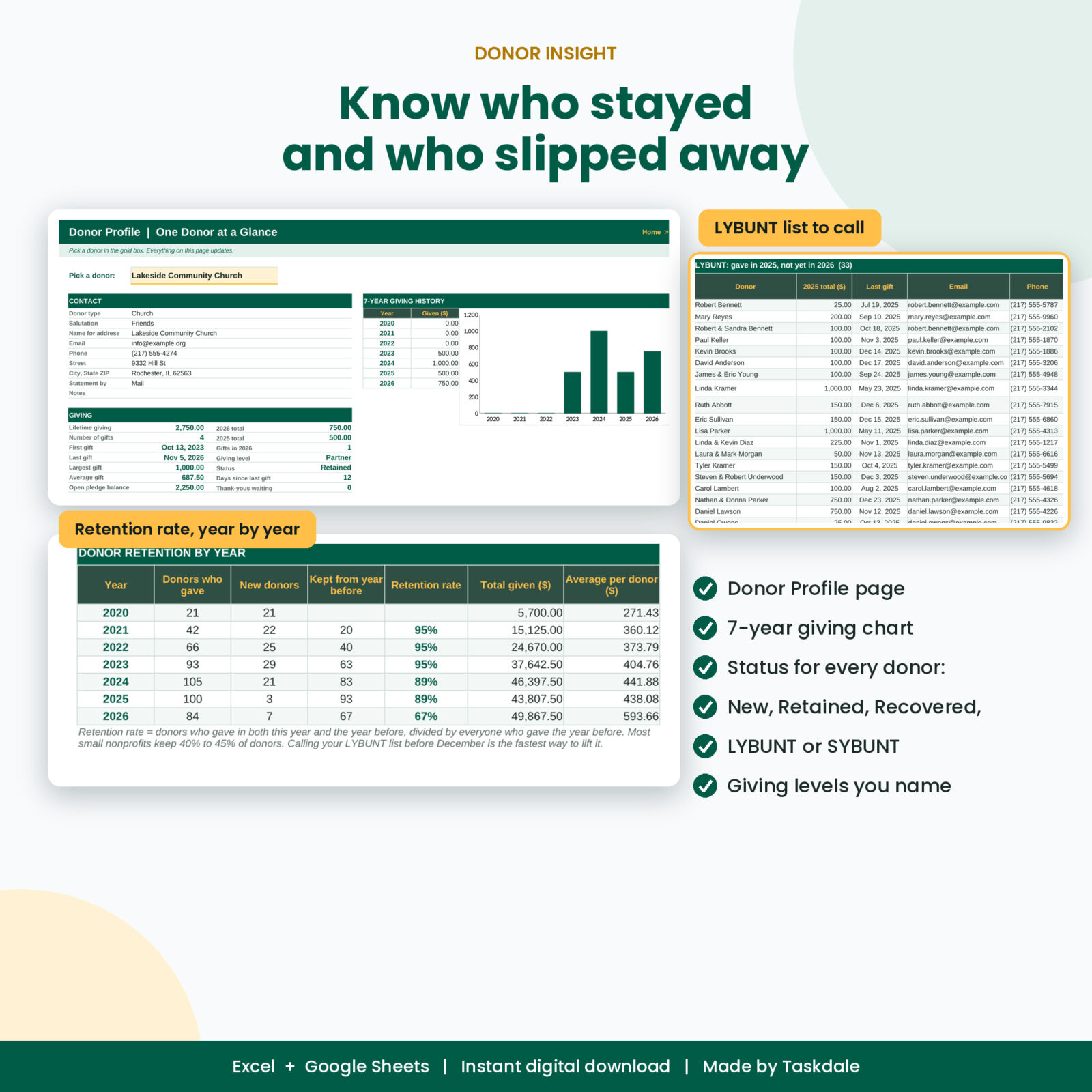
- Donors: a donor database with first and last gift, lifetime giving, this year and last year, largest gift, giving level and status (New, Retained, Recovered, LYBUNT, SYBUNT).
- Campaigns: up to 30 appeals or events with goal, raised, average gift, progress bar, open pledges and status.
- Pledges: up to 200 promised gifts. Payments are matched from the gift log for you, so balance and status stay current.
- Thank-You Queue: every gift still waiting for a thank-you, oldest first, with days waiting, email and phone.
- Donor Profile: pick a donor and see their contact card, giving stats, a 7-year chart and their 20 latest gifts.
- Retention: retention rate for 7 years plus LYBUNT and SYBUNT call lists.
- Year Summary: a board-ready year in review by month, fund, payment method, donor type, giving level, source and campaign, next to last year.
- Giving Statement: one donor’s year-end statement, ready to print or save as PDF.
- Batch Statements: up to 100 statements per print run, filtered by mail or email.
- Mail Merge: a clean list with names, salutations, addresses and totals for Word, Google Docs or your email tool.
- Settings: your details, currency, report year, thresholds, giving levels, drop-down lists and statement wording.
- Start Here: five setup steps and a button for every tab.
Year-end giving statements, done properly
Each statement includes your organization name, address and Tax ID, the statement date, the donor’s address block and greeting, your opening paragraph, a summary box and the gift list. The summary shows money gifts, number of gifts, the value of any goods or services the donor received (a gala dinner, for example), the estimated deductible amount and any in-kind items.
Donors who gave more than 15 times switch to monthly totals, so a weekly giver’s statement still fits on one page. In-kind gifts are described and, by default, show “Value not stated”. You write the wording once on Settings, with tokens like {name}, {year} and {total} that fill in for each donor.
Main benefits
- Nobody slips through the cracks. Gifts with no thank-you turn yellow, then red after the number of days you choose.
- Gifts over your thresholds are flagged for a written acknowledgment or a goods-and-services disclosure.
- Spot donors drifting away. The LYBUNT list shows last year’s givers who have not given yet this year, with their phone and email.
- Board reports in minutes. The Year Summary compares every key number with last year.
- Mistakes get caught. A check column flags missing dates, unknown donors, renamed funds and duplicate donor names.
How it works
- Add your organization details, currency and report year on Settings.
- Add your donors, one row each.
- Log gifts as they arrive by picking from the drop-downs.
- Check the Thank-You Queue each week.
- In January, print every statement from Batch Statements or send them through Mail Merge.
Real ways people use it
- A church treasurer prints statements for 140 families in two runs and emails PDFs to the rest.
- A food pantry director checks the Dashboard before each board meeting and calls the LYBUNT list every November.
- A PTA tracks its spring fun run and fall auction as campaigns and sees which one raised more per donor.
- An animal rescue records pet food from a local store as an in-kind gift and still thanks the donor on time.
File formats and software
- Gratitally-Donor-Tracker.xlsx: the clean, blank workbook
- Gratitally-Donor-Tracker-Sample-Data.xlsx: the same workbook filled with a sample organization, so you can see every feature working
- Gratitally-User-Guide.docx: a 14-page guide with setup steps, every tab explained, a year-end checklist, troubleshooting and FAQ
Works in Microsoft Excel 2019, 2021 and Microsoft 365 (Windows or Mac). For Google Sheets, upload the file to Google Drive and open it with Google Sheets. No macros, no add-ins. Excel 2016 and older are not supported because they lack the MINIFS and MAXIFS functions.
Make it yours
Change the currency symbol once and every money label follows. Rename funds, payment methods, donor types and sources, or add your own. Name your six giving levels and set the yearly minimum for each. Rewrite every paragraph on the statement. Formula cells are locked without a password so they cannot be overwritten by mistake, and formatting stays open for your own colors.
Digital download
This is an instant digital download. Nothing is shipped. You will get the download links right after checkout and in your email. The license covers use by the buying person or organization. Please do not resell or share the files.
FAQ
Is the giving statement a tax receipt?
It is a record of gifts and a thank-you. Many US nonprofits use a statement like this as the donor’s written acknowledgment, but rules vary, so check with your accountant and edit the wording to fit.
Does it work in Google Sheets?
Yes. Upload the .xlsx to Google Drive and open it with Google Sheets. It uses only functions Sheets supports.
How many donors and gifts can it hold?
Up to 500 donors, 3,000 gifts, 30 campaigns and 200 pledges in one workbook.
Can I use it every year?
Yes. Keep logging in the same file and change the report year on Settings to look at any year. The 7-year charts fill in as your history grows.
Can I print statements for just one donor?
Yes. Pick the donor on the Giving Statement tab and print or save it as PDF.
Can I use my own currency?
Yes. Type your symbol once on Settings, for example $, €, £ or R.
Do I need to know formulas?
No. You type in the white cells and pick from drop-downs. The user guide walks you through every tab.
Reviews
There are no reviews yet.