



A YouTube analytics tracker spreadsheet that tells you what is working
Your analytics screen is full of numbers. What it rarely tells you is whether a video did well for your channel. Viewpulse is a YouTube analytics tracker spreadsheet and channel planner in one workbook. You plan videos, log a few numbers after they go live, and it grades every upload, ranks your content and shows where your channel is heading.
It runs in Microsoft Excel and in Google Sheets. No logins, no add-ons, no monthly fee. Just a clean, well-built file you own.
Who it is for
- New channels chasing their first 1,000 subscribers and the 12-month watch-hour goal.
- Weekly uploaders who want a repeatable system from idea to publish.
- Part-time creators earning from ads, sponsors, affiliate links, memberships and products.
- Editors and small teams who need one shared view of what is being made and when.
What makes Viewpulse different
Most YouTube planner templates stop at a content calendar. A few add a page where you type views. Viewpulse goes further and does the thinking for you.
- Fair video grades. Each video is compared with videos of the same format you posted in the 90 days before it. A growing channel does not see every old video marked “below average”.
- Clear verdicts. Breakout, Above average, On par or Below average, color coded, plus a CTR check against your own target.
- Real insights. Your series, formats, upload days and video lengths are ranked by average views, CTR, % viewed and subscribers per 1,000 views.
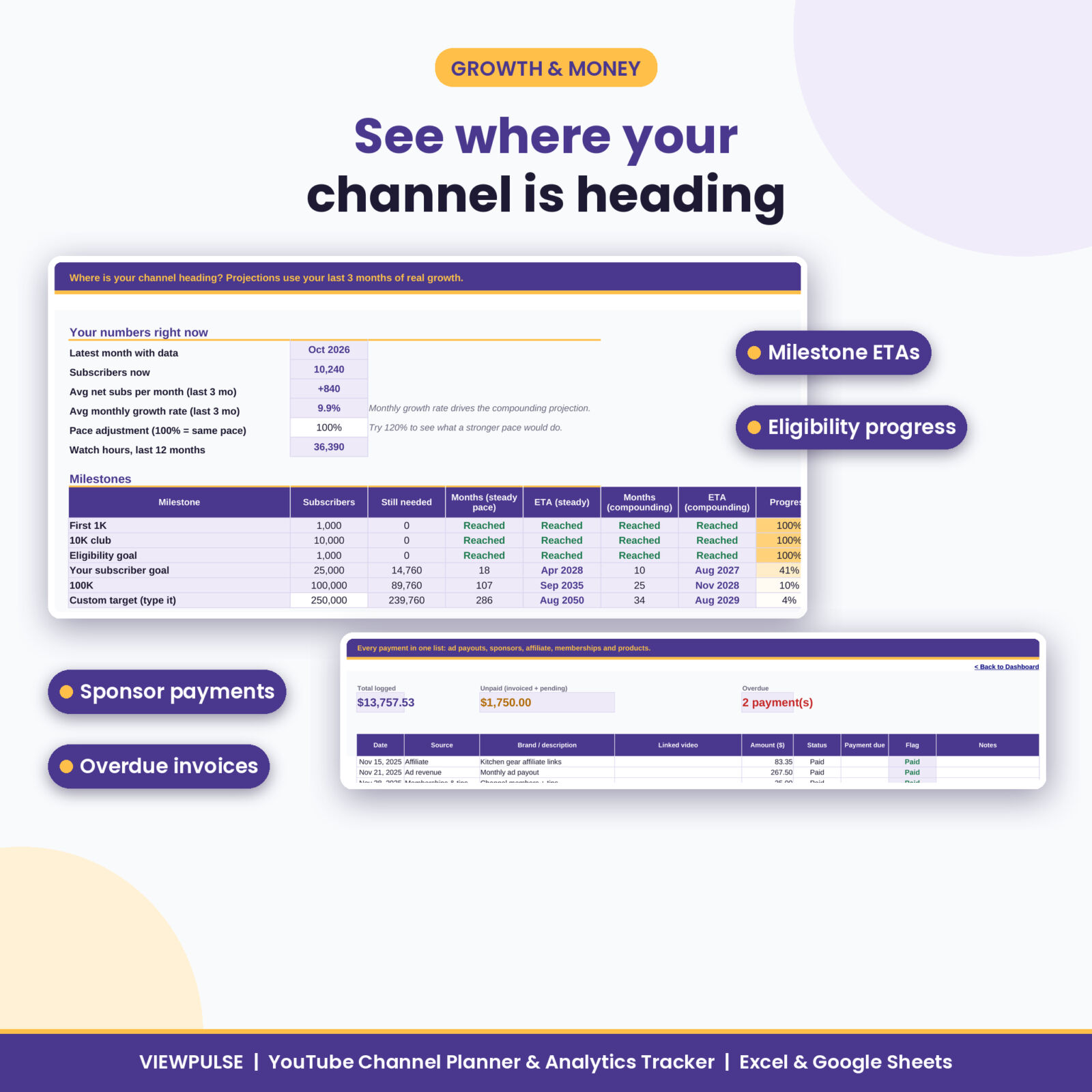
- Forecasts you can use. See the month you are likely to reach 1K, 10K, 100K, your eligibility goal and your own goal, at a steady and a compounding pace.
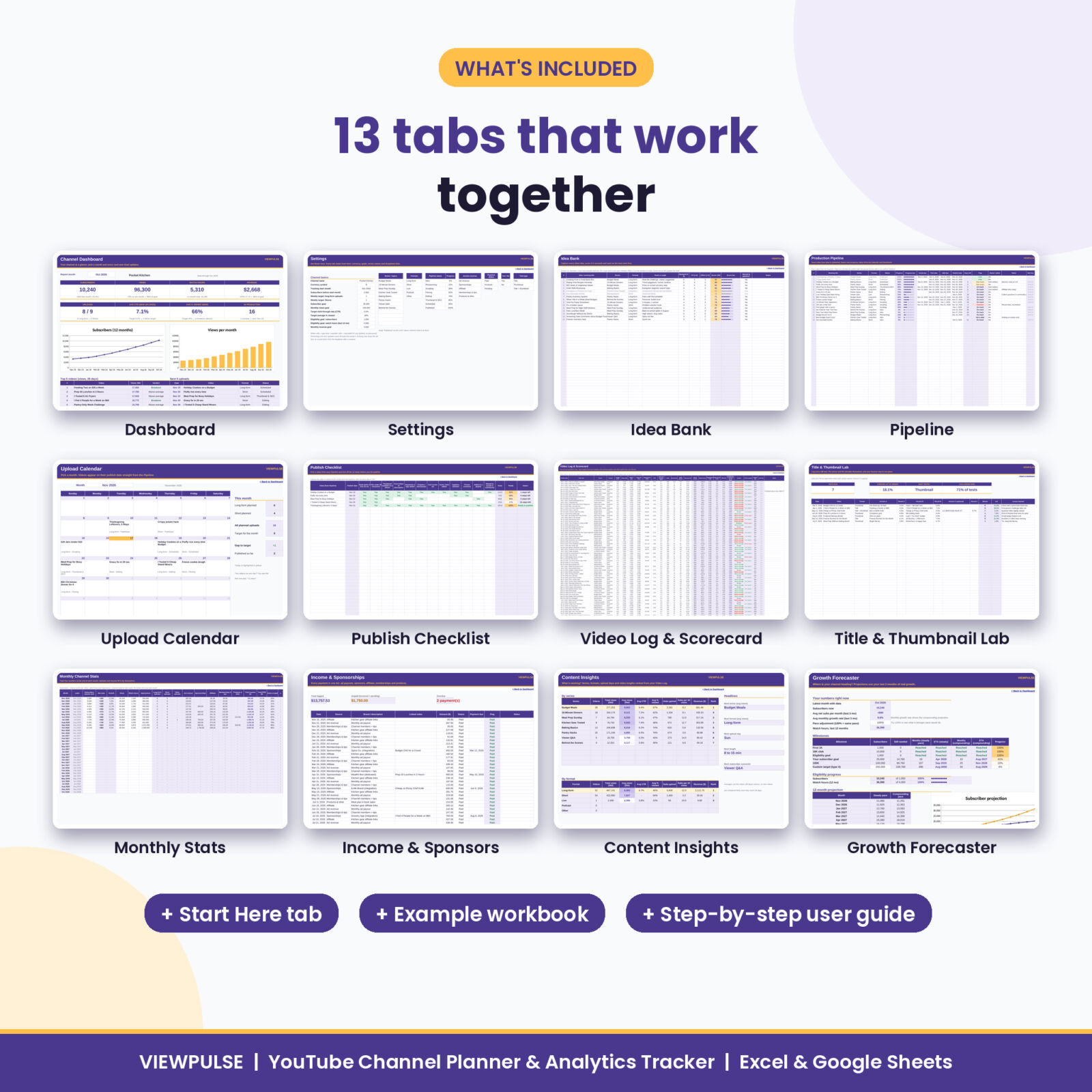
Features of this YouTube channel planner
Planning tabs
- Idea Bank: 200 ideas, each scored out of 100 from demand, fit and effort, so the best ones rise to the top.
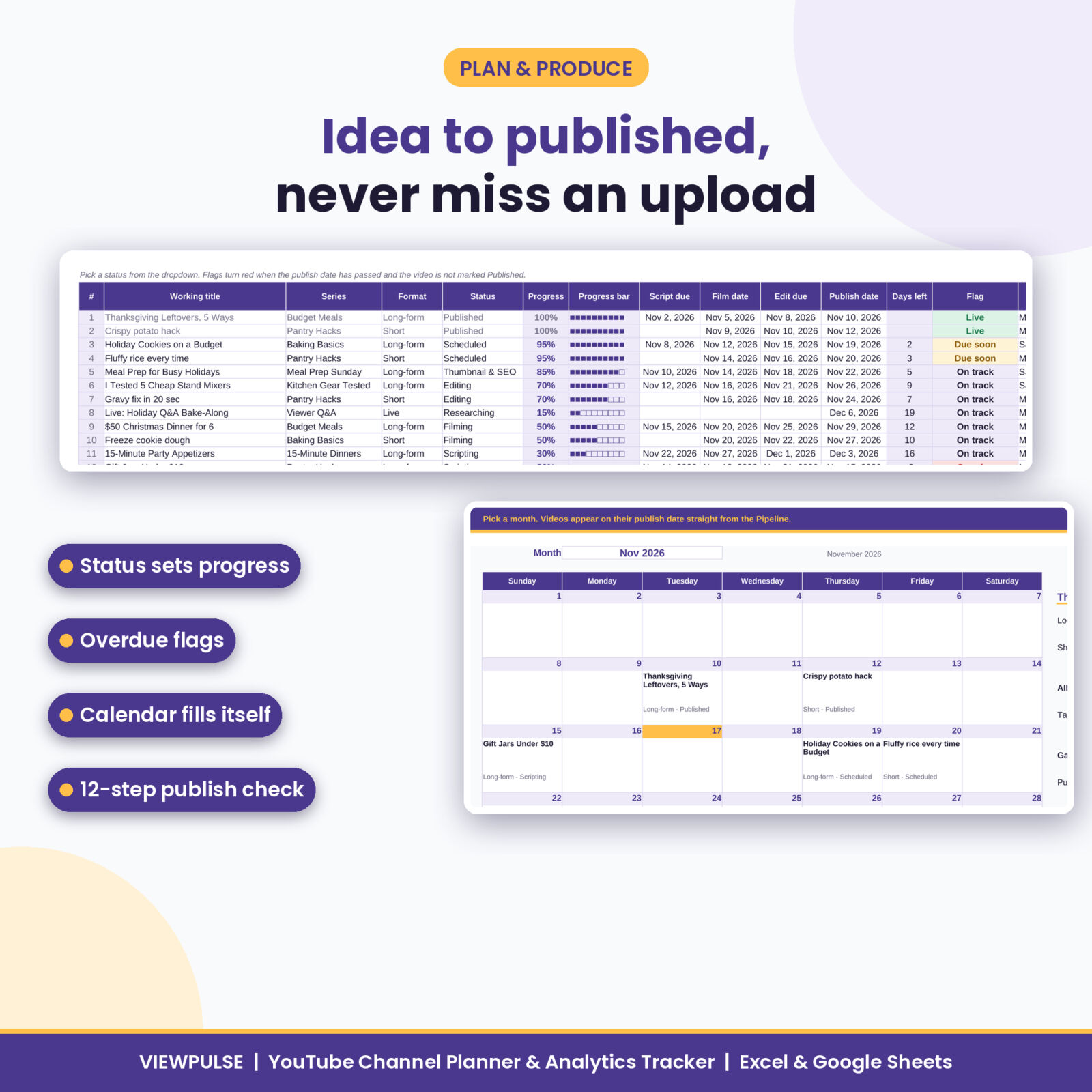
- Pipeline: 200 videos with 8 statuses, automatic progress bars, script, film, edit and publish dates, and Overdue or Due soon flags.
- Upload Calendar: pick a month and every planned video lands on its publish day, with planned vs target uploads.
- Publish Checklist: 12 steps from hook to playlist for 80 videos, with a Ready to publish status.
Analytics tabs
- Video Log & Scorecard: 300 videos with views at 48 hours, 7 days and 28 days, impressions, CTR and watch time. It works out average % viewed, watch hours, engagement rate, subscribers per 1,000 views, RPM, a performance index and a verdict.
- Title & Thumbnail Lab: log A/B tests with up to three versions. Winner, lift and your challenger win rate calculate themselves.
- Monthly Stats: 36 months of subscribers, views, watch hours and impressions, with uploads and income by source filled in for you.
- Income & Sponsorships: 500 payments with Paid, Invoiced and Pending status and overdue alerts.
- Content Insights: rankings by series, format, upload day and length, plus a headlines panel and charts.
- Growth Forecaster: milestone dates, eligibility progress bars and a 12-month subscriber projection chart.
The dashboard
Pick a month and 8 KPI cards update: subscribers, views, watch hours, revenue with RPM, uploads vs target, average CTR, average % viewed and videos in production. Below them sit a 12-month subscriber line, monthly views, revenue by source, pipeline by status, your top 5 videos, your next 5 uploads and progress bars for every goal.
What is included
- Viewpulse YouTube Channel Planner & Analytics Tracker (.xlsx), clean and ready for your channel
- Viewpulse Example Workbook (.xlsx), filled with 12 months of sample data so you can see every feature working
- Viewpulse User Guide (.docx) covering setup, every tab, customizing, tips, troubleshooting and FAQs
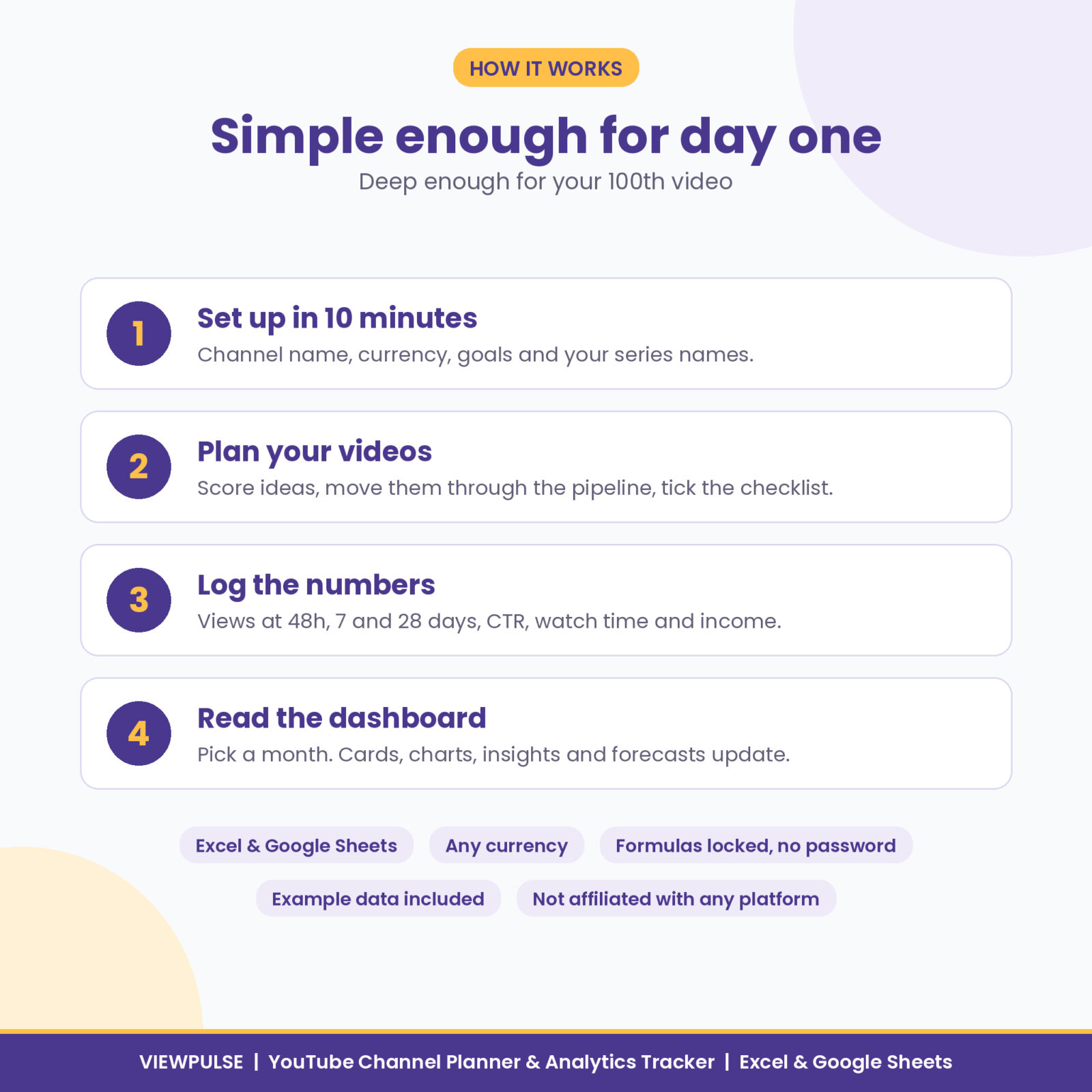
How it works
- Set up in about 10 minutes. Add your channel name, currency symbol, start month, goals and series names on the Settings tab.
- Plan. Score ideas, move them through the Pipeline and tick the Publish Checklist.
- Log. After a video goes live, copy its numbers into the Video Log. At month end, type four channel totals.
- Read. Open the Dashboard, pick a month and see what is working. Check Insights, the Title Lab and Growth for the why.
File formats and software
- Format: .xlsx spreadsheet plus a .docx user guide.
- Microsoft Excel: open the file directly (desktop Excel recommended for the tab links).
- Google Sheets: upload the .xlsx to Google Drive and open it with Google Sheets. The workbook uses only functions that both apps support.
- No macros, no add-ons and no account connections.
Customizing
Type any currency symbol once and every money heading and card follows it. Rename up to 12 series, plus formats, statuses, income sources and test types, from one Settings tab. Formula cells are locked to protect them, with no password, so you can unprotect any tab to change colors or layouts.
Real ways creators use it
- A cooking channel finds its Sunday uploads average far more views than Wednesday ones and moves its schedule.
- A gaming creator logs thumbnail tests for two months and learns that faces with a number beat plain gameplay frames.
- A part-time creator spots two sponsor invoices that are overdue and chases them the same day.
- A new channel checks the Growth tab and sees roughly when it will cross 1,000 subscribers at its current pace.
Digital download
This is an instant digital download. No physical item ships. Your files appear on the order confirmation page and in your Taskdale account straight after checkout.
FAQ
Does it connect to my channel automatically?
No. You copy a handful of numbers from your analytics. That keeps your account private and the file works offline.
Can I use this YouTube planner in Google Sheets?
Yes. Upload the .xlsx to Google Drive and open it with Google Sheets.
Does it track Shorts separately from long-form videos?
Yes. Every video has a format, and the scorecard, Monthly Stats, Insights and Dashboard all split results by format.
How many videos can I track?
300 published videos, 200 pipeline items, 200 ideas, 500 income entries and 36 months of channel stats.
I am a complete beginner. Is it hard to use?
No. You only type in the white cells, the Start Here tab walks you through setup and the example workbook shows a fully filled channel.
Can I use it in my own currency?
Yes. Type your currency symbol once on the Settings tab.
Can I share it with my editor?
Yes, for work on your own channel. Reselling or sharing the file outside your channel team is not allowed.
License
Personal use license for your own channel or channels and a small team working on them. You may not resell, share, give away or upload the files, edited or not. Viewpulse is an independent product by Taskdale and is not affiliated with, endorsed by or connected to YouTube, Google or any video platform.
Reviews
There are no reviews yet.