

A packaging cost calculator that ranks every way you pack an order
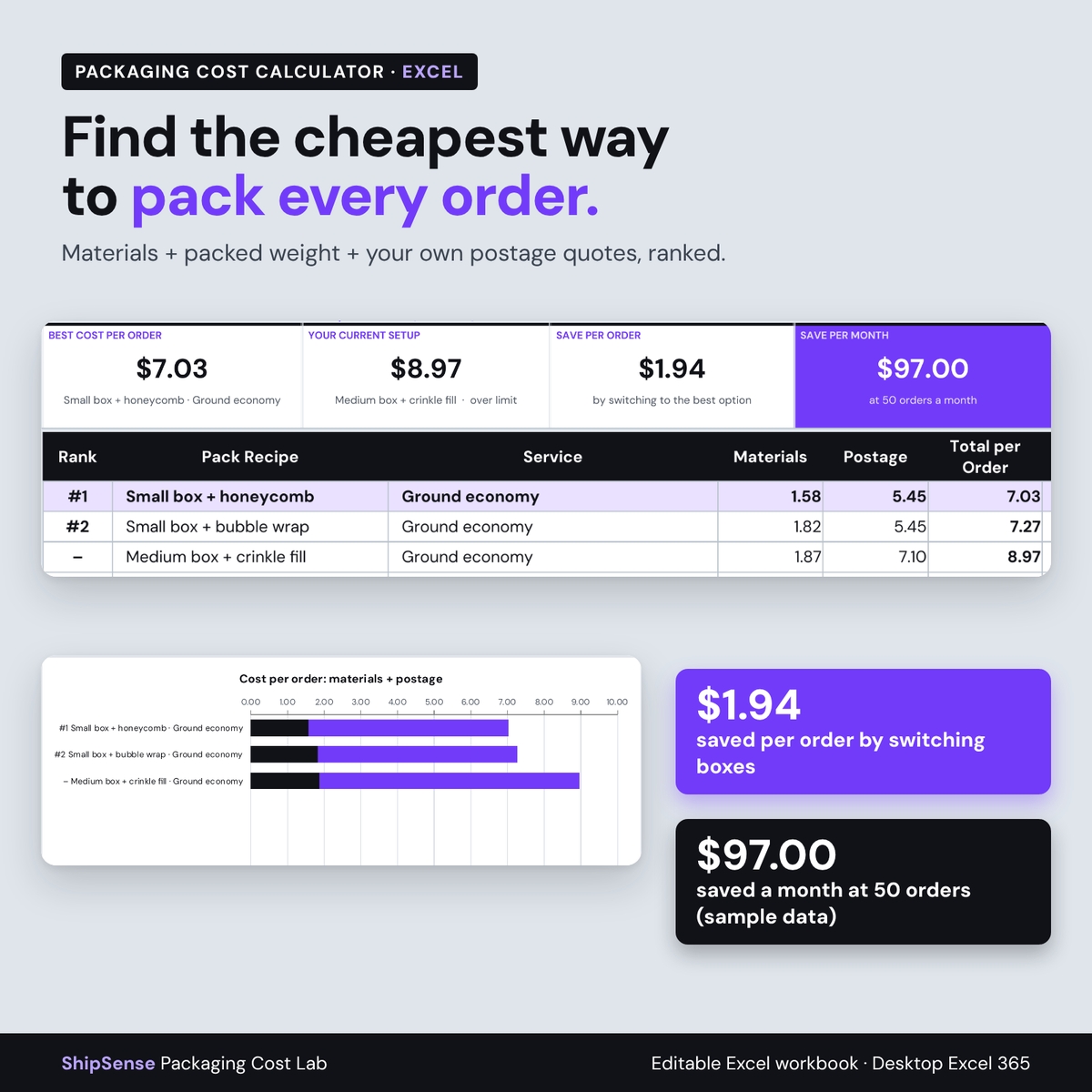
Most sellers know what a box costs. Fewer know what a finished package costs once the tissue, crinkle fill, tape, label, thank-you card and sticker are added, or how much weight that packaging adds before postage. ShipSense Packaging Cost Lab is a packaging cost calculator for Excel that adds up the material cost of every packaging combination, adds your item weight to get a packed weight, and combines it with the postage quote you get for that package. It then ranks the options for each type of order and shows what switching would save per order and per month.
It is built for small online sellers, makers, candle and ceramics shops, apparel and print sellers, and anyone who packs their own orders and wants to compare boxes, mailers and wrap on real numbers instead of guesses.
See the cheapest packaging option for each order type
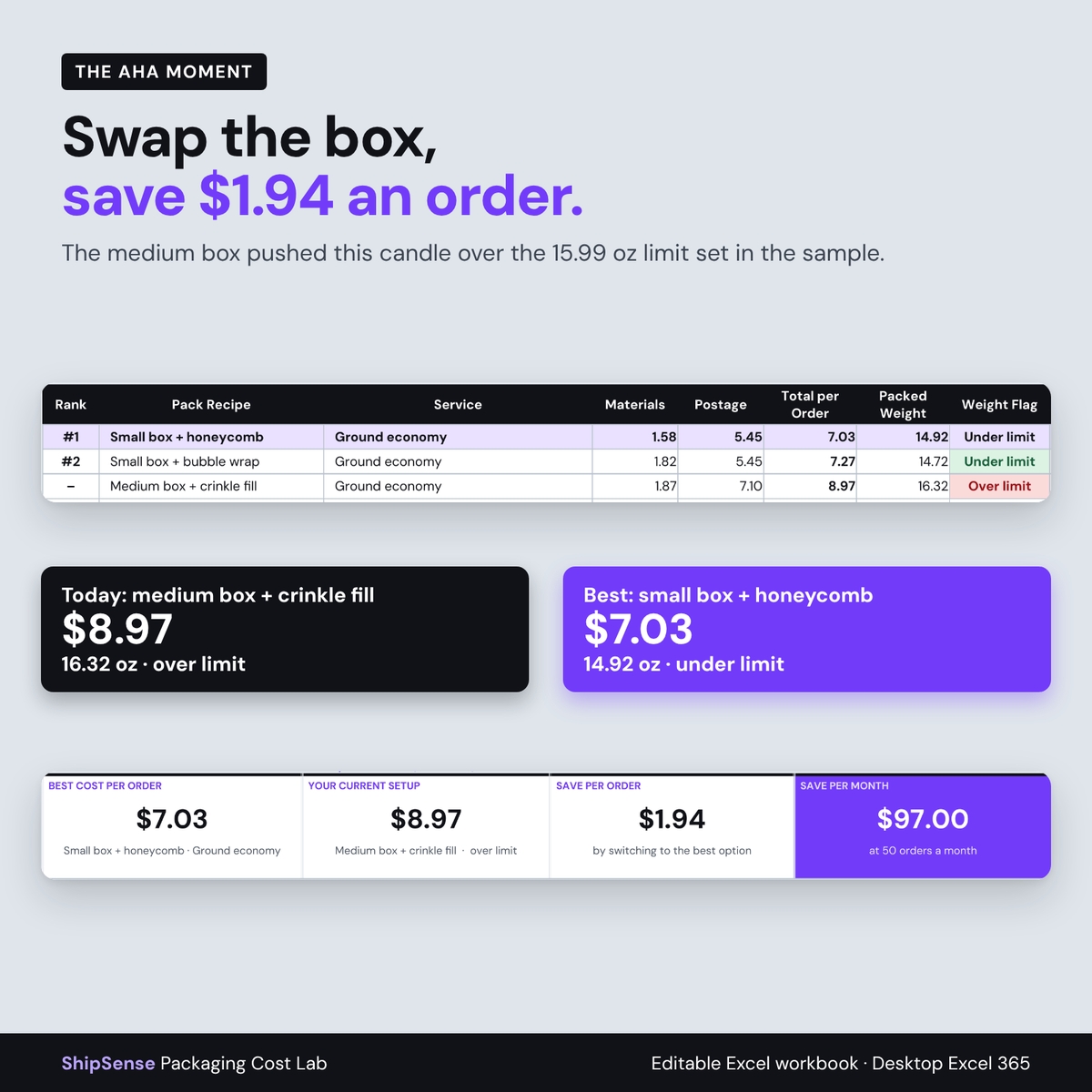
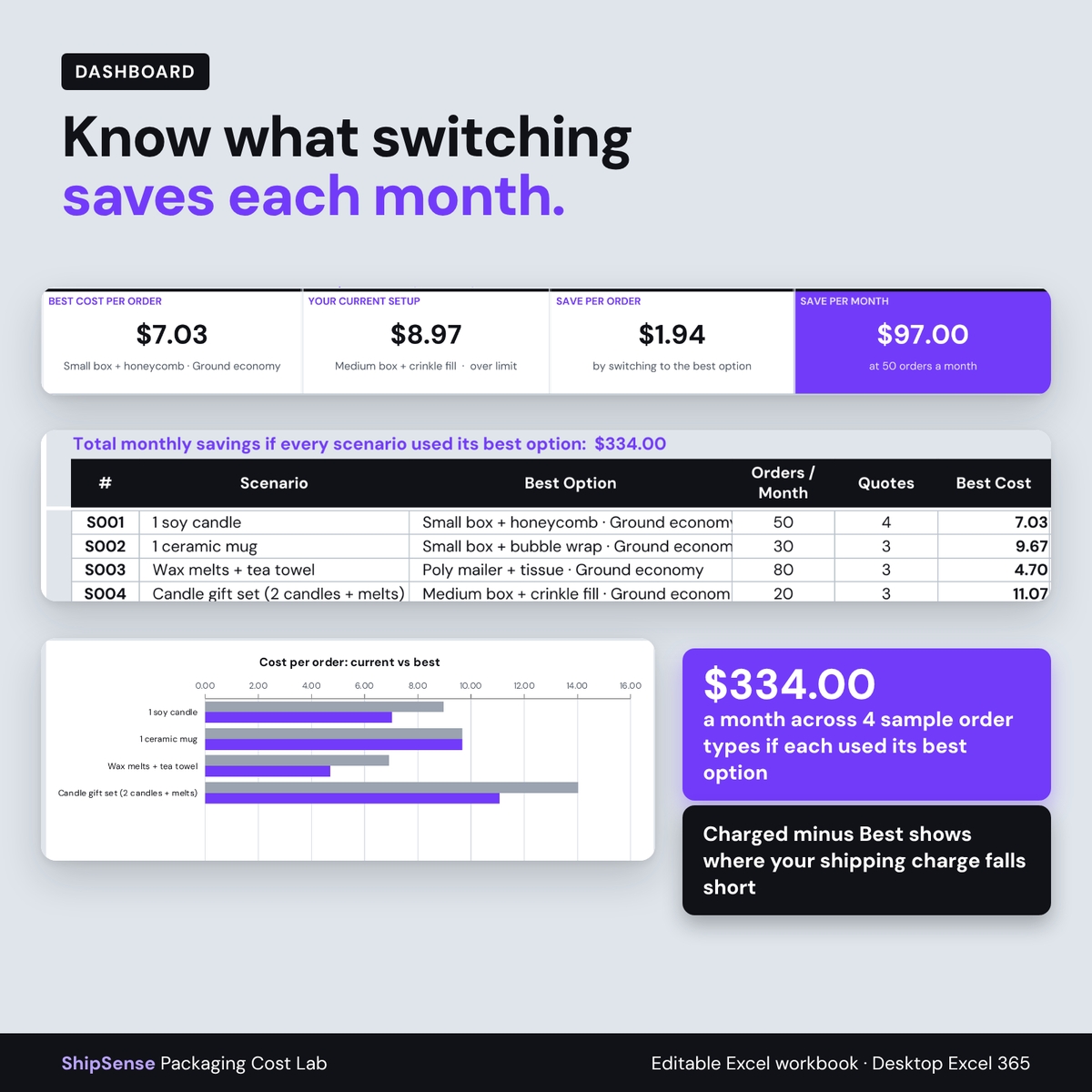
Here is the worked example from the filled sample shown in the images. A soy candle weighs 10.4 oz. Packed in a small 6×6×4 box with honeycomb paper, tape, a label, a card and a sticker, the materials cost $1.58 and the package weighs 14.92 oz. With a $5.45 postage quote, the total is $7.03 per order. The medium box used today brings the package to 16.32 oz, over the 15.99 oz limit set in the sample, and with its $7.10 quote costs $8.97. Switching saves $1.94 per order, or $97.00 a month at 50 orders. Across the four sample order types, the summary shows $334.00 a month in possible savings.
Those postage amounts are examples you replace with your own. ShipSense never looks up carrier rates: you enter the quote your carrier, marketplace label tool or shipping software gives you for the packed weight and box size.
What’s included
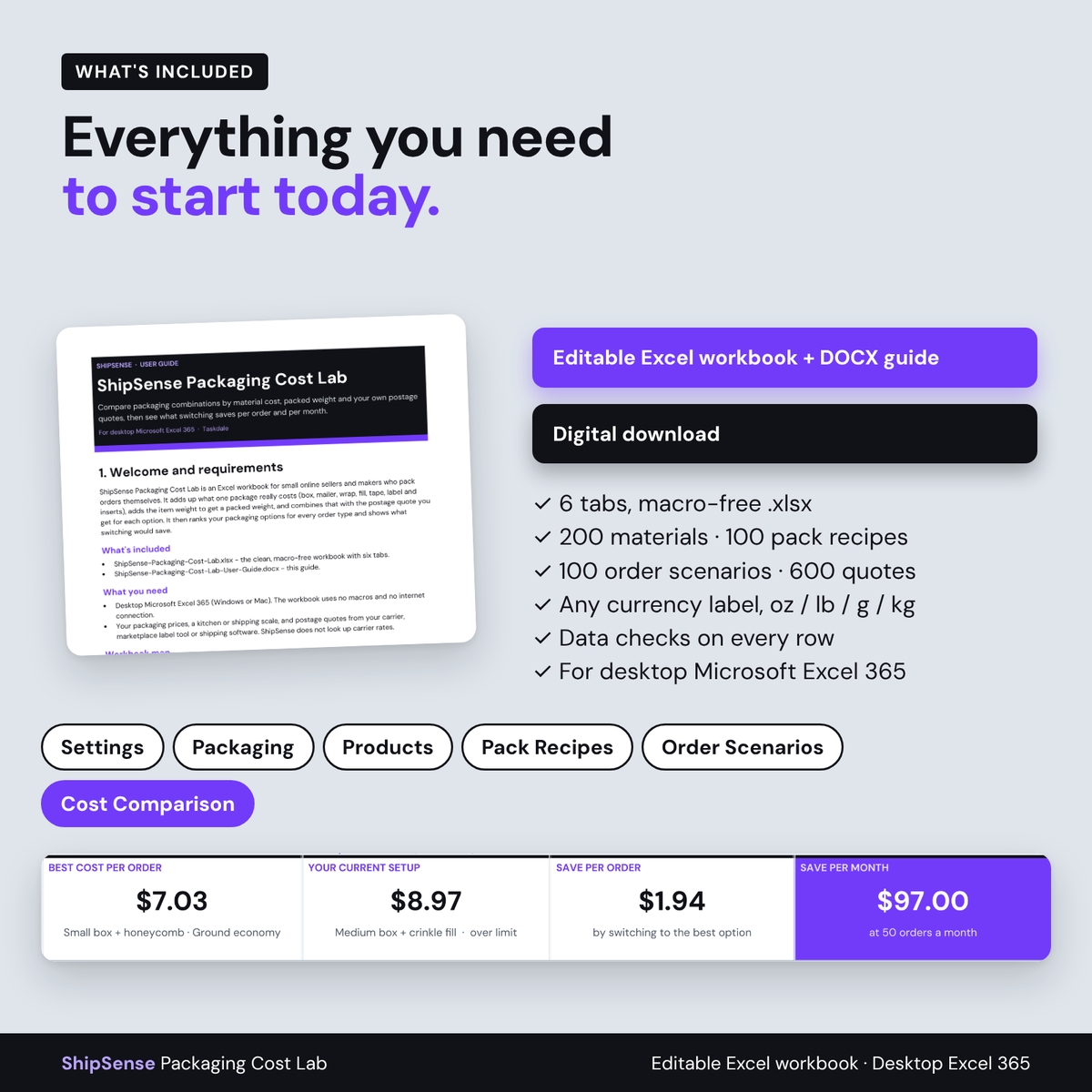
You receive an editable, macro-free Excel workbook with six tabs and a six-page DOCX user guide:
- Settings: currency label, weight unit (oz, lb, g or kg), default weight limit, near-limit warning band, the best-pick rule, editable lists, a data-health panel, capacity and license.
- Packaging: up to 200 materials with units per pack, pack price and unit weight. Cost per unit calculates to four decimals, so a $0.045 sheet of tissue is counted correctly.
- Products: up to 300 items with their unpacked weight.
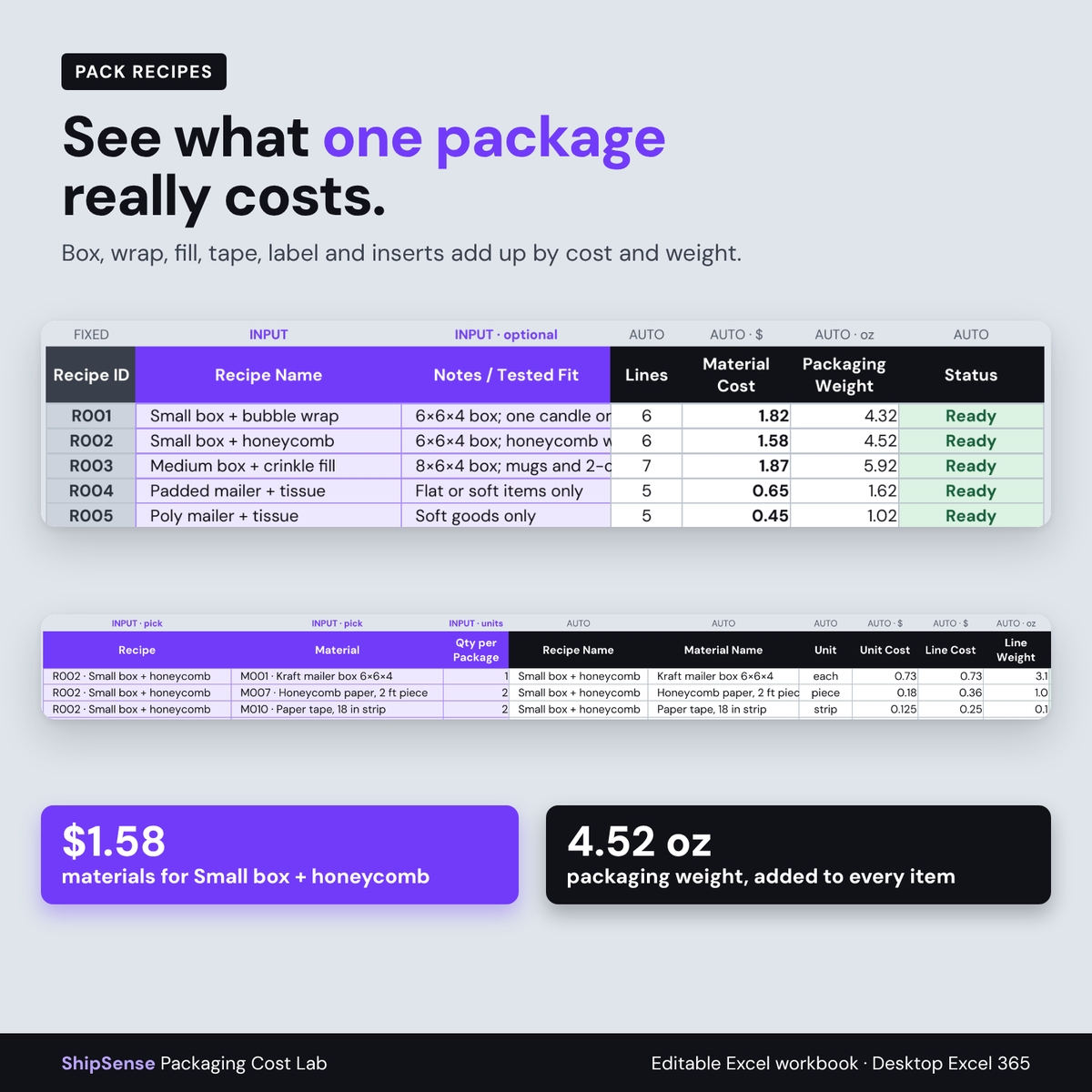
- Pack Recipes: up to 100 named packaging combinations built from 1,000 material lines, each with its material cost, packaging weight and a Ready or Check status.
- Order Scenarios: up to 100 order types (up to three products each) and 600 postage quotes to compare. Each quote shows packed weight, weight flag, material cost, total per order, rank and status.
- Cost Comparison: pick a scenario to see KPI cards (best cost, current setup, saving per order and per month, packed weight), a ranked table, two charts and an all-scenario summary with total monthly savings.
The workbook you download is clean and ready for your own data. The filled workbook in the images is a demonstration.
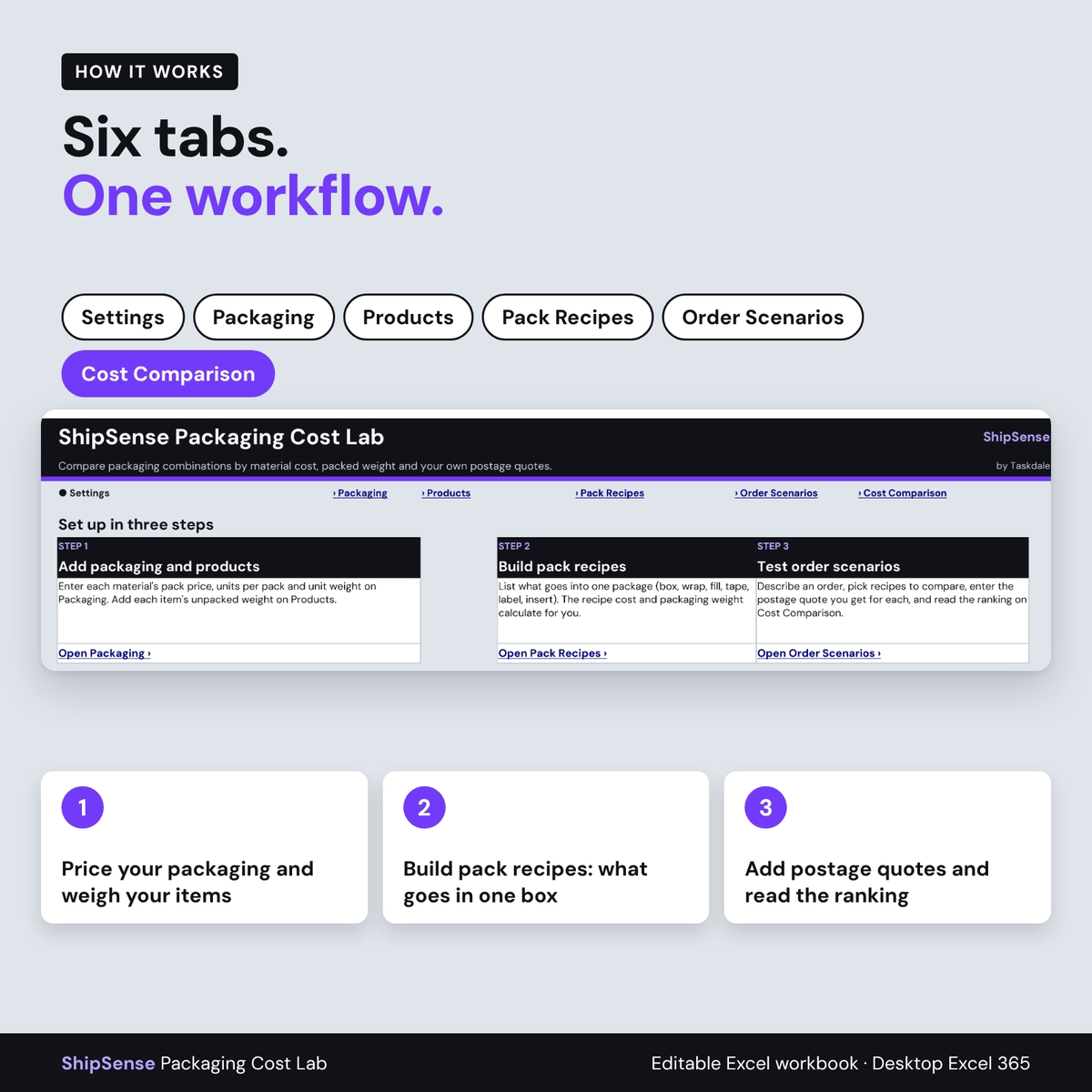
How it works
1. Price your packaging and weigh your items
Enter what each material costs per pack and how many units it holds, and weigh one unit. Add each product’s unpacked weight. Use the same weight unit everywhere.
2. Build pack recipes
List what goes into one package. The recipe’s material cost and packaging weight calculate from the lines. A missing price, a quantity of 0 or a duplicated material is flagged so a partial total is never shown as final.
3. Describe orders and add postage quotes
Describe each order type, pick the pack recipes to compare, and type the postage quote for each. The packed weight appears before you quote, so you can ask for the right weight. Mark the setup you use today as In Use Now to see your savings.
Weight limit flags and data checks
Set a default weight limit, such as the point where your postage quotes step up, and override it for any scenario. Each option is marked Under limit, Near limit or Over limit. By default, over-limit options stay visible for reference but are never ranked best; switch that rule off if the limit is only a reminder. Every input row has a Check column, and dropdowns, input limits and protected formula cells help stop accidental mistakes.
Use cases
- Deciding whether a mailer or a box is cheaper once postage is included.
- Checking whether extra cushioning pushes a package over a postage step.
- Pricing gift sets and multi-item orders before you list them.
- Seeing whether the shipping you charge covers the real cost (Charged minus Best).
- Re-running the comparison when a supplier or postage price changes.
Format, customization and download details
For desktop Microsoft Excel 365. The workbook is an .xlsx file with no macros; the guide is a .docx file. This is a digital download: no physical item will ship. You can rename materials, products, recipes and scenarios, edit the category, unit and service lists, and change the currency label (default $; changing it does not convert amounts). Formula cells are protected without a password, while everyday entry cells stay editable. Licensed for personal use or use within your own business; you may not resell, share or redistribute the files.
Frequently asked questions
Does it calculate postage or look up carrier rates?
No. You enter the postage quote you get for each packed weight and box size. That keeps the workbook accurate for any carrier and any label tool.
Does it check whether my item fits the box?
No. Record your own tested fit in the recipe notes.
Can I use grams or kilograms?
Yes. Choose oz, lb, g or kg and enter every weight in that unit. The unit is a label; it does not convert numbers.
Can I compare multi-item orders?
Yes. Each scenario holds up to three products with quantities, and the item weights add up automatically.
What happens if a price or quote is missing?
The option is marked Recipe incomplete or Needs quote and is left out of the ranking until the data is complete.
Does it work in Google Sheets or on a phone?
This listing is for desktop Microsoft Excel 365. Other apps are not supported.
Known limitations
No live postage or dimensional-weight calculation, no fit checking, no unit conversion, up to three products per scenario, and the dashboard ranks up to 12 options for the selected scenario (every option still counts in the summary).
Reviews
There are no reviews yet.