Append vs merge is the first decision when two tables need to become one.
The quick append vs merge test: append when the next export contains more records of the same kind. In append vs merge terms, merge when a second file contains details that belong beside existing records, such as the paper size and punch pattern for each planner layout.
| Decision | Append | Merge |
|---|---|---|
| What changes | Adds rows beneath existing rows | Adds fields from matching rows in another table |
| What lines up | Column names, such as DueDate and Task | Identifier values, such as LayoutID |
| Planner example | Stack April and May task exports | Attach layout specifications to each task |
| Expected row count | Sum of the inputs before filtering or deduplication | Same as the main table for a left join to a unique lookup |
| First check | Does each row represent the same kind of record? | Does each identifier match no more than one lookup row? |
For printing and assembling planner inserts, the choice depends on what’s missing. If May’s tasks are absent, append May’s export. If the tasks are present but you don’t know which ones go into the A5 binder, merge in the layout specifications. If both are missing, the append vs merge answer is both: append first, then merge once.
Standard calendar pages can stay outside that workflow. Ready-punched options include the letter-size 11-disc monthly refill, the letter-size 7/3-hole monthly refill, the Forvencer A5 monthly refill, the A5 project planning refill and the Beautiful six-ring monthly inserts. Use the export workflow for the pages whose contents change, such as deadlines, payment follow-ups or property tasks.
Append vs merge: pick append for new records with the same meaning
In the append vs merge choice, append is the right one for a planner fed by recurring exports where each file covers a different period. In Excel Power Query, use Append Queries as New to keep the source queries available for inspection. Power Query aligns columns by name, not position. An April export with DueDate in column B can stack with a May export that places it in column E. But Due Date and DueDate become separate columns unless you standardise the headers first.
Check what one row represents before checking the headers. One task per row and one project per row are different levels of detail, even if both files contain Name and DueDate. Stacking them produces a mixed list, which can throw off counts and page breaks. A project summary and its task list usually belong in separate print sections, linked by ProjectID if the task list needs the project name.
Check the export window as well. If April and May are full snapshots of all open tasks, an unfinished April task may appear in both. To print the current planner, use the latest snapshot. To keep a history in an append vs merge setup, append the snapshots and retain SnapshotDate. If exports overlap but you want one current row per task, choose the record with the latest reliable update timestamp for each TaskID and set aside any tied records for review.
For a folder of monthly files, retain the source filename on every imported row. When a proof shows a task twice, the filename tells you whether it came from two exports or appeared twice in one. If a month’s file contains Jan, Feb and Mar as separate amount columns, unpivot those month columns into date-and-amount rows before appending to a file that already uses one row per month, or the append vs merge result will mix two layouts.
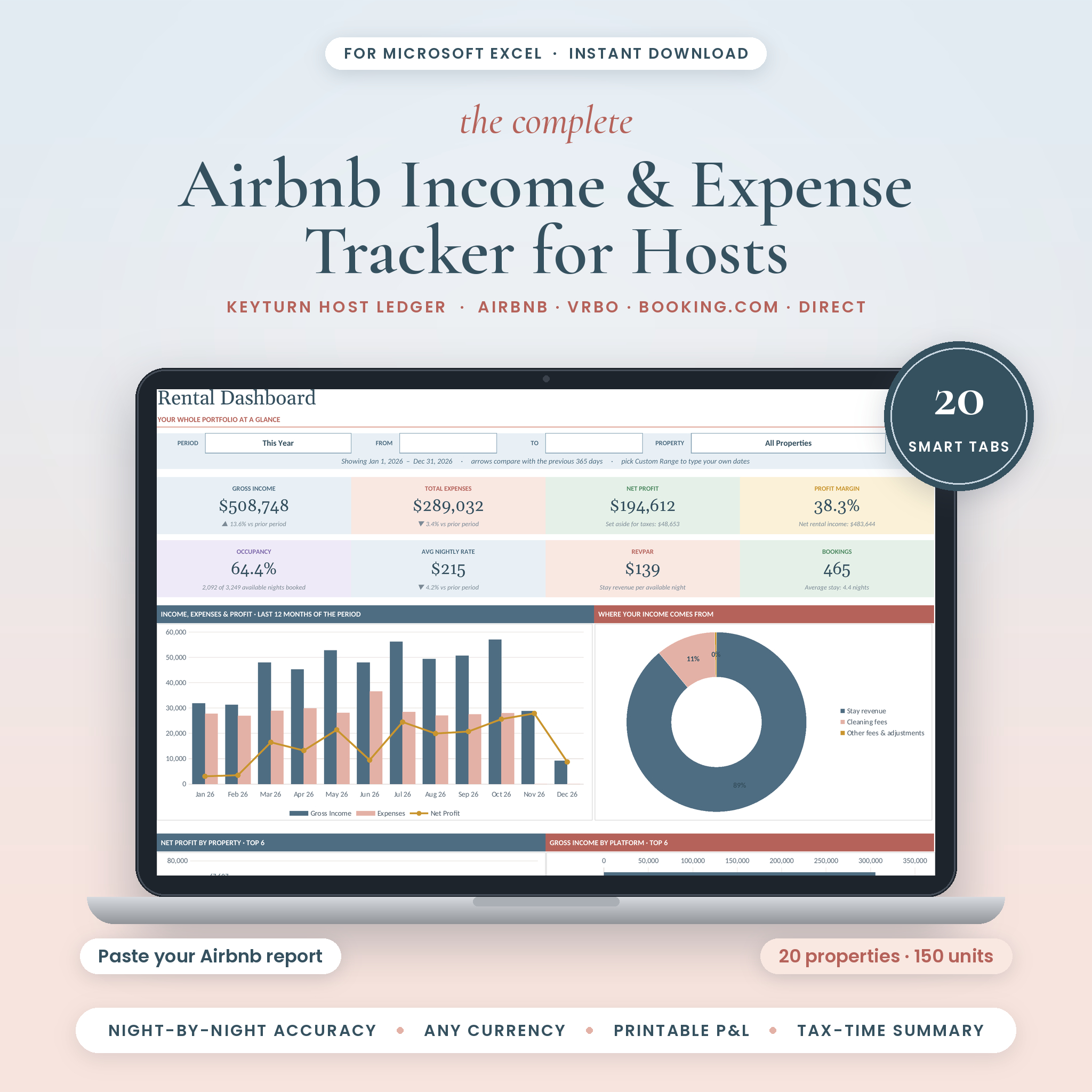
For a property operations binder, Keyturn Host Ledger is an Excel option when the records start with an Airbnb report and include stays from other channels. Keep the ledger as the financial record and print only the unit information needed for the planner.
Pick merge when an identifier supplies missing details
On the other side of append vs merge, merge is the right choice when an exported row has an identifier but lacks a field needed on the printed page. A task export might have ClientID but no client display name. A layout register might map LayoutID to finished size, punch pattern and template name. Those fields belong beside the task, not beneath it.
In Power Query, put the task list first in Merge Queries as New and select a Left Outer join. That keeps every task, including tasks with no matching layout. Expand only the fields the print stage needs. If a layout is missing, hold the task out of the print batch and flag it for correction. An inner join would drop it without giving the print operator a row to investigate.
A left join protects against missing rows, but it doesn’t protect against extra rows. If LayoutID appears twice in the lookup, a matching task becomes two rows when you expand the results. If the two lookup entries are for different binders, use a key that distinguishes them, such as LayoutID plus BinderID. If they’re accidental copies, correct the lookup before merging. Removing duplicates from the final task list can hide the fault or delete a legitimate task.
Match identifier types before joining. Import 0042 as text on both sides if those leading zeroes are part of the key. Converting 42 back to text after import won’t restore them. Trim stray spaces when they aren’t meaningful, and treat blank identifiers as exceptions instead of allowing blank values to act as a match.
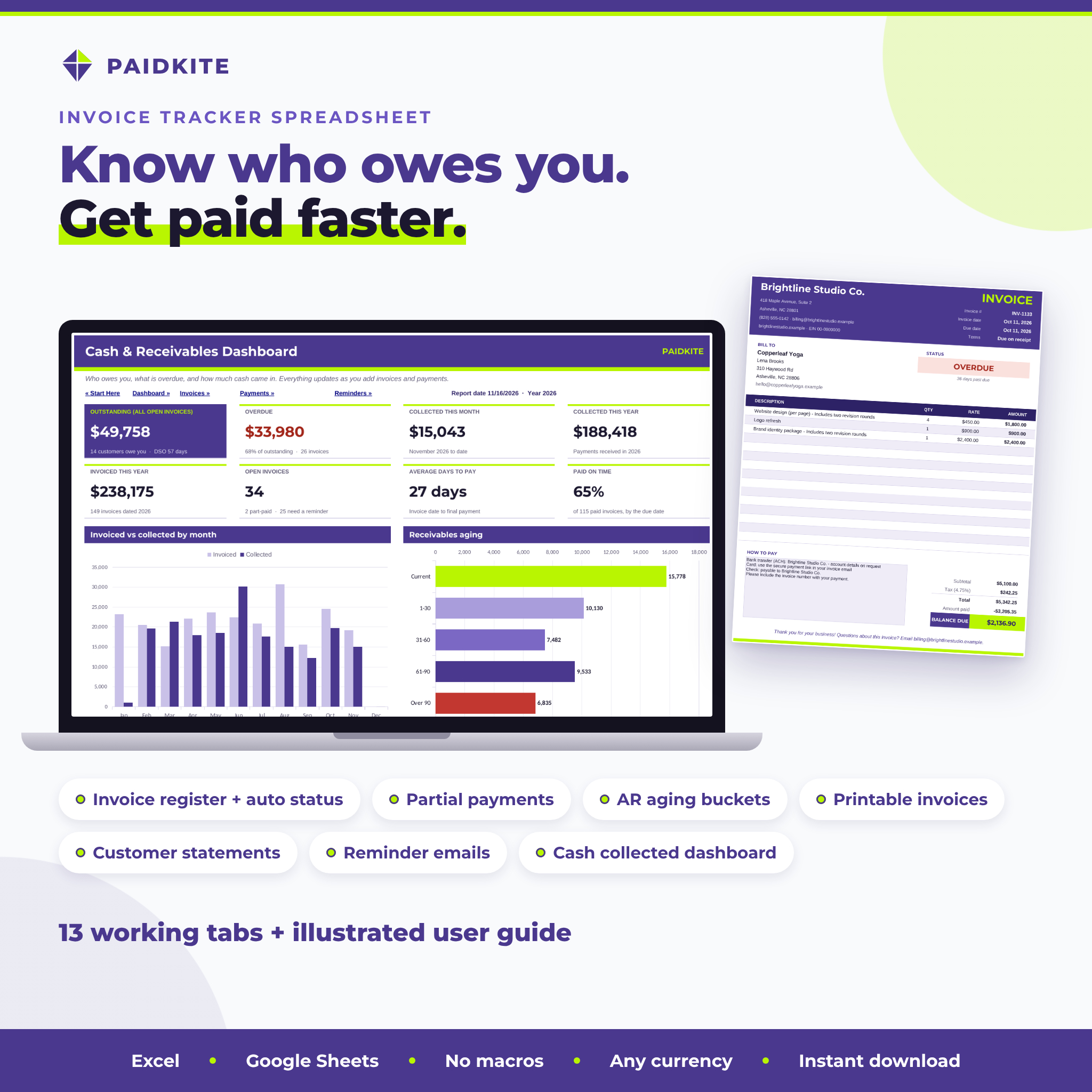
For an accounts receivable insert, start with one row per invoice. Joining that list directly to individual payments can print the same invoice twice if it was paid in two instalments. Aggregate payments by InvoiceID first, or use the balances and ageing buckets in Paidkite Invoice Tracker as the source for a follow-up list. Keep that list separate from the invoices you send to customers.
Use both when monthly exports feed more than one binder
Suppose April’s export has 12 task rows and May’s has 14. Each row represents one task, each TaskID is distinct, and each task has a LayoutID. The finished batch needs two formats: A5 six-hole project pages and letter-size 11-disc review pages. The task files say which layout applies but don’t carry its paper or binding specifications.
- Align the sources. Rename April’s
Due Dateto match May’sDueDate. SetTaskIDandLayoutIDto text, and convertDueDateusing the correct source locale so that05/06isn’t read as 6 May when the export means 5 June. - Append and check the result. Expect 26 rows before filtering. Group by source filename to confirm the split is still 12 and 14. If a header change prevents the query from refreshing, trace the source column that was renamed or removed before editing the print template.
- Merge the layout register. This is the merge half of the append vs merge workflow. Check that the register has one row per
LayoutID, then expandFinishedSize,PunchPatternandTemplateName. If the expanded result has 27 rows, look for a duplicate lookup key. If it has 26 rows but one layout is blank, look for a missing or mistyped key. - Resolve exceptions before paginating. If one task uses
A5-PROJwith a trailing space, correct the key and refresh. Confirm that all 26 tasks are assigned to a print batch. For exports with hours or balances, check source row counts and control totals too. A missing row and a duplicated row can cancel each other out in a count. - Group and sort the print batches. Separate A5 six-hole pages from letter-size 11-disc pages. Within each batch, sort by the order the binder uses, such as month, section, due date and then
TaskIDto break ties. If several tasks share a page, count records before pagination and physical sheets after it. Twenty-six tasks don’t mean 26 sheets.
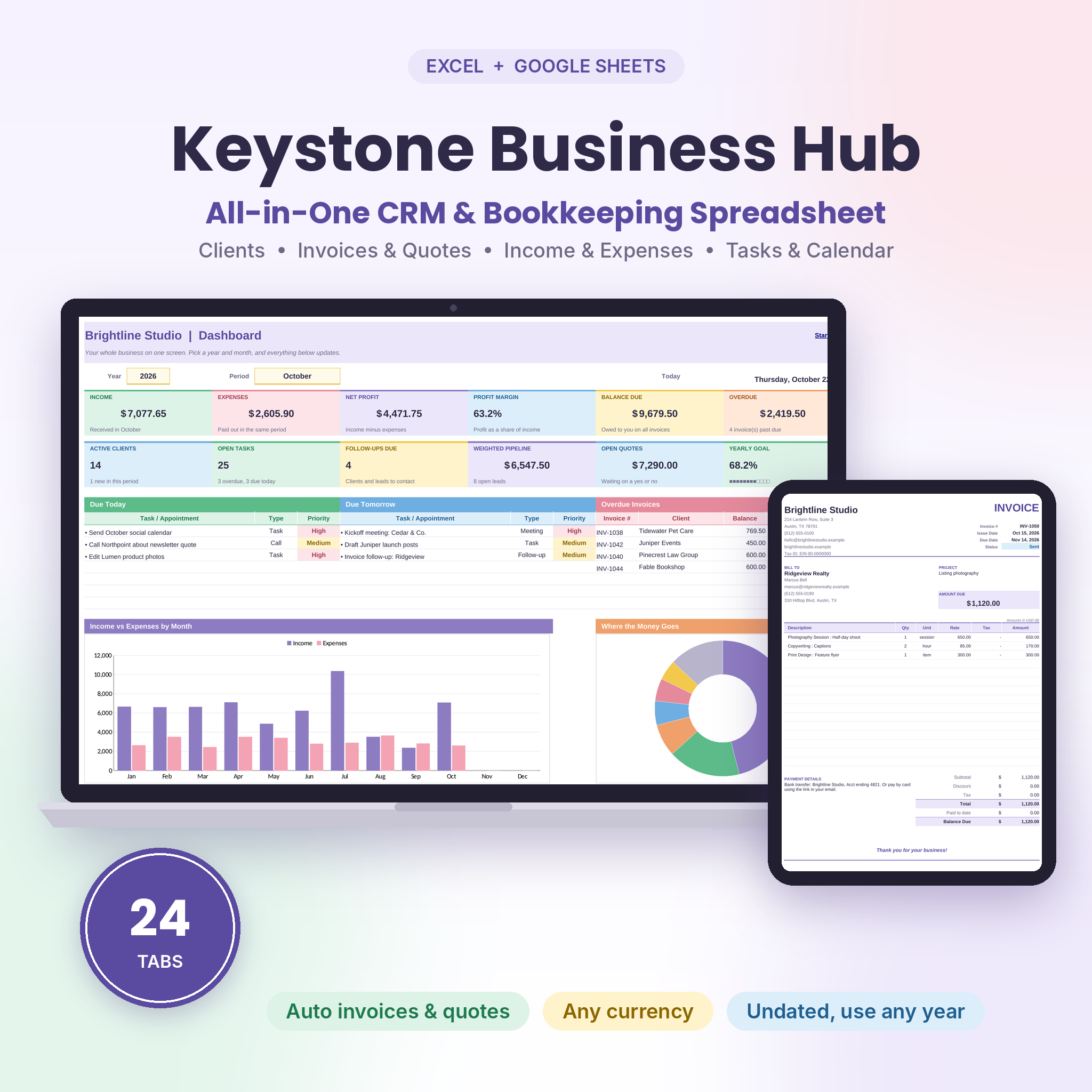
For a small business binder built from client, invoice and task records, Keystone Business Hub is an alternative starting point to separate exports. It links those records in one workbook. Use the task list for an action insert and the invoice tracker for a payment insert rather than stacking the two record types.
Match pre-punched inserts by size and binding
A ready-made calendar can serve as the stable section of a binder while the task pages are replaced after each refresh. Check three things against an existing sheet: finished dimensions, the binding edge and the distance between holes or disc slots. A matching ring count alone doesn’t tell you where the holes sit.
Letter-size monthly sections
The 2027–2028 letter-size 11-disc monthly refill contains 18 monthly calendars in an 8.5 × 11-inch format. Pick it for an 11-disc binder and use a sheet as the alignment reference when setting the punch for custom review pages.

The 2027–2028 letter-size 7/3-hole monthly refill also contains 18 monthly calendars at 8.5 × 11 inches. Pick it for a matching ring pattern rather than assuming an 11-disc sheet can serve as the punch reference because the paper dimensions match.

A5 project pages and six-ring calendars
The Forvencer 2027 A5 monthly refill is a six-hole option for keeping the calendar in a matching A5 binder. Use it for month-level planning and file the printed deadline list behind the relevant month.

The A5 six-hole project planning refill supplies 100 sheets with 200 printed sides for goals, milestones, tasks and deadlines. Pick it when project notes are written by hand and the export only needs to supply a current action list.

The Beautiful 2027–2028 monthly inserts are listed for six-ring binders. Confirm the finished dimensions and hole spacing for the specific binder before selecting them. Don’t assign these pages to the A5 print batch on the strength of the ring count.

Proof the print batch before trimming and punching
Getting append vs merge right won’t stop a printer from shrinking a page to fit or printing the reverse upside down. Export each format as a separate PDF, then test one sheet from each batch before printing the rest. Include a page with a long task name, since a short sample won’t reveal whether text wraps onto the next page.
- Check the finished size. If the printer supports A5 stock, feed A5 and select A5 in the print dialogue. If it doesn’t, place the A5 artwork on a larger sheet in the print layout and add trim marks. Start at Actual size or 100%, then measure the proof. If an edge is clipped, move the content inside the printer’s printable area rather than relying on automatic scaling.
- Check the duplex turn and binding margin. For a portrait page that turns on its side, start with long-edge duplex and verify it with a single sheet. Allow a wider margin on the left of the front and the right of the back for left-side binding. If two pages need to face each other across an open binder, check them in the binder. Consecutive PDF pages can land on opposite sides of the same sheet instead.
- Finish one sheet completely. Trim it to size before punching so the punch guide registers against the finished edge. Align it with an existing insert or punch one blank first. Put the proof in the binder, turn it in both directions and check that the holes and binding edge leave every date and task readable.
- Assemble and verify the run. Print and finish one format at a time. File the sheets behind their month or project tabs, then compare the first and last entries in each section with the sorted print list. If a new section must start on the front of a sheet, add any blank reverse to the PDF before printing so the following section stays in position.
Keep the approved proof with the binder and record the PDF page size, scaling and duplex setting for that format. At the next refresh, compare the first finished sheet with that proof before committing the full batch.