Best Digital Legacy Planner: Four Options Compared
Choosing a digital legacy planner can feel like a heavy task, but the aim is simple. The best digital legacy planner is the one your family can open and follow without you there. For most households that means a printable or fillable PDF with an emergency access page, such as Lockquill or KeyBloom. If you work in Excel and want weak passwords flagged, LockLedger is the better fit.
We'll go through what to look for, how the four planners differ, and how to use one safely.
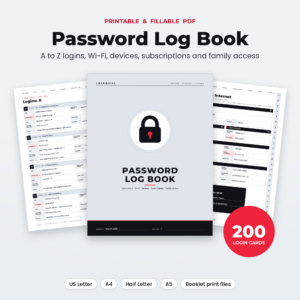 Printable Password Log Book PDF | Lockquill A to Z Password Keeper with Wi-Fi, Subscriptions & Family Access | Fillable, US Letter, A4, A5
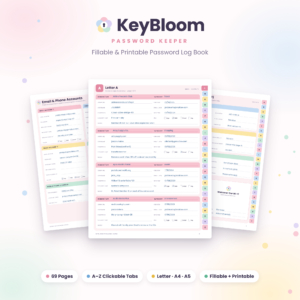 KeyBloom Password Keeper | Fillable & Printable Password Log Book PDF | A–Z Tabbed Password Tracker | Letter, A4, A5

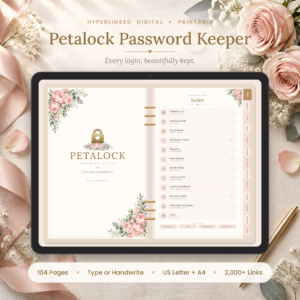
Table of Contents
Toggle
- What is a digital legacy planner, and who needs one?
- What should you look for in a digital legacy planner?
- How do the four digital legacy planners compare?
- Which digital legacy planner suits which person?
- How do you use a digital legacy planner safely?
- What mistakes should you avoid with a digital legacy planner?
- What affects the price of a digital legacy planner?
- Which digital legacy planner should you choose?
- Common questions
Key facts at a glance
- Every planner on this page records logins, Wi-Fi details, device codes and subscriptions in one place, and each includes some form of emergency or legacy plan.
- LockLedger is the only one built as an Excel workbook, with room for 500 accounts and a security score dashboard.
- KeyBloom holds 220 accounts in its Letter and A4 versions across 69 pages, while Petalock offers 230+ account cards across 104 hyperlinked pages.
- Lockquill gives you 200 A to Z login cards and the widest choice of print sizes, including Half Letter and A5.
- A planner is a record of access, not a will, and it does not replace legal advice.
What is a digital legacy planner, and who needs one?
A digital legacy planner is a structured record of your online accounts, devices, subscriptions and wishes, set out so a trusted person can find and manage them if you are ill or have died. It suits anyone whose life now runs partly through email, banking apps, photo storage and streaming accounts.
The problem is rarely a lack of passwords. It's that the passwords live in your head, on sticky notes or across three browsers. A family member trying to close a subscription, reach a photo archive or find a router login can lose weeks to guesswork.
The planners here are password-log style tools with legacy features added. They won't settle who inherits what. They make sure the people you've chosen know where everything is.
What should you look for in a digital legacy planner?
Look for six things: the file format, how many accounts it holds, a clear emergency access section, any security checking, print sizes, and a user guide. The sections below explain why each one matters.
Format: PDF or Excel
A PDF planner is a fixed layout you type into or print and write on by hand. An Excel workbook is a spreadsheet you can sort, search and calculate in. PDFs feel closer to a paper address book and are easier for less confident computer users. Excel does more work for you, but whoever inherits the file needs Microsoft Excel to use it properly.
Capacity: how many accounts
Count your accounts honestly before buying. Most people find 80 to 150 once they include shops, utilities, loyalty schemes and old email addresses. Lockquill has 200 cards, KeyBloom has room for 220 on Letter and A4, Petalock has 230+ cards, and LockLedger has room for 500. Any of them covers a typical household, but LockLedger gives the most headroom for a busy digital life or a couple combining records.
Emergency access: what your family actually sees
An emergency access page is the section that tells a named person where the master information is kept and what to do first. Lockquill has an emergency access page for family. KeyBloom has an Emergency Access Plan. Petalock has a digital legacy plan, and LockLedger has an emergency access plan inside the workbook. Check that the section leaves room for the practical details your family would need, not just a name and a phone number.
Security checking
Only LockLedger actively checks your passwords. It rates each one, flags reused passwords, reminds you when one is due a change and lists problems on a "Needs Attention" to-do list. The three PDFs record information and give guidance, such as Lockquill's strong password guide and Petalock's Security Centre, but they leave the checking to you.
Print sizes and layout
If you plan to keep a paper copy, size matters. Lockquill covers US Letter, A4, Half Letter and A5, plus booklet print files. KeyBloom prints in Letter, A4 or A5. Petalock comes in US Letter and A4. A5 and Half Letter are easier to store in a drawer, while A4 gives larger writing space.
User guide
A short guide saves you from abandoning the planner halfway through. KeyBloom includes a 13-page guide, LockLedger an illustrated one, and Petalock a step-by-step guide. Lockquill pairs its cards with a strong password guide and a change log, which is a page for recording when you updated details.
How do the four digital legacy planners compare?
The four planners differ mainly in format, capacity and whether they check your passwords for you. This table sets out the differences from the supplied product details.
| Product | Format | Account capacity | Legacy or emergency feature | Best for |
|---|---|---|---|---|
| Printable Password Log Book PDF | Lockquill A to Z Password Keeper with Wi-Fi, Subscriptions & Family Access | Fillable, US Letter, A4, A5 | Fillable PDF and print files, four sizes | 200 A to Z login cards | Emergency access page for family, change log | Paper-first households wanting choice of size |
| KeyBloom Password Keeper | Fillable & Printable Password Log Book PDF | A–Z Tabbed Password Tracker | Letter, A4, A5 | Fillable PDF, 69 pages, Adobe Acrobat Reader | Room for 220 accounts (Letter and A4) | Emergency Access Plan, 13-page guide | A tidy, tabbed book that is easy to navigate |
| Password Tracker Spreadsheet for Excel – LockLedger Password & Account Organiser with Security Score Dashboard, Password Generator, Subscription Tracker & Login Log Template | Excel workbook, no macros | Room for 500 accounts | Emergency access plan, 20-step security checklist | Excel users who want weak spots found and fixed |
| Petalock Password Keeper – Digital & Printable Password Log | Hyperlinked, Fillable Floral Password Organiser PDF (US Letter & A4) | Four PDF editions, 104 hyperlinked pages | 230+ account cards | Digital legacy plan, Security Centre | Tap-through use on a tablet or printed in a floral design |
Which digital legacy planner suits which person?
Each planner suits a different habit. Match it to how you already keep records and how your family would look for them.
Lockquill suits you if you prefer paper and want it to fit a particular folder or binder. Its card layout records a hint, a 2FA box and an updated date for each login. It also covers email recovery, router details, device PINs and licence keys, which are easy to forget.
KeyBloom suits you if you want something calm and simple. The A to Z tabs let a relative jump straight to a letter, and you can type into it on any device with free Adobe Acrobat Reader. It's a sensible choice if long spreadsheets put you off.
LockLedger suits you if you're comfortable with Excel and want a reason to tidy up. The security score and "Needs Attention" list turn a passive record into a to-do list, and the built-in password generator helps with replacements. The trade-off is that your family needs Excel and some confidence using it.
Petalock suits you if you like a designed, tap-through layout. Its 104 hyperlinked pages let you jump between sections, and its digital legacy plan sits alongside Wi-Fi and device pages. It comes as digital, fillable, US Letter and A4 editions, so one purchase covers screen and paper.
How do you use a digital legacy planner safely?
Use a digital legacy planner by filling in your accounts in stages, protecting the finished copy, and telling one trusted person where it is. The steps below work for any of the four.
- Start with the five accounts that matter most: main email, bank, mobile phone, cloud storage and your password manager if you use one.
- Add Wi-Fi and router details, device passcodes and subscriptions, which are the items families most often struggle to find.
- Record the 2FA method for each account, such as a text message or an authenticator app, so nobody is locked out by a code sent to your phone.
- Fill in the emergency access section with the location of the planner and the name of the person who should read it first.
- Store it securely. Keep a printed copy somewhere locked, or protect a digital file with a password. Excel and Adobe Acrobat Reader both allow this.
- Review it twice a year and update the date on changed entries.
What mistakes should you avoid with a digital legacy planner?
The most common mistakes are leaving the planner half empty, storing it where anyone can read it, and never updating it. Each is easy to prevent.
- Filling in only the easy accounts. An email login without its recovery details can still leave a family locked out.
- Leaving an unprotected file on a shared computer. If you go digital, add a file password, or print and lock it away.
- Forgetting 2FA. A correct password is no use if the code goes to a phone nobody can unlock.
- Not telling anyone. A perfect planner nobody knows about helps no one.
- Treating it as a legal document. It records access. Wishes about property or guardianship need proper legal advice.
What affects the price of a digital legacy planner?
Price depends mainly on how much the planner does beyond recording. A simple tabbed PDF sits at the cheaper end, while a workbook with scoring, a generator and a checklist costs more up front. Print choice also matters. A planner offered in several sizes with booklet files gives more flexibility than a two-size edition, though you only pay for the version you print.
The live product cards show current prices. Since all four are digital downloads, there's no physical item to wait for, but you will pay for your own printing if you want paper. A cheaper planner you finish is better value than a feature-rich one you abandon.
Which digital legacy planner should you choose?
Choose by how you work. Pick LockLedger if you use Excel and want weak passwords flagged. Pick Lockquill if you want paper in a specific size with a family access page. Pick KeyBloom for the simplest tabbed layout. Pick Petalock if you want a hyperlinked design and a digital legacy plan.
If you're unsure, ask who will open it. Choose the one that person could use without a phone call to you. You can browse all 4 options below.
Common questions
Is a digital legacy planner the same as a password manager?
No. A password manager stores and fills passwords automatically, while a digital legacy planner is a readable record for your family. Many people use both, with the planner noting where the manager is and how a trusted person can reach it.
Can I use a printable planner on a tablet?
Yes. KeyBloom's fillable PDF works in free Adobe Acrobat Reader, and Petalock includes digital and fillable editions. Typing works on any device that opens PDFs, though a printed copy remains useful if a device fails or is locked.
Who should I name for emergency access?
Name someone you trust, who is likely to be reachable and is comfortable with technology or willing to ask for help. Many people name two people, such as a partner and an adult child, so access doesn't depend on one person.
How often should I update my planner?
Review it at least twice a year, and straight after changing a main password, phone, bank or email provider. Lockquill's change log and updated-date fields are designed for this, but any planner works if you keep a regular habit.
Does LockLedger need macros or special settings?
No. LockLedger is described as working without macros, which means it avoids the security warnings some spreadsheets trigger. You do need Microsoft Excel, and it includes an illustrated user guide to help you set it up.