If you have ever opened YouTube Studio on a Sunday night with no video ready for Tuesday, you already know why creators use a YouTube content planner template. Consistency is easier when every video has a home, a deadline and a next step. This guide walks you through how to plan a channel in a spreadsheet, step by step, and gives you a free YouTube content planner template to start with today.
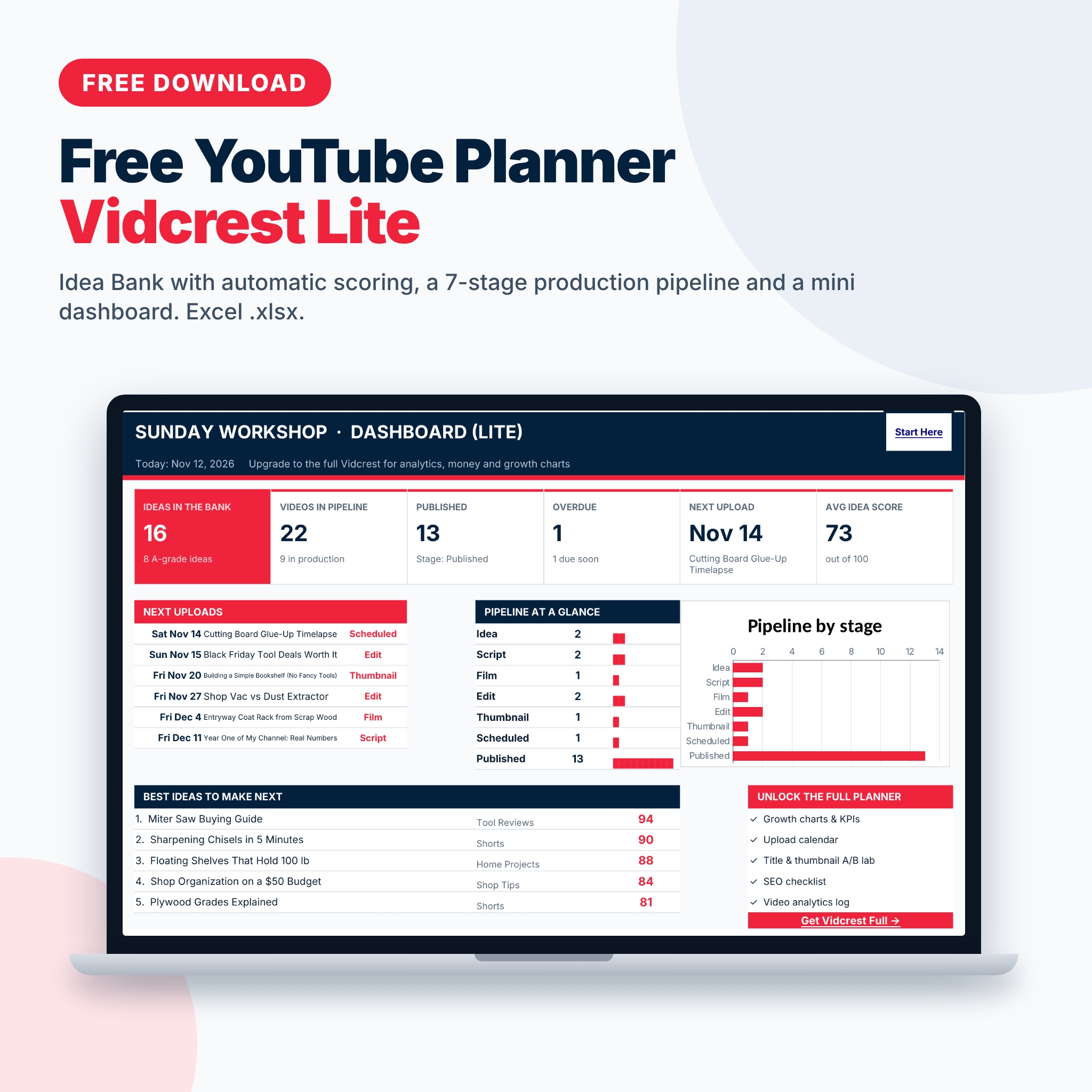
Download the free Vidcrest Lite YouTube planner. Downloading needs a free Taskdale account, and free downloads are limited to 3 per day.
Why a YouTube Planner Beats Notes and Memory
Most small channels do not fail for lack of ideas. They stall because ideas live in five places: a notes app, a few screenshots, a half-finished script in a document and a list of titles in an email to yourself. When it is time to film, you spend an hour deciding what to make instead of making it.
A planner fixes three problems at once:
- Choosing: you pick the next video from a ranked list instead of a gut feeling at 11 p.m.
- Scheduling: a publish date turns into real deadlines for scripting, filming, editing and the thumbnail.
- Learning: when results live next to the plan, you can see which kinds of videos work for your audience.
A spreadsheet is a good fit because it is private, flexible and does not need another monthly subscription. You can open it on your laptop, share a copy with an editor and keep years of history in one file.
What to Include in a YouTube Content Planner Template
You can build a simple planner yourself in any spreadsheet app. These are the parts that matter most, in the order you will use them.
1. An idea bank with a scoring system
Create one row per idea with columns for the working title, content pillar (the three to six themes your channel covers), format (long-form, Short, livestream) and a target keyword. Then add three quick scores from 1 to 5:
- Search demand: are people actively looking for this? Check YouTube search suggestions and the search terms in your own analytics.
- Effort: how many hours, props or locations does it need? Lower effort should score better.
- Channel fit: would your current viewers click this, or is it a detour?
Combine the three into one score and sort by it. Weighting demand and fit higher than effort is a sensible start. The point is not mathematical precision. It is to stop agonizing and start filming the ideas that are both wanted and doable.
2. A production pipeline with stages
Every video moves through the same stages: idea, script, film, edit, thumbnail, scheduled and published. Give each video a row with a stage dropdown and a publish date. Then count backward: if a video goes live on Friday, maybe the thumbnail is due Tuesday, the edit Saturday and the script two weeks earlier. A formula such as publish date minus 14 creates those deadlines for you.
Add a status column that compares the next deadline with today’s date and flags anything overdue or due within three days. That one column replaces a lot of mental juggling.
3. An upload calendar
A month view makes gaps obvious. If you see two uploads in the first week and nothing after the 15th, you can move a video before your audience notices the silence. If you post Shorts too, mark them differently so you can see the mix.
4. A packaging and SEO checklist
Titles and thumbnails decide whether a good video gets watched. Before publishing, write two title options and two thumbnail concepts, then run a quick checklist: keyword in the title, keyword early in the description, chapters, captions checked, end screen, cards, playlist and a pinned comment. A checklist turns publishing into a routine instead of a scramble, and it catches the small steps that are easy to forget at the end of a long edit.
5. A simple analytics log
Copy a few numbers from YouTube Studio at fixed checkpoints, such as 7 days and 28 days after publishing: views, impressions, click-through rate, average view duration and subscribers gained. Comparing videos at the same age is fairer than comparing a video from last year with one from last week.
6. Monthly stats, brand deals and money
Once a month, record subscribers, views and watch hours so you can chart growth. As your channel grows, add a sponsorship tracker (brand, fee, deliverables, invoice date, payment status) and an income and expense ledger. Knowing your real profit matters as soon as you buy a microphone or pay a thumbnail designer.
How to Use the Free Vidcrest Lite Planner
Vidcrest Lite is a ready-made version of the first two parts above, built as an Excel-format .xlsx file. It includes an Idea Bank (30 ideas) with automatic 0 to 100 scoring, grades and ranking, a 7-stage Pipeline (25 videos) with automatic deadlines and overdue flags, and a Lite dashboard that shows your next uploads, a stage chart and your best ideas to make next.
- Open Settings and type your channel name. Adjust the scoring weights and the number of days before publish for each deadline if you like.
- Fill the Idea Bank. Type ideas and score demand, effort and fit. The score, grade and rank appear instantly.
- Move the top ideas to the Pipeline. Give each a publish date and pick its stage. Script, filming, edit and thumbnail deadlines are calculated for you.
- Check the dashboard at the start of each work session. Anything overdue is flagged in red.
Get Vidcrest Lite free (free Taskdale account required; up to 3 free downloads per day).
Tips for Planning YouTube Videos That Get Finished
- Plan in batches. Script two or three videos in one sitting, then film them on the same day. Context switching is the hidden time thief.
- Keep a buffer. Aim to have at least one finished video scheduled ahead. A buffer turns a sick week into a non-event.
- Pick a realistic cadence. One good video a week beats three rushed ones followed by a month off. Set an uploads goal you can keep.
- Write the title first. If you cannot write a clear, clickable title for an idea, the video may not be ready to make yet.
- Review monthly. Look at your best and worst videos of the month and write one sentence about why. Over a year, those notes become your own playbook.
- Track money early. Even small affiliate payouts and equipment costs add up. A simple ledger makes tax season far less stressful.
Free vs Full: When to Upgrade
The free planner covers ideas and production. When you are ready to treat your channel like a business, the full Vidcrest YouTube Channel Planner adds the calendar, packaging tools, analytics, sponsorships and money in the same connected workbook.

| Feature | Vidcrest Lite (free) | Vidcrest Full |
|---|---|---|
| Idea Bank with 0-100 scoring | 30 ideas | 200 ideas |
| Production pipeline with auto deadlines | 25 videos | 150 videos |
| Dashboard | Lite | 6 KPI tiles, goal bars and 4 charts |
| Upload calendar | No | Yes |
| Title and thumbnail A/B lab | No | Yes |
| 12-point SEO checklist per video | No | Yes |
| Video analytics log (CTR, view duration, RPM) | No | 400 entries |
| Monthly stats with growth charts | No | Yes |
| Brand deal and sponsorship tracker | No | 100 deals |
| Income and expenses with profit | No | 500 entries |
| User guide | No | Yes |
Everything in the full version reads from one currency setting, so you can use dollars, euros, pounds or any other symbol. Brand-deal payments flow into your monthly income automatically, and the dashboard shows open deal value, outstanding invoices and anything overdue. See everything in the full Vidcrest planner.
Frequently Asked Questions
Is the YouTube planner template really free?
Yes. Vidcrest Lite is free to download with a free Taskdale account. Free downloads are limited to 3 per day per account.
Does it work in Google Sheets?
The planner is an Excel-format .xlsx for Microsoft Excel, tested in LibreOffice Calc, and built with standard functions that also work when you open it in Google Sheets.
Does the planner connect to my YouTube account?
No. Nothing is connected or uploaded. You type or paste numbers from YouTube Studio, which keeps your data private.
Can I plan Shorts and livestreams too?
Yes. Format is a dropdown that includes long-form, Short, livestream, premiere and podcast, and you can add your own options on the Settings tab.
Can I move my free planner data into the full version?
Yes. The Idea Bank is identical in both versions, and the Pipeline’s input columns (working title through publish date) are in the same order, so you can copy those rows from Lite and paste them as values into the full planner.
How often should I update my planner?
Update the Pipeline whenever a video changes stage, log analytics at the 7-day and 28-day marks, and fill in monthly stats once a month. That is about ten minutes a week.
Ready to plan your next month of uploads? Download the free Vidcrest Lite, or go straight to the full Vidcrest YouTube Channel Planner for the complete system.