Most people’s coloring pages live in four places at once: the downloads folder, an email inbox, a phone, and a pile on the kitchen counter. When a sick day or a rainy Saturday arrives, nobody can find the dinosaur page. Ten minutes of setup fixes that for good.
This guide is for parents, teachers, grandparents and adult colorists who keep downloading pages and want to know how to organize downloaded coloring pages by theme, age and occasion. You will get a simple folder structure, a file naming pattern that makes search work, ways to handle whole books versus single pages, a paper binder system, and a short monthly routine that keeps it all tidy.
Quick picks: coloring books with easy-to-sort files
| Product | Best for | Price | Link |
|---|---|---|---|
| Orbit Pals Printable Coloring Book | Single-page PNGs, easy to file by theme | $3.99 | View |
| Easy Mandala Coloring Book | An “easy, all ages” folder starter | $3.49 | View |
| Snug Hours Cozy Coloring Book | A tablet coloring library | $5.99 | View |
| Gearhead Zoo Printable Coloring Book | Detail lovers ages 7 and up | $3.99 | View |
Step 1: gather everything into one place
You cannot organize what you cannot see. Before you sort anything, round up every coloring file you own and put it in a single folder called “Coloring Inbox”.
- Downloads folder: search for .pdf, .png, .jpg and .zip files. Sort by date and move anything that looks like a coloring page.
- Email: search your inbox for “coloring”, “printable” and “download”. Save attachments and download links from order emails.
- Phone and tablet: check the Files app (iPhone and iPad) or the Files or My Files app (Android). Move pages to a cloud folder or send them to your computer.
- Cloud storage: look for stray copies in Google Drive, OneDrive, iCloud or Dropbox.
Unzip any ZIP files now, each into its own folder named after the book. A parent with three kids might find 300 or more files at this stage. That is fine. The inbox is meant to be messy. It is just the holding pen.
Delete duplicates as you go. Two copies of the same page called “page-1.pdf” and “page-1 (1).pdf” are a common sight. Keep the larger file, which is usually the better quality one.
Step 2: choose a folder structure
There are three natural ways to sort coloring pages: by theme, by age and by occasion. Most households only need one main layer and one sub-layer. Pick the one that matches how you search.
Option A: theme first
Best for adult colorists and families with one child. You think “I want an animal page”, not “I want a page for a seven-year-old”.
- Animals
- Vehicles and Space
- Nature and Seasons
- Mandalas and Patterns
- Cozy and Home
- Letters and Numbers
Option B: age first, then theme
Best for families with kids of different ages, grandparents and babysitters. Each age folder holds its own theme subfolders.
- Toddler (2 to 4) > Animals, Vehicles, Shapes
- Kids (5 to 9) > Animals, Space, Friends, Holidays
- Older kids and teens (10+) > Detailed, Patterns, Fantasy
- Adults > Cozy, Mandalas, Nature, Color by Number
Option C: occasion first
Best for teachers and party planners, who think in events: “the Halloween party”, “the spring unit”, “sub day”.
- Holidays > Valentine’s, Easter, Halloween, Thanksgiving, Winter
- Seasons > Spring, Summer, Fall, Winter
- Events > Birthday, Sick Day, Travel, Rainy Day
- Classroom > Morning Work, Early Finishers, Sub Plans
Here is how that might look for a real household. A grandmother with four grandchildren aged 3, 6, 9 and 12 goes with Option B. Each child has an age folder, and inside each one sit three or four theme folders. When the six-year-old visits on a Saturday, she opens “Kids (5 to 9)”, taps “Animals”, and has twenty pages to choose from in under a minute. No digging, no “I can’t find it”, no tears.
A page can belong in more than one place. A snowman page suits both “Winter” and “Toddler”. Rather than copying the file twice, create a shortcut (Windows) or an alias (Mac) in the second folder. It points to the same file, takes up no extra space, and if you ever rename the page, there is only one copy to change.
You do not need all three. Choose the one you will actually use, and handle the other two with file names. That is where the next step comes in.
Step 3: name files so search does the work
Good file names mean you never have to remember which folder something is in. Type “halloween” or “toddler” in your computer’s search box and every matching page shows up. A simple pattern works for most people:
age_theme_occasion_short-title
A few examples:
- kids_space_any_planet-juggling-octopus.png
- toddler_animals_spring_ducklings.pdf
- adult_cozy_winter_snowy-cabin.png
- all_mandala_any_petal-sun.pdf
Use “any” when a page suits every occasion, and “all” when it suits every age. Keep everything lowercase with hyphens instead of spaces, and the names sort neatly and work on every device.
Renaming 300 files sounds dull, and it is. So only rename the pages you actually pull out as favorites (see the next step). Whole books can keep their original names inside their own folders.
The same idea works for any pile of downloads. If you have recipes scattered across devices too, our guide on how to organize recipes when they are scattered everywhere uses a very similar approach.
Step 4: keep books whole, pull favorites out
Here is the trick that keeps everything manageable. Treat full coloring books and single favorite pages differently.
- Books folder: one folder per book, holding its PDFs, PNG pack and guide, exactly as they came. Never break these up. If you need to re-download or check the license, it is all in one place.
- Favorites folders: your theme, age or occasion folders from Step 2. Copy only the best single pages in here, renamed with your pattern.
So a space book lives whole in “Books > Orbit Pals”, while the three pages your eight-year-old loves are copied into “Kids > Space” with clear names. When she asks for “the octopus one”, it takes five seconds to find.
Books that include single-page image files make this much easier, because you can copy one picture without splitting a PDF.
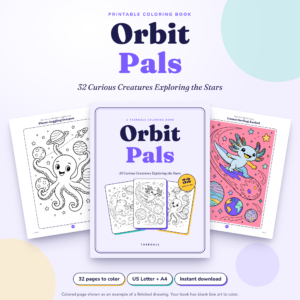
Orbit Pals Printable Coloring Book
Price: $3.99 | Best for: kids 7 and up, teens and adults
Orbit Pals has 32 original space animal pages, such as a comet-surfing axolotl, a planet-juggling octopus and a starry space whale. The download includes US Letter and A4 PDFs plus a ZIP of 32 separate PNG pictures (2000 x 3000 pixels), so each page can be filed and reprinted on its own. A user guide is included. Unzip the PNGs into “Books > Orbit Pals”, then copy your child’s top three into the space folder.
Sorting by age and difficulty
Age labels are useful, but difficulty is often what really matters. A bold mandala suits a five-year-old and an eighty-year-old. A detailed forest scene might be too much for a tired adult on a Tuesday night. Adding a difficulty word to file names or folders solves this.
- Easy: thick lines, big spaces, done in 20 to 30 minutes.
- Medium: some small areas, 45 to 60 minutes.
- Detailed: lots of small spaces, several sessions.
A quick way to judge: open the page and zoom out until it is the size of a postcard on screen. If you can still see every space clearly, it is Easy. If parts blur into gray, it is Detailed.
Kids grow fast, so review age folders once or twice a year. Pages a child has outgrown can move down to a younger sibling’s folder, or into a “Retired” folder for visiting cousins. Watching a child move up a folder is a small, proud milestone of its own.
An “Easy, all ages” folder is especially handy for mixed groups, grandparent visits and the youngest child who wants to color whatever the big kids are coloring.
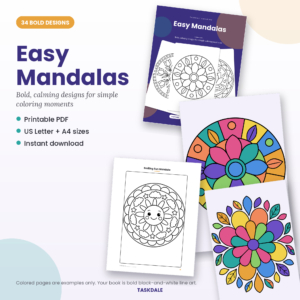
Easy Mandala Coloring Book
Price: $3.49 | Best for: mixed ages and beginners
These 34 bold mandalas, like a petal sun, a heart bloom, a cloud and raindrop design and butterfly wings, use thick outlines and open spaces that suit almost any age. Each design is its own page in US Letter and A4 files, with a clickable contents page. That makes it a perfect first set for an “Easy, all ages” folder. Copy six favorites there and you always have a page anyone can color.
A paper system to match: the coloring binder
Digital folders handle storage. A binder handles the day-to-day. Keep one 2-inch ring binder with tabbed dividers near wherever people color.
- Tabs that mirror your folders: the same theme, age or occasion headings as your computer.
- A “master” copy of each favorite: one clean, uncolored print in a clear sheet protector. Photocopy or reprint from it when needed.
- A “ready to color” pocket at the front: five or six printed pages waiting, so nobody has to switch on the computer for a quick session.
- A “finished” pocket at the back: colored pages to keep, date and file later.
Color-code the tabs if you like: green for spring, yellow for summer, orange for fall, blue for winter. Even a four-year-old can find “the blue section” and pull out a snowman page by themselves.
Teachers often keep one binder per term. Families often keep one per child. Either way, the binder becomes the place everyone looks first, and the pile on the counter disappears.
If you enjoy binding and arranging printed pages, our guide to printing and binding junk journal kits has more ideas for turning loose sheets into something lovely.
A tablet coloring library
If you color on an iPad or Android tablet, you need a slightly different setup. Coloring apps usually import images, not PDFs, so PNG files are what you want.
- Make one cloud folder called “Tablet Coloring”, synced to the tablet.
- Copy PNG pages in, using the same naming pattern as your computer folders.
- Keep a separate subfolder for transparent line-art files if your app uses layers. These let you color on a layer underneath the lines.
- Once a page is finished, export the colored version to a “Finished” folder so the blank one stays clean for next time.
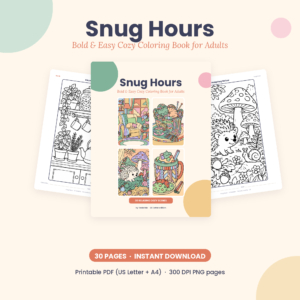
Snug Hours Cozy Coloring Book
Price: $5.99 | Best for: adults who color on a tablet
Snug Hours includes 30 white-background PNG pages and 30 transparent line-art PNGs at 300 DPI, along with US Letter and A4 PDFs. The cozy scenes include a reading nook, a corner café, a rainy window seat and a snowy log cabin, all with bold, easy lines. Copy the transparent files into your tablet folder and import the reading nook into a layer-based app first.
Backups, licenses and a monthly tidy
A few last habits keep your library safe and easy to use for years.
Back up once
Copy your whole Coloring folder to a USB stick or a second cloud account. If a laptop dies, your library does not.
Keep a license note
Inside each book folder, keep the order email or a short text file saying where it came from and what the license allows (home only, one classroom, one care setting). Months later, when you want to print 30 copies for a class, you will know in seconds whether you can.
The 10-minute monthly tidy
- Empty the Coloring Inbox into the right folders.
- Rename any new favorites.
- Refill the “ready to color” pocket in the binder.
- Move next month’s occasion pages to the front.
Put it on the first Sunday of each month. Ten minutes, and the system stays as neat as the day you set it up. There is a real, small relief in opening a folder and finding exactly the page you wanted.
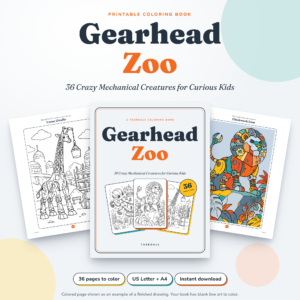
Gearhead Zoo Printable Coloring Book
Price: $3.99 | Best for: detail lovers ages 7 and up
Gearhead Zoo has 36 original robot animal pages, like a clockwork lion, a toaster rhino and an airship whale, full of bolts and gears for kids, teens and adults who like detail. The download includes US Letter and A4 PDFs, a ZIP of 36 single PNGs and a 9-page Word user guide, all easy to keep together in one book folder. File it under “Detailed” and save the order email inside the folder.
Frequently asked questions
What is the best way to organize printable coloring pages?
Gather all files into one inbox folder, choose one main structure (theme, age or occasion), keep full books in their own folders, and copy favorite pages into named folders.
How should I name coloring page files?
Use a short pattern such as age_theme_occasion_title, in lowercase with hyphens. For example, kids_space_any_planet-octopus.png.
Should I sort coloring pages by age or by theme?
Sort by age if several children of different ages use them. Sort by theme if one person or a single child does most of the coloring.
How do I organize coloring pages for a tablet?
Keep PNG files in a synced cloud folder, use the same naming pattern, and store transparent line-art files separately if your app uses layers.
How do I keep printed coloring pages organized?
Use a ring binder with tabbed dividers, a clean master copy of each favorite in a sheet protector, and pockets for pages ready to color and finished work.
Your next step
Open your downloads folder now and make one new folder called “Coloring Inbox”. Move every coloring file into it, then pick your main structure: theme, age or occasion. If you want a first book that files neatly with single-page images, start with Orbit Pals.