A primary key is the column that proves each row is one record and nothing else. Give each spreadsheet table a sentence that starts with “One row represents”, then choose a primary key that identifies exactly one of those records. For printing and assembling planner inserts, keep finished inserts, planned print sheets and print attempts separate: one sheet can carry two inserts, and a spoiled sheet can take two attempts to print. Microsoft’s star schema guide explains why one row per record matters once tables are related.
A primary key must be present, unique and stable. A row number can look unique in a preview, but it changes meaning when rows move. A planner page title can look distinctive until two kits both need a page called “Weekly overview”. Neither tells you which physical insert is missing when you come to assemble the kits.
Set up the primary key and the workbook in six steps
Define what one row represents on each data tab.
Write the rule above the table or on a workbook instructions tab. For a duplex planner job, the
Leavesrule might read: “One row represents one finished piece of paper assigned to one kit position.” A leaf is the piece you trim and punch; its front and back are two sides of the same record, not two leaves. Use fields such asFrontArtworkandBackArtworkto identify what goes on each side.On
PrintSheets, one row represents one planned sheet before cutting, with fields such asStock,SheetSizeandBatchID. OnPrintAttempts, one row represents one physical sheet fed for that plan, even if it jams or comes out misaligned. Keep the print layout on a separate tab or in a separate PDF. Its headers, trim marks, repeated labels and page breaks help with production, but they aren’t records.Pick a primary key that survives a sort, a correction and a reprint.
Start with an existing identifier if it’s always present and never reused.
LeafIDmight hold a value such asLF001;SheetIDmight holdPS001. Assign each ID once and store it as text. Correcting the artwork on an unprinted leaf does not change which leaf the row refers to, and reprinting a sheet does not create a new planned sheet. The reprint gets a newAttemptID.Some records have a natural composite key: two or more fields that identify the row together. If each planned sheet has two slots,
SheetIDplusSlotidentifies a position on the sheet.Slotalone fails because every sheet has a first slot. If the workbook needs a single primary key column, useLeafIDand check theSheetIDandSlotpair separately. A unique leaf ID won’t stop two leaves being assigned to the same slot.A classroom library makes the distinction clear: two copies of the same title share a name, but each copy needs its own identifier, and each checkout is a separate event. The Lendleaf classroom library tracker is a ready-made option if the records you actually need to manage are books and loans. It separates book inventory from checkout activity and can print book labels.
Check for blank primary key values, duplicates and repeated real records.
In Excel or Google Sheets, put this test beside the first record and fill it down across the data rows. Here, column A holds the primary key and the working range covers rows 2 to 501. Expand the range as the table grows, or use an Excel Table so the check can follow new rows. The formula assumes IDs use letters and digits, without wildcard characters.
=IF(LEN(TRIM(A2))=0,"Missing key",IF(A2<>TRIM(A2),"Check spaces",IF(COUNTIF($A$2:$A$501,A2)>1,"Duplicate key","OK")))Then test the assignment rule. If column D contains
SheetIDand column E containsSlot, use=COUNTIFS($D$2:$D$501,D2,$E$2:$E$501,E2)on each assigned leaf. Expect1;2means two rows claim the same position. Check blanks separately before interpreting that result. Run the same kind of check onKitIDplusKitPositionif each kit position takes exactly one leaf.For a practical test, take one suspect row and describe what would be missing if you removed it. If two rows would both remove the same weekly leaf from kit
K01, separate IDs haven’t solved the duplicate. If one belongs toK01and the other toK02, the shared artwork is expected. Keep both.Check that every reference points to one parent record.
A foreign key points to a record in another table.
Leaves[SheetID]can repeat because one planned sheet can hold several leaves.PrintSheets[SheetID]cannot repeat because that is the primary key of the sheet table. If the leaf’sSheetIDis in D2, check=COUNTIF(PrintSheets!$A$2:$A$501,D2)after confirming D2 isn’t blank. A result of0means the sheet is missing; a result above1means the sheet table has duplicate IDs.Apply the same rule from print attempts to planned sheets and from leaves to kits. If unassigned leaves are allowed during planning, give them an explicit status and block them from the print export until assigned. This is the same distinction that keeps an order total from being counted once per line when you relate customers, orders and order lines.
If your print output is an invoice rather than a planner insert, that distinction matters for money as well as paper: three invoice lines shouldn’t produce three copies of the invoice total. The Paidmark invoice template for Excel lets you pick an invoice number and print a one-page invoice, while tracking payments and balances separately from the print step.
Count at the level the production decision needs.
Count leaves for the assembly workload, planned sheets for the initial print quantity and attempts for actual stock use. If one planned sheet takes two attempts and holds two leaves, that means one planned sheet, two pieces of stock fed and two leaves available for assembly once one attempt passes inspection. Joining the attempts to the leaves gives four combinations. Counting those combined rows as finished inserts doubles the real output.
Use the source table for each total, then bring the results together by batch rather than counting rows from a combined export. If the workbook needs a single view for the operator, summarise the related tables in one report while keeping the separate counts visible.
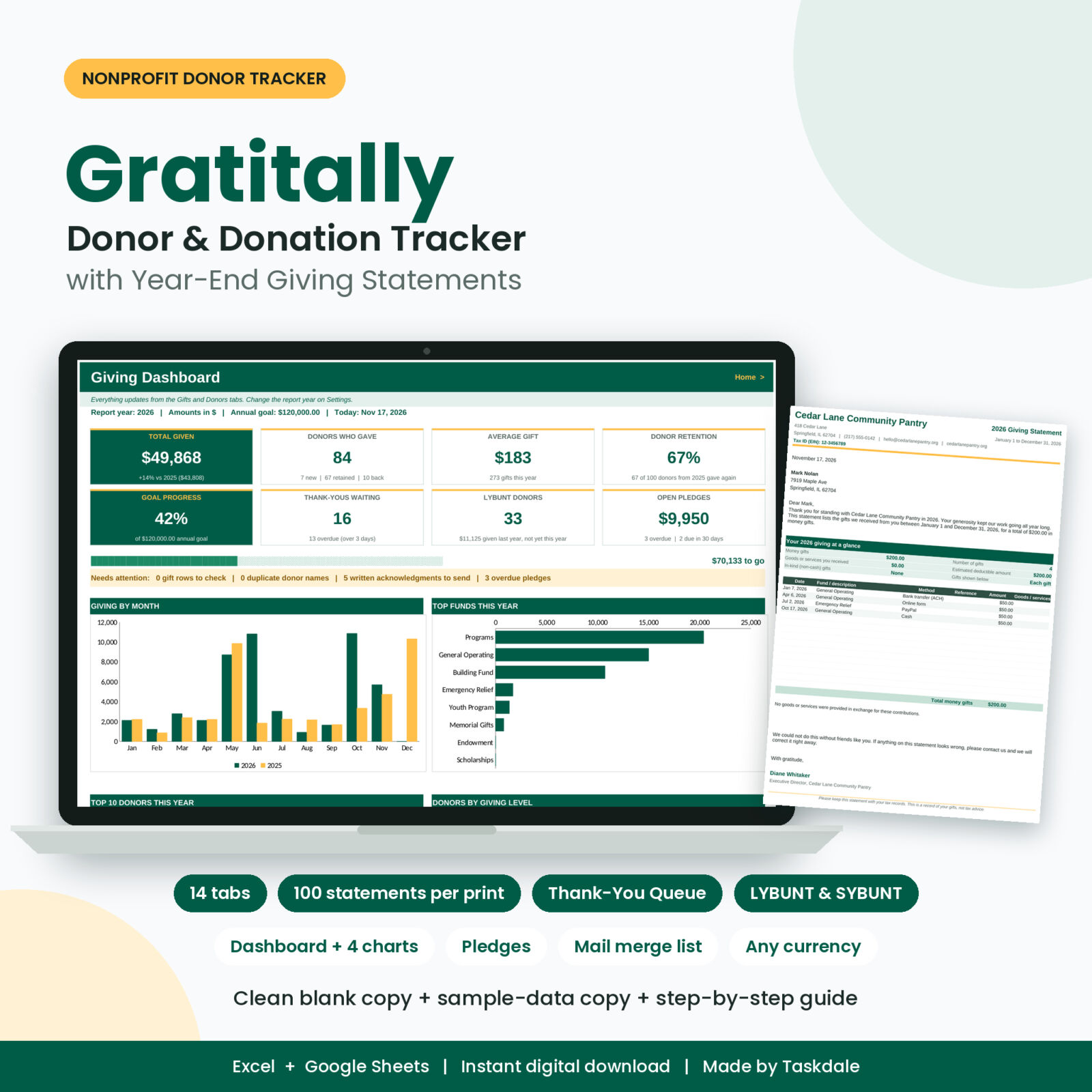
The same rule applies to batch printing outside planner production: a donor with five gifts needs five donation records, but one year-end statement for the reporting period. The Gratitally donor tracker keeps a gift log and can print up to 100 year-end giving statements in one run, one per page. That output count is different from the number of gifts logged.
Check the layout against one physical proof before releasing the batch.
Name the output unit in the export: one PDF page per sheet side for a layout that already puts two leaves on a side. If the PDF is already arranged this way, don’t also select the printer driver’s multiple-pages-per-sheet option. Print one duplex proof at actual size or 100%, then measure a trim rectangle with a ruler. A margin that looks right on screen won’t reveal whether the driver has shrunk the insert to fit its printable area.
Mark the top edge of the test stock and use the proof to confirm the duplex flip setting. Check that each back lands behind its intended front, both are upright when turned as they will be in the planner, and the punch margin is on the binding edge. Trim and punch the proof, then fit it into the planner. Record the accepted settings against the batch so a reprint uses the same scale, orientation and duplex setting.

Worked example: two A5 kits from two planned sheets
Each kit needs a weekly leaf and a notes leaf. The print plan uses A4 stock with two nominal A5 positions per sheet, duplex. Two A5 positions fill nearly the entire A4 sheet, so this example assumes white margins and a centre cut, with no bleed or gap for trim marks between the positions. If the design needs bleed or extra trimming space, use larger stock or lay out one leaf per sheet.
| LeafID | KitID | KitPosition | Artwork | SheetID | Slot |
|---|---|---|---|---|---|
| LF001 | K01 | 1 | Weekly | PS001 | 1 |
| LF002 | K01 | 2 | Notes | PS002 | 1 |
| LF003 | K02 | 1 | Weekly | PS001 | 2 |
| LF004 | K02 | 2 | Notes | PS002 | 2 |
The four LeafID values are unique, as are all four KitID and KitPosition pairs. PS001 appears twice in the leaf table, as it should: it carries both weekly leaves. In PrintSheets, PS001 and PS002 each appear once and belong to batch B01. The print PDF contains four sides in order: the front and back of PS001, then the front and back of PS002. Here, the artwork name is shorthand for an approved front and back pair.
Print PS001 first. Its first attempt comes out with an upside-down back. Log AT001 against PS001 as spoiled, correct the duplex setting and reprint the two PDF sides for that sheet. Log AT002 against PS001 as accepted after checking both sides. Print PS002 with the corrected setting and log AT003 as accepted. Leave the four leaf rows and both planned sheet rows unchanged.
The batch now shows two planned sheets, three attempts, one spoiled sheet and two accepted sheets. Release the two accepted sheets for cutting and keep the spoiled sheet out of the assembly pile. If the leaves look identical, use labelled trays or keep the pieces in slot order after cutting: slot 1 goes to K01, slot 2 to K02. Assemble each kit in KitPosition order, weekly first, notes second. Check off four leaf IDs, not three print attempts.

Fix the failures that pass a visual check
The ID column is unique, but the same insert appears twice
A pasted row might get a fresh LeafID while keeping K01 and position 2. Filter on the kit and position together, then compare the artwork and sheet assignment before deleting anything. If the second row is a replacement print of the same insert, keep one leaf and put the extra production activity in the attempt log. If it is a spare that must be tracked as finished stock, assign it to an explicit spare destination instead of giving it the same kit position.
A primary key looks the same but won’t match
A text ID such as 0012 can lose its leading zeros when imported as a number. Format the destination column as text before importing and check linked tables against the same ID format. If ordinary TRIM doesn’t resolve a pasted value, check for a non-breaking space: =TRIM(SUBSTITUTE(A2,CHAR(160)," ")) can remove it from a review copy. Compare the cleaned values for collisions before replacing any primary key values. Two values that become identical may already have dependent rows.
The workbook passes the primary key checks, but the wrong backs print
A valid sheet and slot assignment proves the plan is internally consistent; it doesn’t prove the PDF matches it. On the next proof, use temporary slot labels such as PS001 S1 on both faces, or identify the slots by their artwork. Trace each physical leaf from front to back after cutting. If the backs are upright but attached to the wrong fronts, fix the back-side layout rather than swapping kit assignments to match a faulty print.
The counts are right, but an unapproved reprint reaches assembly
Two passing attempts for one planned sheet can both look usable on the bench. If the batch needs only one, designate one accepted attempt for assembly and mark the other as held or spare. Before cutting, match each planned SheetID to exactly one released AttemptID; after cutting, match each KitID and KitPosition to exactly one finished leaf. Stop at the first missing or repeated assignment, while the pieces can still be traced back to a sheet.