Order lines are where revenue lives, so that’s the table to total. Keep each sale total on one order row, and keep each item sold in order lines, one row per item. For a shop printing and assembling planner inserts, that means a £23 order for two weekly packs and one monthly pack counts as one £23 sale, while its two order lines tell the production team what to print. Microsoft’s star schema guide shows the same fact and dimension split.
Use the Orders table for sales totals and the Order Lines table for quantities, product sales and production. You can bring customer details into either report, but don’t copy the full order total onto every line and then sum it.
Set up the customer, order and order lines workflow
Decide what one row represents before importing any sales. Start with three tabs named
Customers,OrdersandOrderLines. Keep orders separate from the order lines that list what goes in each parcel.Table One row represents Fields to start with Customers One customer CustomerID, CustomerName, Email Orders One order OrderID, CustomerID, OrderDate, Status, Shipping, OrderDiscount, OrderTotal OrderLines One item entry within an order LineID, OrderID, SKU, Quantity, UnitPrice, LeavesPerPack, LineAmount If someone orders two identical weekly packs at £8 each, record one line with a quantity of two. If one pack is A5 and the other is Personal size, give them separate lines and SKUs. The printer needs to know the difference even if both packs cost £8.
Link the tabs with IDs, not names.
CustomerIDmust be unique in Customers and can repeat in Orders.OrderIDmust be unique in Orders and can repeat in OrderLines.LineIDmust be unique in OrderLines. An order ID likeO101can appear on two lines, but the line IDs might beO101-01andO101-02.In the Excel Data Model, create the relationships from
Customers[CustomerID]toOrders[CustomerID]and fromOrders[OrderID]toOrderLines[OrderID]. In Google Sheets, keep the same three tabs and use exact-match lookups or conditional sums where a report needs related data. Don’t link a line directly to a customer by name: two people can share a name, and a spelling change can split one customer’s history in two. If an import won’t link cleanly, start by checking the primary key and what each row represents.Record each amount at the level where it applies. Calculate
LineAmountasQuantity × UnitPrice, using the price agreed for that sale. If the discount applies to one SKU, subtract it on that line. If a £2 voucher applies to the whole order, enter it once inOrderDiscount. Record shipping once too, even if the parcel contains several packs.With named Excel tables, calculate
OrderTotalin Orders with=SUMIF(OrderLines[OrderID],[@OrderID],OrderLines[LineAmount])+[@Shipping]-[@OrderDiscount]. In Sheets, if OrderID is in column B of OrderLines, LineAmount is in G, and Orders has the ID in A, Shipping in E and OrderDiscount in F, use=SUMIF(OrderLines!B$2:B,A2,OrderLines!G$2:G)+E2-F2. If the sales export already supplies a reliable order total, keep it and use the calculation as a reconciliation column rather than a second sales figure.For a shop that wants stock and pricing in the same workbook as order entry, Petal & Ledger has 21 linked tabs for tasks including order tracking, inventory and pricing. Before importing a full month, test one order with two order lines and check that the order total counts once and both items reach the stock records.
Build separate views for sales and production. Sum
OrderTotalfrom Orders to report sales by date or customer. SumLineAmountfrom OrderLines to report merchandise sales by SKU. In a Sheets sales pivot, use Orders as the source and look up the customer name there if needed. In a production pivot, use OrderLines and look up the order’s release status there. A repeated status is useful for filtering; a repeated order total is unsafe for summing.In the Excel Data Model, use a measure such as
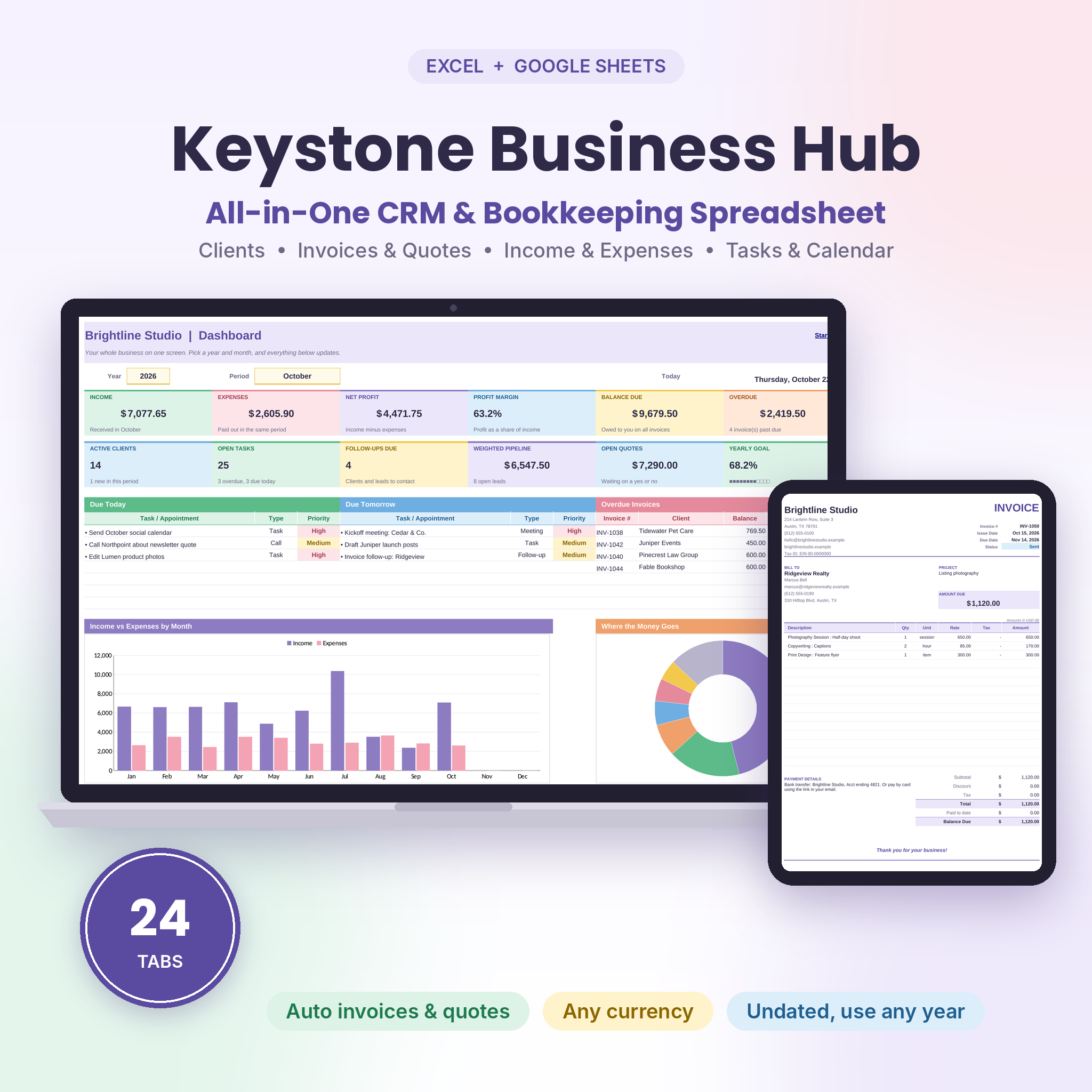
Order Sales := SUM(Orders[OrderTotal])for customer totals andMerchandise Sales := SUM(OrderLines[LineAmount])for product totals. With the standard filter direction, a customer filter reaches that customer’s orders and lines. A SKU filter on OrderLines does not travel back up to Orders, so don’t putOrder Salesagainst SKU and expect product revenue. See how to summarise multiple related tables in one report for report layouts that keep those totals distinct.If the main task is tracking custom planner jobs from quote to invoice, Keystone Business Hub puts client records, quotes, invoices and tasks in one workbook. Keep the SKU and print quantity on the job’s order lines even if the invoice is the document the customer sees.
Turn released order lines into a print queue and an assembly list. Filter to orders cleared for production. On each line, multiply
QuantitybyLeavesPerPack, where a leaf is one physical piece of paper, whether printed on one side or both. Group matching lines by SKU for the print queue. Keep OrderID and quantity in the assembly list so the finished packs can go back to the right parcels.If you reformat a 12-leaf weekly pack as a 16-leaf pack, use a new SKU version or save the leaf count on each order line at the time of sale. A live lookup to the latest specification could turn an unprinted order for two packs from 24 leaves into 32 without anyone changing the order.
For a shop that wants order tracking, inventory, invoicing and bookkeeping in one file, Tallyhive Small Business HQ groups those tasks across 30 linked tabs. Use a released test order to check what reaches the stock and invoice views before adopting it for production.

Worked example: three orders from sale to packed inserts
Suppose a planner shop has two customers, C01 and C02, and three orders cleared for printing. All prices below are illustrative, and tax is left out so the sales and production figures can be checked directly.
| OrderID | CustomerID | Merchandise | Shipping | Order discount | Order total |
|---|---|---|---|---|---|
| O101 | C01 | £22 | £3 | £2 | £23 |
| O102 | C01 | £6 | £3 | £0 | £9 |
| O103 | C02 | £16 | £3 | £0 | £19 |
The Orders tab shows £51 in order sales including shipping, made up of £44 in merchandise, plus £9 shipping, less a £2 order discount. A customer report shows £32 for C01 and £19 for C02. Neither figure depends on how many order lines each customer’s orders contain.
| LineID | OrderID | SKU | Packs | Unit price | Line amount | Leaves per pack |
|---|---|---|---|---|---|---|
| O101-01 | O101 | A5 Weekly | 2 | £8 | £16 | 12 |
| O101-02 | O101 | A5 Monthly | 1 | £6 | £6 | 6 |
| O102-01 | O102 | A5 Monthly | 1 | £6 | £6 | 6 |
| O103-01 | O103 | A5 Weekly | 1 | £8 | £8 | 12 |
| O103-02 | O103 | A5 Notes | 2 | £4 | £8 | 8 |
If you look up the order total on each line and sum that column, you get £23 + £23 + £9 + £19 + £19 = £93. Nothing was sold twice. The lookup returned the correct total five times, and the report added two of those totals twice. Summing LineAmount instead gives the correct merchandise breakdown: £24 weekly, £12 monthly and £8 notes.
Print the batch, then pack by order
Each SKU uses A5 leaves with print on both sides. Assume a print layout that fits two A5 leaves on one A4 sheet, with enough space inside each finished leaf for that printer’s margins and the planner’s punch holes. With matching fronts and backs imposed for each cut position, the production batch has these requirements:
| SKU | Packs to assemble | A5 leaves | A4 production sheets |
|---|---|---|---|
| A5 Weekly | 3 | 36 | 18 |
| A5 Monthly | 2 | 12 | 6 |
| A5 Notes | 2 | 16 | 8 |
| Total | 7 | 64 | 32 |
- Print one proof per SKU before releasing the batch. Use actual size or 100% for a file already arranged two-up on A4. Don’t apply the printer’s two-pages-per-sheet setting on top of that layout. Cut the proof to A5, check the front and back are upright when turned as intended, and punch one leaf. If the back is upside down, change the duplex flip setting and reprint the proof. If dates or page numbers run in sequence, check the cut-and-stack order with a few numbered leaves before printing the full run.
- Print 32 production sheets for the three SKUs. Keep proof sheets and any replacements separate from the production count. The 32 assumes two usable leaves per sheet; if a design needs extra trim space or a printer clips the artwork at actual size, revise the layout and sheet count before running the batch.
- Cut and collate seven packs, then pick three parcels. Put two weekly packs and one monthly pack into
O101, one monthly pack intoO102, and one weekly pack and two notes packs intoO103. Check off each order line against the packing list. The batch count tells you whether seven packs exist; the order list tells you whether each parcel got the right ones.
Fix the reports that still give the wrong answer
A SKU report shows £51 on every row
Replace the order measure with line merchandise sales. If you need sales by SKU after whole-order discounts, add an explicit allocation rule. For O101, a proportional split of the £2 voucher gives £1.45 to weekly and £0.55 to monthly, based on their £16 and £6 shares of the £22 merchandise subtotal. Round to pennies and assign any rounding remainder to a designated line so the allocations still total £2.
That gives O101 £20 in discounted merchandise sales. The £3 shipping charge can stay separate; there’s no need to spread it across SKUs unless the report has a specific use for allocated shipping. Keep allocations in their own columns so an allocated discount isn’t subtracted again from the Orders total.
Removing duplicate amounts drops a genuine sale
Group by OrderID, not by OrderTotal. If two different customers both pay £23, a distinct sum of amounts only counts one of them. If all you have is a flat export, first check that each OrderID has one consistent header total, then build a one-row-per-order table. Keep the original item rows in a separate table for packing and merchandise reports.
A shipment or payment import multiplies the rows again
Keep split shipments and instalments in separate tables when they occur. If O101 has two shipment rows and two order lines, joining both sets on OrderID in a flat table creates four rows. Record which line quantities went into each shipment if partial fulfilment matters. If you only need an order-level dispatch status, summarise shipments to one row per order before bringing that status into the Orders report.
Payment reporting needs the same care. A £10 deposit and a £13 balance are two payments against one £23 order, not two sales. For shops that need receipts, part-payment status and overdue balances, Client Billing Hub keeps those billing views alongside invoices and client statements. Reconcile the amounts collected to the invoice balance without adding collections to the sales total.
A cancelled pack still appears in the print queue
Don’t delete the original order line if you need a record of the sale or refund. Give a cancelled line zero quantity to print, or track released quantity separately when only part of the line should go ahead. A refund after dispatch changes net sales but doesn’t undo the paper already used. A spoiled sheet changes paper use but doesn’t change what the customer paid.
Before switching a live workbook over, run one order with two SKUs, a whole-order voucher and a part payment. Confirm that the sales report counts one order, the billing view shows the unpaid balance, and the assembly list shows both SKUs. If one of those checks fails, fix the report’s source rows before importing the rest.
