You can print a giant coloring page on an ordinary home printer by tiling it: the software splits one page into a grid of pieces, prints each piece on its own sheet, and you tape them together into a poster. A 2 by 2 grid turns a Letter page into a roughly 17 by 22 inch sheet. A 3 by 3 grid gets you close to a small tablecloth. Nothing special is needed beyond a free PDF reader, tape and scissors.
This guide is for parents planning a rainy-day mural, grandparents setting up a family coloring afternoon, and anyone who has wondered how those giant floor coloring posters are made. You will learn three ways to tile a page, how big you can go before lines turn fuzzy, how to join the sheets neatly, and which kinds of designs look best blown up.
Quick picks: designs that scale up well
| Product | Best for | Price | Link |
|---|---|---|---|
| Mega Munch Worlds Printable Coloring Book | Giant food scenes for kids and adults | $3.99 | View |
| Easy Mandala Coloring Book | Big round posters a whole family can share | $3.49 | View |
| Kettle & Quilt Bold and Easy Coloring Book | Large print cozy scenes with thick outlines | $6.99 | View |
How big should you go?
Every extra sheet makes the poster bigger and the lines thicker. Thick lines are good for small children and group coloring. The limit is sharpness: blow a small image up too far and the lines go soft at the edges.
| Grid | Sheets | Approximate finished size (Letter) | Good for |
|---|---|---|---|
| 2 x 2 | 4 | 16 x 21 inches | One child, a door or a fridge |
| 3 x 3 | 9 | 24 x 31 inches | Two or three kids on the floor |
| 4 x 4 | 16 | 32 x 42 inches | A party table or a family mural |
Sizes are a bit smaller than the raw paper size because each sheet loses its printer margin and a strip of overlap. On A4, the finished size is similar, just slightly taller and narrower.
The sharpness rule of thumb
Vector PDFs, the kind made from clean line art, stay sharp at almost any size. Image files like PNG and JPG depend on pixel count. For a coloring poster seen from a meter away, about 100 to 150 pixels per inch is fine. So a 2000 by 3000 pixel image stretches comfortably to about 20 by 30 inches. Go to 4 x 4 with the same file and you will see soft, slightly stepped edges, though bold lines still read clearly.
Method 1: Adobe Acrobat Reader Poster mode
This is the easiest and most reliable method for PDF coloring pages on Windows and Mac, and the free Reader includes it.
- Open the coloring book PDF in Adobe Acrobat Reader.
- Choose File, then Print.
- In the Pages box, type the single page number you want, for example 12.
- Under Page Sizing and Handling, click Poster.
- Set Tile Scale. 200 percent gives roughly a 2 x 2 poster, 300 percent roughly 3 x 3, and so on. The preview on the right shows the grid.
- Set Overlap to about 0.25 inch or 6 mm. This repeats a thin strip on neighboring sheets so you can line them up.
- Tick Cut marks and Labels. Cut marks show where to trim, and labels print a small row and column number on each sheet.
- Click Print.
Check the preview before you print. If a key part of the design, like a character’s face, falls exactly on a join, nudge the Tile Scale up or down by 10 percent to move the seams.
Method 2: Windows Paint for image files
If your page is a PNG or JPG, the Paint app built into Windows can tile it.
- Open the image in Paint.
- Choose File, then Print, then Page setup.
- Under Scaling, choose Fit to and enter the grid you want, such as 2 by 2 pages.
- Set margins to the smallest your printer allows, then click OK and print.
Paint does not add overlap or cut marks, so trim one edge of each join carefully and butt the sheets together. It works well for bold designs where a tiny misalignment will not show.
Method 3: Your printer’s own poster setting
Many printer drivers include a poster or tiling option, often under a Layout, Page Layout or Multi-page tab in the printer properties. You choose 2 x 2, 3 x 3 or 4 x 4 and the printer handles the split. Some also add overlap and trim guides. Look for it by opening Print, clicking Printer Properties or Preferences, and checking each tab.
On a Mac, the built-in Preview app does not tile pages, so Acrobat Reader is usually the easiest route. There are also free poster-tiling websites and apps that split an image into printable sheets. They vary in quality and some carry ads, so try one with a single page before relying on it for a party.
Joining the sheets so the lines meet
Neat joins are what make a tiled poster look like one big page rather than a patchwork. Give yourself 15 minutes and a clear table.
- Lay the sheets out face up in order, using the row and column labels.
- Trim one edge of each overlap. Cut along the cut marks on the right edge and bottom edge of each sheet, leaving the overlap strip on its neighbor. Use a craft knife and a metal ruler if you have them, or sharp scissors.
- Line up the lines. Slide each trimmed edge over the neighboring overlap until the black lines meet exactly. Hold it up to a window if needed.
- Tape on the back. Flip the pair over carefully and run clear tape or masking tape down the full length of the seam. Then add a strip on the front if the poster will be colored on the floor, where edges catch.
- Join rows, then join the rows together. It is easier to build three long strips and tape those together than to add sheets one by one.
A glue stick along the overlap gives the flattest join if you plan to frame or hang the finished poster. Tape is quicker and fine for a one-afternoon activity.
Why giant food pages are made for this
Some designs simply look better big. Pages with one huge central object, chunky details and a sense of humor become a real event when printed at 3 x 3 and laid on the floor. Kids can lie down on the poster and color a pancake the size of their own head.
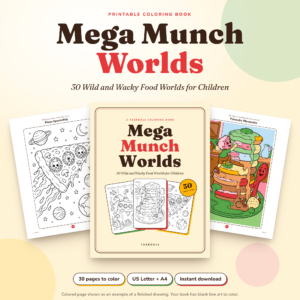
Mega Munch Worlds Printable Coloring Book
Price: $3.99 | Best for: kids from six, teens and adults
Mega Munch Worlds has 30 full-page drawings of giant food gone wild, such as Pancake Mountain, a Banana Submarine and a Doughnut Planet, each with a caption that makes the joke. You get US Letter and A4 PDFs plus a single-page PNG pack at 2000 by 3000 pixels, which tiles comfortably to a 2 x 2 or 3 x 3 poster. Start with Pancake Mountain at 3 x 3 on the living room floor.
A giant food poster also makes a great family project for a weekend. Each person takes one sheet’s worth of the picture, and the meeting point of everyone’s colors is where the fun happens.
Mandalas and patterns as shared posters
Round designs are perfect for group coloring. Lay a 4 x 4 mandala on a table and everyone can sit around it, each working toward the center from their own side. Because mandalas repeat, people naturally agree on a color for each ring, and the result looks planned even when it was not.
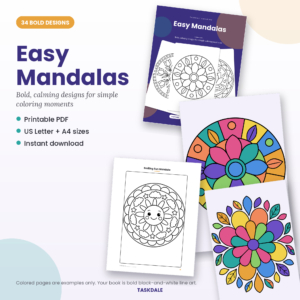
Easy Mandala Coloring Book
Price: $3.49 | Best for: families coloring one big poster
Easy Mandala has 34 bold designs with thick outlines and open spaces, including sun, starburst, daisy and butterfly mandalas. Because each design is its own page in US Letter or A4, you can send one page to Poster mode without touching the rest. Try the Starburst Mandala at 3 x 3 as a family centerpiece for a quiet Sunday.
A tip for round designs: put the center of the mandala where four sheets meet only if you are confident in your joins. Otherwise, adjust the Tile Scale so the center sits in the middle of one sheet.
Bigger lines for tired eyes
Tiling is not just for kids. Doubling the size of a page doubles the line thickness and the size of every shape, which can make coloring far more comfortable for someone with low vision or less steady hands. A 2 x 2 print of a cozy scene, taped and then clipped to a large board, is easy to see and easy to reach.

Kettle and Quilt Bold and Easy Coloring Book
Price: $6.99 | Best for: adults and seniors wanting big shapes
Kettle & Quilt has 30 large print cozy designs with thick, clean outlines: a mug of cocoa, a cat in an armchair, a mushroom cottage and a little bakery. Each page carries a detail guide marked Simple, Medium or Rich, and comes in US Letter and A4. Pick a Simple page, print it at 2 x 2 for a parent or grandparent, and tape it to a board for easy coloring from a chair.
Paper, tape and tools for tiled posters
- Paper: Ordinary 20 lb or 24 lb printer paper works and is easiest to tape flat. Cardstock is sturdier but harder to join neatly.
- Tape: Clear tape for the back, masking tape for floor projects because it can be colored over with crayons.
- Cutting: A craft knife, metal ruler and cutting mat give the cleanest edges. Scissors work if you go slowly.
- Coloring tools: Big areas eat colored pencils. Crayons, washable markers or chunky paint sticks fill a large poster quickly.
- Surface: A hard floor or large table. Carpet lets markers poke through the paper.
Ideas for using a giant coloring poster
- Rainy day floor project. Lay a 3 x 3 page in the hallway with a tub of crayons. Siblings each take a corner.
- Party table cover. Tape a 4 x 4 poster to the kids’ table and put markers in a jar in the middle.
- Bedroom door art. A finished 2 x 2 page on a door makes a child very proud.
- Family visit activity. A big poster at a grandparent’s house gives everyone something to do together, with no screen in sight.
Licences matter if you plan to use pages beyond your own home, so check the product’s terms before printing for a classroom or club. For more screen-free ideas, see our guide to free coloring activities for rainy days.
Common problems and fixes
Lines do not meet at the seams
Overlap was set to zero, or the printer shifted the paper slightly. Use 0.25 inch overlap with cut marks, and trim along the marks rather than the paper edge.
White gaps between sheets
That is the printer’s unprintable margin. Overlap fixes it, because the strip on the neighboring sheet covers the gap.
Poster looks blurry
The image is too small for that size. Drop to a smaller grid, or use the PDF instead of an image. Our guide to printing pictures without blur or cropping explains pixel sizes in more detail.
A face or key detail lands on a join
Change Tile Scale by 10 percent to shift the seams, or rotate to landscape.
Sheets print out of order
Turn on Labels in Acrobat so each sheet shows its row and column.
Frequently asked questions
How do I print one page on multiple pages in Adobe Reader?
Open File, then Print, choose the page number, click Poster under Page Sizing and Handling, set Tile Scale and Overlap, tick Cut marks and Labels, and print.
Can I print a poster on a regular home printer?
Yes. Tiling splits the design across standard sheets of Letter or A4 paper, which you then trim and tape together.
How do I tile print on a Mac?
Preview does not offer tiling, so open the PDF in the free Adobe Acrobat Reader and use Poster mode. Some printer drivers on Mac also include a poster option.
How big can I print a coloring page before it gets blurry?
Vector PDFs scale cleanly to almost any size. For PNG or JPG images, aim for at least 100 pixels per inch of finished poster. A 2000 by 3000 pixel image works well up to about 20 by 30 inches.
What is the best way to join tiled pages?
Trim one edge at the cut marks, overlap it on the neighboring sheet so lines meet, and tape along the back. Build rows first, then join the rows.
How much ink does a tiled coloring poster use?
Less than you might think. Coloring pages are mostly white, so a 3 x 3 poster uses about as much black ink as nine ordinary coloring pages. Print a 2 x 2 first if you are low on ink.
Your next step
Pick one bold design, such as Pancake Mountain from the Mega Munch Worlds Printable Coloring Book, open it in Acrobat Reader, choose Poster with 300 percent Tile Scale and 0.25 inch overlap, and print nine sheets. Tape them together on the floor and hand out the crayons.