Excel homeschool planner: the best one is the one where you type each lesson once and attendance, hours, grades and report cards fill in by themselves. The three planners on this page all do that for up to six children. Choose between them on how hours are counted, how many printable pages you want, and whether you need a budget tab or weighted grades.
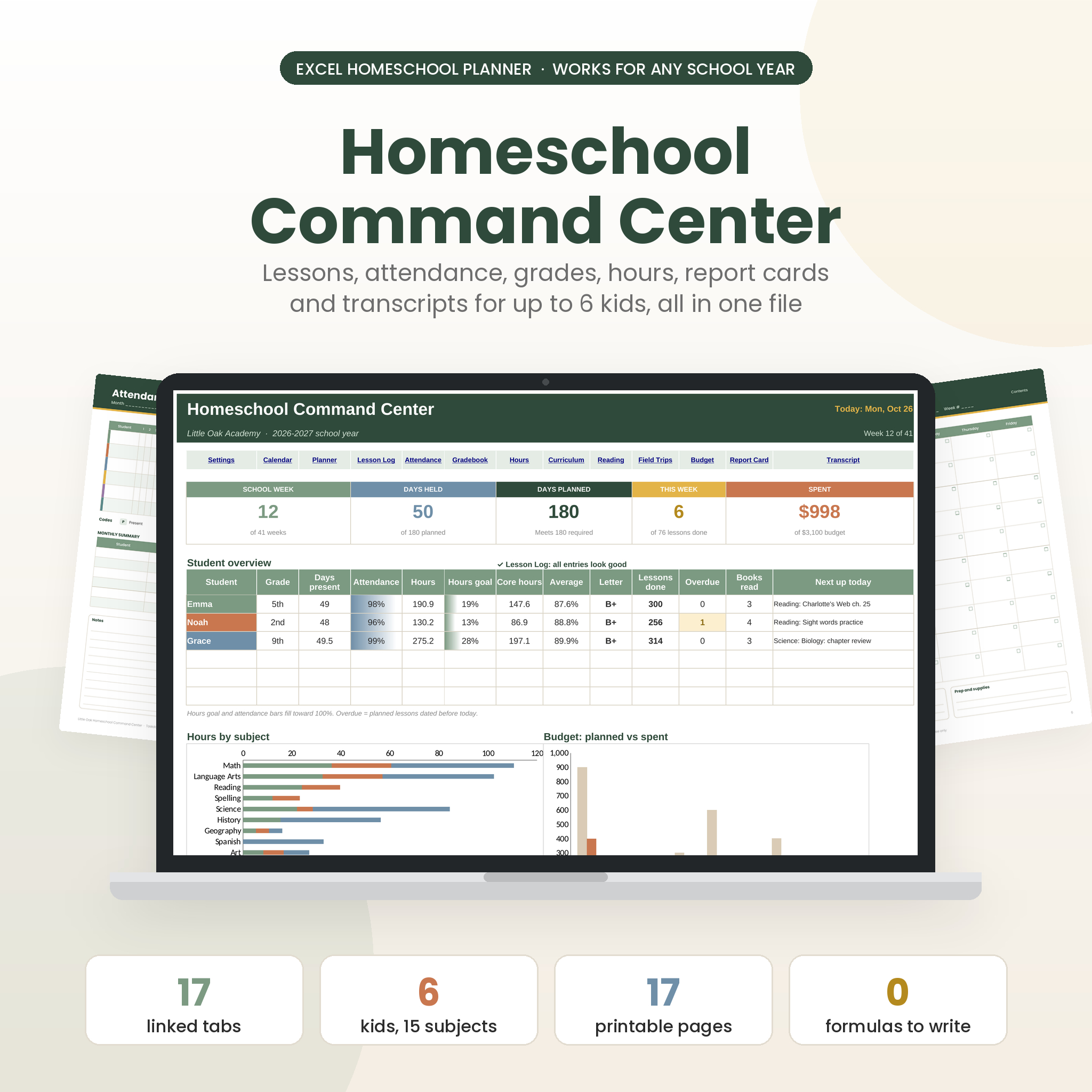

Key facts at a glance
- An Excel homeschool planner is a spreadsheet workbook that links lesson plans, attendance, hours, grades and records so one entry updates every tab.
- Little Oak Command Centre, Brightpath and Hearthside each cover up to 6 children, and Hearthside is described as suiting Pre-K to 12th grade.
- Each includes a high school transcript and report cards, which a plain calendar or paper planner will not produce for you.
- Printable pages come in both US Letter and A4 across all three, with 17, 14 and 21 pages respectively.
- Little Oak is the only one listed with a budget tracker, and Hearthside is the only one listed with a weighted gradebook.
Table of Contents Toggle
- What should you look for in an Excel homeschool planner?
- How do the three planners compare?
- Which Excel homeschool planner suits which family?
- How do you set up and use an Excel homeschool planner?
- What mistakes should you avoid?
- What affects the price of an Excel homeschool planner?
- Which planner should you choose?
- Common questions
Choosing a planner can feel bigger than it is. Records, hours, grades and lesson plans all seem to need their own system, and it is easy to worry you will pick the wrong one. This guide takes the decision in small steps, so you can compare the three options on this page on the points that actually differ.
What should you look for in an Excel homeschool planner?
A good Excel homeschool planner saves you from entering the same information twice. Look for six things: single-entry lesson planning, automatic attendance and hours, a gradebook, records for older students, room for your number of children, and printable pages that suit how you work.
Single-entry lesson planning
Single-entry planning means you type a lesson once and the weekly view, hours and dashboard update from it. All three products work this way. Little Oak and Hearthside describe it directly, and Brightpath describes the dashboard, report cards and transcript filling in on their own. If a planner makes you re-type lessons into a second tab, it has missed the point of being a spreadsheet.
Attendance and hours that match your rules
Attendance tracking is the automatic count of school days and hours across the year. Little Oak counts toward 180 days or your state's hours. Brightpath counts school days and hours and skips breaks, which saves you adjusting for holidays by hand. Hearthside tracks hours by subject and attendance automatically.
Your state or region sets its own requirements, so cheque them before relying on any total.
Gradebook, report cards and transcript
A gradebook records scores per subject and turns them into report cards and a transcript. This matters most from about the high school years, when a transcript becomes a real document. All three include a high school transcript. Hearthside adds a weighted gradebook, which helps if a test counts for more than a worksheet.
Number of students and subjects
Cheque the limits before you buy. Little Oak and Brightpath both cover up to 6 children. Brightpath also states a limit of 12 subjects per student, which is worth knowing if your children study many separate subjects. Hearthside is made for 1 to 6 children, Pre-K to 12th grade, so it also suits a single child or a wide age spread.
Printable pages and paper size
Printable pages are paper versions of planners, trackers and logs for days you would rather not open a laptop. Little Oak includes 17, Brightpath 14 undated, and Hearthside 21 undated, all in Letter and A4. Undated pages can be started at any point in the year, which suits a mid-year switch or a rolling school year.
The user guide
A user guide is the setup help that comes with the file. Little Oak includes a 20-page guide, Brightpath a step-by-step guide, and Hearthside an illustrated one. If spreadsheets make you nervous, a guide with screenshots is worth more than an extra tab.
How do the three planners compare?
The three planners are close on core features and differ on printables, limits and extras. This table sets out what each listing states.
| Product | Children | Printable pages | Notable features |
|---|---|---|---|
| Homeschool Planner Spreadsheet for Excel | Little Oak Command Centre | Up to 6 | 17 (Letter and A4) | Budget, dates itself for 2026-2027 or any school year, counts toward 180 days or state hours, 20-page guide |
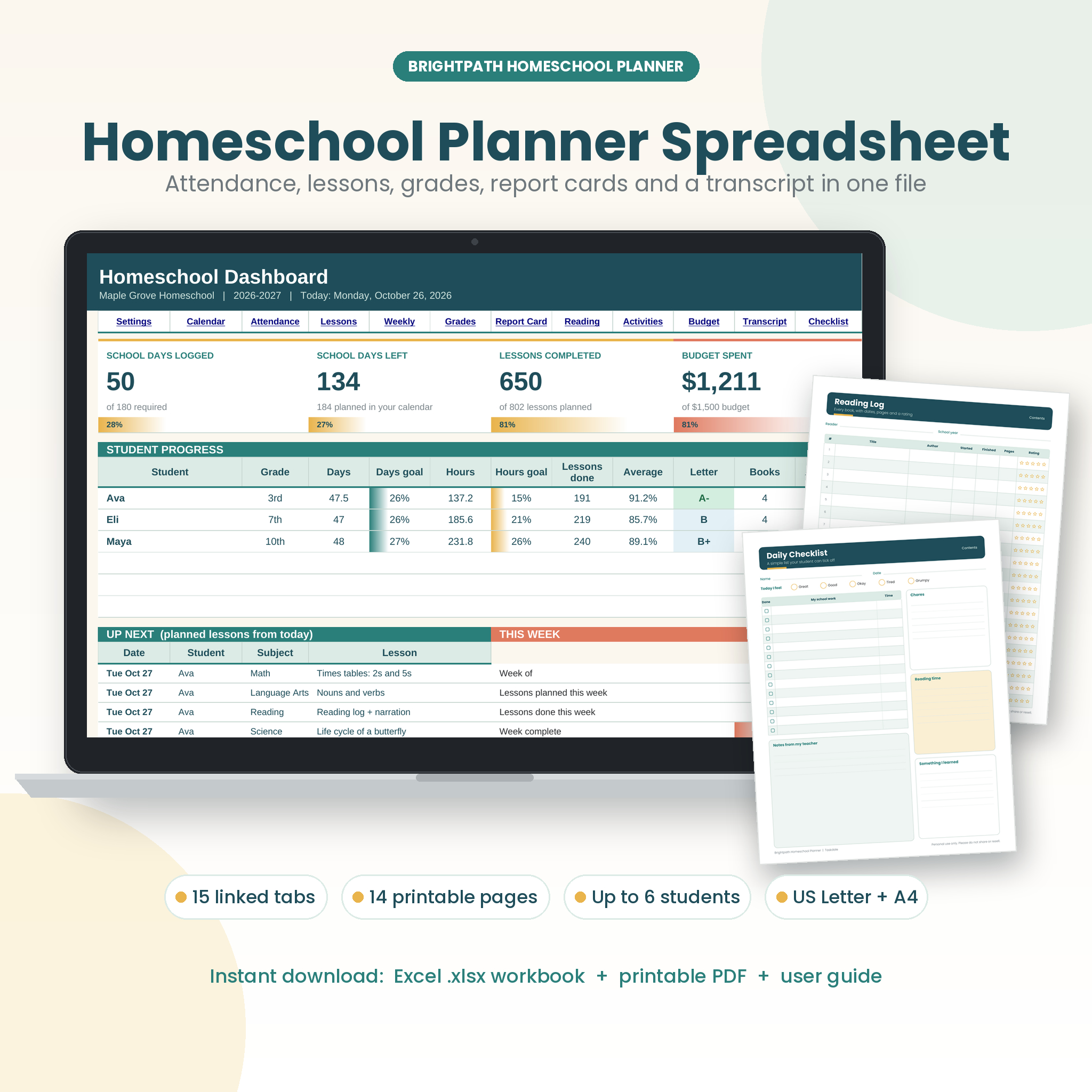 Brightpath Homeschool Planner Spreadsheet & Printable Pages | Up to 6 students, 12 subjects | 14 undated (Letter and A4) | 15 linked tabs, breaks skipped in day and hour counts, step-by-step guide |
| Hearthside Homeschool Command Centre | Excel Homeschool Planner with Lesson Planner, Attendance, Gradebook, Report Cards & Transcript + 21 Printable Pages | US Letter & A4 | 1 to 6, Pre-K to 12th grade | 21 undated (Letter and A4) | Weighted gradebook, curriculum pace, hours by subject, illustrated guide |
Which Excel homeschool planner suits which family?
Each planner suits a different priority: Little Oak suits families who want money tracked alongside school, Brightpath suits families with many subjects, and Hearthside suits families who want grade weighting and pace tracking.
Homeschool Planner Spreadsheet for Excel | Little Oak Command Centre suits you if you want one file to hold the budget as well as lessons and records. It dates itself for 2026-2027 or any other school year, so you set it once. Its 20-page guide is the longest of the three.
Brightpath Homeschool Planner Spreadsheet & Printable Pages suits families with several children studying many subjects. Its 15 linked tabs and 12-subject limit give you room, and skipping breaks in the day count means fewer manual corrections.
Hearthside Homeschool Command Centre suits families who want the most printable pages and the most detail on grades. The weighted gradebook and curriculum pace view are listed only here. It also covers a single child, which the others do not state as plainly.
How do you set up and use an Excel homeschool planner?
Setting up an Excel homeschool planner takes a short session at the start of the year, followed by a few minutes each week. Follow these steps.
- Save a master copy of the file before you type anything, and work from a duplicate.
- Read the setup section of the user guide so you know which cells are for entry and which fill in automatically.
- Enter your children, their grade levels and their subjects.
- Set your school year start date, or confirm the planner's date range, and mark breaks and holidays.
- Type each lesson once into the lesson planner and cheque that the weekly view updates.
- Mark attendance and log hours as you go, ideally at the end of each school day.
- Enter grades when work is marked, and glance at the dashboard weekly to see whether you are on pace.
- Print the pages you prefer on paper and keep a backup of the workbook each month.
What mistakes should you avoid?
The most common mistake is trusting automatic totals without checking them against your own requirements. A spreadsheet counts what you enter, so the figures are only as good as the dates and hours behind them.
- Skipping the guide. Formulas link tabs together, and typing over one can break the chain. The guide shows which cells are safe.
- Not checking local rules. A count toward 180 days or state hours is helpful, but your own state or region decides what counts.
- Buying for today's family only. If a younger child will start in two years, cheque the student and subject limits now.
- Working in one file with no backup. Save a dated copy regularly, especially before editing a finished term.
- Ignoring the transcript until late. Enter grades and credits steadily from the start of high school, because rebuilding years of records is slow.
What affects the price of an Excel homeschool planner?
The price of an Excel homeschool planner depends mainly on how much is bundled with the spreadsheet, not on how many formulas it contains. The live product cards show the current price of each, so compare them there rather than relying on this text.
Things that tend to push the cost up are the number of printable pages, extra tabs such as a budget tracker, a longer user guide, and features like weighted grading. A planner with fewer pages and a simpler gradebook will usually cost less up front. Because these are digital files, you pay once for the file, but cheque each listing for what is included before assuming that.
Which planner should you choose?
Pick the planner that matches your biggest need, then cheque it against your state's rules.
- Choose Little Oak Command Centre if you want a budget tab and a self-dating file.
- Choose Brightpath if you have several children and many subjects to track.
- Choose Hearthside Homeschool Command Centre if you want weighted grades, curriculum pace and the most printable pages.
If you are unsure, use the longest user guide on the list as a tiebreaker, and start with whichever one you can picture opening every morning.
Common questions
Do I need to print anything to use these planners?
No. Each planner works as an Excel workbook on its own, and the printable pages are optional extras. They are useful if you like a paper copy for the kitchen table or want to hand a child a weekly checklist.
Can I use one of these for a single child?
Yes. Hearthside is described as made for families teaching 1 to 6 children, and Little Oak and Brightpath cover up to 6, so you can leave unused student slots empty. Cheque the guide for how to hide or ignore them.
Will the planner meet my state's requirements?
A planner can count days and hours, but it cannot confirm your legal obligations. Little Oak counts toward 180 days or your state's hours. Look up your state or region's rules, then use the totals as your evidence.
What does undated mean for printable pages?
Undated pages have blank date fields, so you write in the dates yourself. You can start them at any point in the year, restart after a break, or reuse the same page style for the following year without waiting for a new edition.
Is a spreadsheet better than a paper planner?
A spreadsheet saves time when you have more than one child or need records such as a transcript, because one entry updates several places. A paper planner can feel quicker for a single child with simple needs. These products include both.