A calculated total in a fillable form only works if the field names and calculation order are right. In Adobe Acrobat Pro, create a text field for the calculated total, then use its Calculate tab to add the fields that hold the amounts. Test the calculated total in the PDF reader people will use, then save, reopen and print one completed copy before cutting or punching a batch of planner inserts. Adobe’s guide to calculation fields shows the Calculate tab step by step.
Build the calculated total in Acrobat Pro
Write down what the calculated total should include. For a weekly spending insert,
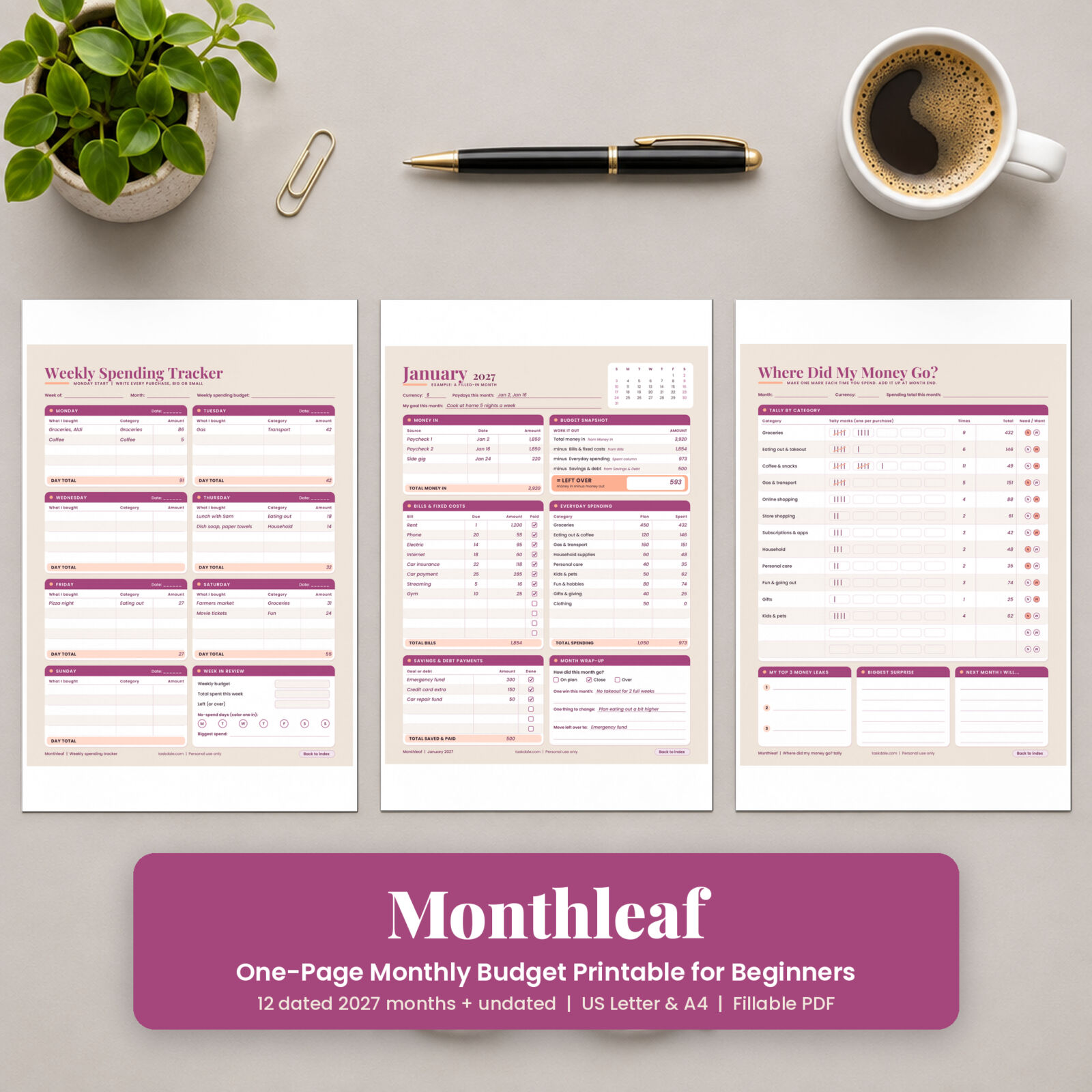
Food + Travel + Otheris a clear rule. The weekly budget is a reference amount, not another expense, so it stays out of the spending total. Decide what a blank means, too: if an unused category counts as zero, the sum can update as each entry is made. If blank means the figure is still unknown, label the result Total entered so far rather than implying the page is complete.For a model of what belongs in a one-page budget, the Monthleaf 2027 monthly budget printable separates money in, bills, everyday spending and savings from the amount left over. That distinction is worth carrying into a custom insert: Total spending and Money left are different outputs and shouldn’t share a label.
Create and name the amount fields. Open the PDF in Acrobat Pro and choose All tools > Prepare a form. Add a text field for each amount and one for the result. If Acrobat detects fields automatically, check the generated boxes and names instead of assuming each printed cell has its own field. A printed rectangle around a number is only page artwork until a form field is placed over it. If the page is still static, start by adding form fields to the worksheet.
In each field’s Properties > General tab, use distinct names such as
Wk1_Food,Wk1_Travel,Wk1_OtherandWk1_Total. The name Acrobat uses for the calculation can differ from the label printed on the page. If a second week is part of the same PDF, give it its own names, such asWk2_Food. Copying a box and moving it to another page doesn’t necessarily give it a new name.Set the number format before wiring the calculated total. Open Properties > Format, select Number, and set the decimal places and separator style for the amounts. For a sterling spending insert, use two decimal places. If the page already has a printed
£beside each box, leave the field’s currency symbol off; otherwise the completed sheet can show two symbols for one amount.Choose a consistent way to enter values. For example, tell users to enter
18.50without typing a currency sign, and let the field handle the display. If refunds belong in the spending record, test that a negative amount such as-3.00reduces the total. If negative entries aren’t allowed, set an appropriate validation range on the amount fields and test what happens when someone enters one.Assign the calculation to the result field. Open
Wk1_Totalin Properties > Calculate and select Value is the. Choose sum (+), select Pick, and tickWk1_Food,Wk1_TravelandWk1_Other. Leave the budget, any notes fields and the result field itself out of the calculated total. Preview the form, enter1,10and100, and move out of the last field. A result of111.00checks that all three inputs are included; a result of101.00points straight to the missing tens field.Use the built-in sum for a straight addition. For Budget left, use a separate result field and subtract total spending from the budget. With simple field names like these, Acrobat’s Simplified field notation can handle
Wk1_Budget - Wk1_Total. Decide what should happen when the budget is blank before adding this output. A balance that treats a missing budget as zero can look like an overspend even when no budget was entered.Protect the calculated total and set the calculation order. In the result field’s General tab, select Read Only so the reader can’t type over the calculated total. Set Form Field to Visible so the result is eligible to appear on screen and in print. Check the input sequence separately: the Tab key should move through Food, Travel and Other in the order printed on the sheet. Clear field labels and a logical keyboard tab order make it easier to tell which amount you’re changing during a test.
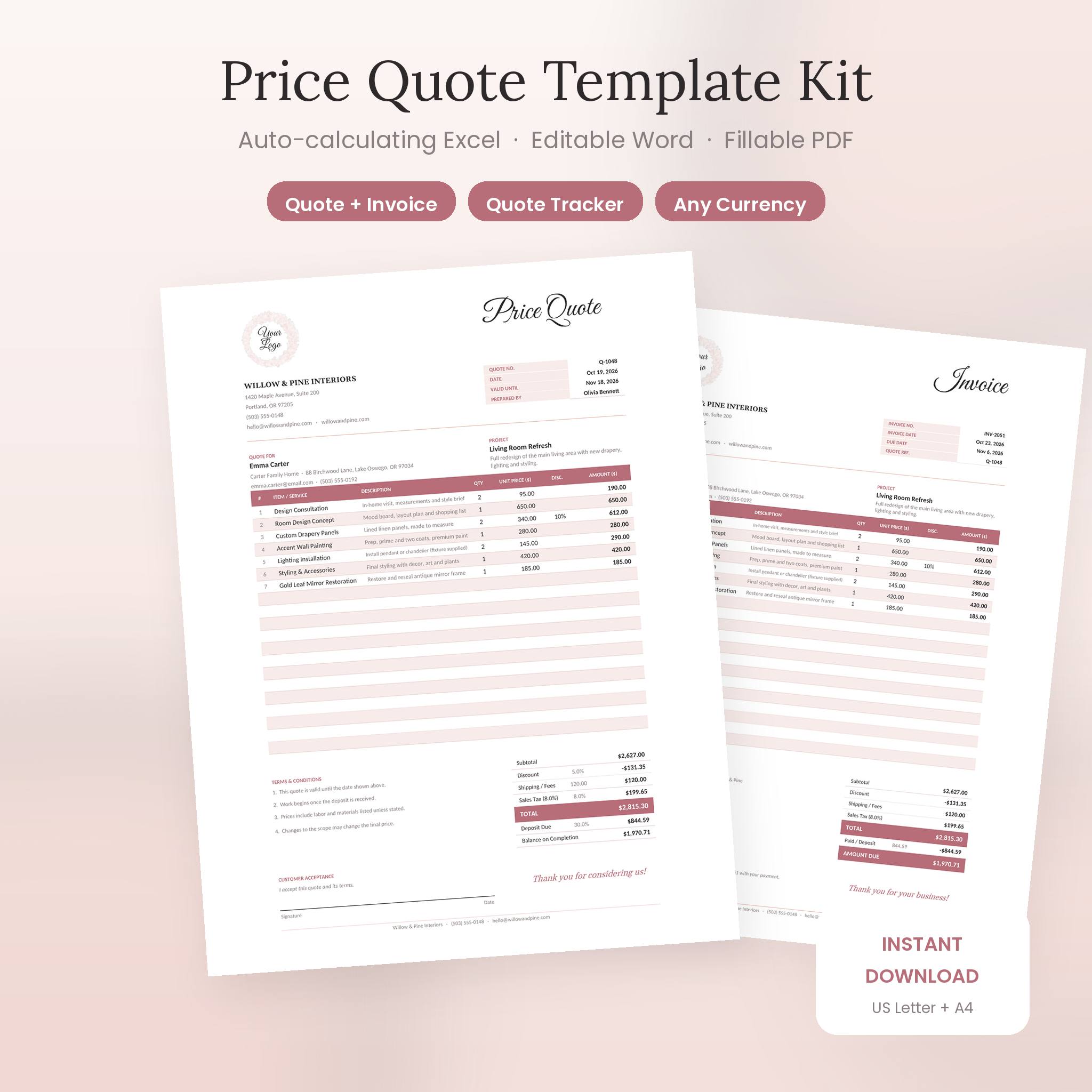
If one result feeds another, use Set Field Calculation Order in the Prepare a form tool’s options. Put the calculated total before the balance. For a quote with quantity and price on each line, put line amounts before the subtotal, then place outputs that depend on that subtotal after it. To see where that separation matters, the Rosewater Price Quote Template Kit includes a fillable PDF with auto calculations and an Excel quote workflow with discount, tax, deposit and balance outputs.
Test a saved copy in the intended reader. Keep a blank master and save a separate file for test entries. Start with desktop Adobe Acrobat Reader, then check any browser, tablet or phone app you plan to support. A PDF viewer can let someone type into all three amount boxes without running the calculation correctly. Enter a value, press Tab or click away to commit it, and check the result before saving. Then close the file, reopen the saved copy and change one amount. A calculated total that survived reopening isn’t necessarily one that still recalculates.
On a multi-page form, test across page boundaries as well. A dashboard may need to update after an entry on page 12, not just after one on the same page. The Quadnest college dorm checklist and move-in planner is an example of that setup: it uses item statuses and costs across nine zones to report packing and spending on a dashboard.
Worked example: from a weekly spending insert to a printed page
This example uses a weekly spending insert with a £100.00 budget and three amount fields. The total should update as entries are made, so an unused category counts as zero. The balance should show the budget minus the total. Enter the budget first so the balance has a meaningful reference amount.
Set up the page and fields. Start with an A5 PDF designed for a ring planner. Give the binding edge enough room for the actual punch you use. Add
Wk1_Budget,Wk1_Food,Wk1_TravelandWk1_Otheras editable text fields. AddWk1_TotalandWk1_Leftas read-only fields. Format all six fields as numbers with two decimal places. Use the built-in sum for the spending total andWk1_Budget - Wk1_Totalfor the balance, in that calculation order.Enter figures and check by hand. Enter
100.00for Budget,24.50for Food,12.25for Travel and8.00for Other. After leaving the last field, expect £44.75 spent and £55.25 left. Write those expected amounts down before testing. Checking both outputs catches a stale balance even when the spending total looks right.Test edits as well as first entries. Change Travel to
15.25. The total should rise to £47.75 and the balance should fall to £52.25. Then clear Other and leave that field: the total should fall to £39.75 and the balance should rise to £60.25. Clear all three spending fields and check that the total returns to zero and the balance to £100.00. If a zero-spend week must look different from a week nobody has filled in, use a separate completion checkbox rather than relying on the total to tell the two apart.Save, reopen and make one more change. Restore the original figures, save the completed copy, close it and reopen it in the target reader. Confirm that all input values and both outputs are present. Then change Food from
24.50to25.50. The new total should be £45.75 and the balance £54.25. Save again before printing. For a separate record of what each app preserves, use a save, reopen and print test for completed PDF fields.Print a proof and check it against the planner. If printing the A5 PDF on A5 paper, set the paper size to A5 and choose Actual size or 100%. If printing on larger stock, use a layout that preserves the intended A5 trim size and measure the proof before cutting. Don’t accept Fit without checking the dimensions: it can shrink the insert to the printer’s printable area. If you need two inserts on one sheet, verify the size after applying the print layout rather than assuming the multiple-page setting preserves it.
Hold the proof against an existing insert or measure it before trimming. Check the figures at reading distance, align the binding edge with the punch guide and punch the proof. If the page is double-sided, print one duplex sheet and confirm that both sides are upright when turned in the binder and that neither side’s figures sit under the holes. Only then use the same settings for the batch.
Fix a total that is wrong, stale or missing from print
The total is wrong in every reader
Open the result field’s calculation and inspect the selected names. Common causes are an excluded input or a reference field, such as the budget, included in the sum. Use 1, 10 and 100 again, or enter one amount at a time with the others blank. If typing 10 into Travel also fills the Travel box for the following week, check for PDF fields that share a name. Rename the second week’s fields and check its calculation references afterwards.
If the total is off by a penny, test the precision of the inputs before changing the formula. Two decimal places on screen don’t guarantee that the underlying amount was rounded before summing. Two line amounts of 1.006 can each display as 1.01, while their unrounded sum of 2.012 displays as 2.01. For a spending insert, use amounts entered to the penny. For a quote that generates fractional pennies, decide if the total should add rounded line amounts or round only after summing, then test against that rule.
The total updates only after another edit, or not in a browser
Leave the edited field before diagnosing a fault. Acrobat normally recalculates when an entry is committed, not with each keystroke. If Total spending updates when you press Tab but Money left still reflects the prior total, put the spending total ahead of the balance in the calculation order. Repeat the same single-field change to confirm the balance now updates in the same pass.
If the calculated total doesn’t update, check that the result still has a calculation assigned and, in Acrobat or Reader, that Automatically calculate field values is enabled under Preferences > Forms. If the same file works in desktop Reader but not in a browser preview, give users a specific instruction: download the PDF and open it in desktop Adobe Acrobat Reader before filling it in. A successful browser print of saved figures doesn’t prove the browser can calculate new ones.
The total is visible on screen but absent or clipped on paper
Check that the result field is set to Visible, not Visible but doesn’t print. In Acrobat’s print dialogue, check Comments & Forms and use Document for the planner page with its entered values, rather than Form fields only. Look at the preview before sending another job. A mode that prints only field values won’t include the labels and lines that make an insert readable.
If the numbers appear but lose a digit, test the longest amount the box is meant to hold, such as £1,250.00, rather than another £8.00 entry. Widen the box if possible or adjust the field’s font size, then reprint at the intended scale. Move the field inwards if the amount is complete in the print preview but sits inside the trim or punch area on the physical proof.
Keep the editable master, the completed test copy and the approved print proof separate. Use the proof as the batch reference: if you change the PDF template, the printer scaling or the binding method, print and punch one new sheet before committing the rest of the paper.