You hit download, open the folder, and there they are: a ZIP, six PDFs, a folder of PNGs, some JPGs and a DOCX you weren’t expecting. Digital planner file formats look like a junk drawer the first time. Which one is the planner? Which one goes into GoodNotes? Do you need all of it?
Good news. Each file type has one simple job, and once you know the jobs, every planner download makes sense. Most of the time you only import one file. The rest is extras.
Here’s what each format is, what it’s for, and what to do with it.
Why one planner comes as so many files
A digital planner isn’t one thing. It’s the planner pages, plus decorations, plus instructions, plus sometimes paper versions for printing. Each of those works best in a different format, so makers ship them separately.
Think of it like buying a paper planner that comes with a sticker sheet, a spare cover and a little how-to booklet. Same idea. They just arrive as files instead of a box.
There’s also a practical reason. If you bundled 1,000 stickers inside the planner itself, the planner file would get heavy and slow. Keeping them apart keeps the main file light.
The quick map: what each file type does
Here’s the cheat sheet. Bookmark it, honestly. It saves a lot of guessing.
| File ending | What it is | What you do with it |
|---|---|---|
| .zip | A packed folder holding other files | Unzip (open) it first |
| The planner pages, or printable pages | Import into your note app, or print | |
| .png | Stickers, icons, covers or single insert pages | Add as images inside your planner |
| .jpg | Cover images or photos | Use as a cover or add as an image |
| .docx | The user guide (a Word document) | Read it in Word, Pages or Google Docs |
| .goodnotes, .note and similar | Notebook files your app creates | Back up or share between devices that use the same app |
A real example makes it click. The Sagebloom Digital Planner 2026 2027 download holds six hyperlinked planner PDFs, 1,204 PNG stickers sorted into 10 folders, a sticker book PDF, 36 JPG covers, 12 PNG home screen icons, 15 extra insert pages and a Word user guide. Seven kinds of file, one planner.
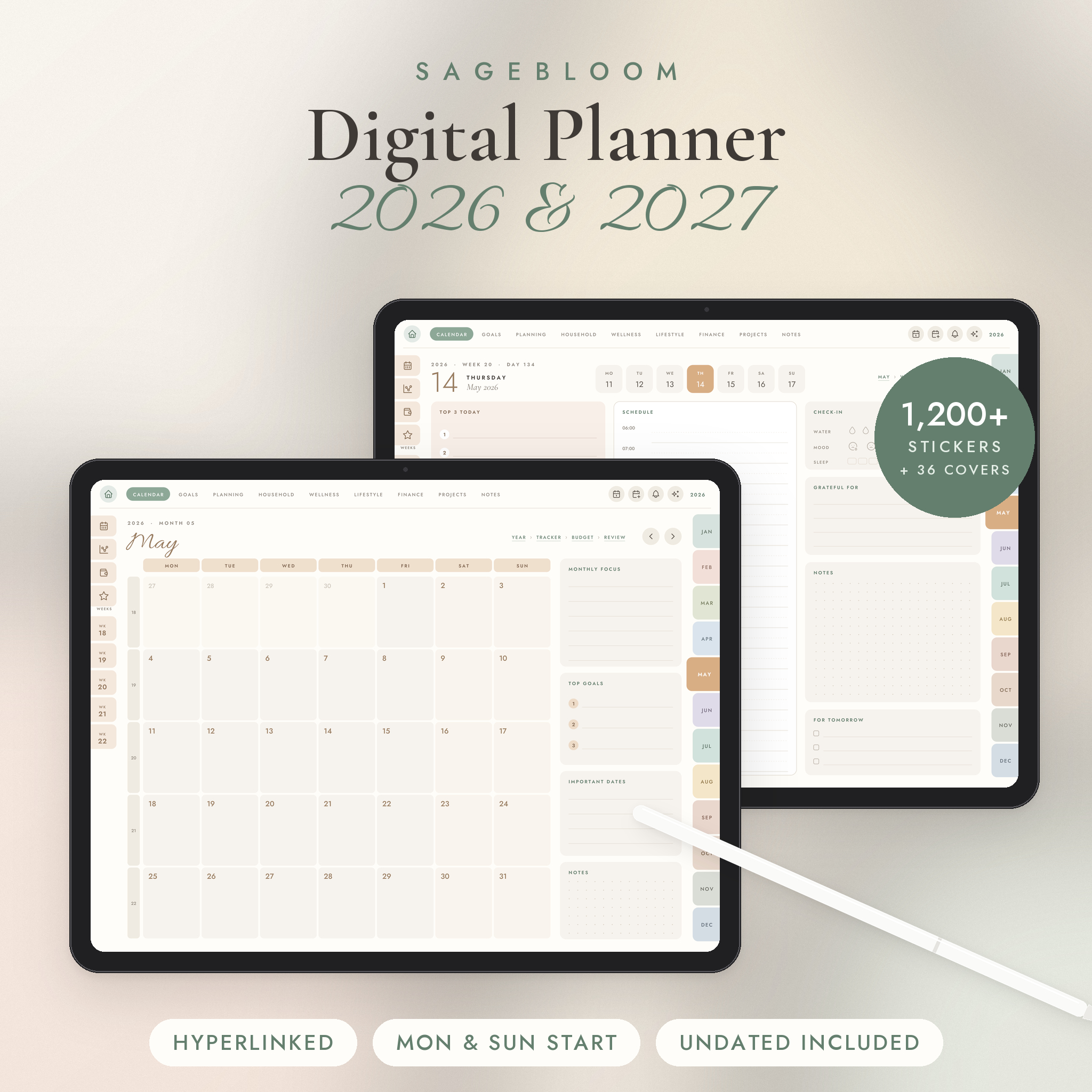
A clear example of a well-organized download: planner PDFs, sorted stickers, covers, icons, inserts and a guide.
- 6 hyperlinked planner PDFs: 2026, 2027 and undated, Monday and Sunday start
- 1,204 transparent PNG stickers sorted into 10 folders, plus a sticker book PDF
- 36 covers, 12 home screen icons and 15 extra insert pages
ZIP files: the box everything arrives in
A ZIP is a packed folder. It squeezes lots of files into one download so you don’t click 40 links. You can’t import a ZIP into a note app. You have to open it first.
The good part: unzipping is built into most devices now. On an iPad, tap the ZIP in the Files app and it unpacks into a folder next to it. On Android, your file manager usually offers an extract or unzip option. On Windows and Mac, double-click it, or right-click and look for Extract.
Some downloads skip the ZIP for the main file. The Spoon & Sprig Digital Recipe Book, for example, gives you each of its 10 colors as a separate PDF, so there’s nothing to unzip before you import. That’s handy if you’re downloading straight onto a tablet.
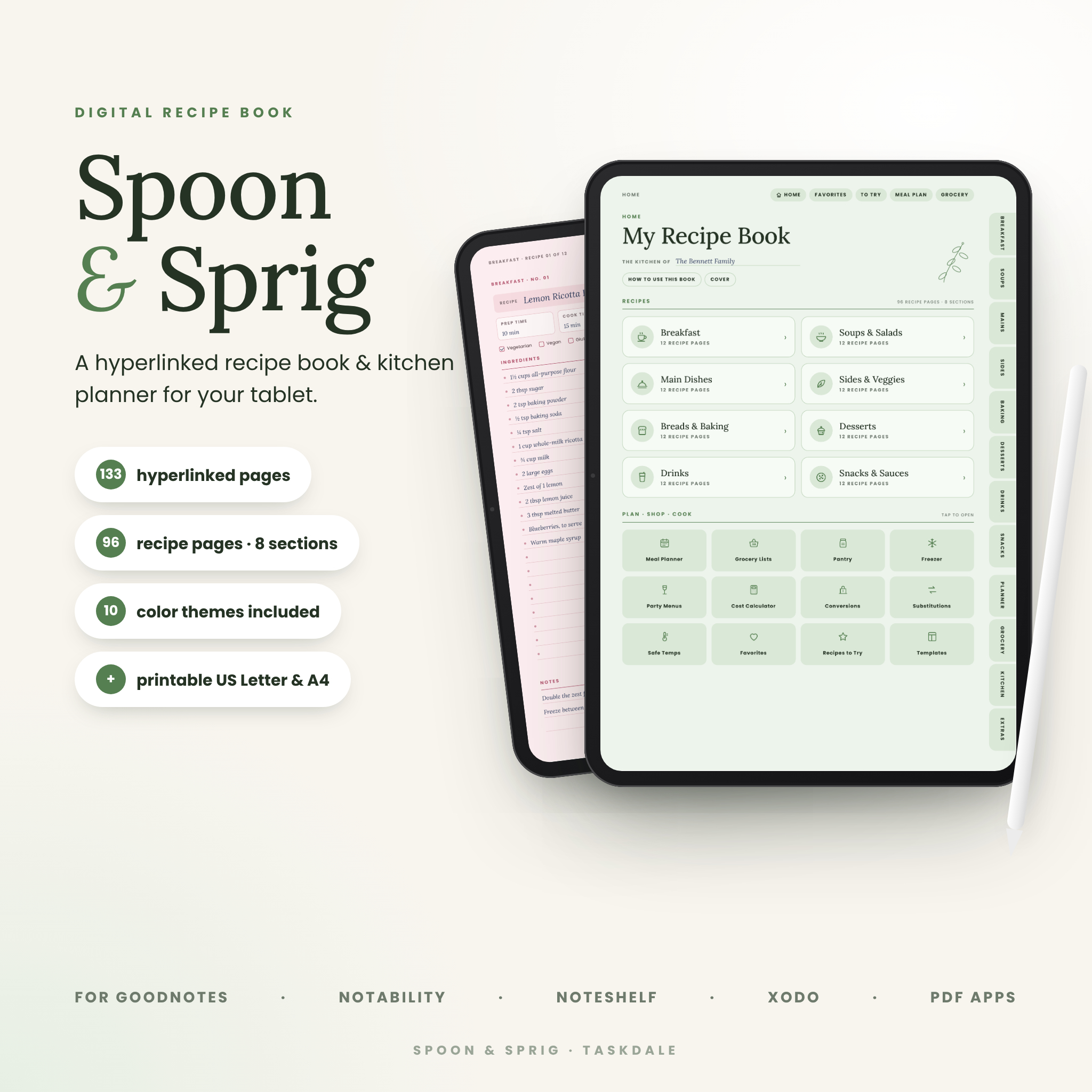
Digital Recipe Book for GoodNotes & iPad
Each color comes as its own PDF, so you can import it straight away on a tablet.
- 10 recipe book PDFs, 133 pages each
- 96 recipe pages in 8 tabbed sections, with PDF bookmarks
- Printable US Letter and A4 pages plus a DOCX user guide
One tip from experience: download on Wi-Fi, and let the ZIP finish completely before you tap it. A half-downloaded ZIP throws errors that look like the file is broken. It isn’t. It’s just not finished.
PDF: the planner itself
This is the file that matters. A PDF is a fixed-page document, so the layout looks the same on any device. Almost every digital planner on Taskdale is a PDF.
But not every PDF in your download is the same kind of PDF.
Hyperlinked planner PDFs
These are the main event. “Hyperlinked” means the tabs, dates and buttons are tappable and jump you to other pages. You import this one into GoodNotes, Notability, Samsung Notes, Xodo or a similar app. If you’re unsure which app keeps those links, our guide to hyperlinked PDF planner apps covers it.
Page shape
Planner PDFs come in two shapes. Tall pages (often called 3:4 portrait) fill an iPad held upright. Wide pages (4:3) are made to look like an open book, often as two-page spreads. Neither is better. Pick the one that matches how you hold your tablet.
The bookmark outline
Many planner PDFs also carry an outline: a list of sections your app can show in a sidebar. It’s a backup way to jump around if a tab ever misbehaves. The Horizon Digital Planner 2027 2028 2029 includes one, and with 1,996 pages in a single file, that outline is a real comfort.
Horizon is also honest about file size. Each PDF is about 20 MB, so the listing tells you to give it a few seconds to open the first time. That’s the trade-off of fitting three full years in one file.
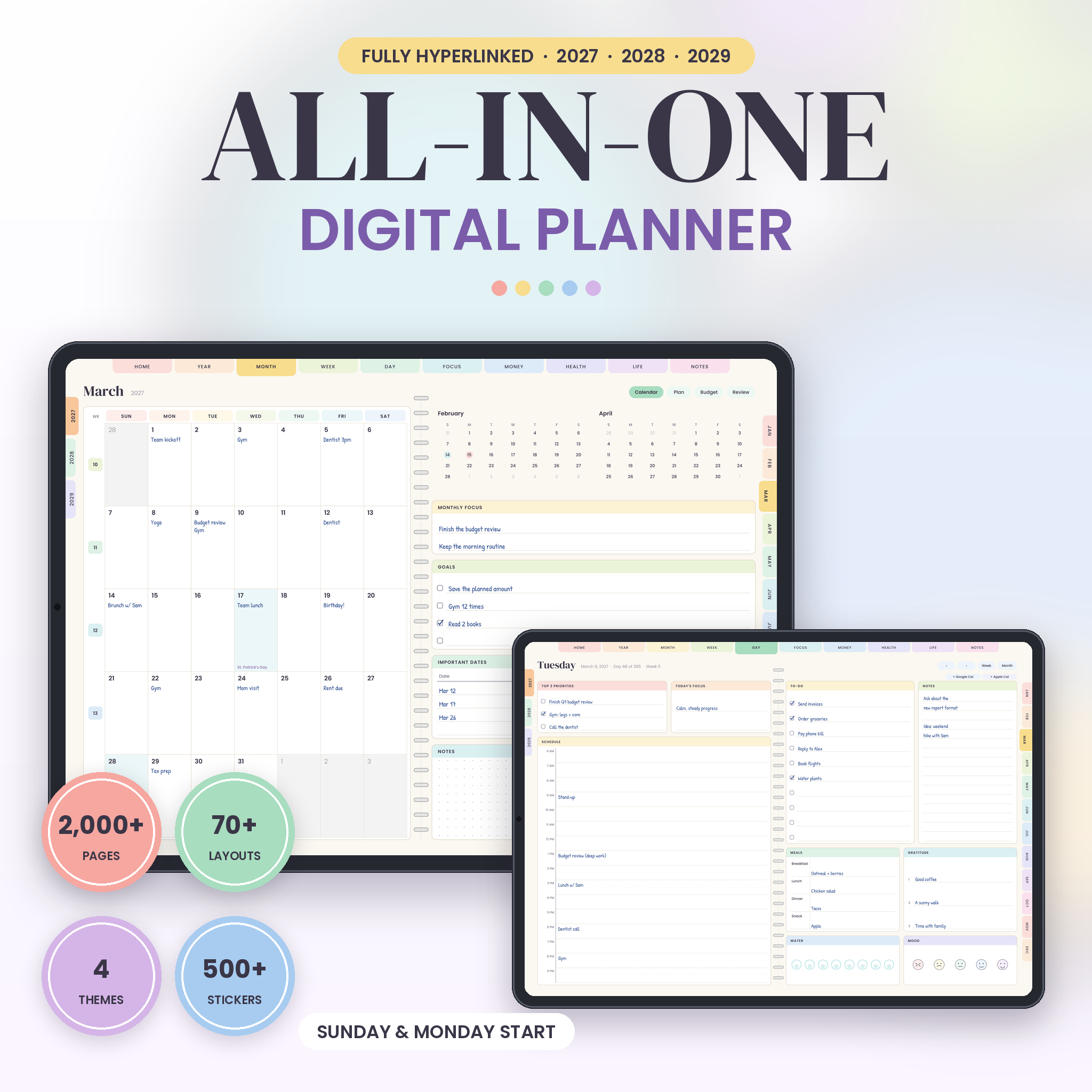
Horizon Digital Planner 2027 2028 2029
One file holds 2027 to 2029, with a bookmark outline as a backup way to jump around.
- 1,996 pages per file, January 2027 to December 2029
- Bookmark outline that many PDF apps show as a sidebar
- 548 PNG stickers and 32 cover designs included
File size: why a few megabytes matter
File size is the format detail people ignore until their planner starts to drag. A bigger file asks more of your tablet every time you open it and flip pages.
Planner sizes vary a lot. Plotwell’s planner files are about 2.6 to 2.8 MB each with 749 to 763 pages. Petalwise is about 3.3 MB. Horizon, as above, is about 20 MB, because it holds three years in one PDF. None of these is “wrong,” but a lighter file tends to feel snappier on an older tablet.
Your own additions count too. Every sticker and photo you paste in adds weight. If your planner has started to feel sluggish, our guide on why a digital planner gets slow and how to speed it up covers file size, stickers and app settings in detail.
Notebook files: what your app turns the PDF into
Here’s the part most guides skip. Once you import a PDF into a note app, the app wraps it in its own notebook format. Your handwriting, highlights and stickers live in that notebook, layered on top of the original pages.
GoodNotes saves notebooks as .goodnotes files. Notability uses .note. Other apps have their own endings. These files usually only open properly in the app that made them.
That matters in three moments:
- Backing up. Exporting the app’s own notebook format keeps everything editable, but only for that app.
- Switching apps. To move to a different app, export as PDF. You’ll keep your writing as part of the page, though links may or may not come along, depending on the app.
- Starting over. The original PDF in your downloads never changes. Import it again any time for a clean copy.
So keep the original planner PDF somewhere safe, like a “Planner originals” folder in cloud storage. It’s your master copy. And Taskdale buyers can re-download their files from their account, which is a nice safety net if a device dies.
Templates and insert pages
“Template” gets used loosely. In planner downloads it usually means one of two things.
First, pages that live inside the main planner, reached by a tab. Plotwell, for example, has 158 templates in 7 libraries, all linked from inside the planner file. You don’t import these separately. They’re already there.
Second, extra pages delivered as separate files, often called inserts. These might be PDFs of single pages or PNG images of a page. You add them to your planner when you want more of something, like extra meeting notes or a second habit tracker. Sagebloom’s 15 extra insert pages are this kind.
One warning: pages you add from outside won’t have the planner’s tab links on them, unless the maker built them that way. That’s usually fine for a notes page. If you’re choosing a planner and want to know which built-in pages are worth having, our post on the best digital planner features for tablets goes through them.
PNG and JPG: stickers, covers and dividers
Both are image files. The difference that matters to you:
- PNG can have a transparent background. That’s why stickers come as PNGs. A transparent sticker sits on your page without a white box around it.
- JPG always has a solid background. Fine for covers and photos, not great for stickers.
You add these through your app’s image or photo tool, or through a sticker panel if your app has one. Some planners also include a sticker book PDF, which is a page full of stickers you can lasso and copy. Our guide to adding, sorting and using digital planner stickers walks through both ways.
The Petalwise Undated Digital Planner is a tidy example of this setup. It comes with 162 pre-cropped PNG stickers in a ZIP, plus 2 sticker sheets inside the planner, and a separate ZIP with 12 covers and 6 section dividers.
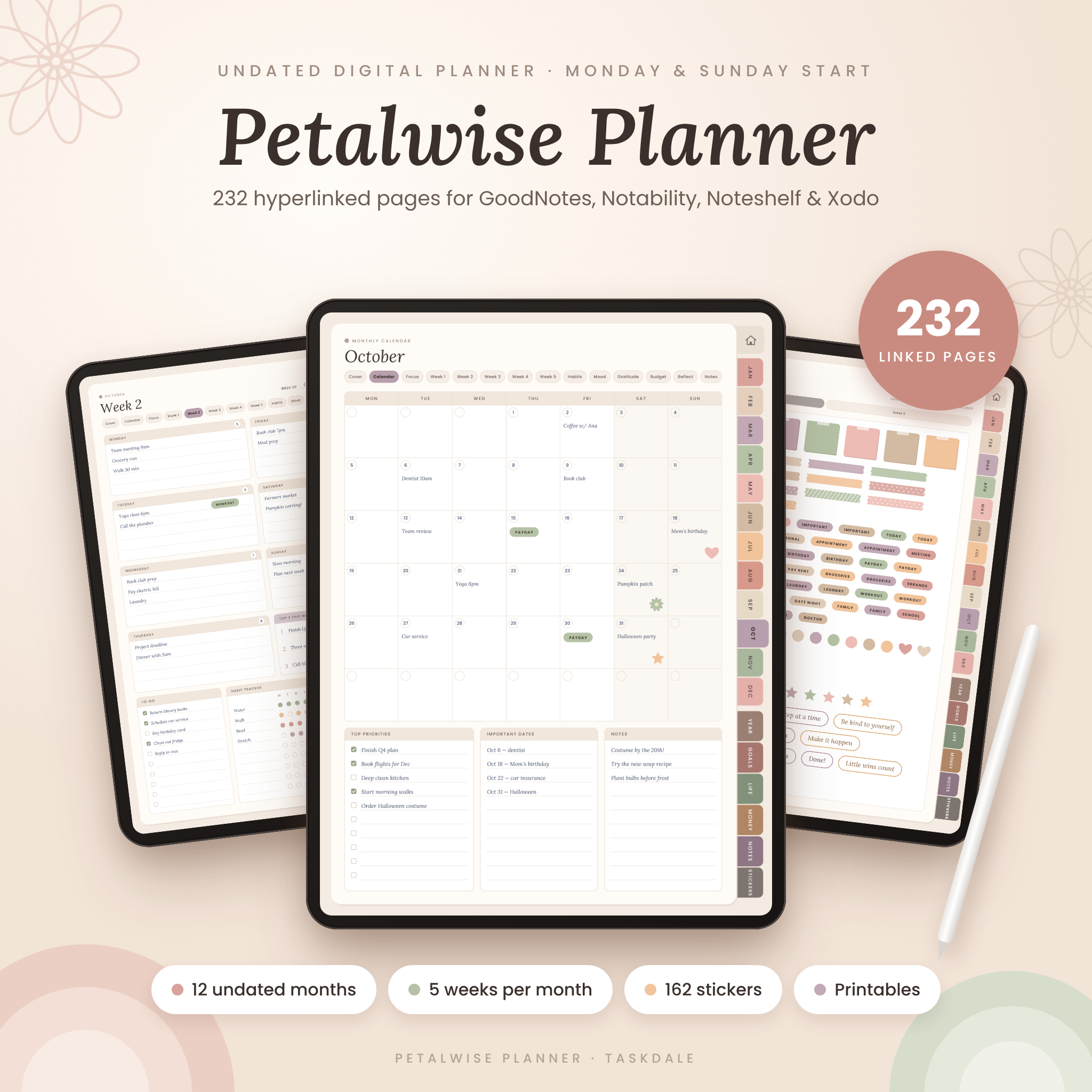
A small planner file with stickers, covers and dividers packed separately, so the planner itself stays light.
- 232 hyperlinked pages in a file of about 3.3 MB
- 162 pre-cropped PNG stickers, 12 covers and 6 section dividers
- 41-page printable pack in US Letter and A4
The extras: user guide and printable pages
Two more file types turn up in most downloads. Neither goes into your note app, but both are worth knowing about.
DOCX: the user guide nobody opens (but should)
A DOCX is a Word document. Nearly every Taskdale planner includes its user guide this way. It opens in Microsoft Word, Apple Pages or Google Docs, and on most tablets you can preview it straight from the Files app.
I know. Nobody reads instructions. But planner guides are short, and they answer the exact question you’ll have at 10 pm: “why won’t the tabs work in my app?” Spend five minutes with it on day one.
Some planners also give the guide as a PDF, which is easier to read on a phone.
Printable PDFs: US Letter vs A4
Many planners include a separate set of PDFs just for printing. These are different from the planner PDF. They’re sized for paper, usually with white backgrounds to save ink, and they don’t rely on links.
You’ll see two paper sizes:
- US Letter (8.5 x 11 inches), standard in the US and Canada.
- A4, standard almost everywhere else.
Pick the one your printer paper matches, and print at 100% (actual size). “Fit to page” can shrink things oddly.
The Plotwell All-in-One Digital Planner is a good example of a download that covers both worlds: its printable pack includes every template plus year, month, week and day pages in US Letter and A4, next to 64 hyperlinked planner PDFs for your tablet.
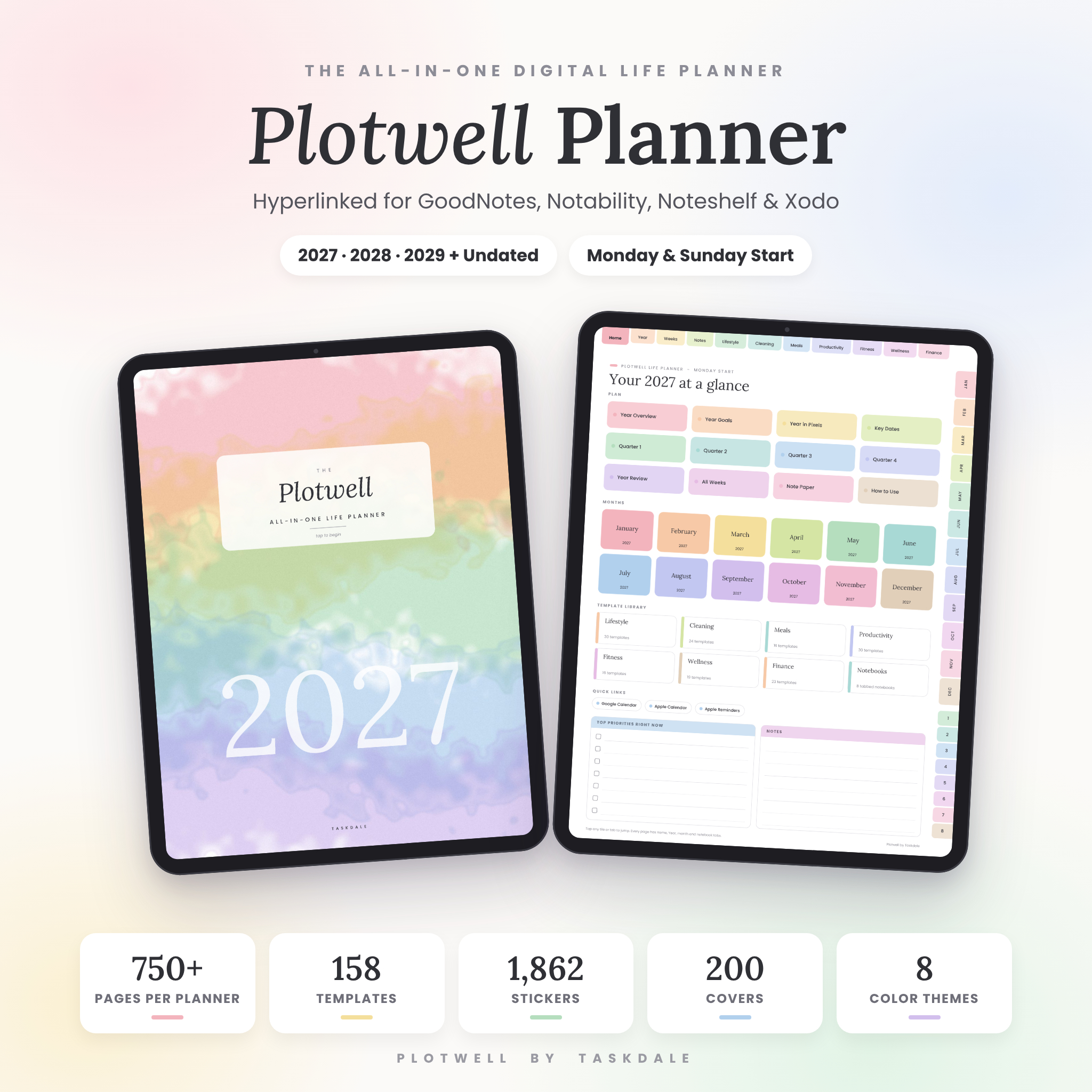
Plotwell All-in-One Digital Planner 2027 2028 2029 + Undated
Covers the tablet and the printer in one download, with light planner files.
- 64 hyperlinked planner PDFs, about 2.6 to 2.8 MB each
- Printable templates and planning pages in US Letter and A4
- 1,862 stickers as a sticker book and transparent PNG files
Which file to import first
When the download lands, here’s the order I’d follow:
- Unzip anything that ends in .zip.
- Find the planner PDF you want: your year (or undated), your color, and Monday or Sunday start.
- Import that one PDF into your note app. Just one.
- Test a few tabs before writing.
- Add stickers and covers later, once you know you like the planner.
- Skim the DOCX guide while you’re at it.
Then tidy up. A simple folder per planner, with “originals,” “stickers” and “printables” inside, saves future you a lot of digging. Our guide on how to organize digital planner files with folders and naming rules has a setup you can copy.
FAQ
Can I import a PNG page as a whole planner?
You can add a PNG page to a notebook, but it won’t have working links. PNG inserts are for single pages. The hyperlinked PDF is the actual planner.
Why are there so many PDFs in one download?
Usually because of colors, years and week starts. A planner with 8 colors, 4 years and Monday or Sunday start can easily include 64 PDFs. You only need the one you’ll use.
What happens if I import the printable PDF by mistake?
Nothing breaks. It’ll just be a stack of pages without tabs. Delete that notebook and import the hyperlinked planner PDF instead.
Do I need Microsoft Word for the guide?
No. A DOCX opens in Google Docs, Apple Pages and other free tools, and most tablets can preview it.
Once you’ve seen one planner download, you’ve seen them all. One PDF to plan in, images to decorate with, a guide to read, and paper versions if you want them. Import the one that matters, and leave the rest in a tidy folder until you need it.