Stickers are the fun part of a digital planner. They’re also the part that can turn a tidy week into a cluttered scrapbook you can’t read. Used well, digital planner stickers do a job: they flag paydays, mark deadlines and make a busy month readable at a glance.
This guide covers how to add stickers in the common planner apps, how to keep a sticker collection you’ll actually use, and a simple colour system that turns decoration into information.
What digital planner stickers actually are
Most are PNG image files with transparent backgrounds. Drop one onto a page and you only see the sticker, not a white box around it. Some planners also come with a sticker book: a PDF of pages covered in stickers that you copy from with a lasso tool.
They fall into two rough groups:
- Functional: labels (“Pay day”, “Due”, “Done”), date circles, icons for gym, doctor, bills, travel, checkboxes, sticky notes and page flags.
- Decorative: washi tape strips, banners, flowers, quotes, little doodles.
Both have a place. But if you only have time to set up one kind, make it functional. Those are the ones that save you time.
How to add stickers to a digital planner
Method 1: lasso from a sticker book
This is the quickest. Import the sticker book PDF into your note app as its own notebook. When you want a sticker, open the book, draw a lasso around it, tap Copy, switch back to your planner and paste. Move and resize as needed.
Tip: keep the sticker book open in split view on an iPad. Drag from one side to the other without switching apps.
Method 2: insert a PNG file
Most apps (GoodNotes, Notability, Noteshelf, Samsung Notes and others) have an image or insert tool. Tap it, choose Photos or Files, pick the PNG. This works with any sticker pack, even ones without a sticker book.
Saving stickers to a dedicated album in Photos makes this faster. Ten taps become three.
Method 3: your app’s sticker panel
Some apps let you save stickers into a reusable collection. In GoodNotes it’s called Elements. Import your favourite PNGs once and they sit in a panel, ready to drag onto any page. It’s worth 15 minutes of setup if you plan daily.
Build a small “everyday” set
A big pack can have hundreds or even a thousand-plus stickers. You won’t use most of them, and scrolling through them every time is slow. Pick 12 to 20 you’ll use every week and keep those within easy reach. A starter set might be:
- Pay day and bill due labels
- Birthday and appointment icons
- A deadline flag
- Gym or workout icon
- Two washi strips for headers
- A “done” tick or stamp
- Three sticky notes in different colours
The rest of the pack is for when you feel like decorating on a slow Sunday.
Use colour as a code, not just decoration
Here’s the trick that makes stickers useful. Assign one colour per area of life and stick to it:
- Green: money (paydays, bills, savings)
- Pink: people (birthdays, dinners, calls)
- Blue: work and school deadlines
- Yellow: health (appointments, gym)
Now glance at a month page. Three blue flags in one week? That week is going to be heavy, so maybe don’t say yes to that Thursday dinner. Without reading a single word, you know what’s coming.
Keep stickers from slowing your planner down
Every sticker adds a little to the file. A few hundred over a year is fine. A thousand big ones can make page turns sluggish on an older tablet. Some quick habits:
- Resize stickers down rather than pasting them huge and covering half the page.
- Use them where they carry information, not on every single box.
- Start a fresh planner file each year.
Two planners with big sticker libraries
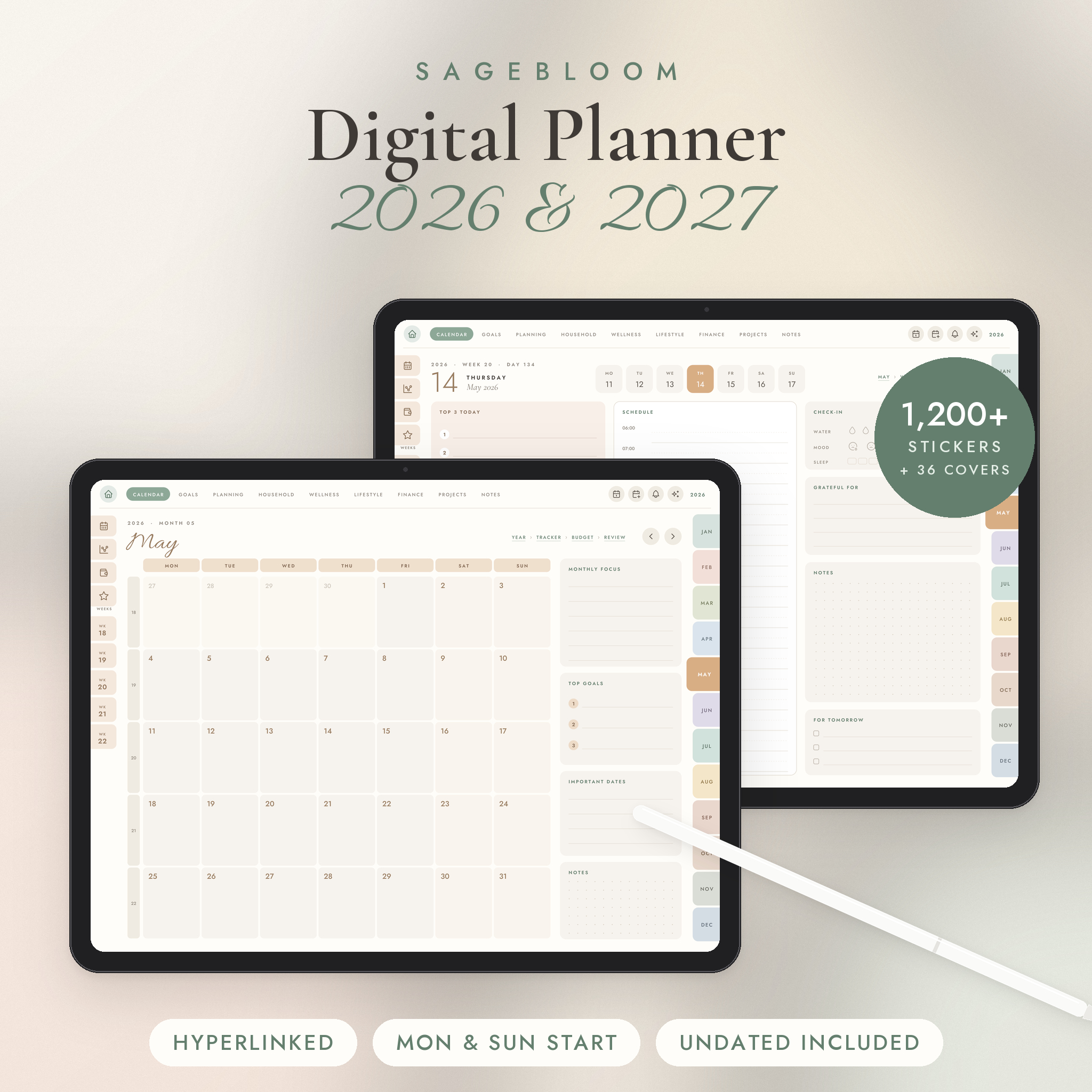
Sagebloom Digital Planner 2026 2027
If stickers are a big reason you plan digitally, Sagebloom is the generous one. It includes 1,204 original digital stickers as transparent PNGs, sorted into 10 folders, plus a 20-page sticker book PDF for fast lasso copying. You also get 36 covers and 12 matching home screen icons for your iPad.
The planner itself covers 2026, 2027 and an undated edition, each in Monday and Sunday start, with a habit tracker, budget and review every month and a meal plan with grocery list every week. Its listing even suggests the use I described above: colour-coding birthdays, bills and gym days with stickers.
Horizon Digital Planner 2027 2028 2029
Horizon has its own sticker library inside the planner, and the download adds 548 transparent PNG stickers: labels, washi tapes, icons, banners and date badges. They come in all four of its colour themes (Pastel Rainbow, Blush Pink, Sage and Sand, and Ocean Mist), so your stickers match the pages. The listing suggests using them for appointments, due dates, paydays and birthdays.
The planner runs from January 2027 to December 2029 in one file, with four weekly layouts and 57 templates, and you get 32 cover designs with a blank label for your name.
Which one?
Want the biggest pile of stickers and a sticker book to copy from? Sagebloom. Want stickers that match a three-year planner and four colour themes? Horizon.
FAQ
Can I use digital planner stickers in any app?
PNG stickers work in almost any app that lets you insert images. Sticker books need an app with a lasso or select tool that can copy handwriting and images, which most planner apps have.
Can I print digital stickers?
Technically yes, on sticker paper, but check the licence first and expect them to look different from the screen. They’re designed for tablets, and personal-use licences usually don’t allow selling printed copies.
Why do my stickers have a white background?
You’ve probably pasted a screenshot or a JPG instead of the PNG file. Insert the original PNG from the download and the background will be transparent.
How many stickers do I really need?
Fewer than you think. A core set of 12 to 20 covers most weeks. Big packs are nice for variety, but the everyday set is what you’ll reach for.