You buy a planner with 1,200 linked pages, import it, tap the January tab, and nothing happens. Or worse, a little pen squiggle appears where the tab used to be. If you’ve been there, you already know the hard truth about hyperlinked PDF planner apps: almost every app can open the file, but not every app keeps the links working.
So no, a hyperlinked planner does not work the same way in every note-taking app. Most of the popular ones handle it well. A few strip the links out completely. And a handful sit in the middle, where links work but only if you tap the right way.
Here’s how to tell which group your app is in before you spend a week writing in the wrong one.
What a hyperlinked PDF planner actually is
A PDF is a fixed-page document. Think of it as a printed booklet that lives on a screen: the layout never moves, no matter which device opens it. That’s why planner makers love it.
A hyperlink is simply a tappable spot on a page that jumps you to another page. In a planner, those spots sit on the month tabs, the dates in the calendar, the little house icon that takes you home, and the arrows that move you to tomorrow.
The links are invisible. They’re stored inside the file as instructions that say “if someone taps this rectangle, go to page 412.” Your note app has to read those instructions and act on them. If the app ignores them, the planner still looks perfect. It just stops being a planner and becomes a very long scroll.
That’s the whole problem in one sentence. The pages always survive. The links don’t always.
The short answer: three kinds of apps
After testing a lot of planners in a lot of apps, I sort them into three groups.
- Apps that keep links and let you write. These are what you want. GoodNotes, Notability, Noteshelf, Xodo and Samsung Notes are the names you’ll see on almost every planner listing.
- Apps that keep links but aren’t great for writing. Basic PDF readers usually follow links fine, but handwriting is clumsy or missing. Good for checking a file, not for daily planning.
- Apps that drop links on import. The file turns into flat pages. You can write on them, but every tab is just a picture of a tab.
The trick is that the app’s name alone doesn’t always tell you which group it’s in. Versions change, and the same app can behave a little differently on iPad, Android and Windows. So treat any list (including this one) as a starting point, then test.
Apps where planner links usually work well
These are the apps planner makers design for. If you’re starting fresh, pick one of these and you’ll avoid most headaches.
GoodNotes and Notability
The two big iPad names. Both import a planner PDF as one notebook and follow its internal links. The catch is the writing tool, which I’ll get to in a minute. If you can’t choose between them, our GoodNotes vs Notability comparison for digital planning walks through the differences that matter day to day.
Noteshelf, Noteful and Flexcil
Smaller names, but planner-friendly. They open hyperlinked PDFs and let you write over the pages with a stylus. Worth a look if the big two don’t suit you.
Xodo, Samsung Notes and Penly
These come up most for Android tablets. Xodo also runs on other systems, which makes it handy if you switch devices.
The Linenleaf Digital Planner is a good example of how broad support can be when a file is built carefully: its listing names GoodNotes, Notability, Noteshelf, Noteful, Xodo, Samsung Notes, Flexcil and Drawboard PDF.
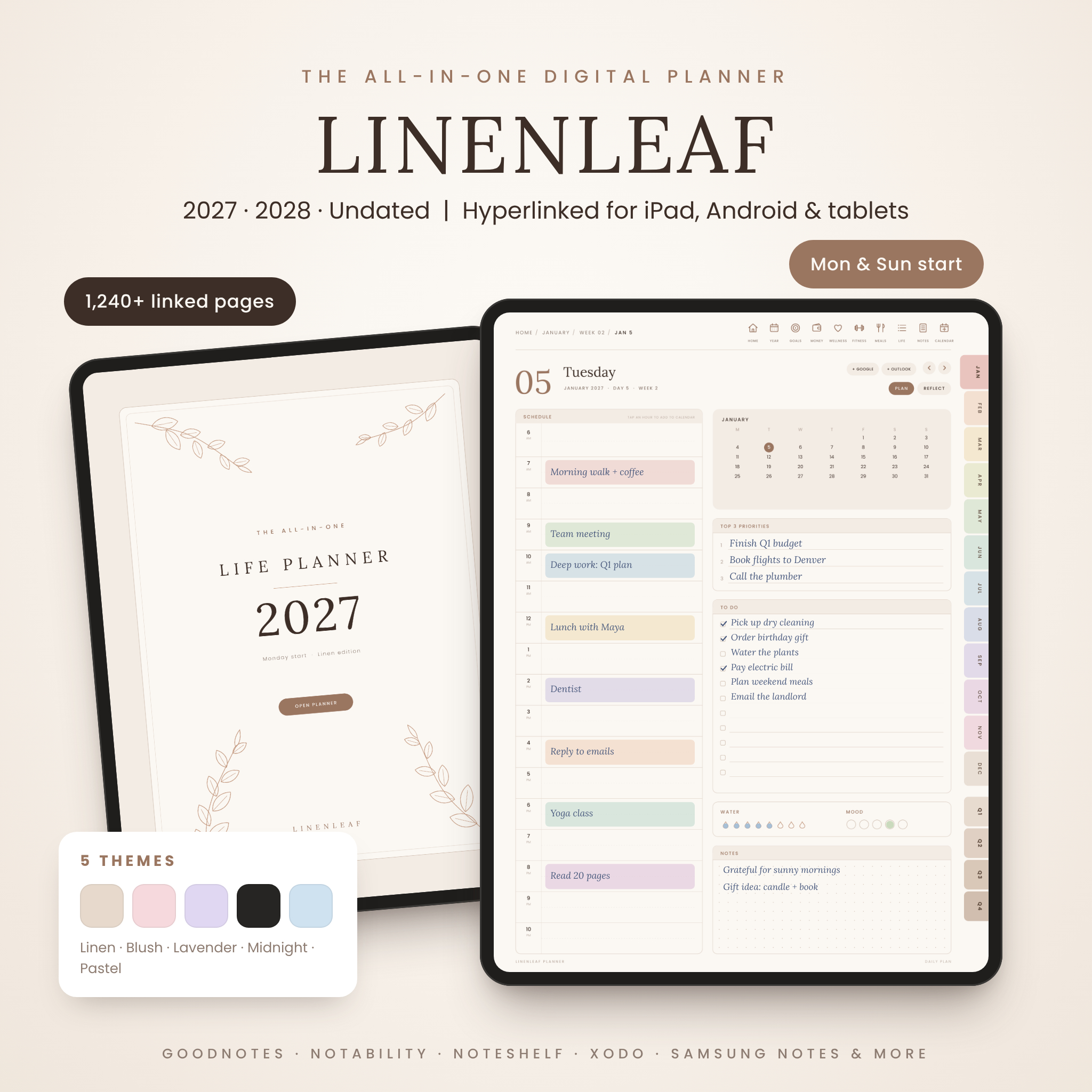
Linenleaf Digital Planner 2027 2028 & Undated
If you're still choosing an app, this planner's listing names more compatible apps than most, across iPad, Android and Windows tablets.
- Works with GoodNotes, Notability, Noteshelf, Noteful, Xodo, Samsung Notes, Flexcil and Drawboard PDF
- 2027, 2028 and undated planners, 1,240+ linked pages each
- Month and quarter tabs on every page
Why links “don’t work” in apps that support them
This is the most common complaint I hear, and nine times out of ten the app is fine. The pen is the problem.
When your pen or pencil tool is active, the app assumes every tap is the start of a stroke. So you tap the March tab and get a dot of ink instead of March. It’s 9 pm, you’re tired, and it feels broken.
The fix is different per app, but it follows the same idea:
- In GoodNotes, switch to read-only mode, or tap with your finger while the pencil handles the writing.
- In most other apps, pick the hand, pointer or select tool, then tap the link.
- Some apps let you set “pencil draws, finger navigates.” If yours has that, turn it on. It saves hundreds of mode switches a month.
Planner design helps too. Small tabs are easy to miss with a finger. The Daybloom All-in-One Digital Planner was built with tap targets sized for fingers rather than just a stylus, and its user guide shows the steps for GoodNotes, Notability, Samsung Notes and Xodo.
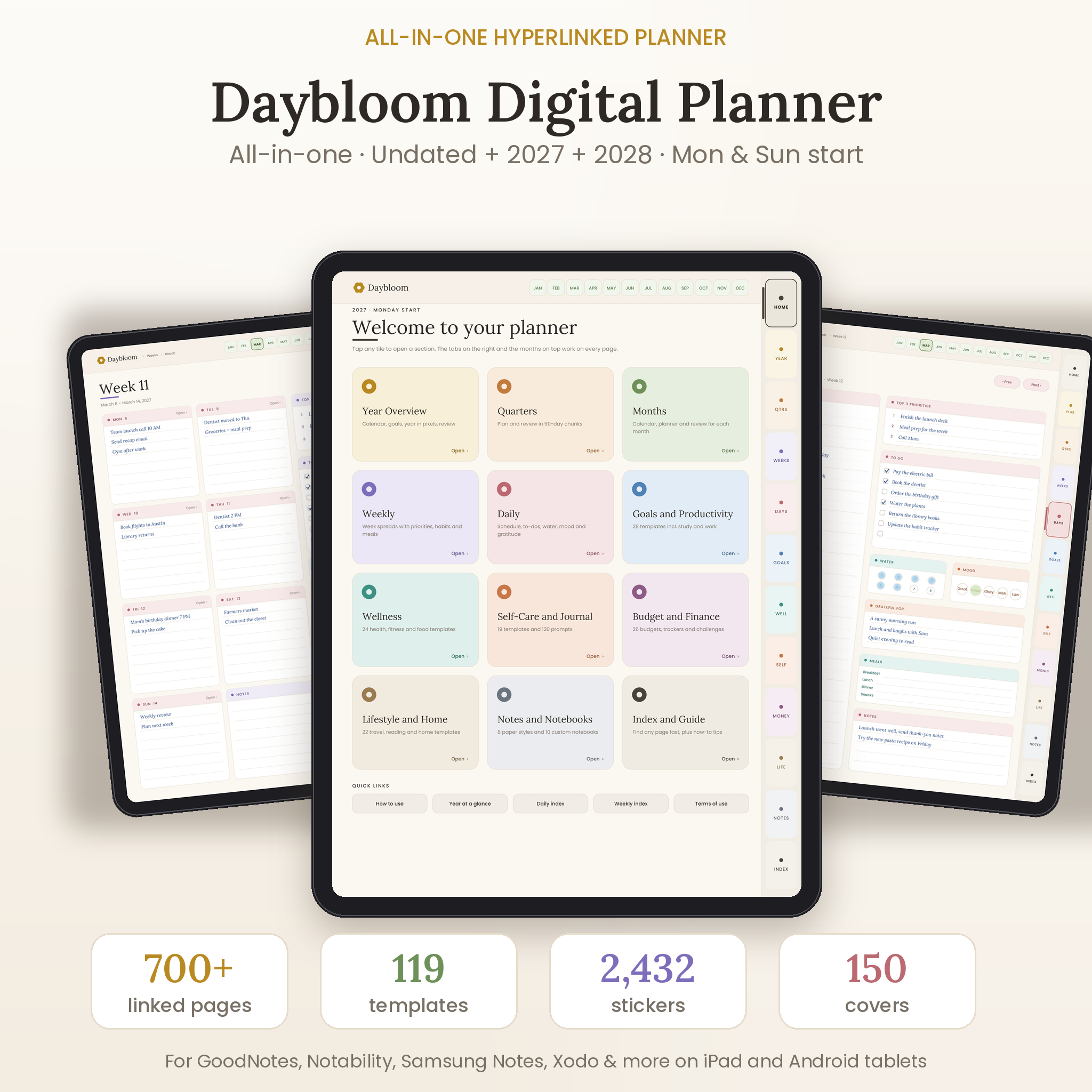
Big tap targets make it easier to hit the right tab with a finger while your stylus stays in writing mode.
- Tabs sized for fingers, not just a stylus
- User guide shows steps for GoodNotes, Notability, Samsung Notes and Xodo
- Undated, 2027 and 2028 editions, about 2.5 MB each
Where links break: OneNote and other note apps
Here’s the one that catches people out. OneNote is a great note app, and lots of people already have it through work or school. But it doesn’t treat a PDF as a living document. It brings the pages in more like printouts.
The Penny Garden Digital Budget Planner listing says it plainly: OneNote does not keep PDF links, so it isn’t a good fit. You’d still see all 423 budget pages. You just couldn’t tap from your bill checklist to your savings jars. With a budget planner, where you hop between pages every time you log a purchase, that kills the whole point.
The same thing can happen with any app that “converts” a PDF into its own format on import, and with some web-based note tools. If an app offers to “insert a printout” or “add pages as images,” that’s a warning sign.
Penny Garden itself is made for GoodNotes and Notability on iPad, and for PDF annotation apps on Android such as Xodo, Samsung Notes and Noteshelf. Its FAQ also reminds you to use read-only or view mode to tap the links.
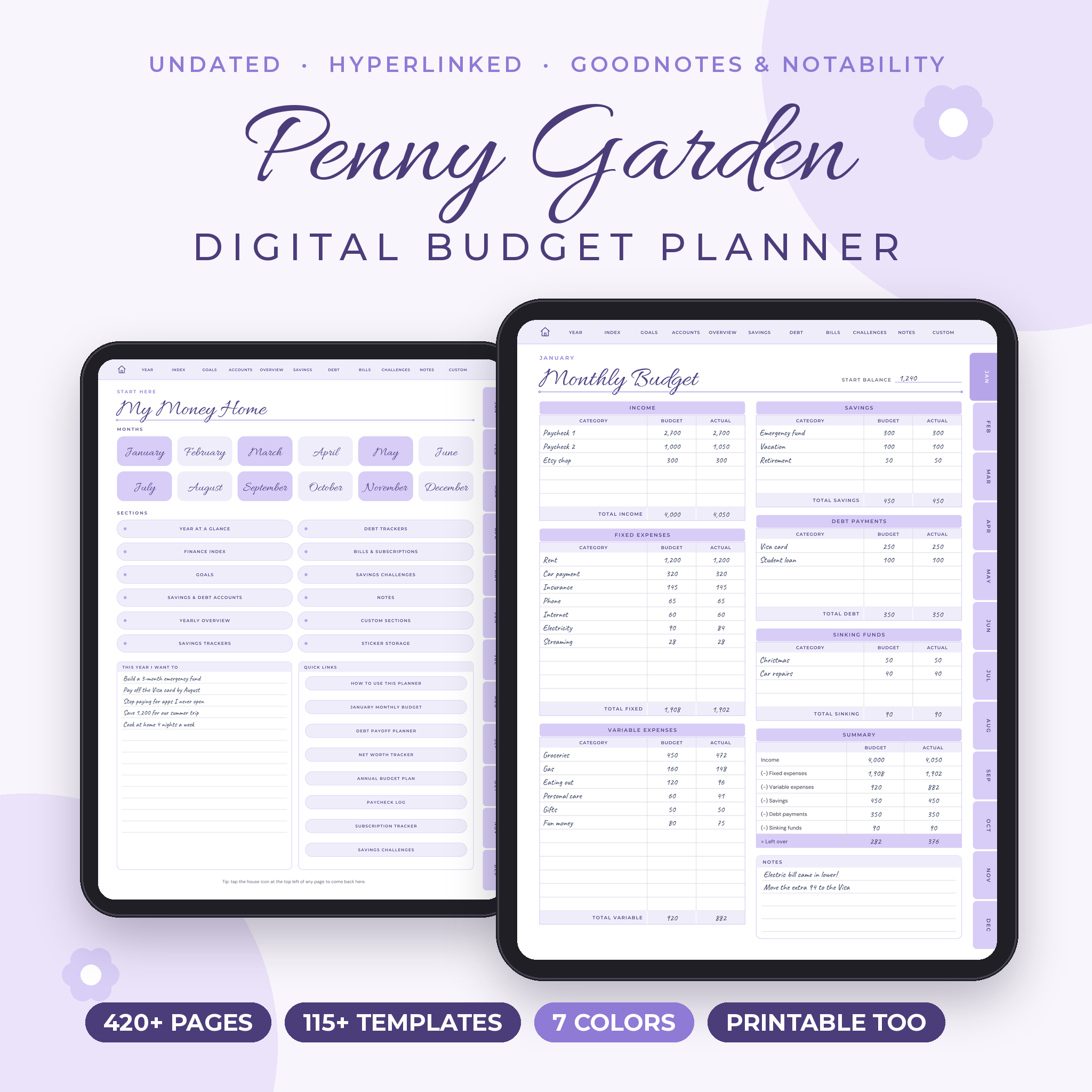
A money planner where you hop between pages constantly, so it's built for apps that keep PDF links, and the listing tells you OneNote isn't one of them.
- 423 hyperlinked pages, undated
- Made for GoodNotes and Notability, plus Xodo, Samsung Notes and Noteshelf on Android
- Monthly, bi-weekly, paycheck, cash envelope and zero-based budgets
Android tablets: good options, more variety
Android is where app choice gets wider and behavior gets less predictable. There are more apps, more versions and more tablet makers, so two people with “the same app” can see slightly different results.
Samsung Notes is the easy pick on a Galaxy Tab because it’s already installed. Xodo and Noteshelf are the usual alternatives. If you want a step-by-step walk-through, our guide to setting up a digital planner for Android in Samsung Notes covers importing and tapping links on a Galaxy tablet.
My one bit of advice for Android: test the first few tabs before you write anything. If the month tabs jump correctly, the rest of the file almost always behaves.
A lighter, simpler planner is a kind first test on any new app. The Terra Undated Digital Planner has 199 pages and over 6,200 links in a file of about 4.4 MB, and the listing names GoodNotes, Notability, Noteshelf, Xodo and Samsung Notes as options.
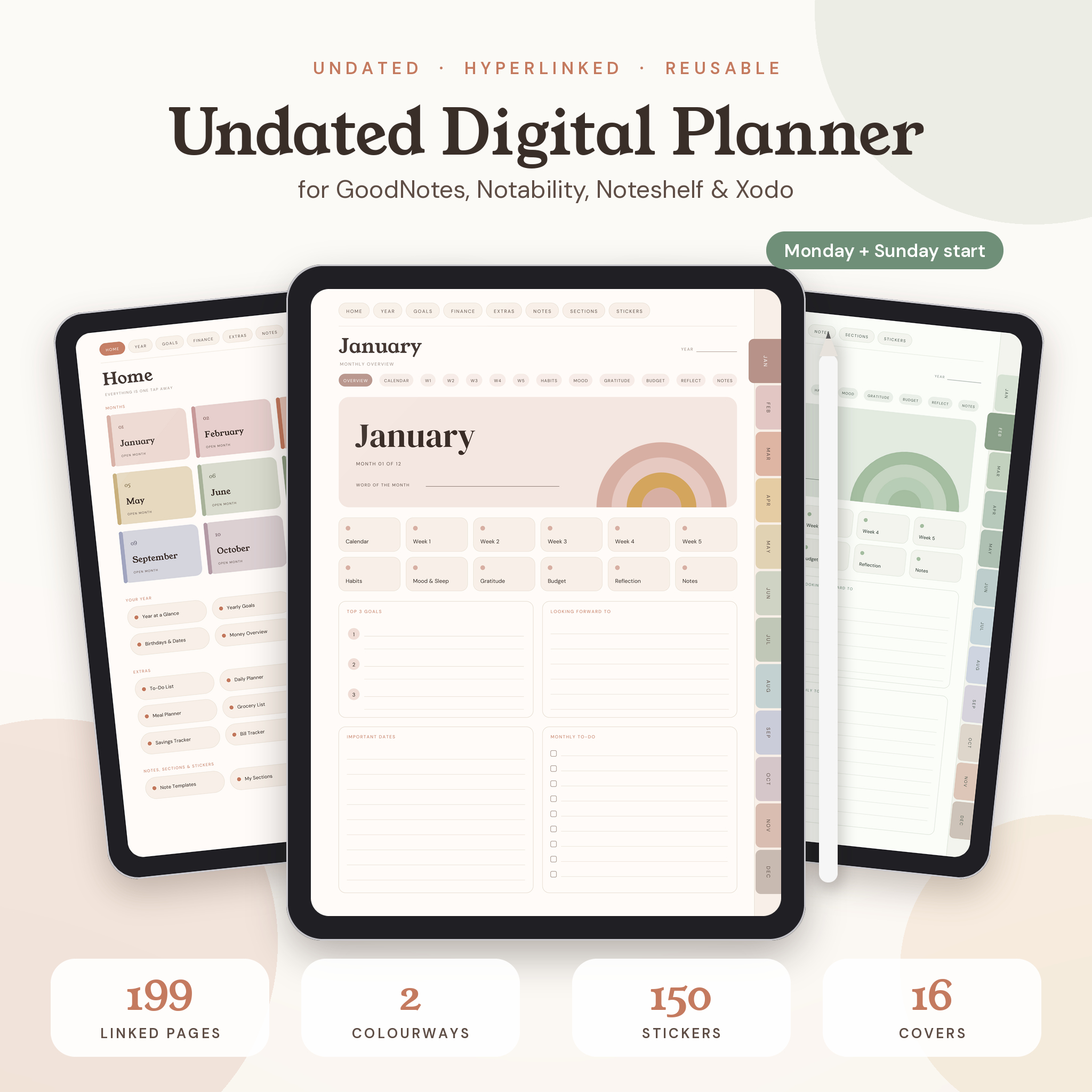
A calm undated planner with a small file size, which makes it an easy one to test in a new app.
- 199 pages with over 6,200 links
- About 4.4 MB vector file that stays sharp when you zoom
- Works in GoodNotes, Notability, Noteshelf, Xodo and Samsung Notes
Windows tablets, laptops and e-ink devices
Windows is the wild card. Some PDF apps on Windows follow planner links nicely, and some open the file as a read-only document where you can’t write. Drawboard PDF and Xodo are names you’ll see on planner listings for Windows tablets, but check the specific planner’s listing before you buy.
On a laptop without a touch screen, a hyperlinked planner still works with a mouse. Clicking a tab is the same as tapping it. Writing is the part that suffers, since you’d be typing into text boxes instead of handwriting. We go deeper on this in our piece on using a digital planner on a laptop or Windows tablet.
E-ink tablets are a separate story. Some follow PDF links, some only partly, and big files can feel slow on their screens. If that’s your device, look for a planner listing that names it, or test a small file first.
What no app can make a PDF do
Even in the best app, a hyperlinked PDF has limits. It’s worth knowing them so you don’t blame the app for something the file format can’t do.
- It can’t do math. Write 40 and 25 in two boxes and the total box stays empty.
- It can’t sync with your calendar. Some planners have shortcut links that open Google Calendar on the right date, but events never flow back into the PDF.
- It can’t send reminders. No pop-ups, no alarms.
- It can’t move its own links. If you add a page in the middle, the links don’t know about it.
Good planner makers work around this instead of pretending. The Digital Teacher Planner 2026-2027 (Bright Bell) is a nice example: because a PDF can’t do math, it ships with a matching Grade Book Calculator spreadsheet that works out weighted grades for you. The planner holds the 1,303 linked pages, and the spreadsheet does the sums. Its listing also mentions that all 63,000+ links were checked page by page, and that some apps only follow links in read mode.
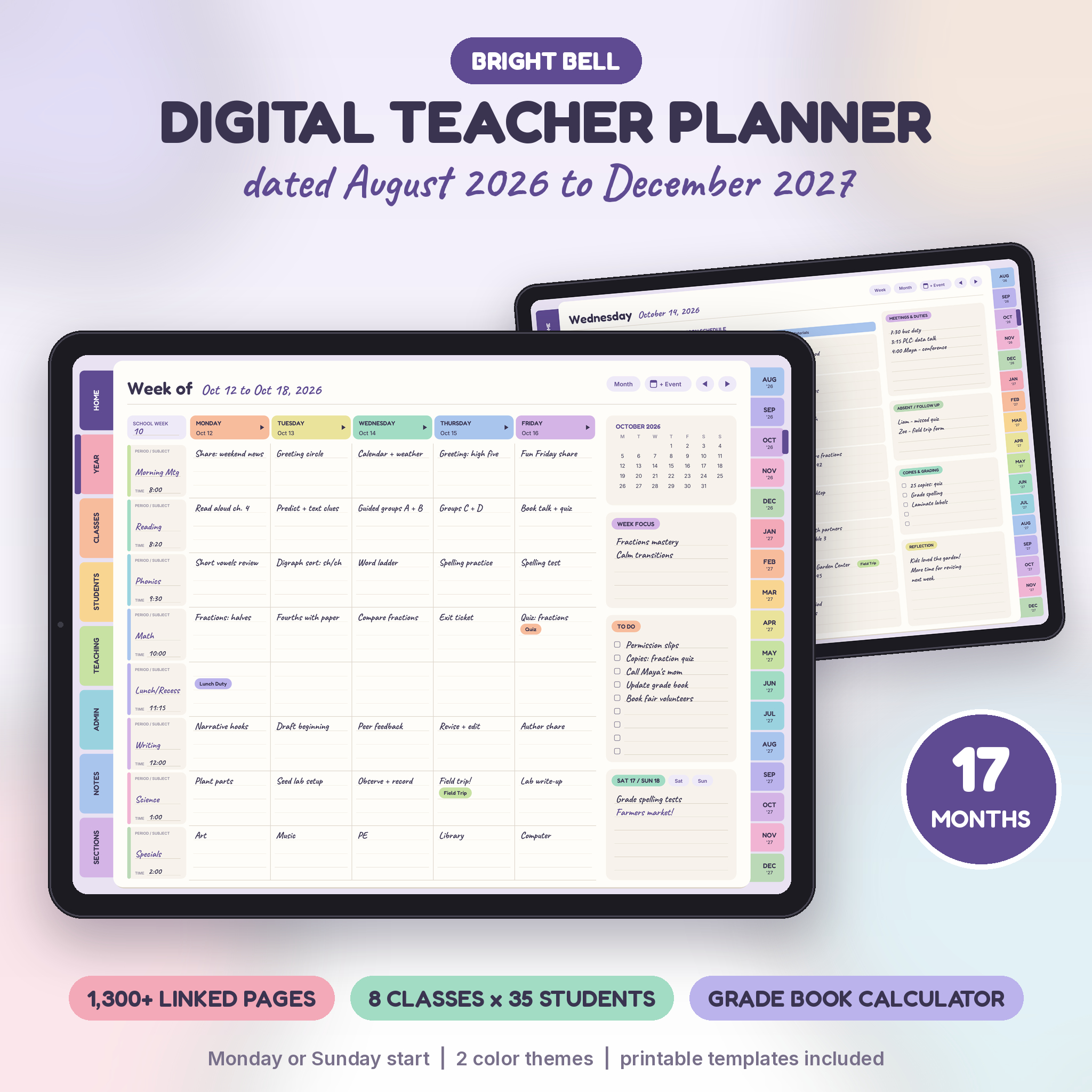
It shows the smart way around PDF limits: linked planner pages plus a spreadsheet that does the grade math a PDF can't.
- 17 dated months, August 2026 to December 2027
- 1,303 hyperlinked pages with more than 63,000 links
- Grade Book Calculator spreadsheet works out weighted grades
How to test any app in five minutes
Before you commit a year of plans to an app, do this quick check. It takes less time than making coffee.
- Import the full planner file, not a page or a screenshot. Use the app’s Import option or the + button, or open the share menu from your Files app and pick the note app.
- Switch off the pen. Use read-only, view, hand or pointer mode.
- Tap a month tab. Did it jump? Good sign.
- Tap a date inside that month. Did it land on the right day?
- Tap the home or index button. Back where you started?
- Write a word, then tap again. Make sure writing didn’t break navigation.
- Duplicate a page and check it. Some apps keep links on copied pages, some don’t.
If steps 3 to 5 fail in every mode, the app isn’t keeping the links. Try another app before you blame the planner. If links worked yesterday and stopped today, our guide to fixing digital planner links that aren’t working has seven fixes to try in order.
And if you haven’t bought yet, our pre-purchase compatibility checklist covers device and file checks to run first.
FAQ
Do hyperlinked planners work in Apple’s Files app or Books?
They’ll often open and follow some links, so they’re handy for a quick look. But they aren’t built for handwriting a full year of plans. Use a proper note app for daily planning.
Will my links survive if I move the planner to a new app?
The original PDF keeps its links forever. Your handwriting is a different matter. When you export from one app and import into another, check whether the export keeps links. Many people simply import a fresh copy of the original file and start from the current month.
Why do links work on page one but not on page 300?
Usually it’s because pages were added or moved in between, or because you’re tapping with the pen. Try the hand or read mode first. If a duplicated page is the problem, add extra pages at the end of the file instead of the middle.
Is a free app good enough?
Often, yes. Xodo is a free option that follows planner links, and Samsung Notes comes free on Galaxy tablets. Just watch for free plans that limit how many notebooks you can keep.
The planner file is rarely the weak link. Pick an app that respects PDF links, learn its “tap to navigate” mode once, and a good hyperlinked planner will feel like flipping through a paper one, only faster.