If you run a small team, two questions come up every payday: how many hours did everyone actually work, and how much time off does each person have left? A good free PTO tracker template answers both without paid HR software. This guide shows you how to set one up, which rules to decide first, and the mistakes that cause balance disputes. You can also download our free spreadsheet and start today.

Download the free Clockbay Lite PTO tracker and timesheet. Downloading needs a free Taskdale account, and free downloads are limited to 3 per day.
What a PTO tracker template should do
A PTO (paid time off) tracker is a record of the leave each employee earns and uses. On its own, it only tells half the story. Most small businesses also need to know the hours worked, because overtime, hourly accruals and the payroll total all depend on them. That’s why the most useful templates combine a timesheet and a leave tracker in one file.
At a minimum, your spreadsheet should:
- List every employee with an hourly rate and a leave allowance or accrual rule.
- Record clock in and clock out times and turn them into hours automatically.
- Split each workweek into regular and overtime hours.
- Log time-off requests with a status (approved, pending or denied).
- Show each person’s balance: earned, used and remaining.
- Summarize hours and a gross pay estimate for each pay period.
Step 1: Decide your rules before you type a single name
Most PTO arguments come from rules that were never written down. Settle these first and put them in the spreadsheet’s settings tab so every formula uses the same rules.
Pay frequency and workweek
Choose weekly or biweekly pay and the day your workweek starts. Under the U.S. federal standard, overtime for non-exempt employees is worked out per workweek, so a biweekly pay period holds two separate workweeks. Don’t add the two weeks together and then compare the total to 80 hours.
Overtime threshold
The common setting is overtime after 40 hours in a workweek at 1.5 times the regular rate. Some states also have daily overtime rules. Your template should let you change the threshold rather than hard-coding 40.
How PTO is earned
There are four common accrual methods:
- Per hour worked: for example, 1 hour of sick time for every 30 hours worked. Fair for part-timers.
- Per pay period: a fixed amount each payday, such as about 3.08 hours per biweekly period for 80 hours a year.
- Per month: for example, 8 hours at the end of each month.
- Annual lump sum: the full year’s allowance on January 1, often prorated for new hires.
Also decide on a yearly cap, a carryover limit, a waiting period for new hires and which holidays you pay.
Step 2: Set up your employee list
Give every employee one row with their name, role, hourly rate, hire date, leave policy and any hours carried over from last year. Use the exact same spelling of each name everywhere. A good template uses dropdowns so a typo can’t create a “new” employee that totals miss. Add a “standard day” (usually 8 hours) so a full day of leave or a paid holiday is counted correctly for full-time and part-time staff.
Step 3: Log hours worked every day
One row per employee per day is the simplest system that stays accurate. Record:
- Date and employee
- Clock in and clock out
- Lunch out and lunch in, or unpaid break minutes
- A short note for anything unusual, such as a Saturday call-out
Let formulas do the arithmetic. Hours worked equals clock out minus clock in minus unpaid breaks, and a well-built formula handles shifts that run past midnight. Avoid typing hours by hand: mistakes like “8.3” for eight hours and thirty minutes (8.5) add up quickly.
Step 4: Record time-off requests with a status
Every request should have a start date, end date, leave type and status. Only approved requests should come out of the balance. Pending requests are worth showing separately, so you can see whether approving them would overdraw anyone’s balance. Count only work days: a Monday-to-Friday vacation is 5 days, not 7, and a paid holiday inside the range shouldn’t come out of PTO.
Step 5: Check balances and run the pay period summary
Before each payday, review the balance for each employee (carried over plus earned minus used) and a pay period summary listing regular hours, overtime hours, paid leave and holiday hours. Multiply by each rate for a gross pay estimate, then send the hours to your payroll provider. Treat the figures as estimates and confirm them with your provider, because taxes, deductions and local rules aren’t part of a simple spreadsheet.
Free vs Full: which version do you need?
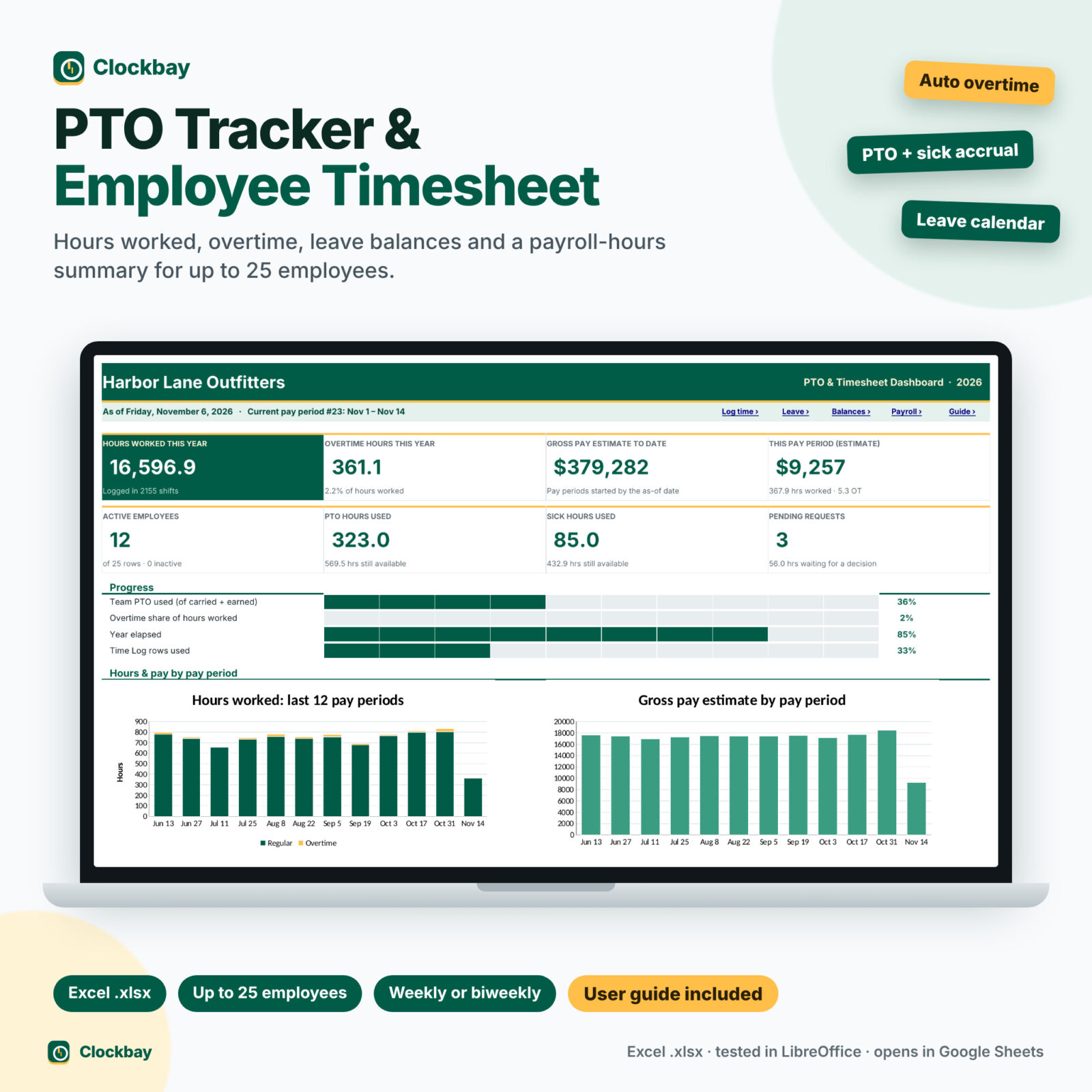
The free Clockbay Lite covers the basics for very small teams. The full Clockbay PTO Tracker & Employee Timesheet is built for businesses with up to 25 employees and real leave policies.
| Feature | Free Lite | Full Clockbay |
|---|---|---|
| Employees | 5 | 25 |
| Time entries | 300 rows | 6,600 rows with lunch in/out |
| Overtime | Weekly | Weekly plus optional daily limit, custom multiplier |
| Pay periods | Weekly summary | Weekly or biweekly with payroll-hours summary |
| PTO and sick time | Simple yearly allowance | Accrual per hour, pay period, month or lump sum, with caps, carryover and waiting periods |
| Holidays | Not included | Paid company holidays and floating holidays |
| Leave requests | 40 rows | 400 rows with approvals and over-balance checks |
| Calendars | Not included | Color-coded yearly leave calendar and Who’s Out month view |
| Printable timesheet | Not included | Per person, per period, with signature lines |
| Dashboard | 4 tiles, 1 chart | 8 tiles, 4 charts, progress bars, upcoming leave and holidays |
If you only track a handful of people with a fixed yearly allowance, start with the free Clockbay Lite. If you pay biweekly, accrue sick time by the hour or need a clean summary for payroll, upgrade to the full Clockbay.
Common PTO tracking mistakes (and how to avoid them)
Counting calendar days instead of work days
A leave request from Friday to Monday is two work days, not four. Use a formula that skips weekends and paid holidays, and allow an hours override for part-timers on unusual schedules.
Forgetting the carryover cap
If your policy only lets people carry 40 hours into the new year, apply the cap when you type the opening balance, not months later when someone asks.
Mixing up approved and pending leave
Subtract only approved leave from the balance, but show pending requests so you can spot conflicts and overdrafts before you say yes.
Adding biweekly hours before checking overtime
Forty-five hours in week one and thirty-five in week two is 80 hours, but it still includes 5 overtime hours. Check each workweek separately.
No record of who was out
A calendar view stops two people on a small team from being off on the same day. The full Clockbay includes a color-coded leave calendar and Who’s Out view for exactly this.
Tips for keeping your tracker accurate
- Log time daily or at least weekly, not once a month from memory.
- Keep one master file and lock formula cells so nobody overwrites them by accident.
- Set an “as of” date to your payday before you review balances.
- Start a fresh copy each year and carry the remaining balances across.
- Write your PTO policy down and match the spreadsheet settings to it.
- Check your state and local labor laws: paid sick leave and overtime rules vary.
Frequently asked questions
Is there a free PTO tracker template for Excel?
Yes. Clockbay Lite is a free Excel-format template that tracks hours, weekly overtime and simple PTO and sick balances for up to 5 employees. It needs a free Taskdale account, and you can download up to 3 free files per day.
Can I use the template in Google Sheets?
Yes. Both versions are Excel-format .xlsx files tested in LibreOffice Calc and built with standard functions that also work when you open them in Google Sheets.
How do I calculate PTO accrual per hour worked?
Divide the yearly hours you want to give by the hours worked in a full-time year. For 40 hours of PTO and a 2,080-hour year, the rate is about 0.0192 hours per hour worked. The full Clockbay includes a rate helper that does this for you.
Does a PTO spreadsheet replace payroll software?
No. A spreadsheet gives you organized hours and a gross pay estimate. Taxes, deductions and filings still belong with your payroll provider or accountant.
How many employees can a spreadsheet handle?
A well-built spreadsheet works well for small teams. The full Clockbay holds 25 employees, a year of daily time entries and 400 leave requests.
Estimates only: the spreadsheets calculate figures from the rules you enter. Check your local labor laws and confirm payroll with a professional.