A bar inventory spreadsheet that tells you what to order and where the money goes
Most bar counts end up as a list of numbers nobody looks at again. Pourmark is a bar inventory spreadsheet that turns your weekly count into decisions: what is out, what to order, how much to order from each distributor, what your pour cost was, and which bottles are being over-poured.
You count behind the bar and in storage, in tenths of a bottle. The workbook does the math. No macros, no app subscription, nothing to install.
Who it is for
- Bar owners and bar managers who still count on a clipboard
- Restaurants with a bar program, wine bars, cocktail lounges and taprooms
- Event venues, clubs, hotels and caterers with a liquor license
- Anyone who wants par levels and low-stock alerts without a monthly inventory app
What you get
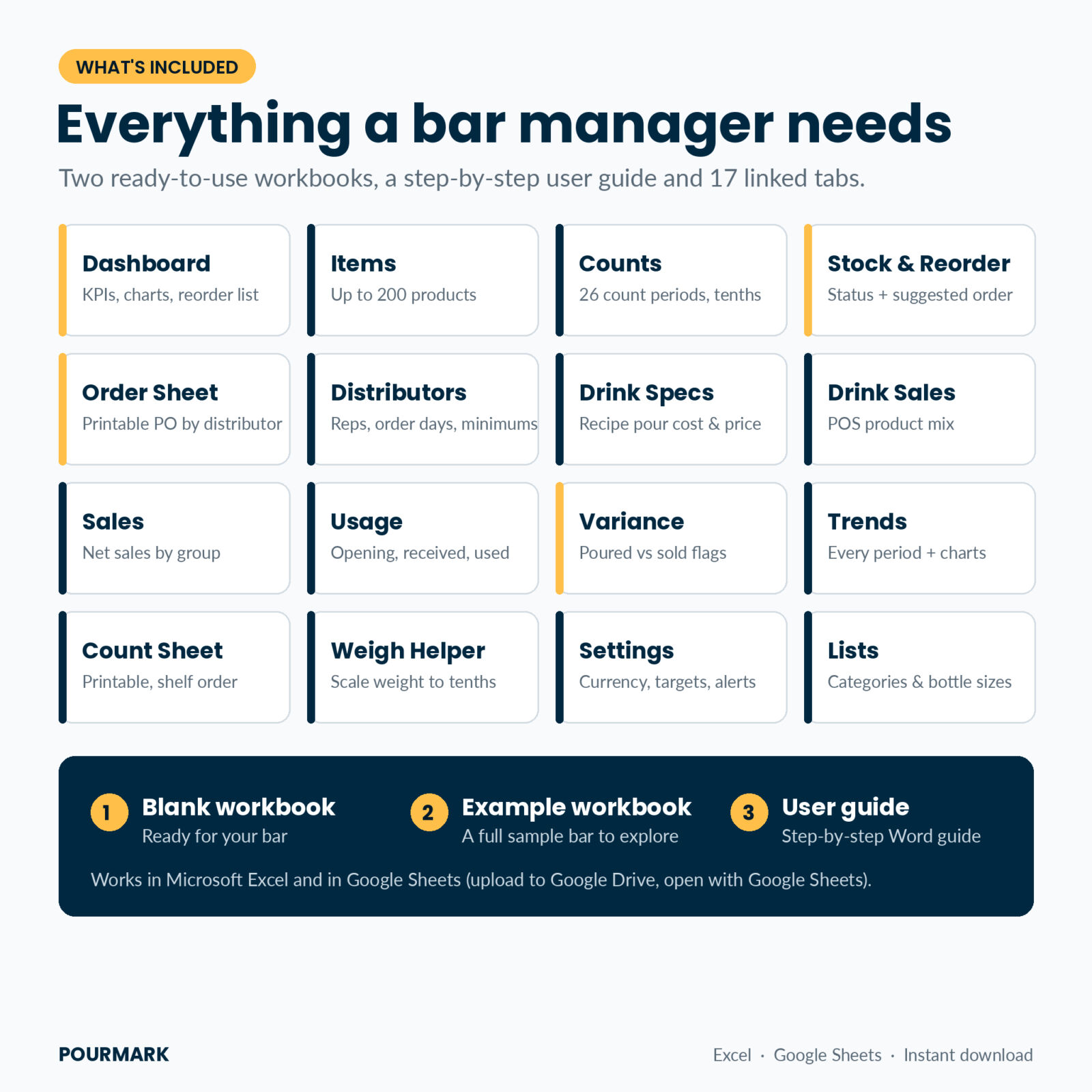
- Blank workbook with categories, groups, bottle sizes and settings already filled in
- Example workbook with a full sample bar: 54 items, 16 weekly counts, 40 drink specs and sales, so you can see every feature working
- User guide (Word) with setup steps, a weekly routine, every tab explained, troubleshooting and FAQ
Features of the liquor inventory spreadsheet
Counts in tenths, bar and storage
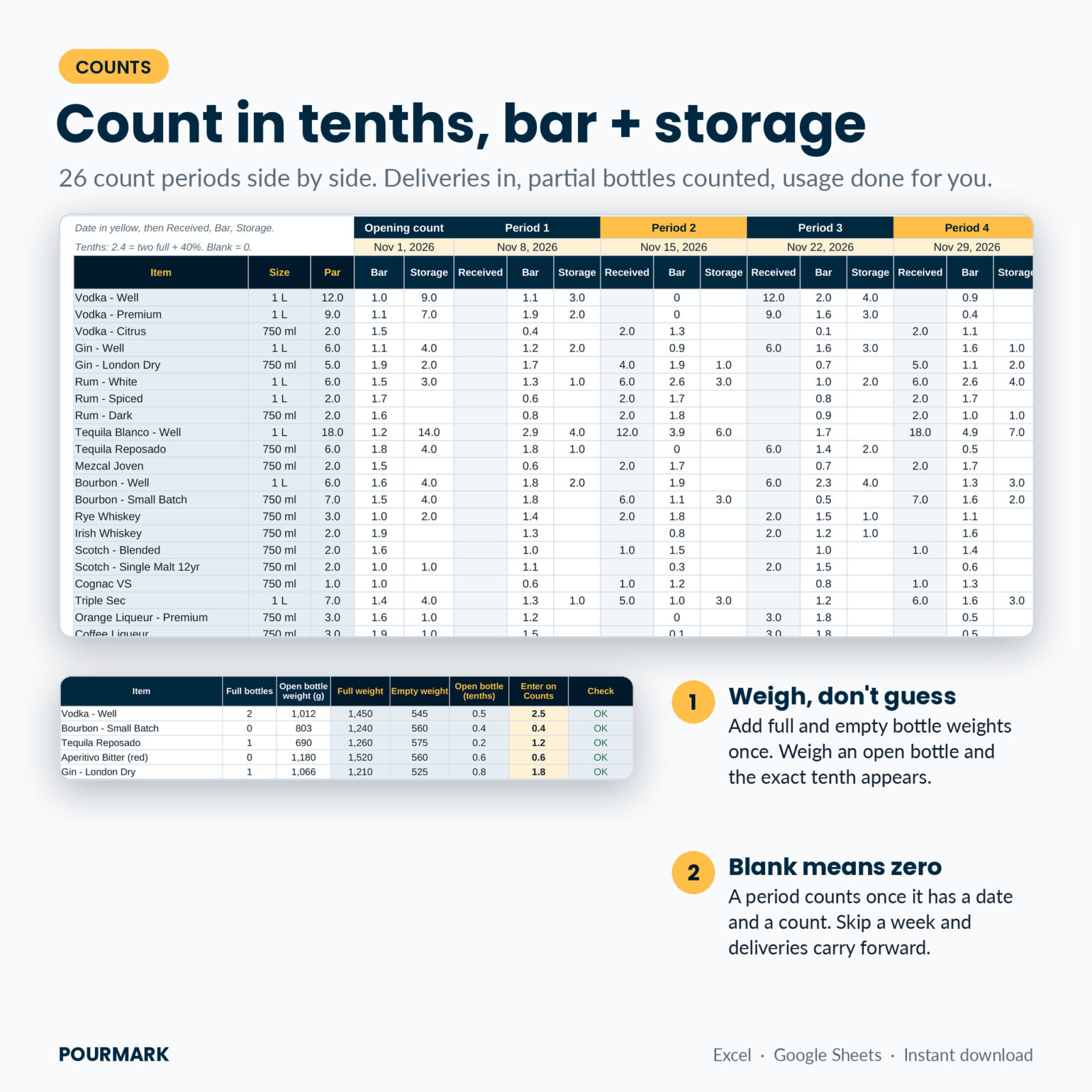
26 count periods sit side by side, each with Received, Bar and Storage columns plus an opening count. Type 2.4 for two full bottles and one at 40%. Weekly, every two weeks or monthly: one period is one count. Skip a week and any deliveries you logged carry forward, so nothing is lost.
Par levels and low-stock alerts
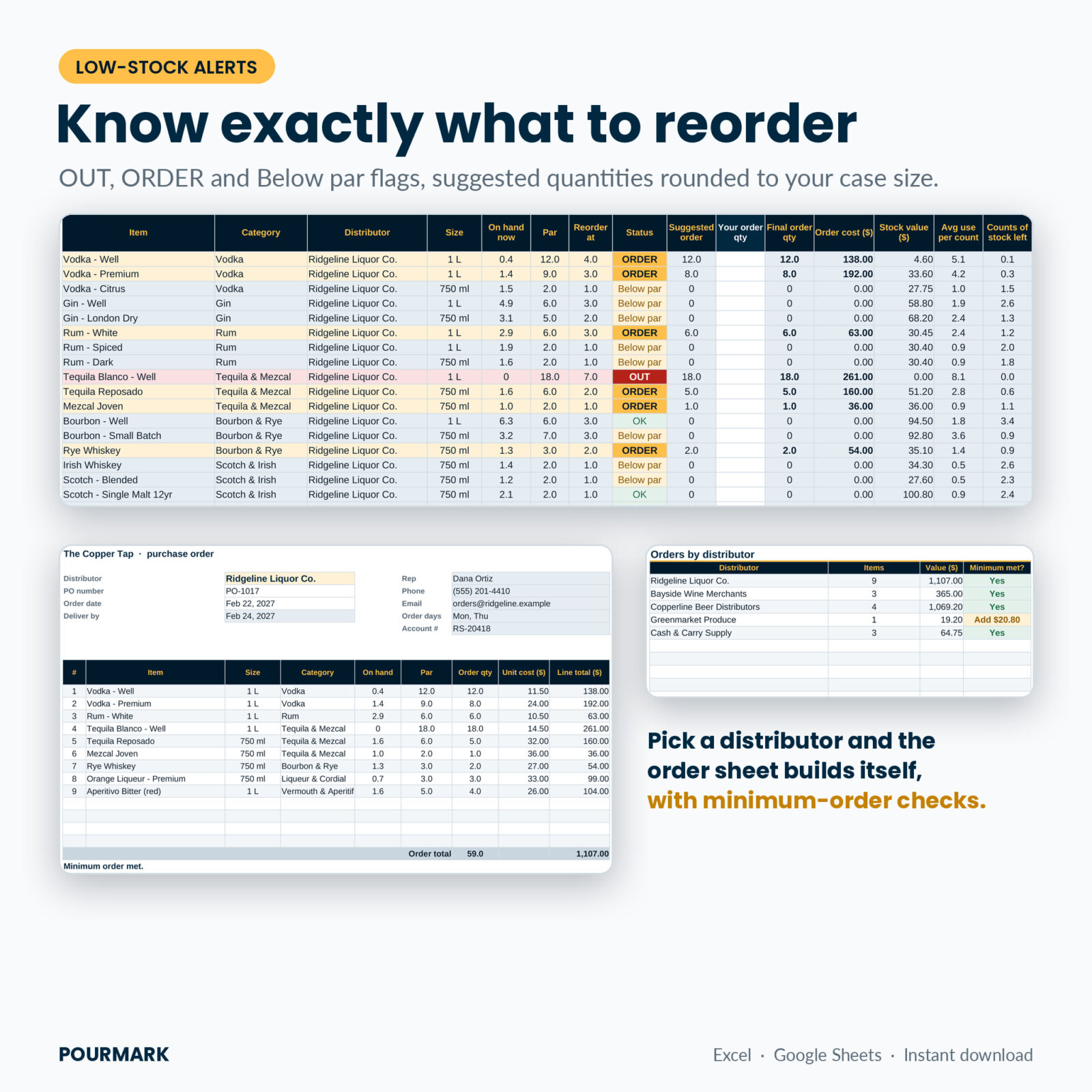
Every item gets a status: OUT, ORDER (at or below the reorder point), Below par or OK. The suggested order fills the gap to par and rounds up to your case size, so a well vodka sold in sixes is ordered in sixes. Type your own quantity to override any line.
Order sheet for each distributor
Pick a distributor and a printable purchase order appears with items, quantities, unit costs, line totals, the rep’s details, order days and the expected delivery date. It also tells you if the order is under that distributor’s minimum.
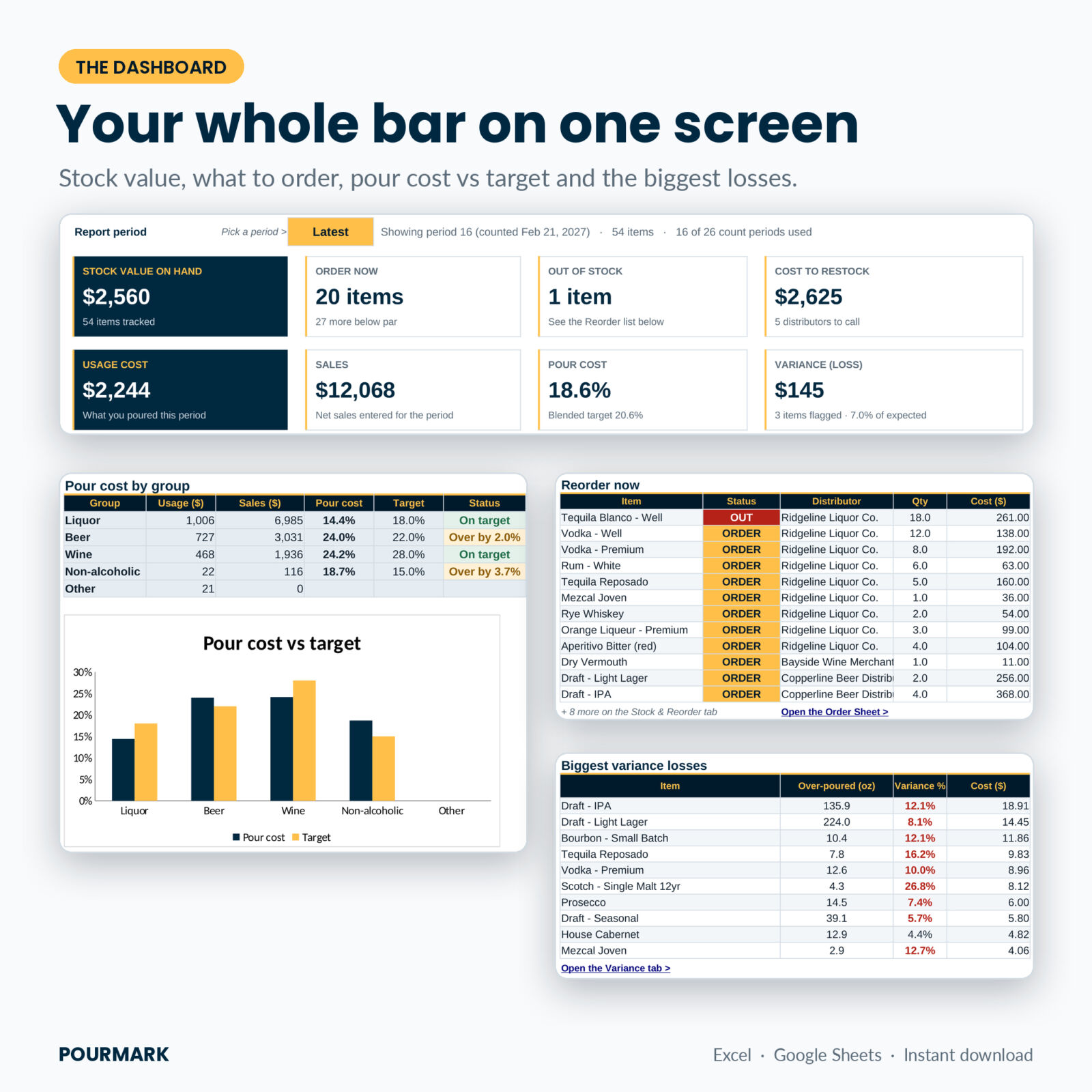
Pour cost by group
Enter net sales from your POS by group (Liquor, Beer, Wine, Non-alcoholic, Other, all renameable). Pourmark works out usage cost and pour cost % for every period and compares each group with your own target.
Drink specs and variance
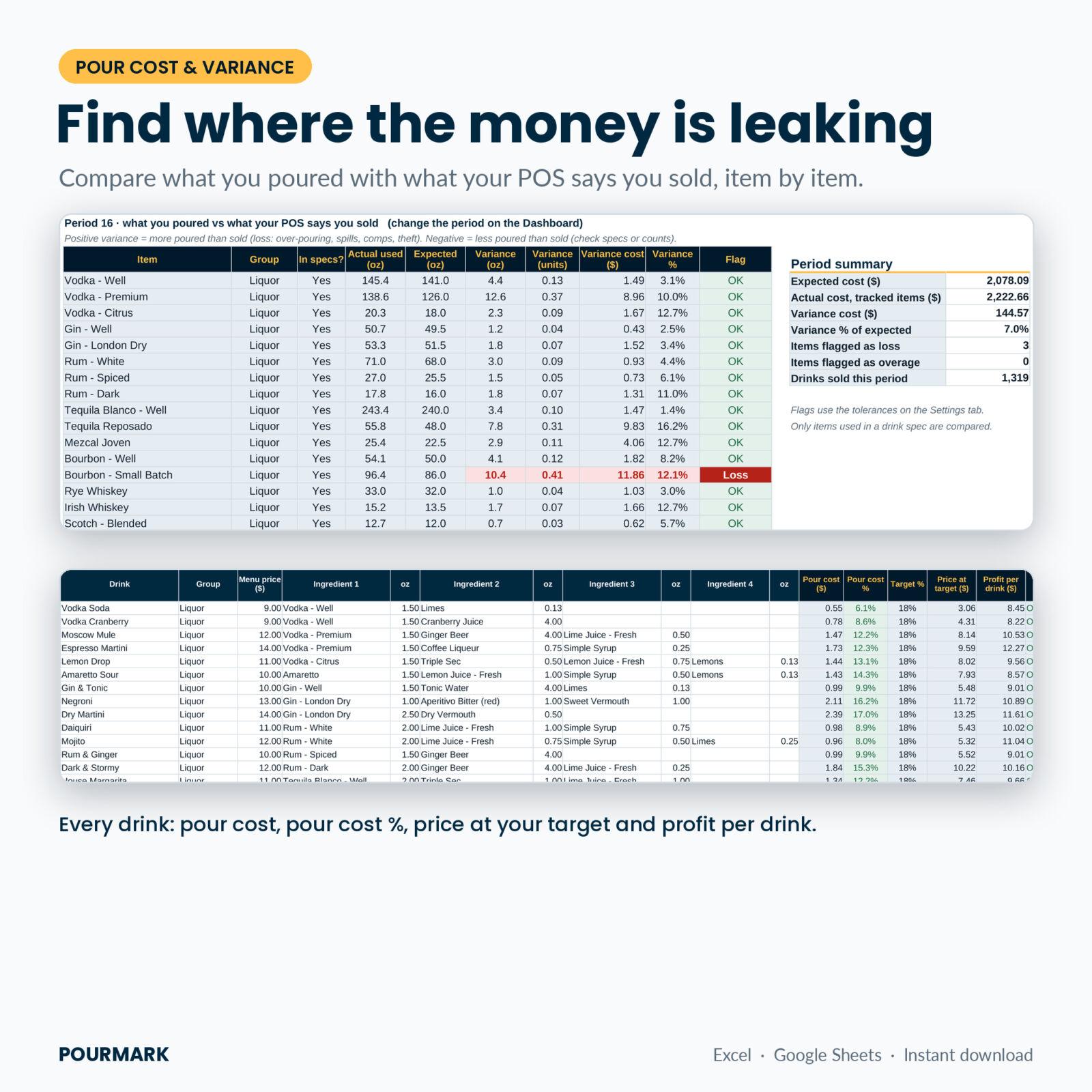
Add up to 100 recipes with four tracked ingredients each. You see the pour cost, pour cost %, the price you would need to hit your target and the profit per drink. Add drinks sold from your POS product mix and the Variance tab compares what you poured with what you sold, item by item, in ounces, bottles and money. Items are flagged only when the loss is bigger than both your percentage and money tolerance, so a few cents of lime juice will not fill the list.
A dashboard you will actually read
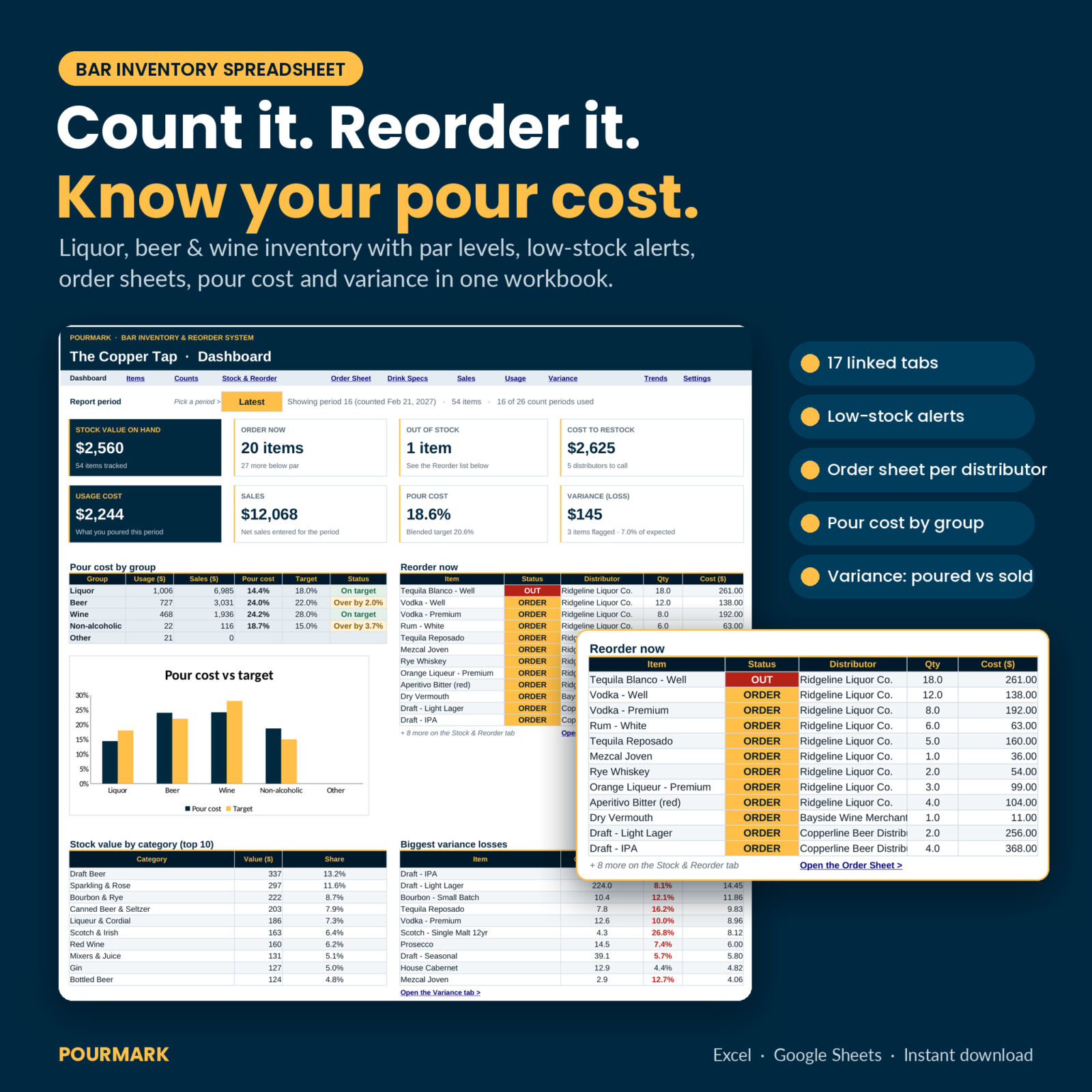
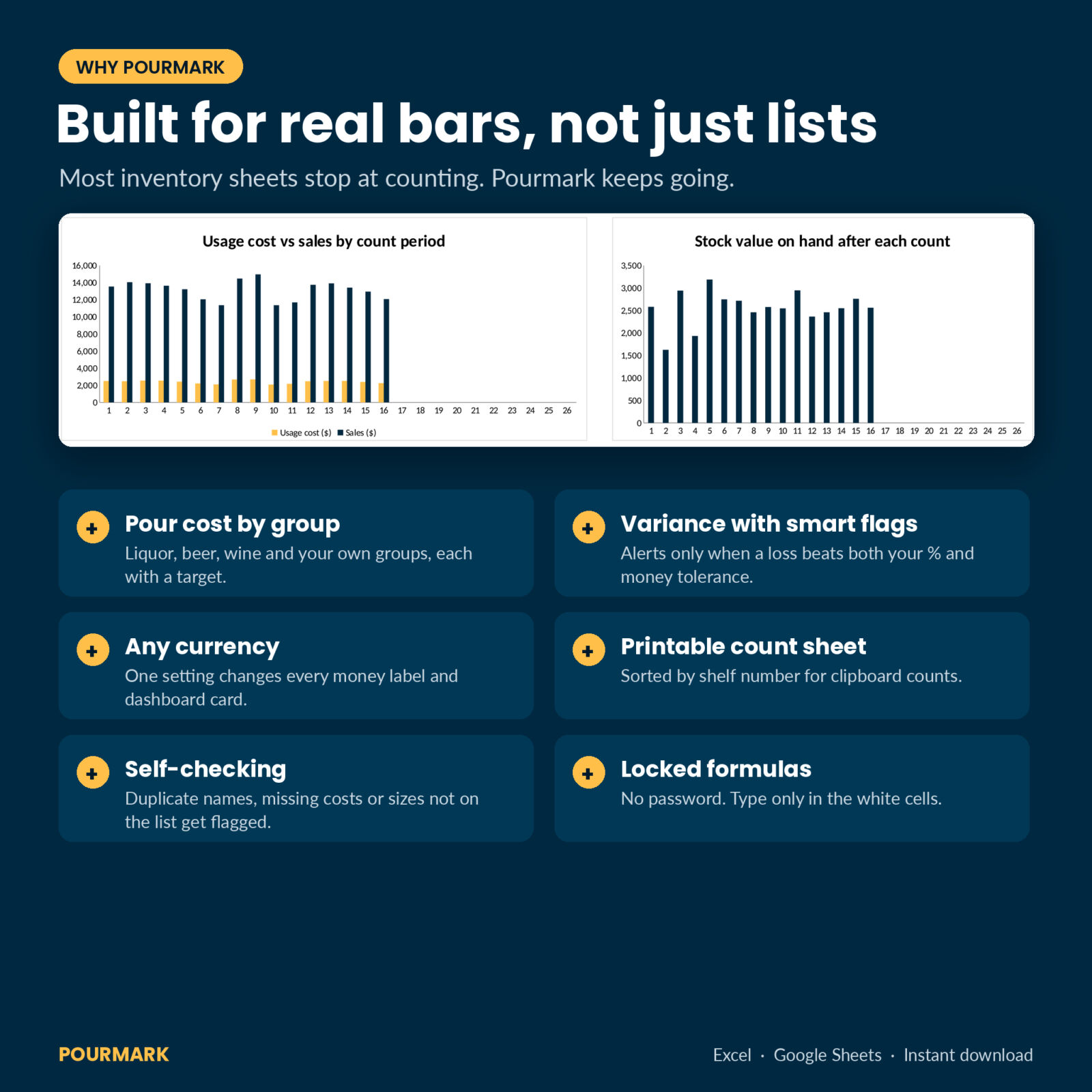
Eight cards show stock value, items to order, items out, cost to restock, usage cost, sales, pour cost and variance. Below them: pour cost vs target with a chart, a reorder-now list, stock value by category, the biggest variance losses, orders by distributor and a usage vs sales trend chart. A period picker lets you look back at any count.
Extras that save time
- Weigh Helper: weigh an open bottle on a kitchen scale and get the exact tenth to enter
- Printable count sheet sorted by shelf number
- Trends tab with every period in one table and two charts
- Self-checks: duplicate names, missing costs and categories or sizes that are no longer on a list are flagged
- Any currency: one setting changes every money label and dashboard card
- Locked formulas with no password, so you only type in the white cells
How it works
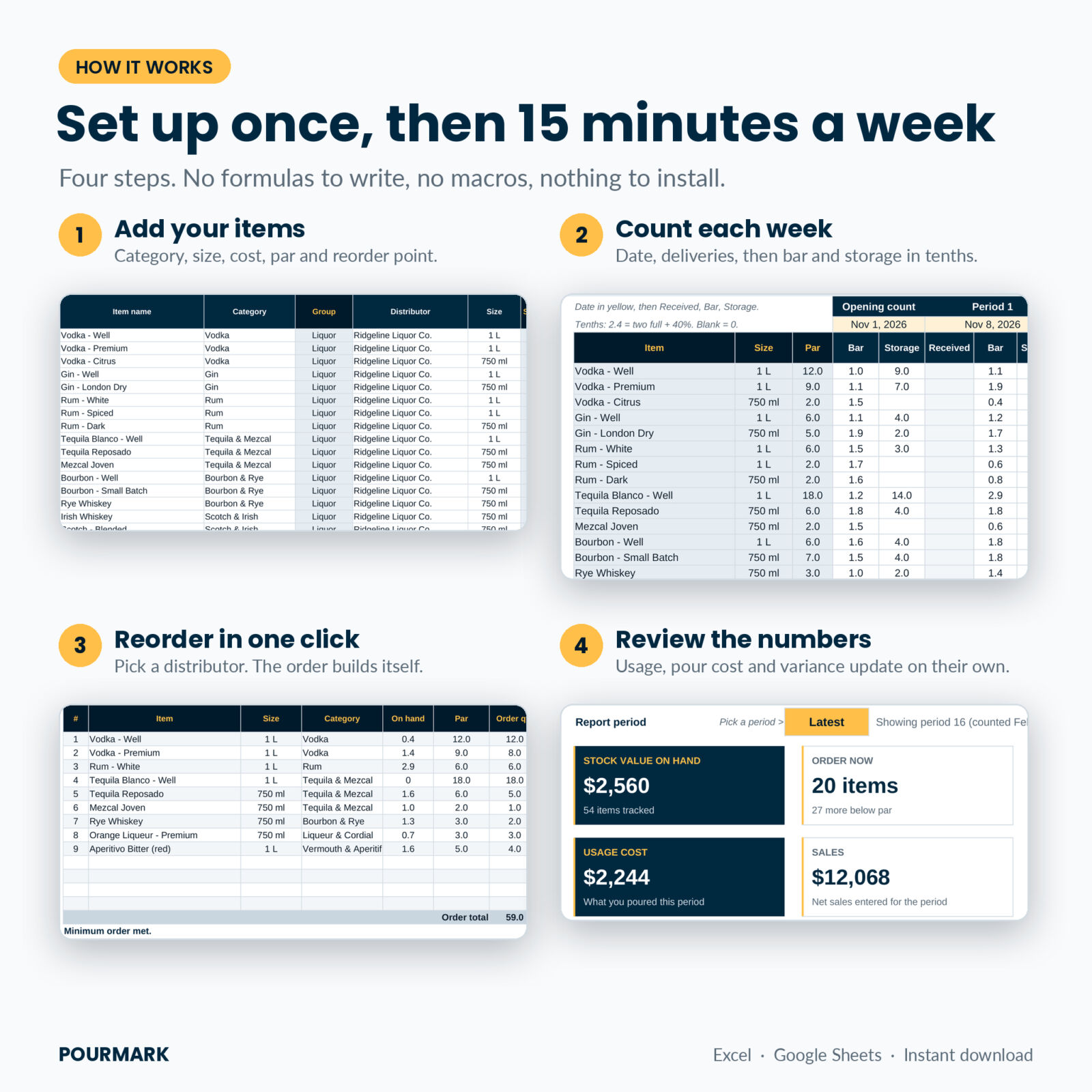
- Add your bar name, currency and target pour cost on Settings.
- List your distributors and your items with size, cost, par and reorder point.
- Enter an opening count. Then, each week, enter deliveries and count bar and storage.
- Check Stock & Reorder, print the order sheet for each distributor, and enter sales.
- Review the dashboard. Add drink specs and drink sales when you are ready for variance.
Setup takes about 30 minutes for a typical bar. After that, a weekly count and update takes around 15 minutes plus the time to walk the shelves.
Real ways bars use it
- A neighborhood bar replaces a paper par sheet and stops running out of well tequila on Fridays.
- A restaurant GM builds Monday and Thursday orders from the order sheet instead of texting reps from memory.
- A cocktail bar finds that one premium bourbon is poured 14% over spec and fixes it with jiggers and a quick team talk.
- A taproom tracks kegs in tenths and sees draft pour cost by week.
File formats and requirements
- .xlsx workbook for Microsoft Excel 2010 or newer (Windows and Mac, including Microsoft 365)
- Google Sheets: upload the file to Google Drive and open it with Google Sheets
- User guide in .docx (Word)
- No macros, add-ins or internet connection needed
Customize it
Rename groups and set your own targets, add up to 30 categories, add any bottle size in fluid ounces, switch the order trigger between reorder point and below par, and tune the variance tolerances. Holds 200 items, 26 counts, 100 drink specs and 30 distributors.
Digital download
This is a digital product. You can download the files right after checkout. Nothing is shipped. License: personal and single-business use. Please do not resell or share the files.
Frequently asked questions
Does this bar inventory template work in Google Sheets?
Yes. Upload it to Google Drive and open it with Google Sheets. It uses standard functions that work in both.
How do I count partial bottles?
In tenths. A bottle that is 40% full is 0.4. If you prefer weighing, the Weigh Helper converts the scale weight for you.
Can I track beer kegs and wine?
Yes. Kegs (1/6, 1/4 and 1/2 barrel), cans, bottles and wine are all included as sizes, and you can add your own.
Does it connect to my POS?
No. You copy net sales and, if you want variance, drinks sold from your POS reports.
How many items can I track?
Up to 200 items over 26 count periods. Save a copy and start fresh when you fill it.
Can I use it for food or other small business inventory?
Yes. Add categories like Dry Goods or Supplies, link them to the Other group and count them the same way.
What currency does it use?
Any. Type your symbol once on the Settings tab.
Reviews
There are no reviews yet.