A daycare waitlist spreadsheet that matches days, not just names
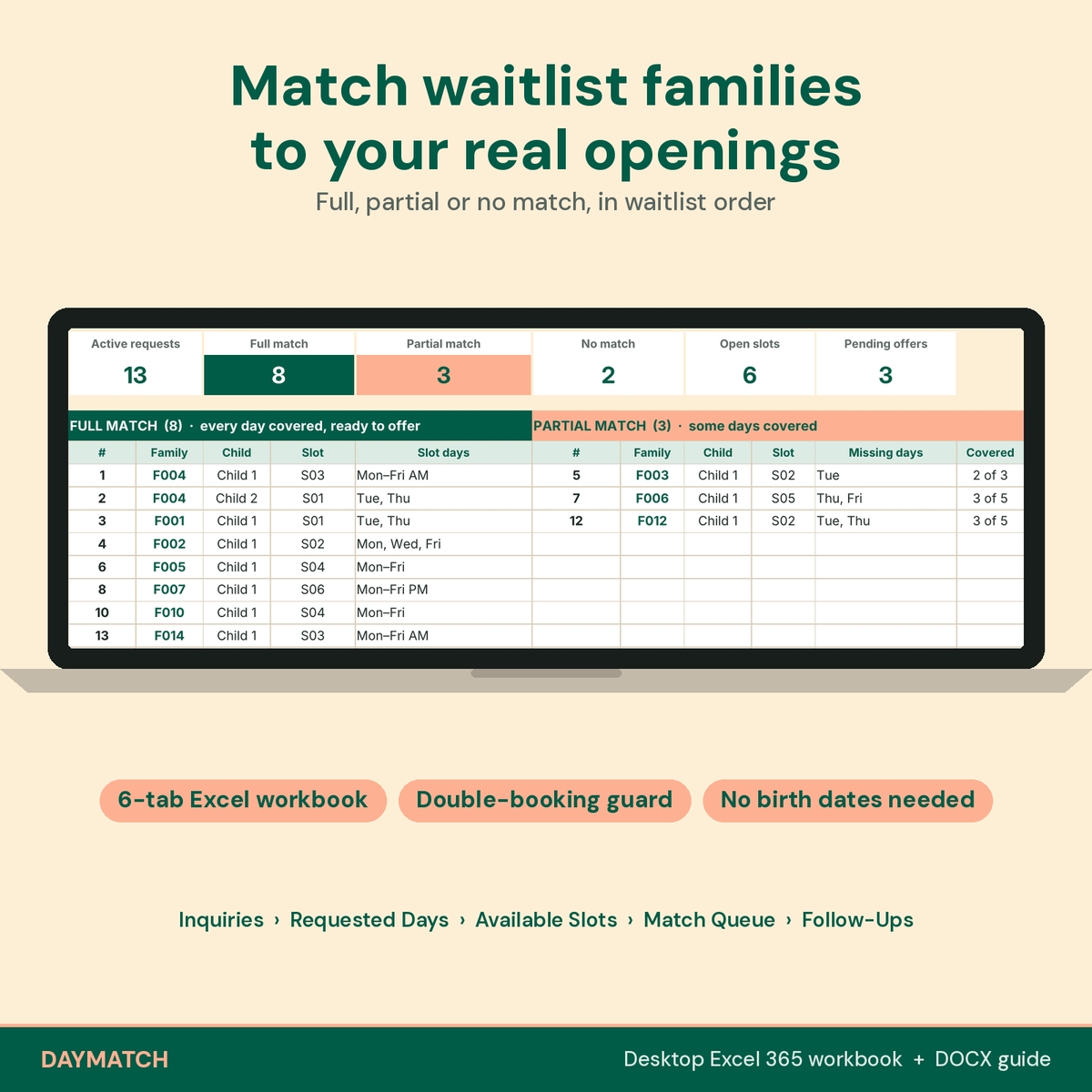
Most waitlists are a list of names in the order families called. The hard part comes when a spot opens: a toddler space on Tuesdays and Thursdays, a morning-only preschool place, an after-school seat three afternoons a week. Which family on the list actually needs those days? DayMatch Openings Planner is a daycare waitlist spreadsheet that answers that question for every child at once. You enter the weekdays each family needs and the weekdays you can offer, and the workbook shows a full match, a partial match or no match, in waitlist order.
It is built for family child care and home daycare providers, small centers, preschools and before- and after-school programs that fill part-time openings and want one honest record of who was offered what, and when.
How the matching works
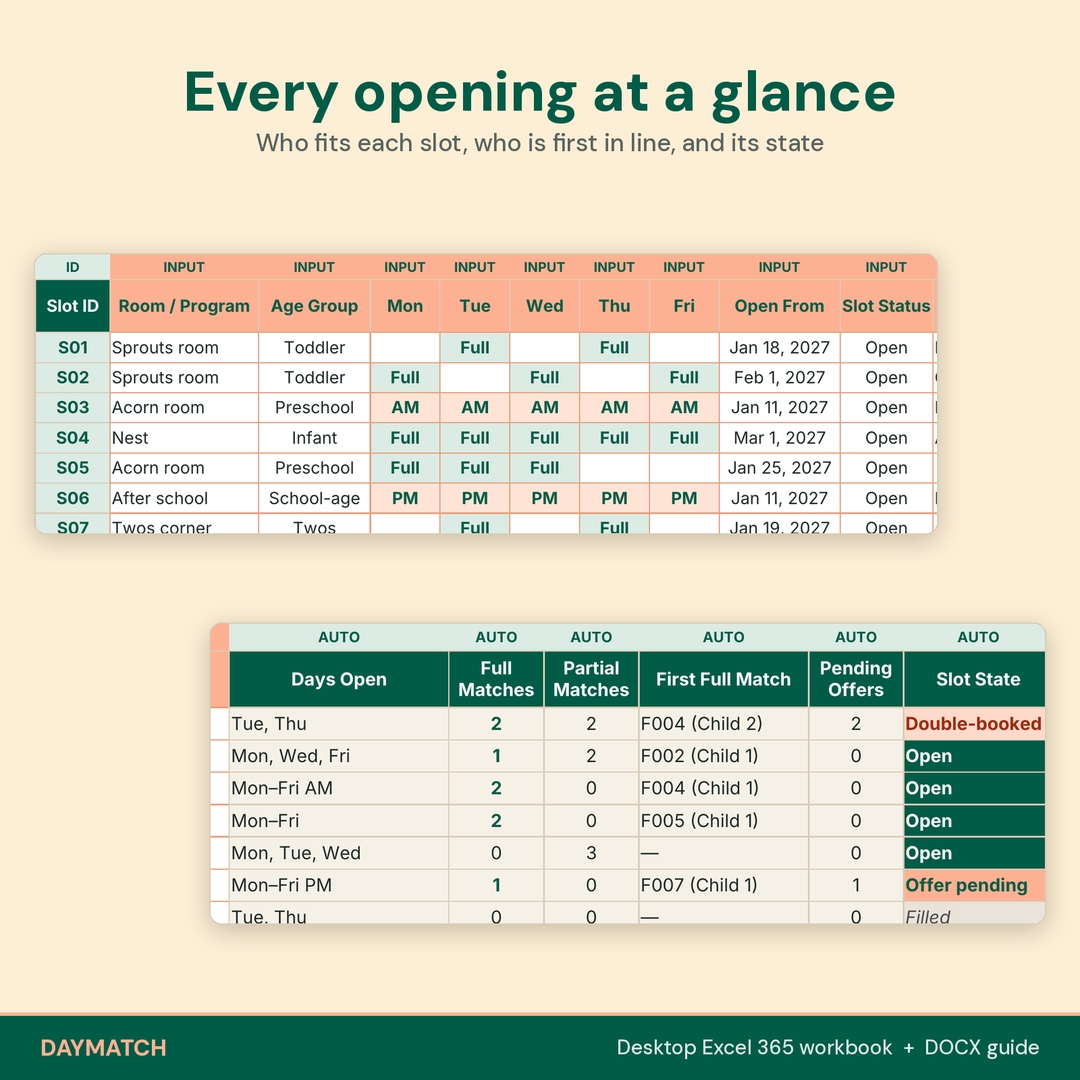
Each child gets one row with an age group and a day value for Monday to Friday: Full, AM or PM. Each opening gets the same. A Full day covers a Full, AM or PM request; an AM session covers AM only; a PM session covers PM only. DayMatch compares every active request with every opening for the same age group that is open and not yet accepted, then keeps the opening that covers the most requested days.
Worked example from the included demonstration data
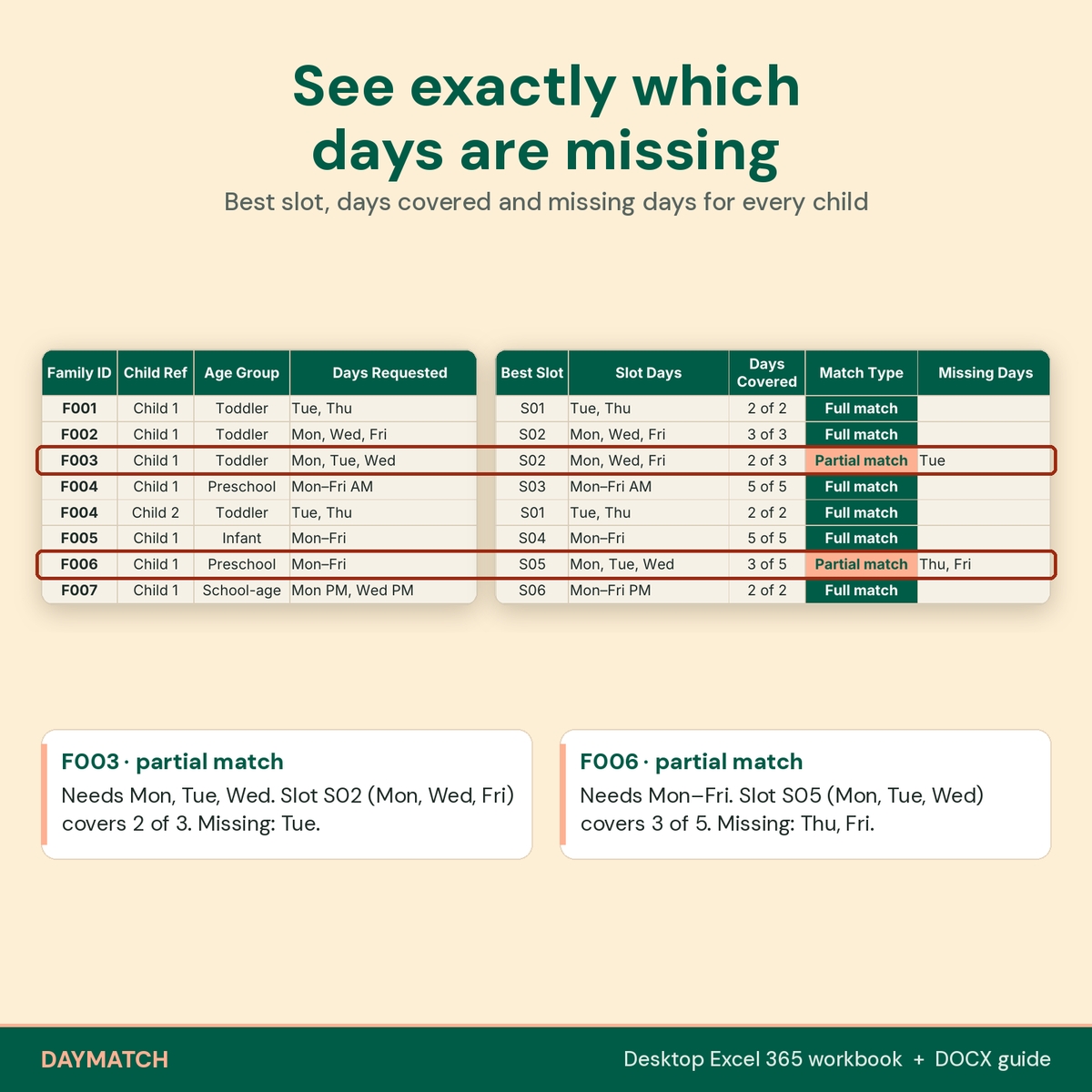
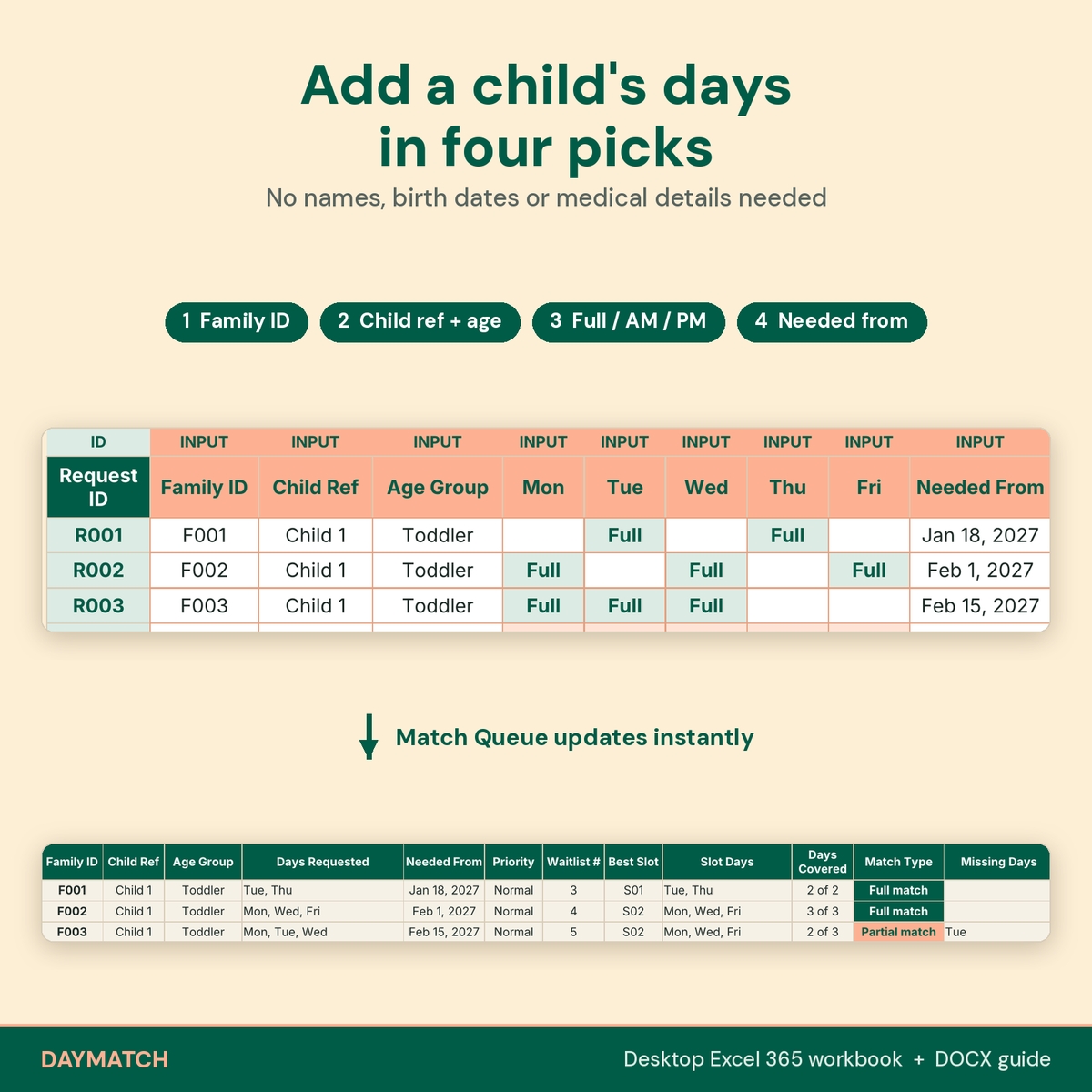
Family F003 needs a toddler space Monday, Tuesday and Wednesday. Your toddler opening S02 is open Monday, Wednesday and Friday. The Match Queue shows Best Slot S02, 2 of 3 days covered, Match Type Partial match and Missing Days Tue. Family F002 needs Monday, Wednesday and Friday, so S02 is a full match for them, 3 of 3. Family F005 is a full match for the infant opening S04, but the Start Fit column warns Opens Mar 1 because the family needs care from January 4.
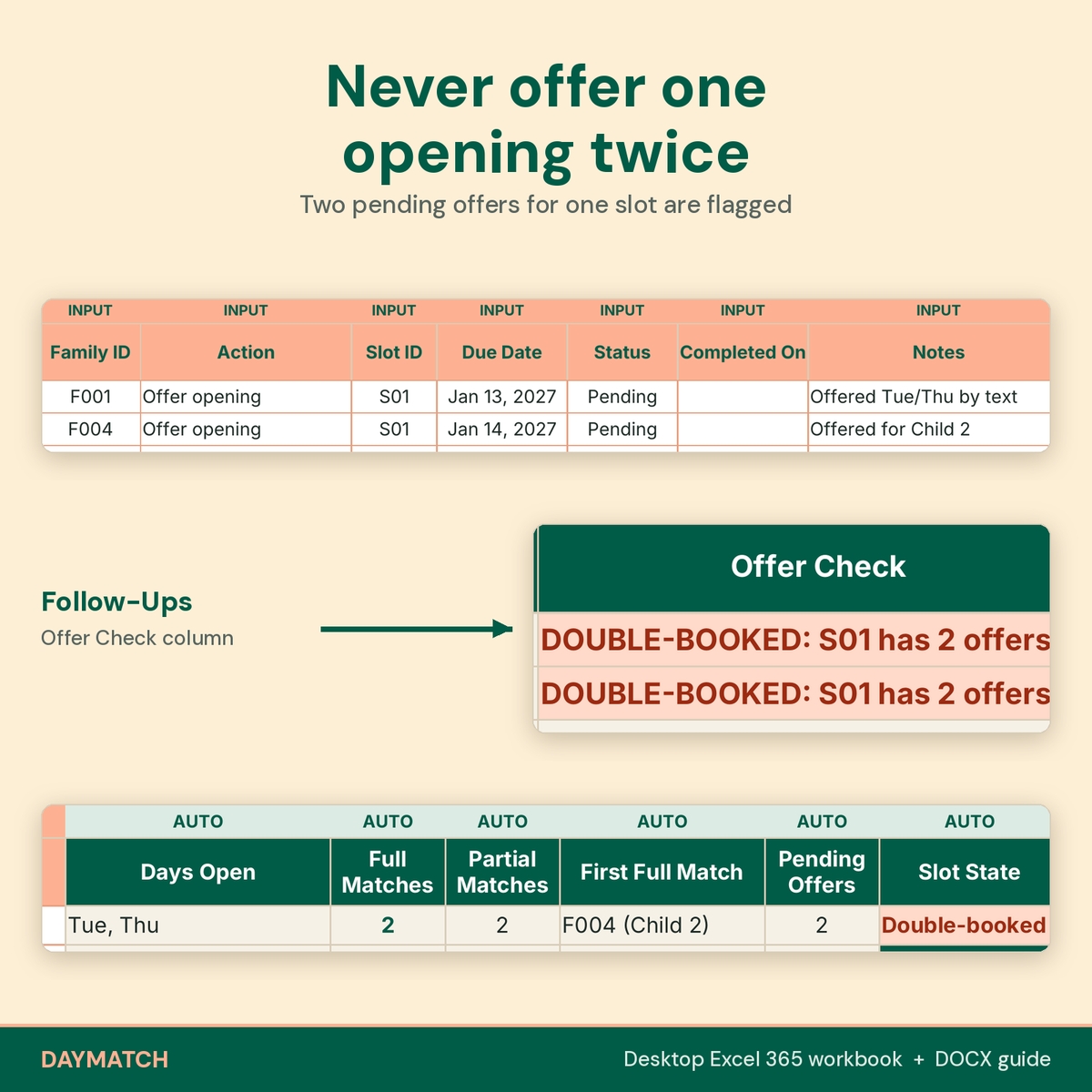
If two families are both sent a pending offer for opening S01, the Follow-Ups tab shows DOUBLE-BOOKED: S01 has 2 offers, the opening turns red on Available Slots, and the Match Queue flags both families. When one family accepts, the slot becomes Filled and drops out of matching.
What’s included
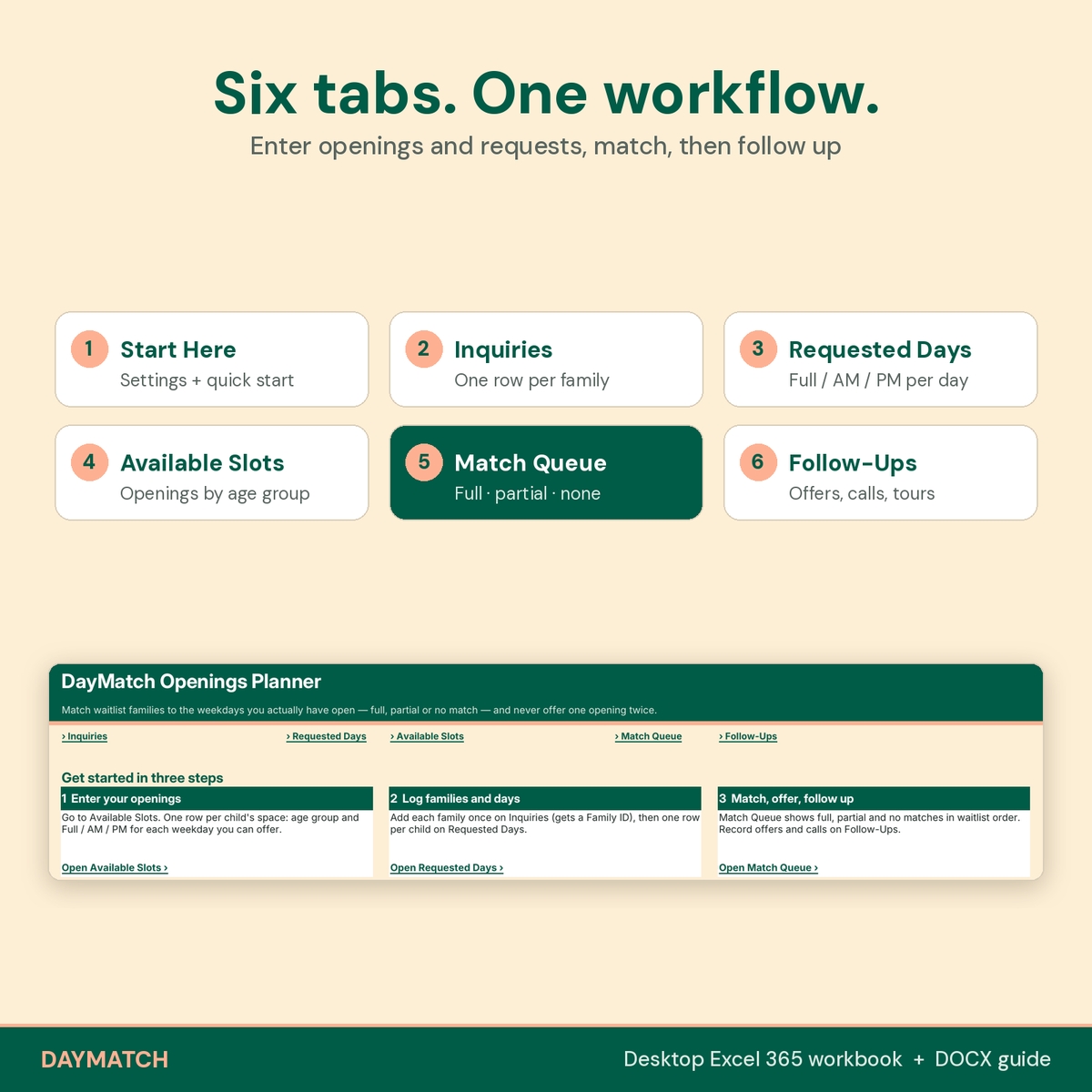
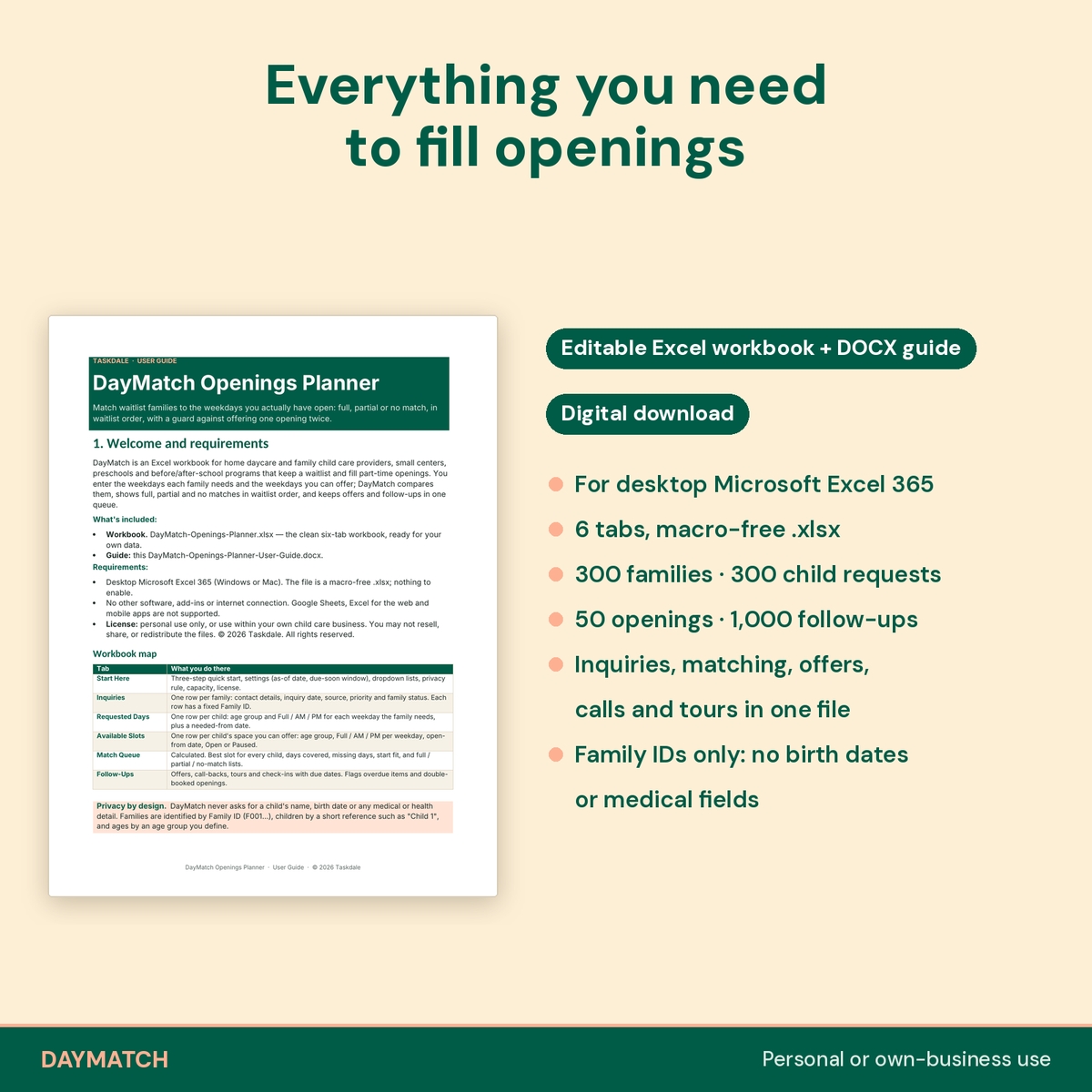
You receive an editable Excel workbook with six tabs:
- Start Here: three-step quick start, an as-of date and “due soon” window, editable age-group and source lists, live counts, the privacy rule, capacity limits and license.
- Inquiries: one row per family with a fixed Family ID, contact name, phone, email, preferred contact method, inquiry date, source, priority and family status. Calculated columns show their best match and next follow-up.
- Requested Days: one row per child with a child reference such as “Child 1”, age group, Full / AM / PM for each weekday and a needed-from date.
- Available Slots: one row per space you can offer, with room or program, age group, open days and open-from date. Calculated columns show full and partial matches, the first full match in waitlist order, pending offers and the slot state.
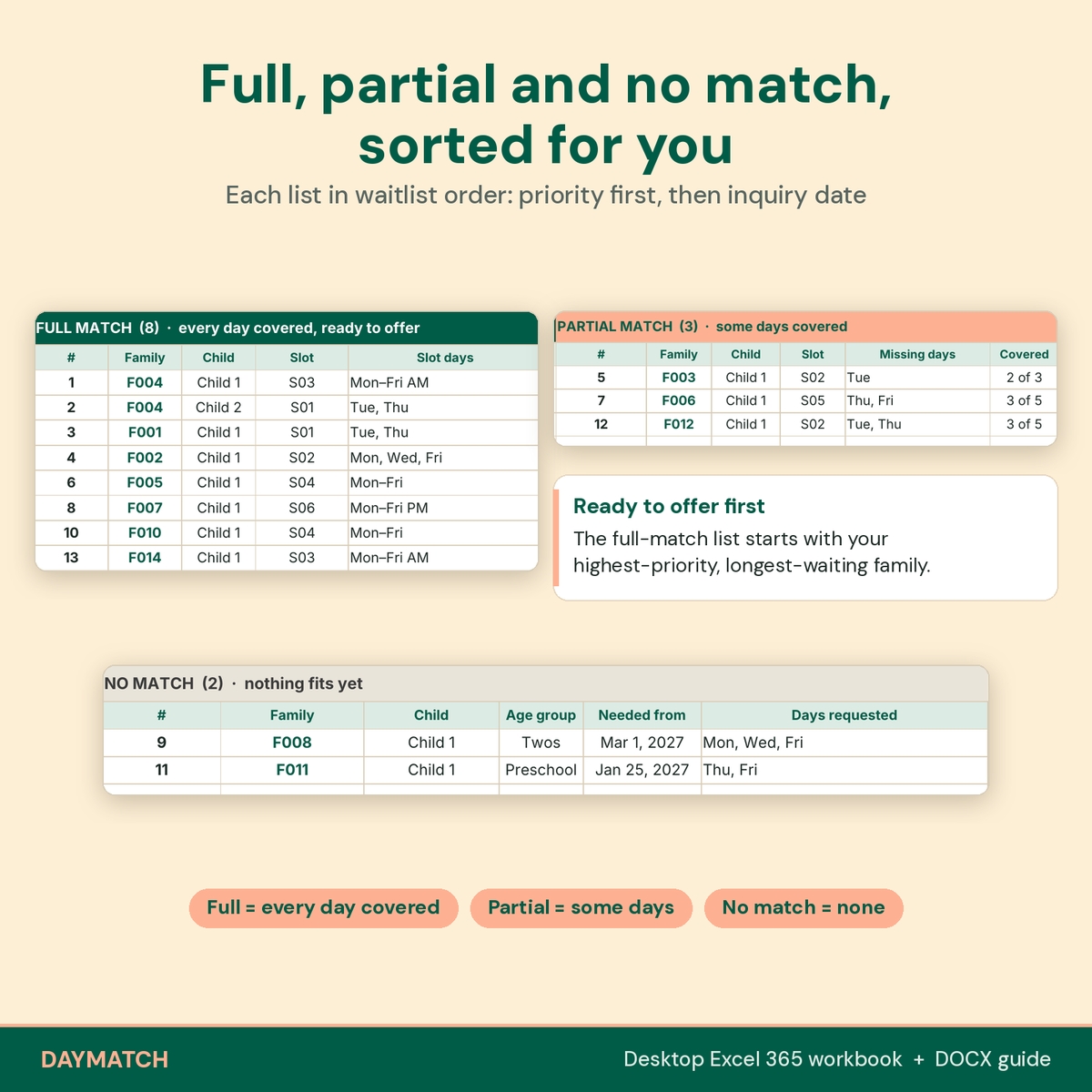
- Match Queue: KPI cards, separate full-match, partial-match and no-match lists in waitlist order, and a detail row for every child with best slot, days covered, missing days, start fit, offer status and flags.
- Follow-Ups: offers, call-backs, tours and check-ins with due dates, an Overdue / Due today / Due soon queue, and the double-booking check.
You also receive a DOCX user guide covering setup, entering openings and requests, reading the Match Queue, offers and follow-ups, customizing lists and troubleshooting. The workbook you download is clean; the filled workbook in the images is a demonstration with fictional families.
Privacy by design
DayMatch does not ask for children’s names, birth dates or any medical or health details. Families are identified by Family ID, children by a short reference, and ages by an age group you define. Contact details live only on the Inquiries tab.
How to use it
1. Enter your openings. On Available Slots, add one row per child’s space with its age group and Full, AM or PM for each open weekday. Two identical spaces get two rows.
2. Log families and their days. Add each family once on Inquiries, then one row per child on Requested Days.
3. Work the Match Queue. Start with the full-match list, check the start fit, and record each offer on Follow-Ups with the Slot ID. When a family accepts, mark the offer Accepted and change their status to Enrolled.
Waitlist order is priority first (High before Normal), then the oldest inquiry date. Families that are Enrolled, Declined or Withdrawn leave the queue automatically.
Built-in checks
- Every input table has a Check column that flags a missing Family ID, an age group that is no longer on your list, a day value other than Full / AM / PM, invalid dates and duplicate child rows.
- Rows that need fixing show “Check entry” in the Match Queue with a short note on what to fix, instead of a misleading match.
- Formula cells are locked (no password) and dropdowns guide everyday entry; rows are preallocated so you never need to unprotect a sheet.
Format, capacity and download details
For desktop Microsoft Excel 365. The workbook is a macro-free .xlsx file with Excel tables and no add-ins. The guide is a .docx file. Capacity: 300 families, 300 child requests, 50 openings and 1,000 follow-up entries. Days are Monday to Friday with Full, AM and PM sessions. This is a digital download; nothing ships.
Licensed for personal use or use within your own child care business. You may not resell, share, or redistribute the files.
Known limitations
- Monday to Friday only; no Saturday, hourly or staff-ratio scheduling.
- Age groups are chosen by you; the workbook does not calculate ages.
- No tuition, billing or enrollment paperwork, and no automatic emails or texts.
- When several openings fit equally, the first one listed is shown and the others are counted.
Frequently asked questions
Does it work for part-time and half-day schedules?
Yes. Each weekday can be Full, AM or PM, for both the family’s request and your opening.
Can I track siblings?
Yes. Give each child their own row with the same Family ID and a different child reference.
How is the waitlist order decided?
Priority first (High, then Normal), then the oldest inquiry date. You set priority on the Inquiries tab.
What stops me from offering one spot to two families?
Follow-Ups flags two pending offers for the same Slot ID as double-booked, and the slot and Match Queue show the warning too.
Do I need to enter birth dates?
No. DayMatch is designed without birth dates or medical fields; you choose an age group.
Can I use Google Sheets or a Mac?
This listing is for desktop Microsoft Excel 365. Google Sheets, Excel for the web and mobile apps are not supported.
Does it send reminders?
No. The Follow-Ups tab shows what is overdue, due today or due soon when you open the file.
Reviews
There are no reviews yet.