When you work backwards from a target, you start with the result you need and solve for the input. Excel’s Goal Seek can run the same search for a single input.
When printing and assembling planner inserts, start with the number of usable leaves you need in the binder, then work backwards from a target leaf count to the number of sheets to load. Excel’s Goal Seek can work backwards from a target to find a single input, but you’ll need a whole-sheet check before you print.
For example, 48 double-sided inserts printed two to a sheet need 24 good sheets. If you budget three sheets for printer tests and allow for 10% spoilage on the rest of the run, load 30 sheets, not 24. The difference comes from how you count the output, how you apply the waste allowance and where you round.
Work backwards from a target: build the worksheet from the finished insert count
To work backwards from a target, set it in physical leaves. A leaf is one piece of paper that goes into the binder. It can have a printed front and back, but it still counts as one leaf. A brief for 48 double-sided leaves calls for 96 printed faces; a brief for 48 printed faces calls for 24 leaves if every front has a back. Split the target by layout if you need exact quantities, such as 12 monthly leaves and 36 notes leaves.
Measure how many leaves one good sheet actually yields. Print one test at the intended scale, trim it, punch it and check it in the binder. Set the yield to
2only if both pieces are usable on both sides. A duplex sheet with two inserts on the front and their matching backs still yields two leaves, not four. If your print file has cut marks, check that they print in full and that the punch lands in the blank margin rather than on the layout.Separate test sheets from production spoilage. Put setup paper in one cell and the expected share of spoiled production sheets in another. Three setup sheets might cover a scale check, a duplex alignment test and a corrected proof. A separate 10% allowance covers production sheets you expect to lose to skewed feeding, misaligned cuts or other faults. Don’t count a setup sheet again when applying the percentage.
Create one adjustable input and two output formulas. Use
B2for target leaves,B3for leaves per good sheet,B4for setup sheets,B5for the spoilage rate andB6for sheets loaded. Enter10%inB5, not10. InB7, use=MAX(0,B6-B4)*(1-B5)*B3for the continuous estimate. InB8, use=MAX(0,B6-B4-ROUNDUP(MAX(0,B6-B4)*B5,0))*B3for the planned whole-leaf output. This second formula charges a full sheet for a fractional production loss: 2.7 sheets of spoilage becomes 3.Run Goal Seek on the continuous estimate. In desktop Excel, go to Data → What-If Analysis → Goal Seek. Set cell
B7to the target number, such as48, by changingB6. Enter the number itself in the To value box; it doesn’t take a live reference toB2. LeaveB6as an editable number, not a formula. UseB7rather thanB8because the whole-leaf output moves in jumps and may skip the exact target.Turn the result into a print quantity and check the next lower input. Round the Goal Seek result up to a whole sheet, enter it in
B6and confirm thatB8meets or exceedsB2. Then try one sheet fewer. If that still meets the target, use the lower count. For repeat runs with this same waste model, put=B4+ROUNDUP(ROUNDUP(B2/B3,0)/(1-B5),0)inB9to calculate the minimum automatically. The inner rounding finds the good sheets needed; the outer rounding allows for production spoilage. This way to work backwards from a target assumes a positive target, a yield of at least one and a spoilage rate below 100%.
The sheet count is a planning number, not necessarily the number to type into the printer’s Copies box. For a PDF with one imposed front page and one matching back page, one duplex copy uses one sheet. If your selected range contains six imposed PDF pages, one duplex copy normally uses three sheets. Check the print preview before you use the spreadsheet total to set the job quantity.
Worked example: print and assemble 48 double-sided daily inserts
Suppose you need 48 Half Letter daily leaves for a planner. Each leaf has the same daily design on both sides, and two leaves fit side by side on a landscape US Letter sheet. The output target is 48 leaves you can turn in the binder, not 48 dated days or 48 PDF pages.
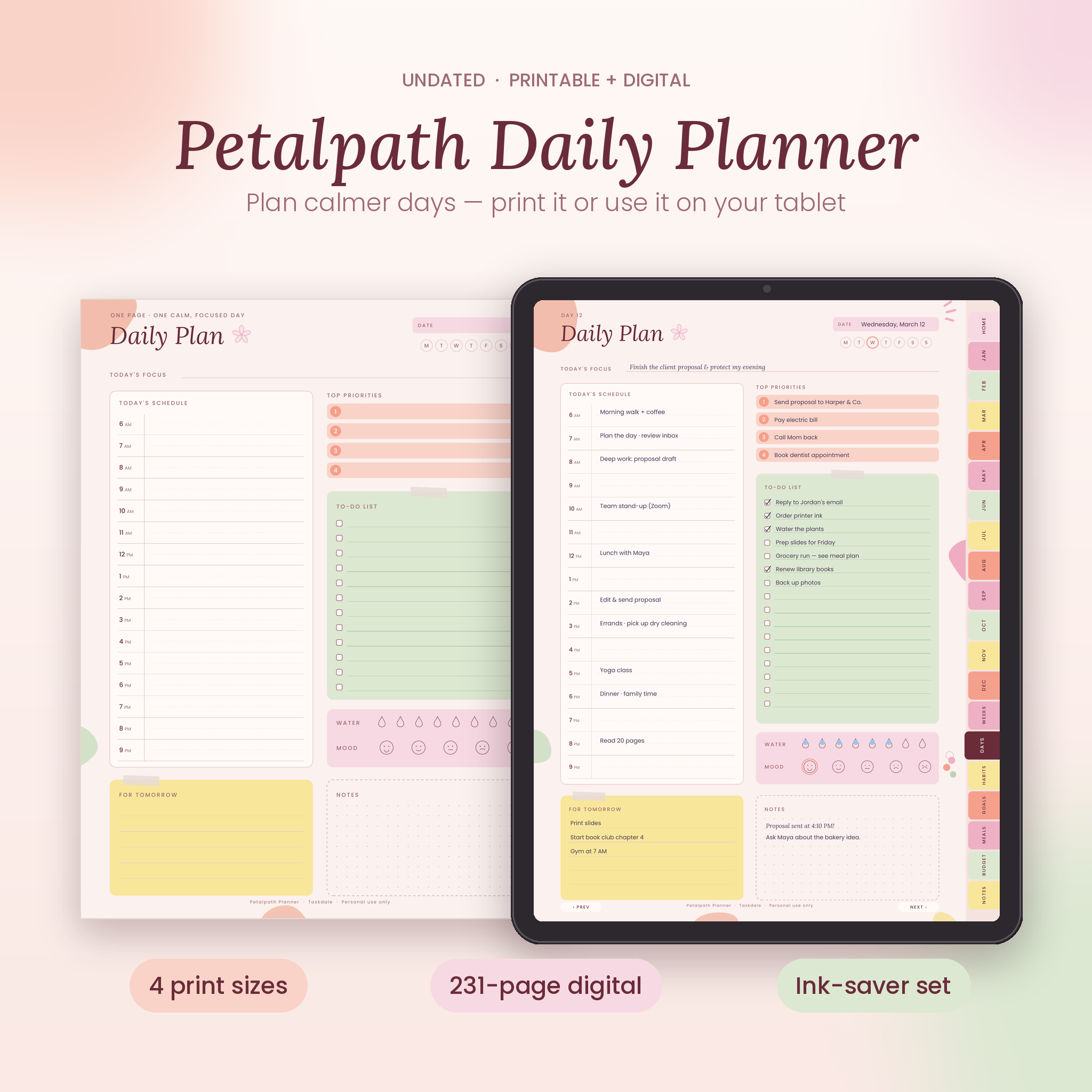
For a repeatable daily layout, the Petalpath Undated Daily Planner offers a Half Letter print option and an Ink-Saver version. Use the printable daily layout for this job, rather than counting pages from the separate hyperlinked digital planner.
Prove the two-up layout. Place two copies of the Half Letter daily page on each side of a US Letter sheet using a print layout tool, or use your PDF viewer’s multiple-pages-per-sheet option if you can verify the scale. Half Letter is 5.5 × 8.5 inches. Some multiple-page settings shrink the artwork to fit a printer’s margins, so check the finished leaf size and the position of the writing area separately. Cut at the midpoint, turn each piece as you would in the binder and confirm the back reads upright with the punch margin on the correct edge. Record
2as the yield only after both pieces pass.Enter the job assumptions. Put
48inB2,2inB3,3inB4and10%inB5. StartB6at24to see the difference between the no-waste count and the planned output. With three sheets set aside for setup, only 21 go into production. The whole-sheet model allows for three spoiled sheets, leaving 18 good sheets, or 36 usable leaves.Find the required input. Set
B7to48by changingB6in Goal Seek. Excel should return about 29.67 sheets. Enter30inB6: after three setup sheets, you have 27 production sheets. Rounding 10% of 27 up sets aside three more, leaving 24 good sheets and exactly 48 planned leaves. At 29 loaded sheets, the model returns 46 leaves. The one-sheet check confirms that 30 is the minimum under these assumptions.When you work backwards from a target, print to the good-output figure, not to the waste allowance. Load 30 sheets and run the setup proofs. If setup uses all three budgeted sheets, you have 27 left. Start with the 24 production sheets needed if none fail, and keep the other three for replacements. If a duplex proof comes out upside down, change the flip edge and print one new test rather than sending the full stack again. If your printer handles duplex manually, mark a test sheet to establish which edge goes back into the tray first.
Count passes after assembly. Let the ink dry if it smears when handled, then trim and punch in batches your tools can cut cleanly. Check the first punched leaf in the binder before punching the rest. If one half of a sheet fails and the other passes, keep the good half and count the actual shortage. For instance, if two leaves fail, one more correctly printed sheet can replace both. Stop when 48 usable leaves are in the binder.
The 10% allowance is a job assumption, not a printer rating. With the same target, yield and setup budget, a 5% allowance calls for 29 sheets and a 15% allowance calls for 32 sheets. If only 30 sheets are on hand, that range tells you when to stage extra paper or plan a smaller batch. For a standing workflow, keep best, base and worst cases in one workbook so you can change the waste rate without rebuilding the formulas.
Fix the inputs when you work backwards from a target and the result doesn’t match the print job
The spreadsheet says two per sheet, but the trim or punch fails
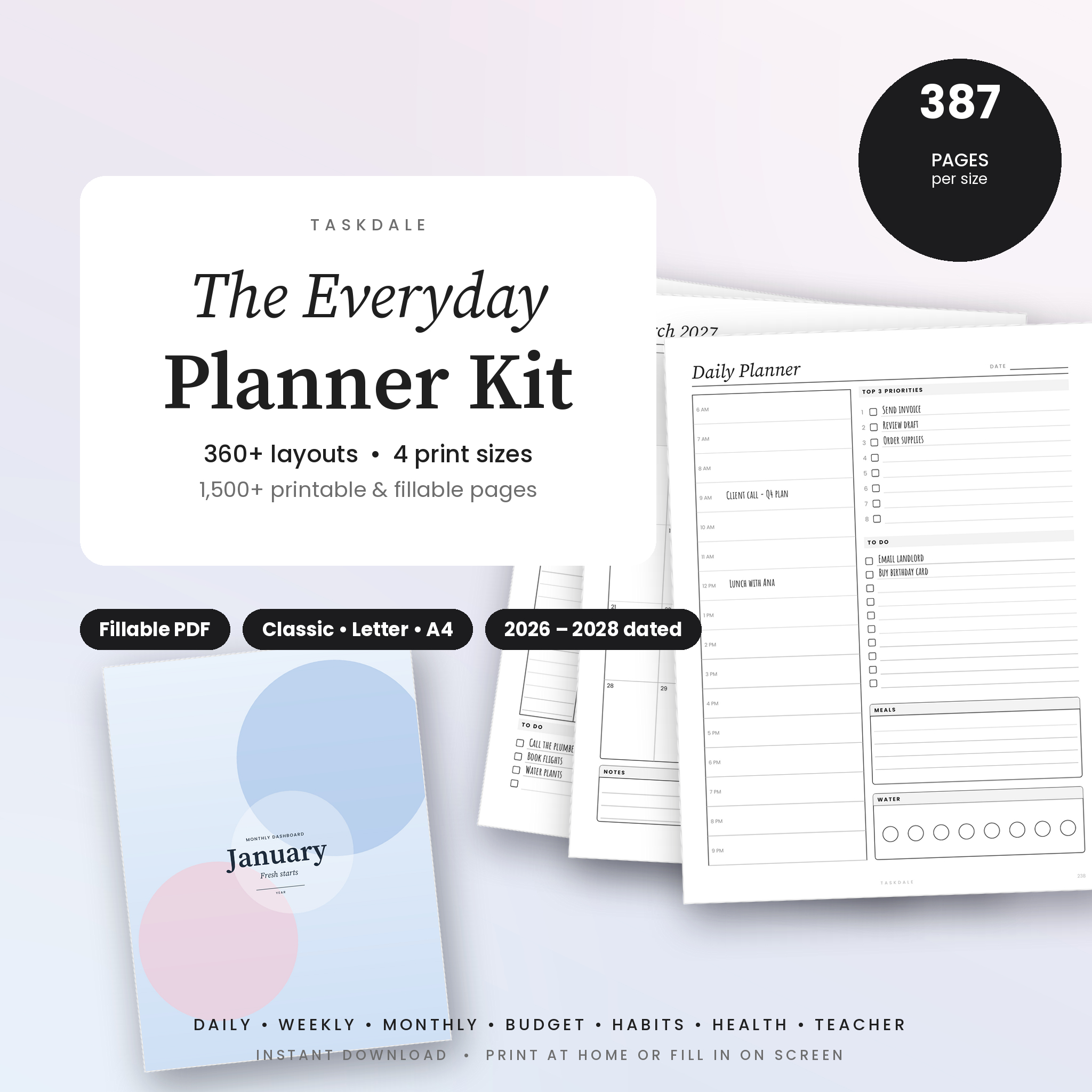
Use the file made for the finished size or the intended carrier sheet. The Everyday Planner Kit includes a Classic-on-Letter PDF with cut marks as well as a native Classic 7 × 9.25 inch file. For Letter stock that you plan to trim, start with the cut-mark version and verify the trim dimensions on a proof rather than trying to shrink the native Classic file into a two-up layout.
If the proof only yields one usable leaf per sheet, change B3 to 1 and rerun the calculation. For the same 48-leaf target, three setup sheets and 10% spoilage, the budget jumps from 30 sheets to 57. That’s a different job, not a minor print adjustment. Check the sides of the sheet for clipping before changing the scale; reducing a correctly sized file can move the ruling and punch clearance away from where you need them.
Goal Seek can’t work backwards from a target even though the print job is possible
Check whether you pointed Goal Seek at B8, the rounded result. If every passing sheet yields two leaves, the formula can return 46 or 48 but never 47. Solve against B7, then check for at least 47 in B8. If you need exactly 47 leaves in the binder, print 48 and hold one as a spare, or set up a separate one-leaf pass if the paper or reverse-side layout makes the spare impractical.
If B7 doesn’t change when you type a larger value into B6, check the cell references and the spoilage input first. A spoilage rate of 100% makes the production estimate zero for any input, and typing 10 instead of 10% puts the rate outside the model’s usable range. Test with B5 at 0%: with two usable leaves per sheet, each sheet above the setup allowance should add two leaves.
The total is right, but the binder is short of one layout
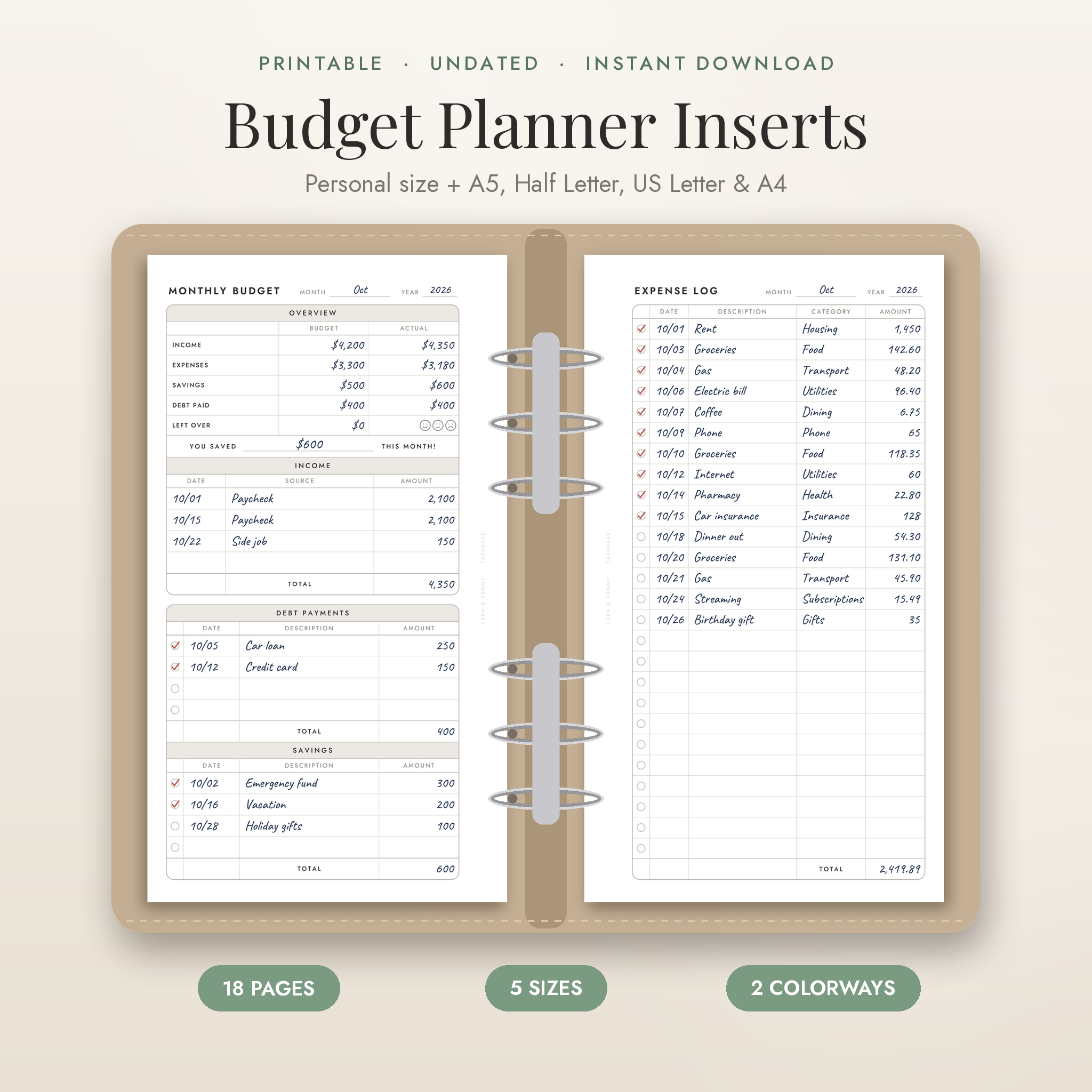
Calculate each layout or front-and-back pairing as a separate line if the quantities aren’t interchangeable. With the Fern & Penny Budget Planner Printable, you might want 12 monthly budget leaves and 24 expense log leaves in A5. Work backwards from a target for each layout rather than entering 36 and hoping the selected PDF range gives you the right mix.
If both lines share the same paper, scale and duplex settings, charge the common setup sheets once. If the front-and-back pairing changes and needs another proof, budget that proof on the relevant line. Round the good-sheet requirement per distinct layout unless you’ve deliberately placed different layouts together on the same sheet. An unused position on a monthly budget sheet doesn’t produce an expense log by itself.
When you work backwards from a target, the stock limit changes which inserts you can finish
When the paper count is fixed, stop changing B6 with Goal Seek. Enter the stock limit there and read the expected output in B8. At 28 sheets, the example assumptions give 25 production sheets, of which 22 are budgeted to pass. That’s 44 leaves. If 48 is a firm requirement, you need more stock or a change you can prove, such as a lower spoilage rate after a clean test run.
If you can vary the quantities of daily leaves, budget pages and notes, one target cell won’t settle which combination to print. Use the production mix method for limited labour hours and materials when paper, cutting time and layout minimums all constrain the batch.
Before committing the stack, write down two counts: sheets loaded and usable leaves required. Verify the first trimmed and punched leaf in the binder. If its size, reverse orientation or punch clearance fails, fix the print settings and make another proof before you increase the paper budget.