Some days you do not want software. You want to open an invoice, click in a box, type the client’s name, type the amount, save it and send it. Fillable invoice templates you type straight into do exactly that, with no account to create and no spreadsheet skills needed.
This guide is for makers, tradespeople, tutors, cleaners and anyone who bills a handful of clients and wants the quickest route from “job done” to “invoice sent”. You will learn the three kinds of fillable invoice (PDF, Word and Excel), how to type into each on a computer, tablet or phone, a worked example, and the small traps that make a typed invoice look careless.
Quick picks: fillable invoice templates on Taskdale
| Product | Best for | Price | Link |
|---|---|---|---|
| Maker’s Business Forms Kit | Fillable PDF invoices and order forms for crafters | $3.00 | View |
| Ledgerline Invoice, Quote & Receipt Template Kit | Type-in PDFs plus an Excel version that adds up | Original price was: $3.00.$1.50Current price is: $1.50. | View |
| Ledgerline Business Forms Kit | Editable Word invoices, estimates and quotes | $2.99 | View |
| PaidPath Client & Invoice Hub | When typing invoices turns into tracking dozens | $9.49 | View |
What “fillable” really means
The word gets used loosely, so it helps to be precise. A fillable invoice is any template with set places where you type, while the layout, headings and design stay put. There are three common kinds.
Fillable PDF
A PDF with form fields. You click a line and a text box appears. The design cannot be moved or broken, which is the big plus. You type, save, and send the same file. Most fillable PDFs do not add up totals for you, so you work out the sums yourself or with a calculator.
Editable Word invoice
A Word document with placeholder text such as [Client Name]. You click the placeholder and type over it. You can also change anything else: add rows, swap colors, drop in a logo. More freedom, a bit more room to make a mess.
Excel invoice with input cells
A spreadsheet where some cells are for typing and the rest are locked formulas. You type quantities and prices, and the subtotal, tax and balance appear by themselves. It is the only type that does the math for you.
If you are torn between file types more generally, our comparison of Word, Excel and PDF invoice templates goes into each one in more depth.
Which fillable type suits you
| If you… | Choose |
|---|---|
| Invoice from a phone or tablet | Fillable PDF |
| Want the design locked so nothing shifts | Fillable PDF |
| Want to add your own logo, rows and wording | Word |
| Hate doing sums and want tax worked out | Excel |
| Bill more than 15 or 20 invoices a month | Excel with an invoice log |
| Sometimes write invoices by hand on site | A printable PDF version as backup |
Many people end up using two. A plumber might type into a PDF on his phone at the customer’s door for small jobs, and use the Excel version at home for bigger ones with lots of parts.
How to type into a fillable PDF invoice
This is easier than it sounds, but the app you open it in matters.
On a computer
- Open the PDF in free Adobe Acrobat Reader, or in your web browser.
- Click the first field and type. Press Tab to jump to the next field.
- Save with a new name, such as “INV-0057 Greenway.pdf”, so the blank template stays clean.
On an iPhone, iPad or Android
- Save the blank PDF to your Files app or Google Drive.
- Open it in the free Adobe Acrobat Reader app.
- Tap a field and type. Zoom in if the lines are small.
- Use Share or Save a Copy to keep the filled version, then send it by email or message.
One tip saves a lot of frustration: always keep a pristine copy of the blank PDF in a folder called “Templates” and never type into it. Make a copy each time. We cover device-by-device steps in more detail in our guide to typing into a fillable PDF on any device; the same steps work for invoices.
Set up your master template once
The real time saver is not the typing. It is never typing the same thing twice. Spend 20 minutes making a master copy with everything that never changes already filled in, and every invoice after that only needs the client, the date and the job.
Here is what goes on the master:
- Your business name, exactly as clients know you, plus phone, email and address.
- Payment details: account name and number, or your payment link. Type them carefully once and check them twice. A wrong digit here costs real money.
- Payment terms, such as “Due within 7 days” or “Due on receipt”.
- A thank-you line at the bottom, if the template has one.
- Your currency, if the form has a currency box.
Save the master as “Invoice MASTER, do not type here”. Then, for each job, open the master and immediately save a copy with the invoice number and client in the file name. It takes two seconds and saves you from the day you send a client someone else’s bill.
Keep a running list of invoice numbers in the same folder: a plain text note or a single spreadsheet column. Before you type a new number, glance at the last one. Simple, but it stops duplicates cold.
Fillable invoices for makers and custom orders
Crafters often take orders at a market table, by message, or over the phone, then invoice later. The order details are where mistakes creep in. Spell a name wrong on a custom tumbler and the invoice is the least of your worries.
A kit with fillable order forms and a fillable invoice in the same design keeps everything in one trail. Take the order on the form, type the invoice from it, and give a receipt when the money arrives. A shirt maker taking a 30-piece family reunion order can type the sizes into the grid, then type the invoice total from the same page.
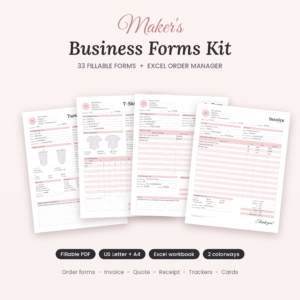
Maker’s Business Forms Kit
Price: $3.00 | Best for: Crafters and handmade sellers
33 fillable PDF forms in US Letter and A4, in Blush and an Ink-Saver gray, including an invoice, price quote, sales receipt, deposit agreement and order forms for shirts, tumblers, mugs, signs and decals. Type into them with free Adobe Acrobat Reader on a computer, phone or tablet. A 13-tab Excel Order Manager is included for when you want totals worked out. Start by filling in your business details on the invoice and saving a master copy.
A worked example: typing an invoice in five minutes
Meet Lena, who runs a one-woman house cleaning business. On Friday afternoon she finishes a deep clean for a new client and wants the invoice out before she leaves the driveway.
- She opens her saved invoice template on her phone. Her business name and bank details are already typed in, because she filled them in once on her master copy.
- She types the invoice number, 0118, and today’s date.
- Client name and address: 30 seconds.
- Line 1: “Deep clean, 3-bedroom house, 5 hours”, quantity 5, rate 35.00, amount 175.00.
- Line 2: “Oven clean add-on”, quantity 1, amount 40.00.
- She types the total, 215.00, and the due date, seven days away.
- She saves a copy as “0118 Hughes deep clean.pdf” and emails it from her phone.
Five minutes. She drives to her next job with the invoice already in the client’s inbox. That small feeling of being on top of things is worth more than it sounds on a Friday.
The one thing Lena must watch is the math. A fillable PDF trusts her to add 175 and 40 correctly. On a long invoice with tax and a discount, that is where an Excel version earns its place.
When you want typing and automatic totals
The neat answer is a kit that gives you both: type-in PDFs for quick jobs on the move, and an Excel invoice for bigger jobs where the totals must be exact. Same design, so clients never notice which one you used.
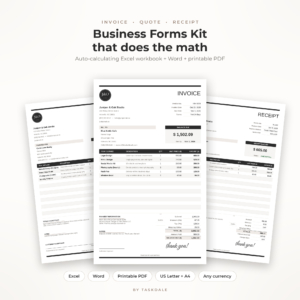
Ledgerline Invoice Quote and Receipt Kit
Price: Original price was: $3.00.$1.50Current price is: $1.50. | Best for: Typing on the go plus Excel math
Printable PDFs of the invoice, quote and receipt in Classic Black and Soft Taupe, each in US Letter and A4, that you can print and write on or type into on screen with Acrobat Reader, Apple Preview or a browser. An auto-calculating Excel workbook and six matching Word templates are included. Use the PDFs for small jobs and the Excel invoice when tax, discounts and deposits come into play.
Word invoices you type over
Word is the friendliest choice if you like to tweak things. Maybe you want a line saying “10% off for returning clients” or a second page with job photos. With a Word template you can.
The trick is to treat the template like a master. Open it, save it straight away under a new name, then type over the placeholders. Turn on the paragraph marks button if a row seems to have vanished; often it has just been pushed down. Save as PDF before sending, so the client sees a fixed page rather than an editable document.
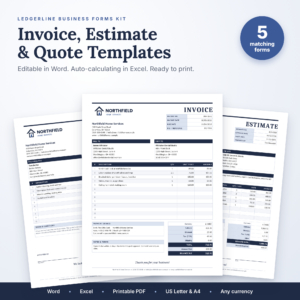
Ledgerline Business Forms Kit
Price: $2.99 | Best for: People who like editing in Word
Five matching navy-and-blue forms (invoice, job estimate, quote, sales receipt and purchase order) as editable Word templates in US Letter and A4, with gray placeholder text you click and type over. Rows grow when a description runs long. An 11-tab Excel Invoice Maker and blank printable PDF forms come in the same download. Add your logo to the invoice first, save it as your master, then make copies for each client.
Printing a fillable invoice for jobs with no signal
Not every job site has a phone signal or a spare minute. A gardener working at a farmhouse, or a market stall on a busy Saturday, may need to write an invoice or receipt by hand. That’s why it helps when your fillable template also prints well as a blank form.
Print a small stack of blank invoices and receipts and keep them in a folder in the car or under the stall. Write in pen, give the customer the top copy or take a photo of the page before you hand it over, then type the details into your digital file that evening so your records stay complete. A clipboard and a phone photo do the job of an old carbon pad, without the smudges.
Use the Ink-Saver or black-and-white version where a kit offers one. Your printer cartridge will thank you by about the fortieth page.
Mistakes that make a typed invoice look careless
- Typing into the master copy. The next invoice starts with last week’s client. Always work on a copy.
- Wrong math. Fillable PDFs and Word forms do not check your sums. Add them twice or use an Excel version.
- Reusing an invoice number. Keep a simple list of numbers used, even a note on your phone.
- Text overflowing the box. Keep descriptions short in PDFs. If a job needs a paragraph, use Word instead.
- Sending the Word file. Always save as PDF first.
- Typing in a phone app that does not support form fields. Some built-in viewers show the PDF but will not save what you type. Use a reader that supports forms.
Keeping track of what you have typed and sent
Fillable templates are brilliant for making invoices and weak at remembering them. After a couple of months you have a folder full of PDFs and no quick way to see who has paid. That is fine at five invoices a month. At 25, it gets stressful.
A simple fix: a one-page list with invoice number, client, amount, date sent and date paid. Fill in a row every time you save an invoice. When you outgrow that, an invoice workbook such as the PaidPath Client & Invoice Hub does the tracking, the statuses and the overdue list for you.
Frequently asked questions
Can I fill in an invoice PDF on my phone?
Yes, if it has form fields. Open it in a PDF app that supports forms, such as the free Adobe Acrobat Reader app, tap a field and type. Save a copy before sending.
Why won’t my fillable PDF save what I typed?
The app you used may only view PDFs. Open the file in a reader that supports form fields, type again and use Save a Copy.
Do fillable invoice templates calculate totals?
Fillable PDFs and Word templates usually do not. Excel invoice templates do. Some kits include both, so you can choose per job.
Can I add my logo to a fillable PDF invoice?
Usually not inside the PDF itself, because the design is locked. Many kits include a logo spot in the Word or Excel versions instead. In a PDF, you can type your business name in the header fields.
Is a typed PDF invoice legally valid?
Yes. What makes an invoice valid is the information on it, not how it was typed. Include your details, the client’s, a unique number, dates, amounts and any tax details your country requires.
Your next step
Decide where you usually invoice from: your phone in the van, or a laptop at home. Then set up one master template on that device today, with your name, contact and payment details already typed in. Your next invoice will take five minutes. Crafters can start with the Maker’s Business Forms Kit.