A fillable PDF planner sounds simple. You open the file, click a line and type. Then you try it on your partner’s iPad, or your phone, or the old laptop with some random PDF app, and the lines won’t take text, the tick boxes do nothing, or everything you typed vanishes when you close it.
None of that means the planner is broken. It almost always comes down to which app opened the file and how you saved it. Once you know the handful of rules, typing into a PDF planner works on pretty much any device you own.
This guide covers what “fillable” means, which apps to use on Windows, Mac, iPad, Android and Chromebook, and how to save each week without wrecking your blank copy.
What makes a fillable PDF planner different
A normal printable PDF is basically a picture of a page. You can print it, or draw on it with a stylus app, but you can’t click a line and type.
A fillable PDF has form fields built into it: invisible text boxes sitting on top of each line, plus checkboxes and buttons. When you click a line, you’re clicking into one of those fields. That’s why the app matters. Some apps read form fields properly. Some ignore them. Some read text fields but not checkboxes.
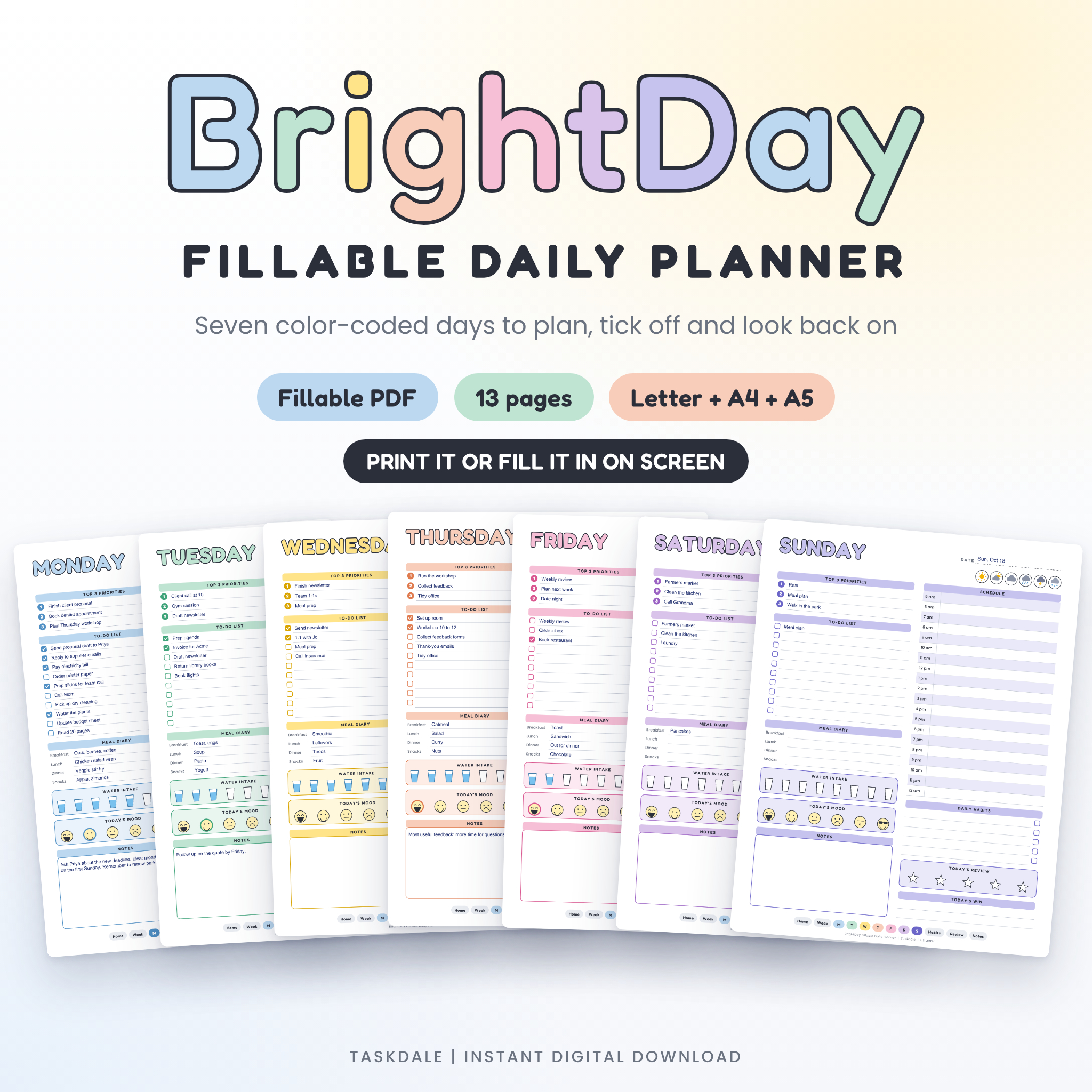
To give you a sense of scale, the BrightDay Fillable Daily Planner has about 800 real form fields in each file: the top 3 priorities, a 10-line to-do list with a clickable checkbox on each line, an hourly schedule from 5 am to 12 am, water cups, mood faces and a 5-star review of the day. If your app only half supports forms, you’ll notice fast.
Step 1: Make a blank master copy first
Do this before anything else. Copy the original file and rename it something like “PLANNER-MASTER-blank.pdf”. Never type into that one.
Each week, duplicate the master and name the copy by date (“Planner 2026-10-19.pdf”). Type into the copy. If a week goes wrong, you still have a clean file to start again. Every one of the planners in this guide recommends the same thing, and it’s the habit that saves the most headaches.
Step 2: Open it in an app that supports form fields
Here’s what works on each device. When in doubt, the free Adobe Acrobat Reader is the safest choice, because form fields are its home turf.
Windows
Acrobat Reader, Microsoft Edge and the Chrome PDF viewer all handle typing into fields. Edge is already on every Windows machine, so it’s a decent first try. Right-click the PDF, choose Open with, and pick your app.
Mac
Preview works for many fillable planners and Acrobat Reader works for nearly all of them. If a checkbox or a star rating doesn’t respond in Preview, switch to Acrobat Reader before deciding something’s wrong. Chrome works on a Mac too.
iPad and iPhone
Install the free Adobe Acrobat Reader app, then open the PDF from Files with it. Tap a line and the keyboard pops up. On a phone, the text will be small, so zoom in. Phones are fine for ticking things off during the day; planning a whole week is nicer on a bigger screen.
Android
Adobe Acrobat Reader or Xodo both fill forms on Android phones and tablets. Some built-in file viewers only display PDFs, so if tapping a line does nothing, that’s the reason.
Chromebook
The built-in Chrome PDF viewer supports form fields. Open the file and type. Use the download or save icon to keep your changes.
A word on GoodNotes and other note-taking apps
This catches a lot of people out. Apps like GoodNotes and Notability are built for writing on PDFs with a stylus, not for filling in form fields. How they treat a fillable PDF varies by app and by version.
So if you plan with an Apple Pencil, think about what you want. Handwriting? Any printable or digital planner will do, and you don’t need form fields at all. Typing? Use a form-capable reader like Acrobat. The product pages are upfront about this. BrightDay says tablet note-taking apps differ in how they handle form fields and asks you to check yours first. DayBright says it hasn’t been tested in tablet note apps and doesn’t promise it works there. That kind of plain warning is useful, and you should take it at face value.
Step 3: Save properly (this is where typing disappears)
Your typing lives in the file only once you save. A few rules:
- In Acrobat Reader: use File, then Save As, and give the week its own name.
- In Chrome or Edge: click the download or save icon in the PDF toolbar. Just closing the tab may lose your changes.
- On iPad or Android: make sure the app saves back to the file, not just a temporary copy. Open it again after saving to check.
Test it once on day one. Type “test” in a line, save, close, reopen. If “test” is still there, you’re set for the year.
Step 4: Print the typed pages (if you want paper too)
Plenty of people type the plan and then print it. Hand-written notes on top of a typed schedule works well for a busy day.
When printing, set the scale to Actual Size or 100 percent, and match the paper to the file you opened. “Fit to page” shrinks everything a little and can push lines off the edges. All three planners mentioned here come in US Letter, A4 and A5, and DayBright adds Half Letter and Classic Happy Planner size.
Which fillable PDF planner suits which device?
A quick rundown of three options and where each one shines:
- BrightDay is a 13-page undated daily planner: a page per weekday in its own colour, a Week at a Glance, a habit tracker for up to 12 habits, a weekly review and notes. A clickable bar along the bottom of every page jumps between days. It works in the Chrome PDF viewer, which makes it a good pick if you move between a laptop and a Chromebook.
- The Daily Rainbow Planner has a similar 7-day setup with gratitude lines, a habit tracker covering 11 habits plus water, sleep, exercise, steps, mood and screen time, and coloured tabs along the top as a menu. Boxes, cups, faces and stars all switch on with a click. Nice if you like tapping things off through the day.
- The DayBright Productivity Planner goes bigger: 25 page templates covering goals, months, weeks and days, in 8 colours. It’s built mainly for printing, with type-in lines and tick boxes you can fill in Acrobat Reader first. Choose it if you want typed goals and monthly plans on paper.
FAQ
Why can’t I type in my PDF planner?
Either the app you’re using doesn’t support form fields, or the file isn’t fillable. Try opening it in Adobe Acrobat Reader. If the lines still won’t take text there, it’s a printable-only PDF.
Do I need to pay for Adobe Acrobat to fill in a PDF?
No. The free Acrobat Reader fills in forms, and so do Chrome and Edge. You only need paid software to edit the design itself, which these planners lock anyway.
Can I change the colours or fonts in a fillable planner?
Usually not. The artwork is locked so the layout stays neat. What you can change is everything you type: habit names, tasks, meals and notes.
Will my typed text print?
Yes. Text in form fields prints with the page. Print at 100 percent so nothing gets cut off.