An automatic invoice generator using Excel formulas can save you from ever typing a client’s address or adding up a total again. Type a client name and a few quantities, and formulas fill in the rest: the next invoice number, the address, prices, tax, the due date and even whether the invoice is paid or overdue. No macros, no add-ins, just ordinary Excel functions.
This guide is for small business owners and freelancers who are comfortable in Excel and want to understand, or build, an invoice that does its own math. You will get the tab layout, the exact formulas for each part, how to protect them, how to print a clean PDF, the common mistakes, and an honest look at when a ready-made workbook is the better use of your time.
Quick picks: Excel invoice generators with the formulas done
| Product | Best for | Price | Link |
|---|---|---|---|
| Ledgerline Invoice, Quote & Receipt Template Kit | A simple auto-calculating invoice, quote and receipt | Original price was: $3.00.$1.50Current price is: $1.50. | View |
| Client Billing Hub Invoice Tracker Spreadsheet | Invoices plus payments, statuses, statements and aging | $6.49 | View |
| PaidPath Client & Invoice Hub | A full client, invoice and expense system | $9.49 | View |
| Tallyhive Small Business Spreadsheet | Product sellers who need orders and stock linked to invoices | $35.99 | View |
What “automatic” really means here
Excel formulas cannot send emails or chase clients on their own. What they can do is remove every bit of typing and arithmetic that does not need a human. In a good generator, you only ever type:
- the client (picked from a dropdown),
- the invoice date,
- each item (picked from a dropdown) and its quantity,
- payments as they arrive.
Everything else is worked out: invoice number, client address, prices, line amounts, subtotal, discount, tax, total, due date, balance and status. That is what people mean by an automatic invoice generator in Excel, and it is plenty. A photographer billing 30 clients a month might go from 15 minutes per invoice to about two.
The tab layout
Keep each kind of information on its own tab. Turn each list into an Excel Table (select the range and press Ctrl+T) so it grows automatically when you add rows, then give each column a simple name with Formulas, Define Name.
- Settings: business name, address, tax rate, default payment terms, currency symbol. Name the key cells TaxRate and DefaultTerms.
- Clients: columns for Name, Address, Email and Terms. Name the columns ClientNames, ClientAddresses, ClientEmails and ClientTerms.
- Items: columns for Item, Description, Price and Taxable (Yes or No). Name them ItemNames, ItemDescriptions, ItemPrices and ItemTaxable.
- Invoice: the printable page, with input cells for client, date and line items.
- Log: one row per invoice with Number, Date, Client, Total, Paid, Balance, Due and Status.
- Payments: one row per payment with Date, Invoice number and Amount. Name the columns PayInvoices and PayAmounts.
Named ranges make formulas readable. “=Subtotal*TaxRate” is far easier to check six months later than “=F28*Settings!$C$7”.
Formula 1: the next invoice number
Never type invoice numbers by hand. Let Excel suggest the next free one from your log:
=MAX(Log!A:A)+1
If you prefer a year prefix, keep the number as a plain integer in the log and format the display cell with a custom number format such as “2026-“0000. The number stays sortable and the invoice still reads 2026-0143.
Once an invoice is saved to the log, paste its number as a value on the invoice page if you plan to reprint it later, so it does not jump to the next number.
Formula 2: client details that fill themselves in
Put a dropdown in the client cell (Data, Data Validation, List, with =ClientNames as the source). Then fetch the address and terms with XLOOKUP:
=IFERROR(XLOOKUP(B6,ClientNames,ClientAddresses),””)
Older versions of Excel without XLOOKUP can use INDEX and MATCH instead:
=IFERROR(INDEX(ClientAddresses,MATCH(B6,ClientNames,0)),””)
The IFERROR wrapper keeps the cell blank until a client is chosen, so a fresh invoice does not show ugly error codes. Do the same for email and terms.
The quiet joy of this formula is that when a client moves offices, you change the address once in Clients and every future invoice is right.
Formula 3: line items and prices
Each line has an Item dropdown (source =ItemNames), a Quantity you type, and three calculated cells:
- Description: =IFERROR(XLOOKUP(B12,ItemNames,ItemDescriptions),””)
- Unit price: =IFERROR(XLOOKUP(B12,ItemNames,ItemPrices),””)
- Amount: =IF(OR(B12=””,D12=””),””,ROUND(D12*E12,2))
The ROUND matters. Without it, a quantity of 1.5 hours at 33.33 gives 49.995, which shows as 50.00 on screen but adds up as 49.995 underneath. Over 15 lines, those fractions can make the total disagree with the lines by a cent. Round each line, then add.
Need a one-off price for a single job? Add an “override price” column next to the line, and use =IF(F12<>””,F12,lookup price) so a typed price wins over the list price.
Formula 4: subtotal, discount and tax
- Subtotal: =SUM(G12:G26)
- Discount: =ROUND(Subtotal*DiscountPct,2), where DiscountPct is an input cell left blank or 0 most of the time
- Tax on taxable lines only: =ROUND(SUMPRODUCT((H12:H26=”Yes”)*(G12:G26))*(1-DiscountPct)*TaxRate,2)
- Total: =Subtotal-Discount+Tax+Shipping
SUMPRODUCT is the clever one. It multiplies each line’s amount by 1 if the item is taxable and 0 if not, then adds the results. That means a designer can sell taxable printed brochures and non-taxable design time on the same invoice, and the tax line stays correct. Check your own local rules for what is taxable; the formula only does what you tell it.
Formula 5: the due date
Use the client’s own terms if they have them, or your default:
=InvoiceDate+IF(ClientTermsCell=””,DefaultTerms,ClientTermsCell)
If you want due dates to land on working days only, use WORKDAY instead: =WORKDAY(InvoiceDate,Terms). Format the cell as a full date, such as 28 Nov 2026, so nobody misreads it.
Formula 6: paid, balance and status
In the log, total the payments for each invoice from the Payments tab with SUMIFS:
=SUMIFS(PayAmounts,PayInvoices,A2)
Then balance is simply Total minus Paid, rounded to two decimals. The status formula reads the situation for you:
=IF(Balance<=0,”Paid”,IF(TODAY()>Due,”Overdue”,IF(Paid>0,”Part paid”,”Unpaid”)))
Add conditional formatting to color Overdue red and Paid green, and your log becomes a to-do list you can read from across the room.
Finally, days overdue and an aging bucket:
- Days overdue: =IF(AND(Balance>0,TODAY()>Due),TODAY()-Due,0)
- Aging bucket: =IF(DaysOver=0,”Current”,IF(DaysOver<=30,”1-30″,IF(DaysOver<=60,”31-60″,IF(DaysOver<=90,”61-90″,”90+”))))
A pivot table or a few SUMIFS on that bucket column gives you an aging report. If you want those numbers on a proper summary page, our guide to small business dashboard Excel templates shows what a good one includes.
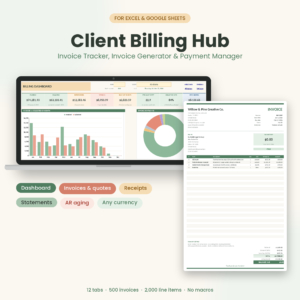
Client Billing Hub Invoice Tracker Spreadsheet
Price: $6.49 | Best for: People who want the formulas prebuilt
A 12-tab Excel and Google Sheets workbook where all of the above is already built and tested: next free invoice number, client and product lookups, 2,000 shared line items, two named taxes, nine automatic statuses, days overdue, an optional late fee estimate, numbered receipts, client statements and a five-bucket AR aging tab. Formulas are locked without a password. Fill in Settings and add your first client.
Protect the formulas you just wrote
An automatic invoice is only as good as its formulas, and one stray keystroke can overwrite a total. Protect them:
- Select every input cell (client, date, items, quantities, payments). Right-click, Format Cells, Protection, untick Locked.
- Color those input cells a soft shade so you know where to type.
- Choose Review, Protect Sheet. You can leave the password blank, so you can unprotect it yourself in two clicks when you need to change something.
- Add Data Validation to quantities (decimals above 0) and dates (a valid date) so bad entries are refused.
- Add a duplicate check on invoice numbers: =COUNTIF(Log!A:A,A2)>1 with conditional formatting in red.
That last check has saved more than one freelancer from sending two clients the same invoice number.
Print a clean one-page invoice
Set this up once on the Invoice tab:
- Select the invoice area and choose Page Layout, Print Area, Set Print Area.
- Choose Fit to 1 page wide by 1 page tall.
- Turn off gridlines under Page Layout, Sheet Options.
- Pick Letter or A4 to match where your clients are.
- Save with File, Save As, PDF, and name the file with the invoice number and client.
Hide any helper columns, such as the override price or the taxable flag, so they never print.
If you would rather skip building and just want an invoice that does all this out of the box, a ready-made kit is the fast route.
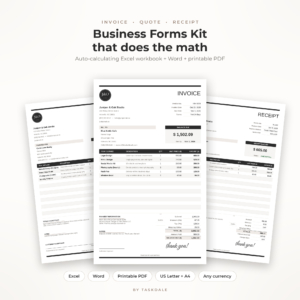
Ledgerline Invoice Quote and Receipt Kit
Price: Original price was: $3.00.$1.50Current price is: $1.50. | Best for: Anyone who wants auto-totals today
An Excel workbook with Invoice, Quote, Receipt, Statement, Invoice Log and Dashboard sheets. Pick a client and their address fills in, pick an item and the price appears, type a quantity and every total rounds to the cent. Input checks flag bad dates and repeated invoice numbers, and the formulas are locked with no password. Word and printable PDF versions are included. Fill in Settings and make your first invoice.
A worked example: one invoice from start to finish
Here is the whole chain in action for Leah, a freelance web developer, billing a local bakery on 3 November.
- She opens the Invoice tab. The number cell already shows 2026-0087, one more than her last invoice.
- She picks “Crumb and Co Bakery” from the client dropdown. The address, email and 14-day terms appear.
- She types 3 November as the invoice date. The due date shows 17 Nov 2026.
- Line 1: she picks “Website updates (hourly)” and types 6.5. The description and rate fill in, and the line shows 422.50.
- Line 2: she picks “Printed menu design”, marked taxable, and types 1. Only this line attracts tax.
- The subtotal, tax and total appear at the bottom. She saves the PDF and adds the invoice to her log.
- On 12 November the bakery pays. Leah adds one row to Payments. The log status flips from Unpaid to Paid on its own.
Total typing: one date, two quantities and one payment. Everything else was formulas. Leah says the best part is the calm of never double-checking her own arithmetic at 10pm.
Mistakes that break formula-driven invoices
- Merged cells in the line item area. They break copying and sorting. Use Center Across Selection instead.
- Numbers stored as text. A price pasted from a website may look like a number but not add up. Check with =ISNUMBER(E12).
- Relative references that drift. Use named ranges for settings and lists, or lock references with dollar signs.
- Forgetting ROUND on money cells, causing one-cent gaps.
- Using TODAY() on the printed invoice date. It changes every day. Type the invoice date, and only use TODAY() in status formulas.
- Deleting rows inside formula ranges instead of clearing their contents.
If the bigger goal is proper books, not just invoices, our step-by-step guide on how to do bookkeeping in Excel covers the income and expense side with the same kind of formulas.
Build it yourself or buy one?
Building your own teaches you a lot and gives you exactly what you want. Budget a weekend for the basics, and a few more evenings for payments, statuses, aging and a dashboard. Then some time fixing things you did not foresee.
Buying a ready-made workbook makes sense if your time is worth more billing clients than building spreadsheets. The formulas are already tested across dozens of edge cases: part payments, refunds, overpayments, tax-exempt clients, quotes that turn into invoices. You can always open the formulas and learn from them.
Plenty of owners do both: buy a strong template, use it for a few months, then adjust the parts that do not quite fit.
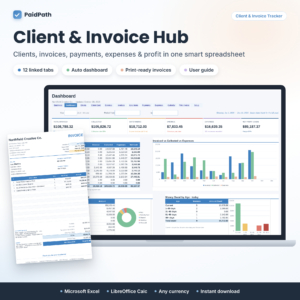
PaidPath Client and Invoice Hub
Price: $9.49 | Best for: Service businesses wanting a full system
An Excel workbook with 12 linked tabs and capacity for 300 clients, 1,000 invoices, 3,000 line items, 1,500 payments and 1,500 expenses. It works out discounts, up to three taxes, due dates by default, client or invoice terms, statuses, aging and net profit, and a Start Here health check flags duplicate numbers and orphan payments. No macros or internet needed. Start with Setup and your services list.
Frequently asked questions
Can Excel generate invoices automatically?
Yes, with formulas. Lookups fill in client and item details, math formulas work out totals and tax, and status formulas show whether an invoice is paid or overdue. You still choose when to create and send each invoice.
Do I need macros for an automatic invoice in Excel?
No. Everything in this guide uses standard functions such as XLOOKUP, SUMIFS, SUMPRODUCT, ROUND and IF. Avoiding macros also makes the file safer to open and share.
How do I make invoice numbers increase automatically in Excel?
Use =MAX of your invoice number column plus 1 to show the next free number. Store numbers as plain integers and format them with a prefix if you like.
What if my Excel version does not have XLOOKUP?
Use INDEX and MATCH, or VLOOKUP with FALSE as the last argument. Both work in older versions.
Will these formulas work in Google Sheets?
Most will. Google Sheets supports XLOOKUP, SUMIFS, SUMPRODUCT, ROUND and named ranges, so the same approach carries over with small tweaks.
How do I stop the invoice number changing after I print?
Once the invoice is logged, copy the number cell and paste it back as a value, or reprint old invoices from the log by choosing their number, rather than from the next-number cell.
Your next step
Open Excel tonight and build just the client lookup: a Clients list, a dropdown and one XLOOKUP for the address. Seeing it fill in by itself is the moment the rest clicks into place. If you would rather have every formula ready and tested, start with the Client Billing Hub Invoice Tracker Spreadsheet.