Six months into digital planning, most people’s tablets look the same. Three copies of the planner, two of them half-filled. A Downloads folder full of ZIPs called things like “bundle_final_2”. Stickers scattered across Photos, Files and a sticker book you forgot you imported.
It doesn’t have to be like that. If you organize digital planner files with a few folders and a simple naming rule, you can find any page, sticker or spare copy in seconds, and you’ll never wonder which planner is “the real one” again.
Here’s the system I use. It takes about 30 minutes to set up and five minutes a month to keep tidy.
Why planner files pile up so fast
A paper planner is one object. A digital one is a kit. Even a single purchase can land as a dozen files: planner PDFs in several themes, a Monday and a Sunday version of each, sticker packs, cover images, printables and a user guide.
Then you add a budget planner. A meal planner. Next year’s planner. Before long you’ve got 80 files and no idea which ones you actually use.
The fix isn’t deleting everything. It’s deciding where each kind of file lives, and naming things so you can tell them apart at a glance on a small screen.
Start with one master folder outside your note app
Your note app (GoodNotes, Notability, Noteshelf, whatever you use) is where you write. It’s not where you store the originals. Keep a separate master folder in iCloud Drive, Google Drive, OneDrive or on your computer, and put every untouched download there.
Why bother? Because the copy inside your note app changes every time you write in it. The original stays blank. If a page gets messed up, or you want a fresh year, you go back to the master folder and import a clean copy. That’s it.
This matters most with big bundles. The Plotwell All-in-One Digital Planner, for example, includes 64 planner PDFs: 8 color themes, four editions (2027, 2028, 2029 and undated) and Monday or Sunday start for each. You’ll only import one or two. The other 62 belong in the master folder, not cluttering your app.
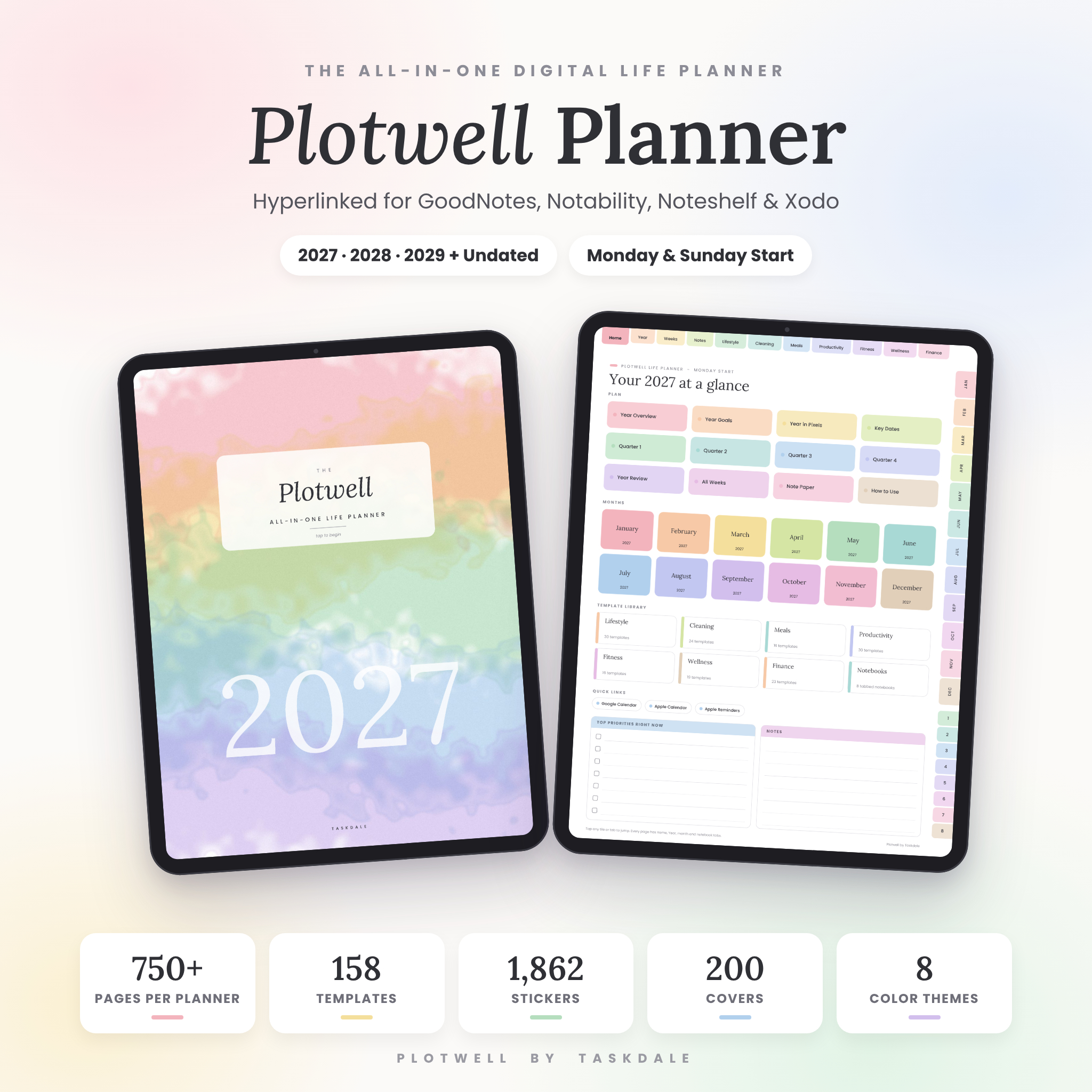
Plotwell All-in-One Digital Planner 2027 2028 2029 + Undated
Plotwell gives you dated 2027, 2028 and 2029 planners plus an undated one, so a good master folder keeps the editions you are not using out of the way.
- 64 hyperlinked PDF planners in 8 color themes
- Monday and Sunday start for every edition
- 1,862 stickers, 200 covers and printable US Letter and A4 pages
Once you’ve picked your theme, you can leave the rest zipped. Unzip only what you need, when you need it. Your storage will thank you.
A folder structure you can copy
Here’s the layout I use. Change the names if you like, but keep the idea:
- Planners (Originals)
- 2027 Life Planner
- Budget Planner
- Meal Planner
- Stickers (one subfolder per pack)
- Covers
- Printables (US Letter or A4, whichever you print)
- Guides (the user guides, usually Word files)
- Archive (finished planners, exported and filled in)
Six top-level folders. That’s enough to sort everything a planner shop sends you, and few enough that you’ll actually use them.
If you’re starting from a fresh download, our guide on how to unzip and import a digital planner PDF walks through getting the files out of the ZIP first.
Naming rules that make sense on a tablet
File names on a tablet get cut off. You might only see the first 20 or 25 characters in a grid view. So the important bit has to come first.
My rule: Year, Type, Theme, Start day. In that order.
- 2027 Life Sage Mon
- 2027 Budget Blush Sun
- Undated Meals Sun
- 2026 Life Sage Mon (Archive)
Short. Sortable. And because the year leads, everything lines up by year when you sort by name.
A few more rules that save headaches:
- Never use “final”, “new” or “v2”. There’s always a newer final. Use the year or the month instead.
- Write dates as year then month. 2027-03 sorts correctly. March 2027 doesn’t.
- Keep the product name out unless you own two of the same type. “2027 Life Sage Mon” is clearer than the full product title, which can run to 15 words.
- Mark copies you write in. If you keep a blank original and a working copy in the same place, add “Working” to one. Don’t guess.
Multi-year planners need one extra thought. The Plumora 2027 2028 2029 Digital Planner covers three full years in one file, so “2027” isn’t quite right. I’d name it “2027-29 Life Lavender Mon” so it still sorts with your other 2027 files.
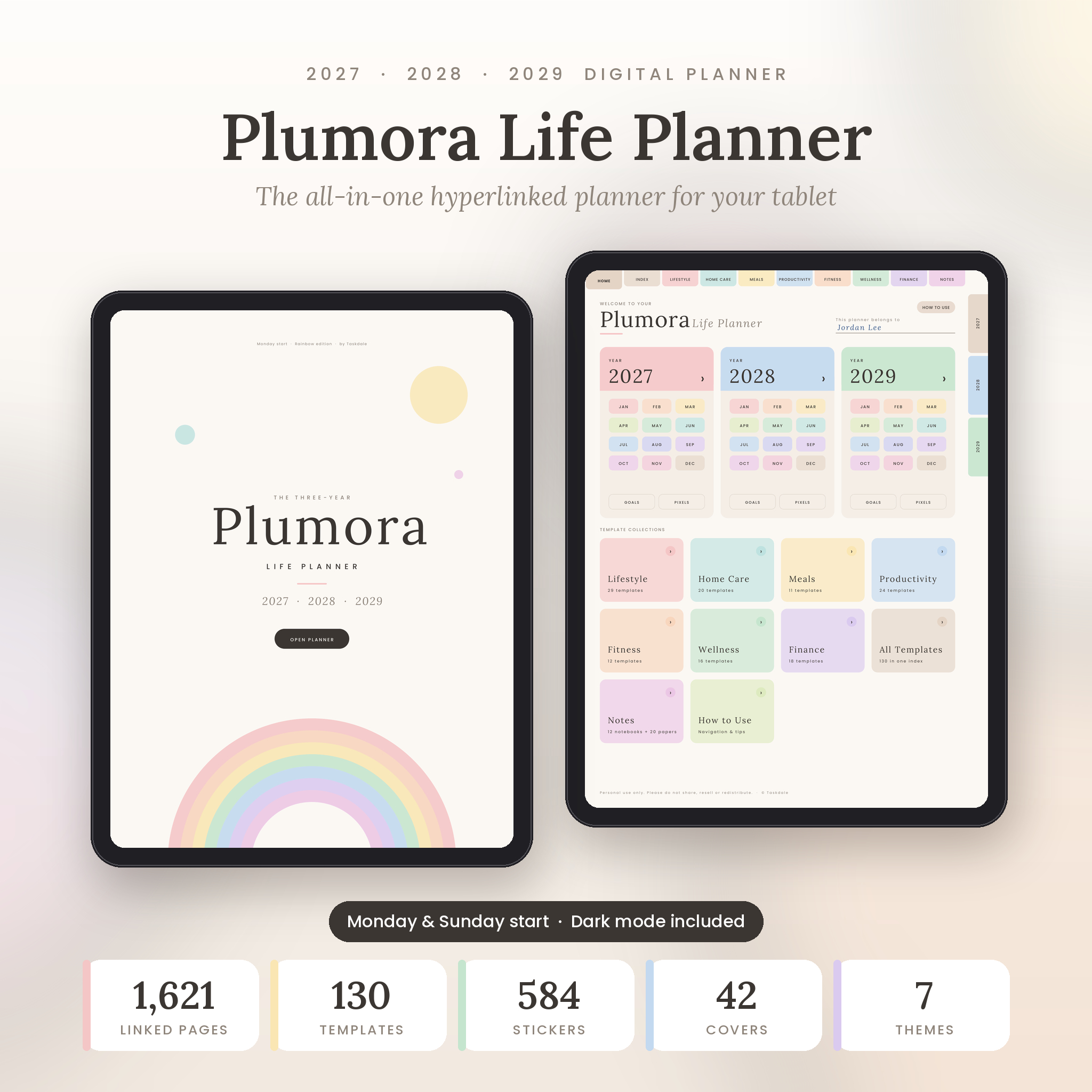
Plumora 2027 2028 2029 Digital Planner
Plumora runs from January 2027 to December 2029 in a single planner, so one well-named file covers three years of plans.
- 1,096 daily pages plus weekly, monthly and yearly pages
- 7 color themes, each in Monday and Sunday start
- 584 stickers as a sticker book PDF and as PNG files sorted into folders
Small thing, but it stops you hunting for “that planner with three years in it” next spring.
Organizing inside your note app
The master folder is for originals. Your note app is for the planners you’re using right now. Keep it lean.
In GoodNotes you can make folders on the documents screen and star the notebooks you open daily. In Notability, notes live in subjects, and you can group subjects into dividers. Other apps have their own version of folders or notebooks. Whatever the name, the setup is the same:
- Current: the planners you write in this week. Ideally three or fewer.
- Reference: sticker books, notebooks and anything you copy from.
- Past: last year’s planner, until you archive it properly.
Put your main planner at the top or in favorites. You open it every day, so it should be one tap away. Everything else can sit a level down.
If GoodNotes is your app, we cover favorites, read-only mode and the outline sidebar in more detail in how to use a digital planner in GoodNotes.
One honest warning: renaming or moving a notebook inside your app is safe. Renaming the PDF in Files after you’ve imported it does nothing to the copy in your app. They’re separate files now. That trips people up all the time.
Stickers and covers: the biggest mess
Stickers are where organization usually falls apart. One planner can come with hundreds or even thousands of PNG files, the small images with clear backgrounds that you drop onto pages. Dump them all into Photos and you’ll be scrolling past them for years.
A better approach:
- Keep every sticker pack in its own folder in your master Stickers folder.
- If the planner comes with a sticker book (a PDF with all the stickers on pages), import that into your note app instead. You copy and paste from it, and your photo library stays clean.
- Pick your 20 or 30 favorite stickers and save those to your app’s sticker or elements panel if it has one. That’s your everyday set.
The Willowday Undated Digital Planner is a good fit for this approach. It comes with 921 stickers as PNG files plus a sticker book PDF for copy and paste, so you can keep the PNGs filed away and work from the book.
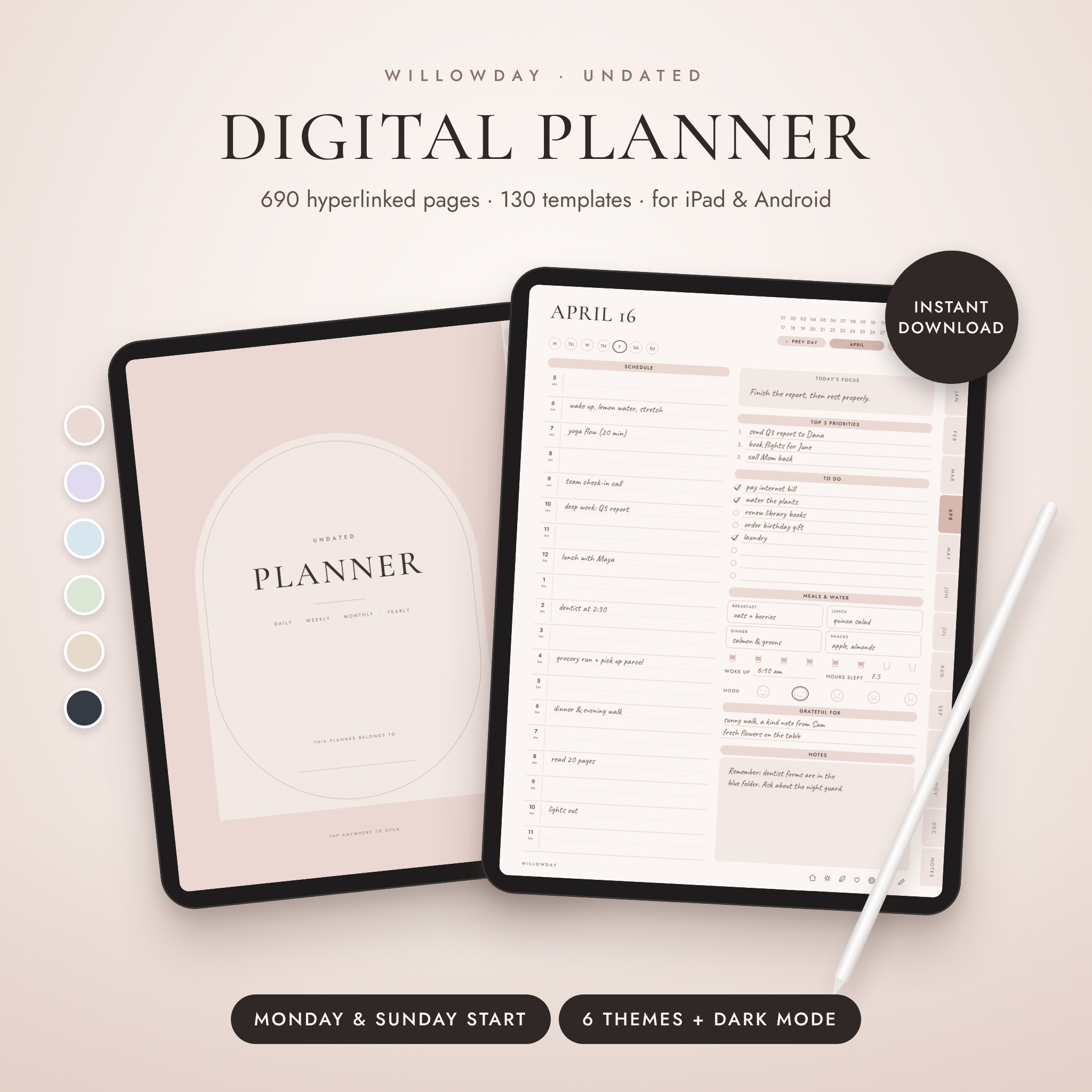
Willowday includes a sticker book PDF, so you can copy stickers from inside your note app and keep the PNG files filed away.
- 690 hyperlinked pages, undated
- 921 stickers, 36 covers and 6 matching notebooks
- Printable inserts in US Letter and A4
Covers are easier. Keep them in one folder, pick one, and forget the rest until next year. I wouldn’t import covers into your note app at all unless you’re actively swapping them.
Want more on sorting stickers by type? Our post on how to add, sort and use digital planner stickers goes deeper.
Give each specialist planner its own shelf
A lot of people run more than one planner. A life planner for the calendar, a budget planner for money, a meal planner for the kitchen. That’s fine. The trouble starts when they all live in one flat list and look alike.
Give each one its own folder in your master folder and its own spot in your app. Then use the type word in the name (“Budget”, “Meals”) so you can tell them apart even in a cut-off file name.
Budget planners often come with more files than you’d expect. Money Bloom Digital Budget Planner ships each theme as a ZIP holding three versions: a 2027 Sunday start, a 2027 Monday start and an undated copy. Plus 64 printable pages in US Letter and A4. That’s a lot of near-identical files, so sorting them into Originals and Printables on day one is worth the two minutes.
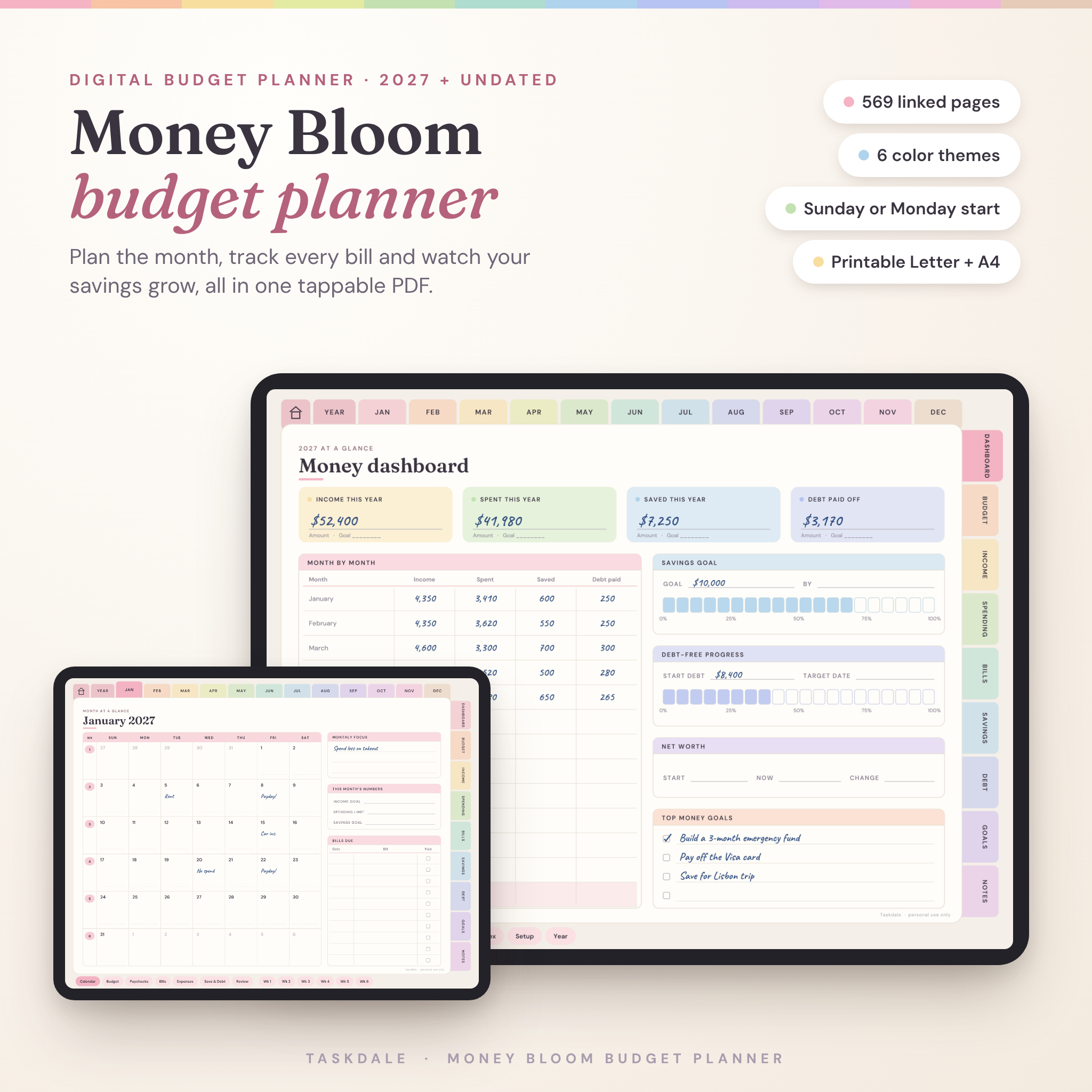
Money Bloom Digital Budget Planner 2027 and Undated
Each Money Bloom theme ZIP holds a 2027 Sunday start, a 2027 Monday start and an undated copy, so you always have a spare to restart with.
- 569 linked pages in the dated planner
- Six color themes, including Midnight Dark
- 64 printable pages in US Letter and A4
The undated copy is a handy one to keep in your master folder even if you use the dated version. If you ever want to restart mid-year, it’s already there.
Meal planners are the other big one. They tend to be large files because of illustrations and recipe pages. Supperwell Digital Meal Planner and Recipe Book, for instance, arrives as a single ZIP of about 50 MB, and the product notes say to download it in a web browser for the best results. It holds Sunday and Monday start planners, a sticker book with 141 stickers, the same stickers as PNG files and four printable PDFs.
That’s a classic case for the folder structure above. Planner into Originals, sticker book into Reference, PNGs into Stickers, printables into Printables. Done once, done forever.
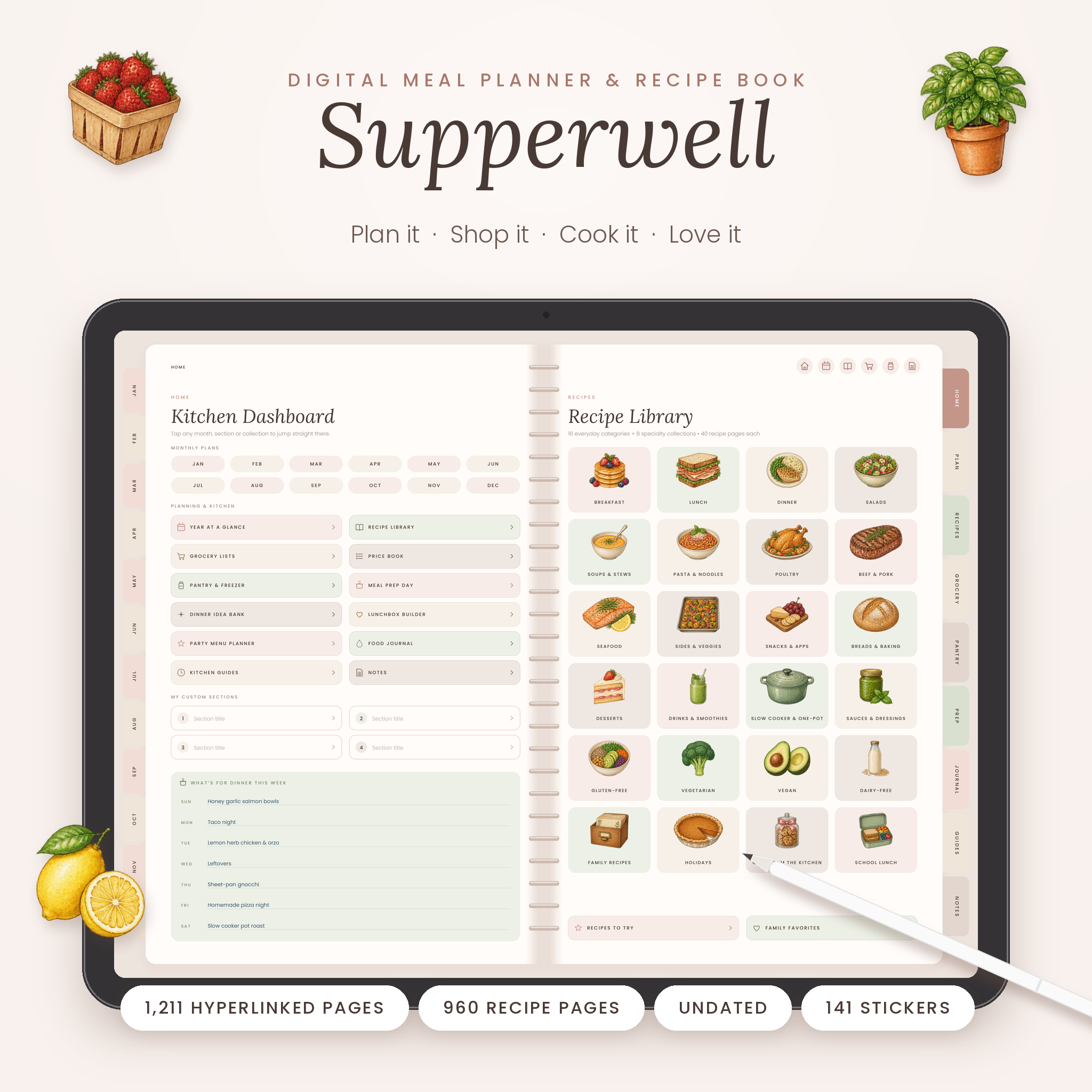
Supperwell Digital Meal Planner & Recipe Book
A meal planner and recipe book in one file, with its own sticker book and printables that slot neatly into a tidy folder system.
- Undated, with Sunday and Monday start editions
- 1,211 hyperlinked pages and room for 960 recipes
- 141 stickers and 52 printable pages in US Letter and A4
A five-minute monthly tidy-up
Systems only work if you keep them up. Here’s a quick routine for the first Sunday of each month. Put it on your monthly page if you tend to forget.
- Empty Downloads. Move any new planner files into your master folder or delete them.
- Check your Current folder. Anything you didn’t open last month moves to Reference or Past.
- Delete duplicates. If you see two working copies of the same planner, compare them, keep the one with your notes and delete the other. Be careful here: deleting a working copy deletes your handwriting.
- Back up. Make sure your app’s backup ran recently. If you’re not sure how, read our guide to digital planner backup.
- Look at storage. If your tablet is nearly full, the culprit is usually sticker packs or old planners, not the one you’re using.
At the end of the year, the Past folder gets its own job. Export the filled-in planner as a PDF, move it to Archive, and import a clean copy for the new year. We walk through that step by step in how to archive last year’s digital planner.
Common mistakes to skip
A quick list of things I’ve done so you don’t have to:
- Importing every theme “just to see”. You’ll end up with eight copies and forget which one has your notes.
- Writing in the original. Always keep one blank copy outside your note app.
- Folders inside folders inside folders. Two levels is plenty. Three if you’re very organized. Any deeper and you stop opening them.
- Naming by product. Product names are long and often similar. Name by what the planner does for you.
- Keeping stickers in Photos. Your vacation pictures deserve better.
FAQ
Should I keep the ZIP files after unzipping?
Keep one copy of each ZIP in your master folder, ideally in cloud storage. It’s the easiest way to get a clean planner back if something goes wrong. You can delete extra copies from Downloads.
How many planners should I have in my note app?
As few as you actually use. For most people that’s one main planner plus one or two specialist ones, like a budget or meal planner. Everything else can stay in the master folder until you need it.
Does renaming a planner break its links?
No. The links inside a PDF point to pages within the same file, so renaming the file or notebook doesn’t affect them.
What’s the best way to organize digital planner files across two devices?
Use one cloud folder as your master and let your note app sync the working copies. Don’t keep separate originals on each device, or you’ll lose track of which one is current.
Set the folders up once, stick to the naming rule, and do the five-minute tidy each month. That’s the whole system. Boring, a little bit. But the next time you need last March’s budget page or a sticker you liked, you’ll find it in seconds instead of twenty minutes.