It’s that time. Your 2026 planner is full of crossed-off lists, half-kept habit trackers and a December that’s filling up fast. Before you import a shiny new 2027 file, take an hour to archive digital planner pages from this year properly, so you can find them again and start January with a clean slate.
Archiving isn’t deleting. It’s packing the year away neatly: a finished copy saved where it won’t get lost, the useful bits carried forward, and your note app cleared for what’s next.
Here’s how I do it every December, step by step.
Why bother archiving at all?
You could just leave last year’s planner sitting in your app. Lots of people do. Then in March they’re scrolling past it every morning, the app feels slower, and they accidentally write a dentist appointment on the wrong year’s page. Ask me how I know.
A proper archive gives you three things:
- A safe, finished copy that won’t change if you tap it by accident.
- A record you can search later. When did you last service the car? What did you spend on gifts last December? It’s all there.
- A tidy app with only this year’s planner front and center.
And honestly, there’s something nice about closing the book. It makes the new year feel new.
When to do it
You don’t have to wait until January 1. In fact, I’d rather you didn’t. The last week of December is busy, and the first week of January is worse.
Two timings work well:
- Mid-December. Set up next year’s planner early, run both side by side for two weeks, then archive the old one once the holidays are over.
- The first quiet weekend of January. If you’d rather finish the year in one planner, do the archive in a single sitting once things calm down.
Some planners make the overlap easy. If you start a dated 2027 planner that includes a few months of 2026, you can move across early without leaving any gaps.
Do a year-end review before you close the book
Don’t archive a planner you haven’t looked back through. The review is where the value is. Grab a drink, flip through the year, and jot down:
- Three things that went well and why.
- Habits that stuck, and ones you quietly abandoned by March.
- Pages or trackers you never used. (Be honest. Mine was the water tracker. Every year.)
- Goals that rolled over and still matter.
Write this on your old planner’s year-in-review page if it has one. That way the review gets archived along with the year it describes.
If you’d rather do the reflecting in the new planner instead, the Wayfold 2027 Digital Planner opens with a 10-page True North workbook built for exactly this. You look back on 2026, check how much capacity you really have, pick your values and brainstorm goals before January even starts. It also comes with an October to December 2026 mini planner, so you can switch over now instead of waiting.

Wayfold opens with a guided workbook for looking back on 2026 and setting goals, plus a mini planner so you can switch over before January.
- 10-page True North start-of-year workbook
- Bonus October to December 2026 mini planner
- 800 hyperlinked pages with a 2028 Plan Ahead section
Either way, keep the review short. An hour is plenty. The point is to learn something, not to write an essay about yourself.
Export the finished planner as a PDF
This is the heart of the archive. Exporting saves a copy of the planner with all your handwriting on it as a plain PDF, the kind of file that opens on any phone, laptop or tablet, now or in ten years.
In most note apps it goes like this:
- Open the planner.
- Find the share or export button.
- Choose PDF.
- Save it to your cloud storage (iCloud Drive, Google Drive, OneDrive or Dropbox).
Name it clearly, with the year first: “2026 Life Planner (Archive)”. Our guide to organizing digital planner files explains why the year goes first and how to set up the folders.
Before you move on, open the exported PDF on a different device and scroll through it. Check a few pages from January, July and December. Exports occasionally miss pages or come out blank, and you want to know now, not next summer.
If you’ve been running regular backups through the year, you’re already halfway there. If not, our digital planner backup guide will set you up so next December is even easier.
Where to keep your archive
Keep at least two copies of each archived year, in two different places. One in the cloud, one on a computer or external drive. Planners are small files, so this costs next to nothing.
I keep a simple folder called Archive with one subfolder per year. Inside each year:
- The exported life planner PDF.
- Any specialist planners from that year (budget, meals, work) also exported.
- A copy of the year-end review, if you wrote it somewhere separate.
That’s it. No need to keep the app’s own backup files forever once you have clean PDFs. They only open in that app, and you might not be using it in five years.
Make the archive easy to search later
Here’s the thing about handwriting: most apps can’t search it reliably once it’s exported as a PDF. So future you, looking for the date of last year’s boiler repair, will be flipping pages. A tiny index fixes that.
Before you export, add one blank page at the front of the old planner (or use the notes page you never touched) and write a short summary of the year:
- Big events and the month they happened.
- Medical appointments, vaccinations and test results you might need again.
- Car and home repairs, with who did them.
- Large purchases and where the warranty or receipt is.
- Page numbers for anything you’ll want to find quickly, like your yearly budget summary.
It takes ten minutes. And it turns a 700-page PDF into something you can actually use. I also type the same list into a plain note called “2026 index” on my phone, because typed text is always searchable.
Carry forward what’s still alive
Some things don’t end on December 31. Before you close last year’s planner, make a short carry-forward list:
- Birthdays and anniversaries. Copy them to the new planner’s key dates page once and you’re set for the year.
- Recurring bills and renewals. Car insurance, subscriptions, the domain name you always forget.
- Unfinished goals that still matter after your review.
- Ongoing projects with their notes, deadlines and next steps.
- Useful lists: gift ideas, books to read, the contractor’s number.
Projects are the trickiest part, especially for work. If a project spans the new year, copy its current status, next three actions and key dates across, then archive the rest with the old planner. Don’t drag the whole history along.
A planner with dedicated project pages makes this cleaner. The Tidework 2027 Digital Work Planner has 8 project plans, each with a 12-week timeline, plus 24 numbered meeting pages and a 36-template library. The templates are undated, so they keep working after 2027 and you won’t have to rebuild your project pages next December.
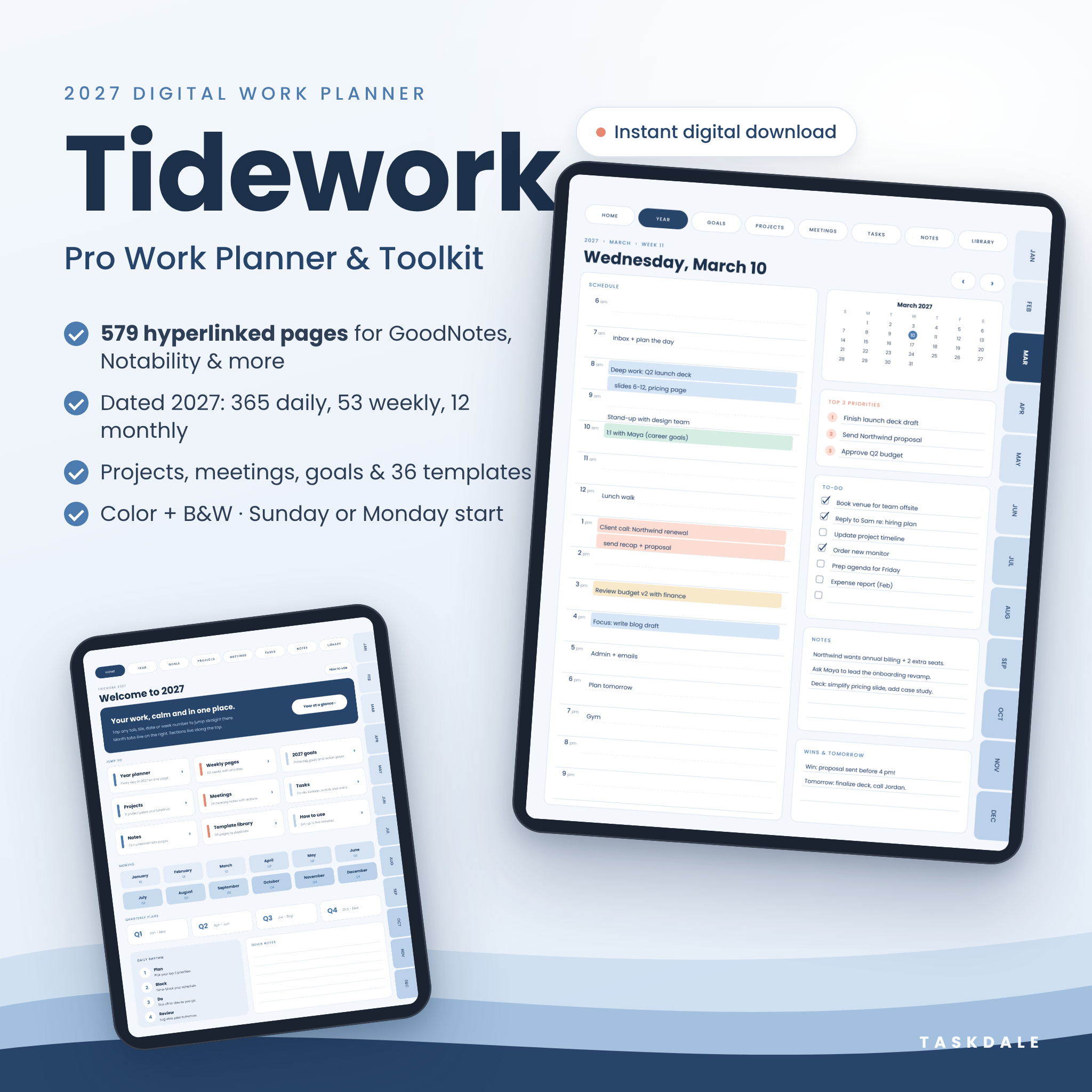
Project plans and meeting pages make it easy to carry live work into the new year, and the undated templates keep working after 2027.
- 8 project plans, each with a 12-week timeline
- 24 numbered meeting pages and quarterly OKR pages
- 36-template library that stays undated
Choosing next year’s planner: dated, multi-year or undated
Archiving is also a good moment to ask whether this year’s planner worked for you. If you’re shopping, our comparison of the best digital planners for 2027 is a good starting point. But the format matters for archiving too, so here’s how each type plays out.
One dated file per year
The simplest to archive. When the year ends, the whole file is done. Export it, file it, import the next year.
The Oat and Ink Digital Planner works this way: you get separate dated planners for 2027, 2028 and 2029, each in Sunday and Monday start, at about 3 MB per year. That gives you a clean break every December without buying again, plus 10 cover colors for each year so each one looks different on your shelf.

Oat & Ink Digital Planner 2027 2028 2029
Oat and Ink gives you a separate dated planner for each year, so archiving is as simple as exporting one file every December.
- Dated 2027, 2028 and 2029 editions
- Sunday and Monday start for every year
- About 3 MB per year for 1,030+ pages
Multi-year planners
A multi-year planner keeps several years in one file. That’s handy for long-term goals and saves you setting up every January. The trade-off: there’s no natural end point to archive.
My workaround is to export the full file each December as a snapshot (“2027-29 Planner, end of 2027”), keep using the live copy, and start each new year on a fresh cover.
The Hueloom Digital Planner 2027 2028 2029 suits this well. Every day from January 1, 2027 to December 31, 2029 has its own daily spread, there’s a Year in Review page for each year, and the 36 bonus covers include 12 designs for each year. Swapping the cover in January is a small ritual, but it really does make the new year feel like a fresh start.

Hueloom Digital Planner 2027 2028 2029
Hueloom covers January 2027 to December 2029 in one file, with a Year in Review page and 12 bonus covers for each year.
- 1,578 hyperlinked pages with every day dated
- 6 color themes including dark mode
- 163 undated templates you can reuse
Undated planners
Undated planners are the most flexible. You keep a blank copy, and each year you import it fresh and write the dates in yourself. Archiving is just as easy as with a dated planner: export the filled copy, then import a clean one.
The catch is setup time. Writing in 365 dates gets old fast. The Rosewren Undated Digital Life Planner gets around that with Date Finder calendars for 2027 to 2031 and date stickers from 1 to 31, so filling in a new year takes minutes, not an evening.
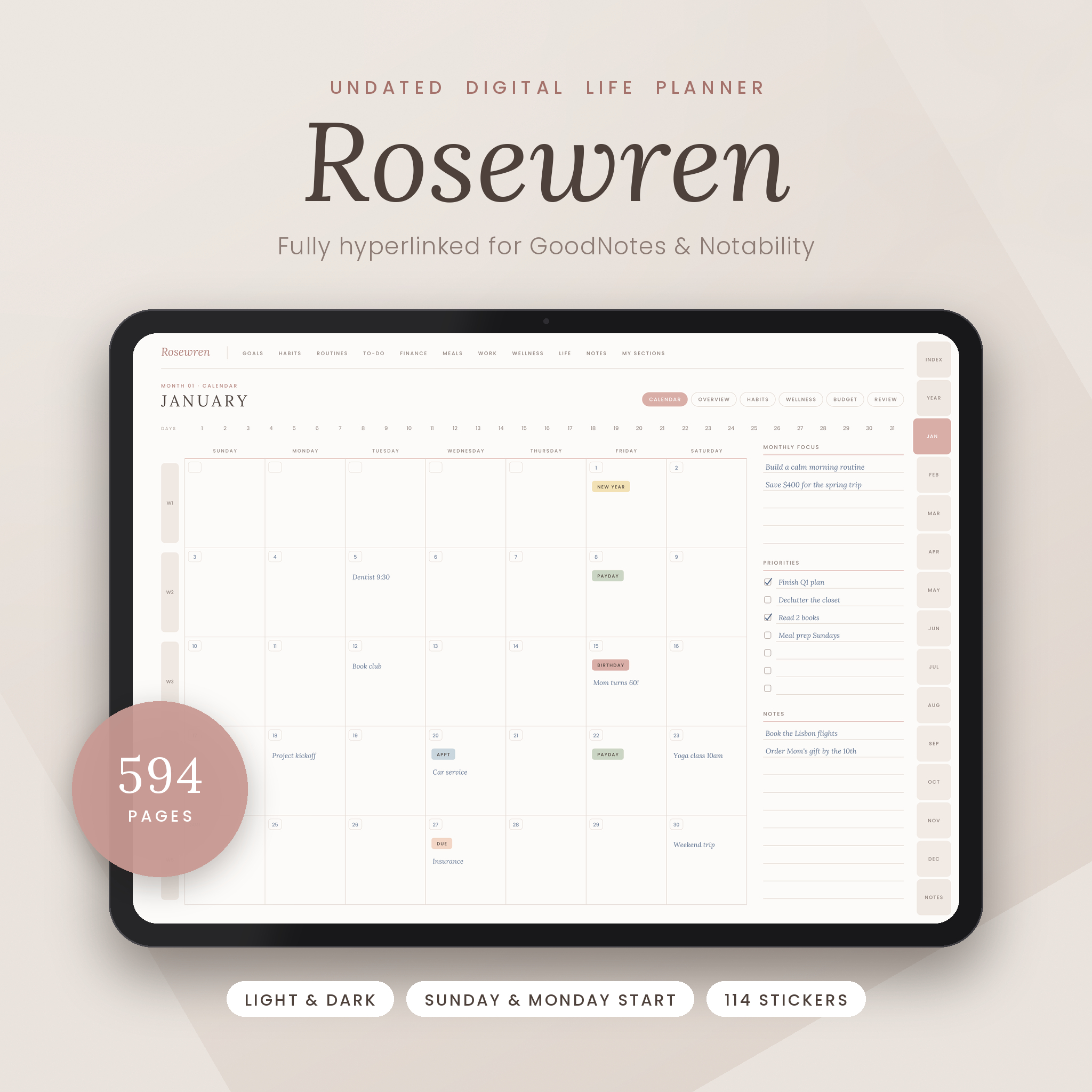
Rosewren Undated Digital Life Planner
An undated planner you import fresh every year, with Date Finder calendars and date stickers that make filling in dates quick.
- Date Finder calendars for 2027 to 2031
- 114 stickers, including date stickers 1 to 31
- 594 pages with 23,000+ working links
Still deciding between dated and undated? Our guide to which undated digital planner is right for you compares four options side by side.
Clean up your note app
Once the archive is saved and checked, tidy the app:
- Move last year’s planner out of your main folder. Put it in a “Past” folder for a month or two, just in case.
- Import the new planner from a clean original. Need a refresher? See how to unzip and import a digital planner PDF.
- Test the links, set your cover and add your carry-forward list.
- After a month or so, when you’re sure you don’t need it, delete the old working copy from the app. Your exported PDF is the archive now.
That last step is the only scary one. Don’t rush it. Check the archive PDF first, and if your app has a recently deleted folder, know where it is.
FAQ
Should I archive my digital planner or just keep using the same file?
If it’s a dated planner, archive it at the end of the year. If it’s undated or multi-year, you can keep going, but exporting a year-end snapshot is still smart. It costs five minutes and protects a whole year of notes.
Can I still write in an archived planner?
The exported PDF is a frozen copy, so treat it as read-only. If you need to add notes to last year later, keep the working copy in a “Past” folder for a while before deleting it.
How do I archive digital planner stickers and covers?
You don’t really need to. Stickers and covers stay in your master folder from year to year. Only the filled-in planner pages need archiving.
What if the export keeps failing because the planner is too big?
If your app lets you pick a page range, export it in chunks, a quarter at a time, and name each file with the date range. It’s slower but works the same.
Give yourself an hour this December: review, export, check, carry forward, clean up. Then open the new planner, write the year on the cover, and enjoy that first blank page. It’s one of the best feelings in planning.