The first week with a new planner is great. By week six, the beige tabs and someone else’s idea of a “calm palette” start to feel like a hotel room. You want it to look like yours. The good news: you can customize a digital planner far more than most people realize, even though the PDF itself is fixed.
The catch is knowing which parts you can actually change. Colors, covers and fonts each work a little differently, and a few popular “hacks” quietly make your planner slow or break the links.
Here’s what works, what doesn’t, and how to make the planner feel like it was made for you without spending every Sunday decorating it.
What you can change in a PDF planner, and what’s fixed
A digital planner is a PDF: a set of fixed pages, like printed paper inside your tablet. The layout, the printed headings and the tab colors are baked in. Your note app can’t recolor them or move them, the same way a pen can’t move the lines on a paper page.
What you can change sits on top of the page or around it:
- The color theme, by choosing a different version of the planner file.
- The cover, by placing a new image over the first page.
- Your ink: pen colors, highlighters and a color code you stick to.
- Typed text: fonts, sizes and colors in text boxes.
- Labels on custom tabs and blank section pages.
- Stickers and images placed anywhere.
- Pages: duplicate the ones you love, delete the ones you skip.
Keep that split in mind and you’ll avoid the most common frustration, which is buying a planner for its features and then hating its colors. If color matters to you, check how many themes a planner includes before you buy.
Start with the right color theme
This is the biggest change you can make, and it takes ten seconds. Many planners ship in several color themes, each one a separate PDF. Pick the one that suits you and import that file. If you get bored in spring, you can import another theme and carry on, though your old handwriting stays in the old file.
A few things to weigh up:
- Dark mode is easier on the eyes for evening planning, and it changes your pen choices. Light gray, pastel and white ink pop on a dark page. Black ink disappears.
- Soft neutrals (sand, sage, latte) let your pen colors do the talking. Good if you color-code heavily.
- Bright rainbow tabs are fun and make months easy to find at a glance, but they compete with stickers.
The Willowday Undated Digital Planner comes in six themes, Blush, Lavender, Sky, Sage, Mocha and Midnight, each with a Monday and Sunday start, and its Midnight dark theme looks lovely with a light pen color.
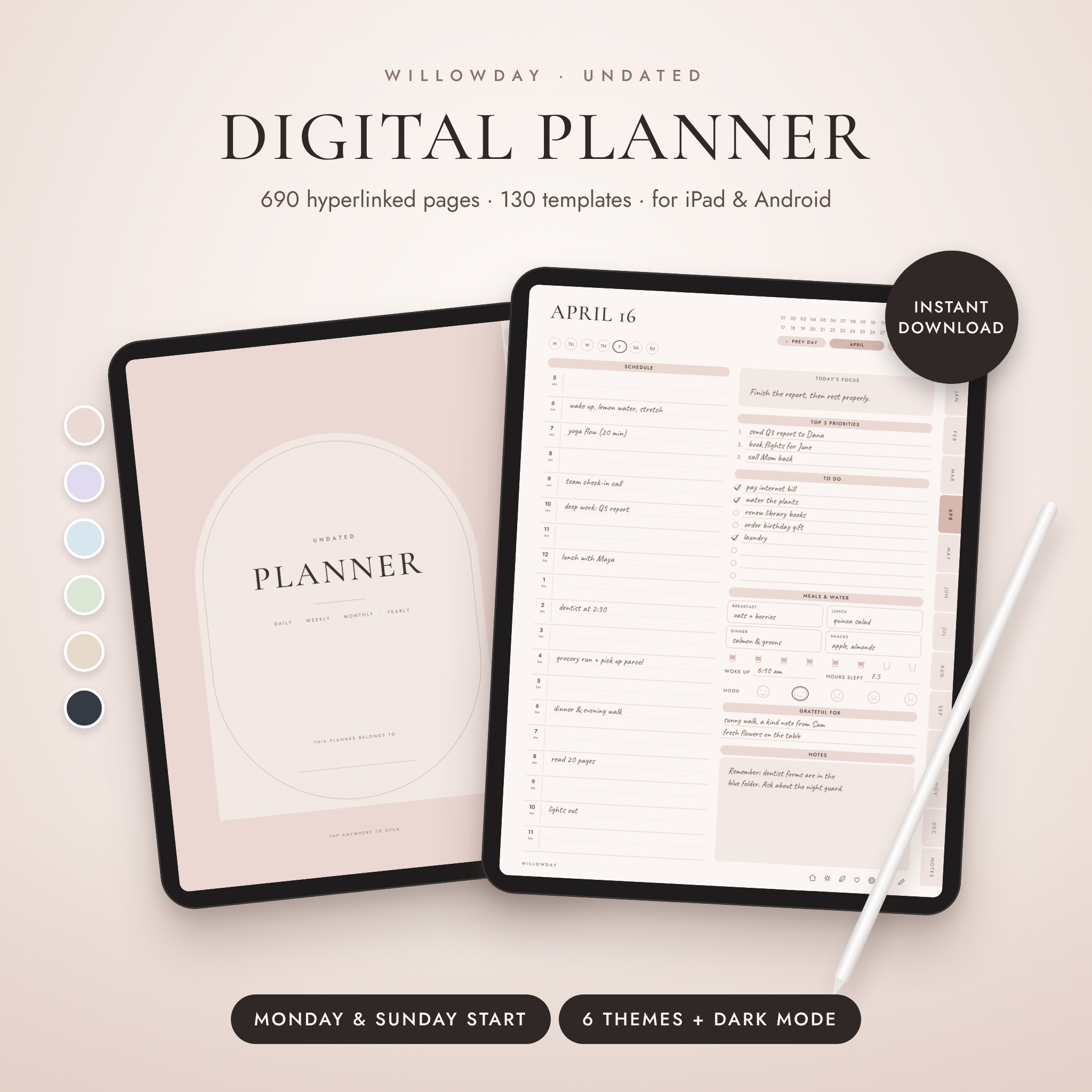
Six color themes, including a real dark theme that pairs well with light pen colors.
- 6 themes: Blush, Lavender, Sky, Sage, Mocha and Midnight
- 36 bonus covers and 921 stickers
- 10 custom note sections inside the planner
My tip: plan in your chosen theme for two full weeks before switching. The first few days, every theme looks either too dull or too loud. You only find out which one you like once it fades into the background.
Swap the cover for one you love
The cover is the first thing you see every time you open the app, so it has an outsized effect on whether you want to open it. Changing it is easy:
- Save the cover image you want to your tablet’s photos or files.
- Open the planner’s cover page in your note app.
- Use the app’s image or photo tool to place the picture on the page.
- Stretch it to fill the page, then check the “open” button or tab on the cover still works. If the image covers it, shrink the image slightly or leave a gap.
That last step matters. On most planners the cover has a link to the Home page. An image placed over that spot can block the tap in some apps.
Plenty of planners now come with bonus covers sized for tablets. The Plotwell All-in-One Digital Planner has a Cover Collection with 200 covers in watercolor, pattern and gradient designs across 10 color palettes, plus 8 color themes for the planner itself.
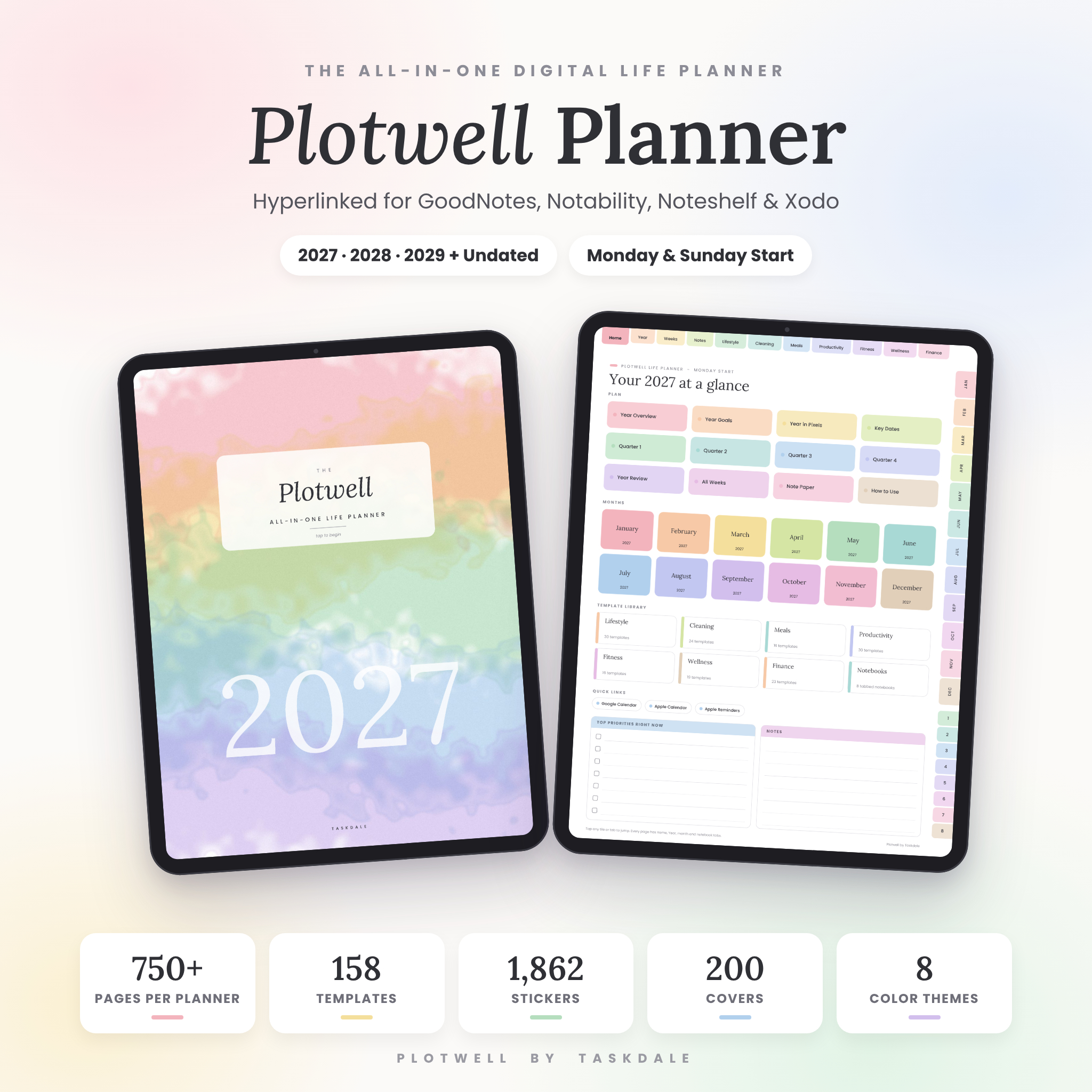
Plotwell All-in-One Digital Planner 2027 2028 2029 + Undated
With 200 covers and 8 color themes, you can change the whole look without changing planners.
- Cover Collection with 200 covers in 10 color palettes
- 8 color themes, from Pastel Rainbow to Dark Mode
- 1,862 stickers plus 8 tabbed notebooks you name
You can also make your own. A family photo, your kids’ artwork photographed flat, or a simple cover with your name and the year made in a free design tool. Save it as a PNG or JPG at roughly your tablet’s screen size so it looks crisp without being huge.
Build a color code with pens and highlighters
Here’s where the real personality comes from. Not the printed colors, but the ones you add. A color code also makes the planner more useful, because you can scan a week and see “too much work, no family time” before you read a word.
Keep it small. Four or five colors, each with one meaning:
| Color | Example meaning |
|---|---|
| Blue | Work and appointments |
| Green | Health, exercise, meals |
| Pink | Family and friends |
| Orange | Money and bills |
| Gray | Notes and maybe-later |
Then save those exact colors as favorites in your app’s pen and highlighter menus, so you’re not hunting through a color wheel every time. Most note apps let you keep a row of preset colors. Write the key on your Home page or the inside cover so future-you remembers what orange meant.
Planners that already use color to separate sections make this easier, because your code can match. The Cashmere Digital Budget Planner color-codes its sections (rose for months, sage for savings, clay for debt, blue for trackers) and includes 16 transparent highlight blocks in its sticker pack.
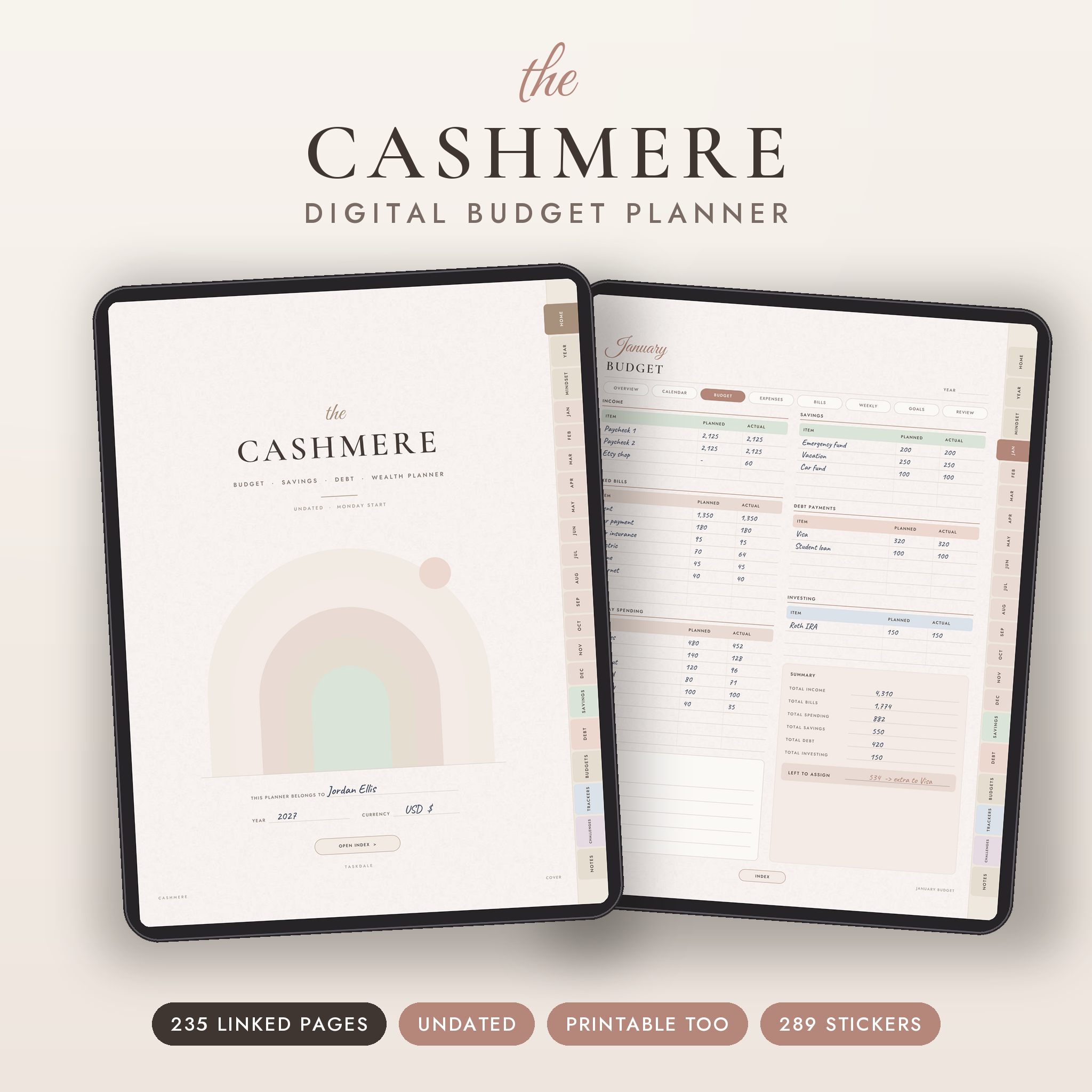
Cashmere Digital Budget Planner
Its color-coded sections give your own pen colors a ready-made system to match.
- Rose for months, sage for savings, clay for debt, blue for trackers
- Sticker pack with 16 transparent highlight blocks
- 12 notebook sections you can name
One honest warning: if you pick colors close to your theme’s tab colors, your notes blend into the page. Pick ink that contrasts with the theme, not ink that matches it.
Fonts: printed, typed and handwritten
Fonts come in three layers, and only two of them are yours to change.
Printed fonts are fixed
The headings and labels printed on the planner pages (like “Top 3” or “Monday”) are part of the PDF. You can’t swap them in a note app. If a planner’s font bothers you, look closely at the listing photos before you buy, because it’ll be there every day.
Typed text is fully yours
If you type into your planner, most note apps let you choose a font, size and color for each text box. Pick one clean font for everyday notes and one fun one for headings, and stick to those two. Some apps can also use extra fonts installed on your device; check your app’s text settings to see what it supports.
Handwriting is a font too
Your pen width and style change the whole look of a page. A fine 0.3 mm pen in dark gray reads as calm and tidy. A thicker brush pen for headings adds personality. Many apps also let you save pen presets, so “heading pen” and “notes pen” are one tap each.
If your handwriting looks cramped, the fix is usually zooming in or using a page with more writing room, not a new font. We cover that in our guide to making digital planner handwriting more comfortable.
Rename tabs and sections to fit your life
A planner built for “everyone” has sections called things like Notes 1, Notes 2 and Custom. Rename them. It’s the single change that most makes a planner feel personal, because now the tabs say “Garden”, “Side business” and “Kids’ school” instead of generic labels.
How you do it depends on the planner. Some have blank tab labels you write on. Others have an index or section cover page you fill in. You can also lay a small text box or a word sticker over a tab. Keep it inside the tab’s edge, and tap it afterwards to check the link still works.
The Chromaday Digital Planner has 10 custom tabs you name yourself, for a blog, side business, wedding, garden or anything else, alongside 12 note paper styles.
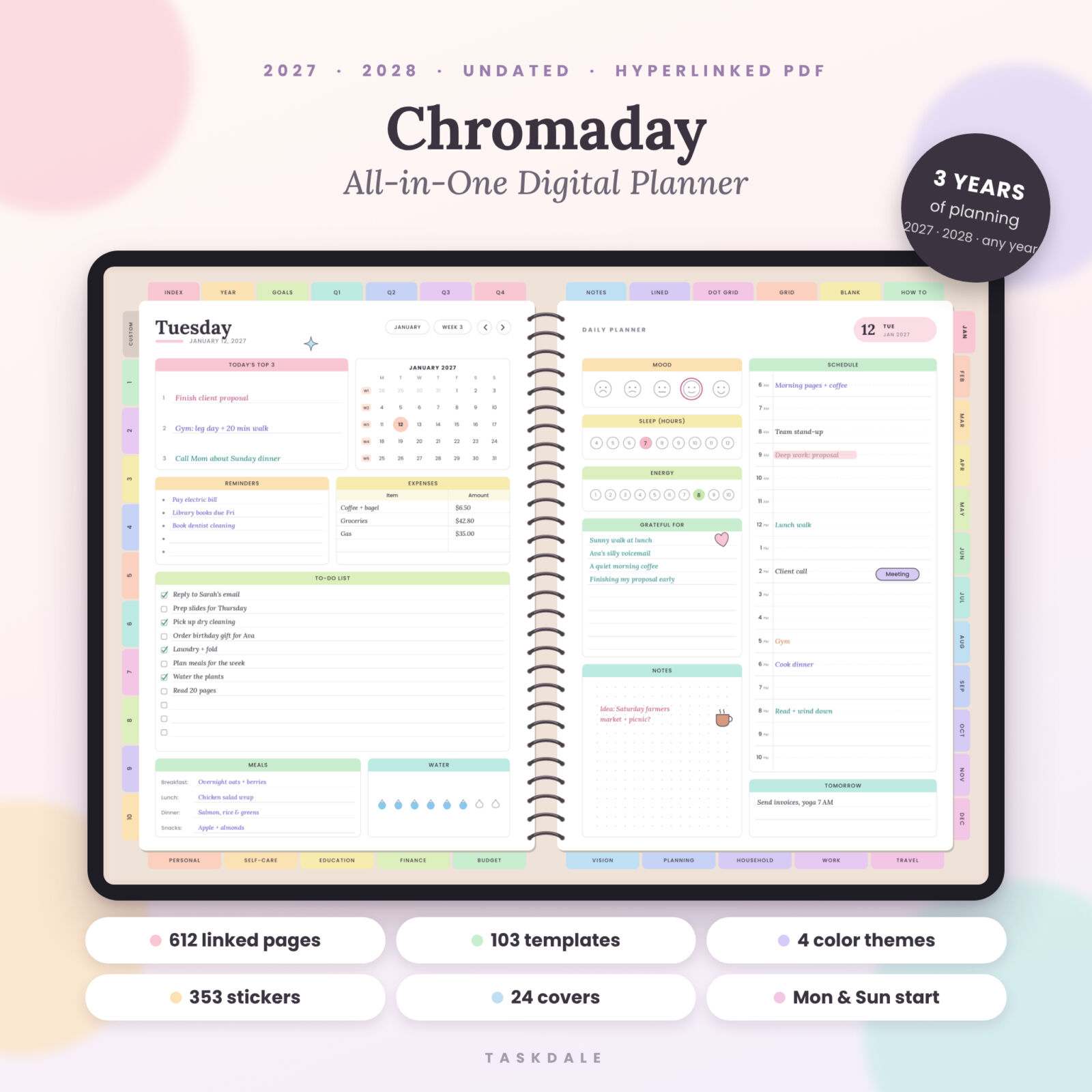
Chromaday Digital Planner 2027 2028 Undated
Ten tabs you name yourself make the planner fit your roles and projects.
- 10 custom tabs you can name yourself
- 4 themes: Rainbow, Boho, Classic White and Dark Mode
- 353 stickers and 24 alternative covers
A naming trick that helps: name sections after the role, not the project. “Work” outlasts “Q2 launch”. “Health” outlasts “Couch to 5K”. Roles stay; projects end, and then you’re left with a tab that means nothing.
Stickers, washi and decoration without the clutter
Stickers are where customizing gets fun, and also where it gets out of hand. A few well-placed ones make a page feel alive. Thirty on one weekly spread make it unreadable.
Use stickers for jobs, not just decoration:
- Functional stickers: appointment boxes, to-do boxes, date labels, sticky notes. These speed up planning.
- Section markers: washi tape strips across the top of a page to mark a theme for the week.
- Mood stickers: one small icon per day. Enough.
Our digital planner stickers guide explains how to add, sort and save stickers in your app so they’re quick to reach.
The Daywoven Digital Planner includes 870 digital stickers as transparent PNGs, with sticky notes, washi tape, appointment and to-do boxes, highlighters and tabs, plus 24 matching covers across its six themes.

Daywoven Digital Planner 2027 2028 & Undated
Lots of functional stickers, from washi tape to appointment boxes, plus matching covers.
- 870 transparent PNG stickers and an 11-sheet Sticker Book
- 24 matching notebook covers across six themes
- Six themes including dark mode, Monday and Sunday start
If you prefer pages that stay clean, have a look at our post on minimalist digital planner layouts. Customizing doesn’t have to mean decorating.
A monthly refresh beats daily decorating
If you love the look of a styled planner but don’t have time for it, try this: decorate once a month, not once a day. On the first of the month, spend fifteen minutes on the monthly calendar page. Pick two or three stickers that match the season, a washi strip across the top, maybe a new cover if you’re in the mood. Then leave the daily pages plain and functional for the rest of the month.
You get the fun part without the guilt of a blank week, and your daily pages stay quick to write on at 7 am when you’re half awake.
Keep your custom touches from slowing things down
Every image you add makes the file bigger. A dozen small stickers won’t matter. A full-page photo on every daily page will. If your planner starts lagging when you turn pages, look at what you’ve added first.
- Use PNG stickers at a sensible size, not giant files you shrink on the page.
- Keep big photos to the cover and a few special pages.
- Delete template pages and sections you never use.
- Export a backup copy before any big redecorating session.
If your planner is already sluggish, our guide on why a digital planner gets slow goes through the fixes in order.
FAQ
Can I change the colors of a digital planner after I’ve started using it?
Not the printed colors on the existing file. You can switch to a different theme file if your planner came with several, but your handwriting stays in the old file. Your pen and highlighter colors can change any time.
How do I customize a digital planner cover in GoodNotes or Notability?
Place an image over the cover page with the app’s image tool and stretch it to fit. Check the cover’s link still works afterwards and leave a gap if the image blocks it.
Can I change the fonts in a digital planner?
Printed fonts on the pages are fixed. The font of anything you type is up to you, and your pen style works as your handwriting “font”.
Will adding lots of stickers break my planner?
Stickers won’t break the links, but too many large images can make the file slow. Keep stickers small and don’t cover tabs with them.
Start with the two biggest wins: a theme you like and a cover you’re happy to see every morning. Add a color code next. Leave the stickers for last, and only keep the ones that earn their place on the page.