Scroll through any planner shop for five minutes and you’ll see the word “inserts” everywhere. Digital planner inserts, printable inserts, PNG inserts, extra inserts. It sounds like something you need to buy separately. Usually it isn’t.
An insert is just an extra page, or a set of pages, that you add to a planner you already have. On paper, that means a sheet you punch and clip into a binder. On a tablet, it’s a page in a PDF or an image file you drop into your planner notebook. That’s the whole idea.
This guide covers what the different kinds are, how they behave inside a linked planner, which ones are worth having, and where to find them on Taskdale (spoiler: they come bundled with the planners).
What a digital planner insert actually is
Think of your planner as the main notebook: calendar, weekly spreads, daily pages, all linked together with tabs. An insert is anything you add on top of that. A dot grid page for notes. A meal plan. A habit tracker you like better than the one that came with your planner.
The word comes from paper planning. Ring binders and disc planners have always sold refill pages, and people collect them like stickers. Digital planning borrowed the term, so now it covers any page you can bring into a note app like GoodNotes, Notability, Noteshelf or Xodo.
Here’s the bit that confuses people. Your planner is a hyperlinked PDF (a PDF where tabs and dates are tap zones that jump to other pages). An insert you add later is usually just a page. It has no idea your planner’s tabs exist. More on why that matters in a minute.
The three kinds of inserts you’ll come across
PDF insert pages
The most common type. You get a PDF with one or more pages, sized for a tablet screen, and you add those pages to your planner in your note app. They stay sharp when you zoom, because PDFs are drawn with lines rather than pixels.
PNG image inserts
A PNG is an image file. Some planners include PNG versions of their pages so you can drop them into any notebook, even one that didn’t come from the same shop. You insert the image like a photo and stretch it to fill the page. They work well, but they’re pictures, so they can go a bit soft if you zoom right in.
Printable inserts
These are for paper. US Letter, A4 or a smaller size, with white backgrounds so they don’t eat your ink. You print them, punch them, and put them in a binder. Lots of digital planners include a printable set too, so you can keep a meal plan on the fridge and the rest on your tablet.
Where to find inserts on Taskdale
We don’t sell inserts as separate packs. They come bundled inside the planners: extra pages, PNG inserts and printable inserts, all in the same download as the planner itself. So when you’re comparing planners, check the “what’s included” list for these extras. It’s often where the best pages hide.
The Sagebloom Digital Planner is a good example. Next to the 2026, 2027 and undated planner files, the download includes 15 extra insert pages: 10 paper styles, an undated daily page, weekly pages, meeting notes and a habit tracker.
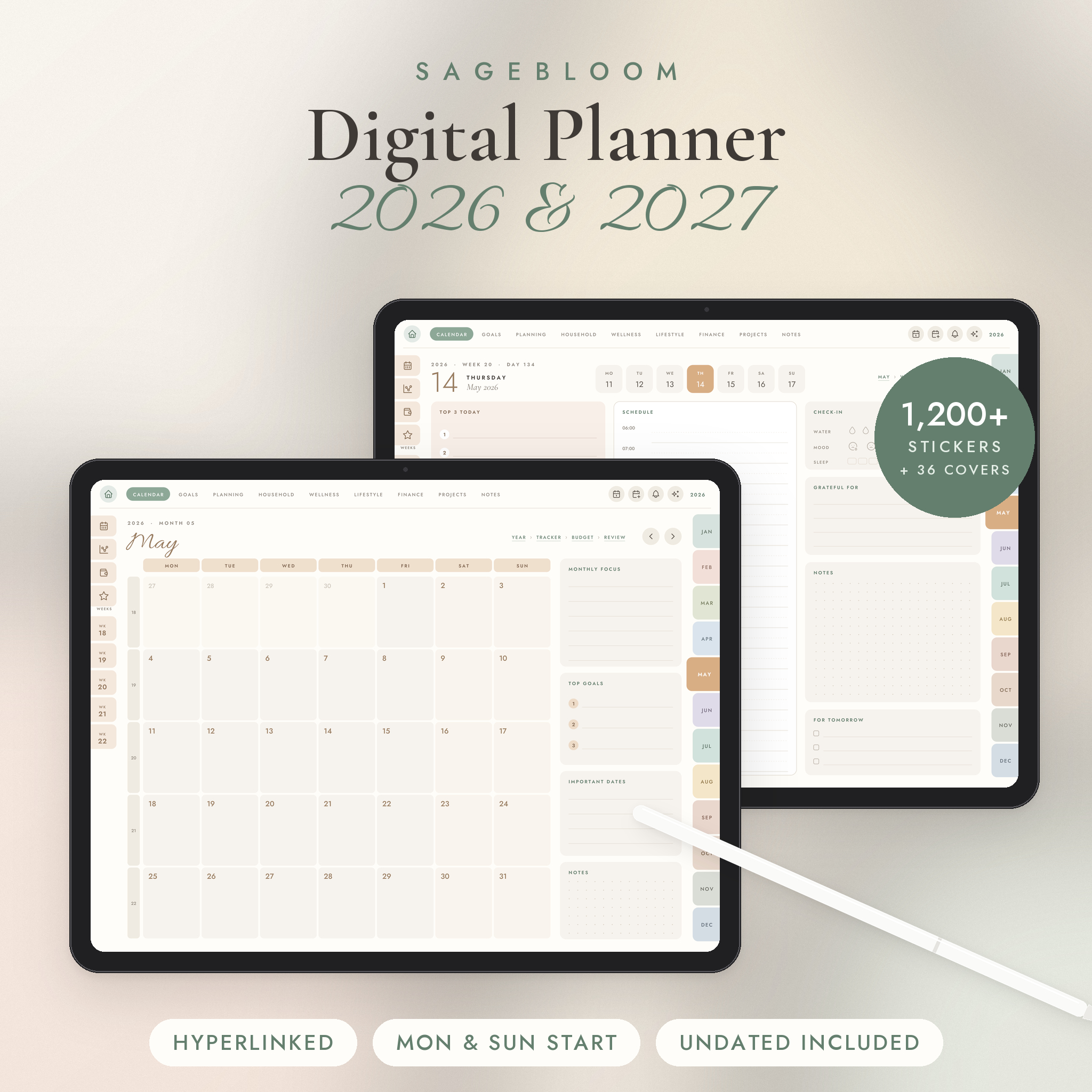
The download comes with a set of extra insert pages next to the planner files, so you can add note paper and trackers without hunting.
- 15 extra insert pages, including 10 paper styles
- 2026, 2027 and undated planners, Monday and Sunday start
- 10 notebooks in 10 paper styles inside each planner
Some planners also give you PNG versions of their pages. That’s handy if you already love your current planner and only want to borrow a few layouts. The Duskday Digital Monthly Planner includes six large PNG inserts of its blank monthly and Focus pages, made so you can add Duskday pages to a notebook you already use.

Duskday Digital Monthly Planner 2026-2027
Large PNG versions of its monthly and Focus pages let you add Duskday layouts to a notebook you already use.
- 6 PNG inserts at 3200 x 2400 px
- Printable US Letter and A4 pages
- Dated Nov 2026 to Dec 2027 plus undated
PNG inserts are the most flexible kind, by the way. They don’t care which app you use or which planner you started with. If you switch planners next year, they come with you.
And a few planners build inserts right into the file. The Daywoven Digital Planner has a Layout Library inside each planner with 12 daily and 4 weekly alternative layouts to mix and match, plus 95 printable insert pages in a separate set.

Daywoven Digital Planner 2027 2028 & Undated
Alternative daily and weekly layouts live inside the planner, plus a printable insert set for paper days.
- Layout Library with 12 daily and 4 weekly layouts
- 95 printable insert pages in US Letter and A4
- Six note paper templates inside each planner
Linked planner pages vs added inserts
This is the part nobody explains until something breaks.
When you open a hyperlinked planner, every tab is wired to a specific page. Tap “April” and you land on April’s calendar. That wiring was built when the file was made. A page you add later sits outside it. Your April tab won’t point to your new meal plan, and the meal plan won’t have working tabs of its own unless they were built in.
That’s not a flaw. It’s just how PDFs work. It does mean two things for you:
- Where you put the insert matters. In some apps, dropping a page into the middle of the file can shift what a link lands on. The safest spot is at the end of the planner, or inside a notes section the planner already set aside for you.
- You’ll find the insert a different way. Bookmark it, or use the page grid. Or put it in a custom section, if your planner has one.
We’ve written a full walkthrough on adding inserts to a digital planner without breaking the links, with the step-by-step for keeping everything tappable.
Match the size and shape before you add anything
Planner pages come in two main shapes. Some are wide, about 4:3, like an iPad turned on its side. Others are tall, about 3:4, like the iPad held upright. If you add a tall insert to a wide planner, you’ll get a page that looks oddly narrow, with big empty bars at the sides. It still works. It just looks off every time you flip past it.
Quick checks before you add an insert:
- Shape. Open one page of your planner and one page of the insert side by side. Same shape? Good.
- Colors. A bright white insert inside a dark mode planner is like a camera flash at 11 pm. Look for inserts that match your theme.
- Week start. If your planner starts on Monday, a Sunday-start weekly insert will trip you up.
- Dated or undated. Undated inserts can be reused every year. Dated ones only fit one.
This is the main reason bundled inserts are nicer than random ones from around the web. They’re already the right shape, colors and fonts for the planner they came with.
Don’t let inserts slow your planner down
It’s 9 pm, you’ve just added 60 pretty pages to your planner, and now every page turn takes a second to catch up. That’s the other catch with inserts.
Every page you add makes the file bigger. Image inserts add more weight than PDF pages, because each one carries a full picture. A planner that opened in a blink at 4 MB can start dragging once you’ve stacked a few hundred extra pages on the end, especially on an older tablet.
A few habits keep things quick:
- Add what you’ll use this month. Not everything you might use one day. The rest can wait in a folder.
- Keep a separate notebook for big collections. Thirty recipe pages don’t need to live inside your daily planner.
- Delete the pages you never touch. If a tracker has sat empty for two months, it’s not happening. That’s fine.
Bundled planner files help here too, because they’re usually built to stay light. Several of the ones below sit at around 3 to 5 MB per file, which leaves plenty of room for your own additions.
Printable inserts: the paper side of the story
Plenty of people plan on a tablet and still like a few sheets of paper around. A chore chart on the fridge. A packing list in a suitcase. A weekly overview pinned above the desk at work.
That’s what printable inserts are for. They’re usually ink-friendly, with white backgrounds and light gray lines, and come in US Letter and A4. If you’re putting them into a ring or disc planner, our guides on printing and punching Happy Planner inserts at home and leather planner inserts you can print cover sizes, paper weight and hole punching.
The Oat & Ink Digital Planner is a nice pick if you want both. The tablet planner is dated for 2027, 2028 and 2029, and the download includes 75 undated printable pages in US Letter and A4, so the paper pages work in any year.

Oat & Ink Digital Planner 2027 2028 2029
A dated tablet planner with an undated printable set, so your paper pages work in any year.
- Dated planners for 2027, 2028 and 2029
- 75 undated printable pages in US Letter and A4
- 20 note papers including Cornell, dot grid and kanban
Which inserts are actually worth having
Honestly? Fewer than you’d think. Most people collect 40 inserts and use six. Here are the ones that tend to earn their spot:
- Note paper. Lined, dot grid, graph and Cornell. You’ll use these more than anything else.
- A habit tracker. One page a month, a row per habit, a box per day. Simple wins here.
- A meal plan with a grocery list. Plan Sunday, shop Monday, stop asking “what’s for dinner?” at 6 pm.
- A budget or bill tracker. Even a basic one stops the “did I pay that?” panic.
- A project page. For the kitchen remodel, the side hustle, the school science fair.
- Meeting notes. If you work, you’ll want a page with space for actions, not just notes.
If you’d rather not go hunting, pick a planner with a big template library built in. The Hearthday Undated Digital Planner has 118 templates for money, health, self-care, work, travel and home, 30 note styles, and 122 printable inserts in US Letter and A4.

Hearthday Undated Digital Planner
Over a hundred linked templates are already inside the planner, so most of the inserts you'd want come built in.
- 118 templates for money, health, work, travel and home
- 30 note styles and 10 custom notebooks
- 122 printable inserts in US Letter and A4
The upside of templates inside the planner is that they’re already linked. Tap the Finance tab and the budget pages are right there. No adding, no hunting.
How to add an insert in your note app
Every app does this a little differently, and menus move around between versions. The general pattern is the same though:
- Open your planner notebook and go to the last page (or the notes section).
- Look for an option to add a page, often a + icon in the page grid or the top bar.
- Choose to add a page from a file or import a PDF, then pick your insert.
- For a PNG insert, add a blank page first, then insert the image and stretch it to fill the page.
- Tap a few of your planner’s tabs afterward to check they still go where they should.
Some apps also let you save an insert as a page template, so you can add a fresh copy with two taps next time. Check your app’s help pages for the exact steps. Want more ways to customize? Have a look at our guide to building a modular digital planner that grows with you.
FAQ
Are digital planner inserts the same as stickers?
No. An insert is a full page. A sticker is a small image you place on a page, like a “Pay Day” label or a sticky note. Our post on how to add, sort and use digital planner stickers covers those.
Do I need to buy inserts separately on Taskdale?
No. On Taskdale, inserts come inside the planner downloads as extra pages, PNG inserts or printable insert sets. Check each planner’s “what’s included” list to see which kinds it has.
Will an insert from one planner work in another?
Usually, yes. A PDF page or PNG image can go into any notebook in any note app that opens PDFs. It just won’t match the other planner’s colors or tabs, and it may be a different shape.
Can I add inserts on an Android tablet?
Yes. Apps like Xodo and Noteshelf let you add pages from a PDF on Android. The steps look a little different from iPad apps, but the idea is the same.
Start small. Pick the two or three inserts you’d use this week, add them at the end of your planner, and see what sticks. You can always add more later. That’s the whole point of inserts.