


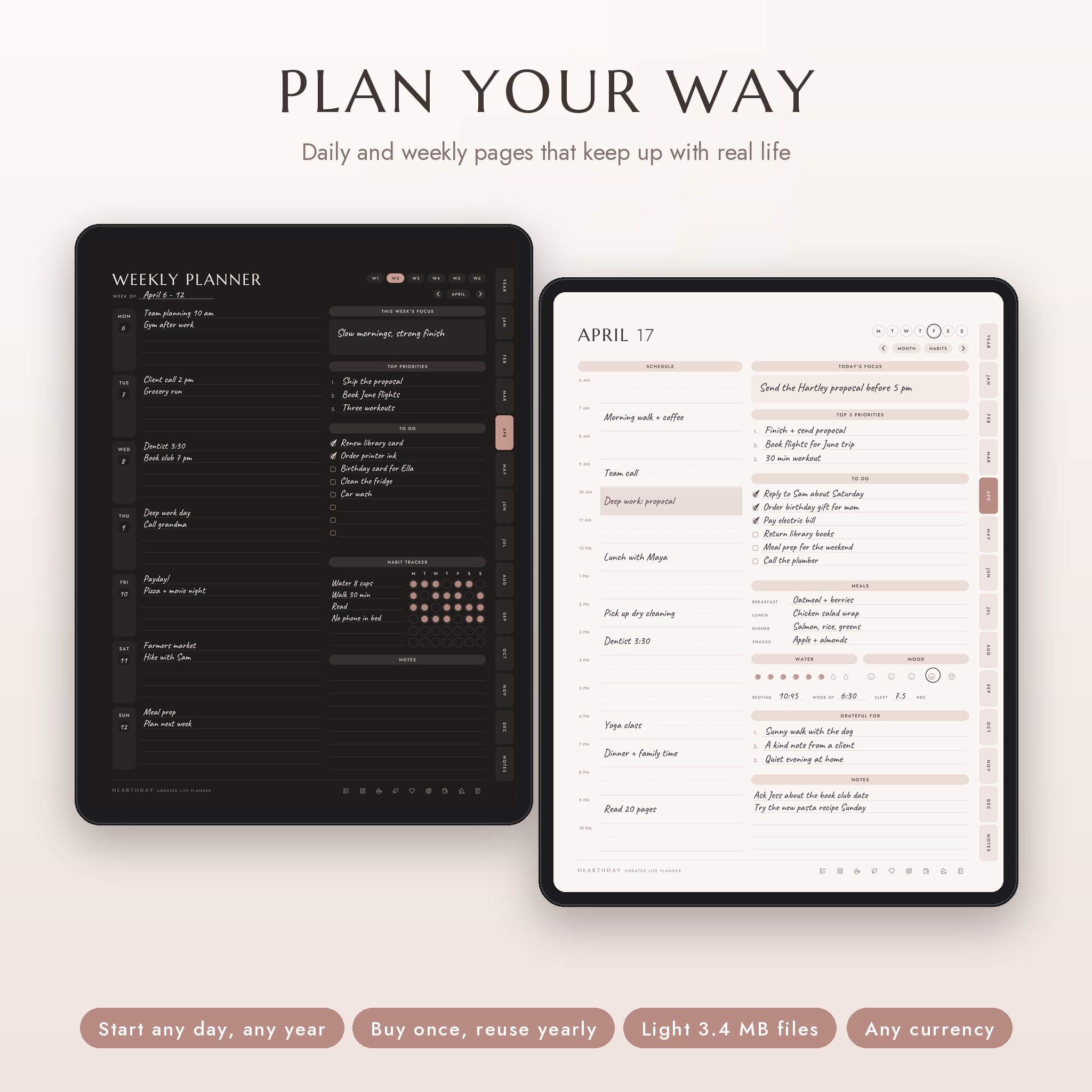
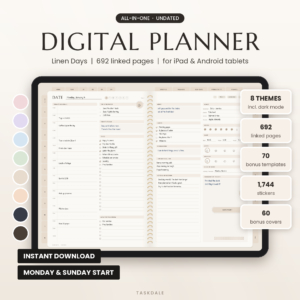
The Hearthday undated digital planner is a 708 page hyperlinked planner for GoodNotes, Notability and other PDF note apps on iPad, Android and Windows tablets. Every month, week and day is one tap away. There are no printed years, so you can start on a Tuesday in March or on New Year’s Day, and use the same file again next year.
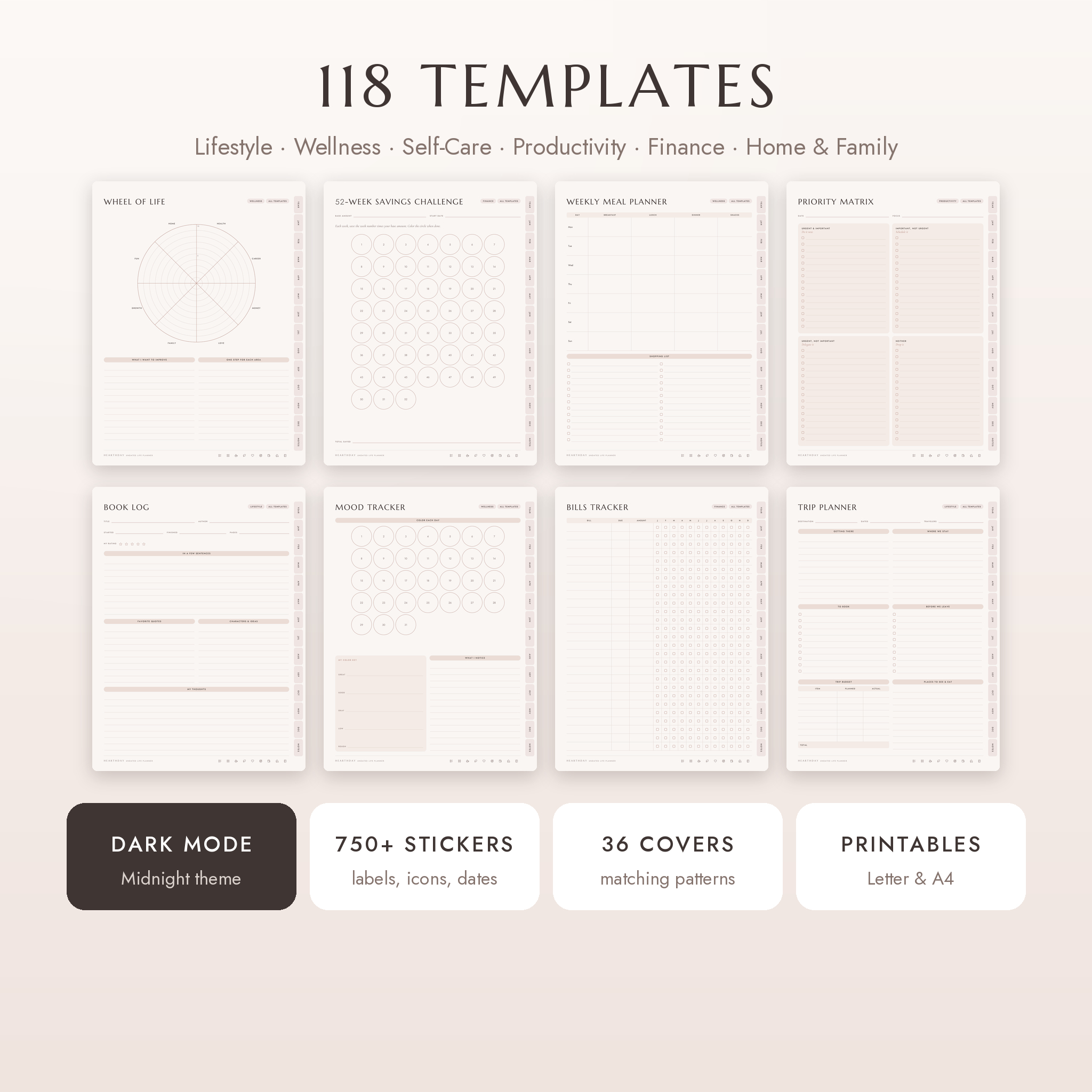
It covers the whole picture in one place. Your year and quarters. Five pages for every month. Weekly spreads. A daily page for every date. Then 118 templates for money, health, self-care, work, travel and home, so the lists you usually lose track of live next to your calendar.
Why this undated digital planner is different
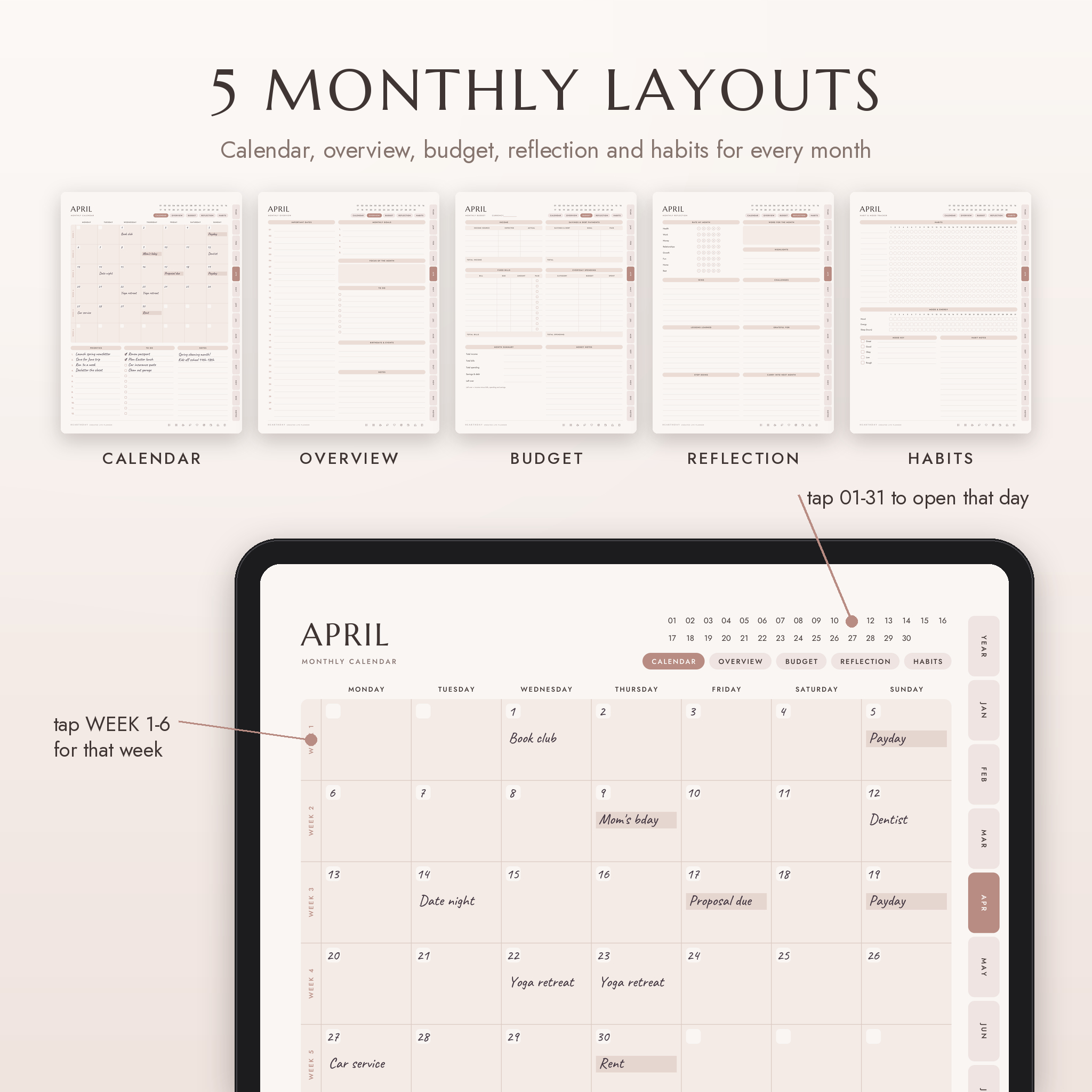
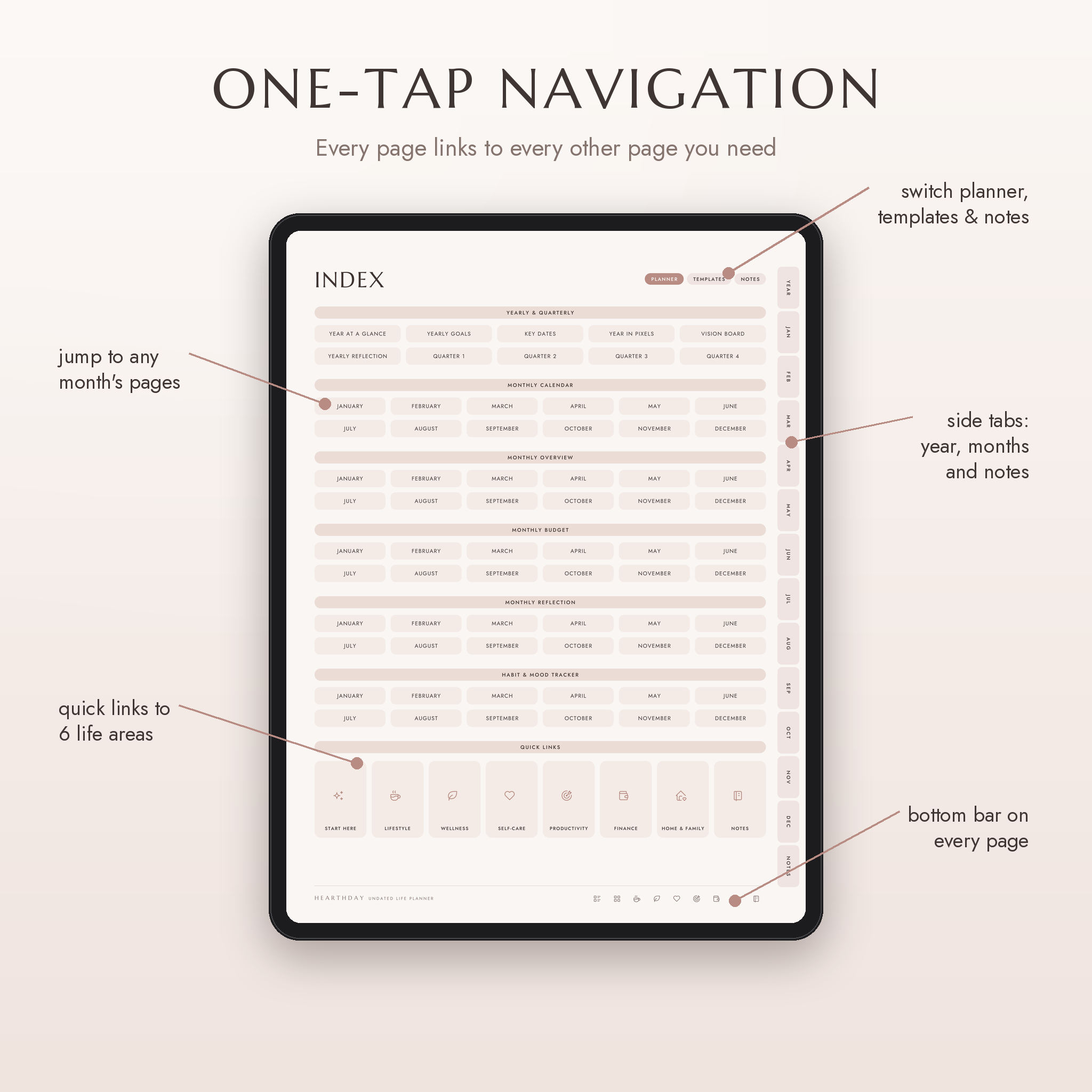
Most planners give you pages. Hearthday gives you pages that talk to each other. Tap a date on a monthly calendar and you land on that day. Tap a week label and you get that week. Round arrows step to the next or previous day, and December 31 rolls into January 1. The tabs on the side and the icons at the bottom are on every single page, so you never get stuck three screens deep.
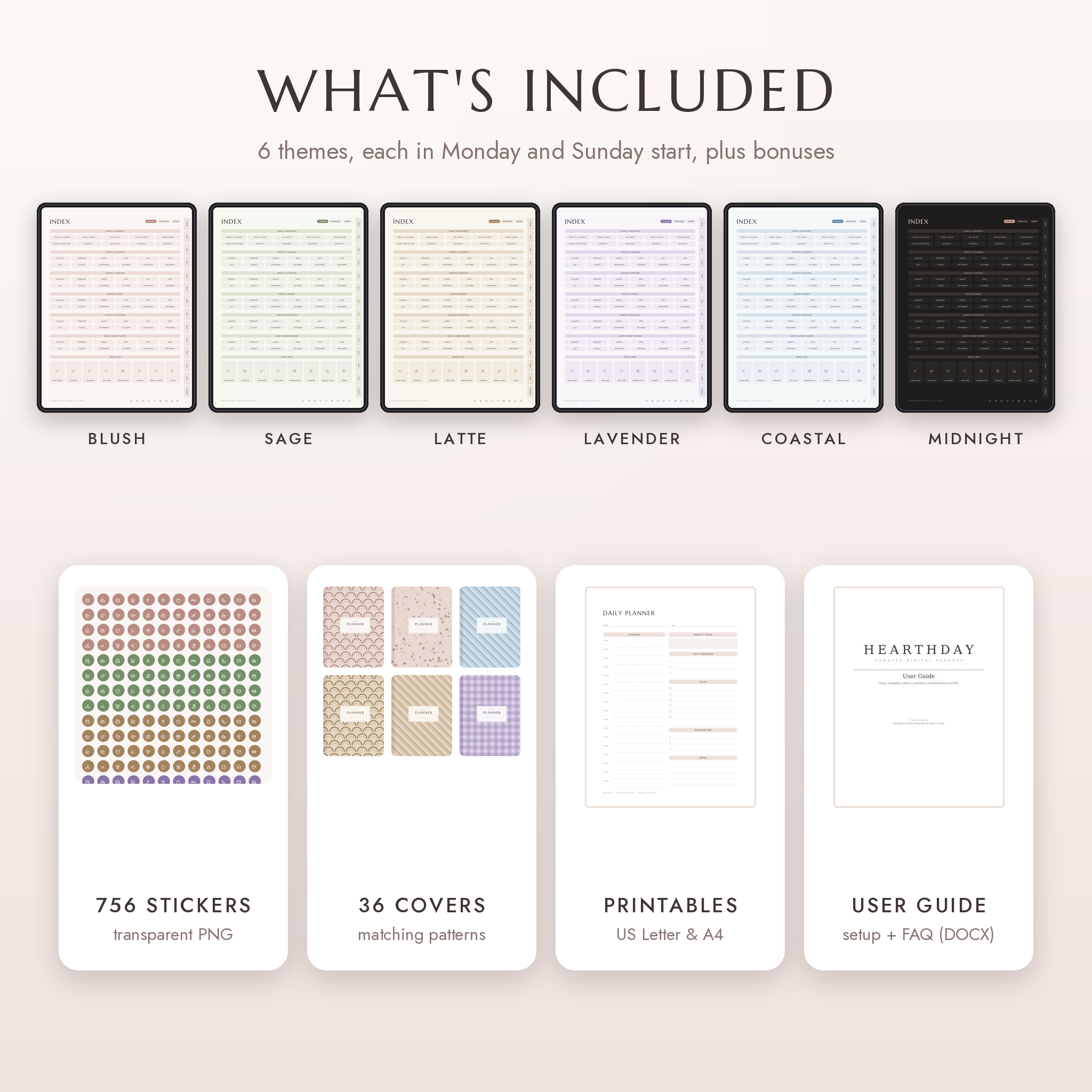
- 6 color themes: Blush, Sage, Latte, Lavender, Coastal and Midnight, a true dark mode for late evenings.
- Monday and Sunday start for every theme. That’s 12 planner files in total.
- Higher contrast text than most soft-toned planners, so labels stay readable on a bright screen.
- Six weekly pages per month, so a month that touches six calendar weeks still fits.
- Light files. Each planner is about 3.4 MB, which keeps importing and page turns quick.
What’s included
- 12 hyperlinked planner PDFs (6 themes x Monday and Sunday start), 708 pages each
- 756 transparent PNG stickers: word labels, icon stickers, date circles 1 to 31, weekday and month tabs, progress bars, mood faces, weather, stars, sticky notes, page flags, washi strips and headers
- A sticker catalog PDF so you can find any sticker in seconds
- 36 matching covers (PNG, 1620 x 2160 px)
- Printable inserts: 122 pages in US Letter and A4, Monday and Sunday start
- A user guide in Word format with setup steps, tips, troubleshooting and FAQ
Inside every planner file
- Yearly: Year at a Glance, Yearly Goals, Key Dates, Year in Pixels, Vision Board and Yearly Reflection
- Quarterly: three goals with action steps and progress bars, monthly focus, habits, projects and a quarter review
- Monthly (5 layouts): Calendar, Overview, Budget, Reflection, and a Habit & Mood Tracker
- Weekly: 72 pages with focus, priorities, to-do and a 7 day habit tracker
- Daily: 366 pages, February 29 included, with an hourly schedule, top 3, to-do, meals, water, mood, sleep and gratitude
- Templates: 118 pages across Lifestyle (20), Wellness (23), Self-Care (18), Productivity (18), Finance (29) and Home & Family (10)
- Notes: 30 note styles including lined, dot grid, graph, Cornell, storyboard, hexagon and music staff
- Custom sections: 10 notebooks you name yourself, each with a cover and three linked pages
The template library
A few to try first: Wheel of Life, SMART Goal, Priority Matrix, Weekly Meal Planner, Sleep Tracker, Cycle Tracker, 52-Week Savings Challenge, 100 Envelope Challenge, Debt Payoff Tracker, Sinking Funds, Bills Tracker, Subscriptions, Trip Planner, Packing Checklist, Book Log, Chore Chart, Cleaning Schedule and a Digital Detox Tracker.
Money pages work with any currency. Each monthly budget has a Currency box, and every amount field is left blank. Bank and card pages only ask for the last four digits, and the Login Hints page asks for a memory hint, never a password.
How it works
- Buy and download the zip files from your Taskdale account.
- Unzip them and pick a theme and start day.
- Open the PDF in your note app (GoodNotes, Notability, Noteshelf, Xodo or Penly) and start writing.
Adding stickers is simple: insert a sticker PNG as an image, then drag and resize it. GoodNotes 6 users can also save favorites to Elements.
File formats and requirements
- Planner: hyperlinked PDF, portrait, sized for tablets (3:4)
- Stickers and covers: PNG
- Printables: PDF in US Letter and A4
- Guide: DOCX (opens in Word, Pages and Google Docs)
- You need a tablet and a PDF annotation app that supports links. Samsung Notes does not support PDF links, so Android users should use Xodo, Penly or Noteshelf.
Customize it
Write the year on the cover. Fill the small date boxes on the calendar and weekly pages once a month. Duplicate any page you need more of, like extra budget pages or note pages. Name your ten custom sections for school, a side project, recipes, whatever you need. Swap the cover for one of the 36 bonus designs, then decorate with stickers that match your theme.
Real ways people use it
- A college student keeps lecture notes in custom sections, deadlines on the monthly calendar and study sessions on the Study Planner.
- A busy parent runs the Family Weekly Plan, Chore Chart and Meal Planner, and tracks school forms in the Kids Activities page.
- A freelancer blocks client work on the daily schedule, logs income and expenses, and checks progress on the Goal Action Plan.
- Someone paying off debt uses the Debt Payoff Tracker and No-Spend Challenge, then colors a savings challenge each payday.
- Anyone rebuilding routines tracks sleep, water, mood and habits for a month and spots the patterns in Year in Pixels.
Digital download
This is a digital product. Nothing is shipped. Your files are ready right after checkout. For personal use only, so please don’t share or resell the files.
FAQ
Is this a dated or undated digital planner?
Undated. Daily pages show the month and day but no year or weekday, so it works for 2026, 2027 and beyond.
Does it work with GoodNotes and Notability?
Yes. It’s a standard hyperlinked PDF made for GoodNotes, Notability, Noteshelf, Xodo and Penly.
Can I use it on an Android tablet?
Yes. Use Xodo, Penly or Noteshelf. Samsung Notes doesn’t open PDF links.
Is there a dark mode planner?
Yes. The Midnight theme is a full dark version with the same pages and links.
Can I print it?
The tablet planner is made for screens, but you also get 122 printable pages in US Letter and A4.
Will I need to buy it again next year?
No. Import a fresh copy of the same file each year.
Can I use my own currency?
Yes. Write your currency once at the top of each monthly budget. Every money field is blank.
How do I add the stickers?
Insert a sticker PNG as an image in your app, then drag and resize. The user guide shows the steps for GoodNotes and Notability.
Reviews
There are no reviews yet.