Big all-in-one planners are tempting. Twelve hundred pages, every tracker under the sun, and by March you’re using about forty of them while the rest slow your tablet down. A modular digital planner flips that around. You start with a small core you’ll actually use, then add pieces as your life needs them, and take them out again when it doesn’t.
It’s how a lot of paper planners have always worked: a ring binder, a set of monthly pages, and a few extra sections you swap in and out. On a tablet it’s even easier, because nothing needs a hole punch.
Here’s how to build one that fits you now and still fits you next year.
What “modular” actually means for a digital planner
A modular planner has two parts.
The core is what you open every day: a calendar, a weekly spread, maybe a daily page, and somewhere for notes. It barely changes from year to year.
The modules are everything else. A budget section. A meal planner. A study tracker for the semester. A project section for the kitchen remodel. Each one earns its place while you need it, and gets archived when you don’t.
The opposite is the “everything planner”, where you get every possible page up front and hope you’ll grow into it. Some people love that. But if you’ve ever scrolled past 29 untouched finance pages to reach Tuesday, you already know why modular appeals.
The payoff is simple. A planner that only holds what you use is faster to open, quicker to find things in, and much less guilt-inducing to look at.
Signs your current planner is too big
Not sure you need to change anything? A few tell-tale signs:
- You skip past the same sections every single week.
- Page turns take a beat to catch up, especially late in the year.
- You keep a second notes app for the things your planner “should” hold but doesn’t fit.
- You feel a small wave of guilt every time you open it.
Two or more of those, and a modular setup will probably feel like a weight off. You don’t have to rebuild everything at once. Start by moving one unused section out and see how it feels.
Start with a small, undated core
Your core should be the most boring, reliable part of the system. Two things help a lot here.
Undated pages. An undated planner has no years printed on it, so you can start in any month and keep using the same structure next year. You write the dates in yourself, usually once a month. That’s what makes a core reusable. Our guide comparing four undated digital planners is a good place to see the options side by side.
A light page count. A core of 200 to 250 pages opens quickly and leaves room for modules later. Calendar, weekly spreads, a habit tracker, a budget page and notes is plenty.
The Terra Undated Digital Planner is a nice example of a lean core. It’s 199 hyperlinked pages, and every month opens to its own little dashboard linking to the calendar, five weekly spreads, habits, mood and sleep, gratitude, budget, reflection and notes.
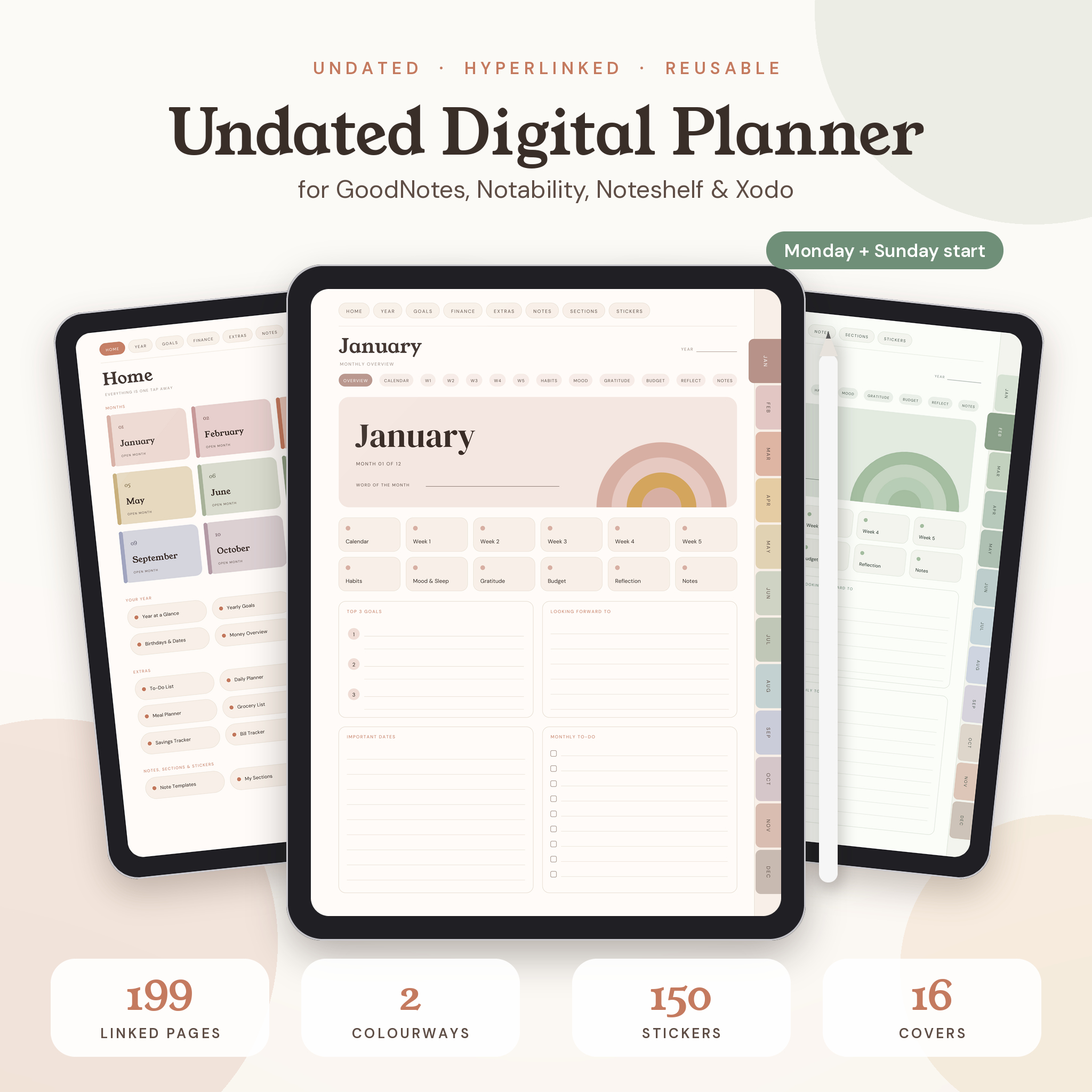
A light, undated planner with a dashboard for every month, which makes a tidy core to build on.
- 199 hyperlinked pages with over 6,200 links
- 12 extra pages and 5 custom note sections
- Terracotta and Sage, Monday and Sunday start
It also has 12 extra pages (a daily planner, a project planner, a meal planner and so on) plus five custom note sections you name yourself. Those are your first modules, already built in.
Choose your modules by life area
Don’t add modules because they look nice. Add them because a part of your life is getting messy.
A quick way to decide: list the areas of your life that currently live in your head, on sticky notes or in random phone notes. That’s your module list. For most people it’s some mix of these:
- Money: monthly budget, bill tracker, savings goals, debt payoff.
- Health: workout log, sleep and water, meal plan.
- Home and family: chore chart, cleaning schedule, birthdays, school forms.
- Work or side hustle: projects, meeting notes, client lists.
- Study: class schedule, assignment tracker, exam dates.
- Fun: reading log, travel plans, gift ideas.
Pick two to start. Seriously, two. You can always add more, and you’ll know much better in a month which ones you miss.
If you’d like a big library to choose from, the Hearthday Undated Digital Planner has 118 templates sorted into six groups: Lifestyle, Wellness, Self-Care, Productivity, Finance and Home and Family. You use the ones you need and ignore the rest.

Hearthday Undated Digital Planner
A large template library and blank sections you name yourself, so most modules are already waiting inside.
- 118 templates across six groups
- 10 custom sections, each with a cover and three linked pages
- Undated, with six themes including dark mode
It also gives you 10 custom sections you name yourself, each with a cover and three linked pages, which work nicely as module slots. One for school, one for a side project, one for recipes.
One file with sections, or a folder of small files?
There are two ways to organize a modular planner on a tablet. Neither is wrong.
| One file with sections | A folder of small files | |
|---|---|---|
| Getting around | Tabs jump straight to each module | Switch notebooks from the folder view |
| Adding a module | Use a spare section or add pages at the end | Drop a new notebook in the folder |
| Removing a module | Delete pages carefully | Move the whole notebook to an archive folder |
| Speed | Can slow down as it grows | Each file stays small |
| Best for | People who like one place for everything | People with lots of separate projects |
Plenty of people end up with a mix: one core planner file, plus a separate notebook for any big module like a long project or a full recipe collection.
Some planners are already built with this in mind. The Sagebloom Digital Planner comes as one file per year, so it opens quicker and lags less, and each planner holds 10 notebooks in 10 paper styles, each with a linked contents page.
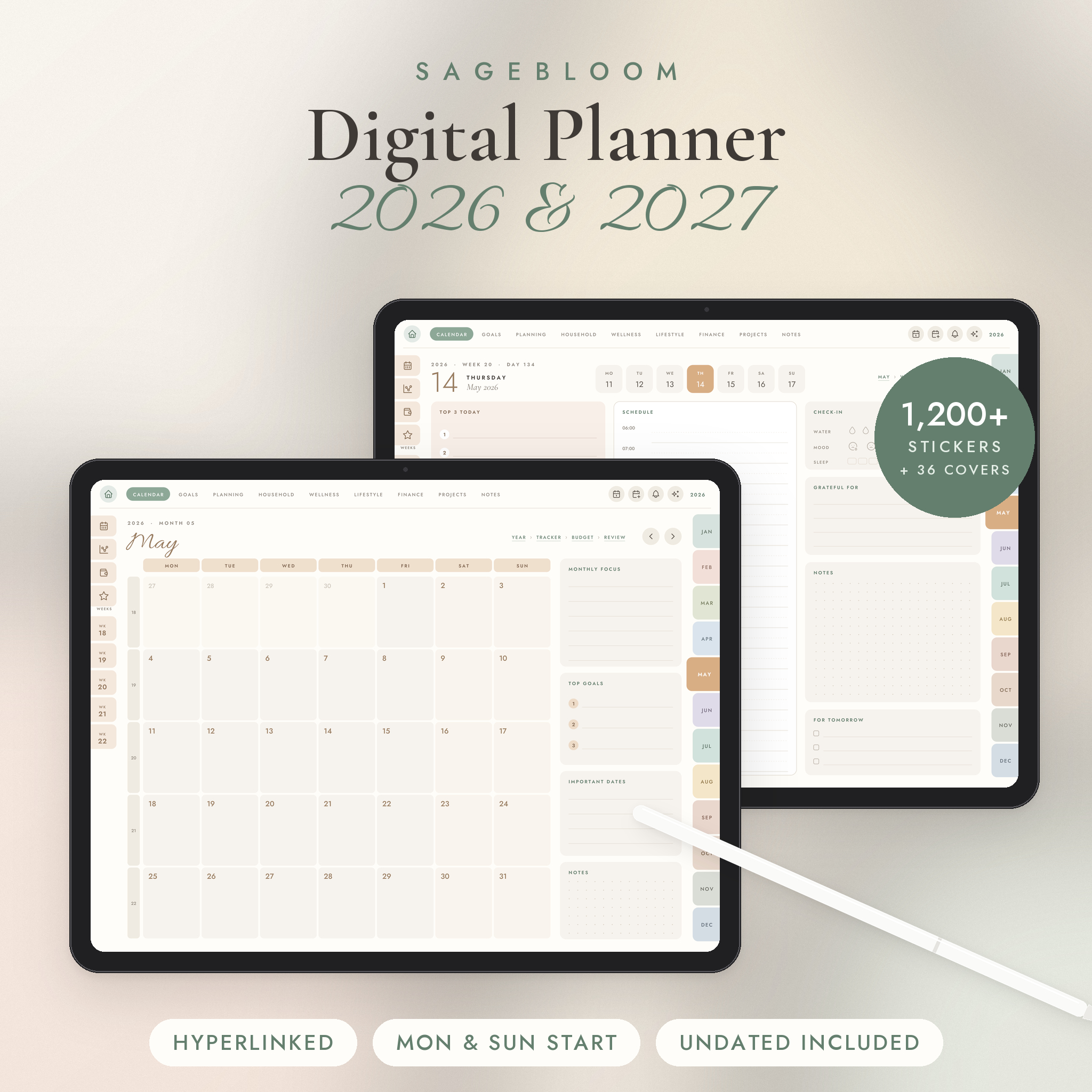
Each year is its own file, so it opens quicker, and built-in notebooks give you room for modules.
- 2026, 2027 and undated planners
- 10 notebooks in 10 paper styles with linked contents pages
- Project overview plus 10 project pages
There’s also a project overview with 10 project pages inside, which is handy if work or a side hustle is one of your modules.
Paper modules: mix and match printable pages
Modular planning doesn’t have to stay on the screen. Some modules simply work better on paper: a meal plan on the fridge, a chore chart the kids can see, a weekly page on the desk at work.
Printable kits are made for this. You print only the sections you need, put them in a binder or disc planner, and reprint when you want a fresh copy. For ideas on combining layouts, have a look at our post on custom planner pages you mix and match.
The Everyday Planner Kit gives you a big pool to pick from: 387 pages in each of four paper sizes, including 13 weekly styles, plus trackers for money, habits, meals, health and reading.
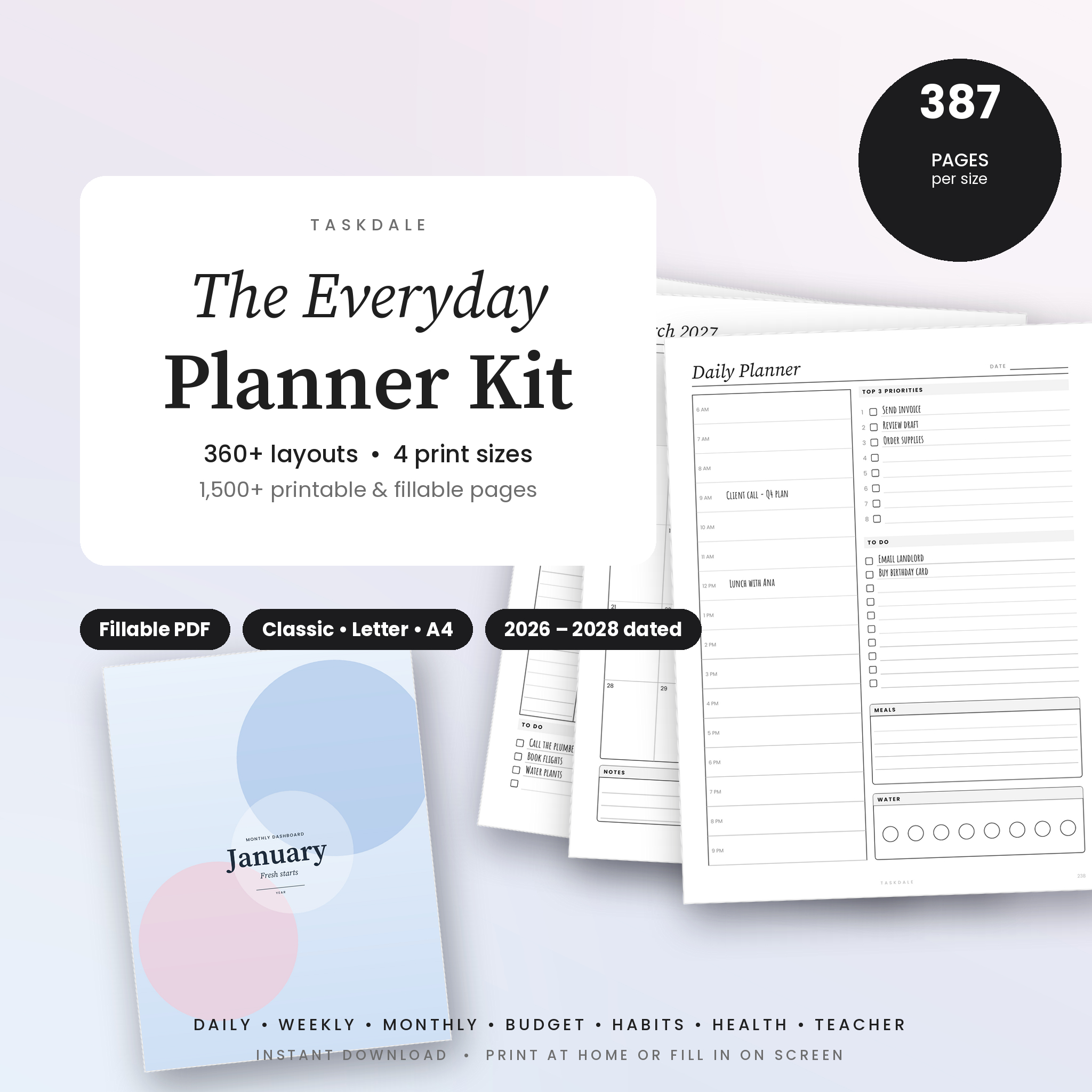
A big pool of printable, fillable pages to pick from, so you print only the sections you need.
- 387 pages in each of four paper sizes
- 13 weekly styles in Sunday and Monday start
- Fillable fields you can type into in Acrobat Reader
The fields are fillable, so you can type into them on a computer in Adobe Acrobat Reader. You can also import a file into a tablet note app and write on it with a pen, though typed fields work best in Acrobat. It’s a handy way to run a paper module and a digital core side by side.
Let it grow when your life changes
This is where a modular planner earns its keep. Life changes in chunks: a new job, a baby, a house move, a new semester, a health goal. Each one is a module.
When something new starts, add one module for it. Keep it simple:
- Decide where it lives: a spare section in your core, or a new notebook in your planner folder.
- Add only the pages you need for the next month. You can duplicate more later.
- Bookmark the first page so it’s one tap away.
- Give it a short, clear name. “Move 2027” beats “Misc 3”.
If you’re adding pages into a hyperlinked file, put them at the end or inside an existing section so the tabs keep working. Our guide to adding inserts without breaking the links covers the safe ways to do it. And for ideas on which habit, goal and project pages make good modules, see our pick of must-have inserts for habits, goals and projects.
The Petalwise Undated Digital Planner is built around this kind of growth. Every month has 14 linked pages, and there are 11 reusable life pages (meal planner, workout log, project planner, travel planner and more) that you can duplicate whenever you need another.
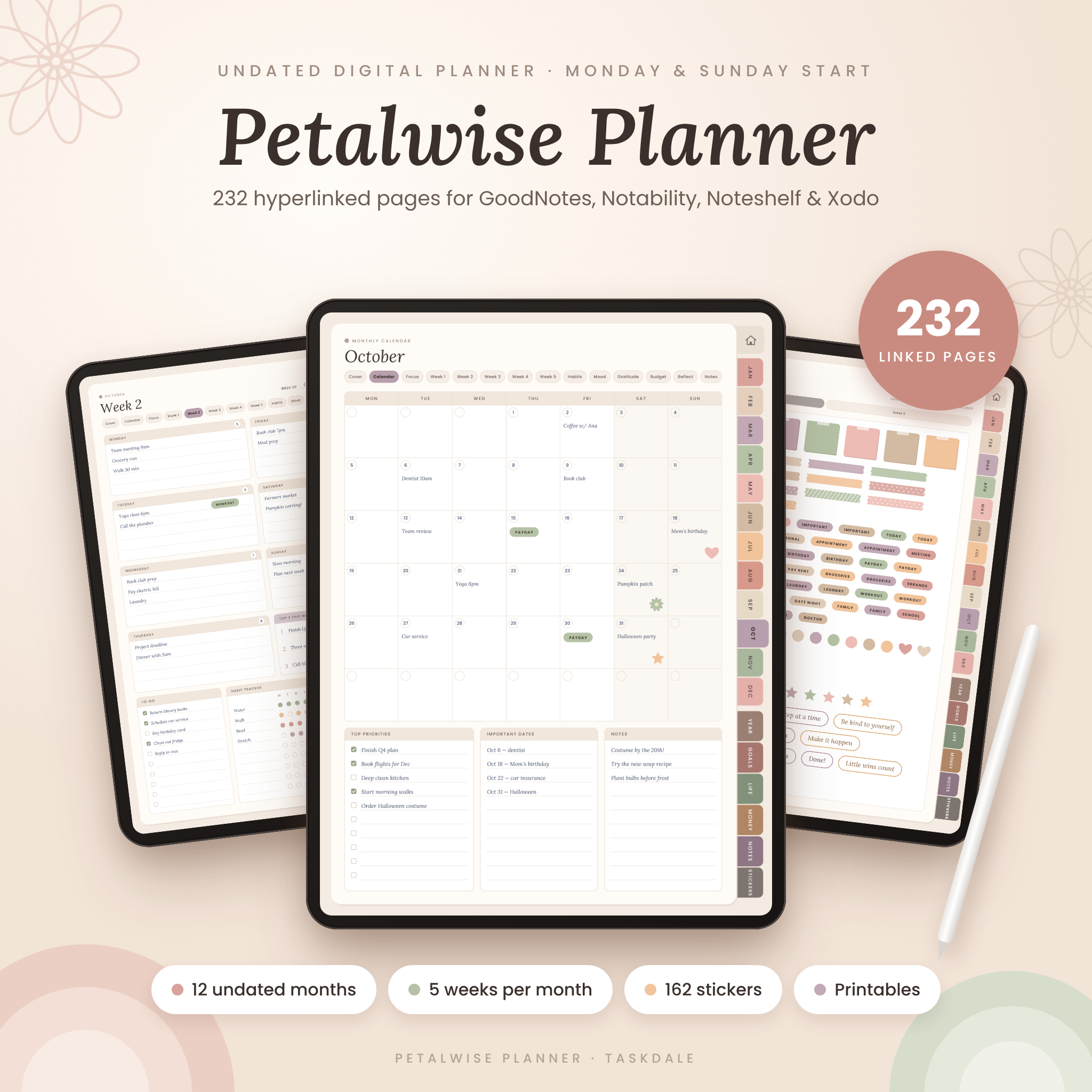
Linked monthly pages plus reusable life pages you can duplicate whenever a new module comes along.
- 14 linked pages for every month
- 11 reusable life pages to duplicate
- Light file of about 3.3 MB, undated
At around 3.3 MB, the file starts light, which gives you room to add without it getting sluggish.
Prune it every few months
Growing is only half of modular planning. The other half is cutting.
Once a quarter, flip through each module and ask one question: did I open this in the last month? If not, it goes. Move it to an archive folder, or export it as a PDF and delete it from the planner. You can always bring it back.
It feels odd at first, deleting pages you paid for. But a planner full of empty trackers isn’t a planner. It’s a to-do list of things you feel bad about. Keep a clean copy of the original file somewhere safe, and you’ll never lose a template for good.
Name your archive files so future you can find them. Something like “2026 Q3 Kitchen Remodel” tells you exactly what’s inside and when it ran. Six months later, when someone asks what the contractor quoted, you’ll be glad you did.
Four example setups
The student
Core: undated monthly calendar and weekly spreads. Modules: one custom section per class, an assignment tracker, and a budget page for the month. At the end of the semester, the class sections get exported and archived.
The busy parent
Core: weekly spreads with a small habit row. Modules: meal plan and grocery list, a chore chart printed for the fridge, a birthdays page and a school forms list. The meal module gets the most use, so it sits first.
The freelancer
Core: daily pages with an hourly schedule. Modules: a separate project notebook, an income and expense tracker, and meeting notes. Each new client gets its own section, and finished clients move to the archive.
The midyear starter
Core: an undated planner started in whatever month it is right now, no wasted January pages. Modules: just a goals page and a habit tracker for the first month. Everything else gets added only once the core has stuck for four weeks.
FAQ
Is a modular digital planner the same as an undated planner?
Not quite. Undated describes the pages (no years printed). Modular describes how you set it up (a core plus sections you add and remove). An undated planner makes a great modular core, though, because you can reuse it every year.
Do I need a special app for a modular planner?
No. Any note app that opens PDFs and follows links, like GoodNotes, Notability, Noteshelf or Xodo, works. Folders and bookmarks in your app do most of the organizing.
Won’t adding modules break my planner’s links?
Not if you add pages at the end of the file, use spare sections the planner already has, or keep big modules in separate notebooks. Test a few tabs after each change.
How many modules should I have?
Start with two. Most people settle at three to five. If you have more than that and only use half, it’s time to prune.
Build the core this week. Add one module next week. Then let the planner change as you do, which is the whole point.