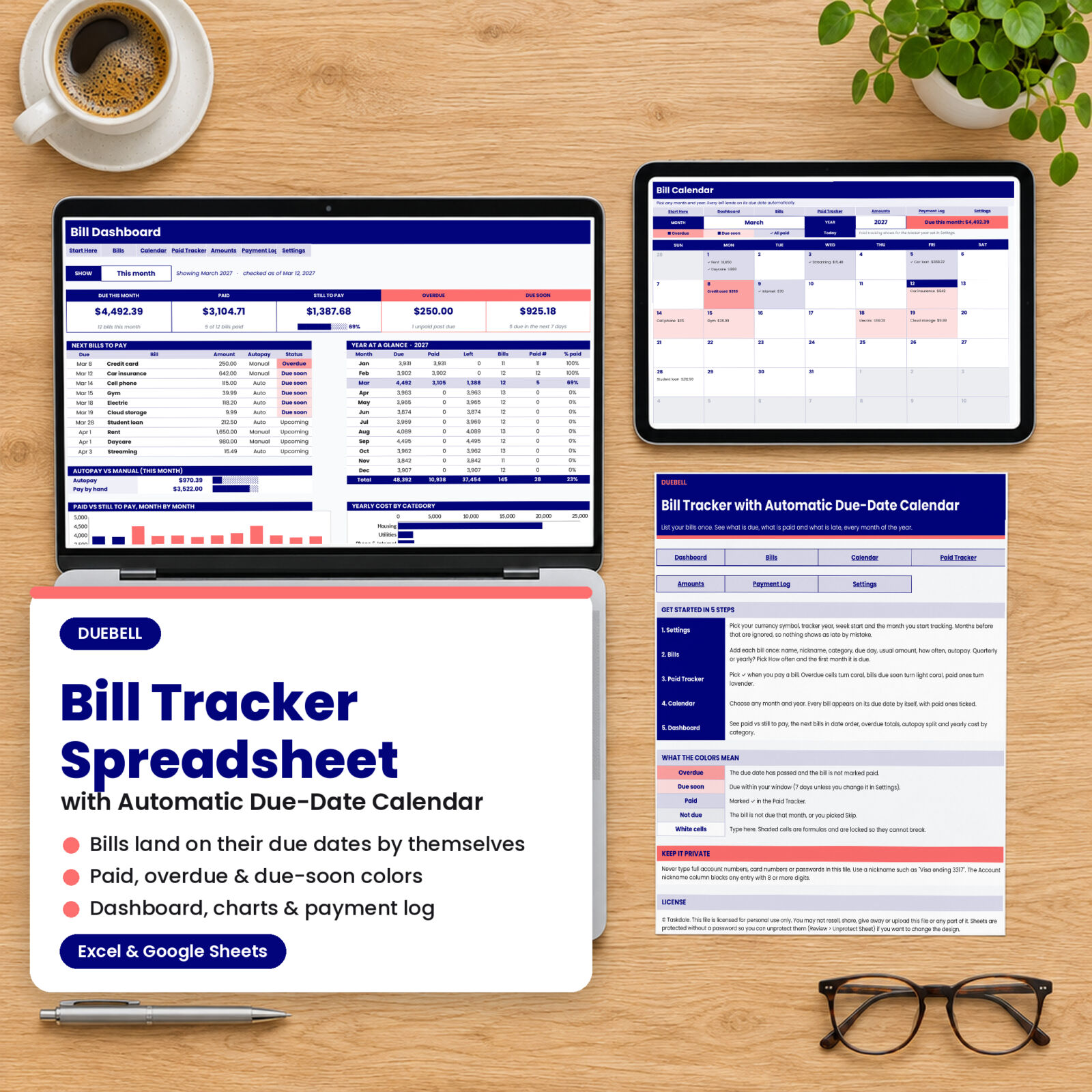
Most people do not miss a bill because they cannot afford it. They miss it because it was due on the 8th, they got paid on the 10th, and nobody reminded them. Duebell is a bill tracker spreadsheet for Excel and Google Sheets that fixes exactly that. You type each bill in once. From then on, the workbook works out every due date for the year, drops each bill onto a monthly calendar, and colors the ones that are late or coming up so you can see them before a late fee does.
What this bill tracker spreadsheet does
Think of it as a calm control panel for every bill in the house: rent, utilities, phone, insurance, car loan, credit cards, subscriptions and the yearly fees that always catch people off guard. There are no macros and no add-ons. Just formulas that are locked so they cannot break, and white cells where you type.
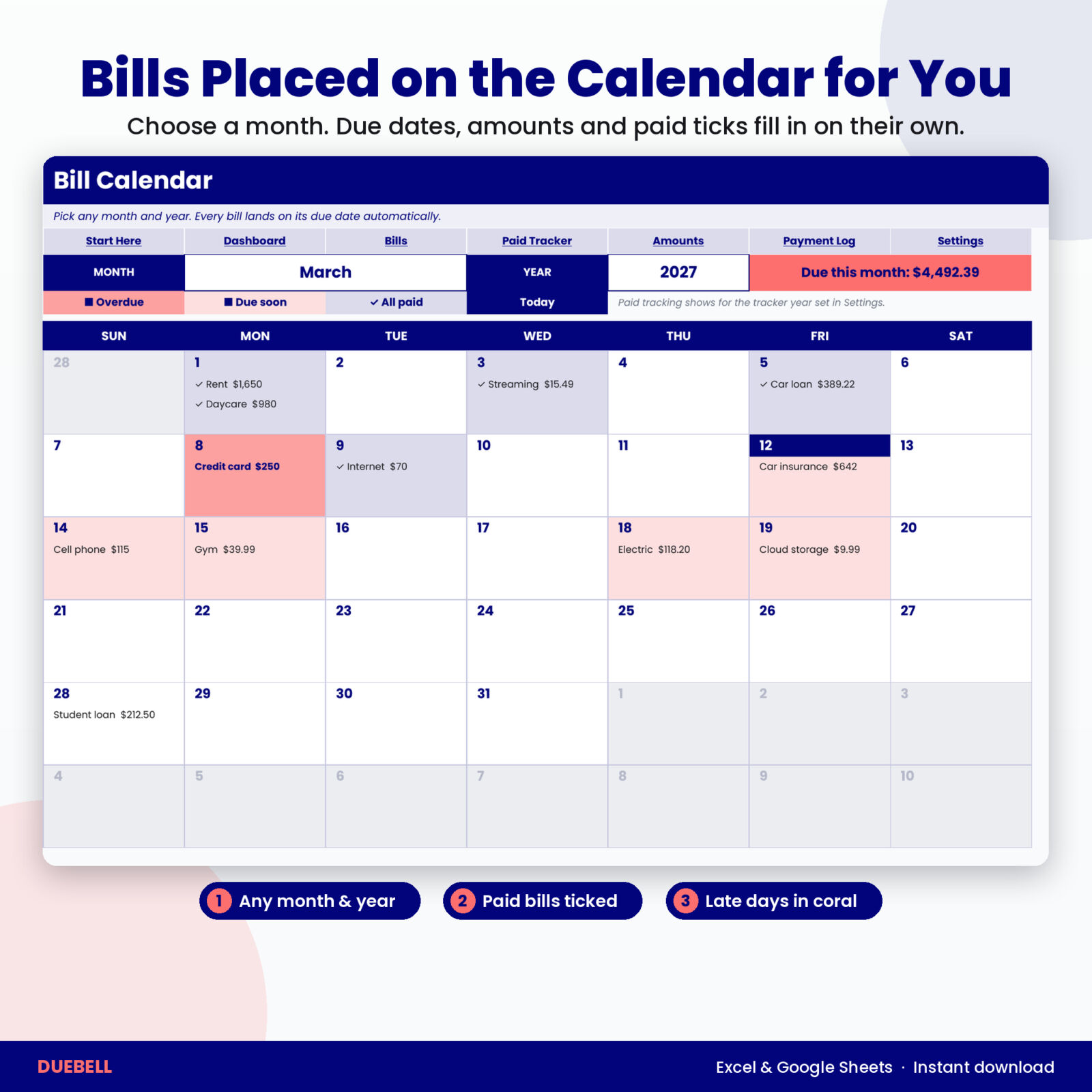
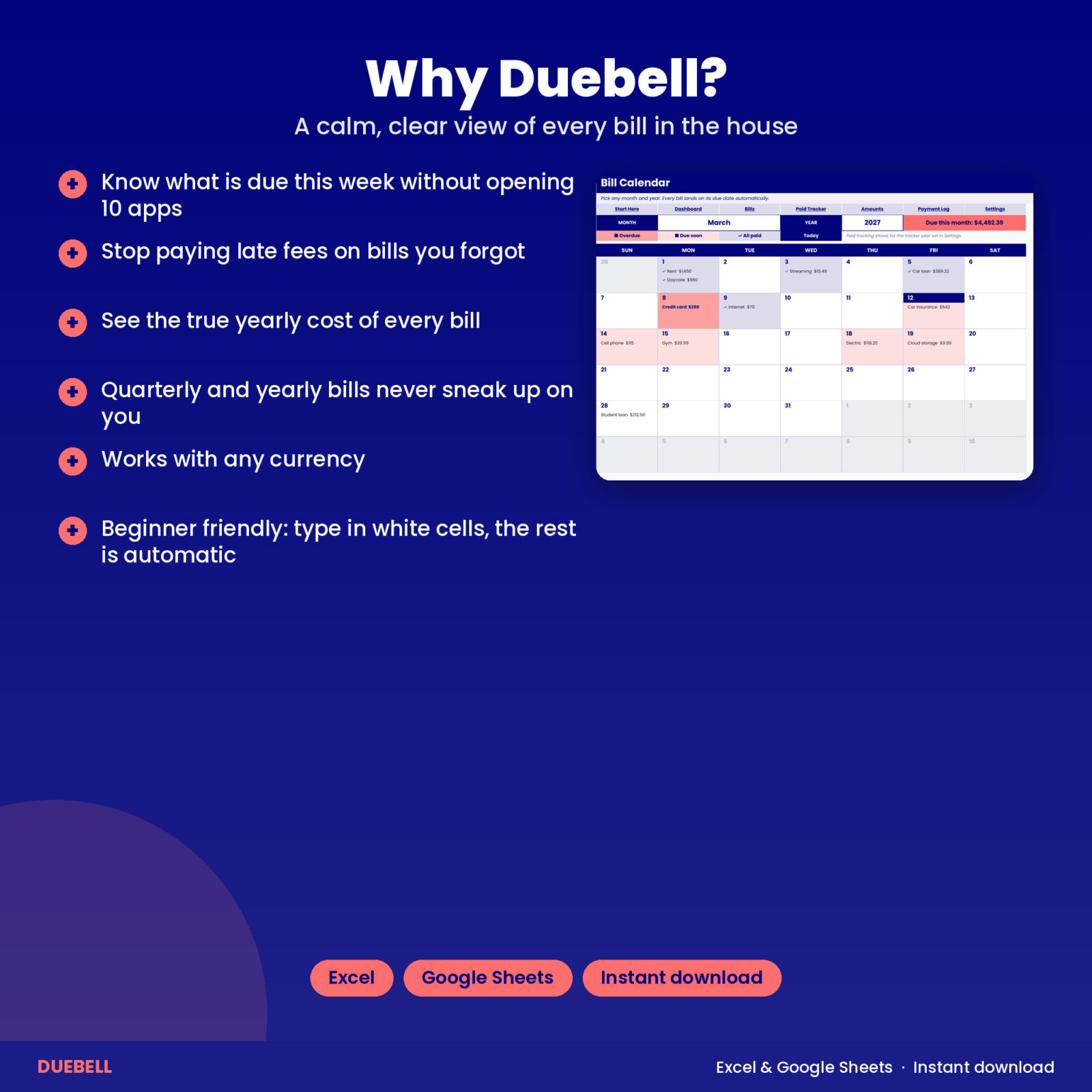
- Automatic due-date calendar. Pick a month and a year from the drop-downs. Every bill appears on its due date with its amount, paid bills show a check mark, and overdue days turn coral. Days with more than three bills show “+2 more” and the side panel lists the full month in date order.
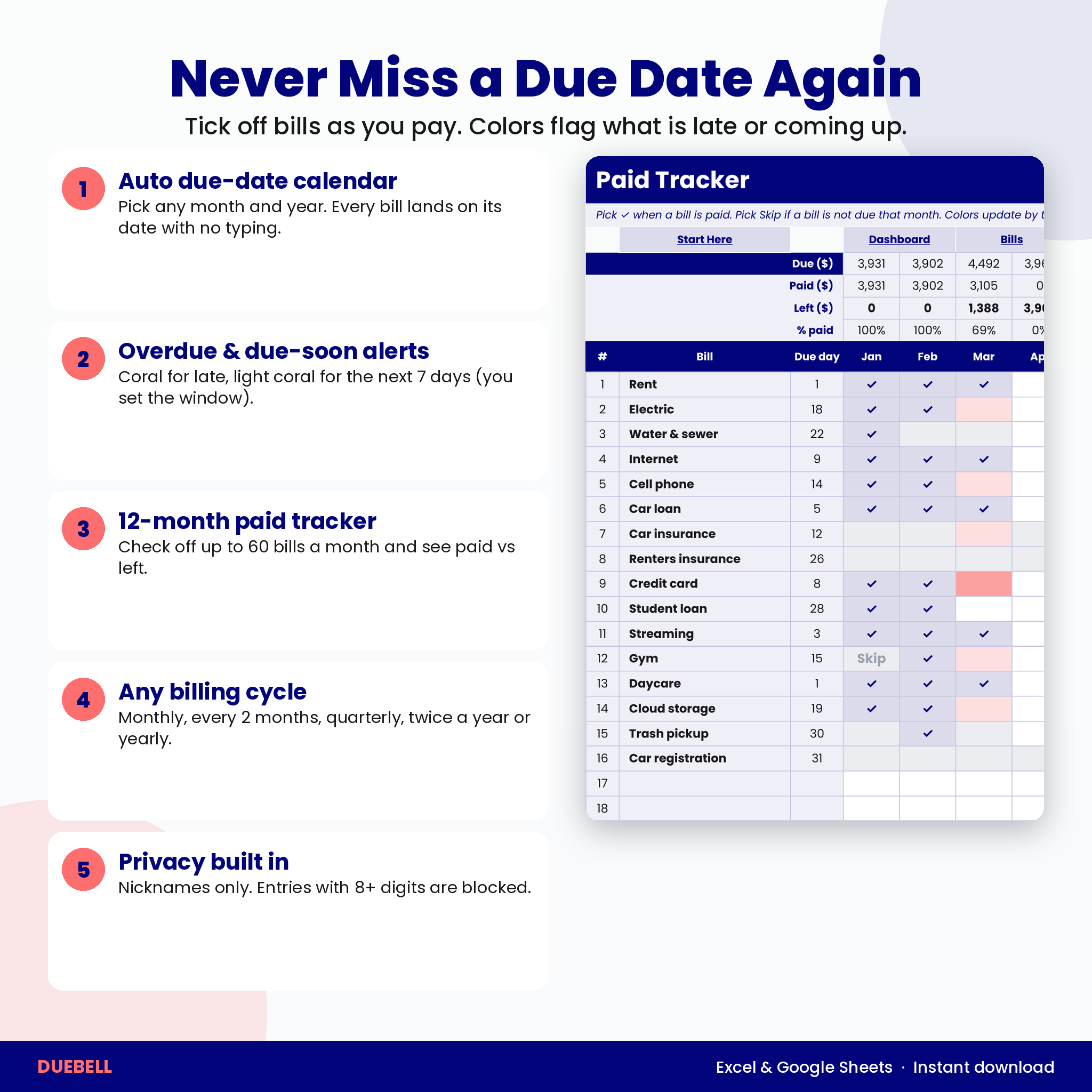
- Paid checklist for 12 months. One row per bill, one column per month. Pick a check mark when you pay. Pick Skip when a bill is not due that month. Due, paid, left and % paid update at the top of every month.
- Overdue and due-soon highlighting. Bills past their due date and not marked paid turn coral. Bills due within the next 7 days turn light coral. You can change the 7 to any window from 1 to 60 days.
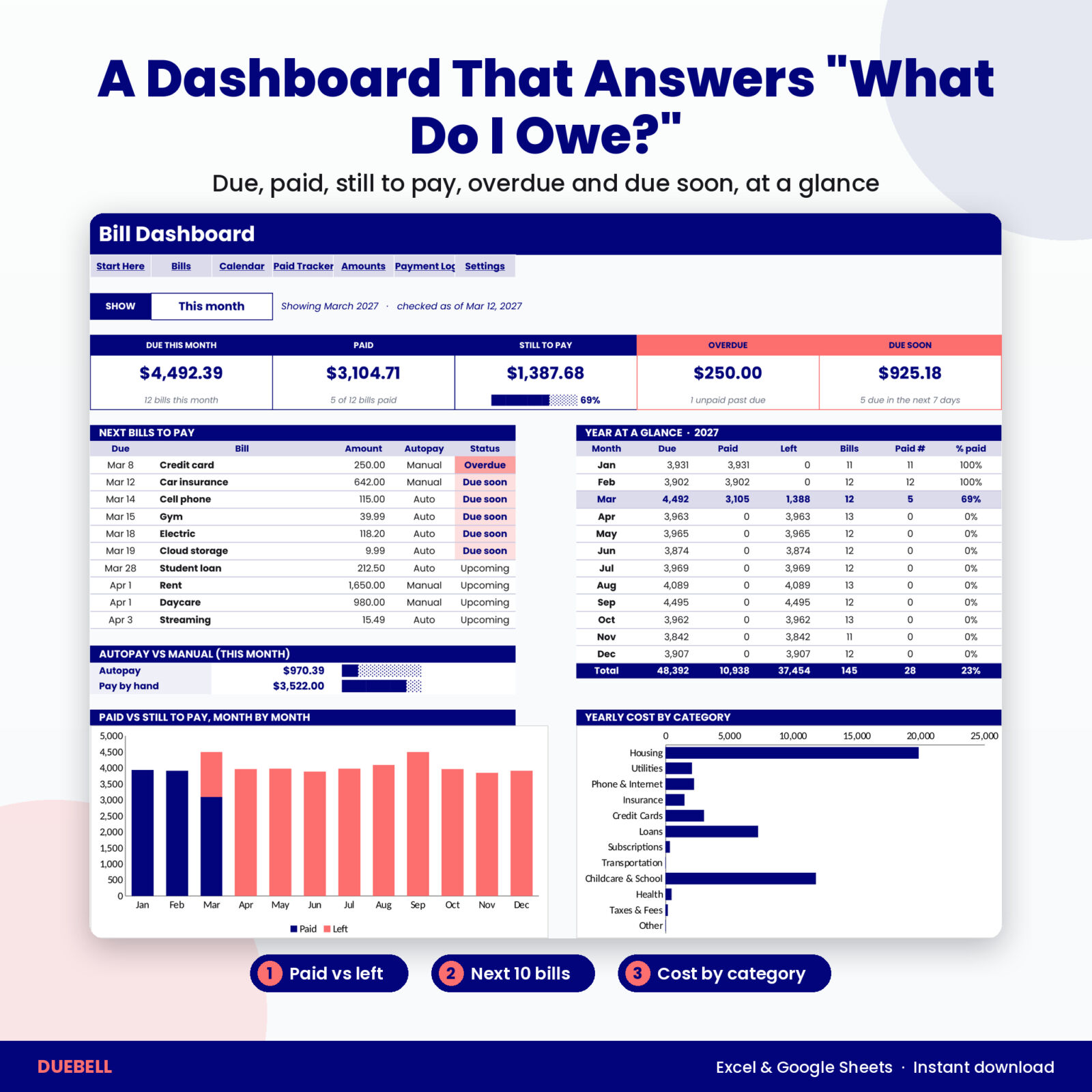
- Dashboard with paid vs remaining. Five cards show due this month, paid, still to pay (with a progress bar), overdue and due soon. Below them: the next 10 bills in date order, the autopay vs pay-by-hand split, a 12-month table, a stacked chart of paid vs still to pay and a yearly cost by category chart.
Built for real bills, not just the easy monthly ones
Each bill can be monthly, every 2 months, quarterly, twice a year or yearly. Tell Duebell the first month it is due and it places every later payment for you. Due on the 31st? It moves to the last day of shorter months, including February 29 in a leap year. Electric bill different every month? Type the real amount on the Amounts tab and every total, calendar entry and chart uses it.
Privacy first
The bill list has an account nickname column (“Visa ending 3317”, “City water”) instead of an account number column. It blocks any entry with 8 or more digits, so a full card or account number cannot be typed in by accident.
Who it is for
- Anyone who has paid a late fee on a bill they simply forgot
- Households juggling 10 to 60 bills, subscriptions and annual renewals
- People paid every two weeks who need to see which bills land before payday
- Renters, homeowners, students and retirees moving from a paper list or a notes app
- Anyone who wants to know the true yearly cost of their bills
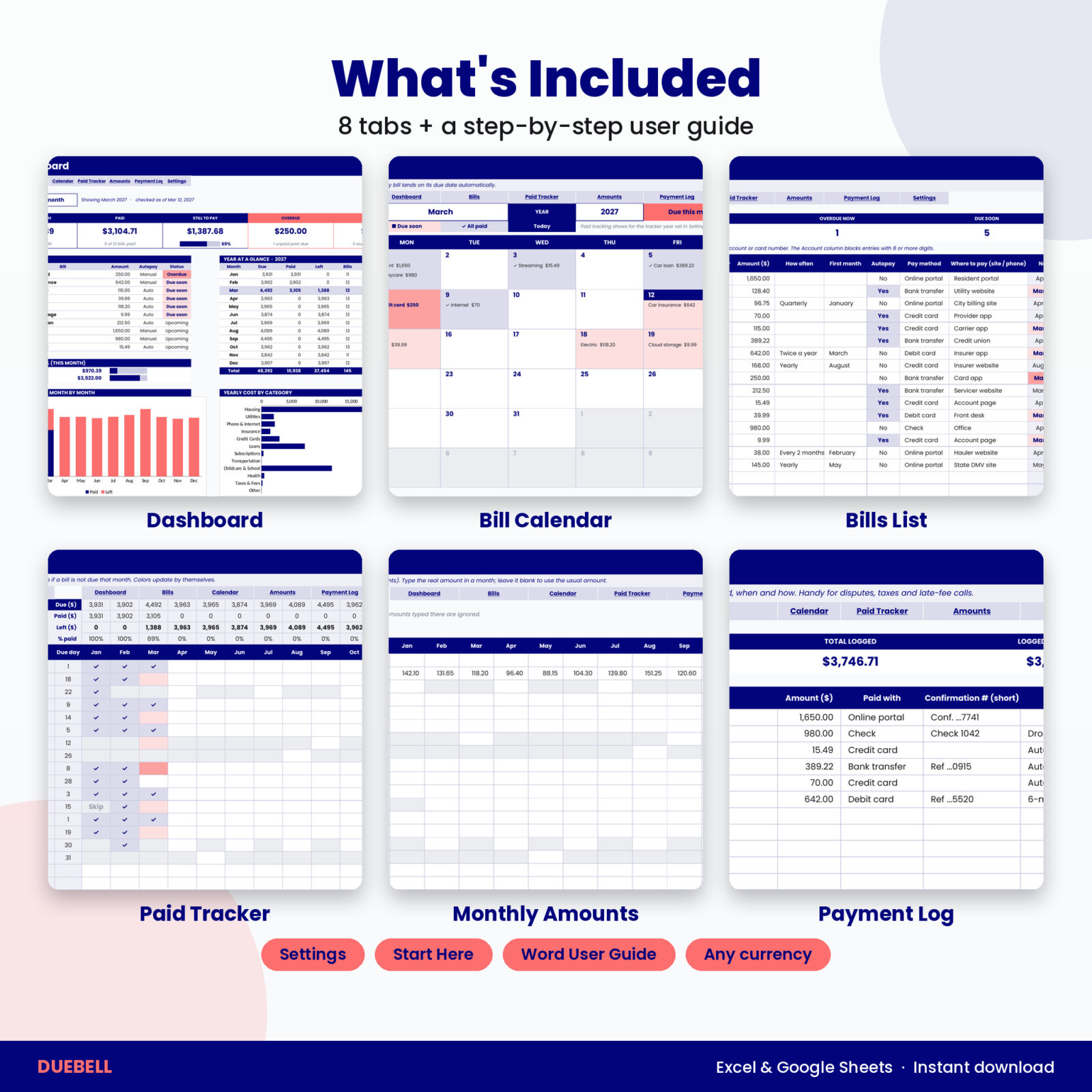
What’s included
- Start Here: 5 quick steps, a color key, privacy note and buttons to every tab
- Dashboard: cards, next 10 bills, autopay split, 12-month table and 2 charts
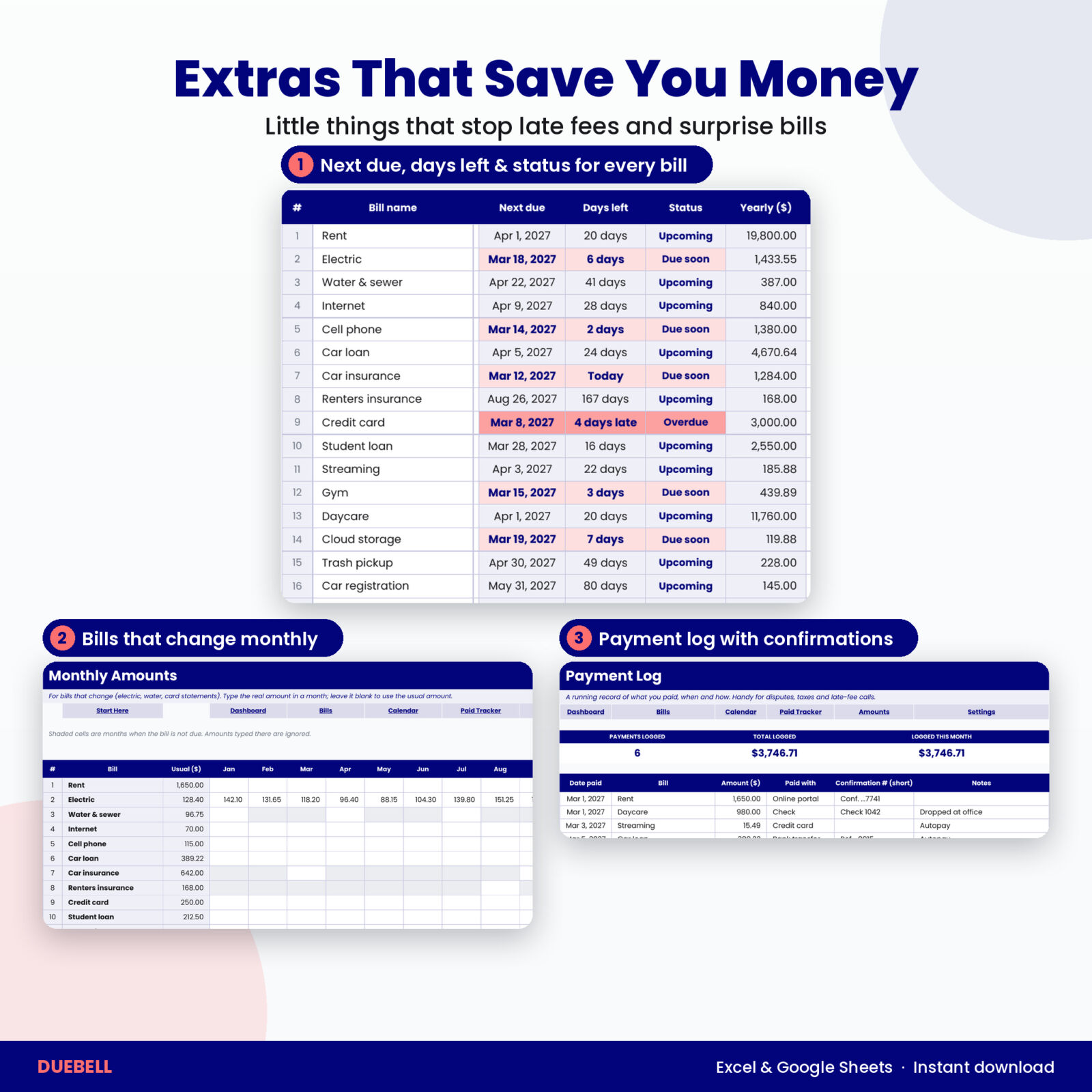
- Bills: room for 60 bills with next due date, days left, status and yearly cost worked out for you
- Calendar: a monthly bill calendar for any month and year, plus a month-at-a-glance list
- Paid Tracker: 12 months of check marks with monthly totals
- Amounts: real amounts for bills that change month to month
- Payment Log: 300 rows for date paid, amount, method and a short confirmation number
- Settings: currency symbol, tracker year, due-soon window, week start (Sunday or Monday), start month, categories and payment methods
- User guide in Word format with setup steps, every feature explained, troubleshooting and FAQ
How it works
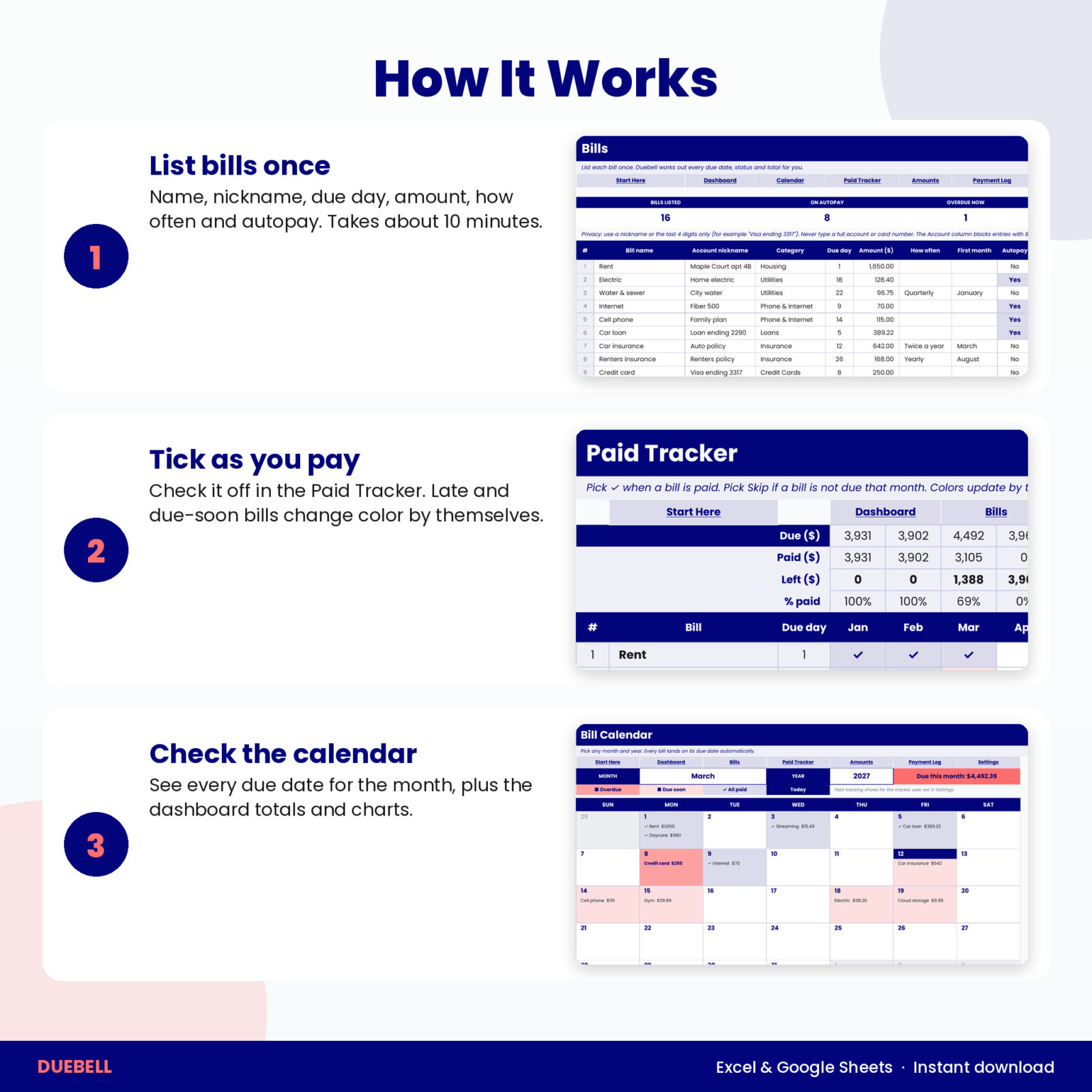
- Open Settings and set your currency symbol, tracker year and the month you start tracking. Earlier months are ignored, so nothing shows as late just because you started in March.
- Add your bills on the Bills tab: name, nickname, category, due day, usual amount, how often and autopay.
- Each time you pay, pick the check mark in the Paid Tracker.
- Open the Calendar or the Dashboard any time to see what is due, what is paid and what is late.
Setup takes about 10 minutes. After that, a weekly check takes a minute or two.
File formats and software
- One .xlsx workbook plus a .docx user guide
- Excel 2016 or newer, Excel for Mac and Microsoft 365
- Google Sheets (free with a Google account): upload the file and open it with Google Sheets. All formulas are Sheets compatible. The tab buttons are made for Excel; in Google Sheets use the sheet tabs at the bottom.
- No macros, no add-ons, no subscription
Customizing your bill organizer
Rename categories and payment methods on the Settings tab and the drop-downs update. Use any currency symbol: $, €, £, R and others. Choose a Sunday or Monday week start for the calendar. Sheets are protected without a password, so you can unprotect them if you want to change colors or layouts.
Digital download
This is a digital product. Nothing is shipped. Your files are ready to download from your Taskdale account right after checkout. Licensed for personal use only: please do not share, resell or redistribute the files.
Real situations where Duebell helps
- Payday is Friday and you want to see every bill due before the next one, in date order
- Your car insurance renews twice a year and the bill always arrives as a surprise
- You moved bills to autopay and want to check that each one actually went through
- A company says your payment never arrived and you need the date and confirmation number
FAQ
Does the bill calendar really fill in by itself?
Yes. Once a bill has a name and a due day, it appears on the correct date for any month and year you choose. Quarterly, twice-yearly and yearly bills show only in the months they are due.
Does it work in Google Sheets?
Yes. Upload the .xlsx to Google Drive and open it with Google Sheets. Every formula uses functions that Google Sheets supports. Only the tab buttons are Excel-only.
Can I use it for 2028?
Yes. Change the tracker year in Settings in a fresh copy and the whole workbook moves to that year. The calendar can display any year from 2000 to 2100.
How many bills can I track?
Up to 60 bills, each with 12 months of paid check marks and amounts.
Is it safe to put my bills in a spreadsheet?
The file stays on your computer or in your own Google Drive. Duebell never asks for account numbers or passwords, and the nickname column blocks long numbers.
Is there a free version?
Yes. Duebell Lite covers 10 bills with the paid checklist and status columns. The full version adds the automatic calendar, the dashboard and charts, variable amounts, the payment log and room for 60 bills.
Reviews
There are no reviews yet.