A query date filter needs the date in the format the query language expects, not the one you see in the cell. In Google Sheets, build a query date filter by passing a date into QUERY as date 'yyyy-mm-dd' and pass a dropdown value as quoted text inside the where clause. For printing and assembling planner inserts, keep those controls outside the print area so one report can produce a different weekly page or task section without changing the layout. Google’s QUERY function reference covers the date syntax.
Set up the query date filter and print workflow
Separate the source data, controls and print output.
Use
A1:Efor the source register, with one task per row and these five headers:Date,Section,Task,OwnerandStatus. Put the start date inH2, the last date to include inH3and the section dropdown inH4. Enter the report formula inJ7, leaving columnsJ:Mclear below it so the result can expand.Apply date formatting to column
Aand cellsH2:H3. Use Data > Data validation to require valid dates in the controls, then add a dropdown inH4withAll,WorkandHome. UseWorkandHomein the source register, but reserveAllfor the control. In this setup,Alltells the formula to omit the section filter rather than look for rows labelledAll.If the task register itself is the missing piece, DayDeck Task Tracker Spreadsheet is an alternative starting point for Excel or Google Sheets. One task entry feeds its daily planner, weekly plan, month calendar and dashboard. Use the query date filter below when a printed insert needs its own date window and section selector.
Pass the date control into
QUERY.Start the query date filter with one date before adding the dropdown. The query date filter below returns records dated exactly as specified in
H2.TEXTconverts the cell value to the format the query language expects, even if the control displays06/07/2026or6 July 2026.=QUERY(A1:E, "select A,C,D,E where A = date '"&TEXT(H2,"yyyy-mm-dd")&"' order by A,C", 1)The double quotes enclose the query text, the ampersands join that text to the formatted date, and the single quotes stay around the date inside the completed query. The final
1tells Sheets thatA1:Econtains one header row. If you need to change which fields print or how they sort, see how to use SELECT, WHERE and ORDER BY to build a live report.Add the end date and section dropdown to the query date filter.
Replace the first formula with the version below. This query date filter includes both dates, adds a section condition only when
H4is notAll, and stops with a short instruction if a control is blank or the dates are reversed, so the query date filter never runs on bad input.=IF(OR(H2="",H3="",H4=""), "Choose both dates and a section", IF(H3<H2, "End date precedes start date", QUERY(A1:E, "select A,C,D,E where A >= date '"&TEXT(H2,"yyyy-mm-dd")& "' and A <= date '"&TEXT(H3,"yyyy-mm-dd")&"'"& IF(H4="All",""," and B = '"&H4&"'")& " order by A,C", 1)))For
6 July 2026through12 July 2026withHomeselected, the query receiveswhere A >= date '2026-07-06' and A <= date '2026-07-12' and B = 'Home'. ColumnBfilters the report without printing on it. If the page will be filed away from its matching divider, put a visible heading inJ5so it still identifies its own print batch:=IF(OR(H2="",H3="",H4=""),"", TEXT(H2,"d mmm yyyy")&" to "&TEXT(H3,"d mmm yyyy")&" | "&H4)Keep the dropdown values predictable.
HomeandWorkcan be inserted directly, but a label such asChildren's activitieswould break the single-quoted condition. If the register needs labels like that, use a separate criterion key such asChildcareand filter on that key. Leave the descriptive label in the fields people read.Set the print area and prove the page size.
Highlight the cells covering the insert, including the heading and the final task row. In File > Print, choose Selected cells so the source register and dropdowns stay off the page. Set the paper size and orientation, turn off gridlines unless they serve as writing guides, and check the longest task in the preview. Give its column enough width to wrap onto a second line without crowding
OwnerorStatus.For a full sheet such as A4 or US Letter, try Fit to width if a column falls onto a second page. If the result is too small to read, shorten a column or move to landscape rather than shrinking it again. For a cut insert, Fit to width is not a sizing method. Build or place the report in a page layout with a defined trim area, then print a PDF proof at Actual size or 100% and measure it with a ruler.
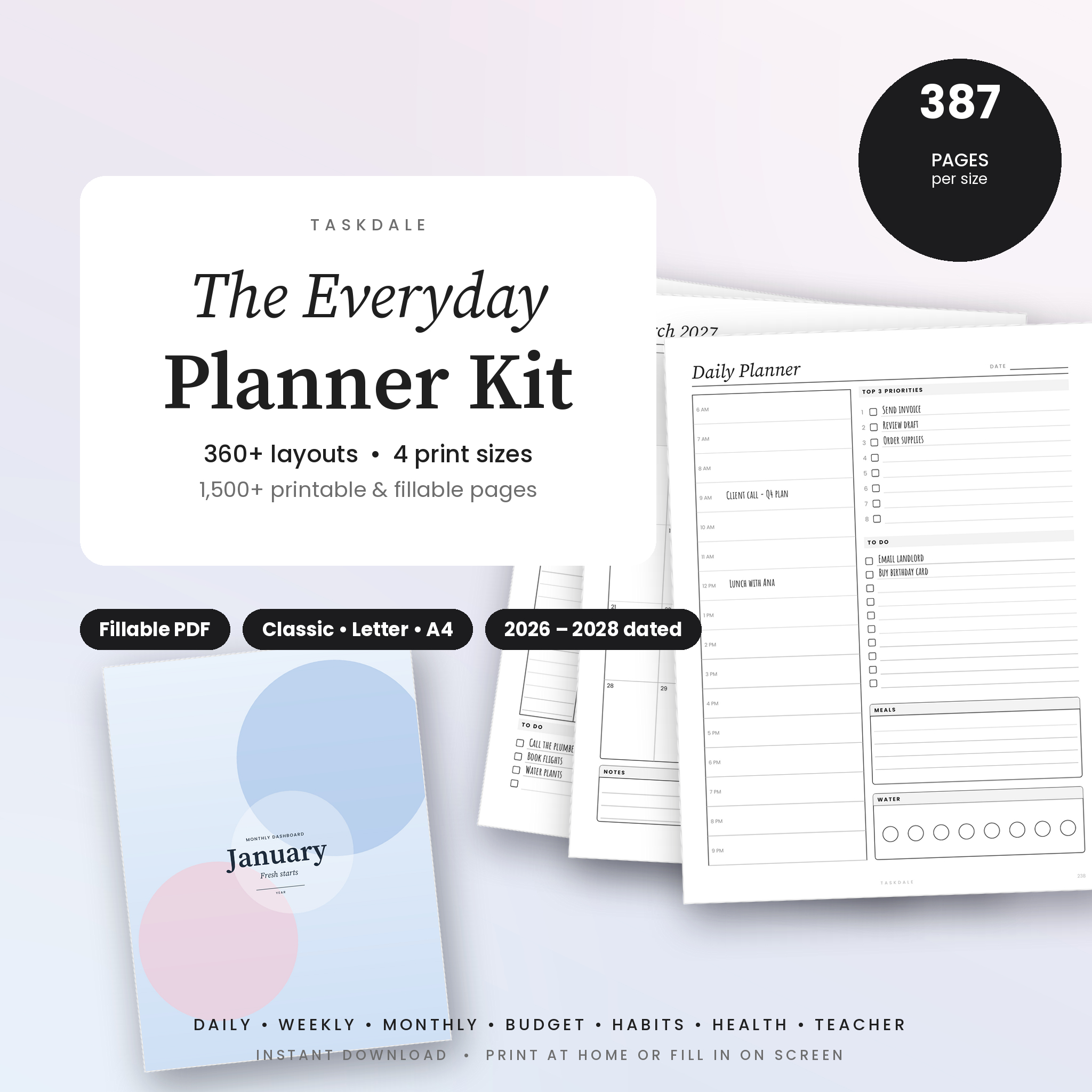
The Everyday Planner Kit suits a workflow in which the query supplies the task list and prepared PDFs supply the diary pages around it. The kit includes A4 and US Letter files, plus a Classic layout imposed on US Letter with cut marks. Match the query page to the finished insert size before mixing the two in a binder.
Test the binding edge, then print and assemble the batch.
Print one sheet on the actual paper stock. For duplex inserts, use two test pages marked
FrontandBackwith an arrow pointing to the top, then turn the sheet as it will be turned in the binder. Long-edge duplex is the usual starting point for a portrait page that turns like a book. The proof will show if a rotated layout or the printer driver needs the other setting.Trim the proof before punching it. Align it against an existing insert, check that no text sits under the punch positions, and turn the sheet in the binder to check that the inner edge clears the rings or discs. Once the proof passes, print the batch, trim against the same guide, and punch in stacks no thicker than the punch is rated to take. Keep each week’s pages together until they are filed.

Worked example: produce a dated Home insert
Start with the following source register. The dates shown are for reading; enter them as genuine sheet dates, using =DATE(2026,7,6) where there is any doubt about how the spreadsheet locale interprets a typed date. The surrounding dates and the Work row are deliberate test cases.
| Date | Section | Task | Owner | Status |
|---|---|---|---|---|
| 5 Jul 2026 | Home | Check smoke alarm | Alex | Done |
| 6 Jul 2026 | Home | Wash towels | Alex | Due |
| 8 Jul 2026 | Work | Send supplier notes | Sam | Due |
| 10 Jul 2026 | Home | Wipe fridge shelves and check dates | Sam | Due |
| 12 Jul 2026 | Home | Put recycling out | Alex | Due |
| 13 Jul 2026 | Home | Clean oven | Sam | Due |
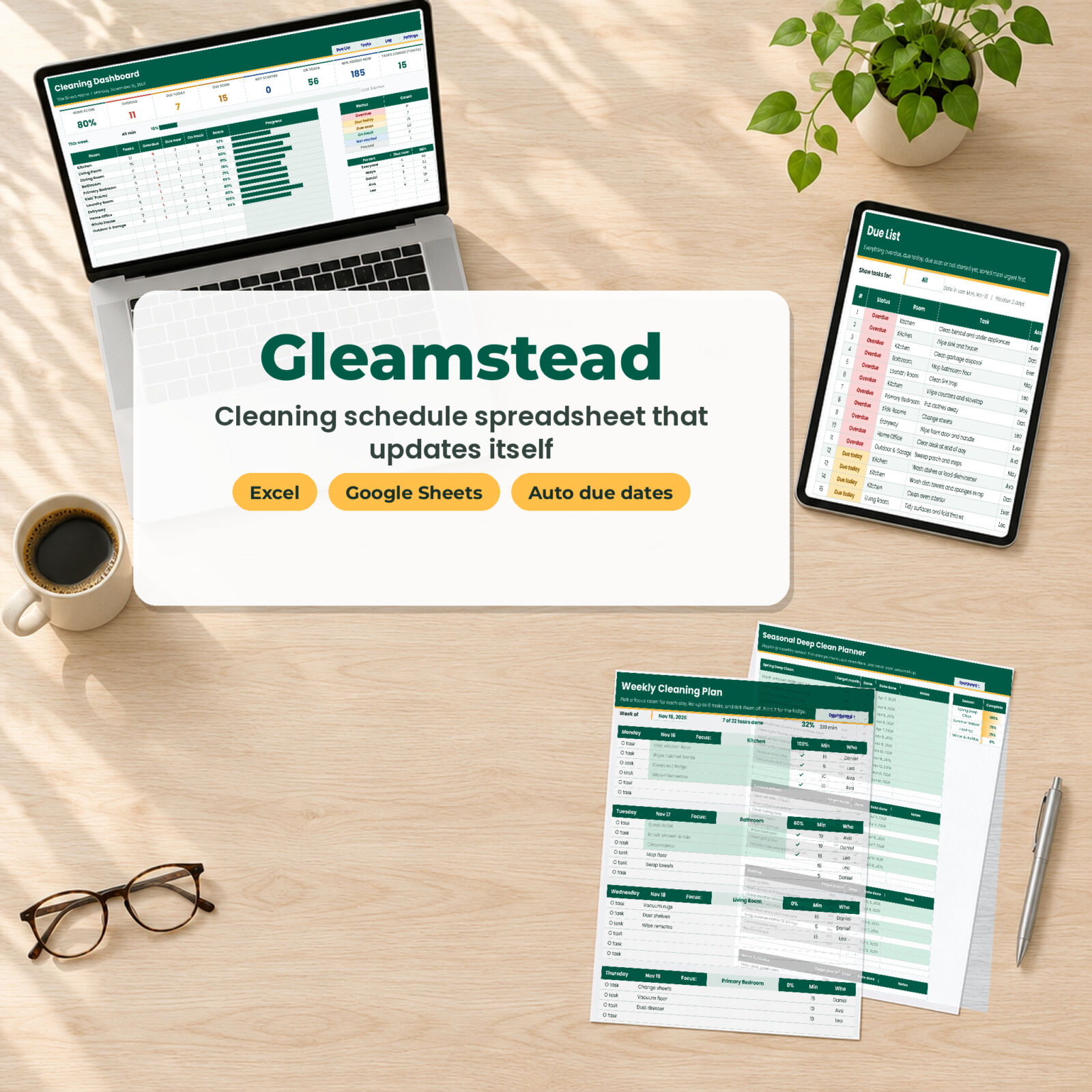
For a recurring household register, Gleamstead Cleaning Schedule Spreadsheet calculates the next due date from the last completion date and supplies a due list. To make a separate print insert, copy the applicable due dates and task names into a staging register with the headers above, assign Home, and check that pasted dates still behave as dates rather than text.
- Enter
=DATE(2026,7,6)inH2and=DATE(2026,7,12)inH3. SetH4toHomeand paste the date-window formula intoJ7. The output should contain three tasks: Wash towels, Wipe fridge shelves and check dates, and Put recycling out, in that order. - Change
H4toAll. Send supplier notes should appear between the 6 July and 10 July entries, bringing the result to four tasks. Neither the 5 July nor the 13 July record should get through the query date filter. Set the dropdown back toHomebefore printing. - Add the heading formula to
J5and format the report dates asd mmmso the rows use less space while the heading retains the year. Wrap the fridge task in the task column. SelectJ5:M10, which covers the heading, the report header and all three tasks. Extend the selection by two formatted blank rows if the insert needs space for handwritten additions. - Print a single-sided A4 proof for an A4 ring binder. Check that the heading says
Home, that the 12 July row made it onto the page, and thatStatusdidn’t spill onto a second sheet. Punch the inner edge and file the sheet behind the Home divider for that week. If a fixed record of the batch matters, save the selected cells as a PDF namedHome 2026-07-06 to 2026-07-12.pdfbefore changing the controls.
Fix the query date filter, missing rows and print alignment
Sheets reports a formula or query parse error
First distinguish a formula parse error from a QUERY message about parsing its query string. If the sheet locale uses semicolons between formula arguments, replace commas that separate arguments with semicolons. Leave the commas in select A,C,D,E and order by A,C alone. They’re part of the query language, which is separate from the spreadsheet formula syntax.
If QUERY itself rejects the text, put the expression that builds the query into a spare cell to inspect the resulting string. Look for date '2026-07-06', with both quotes present, and a space before each and and order by. This also exposes an apostrophe in a dropdown label that was meant to be a plain criterion value.
The report misses a visible date, timestamp or task
Test an offending date with =ISNUMBER(A2), replacing A2 with the relevant cell. FALSE on a populated row means Sheets hasn’t stored the value as a numeric date or timestamp. Changing the display format alone won’t repair it. If the register came from a CSV with ambiguous dates, confirm the source order before converting them. A value such as 07/06/2026 can be interpreted as either 7 June or 6 July. If only some rows disappear or the first record becomes a heading, check how mixed types and the header argument affect QUERY.
If the source uses timestamps and the query reads column A as a datetime, use a half-open window. Start at midnight on the first date and stop before midnight on the day after the last date. For the example week, the query condition is:
where A >= datetime '2026-07-06 00:00:00'
  and A < datetime '2026-07-13 00:00:00'
Build the second boundary with TEXT(H3+1,"yyyy-mm-dd") followed by 00:00:00 inside the literal. That includes a task stamped 12 July 2026 18:30 without admitting one stamped at midnight on 13 July. If a plain date is all the register needs, a separate date-only helper column is another option. For numeric timestamps, INT removes the time fraction.
If All works but Home doesn’t, compare the section cells against the dropdown text, including case and any trailing spaces. If the query date filter result cannot expand, clear any stray values or merged cells in its output area. Put handwritten notes on the printed insert, or store typed notes outside the live report range.
The preview looks right but the insert doesn’t fit
Measure the printed proof before changing the spreadsheet. If a Classic insert should finish at 7 × 9.25 in and both dimensions are undersized, check for scaling in the PDF viewer and printer settings. If the dimensions are right but the punch clips the task column, move the content away from the binding edge rather than scaling down the entire page. Check both faces of a duplex sheet because the binding edge switches sides on the back.
Recheck the selected print range each time the query changes size. In the worked example, switching from Home to All adds a fourth task in row 11, so J5:M10 would silently omit the last row. Before sending a batch, match the last task in the print preview to the last task in the live report, then put the first printed sheet in the binder and turn it once.