A Google Sheets QUERY formula can turn a task list into a live report that updates itself. In Google Sheets, use SELECT to choose what a print report shows, WHERE to keep only the inserts ready to print, and ORDER BY to put them in assembly order. Keep file names, page numbers, copy counts and job status in one source sheet, then let a Google Sheets QUERY report update as each batch is checked off. Google’s QUERY function reference lists every clause used here.
For planner inserts, the Google Sheets QUERY report is a run sheet, not the artwork. You still print the inserts from their PDFs. The run sheet that the Google Sheets QUERY builds tells you which pages to send to the printer, how many copies to make and where each insert goes in the finished planner. The QUERY formula below is for Google Sheets. Excel doesn’t run the same formula.
Set up a live print queue with Google Sheets QUERY
Give each print job one source row. Create a sheet named
Print Log. InA1:G1, enterInsert,Format,PDF pages,Position,Copies,StatusandPrint note. A weekly spread that uses two consecutive PDF pages can share one row if both pages use the same settings and copy count. If a divider needs heavier paper than the weekly spread, give it its own row.Use
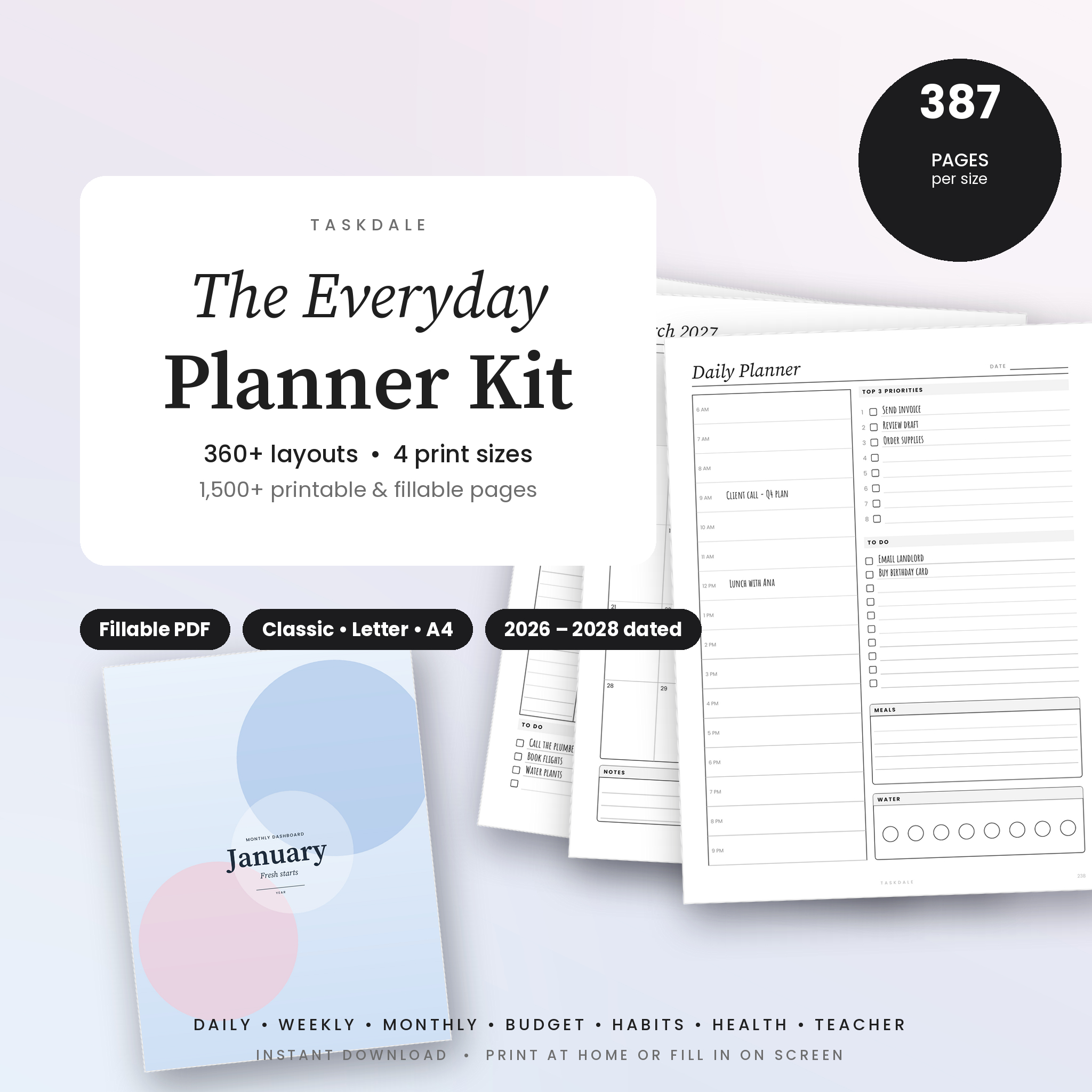
Formatfor the finished insert size. A Classic insert printed on Letter paper still belongs to the Classic queue. Put the stock size and PDF file name or short file label inPrint note. For example,Classic on Letter PDF; Letter stock; trimtells the print operator which file and paper to use without changing the queue category.If the job uses The Everyday Planner Kit, record which of its four PDFs each row refers to. A page reference for the A4 file shouldn’t double as a reference for the Classic file with cut marks. For a Classic insert on Letter stock, use the Classic on Letter file and check that the cut marks appear in the preview.
Standardise status, page references and position. Set up a dropdown in
F2:FwithDraft,ReadyandPrinted. UseReadyonly after confirming the file, page reference and copy count. KeepPositionandCopiesnumeric. Position values of10,20and30leave space to put a notes page at25later without renumbering the planner.Format column C as plain text before entering page references. Use entries such as
p. 4andp. 8 to 9, taken from the PDF viewer’s page counter. Don’t use the month number printed on an insert as its PDF page number. Check the print dialogue preview as well, since some viewers display page labels rather than physical page positions.Use
SELECTto show what the print operator needs. Create aPrint Queuesheet and enter this Google Sheets QUERY formula inA4. The cells below and to its right need to be empty so the result can expand.=QUERY('Print Log'!A1:G,"select A, C, E, G",1)The output columns are
Insert,PDF pages,CopiesandPrint note, in that order. Columns omitted fromSELECTremain available for filtering and sorting. The final1tells Sheets that the source range has one header row. It refers toPrint Log, not the three rows above the formula onPrint Queue.Use
WHEREto keep only jobs ready for this planner. Replace the formula inA4with the version below. Column B holds the finished format and column F holds the status, so both conditions must match for a row to appear.=QUERY('Print Log'!A1:G, "select A, C, E, G where B = 'Classic' and F = 'Ready'", 1)A Classic divider marked
Draftstays off the report. A ready A4 notes page stays off it too. Keep the text inside the single quotes consistent with the dropdown values. If the team switches formats often, put a format dropdown inB1rather than editing the Google Sheets QUERY each time. The same approach applies when you pass a date or a user-selected criterion into a query.Use
ORDER BYto match the assembly sequence. Add the sort clause afterWHERE. Sort by numericPositionfirst, then byInsertname to make rows with the same position predictable.=QUERY('Print Log'!A1:G, "select A, C, E, G where B = 'Classic' and F = 'Ready' order by D asc, A asc", 1)ASCputs lower values first. A divider at10appears before a calendar at20even if someone entered the calendar first. The name sort is a fallback, not a substitute for a position: if a habit tracker must always follow the weekly spread, assign it a later number rather than trusting alphabetical order.Keep a fixed run sheet beside the live Google Sheets QUERY output. Once a batch goes to the printer, print the queue, save it as a PDF or copy its values to a dated batch tab. Record the batch name and PDF revision on that copy. A live Google Sheets QUERY can change while sheets are on the output tray: when an operator marks a row
Printed, it drops out of the result. The fixed copy preserves the page references and copy counts for that run.
Worked example: Print and assemble a Classic monthly pack
Suppose the batch needs one divider, one monthly overview and four copies of a two-page weekly spread. The sample page references below belong to an example PDF, so use the page numbers from the file you’re actually printing. The divider has a lower assembly position than the overview even though it was entered later.
| Insert | Format | PDF pages | Position | Copies | Status | Print note |
|---|---|---|---|---|---|---|
| Monthly overview | Classic | p. 4 | 20 | 1 | Ready | Classic on Letter; one side |
| Weekly spread | Classic | p. 8 to 9 | 30 | 4 | Ready | Classic on Letter; test duplex |
| Notes | A4 | p. 12 | 40 | 1 | Ready | A4 file; one side |
| Month divider | Classic | p. 2 | 10 | 1 | Ready | Classic on Letter; heavier stock |
| Habit tracker | Classic | p. 10 | 35 | 1 | Draught | Classic on Letter; proof pending |
With the final Google Sheets QUERY, the run sheet shows three rows. SELECT has removed the format, position and status fields from the output, but WHERE and ORDER BY still use them.
| Insert | PDF pages | Copies | Print note |
|---|---|---|---|
| Month divider | p. 2 | 1 | Classic on Letter; heavier stock |
| Monthly overview | p. 4 | 1 | Classic on Letter; one side |
| Weekly spread | p. 8 to 9 | 4 | Classic on Letter; test duplex |
Proof the scale, binding edge and page pairing
Check how the weekly spread is meant to sit in the planner. This example assumes pages 8 and 9 are designed as the front and back of one leaf. If they’re meant to face one another across the binding, don’t duplex them onto the same leaf. Print them on separate leaves for a simple proof and place them in the open planner to check the layout.
Print one proof on the intended stock size. Open the Classic on Letter PDF, select Letter paper, enter
8-9in the page range if that’s the syntax your viewer uses, and chooseActual sizeor100%. Check both the PDF viewer and the printer driver for a fit or scaling setting. Fitting a Letter sheet to the printable area can shrink the insert even when you’ve chosen the correct PDF.Trim the proof and turn it as it will turn in the planner. For a Classic insert in this example, measure the trimmed leaf against 7 × 9.25 inches. Check that the back reads upright and that the binding margin falls on the correct edge on both sides. If the back is upside down, try the other duplex flip setting and reprint the proof. If the crop marks don’t line up between front and back, check registration before committing to four copies.
Run the batch and assemble against the saved report
Print the divider separately if it uses heavier stock, and check the printer’s media limit first. Print the overview single-sided. Then print four copies of pages 8 to 9 using the duplex settings that passed the proof. Confirm in the preview that page 8 is paired with page 9, rather than relying on the copy setting alone. The planned output is six finished leaves if each weekly copy uses one sheet. The test sheets aren’t part of that count.
Paper can come off the printer in a different order from the report because the jobs were split by stock or print mode. Use the saved report to stack the trimmed leaves: divider, overview, then weekly pages. Where cut marks are near the corners, make the first two cuts using the marks, then use the resulting square edges and the trimmer guide to finish to size. Check one leaf with the punch before punching the stack. Turning the punched proof in the planner will show whether the holes crowd any text or rule lines.
Mark each job Printed in Print Log once all its copies pass inspection. If only three of the four weekly copies are usable, record the shortfall on the batch sheet before running one replacement. Don’t send the unchanged four-copy row back to the printer by mistake. When the habit tracker passes its proof and moves from Draft to Ready, it will appear in the live queue at position 35.
Fix a Google Sheets QUERY queue that’s empty, misordered or wrong on paper
A ready insert is missing
Check the source row before changing the formula. The example query needs both Classic and Ready; Classic on Letter in column B won’t match. If the row looks right, run the SELECT formula without WHERE, then add one condition at a time to identify which value excludes it. With no matching rows, Sheets can display #N/A with a message that the query completed with an empty output. Check that it’s genuinely an empty batch before replacing the message with a friendlier label.
If the row appears but its page reference is blank, check column C for a mix of numbers and text. QUERY assigns a type to each column and can treat minority types as null. Converting the whole column to plain text doesn’t necessarily convert existing numeric entries. Re-enter those entries as p. 4 and similar text, and confirm the header argument is 1. See why a spreadsheet query drops mixed-type values or misreads the header row if blanks remain.
The report won’t expand or the order is wrong
A #REF! expansion error can mean there’s content in the result area, even a note in D5. Move manual notes above A4 or onto the batch tab. Don’t enter a copy correction over a formula result. Change column E in Print Log, then refresh the saved batch copy if the job hasn’t been sent to print.
If position 100 appears before 20, check whether positions are stored as text and convert them to numbers. If two jobs use position 30, the second sort key puts them in name order. Give each a distinct position when pack order matters. That fix belongs in the source log, not in a manual sort of the report.
The row count doesn’t match the paper count
Three rows are three jobs, not three sheets. In the example, the weekly row uses two PDF pages and asks for four copies. It takes four sheets if duplexed, or eight if printed on separate sheets. If you need stock totals before a large run, add structured fields for paper stock and sheets per copy, then calculate planned sheets per row. Use a separate GROUP BY or PIVOT report to summarise those records without losing the job detail on the print queue.
The Google Sheets QUERY starts doing work that belongs in another tracker
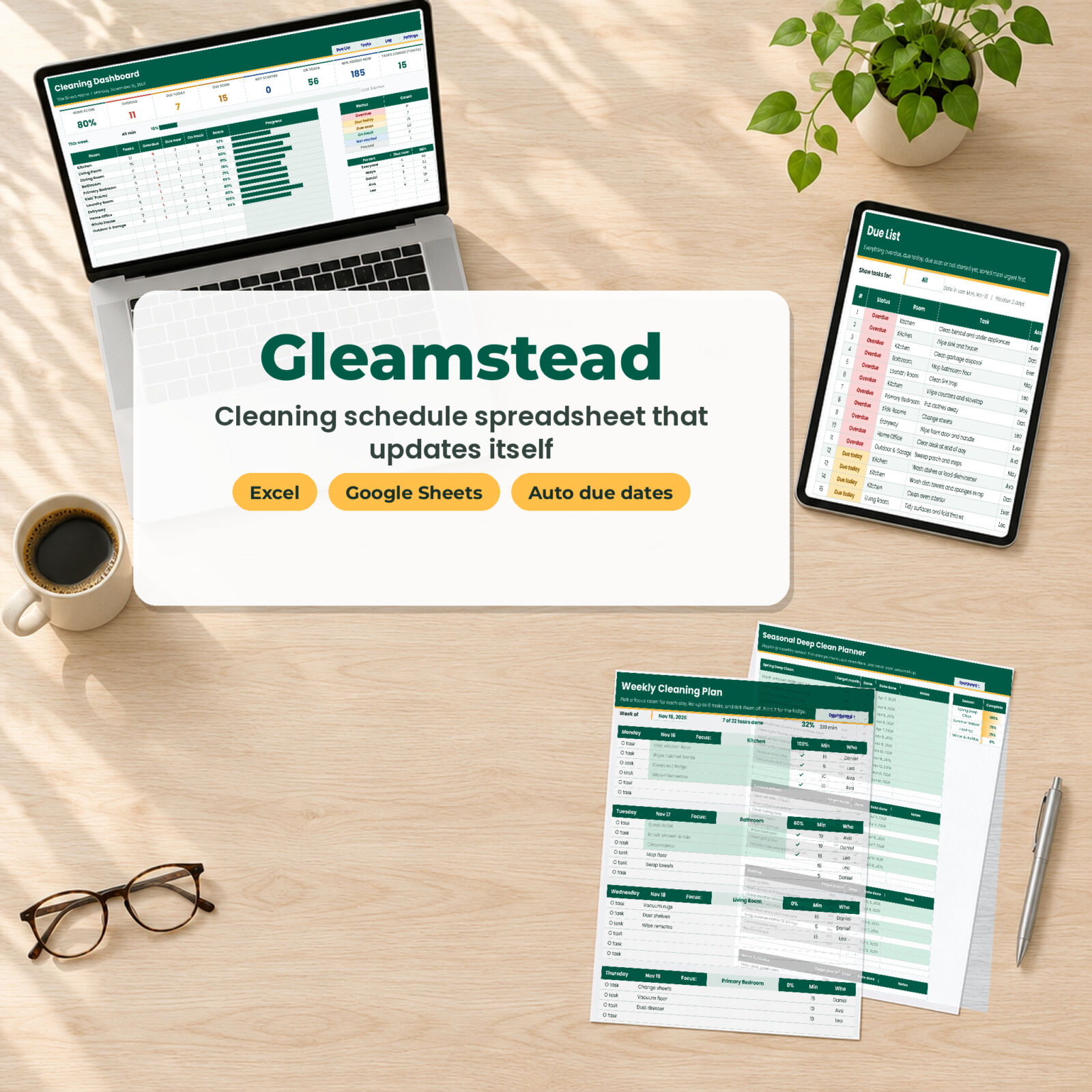
For a recurring household insert, keep the schedule separate from the print status. The Gleamstead Cleaning Schedule Spreadsheet uses the last completion date to calculate the next due date and sorts the due list by urgency. If you use that list to prepare a weekly cleaning insert, create one print job for the chosen page. Don’t copy 90 household tasks into the print log when the operator only needs to know which page to print.
For a shared planner pack with separate approval, printing and assembly owners, the Orbit Project Management Spreadsheet can track those hand-offs in the task list, with Gantt and Kanban views for the wider project. Keep the queue as the operator’s page-level instruction sheet: a project task can be complete while a replacement print job is still open.
Before releasing the next batch, match the first trimmed and punched leaf to the saved run sheet. If the file, page, finished size or binding edge doesn’t match, pause the job and update the source row before printing the remaining copies.