A bill tracker isn’t exciting. It’s a list. But it’s the list that stops the $35 late fee, the overdraft charge and the awkward call to the electricity company. Most missed bills aren’t about having no money. They’re about forgetting, or about two bills landing the same week as rent and nobody noticing until the bank does.
If you’ve ever paid a bill late that you could easily have afforded, you don’t need more income. You need a system that tells you what’s due before it’s due.
Here’s how to build one that works, plus two spreadsheets that do the checking for you.
Why bills get missed
It’s usually one of these:
- Too many due dates. Ten bills, ten different days, no single list.
- Irregular bills. Quarterly water, annual insurance, the subscription that renews once a year at a higher price.
- Bad timing. The bill is due on the 3rd, payday is the 5th.
- Autopay blind spots. Autopay is great until the card on file expires or the account is short that day.
A good bill tracker deals with all four.
Step 1: Gather every bill in one list
Go through two or three months of bank and card statements. Write down every recurring payment. Rent, utilities, phone, internet, insurance, loans, credit card minimums, streaming, apps, gym, memberships, childcare.
Then think about the yearly ones that won’t show up in a three-month window: car registration, annual software, domain names, professional fees. Most people find two or three they’d forgotten.
Step 2: Record five details for each bill
For every bill, note:
- Name and who it’s paid to
- Amount (or a typical amount if it varies)
- Due day of the month, or the date for irregular bills
- How it’s paid: autopay, manual, which card or account
- How often: monthly, quarterly, yearly
That fourth column is the one people skip. It’s also the one that saves you when a card expires and five autopays quietly fail.
Step 3: Sort by due date, then line up with payday
Sort the list by due day. Now look at it next to your paydays. You’ll often see a cluster: four bills between the 1st and the 5th, and nothing after the 20th.
If a cluster lands before payday, either move money aside from the previous paycheck or ask a provider to change your due date. Phone, internet and credit card companies often agree to this if you ask. One five-minute call can fix a monthly squeeze for good.
Step 4: Give each bill a status
A list of due dates is only half a bill tracker. The other half is status. Each bill, each month, should be one of:
- Paid
- Due soon (within the next 5 to 7 days)
- Upcoming
- Overdue
Color them. Green for paid, amber for due soon, red for overdue. Your eyes go straight to the red, which is exactly what you want.
Step 5: Check it twice a week
Not daily. Twice a week, say Monday and Thursday, takes under a minute. Look for anything amber or red and deal with it. That’s the whole habit.
What to do if you do miss one
It happens. Pay it as soon as you notice, then call the company. Plenty of providers will waive a first late fee if you ask politely and you’ve paid on time before. Then add a note in your tracker so you remember what caused it: a card change, a clash with rent, a bill that moved date. That note is how the system gets better.
Step 6: Review subscriptions every few months
Your bill tracker doubles as a subscription audit. Every quarter, scan the list for things you don’t use. A $12 streaming service you watched twice last month is $144 a year. Two or three of those and you’ve found real money.
Bill tracker spreadsheets that do the checking
You can do all of the above in a notebook, but a spreadsheet that updates statuses for you removes the most error-prone part: remembering to look.
Clarity Budget Planner: bills that check themselves
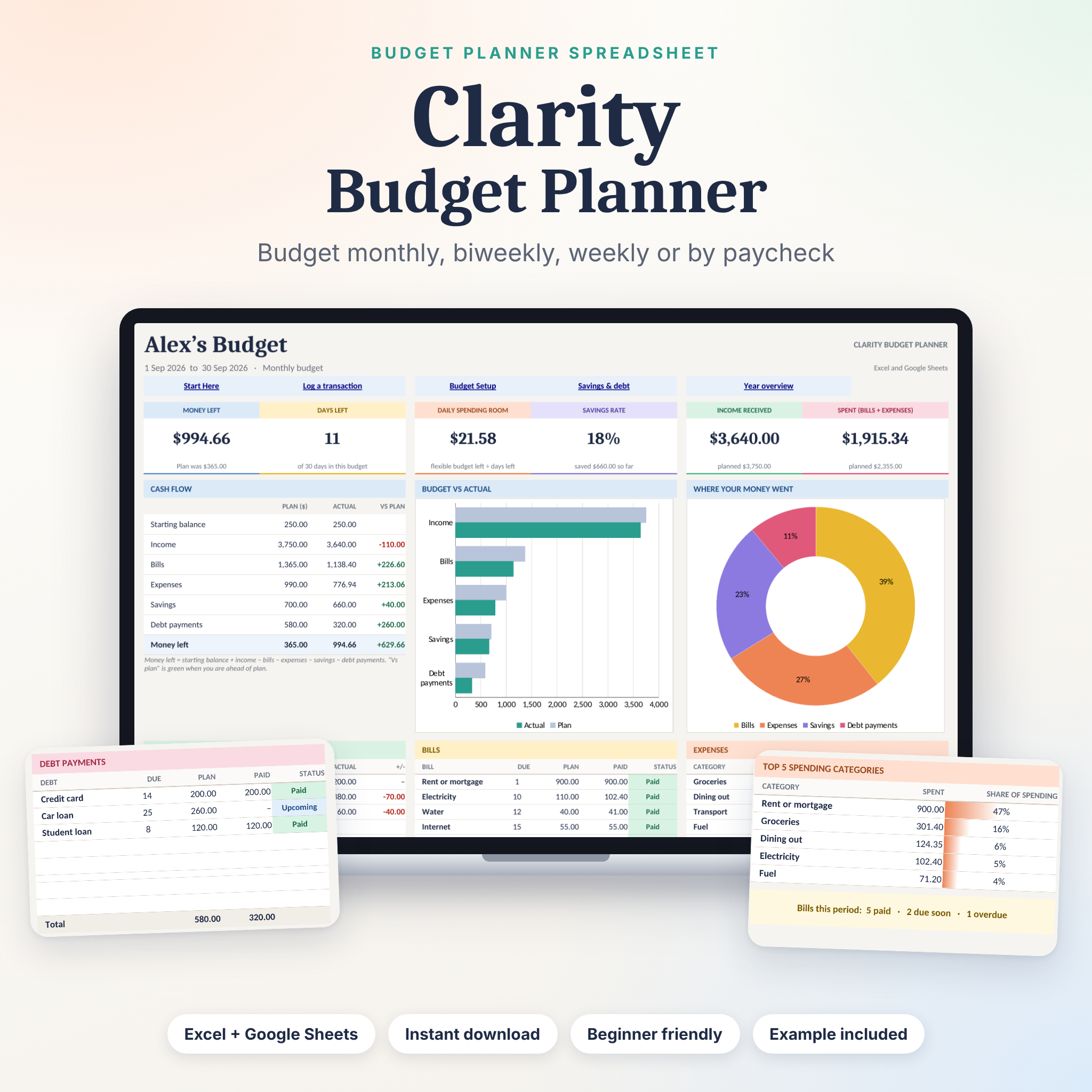
The Clarity Budget Planner has room for 20 bills. Give each one a due day and it shows Paid, Due soon, Upcoming or Overdue based on what you’ve logged. Log the payment on the single Transactions sheet and the status updates. No separate tick list to keep in sync.
The bills sit inside a simple budget that works monthly, biweekly, weekly or payday to payday. The dashboard shows money left, days left and daily spending room, and the health check spots overspending. It runs in Excel 2010 or newer and Google Sheets, and comes with a filled example and an illustrated guide.
It’s the simplest option here, and that’s a strength. A bill tracker you’ll keep updating beats a fancier one you abandon.
Calm Cash: a full bill calendar
If you think in calendars, Calm Cash has a bill calendar that puts paydays, bills, card and loan payments and your own dates on the right day, with paid ticks and a due-this-month list. Seeing the 3rd stacked with three bills and payday on the 5th makes the timing problem obvious. It holds 20 bills across a full annual budget, and its debit or credit mode handles cards you pay in full each month.
Pick Clarity for a quick, simple status list. Pick Calm Cash if you want the calendar view and a bigger annual budget around it.
Bill tracker FAQ
What is the best way to keep track of bills?
Keep every bill in one list with its amount, due date and payment method, then mark each as paid, due soon or overdue. A spreadsheet that updates the status for you makes it hard to miss one.
Should I put all my bills on autopay?
Autopay helps, but still track the bills. Cards expire and balances can run short, so check your list regularly to make sure each payment actually went through.
Can I change my bill due dates?
Often, yes. Many utility, phone and credit card providers will move a due date if you ask, which can line bills up better with your paydays.
Does a bill tracker work in Google Sheets?
Both spreadsheets above work in Google Sheets as well as Excel. Some visual extras like progress bars show as percentages in Sheets.