Most people searching for a budget dashboard Excel template want the same thing: open one page, see how the month is going, close it again. No scrolling through 300 rows of transactions. No mental arithmetic.
The problem is that a dashboard is only as good as what feeds it. Plenty of pretty templates fall apart because the numbers on the dashboard come from three different tabs that were typed in separately, and sooner or later they stop agreeing.
So this guide covers both halves: what a useful budget dashboard should show, and how the workbook behind it should be built so you can trust it. I’ll use the Executive Budget Dashboard Suite as the worked example, because it’s built around exactly that idea.
What a good budget dashboard Excel file shows
A dashboard earns its place by answering questions fast. Here’s the short list I’d want on any personal budget dashboard:
- Income vs spending so far: for the month and for the year
- Plan vs actual by category: where you’re drifting, while there’s still time to fix it
- Cash flow: money in, money out, net, and a running balance
- Bills: what’s due and, more to the point, what’s overdue
- Savings and debt progress: are the goals moving?
- Net worth: the slow, big-picture number
Anything beyond that is decoration. Nice decoration sometimes. But if you have to hunt for “how much is left this month”, the layout has failed.
The rule that makes a dashboard trustworthy: type once
Here’s the bit people skip. Every figure on the dashboard should trace back to one place where you entered it. Usually that’s a transactions list.
When a template asks you to type your grocery spend on the monthly tab, again on the annual tab and a third time on the category sheet, you’ve built three chances to make a mistake. By March, the dashboard says you’ve spent $4,120 on food and the annual view says $3,980, and you have no idea which is right.
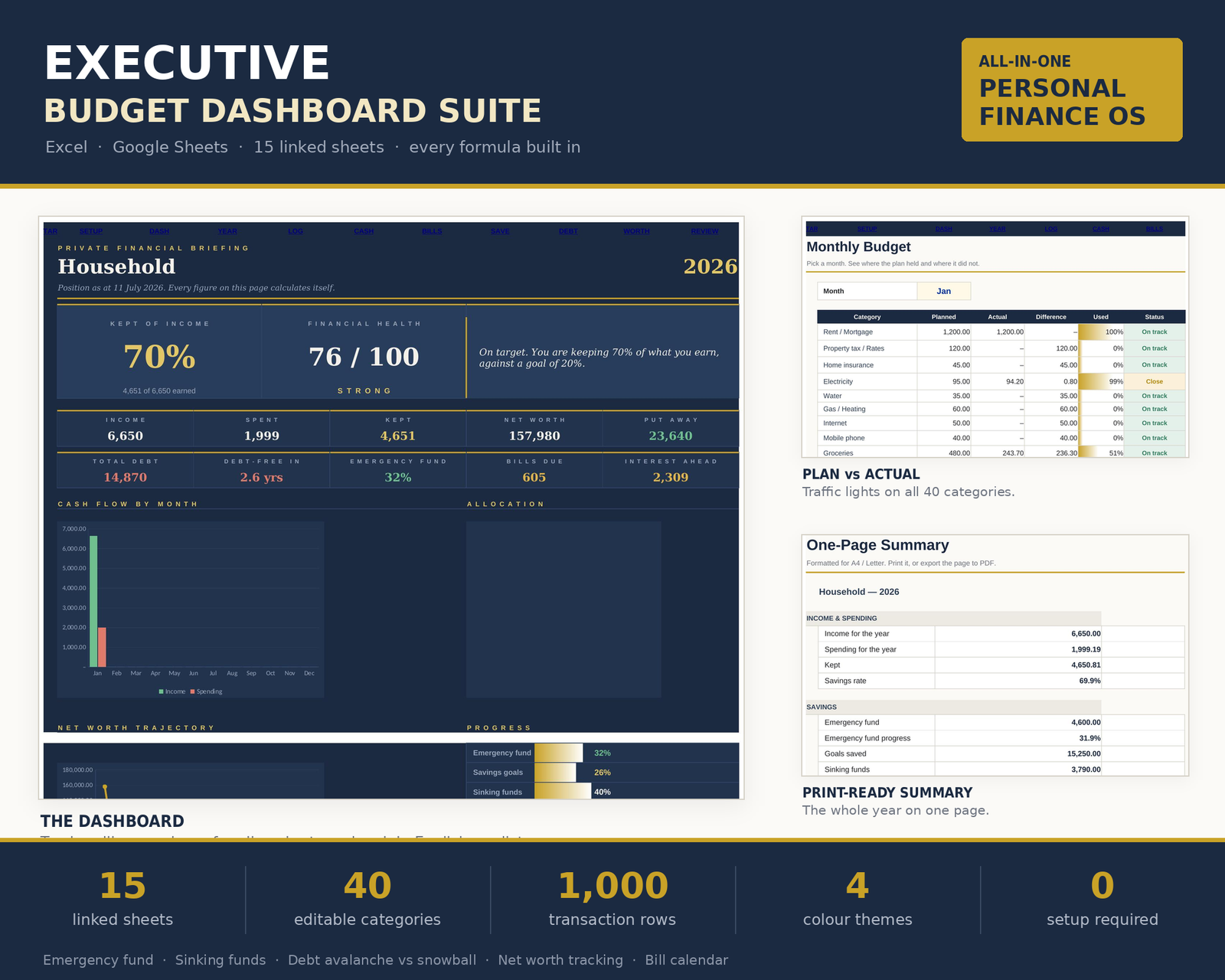
The Executive Budget Dashboard Suite is built the other way round. Everything you spend goes on the Transactions sheet, and the other fourteen sheets read from it. That’s the reason the numbers in the workbook don’t disagree with each other. The Transactions sheet has 1,000 dropdown-driven rows and flags a mistyped category in red, so a typo doesn’t quietly vanish from your totals.
A tour of the dashboard, and how to read it
The main Dashboard shows ten headline figures, four live charts and a plain-English verdict on how the year is going. That verdict line is a small thing, but it’s the part I’d read first. Charts are great at showing shape. A sentence is better at telling you whether to worry.
Behind it sit the working sheets:
- Annual Plan: all 40 categories across 12 months in one grid, pre-filled from your targets
- Monthly Budget: plan against actual with traffic lights, so mid-month drift is visible
- Cash Flow: in, out, net and a running balance month by month
- Bills: due dates, with an overdue warning that surfaces on the dashboard
- Savings: an emergency fund, 12 goals with deadlines and 14 sinking funds
- Debt: avalanche vs snowball, calculated on your own balances and rates
- Net Worth: assets minus liabilities, tracked monthly and charted
- Review: a monthly check-in and a one-page look at the whole year
- Print Pack: the full picture sized to a single sheet of paper
A sensible routine: glance at the dashboard weekly (two minutes), open the Monthly Budget sheet if a traffic light has gone amber or red, and do the Review sheet properly at month end.
Small details that save real headaches
Budget spreadsheets tend to break in the same predictable places. A few things this one handles that a lot of templates don’t:
- Renaming categories. Change “Dining” to “Takeaways” and the whole workbook follows. No broken references.
- Transfers between your own accounts. Moving $500 from checking to savings isn’t spending. Log it as a transfer and it stays out of your spending totals.
- Debts entered as negatives. They land correctly in net worth instead of inflating it.
- Clear input cells. Every cell you need to touch is cream. Everything else calculates.
It comes in four colour themes, and there’s a 14-page illustrated user guide covering setup, daily use, customisation and troubleshooting.
Setting it up in an evening
- Rename the categories to match your life. Delete the ones you’ll never use.
- Enter monthly targets so the Annual Plan fills its grid.
- Add your bills with due dates.
- Add savings goals, sinking funds and debts with balances and rates.
- Start logging transactions. Even a week of real data makes the dashboard come alive.
Don’t try to back-fill six months on day one. Start from today. The dashboard gets more useful each month you add.
Who this budget dashboard Excel template is for
- People who like seeing the big picture and want one page that sums up the year
- Anyone who has had a homemade spreadsheet stop adding up and lost trust in it
- Households juggling savings goals, sinking funds and debt at the same time
- People who don’t want a bank connection. There’s none here, and your figures stay on your machine.
Who it’s not for
- If you want transactions to import from your bank automatically, you’ll want an app instead. This is manual entry by design.
- If you only need a single page with ten lines on it, a 15-sheet suite is more than you need.
- If you mostly budget on your phone, a spreadsheet of this size is happiest on a laptop.
It works in Microsoft Excel 2016 or newer and Google Sheets, and also opens in Apple Numbers and LibreOffice. No add-ins, no macros, nothing to install.
FAQ
Can I make a budget dashboard in Excel myself?
Yes, with a transactions table, SUMIFS formulas and a few charts. The hard parts are keeping every figure tied to one source and handling things like transfers and renamed categories. A template saves you those evenings of debugging.
Does this dashboard work in Google Sheets?
Yes. The Executive Budget Dashboard Suite works in Google Sheets as well as Excel 2016 or newer. It also opens in Apple Numbers and LibreOffice.
Does it connect to my bank?
No. There’s no bank connection, so you log transactions yourself. The upside is privacy: your figures stay in your own file.
How often should I check a budget dashboard?
A quick weekly look is enough for most people, with a proper review at the end of each month. The point is to spot drift early, not to stare at it daily.