Most small businesses bill by email now. You finish the job, attach a PDF, press send, and hope the money arrives before the 25th when rent leaves your account. The template you start from decides how fast that goes and how professional it looks in the client’s inbox.
This guide is for freelancers, sole traders and small service businesses who want digital invoice templates for email billing that are quick to fill, export cleanly to PDF and keep a record of what was sent. You will get a simple setup, a ready-to-adapt email, a worked week of billing and the mistakes that slow payments down.
No accounting degree needed. If you can fill in a form and attach a file, you can do this.
Quick picks: invoice templates that suit email billing
| Product | Best for | Price | Link |
|---|---|---|---|
| Client Billing Hub Invoice Tracker Spreadsheet | Billing plus payment tracking in Excel or Google Sheets | $6.49 | View |
| PaidPath Client & Invoice Hub | Service businesses that want clients, invoices and expenses in one Excel file | $9.49 | View |
| Ledgerline Business Forms Kit | Matching Word and Excel invoices, quotes and receipts | $2.99 | View |
| Maker’s Business Forms Kit | Crafters taking custom orders by message | $3.00 | View |
What makes an invoice ready for the inbox
An emailed invoice has one job: get opened, understood and paid without a single reply asking what it is for. Paper invoices can get away with a scribbled note. Email ones cannot, because the client often reads them on a phone, between two meetings, with their thumb.
So the basics matter more than the design. Here is what every email invoice needs on the page itself:
- Your business name and contact details at the top, the same name the client knows you by.
- A unique invoice number. INV-0142, not “invoice for March”. Accounts teams search by number.
- Invoice date and due date. “Due 14 April” is clearer than “Net 14”.
- Line items in plain words. “Logo design, 3 concepts and 2 rounds of changes” beats “Design work”.
- Subtotal, tax, discount and total, worked out correctly.
- How to pay: bank details, a payment link or both, written out in full.
If you want a deeper look at which file type to build your invoice in, our guide to Word vs Excel vs PDF invoice templates compares all three side by side.
Set up a template once, then reuse it all year
The slow part of email billing is not sending. It is retyping your own address, the client’s address and last month’s rates every single time. A good template removes that. Spend 30 minutes on setup and each invoice after that takes a few minutes.
Step 1: Add your business details
Type your business name, address, email, phone and payment details into the settings area. Add your logo if you have one. A plain text name is fine if you don’t.
Step 2: Save your regular clients
Put each repeat client into the client list with their billing email and the name of whoever pays the bills. That second name matters. A designer who sends invoices to the marketing manager instead of accounts can wait an extra fortnight for no reason.
Step 3: Save your usual services and rates
List the things you bill for most: an hourly rate, a monthly retainer, a standard package. When they sit in a price list, you pick them from a dropdown instead of typing them out.
Step 4: Set your payment terms
Pick one default, such as 14 days. Templates with a due date formula will fill the date in for you.
The Ledgerline kit is a tidy place to start if you like having Word and Excel versions that match.
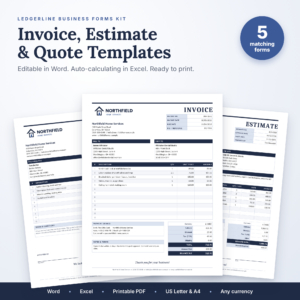
Ledgerline Business Forms Kit
Price: $2.99 | Best for: Freelancers and home service pros
Five matching forms (invoice, job estimate, quote, sales receipt and purchase order) as editable Word templates in US Letter and A4, plus an 11-tab Excel Invoice Maker that fills in client details, works out totals and marks invoices PAID or OVERDUE. Blank printable PDF versions are included for jobs where you write by hand. Start on the Excel Settings tab, add three clients, then save your first invoice as a PDF.
Export a clean PDF every time
Never email the Word or Excel file itself. The client might see your formulas, change a number by accident, or simply not have the software to open it. A PDF looks the same on every screen and cannot be edited by a stray click.
In Word or Excel, choose File, then Save As or Export, then PDF. In Google Sheets, choose File, Download, PDF. Before you save, check three things:
- The page fits on one sheet. A total that spills onto page two looks careless.
- Gridlines are switched off, so the client sees a form, not a spreadsheet.
- The file name is useful. “INV-0142 Brightside Studio April.pdf” beats “Book1.pdf” by a mile.
Keep every PDF in one folder, named by year. When a client asks for a copy in November of something you sent in March, you will find it in ten seconds.
The email that goes with the invoice
The invoice does the maths. The email does the manners. Keep it short, friendly and specific, and put the important facts in the first two lines so they show up in the inbox preview.
Subject lines that get opened
- Invoice INV-0142 from Brightside Studio, due 14 April
- April retainer invoice, INV-0143
- Invoice for the Harbour Café menu project
Put the invoice number in the subject. That one habit saves the client’s accounts team a search, and they notice.
A short email you can adapt
Hi Sam,
Attached is invoice INV-0142 for the logo project, totalling 850.00 and due on 14 April. Bank details and the payment link are on the invoice.
Thanks again for the quick feedback on the concepts. It made the whole job easier.
Best, Jordan
That is it. Four lines. No apology for sending it, no long story about the work. If there is a deposit already paid, say so: “This is the balance after the 300.00 deposit you paid in March.”
Track every emailed invoice so nothing slips
Sending is easy. Remembering is the hard part. Once you send more than five or six invoices a month, your inbox stops being a reliable record. One invoice gets paid in two parts, another client pays the wrong amount, and suddenly you are scrolling back through sent mail at 11pm trying to work out who still owes you.
A billing spreadsheet fixes that. Each invoice gets a row, each payment gets logged against it, and the status changes on its own. The feeling of opening one tab and seeing exactly what is outstanding is hard to beat. Our walkthrough on building an invoice tracker spreadsheet covers the columns you need if you would rather set one up yourself.
If you would rather not build it, the Client Billing Hub does the invoice and the tracking in one file.
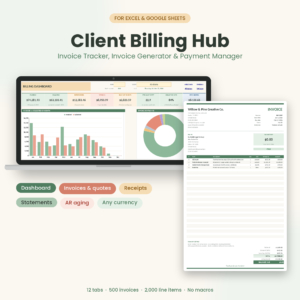
Client Billing Hub Invoice Tracker Spreadsheet
Price: $6.49 | Best for: Anyone sending a few invoices weekly
A 12-tab workbook for Excel and Google Sheets with a print-ready invoice and receipt, a payment log, client statements and an AR aging dashboard. Statuses move from Unpaid to Partly Paid to Paid by themselves, and the dashboard shows what is overdue and what is due in the next 30 days. Fill in Settings first, add your clients and products, then create one invoice and save it as a PDF to see the whole loop.
A worked week of email billing
Here is how a real week can look for a freelance web designer with eight regular clients. Call her Priya.
Monday, 20 minutes
Priya opens her invoice template and creates three invoices for work finished last week: a site update for a bakery, a monthly care plan for a dentist, and a landing page for a local gym. Each client is already saved, so she picks them from the list, picks the service, types the hours. She saves three PDFs and sends three emails.
Wednesday, 5 minutes
The bakery pays. Priya logs the payment against INV-0207 and the status flips to Paid. A small win, and she lets herself enjoy it.
Friday, 10 minutes
She opens the dashboard. One invoice from last month is now 12 days overdue. She sends a polite reminder with the PDF attached again. The gym’s invoice is still within terms, so she leaves it.
Thirty-five minutes of billing for the whole week. No guessing, no awkward “did you get my invoice?” messages sent to someone who already paid.
For a service business like Priya’s, where clients, invoices and costs all need to sit together, PaidPath is built for exactly that.
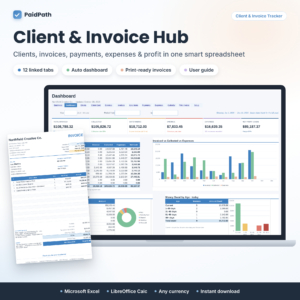
PaidPath Client and Invoice Hub
Price: $9.49 | Best for: Consultants, coaches and service studios
An Excel workbook with 12 linked tabs: Dashboard, Clients, Client Card, Services, Invoices, Line Items, Payments, Expenses, Calendar and a Print Invoice page that fits one sheet on US Letter or A4. It handles partial payments, up to three taxes, quotes and drafts, and shows net profit once you log expenses. Add your business details on Setup, enter your services, then print your first invoice to PDF and attach it to an email.
Chasing late payments by email without the awkwardness
Late payments are usually forgetfulness, not bad faith. A short, calm reminder clears most of them. Here is a simple three-step rhythm:
- 3 days after the due date: “Just a quick reminder that INV-0142 was due on 14 April. I’ve attached it again in case it got buried.”
- 14 days after: “Following up on INV-0142, now two weeks past due. Could you let me know when payment is scheduled?”
- 30 days after: a phone call, then a firmer email that mentions any late fee written in your terms.
Always reattach the PDF. Making the client search for the original is one more reason for them to put it off.
Taking orders by message and billing by email
Makers and crafters often take orders through Instagram messages, Facebook or WhatsApp, then bill by email. The risk here is detail, not money. A tumbler with the wrong name on it costs you a remake. A fillable order form keeps the details straight before the invoice goes out.
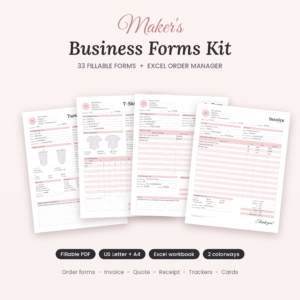
Maker’s Business Forms Kit
Price: $3.00 | Best for: Crafters and handmade custom orders
33 fillable PDF forms in US Letter and A4, including order forms for shirts, tumblers, mugs and signs, plus an invoice, price quote, sales receipt and deposit agreement. A 13-tab Excel Order Manager turns each logged order into a print-ready invoice or receipt. Type into the PDFs with free Adobe Acrobat Reader, then email the invoice from the workbook as a PDF.
Mistakes that slow down email payments
- Sending to the wrong person. Your contact may not pay bills. Ask who does, once, and save it.
- Vague line items. “Services rendered” invites questions. Questions delay payment.
- No due date. Without one, your invoice joins the “later” pile.
- Reusing invoice numbers. Two invoices called INV-0100 will confuse your records and theirs.
- Attaching an editable file. Always PDF.
- Billing late. An invoice sent three weeks after the job feels optional. Send within two working days.
If clients sometimes ask for a quote first, make sure you know the difference between the paperwork. Our explainer on quote vs estimate vs invoice sets out when to send each one.
Frequently asked questions
Is it legal to send invoices by email?
In most places, yes. An emailed PDF invoice is a normal way to bill. Some countries have extra rules for tax invoices, so check the details your local tax office asks you to show.
Should I send an invoice as a PDF or a Word file?
PDF. It looks the same on every device and cannot be edited by accident. Keep the Word or Excel version for yourself.
What should I write in the email body when sending an invoice?
The invoice number, the total, the due date and a thank-you. Two to four lines is plenty.
Can I send invoices from Google Sheets?
Yes. Fill in the invoice, choose File, Download, PDF, then attach the file to your email. Workbooks built for Google Sheets, like the Client Billing Hub, work this way.
How do I know if a client opened my invoice email?
A plain email will not tell you. The simplest fix is a short reminder a few days after the due date, with the PDF attached again.
Your next step
Pick your three most regular clients and set them up in one template today, with their billing email and your usual rate. Next time a job ends, you will have the invoice out within the hour. If you want the invoice and the payment tracking in a single file, start with the Client Billing Hub Invoice Tracker Spreadsheet.