A resource planner for staff and equipment scheduling answers one question before anyone asks it: who is doing what, with which tools, and when. If you run a small crew, a workshop, a cleaning team or a rental shelf, you already know the pain of two people turning up for the same van. Or the one ladder that is in three places at once on paper.
This guide is for owners and team leads with somewhere between 3 and 20 people and a handful of shared items: vehicles, machines, rooms, laptops, tools. You will get a simple way to lay out the plan, a worked example you can copy, a Friday routine that keeps it honest, and four Taskdale templates that do the sorting for you.
No software subscription is needed for any of it. A spreadsheet or an offline app is enough.
Quick picks
| Product | Best for | Price | Link |
|---|---|---|---|
| Project Command Center | Team workload and hours against capacity | $19.00 | View |
| Smart Monthly Scheduler | Booking rooms, vehicles and appointments by date | $2.00 | View |
| PlanLane Gantt Chart Template | Jobs where one task waits on another | $21.00 | View |
| Gleamwise Cleaning Business App | Cleaning crews with repeat client visits | $77.96 | View |
What a staff and equipment planner has to show
Most scheduling messes come from one missing column. A team calendar shows people but not the gear. An equipment log shows the gear but not who has it. So the plan breaks the first time a job needs both.
A useful resource plan shows four things on the same row:
- Who is assigned, by name, not by team.
- What they are using: the van, the floor sander, meeting room B.
- When, with a start and an end, not just a day.
- Where the job is, so travel time is visible.
Take a small landscaping business with six staff, two trucks and one mini excavator. On Tuesday, two crews need the excavator. If the plan only lists people, nobody spots the clash until 7am in the yard. If the excavator sits on the same row as the crew and the address, the clash shows up on Friday afternoon, when you can still move a job.
That is the whole point. Clashes found early are a phone call. Clashes found late are a lost day of pay.
Build your two lists before you book anything
Skip this step and every later step gets harder. Spend twenty minutes writing two plain lists, and the schedule almost builds itself.
The people list
One row per person. Add their normal weekly hours, the days they never work, and any skill that limits what they can do. A cleaner who cannot drive. A technician who is the only one certified on the forklift. A part-timer who finishes at 2pm for school pickup. These limits are exactly the things that get forgotten on a busy Monday.
The equipment list
One row per item that more than one person might need. Give each a short ID, such as VAN-1, SANDER-2 or ROOM-B, so names never get muddled. Note where it lives overnight and when it is next due for a service. A van booked out for its MOT or annual check on the 14th should be blocked off like a holiday.
Keep both lists short. A rental shop with 40 small hand tools does not need 40 rows if 35 of them are never in short supply. List only the items that cause arguments.
Lay out the weekly grid
The simplest layout that works is a grid: people down the left, days across the top. Inside each cell you write the job, the item and the place. It looks plain. It works.
Here is how the landscaping crew’s Tuesday might read:
| Person | Tuesday job | Equipment | Site |
|---|---|---|---|
| Ana | Patio dig, 7:30 to 12:00 | EXCAVATOR, TRUCK-1 | Elm Road |
| Ben | Patio dig, 7:30 to 12:00 | TRUCK-1 | Elm Road |
| Cleo | Hedge and lawn rounds, all day | TRUCK-2 | North estate |
| Dev | Trench for drainage, 13:00 to 16:00 | EXCAVATOR | Mill Lane |
Read it once and you see the excavator moves from Elm Road to Mill Lane at lunch. Fine, as long as someone tows it. Now add that to Ana’s afternoon. That small line saves Dev an hour of waiting.
If you prefer to see the gear first, flip the grid: equipment down the left, days across the top. Some teams keep both views. A spreadsheet that fills one from the other saves you typing every booking twice.
Book shared items without double bookings
Double bookings happen when people book in different places. One person writes it on the whiteboard, another sends a text, a third just takes the van. The fix is one booking log that everyone checks and nobody bypasses.
Set three plain rules and say them out loud at the next team meeting:
- If it is not in the log, it is not booked.
- Every booking has an end time, even a rough one.
- Returning an item early means updating the log, so someone else can grab it.
A date-based scheduler handles this well. You add each booking once with its date, time and category (vehicle, room, machine), and it lands on the right day of the calendar. Busy days stand out at a glance. For an office that shares two meeting rooms and a pool car between 12 people, that alone ends most of the Monday muddle.
A spreadsheet like this suits teams that think in dates and appointments rather than projects.
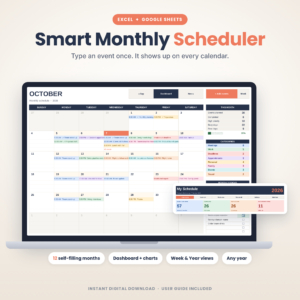
Smart Monthly Scheduler
Price: $2.00 | Best for: booking rooms, cars and appointments
This Excel and Google Sheets calendar has one Event Log where you type each booking once. It then places it on 12 monthly calendars, a week view, a year overview and a live dashboard, sorted by time and colour coded by category. Set your categories to Vehicle, Room and Equipment on day one, and busy days with clashes become easy to spot.
Keep an eye on capacity so nobody burns out
A schedule can be clash-free and still be wrong. If one person carries 46 hours of jobs while another has 22, the plan is broken, even though nothing overlaps. The quiet failure is the person who never complains and slowly gets buried.
Track hours per person against what they can actually do. A simple traffic light works:
- Available: under 80 percent of their weekly hours booked.
- Busy: 80 to 100 percent.
- Overloaded: over 100 percent. Move something today.
For example, Cleo works 30 hours a week. By Wednesday she has 34 hours of rounds booked. That is red, and it is red on Wednesday, not on Saturday when she is too tired to drive home safely. Shift two lawns to Ben, who sits at 24 hours, and both land back in the green.
If your team juggles projects as well as daily jobs, you need workload and tasks in the same file.
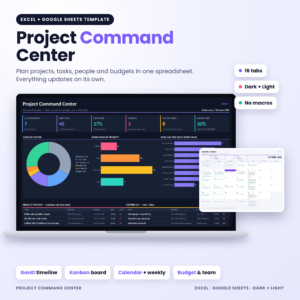
Project Command Center
Price: $19.00 | Best for: small teams up to 20 people
This 16-tab Excel and Google Sheets workbook has a Team Workload tab that shows open, overdue and done tasks per person, plus hours this week against capacity marked Available, Busy or Overloaded. You list tasks once with an owner, and the Kanban board, Gantt timeline and monthly calendar fill in. Start on the Settings tab: add your team and week start, then load next week’s jobs.
For more on setting up a tracker your team will keep using, see this guide to a project management spreadsheet that lasts.
When one job has to wait for another
Some schedules are chains. The plasterer cannot start until the electrician is done. The scaffold cannot come down until the painters finish. If the first job slips by two days, everything after it slips too, and so does every booking of people and kit along the way.
A Gantt chart shows that chain as bars across a calendar. Link each task to the one before it, and when an earlier task moves, the later dates move with it. That is far easier than rubbing out ten cells by hand.
Picture a small fit-out company refurbishing a cafe over 15 working days. Strip-out takes 3 days, electrics 4, plastering 3, painting 2, fitting 3. The hired floor sander is booked for day 13. Electrics run a day late. On a linked timeline, the sander booking jumps to day 14 on its own, and you can call the hire shop that afternoon instead of paying for a day it sits idle.
The PlanLane Gantt Chart Template in the quick picks table does this in Excel, with workdays that skip weekends and holidays, plus a team workload view. It is the better pick when your planning is more about job order than daily rotas.
Crews that visit the same clients every week
Cleaning firms, gardeners and care rounds have a different shape. The same client, every second Tuesday, for months. The resource here is the crew and the car, and the risk is a repeat visit that quietly drops off the list.
For this work, set a repeat pattern once rather than typing 52 bookings. Then check each morning that the day’s stops have a person, a vehicle and the entry details they need. A crew of three that turns up without the gate code loses twenty minutes and a bit of the client’s trust.
If you run a cleaning business, an app built for that trade saves a lot of setup.

Gleamwise Cleaning Business App
Price: $77.96 | Best for: cleaning crews with repeat clients
Gleamwise is a single offline HTML file you open in your browser, with a calendar that shows daily capacity badges and crew clash warnings. Repeat schedules run weekly, every 2 to 4 weeks, monthly by date or weekday, and book up to 104 weeks ahead. Add your clients and their repeat schedules first, then check tomorrow’s day plan for stops and entry details.
A 20-minute Friday routine
A resource plan is only as good as its last update. This short routine keeps it true without eating your weekend.
- Close out this week (5 minutes). Mark finished jobs done. Note anything that ran over, and by how much.
- Check next week’s equipment (5 minutes). Scan for any item booked twice on the same day. Check service dates and block off anything due in.
- Check hours (5 minutes). Look for anyone over 100 percent. Move work before you send the rota.
- Send it (5 minutes). Share the plan with the team in one place, the same place every week.
Do it at the same time each week. After a month you will notice something nice: Monday mornings get quiet. Nobody is hunting for keys.
If your calendar needs a month-by-month view on top of the weekly grid, this walk-through of a monthly calendar spreadsheet that fills itself in shows how the pieces link.
Mistakes that wreck a resource schedule
Booking by team instead of by name
“Crew A, Thursday” hides the fact that one member of Crew A is on leave. Always list names. Teams change; names are what turn up.
Leaving out travel
Two jobs that each take three hours do not fit in a six-hour day if they are 40 minutes apart. Add travel as its own block.
No buffer at all
Book people to about 85 percent of their hours. The leftover space soaks up the late delivery, the client who wants a chat, the flat tyre.
Two sources of truth
The whiteboard says one thing, the spreadsheet says another. Pick one home for the plan and retire the other. It feels harsh for a week, then it feels like relief.
Forgetting maintenance
A machine that is due for a service is not available, even if it is sitting in the yard. Put service days on the plan just like holidays.
Who this approach does not suit
A spreadsheet or offline app works well for small teams. It strains once you have hundreds of staff on rotating shifts across several sites, legal rules about rest breaks, or payroll that must link to clock-in data. At that size a dedicated workforce system is usually worth the cost.
It is also overkill for a two-person business sharing one car. A paper diary on the kitchen table might be all you need. For everyone in between, roughly 3 to 20 people and a few shared items, a simple planner hits the sweet spot. If you are still choosing a template, this roundup of the best project management templates compares five spreadsheets side by side.
Frequently asked questions
What is a resource planner?
It is a schedule that shows people and shared items together: who is working, on what job, with which equipment, at which place and time. It lets you spot clashes and overloaded staff before the week starts.
Can I schedule staff and equipment in Excel?
Yes. A grid with people or equipment down the side and days across the top covers most small teams. Templates add dropdowns, colour coding and workload totals so you do not build the formulas yourself.
How do I stop two people booking the same van?
Keep one booking log that everyone uses, give every booking an end time, and agree that anything not in the log is not booked. A calendar view that shows busy days makes clashes easy to see.
How many hours should I schedule each person?
Aim for about 85 percent of their contracted hours. A 40-hour employee gets roughly 34 hours of planned jobs, leaving room for travel, delays and small surprises.
Does Google Sheets work for a shared team schedule?
It does, and it lets the whole team view the same file. The Project Command Center and Smart Monthly Scheduler both open in Google Sheets as well as Excel.
Your next step
This afternoon, write your two lists: every person with their weekly hours, and every shared item that has ever caused an argument. Then lay out next week as a simple grid and look for the first clash. If you want workload totals and a calendar that fill in for you, start with the Project Command Center and load next week’s jobs into it.