Sticky notes. A notebook in the kitchen drawer. A note on your phone titled “passwords.” That is how a lot of people keep their logins, and it works right up to the day it does not. A digital password keeper PDF is a tidier answer: one private file, organized in tabs, that you can write in with a stylus, type into or print. This guide explains what to look for, how the sections fit together, and how the Petalock password keeper handles 104 pages of logins, Wi-Fi, subscriptions and a legacy plan.
| Product | Best for | Format | Link |
|---|---|---|---|
| Petalock Password Keeper | A hyperlinked keeper you can handwrite, type into or print | Digital PDF, fillable PDF, printable Letter and A4 | View product |
| Login Loft Digital Password Keeper | iPad users who want an A to Z book in GoodNotes | Hyperlinked PDF, US Letter and A4 | View product |
| LockLedger Password Tracker Spreadsheet | Excel users who want a security score and subscription tracker | Excel spreadsheet | View product |
| Latchly Password and Accounts Organizer App | People who want an app rather than a file | Password and accounts organizer app | View product |
Why a digital keeper instead of a notebook
A paper notebook has a weakness. You can only be in one place with it. And if you want to find the login for a store you used once in 2023, you flip pages until you give up.
A hyperlinked PDF fixes the finding problem. Tap a tab and you land in the right section. Tap a letter and you are in the S’s. A Home button sits on every page, so you never get lost.
A PDF keeper also holds on to the good parts of paper. You can still handwrite with a stylus, still print a copy for a binder, and still hand it to a parent who prefers to read a page. The choice stays yours.
Think about what happens when something goes wrong. Your phone is stolen. A laptop dies. A parent is in hospital and needs someone to deal with a bill. In each case the person who steps in needs to find things fast, and a tidy book with a clear index beats a pile of scraps every time.
What to look for in a password keeper PDF
- Working links. Tabs, an index and a home button, so you are never scrolling.
- More than one way to fill it in. Handwriting, typing and printing.
- Space for the details around a login. Recovery info, two-factor status and notes.
- A home for Wi-Fi, devices and subscriptions. They matter as much as logins.
- A security routine. A change log and a regular check-up.
- A legacy plan. Someone should know where to look in an emergency.
Petalock covers all six. It has 104 pages across 13 tabbed sections, more than 230 account cards and a full Security Center. The design is soft blush, cream and gold, with watercolor peonies and gold binder rings.
What you get in the download
Petalock arrives as four PDF editions and a guide.
- Digital PDF: 52 wide two-page spreads, or 104 pages, for handwriting in a PDF annotation app.
- Digital Fillable PDF: the same pages, with more than 2,900 typeable fields and tick boxes.
- Printable US Letter PDF: 104 portrait pages with a white background to save ink.
- Printable A4 PDF: 104 portrait pages with the same hyperlinks.
- User Guide: in DOCX and PDF, with setup steps, tips, troubleshooting and a FAQ.
So you pick what suits you, and the extras come at no added cost. A tablet owner can write on the digital edition. A desktop user can type into the fillable one. Someone who wants a binder can print Letter or A4.
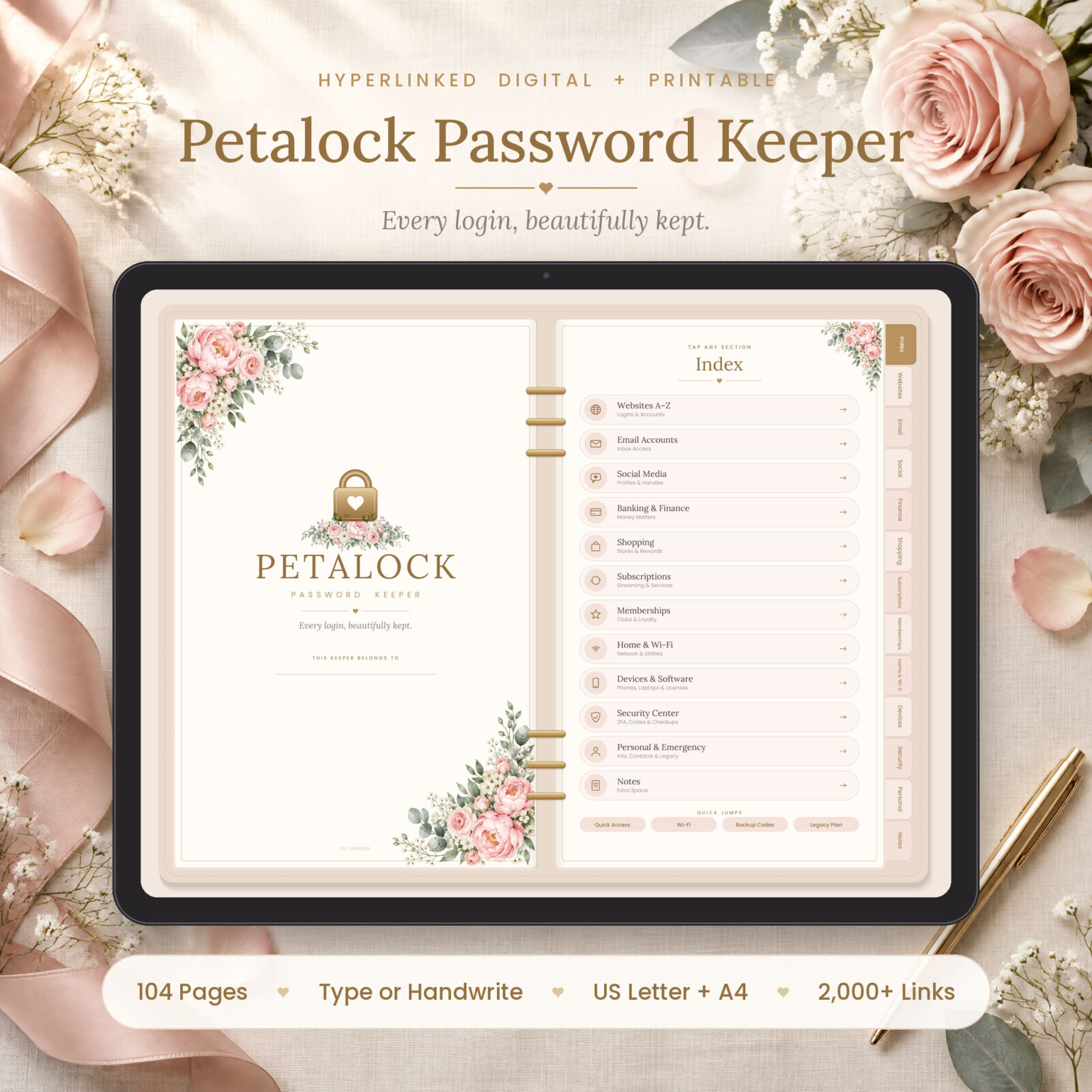
Petalock Password Keeper: Digital and Printable Log
Best for: anyone who wants one private, hyperlinked place for logins, Wi-Fi, subscriptions and a legacy plan
Petalock has 104 pages, 13 tabbed sections, 156 website cards, more than 2,900 fillable fields and over 2,000 links. It includes a Security Center and a Digital Legacy Plan, plus fillable, handwriting and printable editions. For handwriting you need a PDF app that supports hyperlinks, such as GoodNotes, Notability, Noteshelf or Xodo. It records details but does not encrypt them.
The Websites A to Z section
This is the heart of the book. An A to Z directory lists your sites, a Quick Access page holds your most-used logins, and 26 letter spreads give you six roomy login cards each. That makes 156 website cards.
Each card has lines for the website, URL, username or email, password, a new password with the date, a hint or security question, a two-factor checkbox and notes. The “new password with date” line is a small but practical idea. When you change a password, you do not have to cross out the old one and squeeze in a new one.
An A to Z letter bar lets you hop from A to S without scrolling. In the fillable edition, text shrinks automatically to fit long web addresses, which stops a long URL from spilling out of its box.
Email, social, banking, shopping and memberships
Around the websites sit dedicated account sections.
- Email Accounts: recovery email, recovery phone and two-factor details.
- Social Media: handles, login email or phone and recovery info.
- Banking and Finance: last four account digits and PIN hints, never full numbers.
- Shopping: stores, apps and rewards numbers.
- Subscriptions: a tracker with cost, cycle, renewal date and a totals box, plus login cards.
- Memberships: member IDs, renewals, tiers and points.
Notice the banking page. It asks for the last four digits and hints, not full numbers. That is a thoughtful design choice. A password book should help you remember, not hand a thief everything in one place.
Home, devices and software
This section covers the things you only need occasionally, which is exactly why you forget them. Record Wi-Fi and guest networks, router admin logins and internet provider details. Add utilities, smart home apps, device serial numbers, passcode hints, warranty dates and software license keys.
Picture the day a router dies. You have the admin login, the provider’s details and the network name in one spot. It also helps when a visitor or a babysitter needs the guest Wi-Fi.
Warranty dates deserve a mention. A fridge or laptop that breaks in month eleven of a twelve month warranty is a very different problem from one that breaks in month thirteen. Write the dates down when you buy.
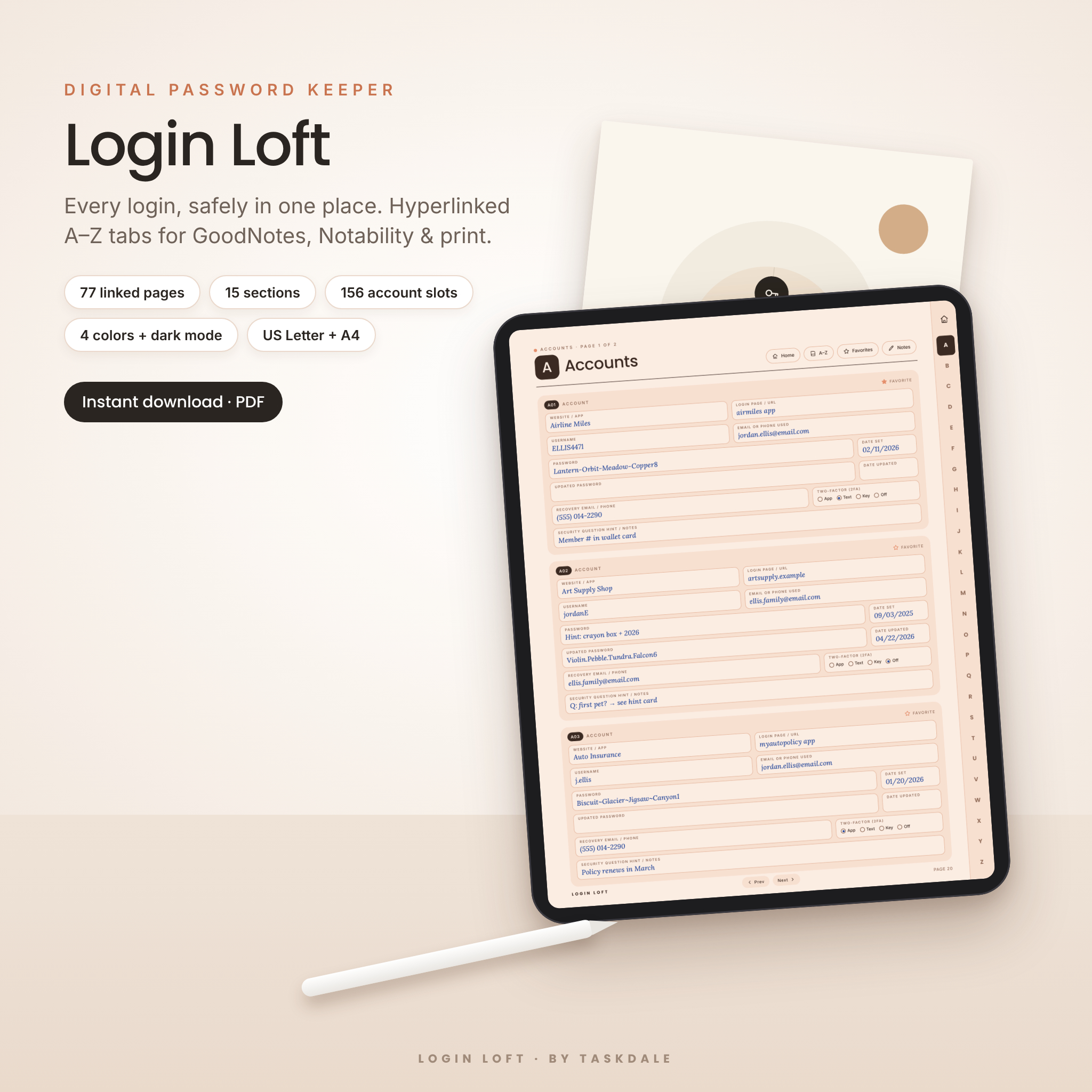
Login Loft Digital Password Keeper for GoodNotes and iPad
Best for: iPad owners who want a simple hyperlinked A to Z password book
Login Loft is a hyperlinked A to Z password book for GoodNotes and iPad, with a printable password log PDF in US Letter and A4. It suits people who want fewer sections than a big keeper. It needs a PDF note app that supports links.
The Security Center
This is where Petalock goes beyond a list. It includes a two-factor authentication log, backup code boxes with tick-off circles, a password change log and a quarterly security check-up with 12 simple habits.
Backup codes are the quiet hero here. Many services give you a handful of one-time codes in case you lose your phone. People save them somewhere and then cannot find them. Tick-off circles let you cross each one out as you use it, so you always know how many are left.
A quarterly check-up is a good rhythm. Four times a year, spend fifteen minutes updating weak passwords, checking two-factor status and clearing out old accounts. Put it in your calendar. The habits are simple, and the point is that you do them.
Extra tools help you build better passwords. There is a strong password recipe, a passphrase builder and a Character Clarity Key, so a zero and a capital O, or a one and a lowercase L, never confuse you later.
Personal and emergency pages
Petalock closes with personal information, four emergency contact cards, a Digital Legacy Plan and an Account Wishes table. The wishes table tells loved ones what to close, memorialize, transfer or keep.
Nobody enjoys the topic. Still, this is one of the kindest things you can do for your family. Imagine someone trying to close a social media account or find a photo library with no idea where to start. A page written ahead of time turns a hard job into a manageable one.
Remember that the book itself holds sensitive details. Keep it somewhere private, and tell the person you trust where it lives.
Handwriting, typing or printing: which to pick
| Edition | How you use it | App or hardware |
|---|---|---|
| Digital PDF | Write with a stylus | A PDF app that supports hyperlinks, such as GoodNotes, Notability, Noteshelf or Xodo |
| Digital Fillable PDF | Type into more than 2,900 fields | A form-friendly PDF app, such as Adobe Acrobat Reader, Xodo or a desktop browser |
| Printable US Letter PDF | Print and write by hand | Any printer, US Letter paper |
| Printable A4 PDF | Print and write by hand | Any printer, A4 paper |
The digital editions use 4:3 wide spreads sized for tablets. The printable editions are portrait. Please confirm that your note app supports hyperlinked PDFs before you buy, since a few do not.
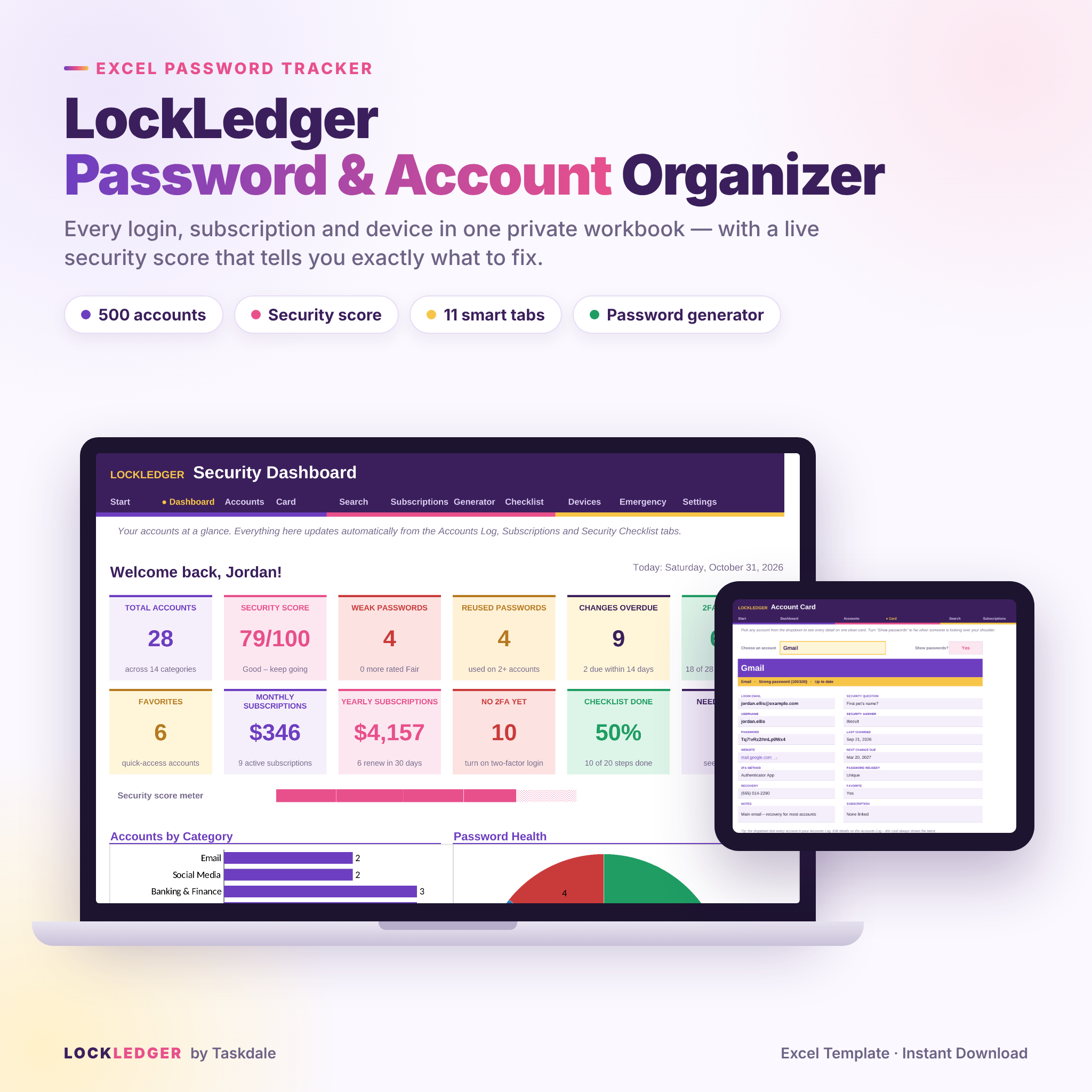
LockLedger Password Tracker Spreadsheet for Excel
Best for: people who prefer a sortable spreadsheet to a book
LockLedger is an Excel password and account organizer with a security score dashboard, a password generator, a subscription tracker and a login log template. It suits desktop users who like filters and sorting. It is a spreadsheet, so it is less comfortable to write in by hand.
How to set it up in an afternoon
Do not try to fill all 104 pages in one sitting. Start with the accounts you would hate to lose, then work outward.
- Email first. Your inbox is the key to every password reset, so record it and its recovery details before anything else.
- Add banking and the big five. Think of the sites you open weekly. Put them on the Quick Access page.
- Fill the Wi-Fi and router page. Ten minutes, and you will thank yourself later.
- List subscriptions. Check your bank statement for monthly charges and enter each one with its renewal date.
- Write the legacy pages last. Take your time here, and tell one trusted person where the book lives.
After that, add a new site whenever you sign up for one. Two minutes at the time beats an hour of hunting a year from now. Pick a day each quarter for the check-up and the book stays current without becoming a chore.
Who should skip it
If you want logins filled in automatically, or encrypted storage, a password manager app is the right tool. Petalock is an organized record. It does not encrypt anything and it cannot autofill a website.
That is a lot of pages. If you have only a dozen accounts, a smaller book may be enough, though you can print only the sections you need for a binder.
Petalock suits anyone moving logins out of sticky notes and scattered notebooks, people setting up a new phone or laptop, a parent or grandparent who wants a large, easy printed book, and anyone auditing subscriptions to catch charges they forgot about.
Keep reading
- Password Organizer Printable: How to Keep Logins Safe Offline
- Free Printable Password Log (PDF) and How to Write Passwords Down Safely
- Printable Password Log Book: An A to Z Keeper You Can Fill In or Write By Hand
- Free Password Organizer App (Offline and Encrypted): Download Latchly Lite
Frequently asked questions
How many accounts does it hold?
There are 156 website cards across the A to Z section, plus dedicated email, social media, banking, shopping and membership sections. In all, there are more than 230 account cards.
Can I type into it?
Yes. The fillable edition has more than 2,900 typeable fields and tick boxes. Use a form-friendly PDF app such as Adobe Acrobat Reader or Xodo, or a desktop browser’s PDF viewer.
Can I write on it with a stylus?
Yes. Import the digital PDF into a PDF app that supports hyperlinks, such as GoodNotes, Notability, Noteshelf or Xodo.
Are the pages linked?
Yes. There are over 2,000 links across side tabs, the Index, Home buttons and A to Z bars.
Can I print it?
Yes. Printable US Letter and A4 editions are included at no extra cost, with 104 portrait pages each.
Can I use my own currency?
Yes. Cost fields are currency-neutral, with a My Currency box.
A password book works when it is easy to open and easy to trust. If a hyperlinked keeper with a security routine and a legacy plan sounds right, take a look at Petalock and begin with the email accounts page.