“Forgot password?” is probably the most clicked link on the internet. Most of us have dozens of logins, and the ones we use least are the ones we need most urgently, like the bank at tax time or the router when the Wi-Fi dies. A printable password log book gives you one calm, organized place to write it all down. This guide explains how to set one up, what to include beyond a list of logins, and how the KeyBloom Password Keeper turns 69 pages into a complete home system.
| Product | Best for | Format | Link |
|---|---|---|---|
| KeyBloom Password Keeper | A fillable or handwritten A to Z log for the whole household | Fillable and printable PDF in Letter, A4 and A5 | View product |
| Tumblerbook Printable Password Logbook | A security guide, 2FA backup log and digital legacy plan | Printable PDF in Letter, A4 and A5 | View product |
| Lockquill Password Log Book | Wi-Fi, subscriptions and family access in one book | Fillable PDF in Letter, A4 and A5 | View product |
| Latchly Password and Accounts Organizer App | People who want an app instead of paper | Password and accounts organizer app | View product |
Why people still keep a password book
Password managers are good. Many people use one. But a paper record still earns a place, for a few reasons.
First, it works when the screen does not. A dead phone, a locked laptop, a router that has to be reset. A page in a binder does not need power.
Second, it is easy to hand to someone. An older parent who prefers paper. A spouse who needs to find the streaming login. A teenager setting up their first device.
Third, it is a backup. Many people keep a manager for daily use and a printed record for emergencies. If you ever lose access to your main vault, you will be glad the second copy exists.
What goes in a good password log book
A page of empty boxes is not enough. Before you buy or build one, check that it handles these.
- Room for every login. Dozens of accounts, sorted so you can find them fast.
- More than passwords. Usernames, the email you signed up with, recovery details and two-factor information.
- Home network details. Router login, Wi-Fi names and a guest network card.
- Device passcodes. Phones, tablets, laptops, smart TVs and alarms.
- A change log. A record of what you updated and why.
- A plan for emergencies. Someone you trust should know where this lives.
KeyBloom has all of these in one file. It is 69 pages and comes as a fillable PDF you can type into on a computer, tablet or phone, and as a printable PDF you can write in by hand.
The A to Z account pages
Every page has colored A to Z tabs down the right edge. Tap a letter in the fillable version and you jump straight to it. The current letter stays highlighted. On paper, the tabs act like a thumb index.
Each letter has two pages, with four detailed account cards per page. On the A5 size it is three. That adds up to 220 account entries in the Letter and A4 versions, once you count the extra pages.
Most households will never run out. Even a busy home with banking, shopping, streaming, work and school logins fits comfortably.
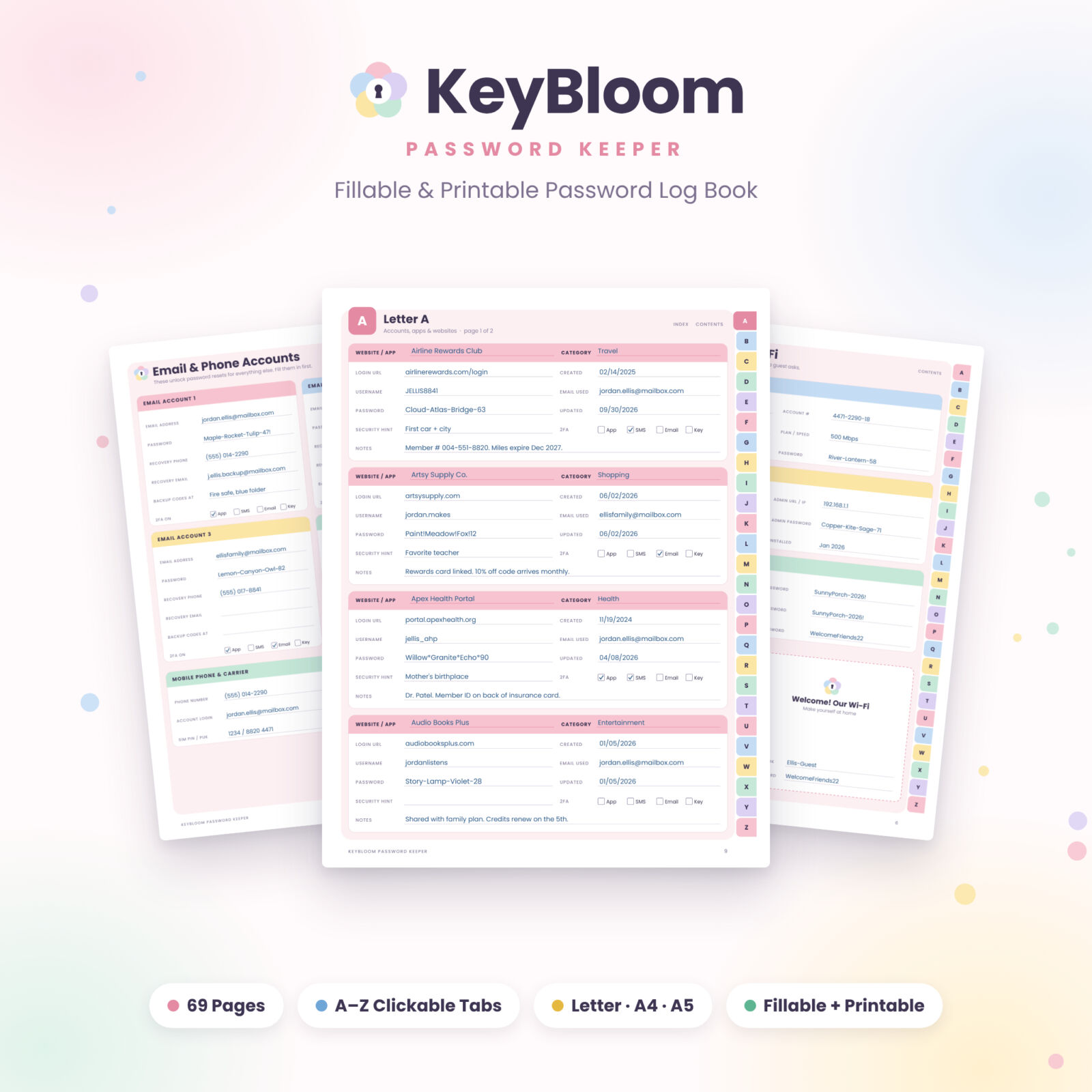
KeyBloom Password Keeper: Fillable and Printable Log Book
Best for: households that want one organized book for logins, Wi-Fi, devices and subscriptions
KeyBloom has 69 pages, A to Z tabs, 220 account entries, a subscription tracker, a password change log, a six-month security check-up and an Emergency Access Plan. It comes in Letter, A4 and A5, each as a fillable and a printable PDF, plus a 13 page guide. The page design is fixed so tabs and links line up, and only the pale blue fields are editable.
What each account card captures
A single card has more fields than you might expect, and each one has a reason.
- The website or app, plus a category
- The login URL, so you land on the right page
- Username and the email used to sign up
- The password itself, or a hint
- Created and updated dates
- A security question hint
- Notes
- Two-factor tick boxes for authenticator app, SMS, email or security key
The two-factor boxes are worth the space. When you are locked out, the first question is “how do I prove it is me?” Knowing which method each account uses saves a lot of guessing.
Email, phone and home network pages
The Email and Phone Accounts page holds four email accounts with recovery phone, recovery email, backup code location and two-factor details. It also has space for your mobile carrier, SIM PIN and account PIN.
Email deserves its own page. Your email is the key to resetting almost every other account, so its recovery details matter most.
The Home Network and Wi-Fi page covers your internet provider, router admin login and three Wi-Fi networks. It also has two cut-out guest Wi-Fi cards. Tape one to the fridge, and nobody has to ask you for the password again.
A Devices and Passcodes page lists phones, tablets, laptops, smart TVs, alarms and keypads. Setting up a new phone becomes a lot less painful when you can see everything on one page.
Subscriptions, software keys and the change log
The Subscriptions and Renewals page tracks amount, billing cycle, renewal date and auto-renew status, with monthly and yearly totals. Money fields are neutral, so you write your own currency once.
Fill it in and you will probably find a subscription you forgot. That alone can pay for the book.
Software and License Keys holds product keys, the registered email and the purchase date. A home office with several programs will be glad of it.
The Password Change Log records the date, the account, what changed and why. After a data breach, this is the page that tells you which accounts you have already updated and which still need work.
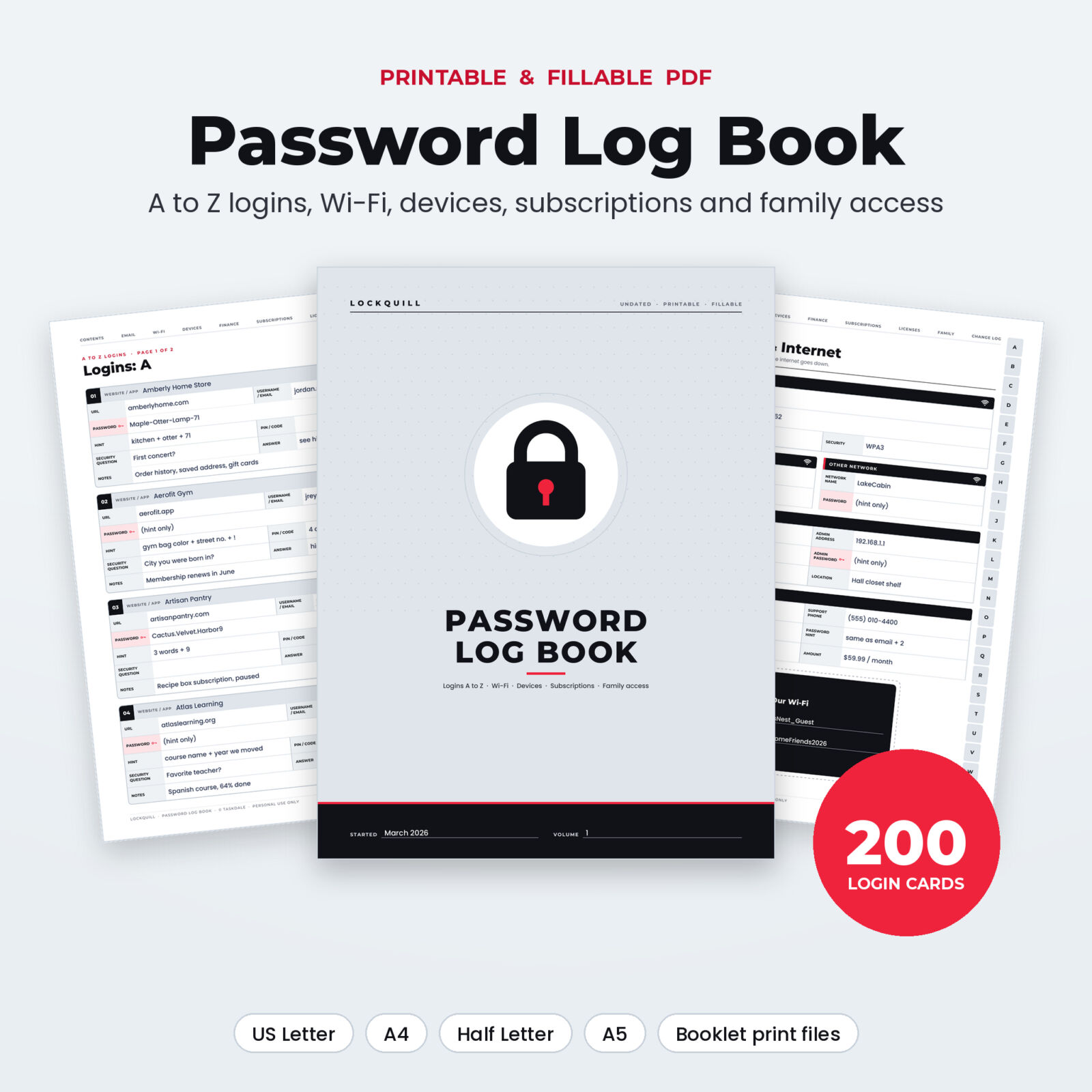
Lockquill Printable Password Log Book PDF
Best for: families who want Wi-Fi, subscriptions and shared access pages in one fillable book
Lockquill is an A to Z password keeper with Wi-Fi, subscriptions and family access pages. It is a fillable PDF in US Letter, A4 and A5. Like any paper log, it records your details but does not encrypt them.
Writing clues instead of passwords
One of the most useful pages is the Password Recipe. It describes two methods: the passphrase method and the hint method.
With the hint method, you do not write the real password at all. You write a clue that only you would understand. If someone finds the book, the clue means little to them. If you find it, the clue brings the password back.
It is a sensible compromise for people who worry about a paper record being read. You still get an organized system, with less risk on the page.
The book also includes a six month security check-up with last and next dates, and a page of scam warning signs to help you spot phishing.
The Emergency Access Plan
This is the page most people skip and later wish they had. It holds trusted contacts, where things are kept and your wishes for key accounts.
Think about what happens if you are suddenly unable to log in, or unable to speak. Who can get into your accounts, and where would they look? A plan written down now makes a hard moment easier for the people close to you.
Use cases include leaving a clear plan so a spouse or adult child can help in an emergency, and helping an aging parent keep their logins in one easy place.
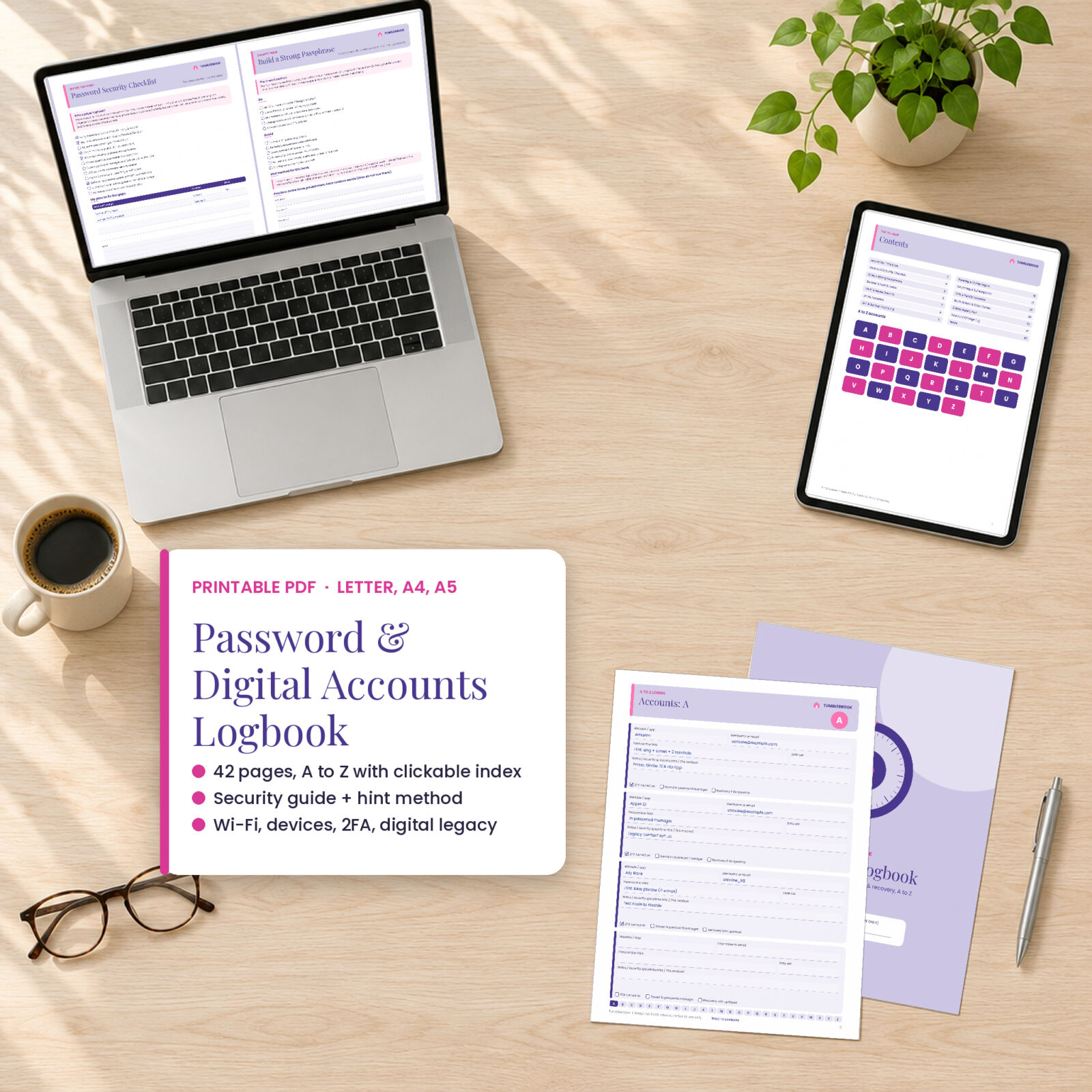
Tumblerbook Printable Password Logbook
Best for: people who want a security guide, a 2FA backup log and a digital legacy plan alongside their logins
Tumblerbook is an A to Z password keeper with a security guide, Wi-Fi and device pages, a 2FA backup log and a digital legacy plan, in US Letter, A4 and A5. It is a printable log, so you write in it by hand.
Fillable or handwritten: how each works
| Question | Fillable PDF | Printable PDF |
|---|---|---|
| How you fill it in | Type into pale blue fields, press Tab to move on, then save | Write by hand, in pencil |
| Software needed | A PDF app with form fields, such as free Adobe Acrobat Reader, or the Chrome viewer | Any PDF reader and a printer |
| Paper sizes | US Letter, A4, A5 | US Letter, A4, A5 |
| Navigation | Clickable tabs, links and bookmarks | Tabs and a printed Quick Index |
| Best for | People who type faster than they write | People who want paper in a binder |
To print, set your printer to Actual size or 100 percent on paper that matches the file size. Punch it for a binder, or staple it. Writing in pencil makes changes easy.
Where to keep the book
A password book is only useful if you can find it and only safe if others cannot. Pick a spot that fits both: a locked drawer, a home safe or a file box that is not on display.
If you use the fillable version, a password-protected folder or an encrypted drive is a better home than your desktop. And keep a printed copy somewhere separate from your computer.
The page design is fixed so the tabs and links always line up. That means you cannot move things around, but it also means nothing breaks when you add entries.
Who should skip it
If you want something that fills in logins automatically, a password manager or an app is the better tool. KeyBloom is a record, not a vault, and it does not encrypt anything.
If you only have a handful of accounts, a single page may be plenty. And if you cannot keep a printed book somewhere private, use the hint method or lean on an app.
It suits anyone juggling dozens of logins, families who share Wi-Fi and device passcodes, seniors, parents and caregivers who prefer a clear paper record, people who want a printed backup beside a password manager, and home offices tracking license keys and renewals.
Setting up your book in one afternoon
It looks like a big job. It is not, if you do it in the right order.
- Start with email. Fill in the Email and Phone Accounts page first, since it is the key to resetting everything else.
- Add the home network. Router login and Wi-Fi names take five minutes.
- Do your top ten accounts. Banking, shopping, streaming, work. Use the most-used accounts list.
- Add subscriptions. Scan your bank statement for repeating charges.
- Finish with the Emergency Access Plan. Name a trusted contact and say where the book lives.
Do not try to enter every account in one sitting. Add new ones as you log in during the week. After a month the book is nearly complete, and it feels like no effort at all.
When you change a password, write the date in the Change Log straight away. It takes ten seconds and it is the habit that keeps the whole book accurate. A password book that is out of date is worse than none, because you trust it when you should not.
Keep reading
- Free Printable Password Log (PDF) and How to Write Passwords Down Safely
- Password Organizer Printable: How to Keep Logins Safe Offline
- Free Password Organizer App (Offline and Encrypted): Download Latchly Lite
Frequently asked questions
Can I type into it or only print it?
Both. The fillable PDF lets you type on a computer, tablet or phone. The printable PDF is for writing by hand.
What paper sizes are included?
US Letter, A4 and A5, in both fillable and printable versions.
How many accounts can it hold?
220 account entries in the Letter and A4 versions, with four cards per page, or three on A5.
Is there a guide?
Yes. A 13 page user guide in DOCX opens in Word, Google Docs, Pages or LibreOffice. A Quick-Start Checklist sits on page 3 of the book.
Can I use my own currency?
Yes. Subscription money fields are neutral, so you write your own currency once.
Does it replace a password manager?
It can work alone, or as a printed backup beside a manager. It is a log, not an encrypted vault.
A good password book makes the next lockout a two minute job instead of a bad afternoon. Take a look at KeyBloom, and start with the Quick-Start Checklist.