Short answer: a PDF planner can’t buzz your phone. It’s a file, a very clever file full of links, but a file all the same. It doesn’t know what time it is and it can’t run in the background. So if you’re hoping for digital planner reminders that pop up on their own at 2:45 for your 3 pm dentist appointment, the planner alone won’t do it.
But that’s not the end of the story. Some planners have shortcut links that hand the job to your calendar app in one or two taps. And a different kind of planner, the browser-based app, can do some automatic work for you, like repeating tasks and flagging what’s overdue.
Here’s what each type can and can’t do, and a simple setup that gets you reminders without writing everything twice.
Why a PDF planner can’t send notifications
A notification needs something running on your device that watches the clock and taps you on the shoulder. Calendar apps do that. Reminder apps do that. Your note app could, in theory, but it doesn’t read your handwriting and set alarms from it.
When you write “call the plumber, Tuesday 10 am” on a daily page, that’s ink on a page. GoodNotes or Notability stores it as a drawing. It has no idea it’s a time, a task or a promise you made to yourself.
So when you see a planner listing that mentions “sync” with Google Calendar, read the fine print. A PDF can’t sync. What the good ones do is give you links that open your calendar on the right date, so adding a reminder takes seconds instead of a minute of scrolling.
That’s honestly fine for most people. You plan by hand, and you let the phone handle the few things that need an alarm.
Which kind of reminder do you actually need?
Before you build a system, it helps to sort your reminders into three piles. They need different tools.
- Time-fixed alarms. The dentist at 3 pm, the school play at 6, a call with a client at 11. These need a calendar alert, full stop. Miss the time and you miss the thing.
- Soft deadlines. Pay the water bill this week, send the birthday card by Friday. These need a nudge on a day, not at a minute.
- Things you just want to see. Water the plants, call Grandma, stretch. These rarely need an alarm at all. Seeing them on your daily page is usually enough.
Most people try to put all three piles into phone alerts and end up with 14 notifications a day. Within a week they swipe every single one away without reading it. If you keep alarms for the first pile, use a reminders app or a planner note for the second, and let the third live on paper, the alarms you do get will actually mean something.
What calendar shortcut links actually do
A calendar shortcut is just a link on the page. Tap it, and instead of jumping to another planner page, it opens your calendar app or Google Calendar in your browser, already pointed at the date you’re on. From there you add the event and set an alert like you normally would.
The details vary from planner to planner, so it’s worth reading each listing. A few examples from the Taskdale shop:
- Plotwell has Google Calendar and Apple Calendar shortcuts on every daily page and every line of its Month at a Glance, plus Apple Reminders one tap away.
- Daywoven lets you tap any hour on a daily page to open a new Google Calendar event at that exact date and time, or tap + on a weekly or monthly date for an all-day event.
- Wayfold has Calendar Connect buttons on every daily page that open Apple Calendar or Google Calendar on that date, with Apple Reminders a tap away too.
None of them pull events back into the planner. The flow only goes one way: planner to calendar.
The Plotwell All-in-One Digital Planner is a good example of how far this can go, because its shortcuts sit on every date, not just the daily pages.
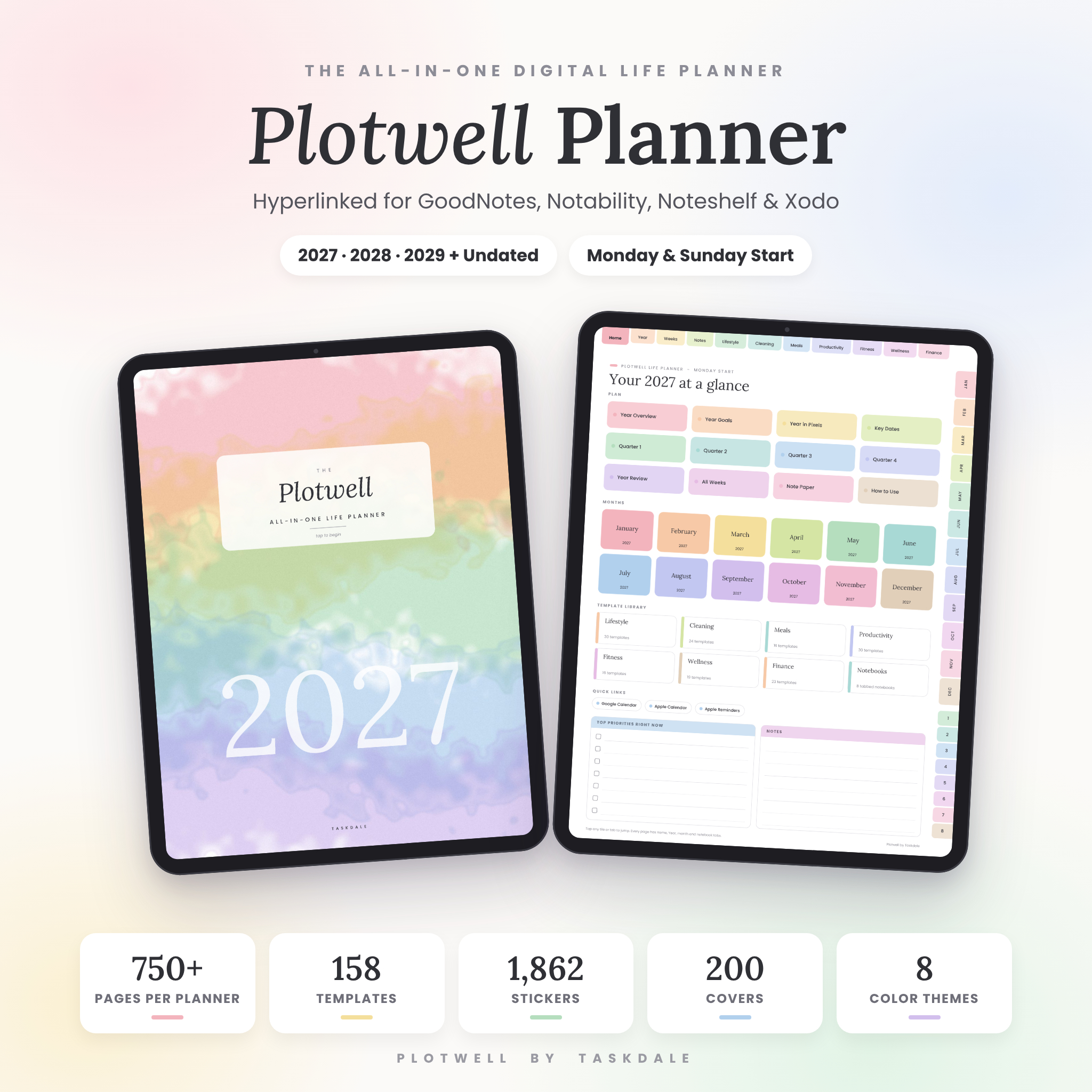
Plotwell All-in-One Digital Planner 2027 2028 2029 + Undated
Calendar shortcuts on every daily page and every line of Month at a Glance make adding an alert quick.
- Google Calendar and Apple Calendar shortcuts on every date
- Apple Reminders one tap away
- 2027, 2028, 2029 and undated planners in 8 color themes
How to turn a planner entry into a real reminder
Here’s the routine that works for me. It takes about ten seconds per item.
- Write the item in your planner as usual. “Dentist 3 pm.”
- Ask yourself: does this need an alarm? Most things don’t. Appointments, deadlines and anything with other people usually do.
- If yes, tap the calendar shortcut on that day’s page.
- Add the event title and time in your calendar app, and check the alert setting before you save.
- Put a tiny tick or star next to the item in your planner so you know it’s in the calendar too.
That last step matters more than it sounds. Without it, you’ll find yourself wondering on Thursday whether you ever added Friday’s school pickup.
Set a default alert once
Most calendar apps let you choose a default alert time for new events, like 30 minutes before. Set it once in your calendar’s settings and every event you add from your planner gets an alert automatically. One less thing to remember while you’re in the middle of planning.
If you want the exact time filled in for you, the Daywoven Digital Planner is the one to look at. Tap the hour on the daily page and the new Google Calendar event opens set to that date and time.

Daywoven Digital Planner 2027 2028 & Undated
Tap any hour on a daily page and a Google Calendar event opens at that exact date and time.
- Google Calendar links on every hour of every day
- Tap + on weekly or monthly dates for all-day events
- 2027, 2028 and undated editions in one download
Note that Google Calendar links need an internet connection and a Google account. Apple Calendar and Reminders links only work on Apple devices.
Reminders for tasks, not just appointments
Appointments have a time. Tasks often don’t. “Renew car registration” or “order Mom’s birthday gift” need a nudge, but not necessarily at 9:15 on a set day.
For these, a reminders app is often a better fit than a calendar. Some planners have a shortcut that opens Apple Reminders, so you can add a task with a due date while the planner page is still open.
The Wayfold 2027 Digital Planner is built around this mix: handwritten planning on the page, and buttons on every daily page for Google Calendar, Apple Calendar and Reminders. No shortcuts to install and nothing to set up, according to its listing.

Buttons on every daily page open Apple Calendar, Google Calendar or Reminders on that exact date.
- 800 hyperlinked pages for 2027
- Calendar Connect buttons on every daily page
- Bonus October to December 2026 mini planner
A tip: keep task reminders for things with real consequences. If everything pings you, you’ll start ignoring the pings, and then nothing works.
Browser-based planner apps: what they automate
There’s another type of planner on Taskdale that works quite differently. Instead of a PDF, it’s a single HTML file that you open in your web browser. It works offline, saves your data in your browser on your device, and does actual calculating and counting.
These apps can automate things a PDF never could. But read the descriptions carefully, because “automated” doesn’t automatically mean “sends notifications to your phone”.
Semester Pilot, for students
The Semester Pilot Student Academic Planner App flags late work, marks busy days, warns you about heavy weeks and shows a countdown to your next exam on its Home dashboard. Those are on-screen alerts you see when you open it. For phone-style reminders, it has a one-click .ics export (a standard calendar file) that sends your deadlines to Google Calendar, Apple Calendar or Outlook, where your calendar’s own alerts take over.
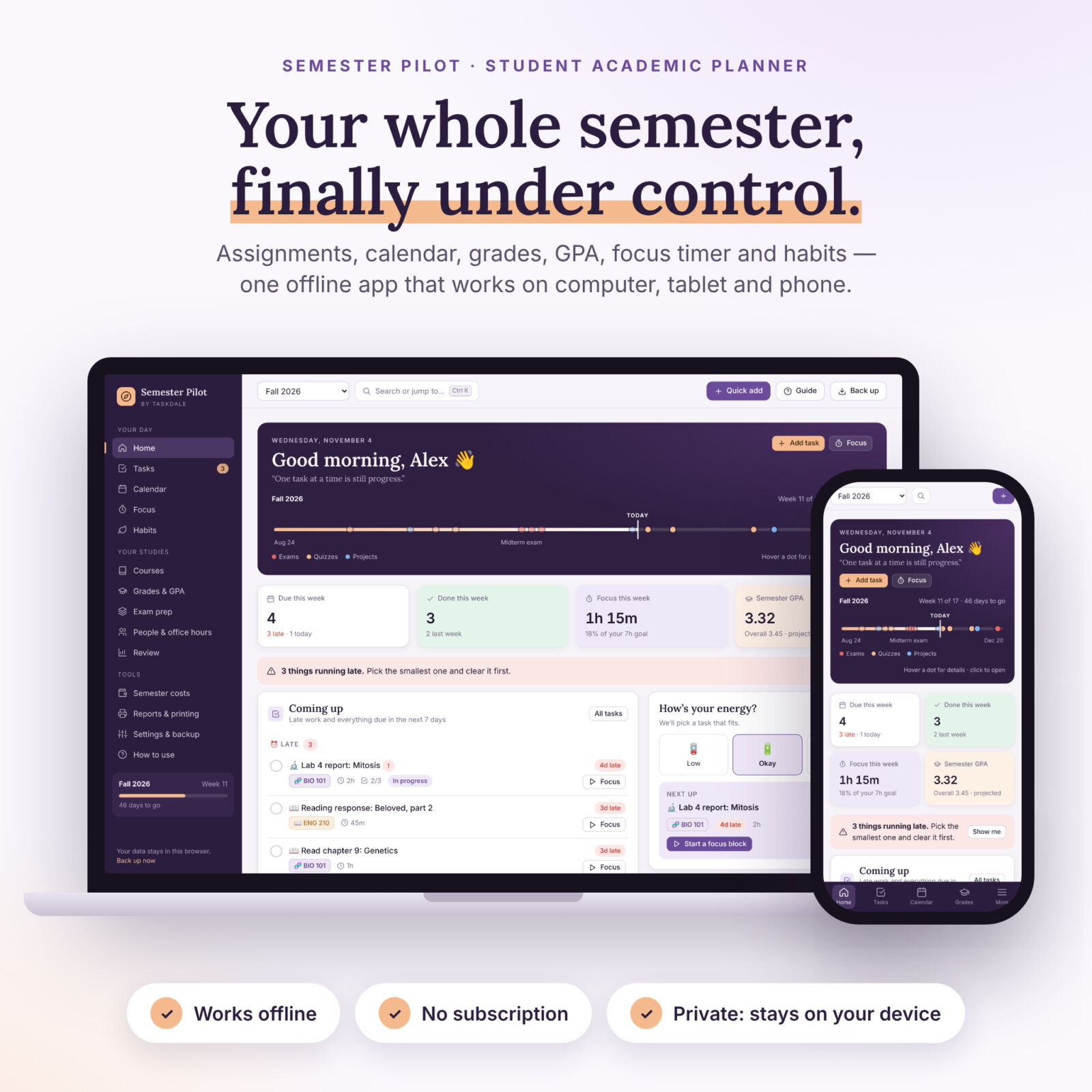
Flags late work and heavy weeks on screen, then exports deadlines to your calendar so it can remind you.
- One-click .ics export to Google, Apple or Outlook calendars
- Late-work alert, heavy-week warning and exam countdown
- Runs offline in your browser with no account
That’s a smart combination. The app does the thinking about workload and grades, and your calendar does the beeping.
Tallyday, for tasks and projects
The Tallyday Task Planner App handles a different kind of automation. Routines repeat on their own, with 15 repeat patterns like every weekday, the 2nd Tuesday or the last weekday of the month. Overdue work gets flagged in red. It doesn’t claim to send phone notifications, so think of it as the place you check each morning, not something that chases you.

Task Planner App with Dashboard, Kanban Board, Gantt Chart & Calendars
Routines repeat by themselves and overdue tasks show in red, all in an offline app on your computer.
- 15 repeat patterns, from every weekday to quarterly
- Overdue work flagged in red
- Dashboard, calendars, Kanban board and Gantt chart
If repeating tasks are your main headache, our guide on handling recurring tasks in a static PDF planner covers the hand-written side of things too.
What no planner can automate (and why that’s OK)
Let’s be honest about the limits, because they’re real.
- Reading your handwriting. A PDF planner won’t notice that you wrote “dentist” and set an alarm.
- Two-way sync. Events you add on your phone won’t appear in your PDF planner. You’ll glance at your calendar while planning, or copy across the few that matter.
- Location reminders. “Remind me when I get to the store” is a phone feature, not a planner feature.
- Nagging. No planner will make you open it. That part is still on you.
And honestly? That’s part of why people like paper-style planning. You decide what matters. You write it down. Writing it down helps you remember it, and the calendar is the safety net for the few things you can’t afford to forget.
If you’re still deciding between going fully digital and keeping some paper, our piece on electronic calendar planners vs printed calendars walks through the trade-offs.
A simple daily setup that works
Here’s a routine I’d suggest to anyone starting out. It takes five minutes in the morning and two at night.
Morning (5 minutes)
- Open your calendar app and look at today. Glance only.
- Open your planner’s daily page. Write your top 3 and anything time-based.
- For anything new that needs an alarm, tap the calendar shortcut and add it.
Evening (2 minutes)
- Tick off what’s done in your planner.
- Move what’s not done to tomorrow’s page.
- Add any new appointments that came up during the day to the calendar.
Once a week, during your Sunday planning, check the week ahead in your calendar against your weekly spread. That catches anything that slipped through. If you want the bigger version of this, our guide on pairing a digital planner with your calendar app covers which jobs belong where.
Shared reminders for the household
A PDF planner is personal. Nobody else in your house can see what you wrote on Thursday’s page. So for anything that involves a partner or kids, like pickups, sports days or a plumber who’s coming between 8 and 12, put it in a shared calendar as well. Then everyone’s phone reminds them, not just yours.
Your planner still has a job here. It’s where you think through the week, spot the clashes and decide who’s doing what. Our piece on shared family schedules and digital planners goes into that mix.
FAQ
Can a digital planner send push notifications?
A PDF planner can’t. It has no way to run in the background or tell the time. Use calendar shortcut links to add events to your calendar app, which handles the alerts.
Do the Google Calendar links sync my planner with my calendar?
No. They open your calendar on the right date so you can add an event quickly. Nothing is copied back into the planner.
Will Apple Calendar links work on my Android tablet?
No. Apple Calendar and Reminders links need an Apple device. Google Calendar links work on any device with a browser and internet.
Are HTML planner apps better for reminders?
They automate more, like repeating tasks, overdue flags and progress tracking. But check each description before you assume they send phone notifications. Some, like Semester Pilot, export to your calendar so it can remind you.
So no, your planner won’t nag you on its own. But with a shortcut link and a ten-second habit, it doesn’t need to. Write it, decide if it needs an alarm, tap once, and let your phone do the remembering.