Setting up an Eisenhower matrix digital planner page takes about five minutes. Using it every day without turning your mornings into a sorting ceremony is the harder part, and that’s what this guide is about.
Here’s the trap. You discover the matrix, you love it, and by Wednesday you’re redrawing four boxes, recopying 23 tasks and color coding them in three shades of pink. It’s 9:40 am and you haven’t started a single thing.
So we’ll keep the theory short, get the digital setup right once, and build a daily habit that takes a few minutes, not half an hour.
The quick refresher
The matrix sorts tasks by two questions: is it urgent, and is it important? That gives four boxes:
- Urgent and important: do it first.
- Important, not urgent: schedule it.
- Urgent, not important: delegate it or keep it short.
- Neither: drop it.
That’s honestly all you need to start. If you want the longer explanation with worked examples, our Eisenhower matrix template guide walks through sorting tasks in about ten minutes. This article sticks to the tablet side: where the matrix lives, how you move tasks around, and how to stop it from eating your day.
Where the matrix should live in your planner
Most hyperlinked planners already have a priority matrix page somewhere in their template library. The question is how you use it. There are two good setups.
Option 1: One master matrix, refreshed weekly
You keep a single matrix page as your running list. On Sunday you sort everything onto it. During the week you only add new tasks and cross off finished ones. Your daily page then pulls three or four tasks from the top two boxes.
This suits people with lots of small, ongoing tasks. It’s less copying.
Option 2: A fresh matrix each day
You duplicate a blank matrix page each morning and sort only today’s tasks onto it. It’s cleaner, but it means more rewriting, so it works best when your daily list is short.
I’d start with option 1. Most people who quit the matrix quit because of the daily rewriting, not the method.
Plotwell makes either setup easy. It’s an all-in-one hyperlinked planner with a Priority Matrix template in its Productivity library, next to a Kanban Board, Goal Planner and Weekly Review. You can duplicate any template or page, so making a matrix for every week (or day) takes a couple of taps.
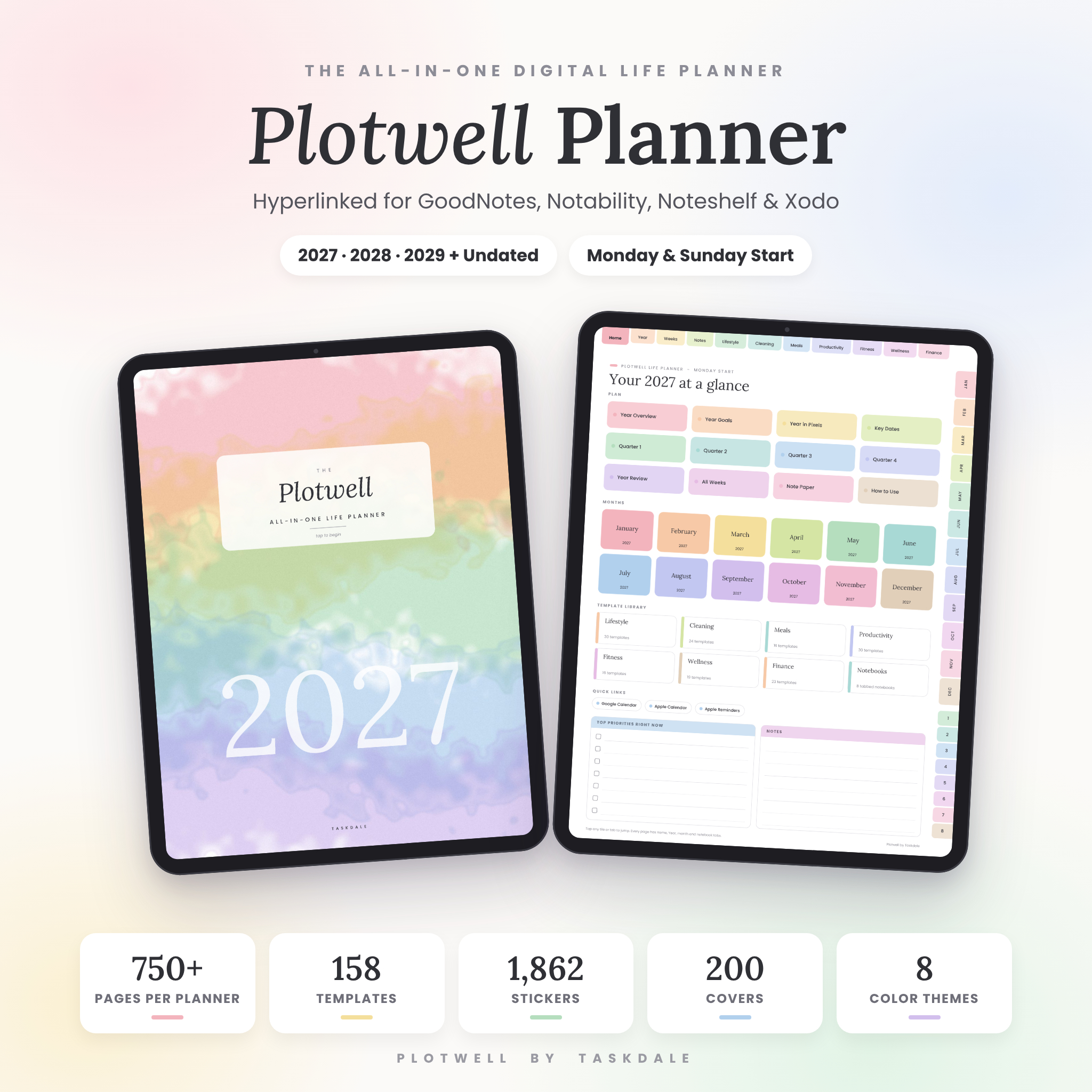
Plotwell All-in-One Digital Planner 2027 2028 2029 + Undated
An all-in-one hyperlinked planner with a Priority Matrix template you can duplicate for every week or day.
- Priority Matrix, Kanban Board and Weekly Review templates
- Daily pages with top 3 priorities and a 6 AM to 10 PM schedule
- Duplicate any template or page
- Google and Apple Calendar shortcuts on daily pages
Whatever planner you use, bookmark the matrix page so it’s one tap from anywhere. Hunting for it every morning is how habits die.
A daily routine that doesn’t eat your morning
Here’s the routine I’d suggest. Aim for five minutes. Set a timer if you need to.
- Open the matrix, not the daily page. Look at the top two boxes first.
- Add anything new. Tasks that came in since yesterday go straight into a box. Don’t overthink it. A gut call is fine.
- Pick today’s three. Take up to two from “do first” and one from “schedule.” Write them as today’s top 3 on your daily page.
- Give the scheduled task a time. Important but not urgent tasks only get done when they have a slot. Block 30 or 60 minutes on today’s schedule.
- Glance at the delegate box. Send the one text or email that hands something off. Then close the matrix.
That’s it. You’re not re-sorting the whole list every morning. You’re picking from it.
Step 4 is where a calendar link helps. Daywoven puts Google Calendar links on every hour of its daily pages, so tapping an hour opens a new Google Calendar event at that date and time. Its Goals and Productivity section includes a priority matrix, and you get two pages for every day: a Daily Plan and a Daily Reflection. The listing is clear that the links create new events and don’t sync events back into the planner.

Daywoven Digital Planner 2027 2028 & Undated
Tap an hour on a daily page to open a new Google Calendar event, so your important but not urgent tasks get a real time slot.
- Google Calendar links on every hour of every day
- Priority matrix in the Goals and Productivity section
- A Daily Plan and Daily Reflection page for every day
- 2027, 2028 and undated editions in six themes
If you keep appointments in a phone calendar and tasks in your planner, our guide to pairing a digital planner with your calendar app explains which job belongs where, so you don’t type everything twice.
If you’d rather keep everything inside the planner, writing the time block on your daily schedule works just as well. The point is that the task has a time, not where that time is stored. Our post on time blocking your week hour by hour goes deeper on this part.
What a real Tuesday looks like
Theory is easy. Here’s how it plays out on an ordinary, slightly chaotic day.
It’s 8:15 am. Your master matrix has 14 tasks on it from Sunday. Overnight, three new things arrived: a client wants a quote by Thursday, the school sent a permission slip due tomorrow, and the car is making a noise again.
You drop them in. The permission slip goes in “do first” because it’s due tomorrow and it matters to your kid. The quote goes in “schedule,” since Thursday gives you room. The car noise goes in “schedule” too, as “book a mechanic,” because ignoring it gets expensive.
Now pick three. The permission slip (five minutes, done before the school run). The report that’s due Wednesday, already sitting in “do first.” And one hour on the quote, blocked for 2 pm.
Then a quick look at the delegate box: “ask Sam to grab milk.” One text. Close the matrix.
Total time: about four minutes. Everything else on the matrix can wait, and you know it can wait, which is the whole point. That calm feeling of having decided is what the method gives you. The boxes are just how you get there.
Moving tasks between boxes on a tablet
This is where digital beats paper by a mile. On paper, a task in the wrong box means crossing it out and rewriting it. On a tablet, you just move it.
- Lasso and drag. Most note apps have a lasso or selection tool. Circle a handwritten task and drag it to another box. Takes two seconds.
- Use text boxes for tasks. If you type tasks with your app’s text tool, they’re even easier to move and to copy onto your daily page.
- Sticky note stickers. Write each task on a small sticky note sticker, then drag the stickers around the matrix. It feels a bit like a corkboard, in a good way.
- Copy and paste to the daily page. Lasso today’s three tasks, copy them, and paste them onto today’s page. No rewriting.
Keep colors simple. One highlighter color for “today,” maybe one for “waiting on someone.” Any more and you’ll spend more time picking pens than doing tasks.
For work: pair the matrix with your to-do and meeting pages
At work, tasks don’t arrive politely. They come out of meetings, emails and hallway chats. So the matrix works best when it sits next to the places those tasks come from.
A good workflow: take meeting notes with an action items list, then once a day move every action item into the matrix. That’s your single sorting point.
Tidework is set up for exactly this. It’s a 2027 work planner with a priority matrix, a must, should, could to-do list, a kanban board and a brain dump among its task tools, plus 24 numbered meeting pages with an action items table. The 36 templates are undated, so you can duplicate an extra matrix page whenever you need one.
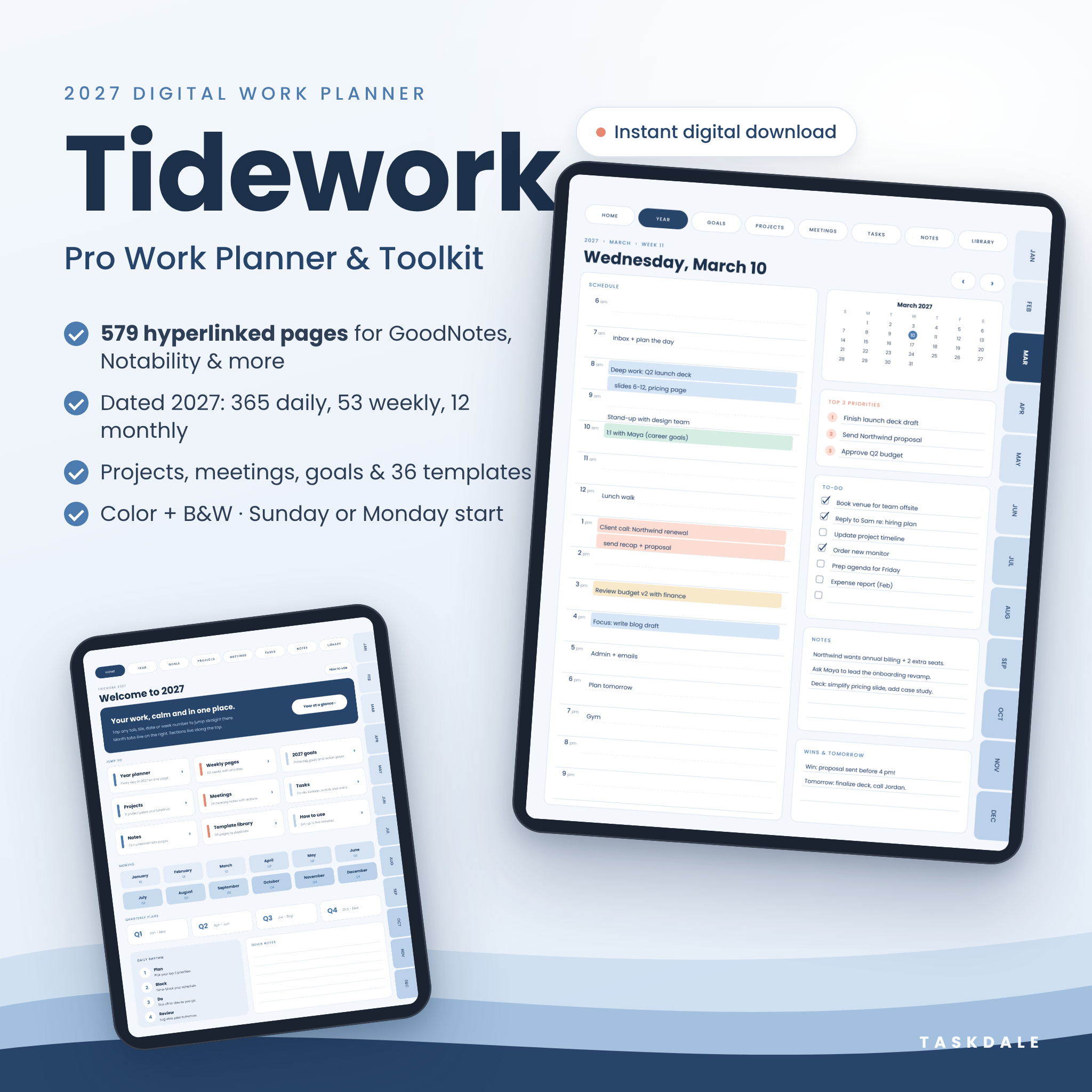
A work planner where your priority matrix sits beside meeting pages with action items, so tasks have one place to be sorted.
- Priority matrix, kanban board and brain dump
- Must, should, could to-do list
- 24 meeting pages with action item tables
- Undated 36-template library you can keep using
The must, should, could list is a handy partner here. Some days you don’t need four boxes. You just need to know what must happen before 5 pm.
One matrix per project
A single matrix for your whole life can get crowded. If you’re running a few projects at once, like a website rebuild, a house move and a side business, a separate matrix for each one keeps things readable.
Then your daily routine changes slightly: glance at each project’s “do first” box and pick the one task that matters most across all of them.
The Kickoff to Close digital project planner has this built in. Each of its six project sections includes a mind map and a priority matrix labeled Do first, Schedule, Delegate and Drop, along with a kanban board, task lists and weekly status reports. A Home dashboard shows every project’s progress on one screen, so you can see which project needs you today.
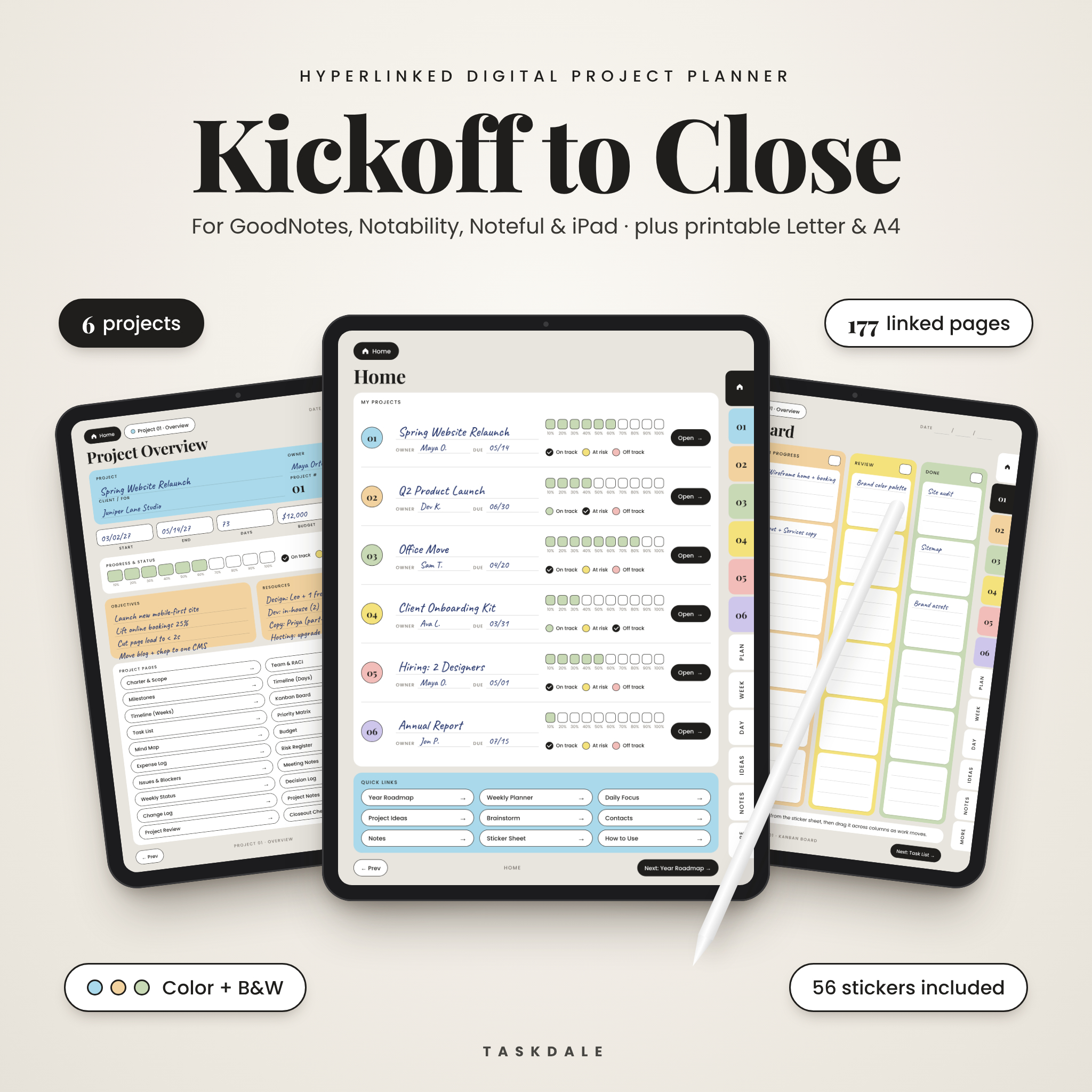
Digital Project Planner for GoodNotes & iPad
Each of six projects gets its own priority matrix labeled Do first, Schedule, Delegate and Drop, plus a dashboard for all of them.
- Priority matrix and mind map in every project
- Kanban board, task lists and weekly status reports
- Home dashboard shows every project's progress
- Undated, for GoodNotes, Notability and Noteful
Don’t make a project matrix for everything, though. A project with five tasks just needs a list.
Using the matrix on an e-ink tablet
If you plan on a Kindle Scribe, the matrix suits the screen well. Four boxes, handwriting, no distractions. The trade-off is that moving tasks between boxes isn’t as quick as on an iPad, so a fresh matrix each week (option 1 above) is usually easier than lots of dragging.
Inkstride Project HQ is a Kindle Scribe project planner with ten project sections, and each one includes a priority matrix, a mind map, a kanban board and task lists. The pages are made for the Kindle Scribe’s 3:4 screen, and you tap links with your fingertip while the pen is only for writing. The listing says it’s designed and supported for Kindle Scribe, not iPad apps, so only pick it if that’s your device.
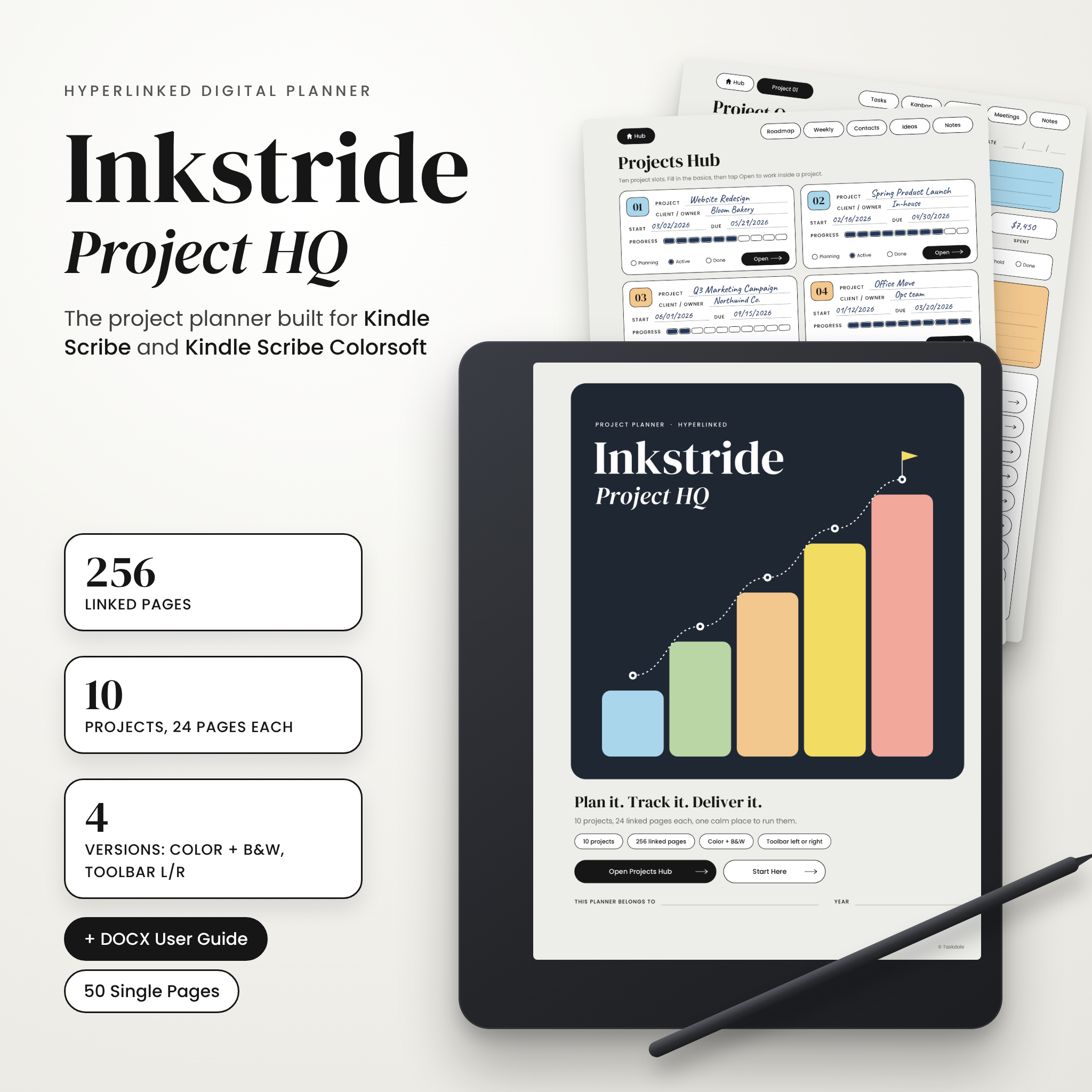
A project planner made for the Kindle Scribe screen, with a priority matrix in each of its ten project sections.
- Ten project sections with 24 linked pages each
- Priority matrix, mind map and kanban board
- Pages sized for the Kindle Scribe 3:4 screen
- Your pen writes, your fingertip taps links
On e-ink, keep the matrix in pen and cross things out rather than erasing. Seeing the crossed-out tasks at the end of the week is oddly satisfying.
How to avoid overplanning
The subtitle of this article is a promise, so here are the rules that keep the matrix useful instead of exhausting.
- Cap the “do first” box at five. If more than five things are urgent and important, some of them aren’t. Be honest.
- Sort once a day, at most. Re-sorting at lunch and again at 3 pm is procrastination with a nice layout.
- Empty the “drop” box weekly. Actually delete those tasks. Keeping them “just in case” clutters the page and your head.
- Don’t matrix tiny tasks. Anything under two minutes, just do it.
- Review the “schedule” box on Sunday. This is the box that changes your life, and the one that quietly gets ignored. Our digital planner weekly review routine builds this check into a simple Sunday habit.
And if a day goes sideways, let it. The matrix is a tool for deciding, not a contract.
FAQ
Which digital planners include an Eisenhower matrix page?
Many hyperlinked planners include one in their template library, often called a priority matrix. Check the product description for “priority matrix” before you buy. If yours doesn’t have one, draw four boxes on a notes page and duplicate it.
Should I use the matrix every day?
Use it to pick your daily tasks, yes, but don’t rebuild it every day. A weekly sort with a quick daily glance works for most people.
Can I use the matrix in Notion or a spreadsheet instead?
Yes. In Notion, a board view grouped by a priority property does the job. In a spreadsheet, a priority column with four options works. The habit matters more than the tool.
What goes in the delegate box if I live alone?
Things you can automate, outsource or shorten: online grocery orders, a cleaner, a template email reply. If nothing fits, treat the box as “do it quickly and keep it short.”
Four boxes, five minutes, three tasks. Keep it that simple and the matrix stops being another thing to manage and starts quietly deciding your day for you.