A digital planner weekly review is the habit that turns a pretty planner into one you actually trust. Without it, tasks pile up on the wrong days, half-finished goals go quiet, and by March you’re scrolling past three weeks of blank pages wondering what happened.
It doesn’t need to be a big ritual. Mine happens on Sunday afternoon with a cup of tea, the iPad on my knee and the TV on low. Some weeks it takes ten minutes. Some weeks, after a chaotic one, it takes thirty.
Below is the exact routine, step by step, plus how to set your planner up so the review almost runs itself.
What a weekly review is (and what it isn’t)
A weekly review is a short, regular check-in where you look back at the week that just ended and set up the one that’s coming. That’s it.
It isn’t a full replan of your life. It isn’t journaling for an hour. And it definitely isn’t a guilt session about everything you didn’t do. The point is to catch loose ends while they’re still small, so Monday starts with a clear list instead of a fog.
The big win in a digital planner is that everything you need sits in one file: last week’s spread, your monthly goals, your notes and your calendar. You can jump between them with a tap instead of flipping through three notebooks.
Set up your planner so the review has a home
Before the first review, decide where it lives. You’ve got three options.
- A weekly review template page. Many hyperlinked planners include one in their template library. Duplicate it for each week and keep it next to that week’s spread.
- The reflection area on your weekly spread. Some spreads have a wins or notes box. Fine for a quick review, a bit tight for a thorough one.
- A separate review notebook. One page per week in its own section, so you can scroll back through months of reviews in one place.
Plotwell is a good example of the first option. It’s an all-in-one hyperlinked planner, and its Productivity library includes a Weekly Review template, alongside a weekly spread for every week and a Monthly Review page for each month. You can duplicate any template or page, so one review page per week is easy.
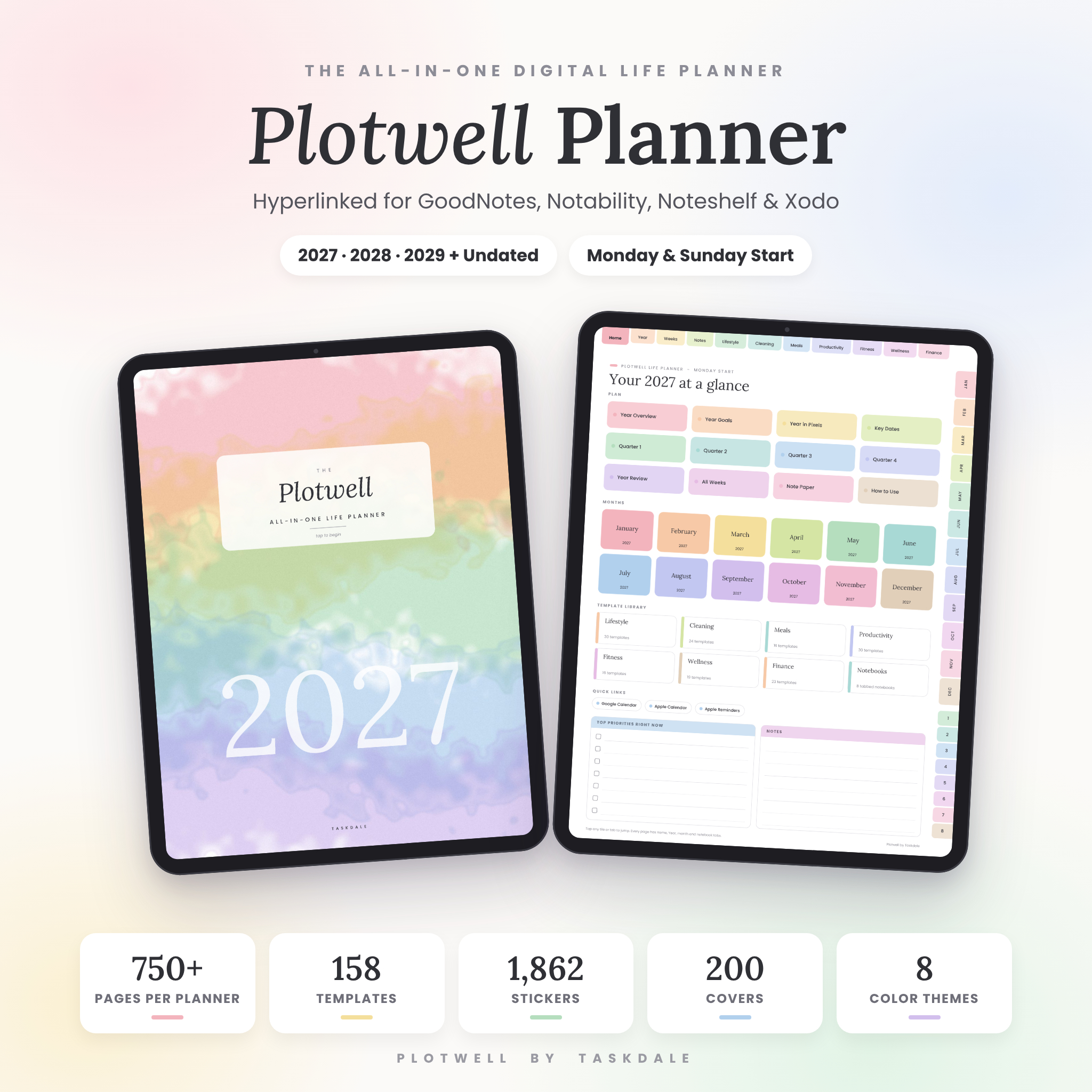
Plotwell All-in-One Digital Planner 2027 2028 2029 + Undated
An all-in-one hyperlinked planner with a Weekly Review template in its Productivity library, plus a weekly spread for every week.
- Weekly Review, Habit Builder and Goal Planner templates
- Five linked pages for every month, including a Monthly Review
- Duplicate any template or page
- Works in GoodNotes, Notability, Noteshelf and Xodo
What to put on your own review page
If your planner doesn’t have a review template, make one on a blank notes page. Keep it to five boxes so it fits on one screen without scrolling:
- Wins this week
- Didn’t happen (and why, in a few words)
- Goals check: what moved
- Coming up: the next two weeks
- Top 3 for next week
Write the headings once, then duplicate the blank page 10 or 12 times so the next few months are ready. Future you will be glad there’s no setup on a tired Sunday.
Whichever planner you use, bookmark the review page or add it to your app’s favorites. If you’re new to duplicating pages and bookmarks, our walkthrough on how to use a digital planner in GoodNotes covers both.
Step 1: Empty every inbox
Start by collecting the bits that never made it into your planner. This is the boring step, and it’s the one that makes the rest work.
- Notes on your phone and screenshots you took “to deal with later”
- Sticky notes on the fridge or desk
- Your brain dump page in the planner
- Emails you flagged or starred
- Anything you promised someone in a text message
On a tablet, a few spots are easy to forget: the scribbles you left in the margins of last week’s daily pages, the lasso-moved notes you parked on a random page, and the half-finished list in a separate notebook. Flick through the week’s pages quickly with your finger and grab anything with a star or an arrow next to it.
Don’t sort yet. Just write each item onto one page or a brain dump list. A typical week gives me eight to fifteen loose items. Seeing them in one place takes the edge off straight away.
Step 2: Look back at last week
Open last week’s spread and read it top to bottom. No judging. Just notice.
- Tick off what got done. If you did it and forgot to tick it, tick it now. Small wins count.
- Circle what didn’t. For each circled task, decide: move it, delegate it, or drop it.
- Write down one or two wins. Even on a rotten week. “Got the kids to swimming every day” is a win.
- Write one lesson. Something like “Thursday is always busier than I plan for.”
- Rate the week. A star rating or a 1 to 10 score. Over a few months, the pattern tells you a lot.
If you’d like a planner that does the counting for you, Becoming Atlas is worth a look. It’s a goal planner and habit tracker that opens in your browser, and its weekly review has a star rating, an energy level, four quick questions and a trend chart. Your habit streaks and charts update on their own, so the “how did I do?” part is already on screen when you sit down.

Its weekly review has a star rating, energy level, four quick questions and a trend chart, and your streaks update on their own.
- Opens in your browser, no app or account
- Habit streaks, weekly score and charts update by themselves
- 12 monthly chapters with month-end reflections
- Works offline once downloaded
It’s a different style from a handwritten planner. No stylus, more charts. Some people use both: the tablet for daily planning and a browser planner for the review.
Step 3: Check in on goals and projects
Next, zoom out a little. Open your monthly goals or project pages and ask one question for each: did anything move this week?
If yes, note it. If no, pick one small next step and put it on next week’s list. A goal with no next step is just a wish written in nice handwriting.
For work projects, this is where you check deadlines, meeting actions and anything waiting on someone else. Tidework is built for exactly this kind of check. It’s a 2027 work planner with 53 weekly spreads that include a wins and lessons section, 12 monthly reviews, 8 project plans with 12-week timelines and 24 numbered meeting pages with action item tables. A weekly review template sits in its 36-template library too.
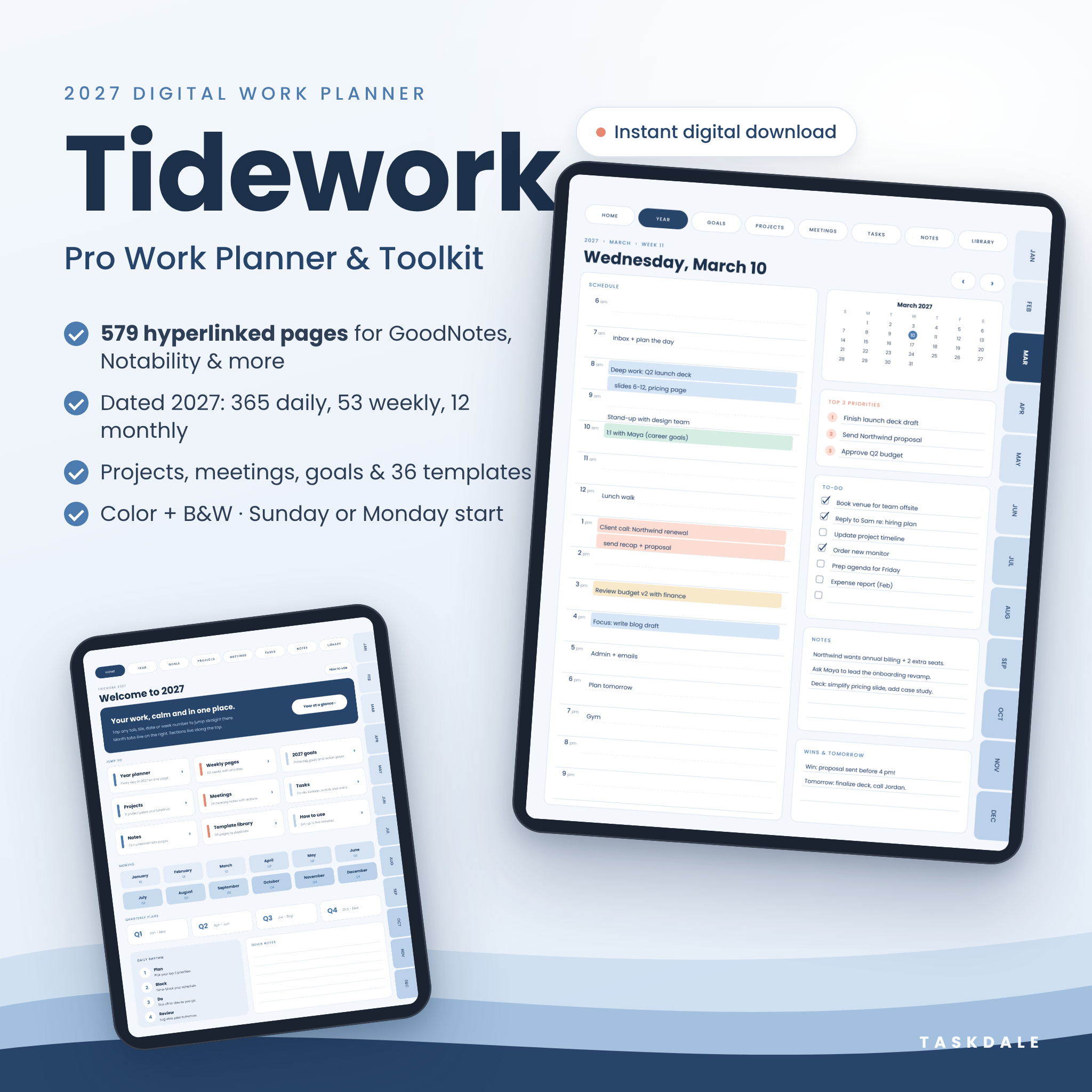
A 2027 work planner with weekly wins and lessons, project plans and meeting action items, so your Friday review has everything in one file.
- 53 weekly spreads with wins and lessons
- 8 project plans with 12-week timelines
- 24 meeting pages with action item tables
- 36-template library including a Weekly Review
Keep this step light. You’re looking for stuck things, not rewriting the project plan.
Step 4: Look ahead at the calendar
Now look at the next one to two weeks of appointments. This is where surprises hide: a dentist booking you forgot, a birthday that needs a gift, a school event on the same evening as a work deadline.
For each event, ask whether it needs any prep. A birthday needs a card bought by Wednesday. A presentation needs slides finished by Thursday. Write those prep tasks onto the right days now, while you can still see the whole week.
This is also the moment to check recurring jobs: bin day, bills, the weekly grocery order, a standing call. If you keep forgetting the same ones, our guide to handling recurring tasks in a PDF planner has a few tricks that save you rewriting them every week.
If you keep appointments in a phone calendar and tasks in your planner, have both open side by side for this step. It takes two minutes and saves a lot of “oh no” moments.
Step 5: Pick next week’s priorities and give them time
This is the heart of the review. From everything you collected, moved and planned, pick three priorities for the coming week. Three, not twelve.
Then give each one a slot. A priority without a time on the calendar tends to drift to Friday and then to next week. Our guide to the time blocking planner method shows how to block your week hour by hour if you want to go further.
Here’s where honesty helps. Look at how much free time you really have after work, school runs and appointments. If Tuesday is already packed, don’t put a big priority there.
Fernhaven does this sum for you. It’s an all-in-one life planner that runs in your browser, and it works out how much free time you have each day after work, appointments and a small buffer, then shows what you planned against it. If a day is overloaded, the Repair my day button moves flexible tasks to days with room. It also has a guided weekly review, and its listing suggests running it on Sunday.
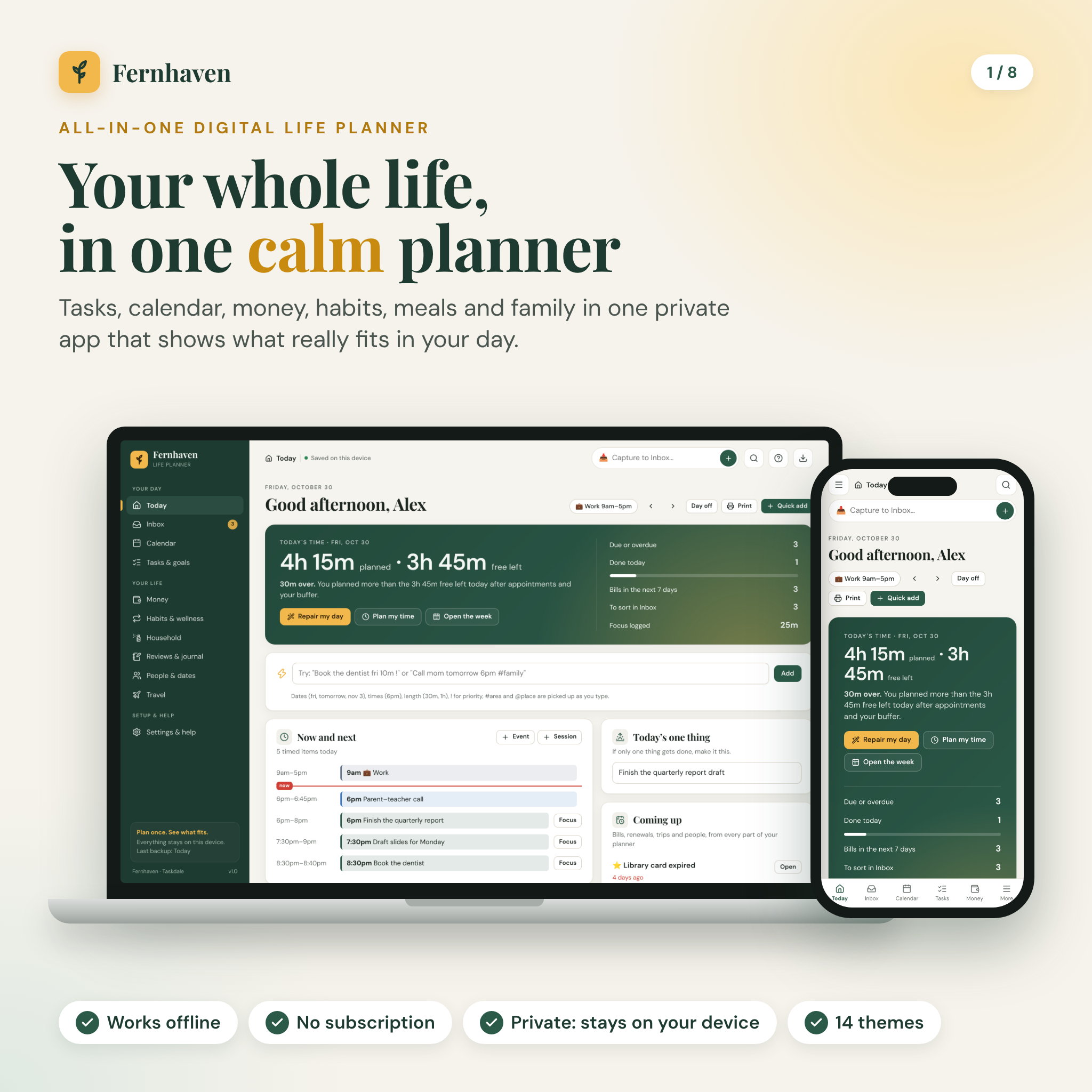
All in One Digital Life Planner
It works out your real free time each day and shows what you planned against it, then guides your weekly review.
- Planned time vs free time for every day
- Repair my day moves flexible tasks to days with room
- Guided weekly review and monthly life balance wheel
- Runs offline in Chrome or Edge, no account
If you’re more of a pen person, the low-tech version is fine: count your free hours per day on a scrap of paper and be strict with yourself.
Step 6: Tidy the planner itself
Last step, and the quickest. Spend a couple of minutes on housekeeping so next week’s planner is pleasant to open.
- Add stickers or highlights for key dates, like paydays and appointments.
- Duplicate any extra pages you’ll need, such as meeting notes or a meal plan.
- Delete or archive pages you’ll never use.
- Back up your planner. Once a week is a good rhythm. Our digital planner backup guide explains how in every major app.
Then close the planner. Done. The whole thing usually fits between putting the kettle on and the end of a short TV episode.
A short version for busy or messy weeks
Some Sundays you won’t have the energy. That’s normal. Rather than skipping, do the three-question version:
- What’s one thing that went well?
- What’s the one thing that must happen next week?
- What’s on the calendar that I could forget?
Five minutes. Then you’re still in the habit, and next week’s full review is easier.
Some people find a printed or typed review page easier on low-energy weeks, because it’s one page with set boxes and nothing to navigate. The Focus Planner Set includes a Weekly Review page where you list wins, what went wrong and what you learned, mark each priority as done, partly or not yet, rate the week from 1 to 10, mark your energy and set next week’s focus. It comes as printable and fillable PDFs, so you can type into it on a computer. Just know it’s made for printing and typing, not as a hyperlinked tablet planner.
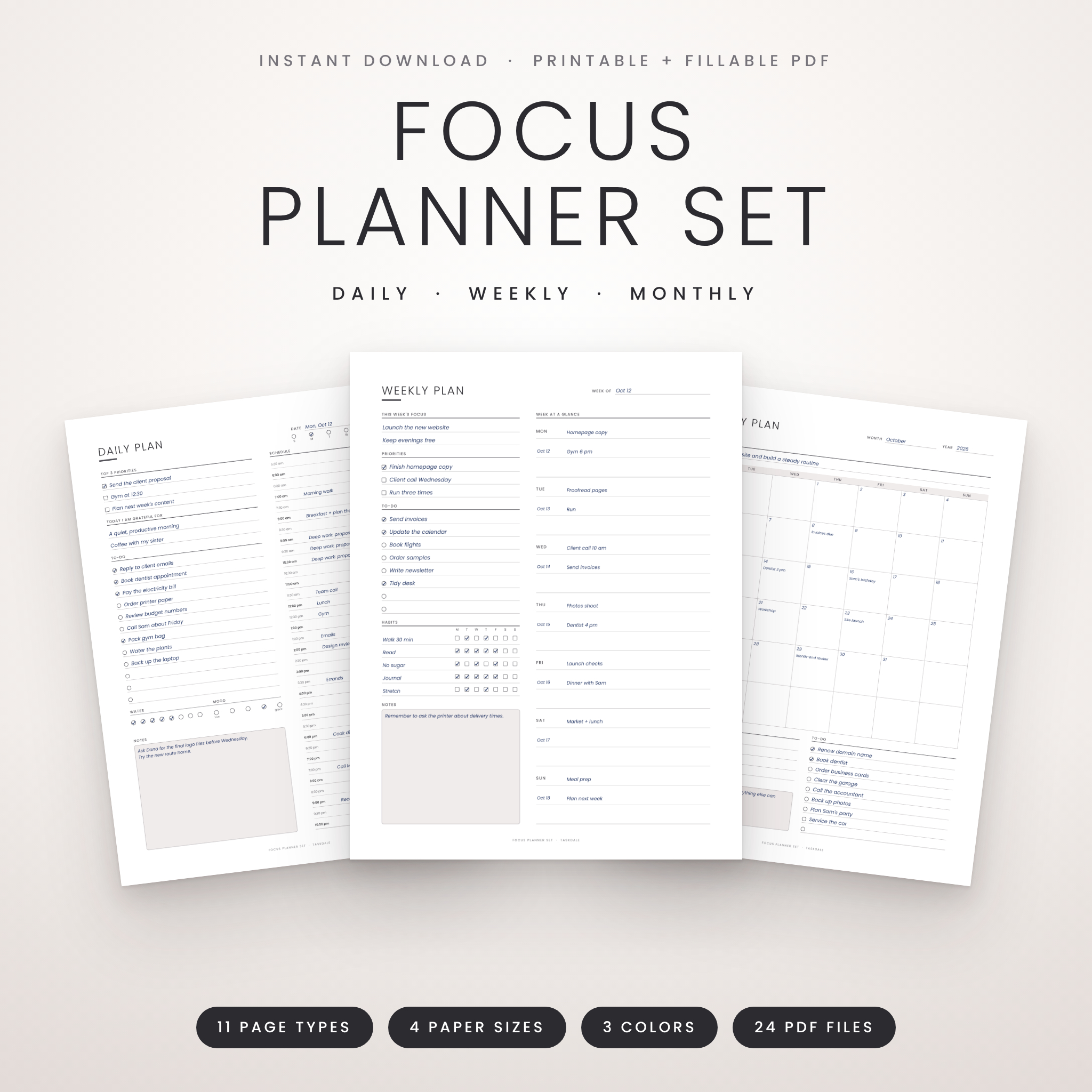
A one-page Weekly Review you can print or type into, for weeks when you want set boxes and nothing to navigate.
- Wins, what went wrong and what you learned
- Rate the week 1 to 10 and set next week's focus
- Printable and fillable PDFs in four paper sizes
- Undated, so you can start any week
Use whatever lowers the effort. A tired review beats no review. If you want a way to sort tasks fast when the list is long, the Eisenhower matrix in a digital planner pairs well with step 5.
FAQ
What day should I do my weekly review?
Sunday afternoon or evening is the most popular, because the week ahead is fresh. Friday afternoon works well for work planners, so you can switch off for the weekend. Pick one day and protect it.
How long should a weekly review take?
Usually 15 to 30 minutes once you’re used to it. Your first few might take longer while you set up pages. The short version above takes about five.
Do I need a special weekly review template?
No, but it helps. A template with set questions stops you from staring at a blank page. Many hyperlinked planners include one, or you can write your own five questions on a notes page and duplicate it each week.
What if I miss a week?
Just do the next one. Don’t try to review two weeks at once in detail. Skim the missed week for unfinished tasks, move what matters, and carry on.
Give it four Sundays. By the fourth, you’ll notice Monday mornings feel calmer, fewer things slip through, and your planner starts to feel like it’s working for you rather than the other way round.