A to-do list tells you what to do. It doesn’t tell you when. That’s why 14 items on Monday morning somehow turn into 3 done by Friday. Time blocking fixes the “when” by giving every task a slot on the clock, and a time blocking planner gives you a page to do it on.
It sounds rigid. It isn’t, if you do it right. The goal isn’t to schedule every minute. It’s to protect the few hours that matter and stop small stuff from eating them.
Here’s a method that works for students, freelancers and parents alike, with a worked example and three printable planners that suit it.
How time blocking works in six steps
1. Dump everything first
Write down every task for the week on a scrap page. Work, home, admin, the email you keep avoiding. Next to each one, guess how long it takes. Be honest. Most people underestimate by about a third.
2. Block the fixed stuff
Classes, meetings, the school run, shifts, the gym class you’ve paid for. These don’t move, so they go in first. Now you can see what time is actually left. It’s usually less than you thought.
3. Protect two or three focus blocks
Pick your most important work and give it a 60 to 120 minute block on your best hours. For most people that’s the morning. Treat it like a meeting with someone you don’t want to let down. No email, no phone.
4. Batch the small stuff
Emails, calls, invoices, quick errands. Instead of scattering them all day, give them one or two 30-minute blocks. Say 11:30 and 4:00. It’s amazing how much faster emails go when you know you only have half an hour.
5. Leave buffers
Leave 15 to 30 minutes empty between big blocks, and keep at least an hour free in the afternoon. Things run over. Kids get sick. A client calls. If your plan has zero slack, the first surprise breaks the whole day.
6. Review planned versus actual
On Friday, look at what you planned and what really happened. Did “write proposal” take 2 hours or 4? Next week, plan with the real number. After three or four weeks your estimates get scarily accurate.
A worked example: a freelancer’s Tuesday
- 7:00 to 8:00: school run and coffee
- 8:00 to 10:00: focus block, client design work
- 10:00 to 10:15: buffer
- 10:15 to 11:30: second focus block, proposal draft
- 11:30 to 12:00: email and messages
- 12:00 to 1:00: lunch, walk
- 1:00 to 2:00: client call
- 2:00 to 3:00: admin (invoices, bookkeeping)
- 3:00 to 4:00: buffer and catch-up
- 4:00 to 4:30: email again, plan tomorrow
Notice there are only two deep blocks. That’s normal. Three hours of focused work is a very good day for most people.
Colour-code your blocks
Pick four to six categories and give each a highlighter colour. For example: client work, admin, meetings, personal, learning, rest. At the end of the week, flip through and look. If the page is mostly the admin colour, you know why your big project hasn’t moved.
Choosing a time blocking planner
You can do this in a notebook with a ruler. But a printed grid saves time and makes the week visible. Three things to check: the hour range (does it cover your day?), the slot size (half-hour rows are easier for short tasks) and whether you can see the week or just the day.
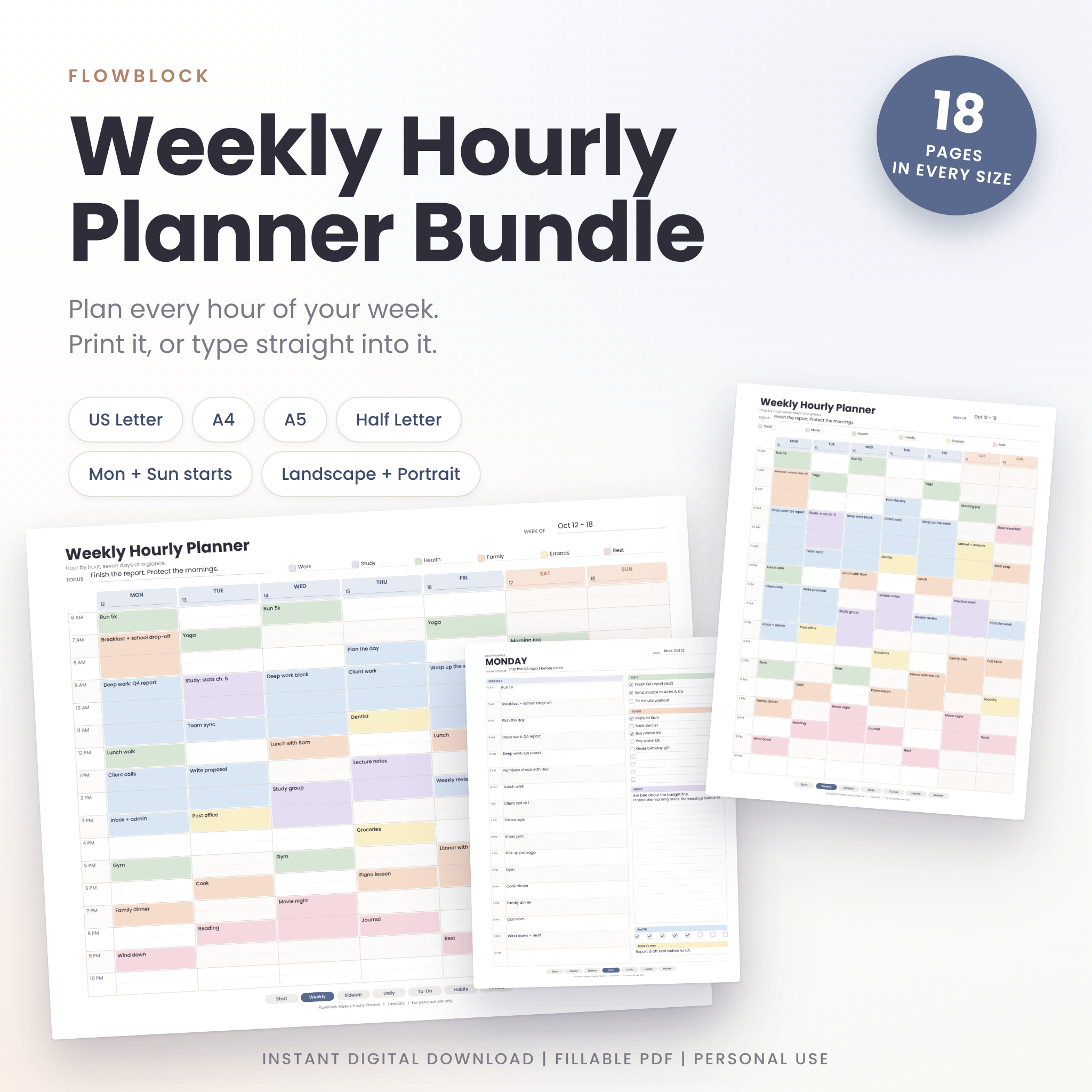
FlowBlock Weekly Hourly Planner: for the whole week
FlowBlock is built around the weekly view. Every day is split into hour rows from 6 AM to 10 PM with a dotted half-hour line, so a 20-minute call and a three-hour block both have a place. You get landscape and portrait weekly grids, each in Monday and Sunday start, plus seven daily planners, a weekly to-do list and a habit and wellness tracker.
Two features fit the method above perfectly. It has six colour categories you can rename, and the weekly review compares planned and actual hours for each category. Hour labels are editable too, so shift workers can start at 5 AM or 10 PM. Four fillable PDFs: US Letter, A4, A5 and Half Letter.
Clear Day: for blocking one day at a time
If you prefer to plan each morning, Clear Day has a Time Block page with a half-hour grid from 6 AM to 10 PM, plus top three, must-dos, a calls and messages list and a brain dump. There’s also a Focus Day page with focus rounds for deep work and a four-box priority matrix. It comes in four sizes, three colours, with editable hour labels.
Focus Desk Work Planner Kit: for office days
Focus Desk suits a work setting. Its Time Blocker page has half-hour slots from 6 AM to 9 PM with a deep work block, quick tasks and breaks, and it sits next to a Work Day Planner, a Priority Matrix, a Weekly Planner and a Weekly Review. The fillable version has dropdowns for priority, status and ratings. US Letter and A4.
Common time blocking mistakes
- Blocking every minute. You’ll break the plan by 10am and give up. Leave gaps.
- Ignoring energy. Don’t put your hardest task at 3pm if you crash after lunch.
- Not moving blocks. If a block gets bumped, drag it to a new slot. Don’t just delete it.
- Skipping the review. The review is where you learn how long things take. Without it, you’ll overplan forever.
FAQ
Is a time blocking planner better on paper or in an app?
Both work. Paper is harder to ignore and easier to adjust with a pencil. Apps are better for sharing a calendar with others. Plenty of people block their week on paper and copy only the meetings into a calendar app.
How long should a time block be?
Focus blocks work best at 60 to 120 minutes. Small-task blocks can be 15 to 30 minutes. Anything longer than two hours usually needs a short break in the middle.
What if my day keeps getting interrupted?
Plan fewer blocks and more buffers. Parents and on-call workers often do best with one protected block a day and the rest kept loose.
Should I block weekends too?
Only the fixed bits, like sport or family plans. Leaving weekends mostly open keeps the system from feeling like a cage.