A Google Sheets budget template has one big advantage over almost everything else: it’s wherever you are. Laptop at work, phone in the supermarket queue, your partner’s tablet on the sofa. Same file, same numbers, always current. No app to install, no subscription, and the spreadsheet itself is free with a Google account.
The catch is that most free templates are either too basic (a list of categories and a total) or too fragile (one wrong click and the formulas are gone). This guide walks through setting up a Google Sheets budget properly, using Aurora Finance OS as the example, and the habits that keep it useful past February.
Why budget in Google Sheets?
- It syncs. Change a number on your laptop and it’s on your phone a second later.
- It’s shareable. Invite a partner with edit access. No more “can you send me the latest version?”
- It keeps history. Version history lets you roll back if something goes wrong.
- It’s free. You need a Google account and nothing else.
What Google Sheets doesn’t give you is structure. That’s what a template is for.
What Aurora Finance OS does
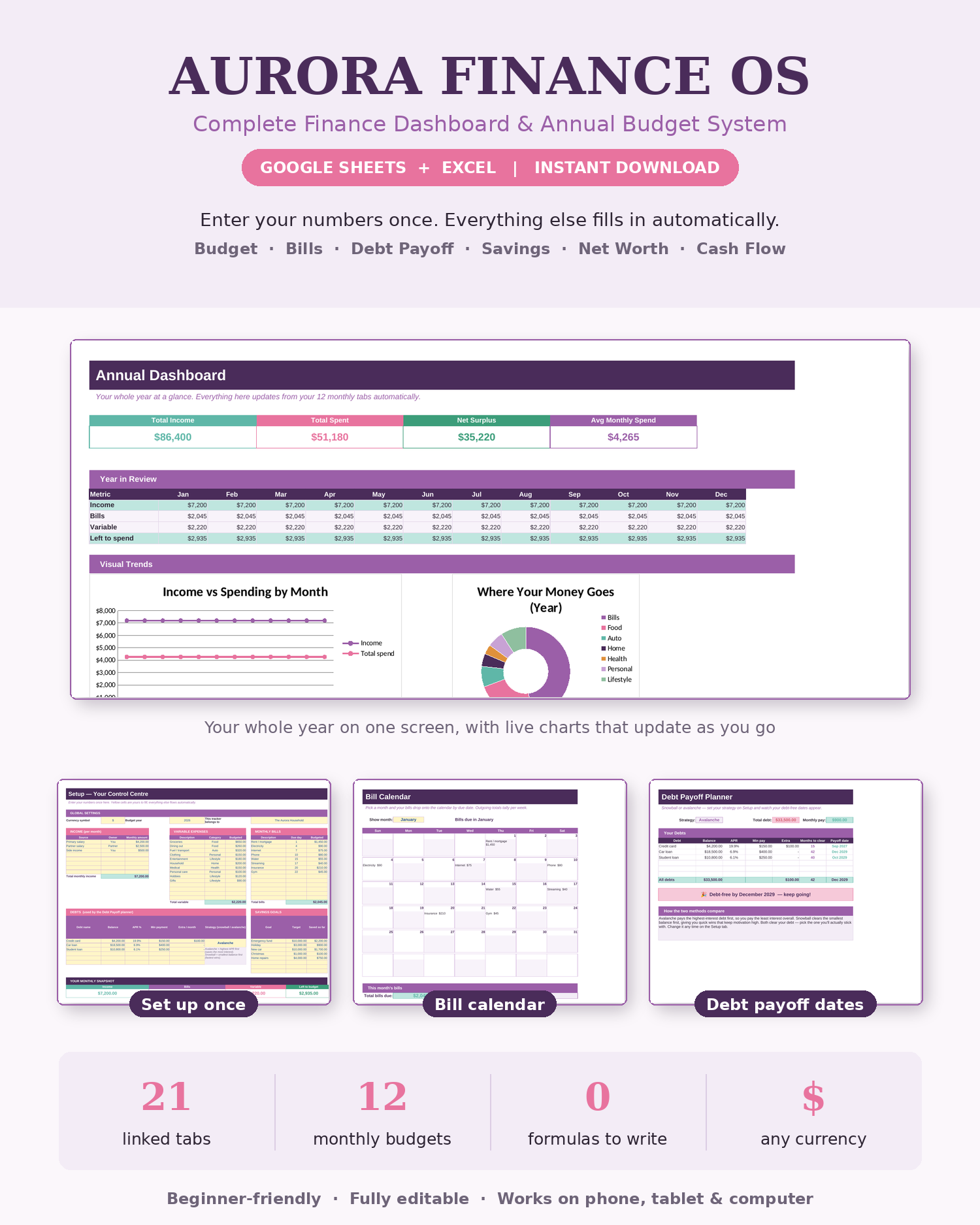
Aurora Finance OS is a 21-tab budget and finance workbook that works in Google Sheets and Microsoft Excel. The idea is simple: you type your income, bills, expenses, debts and savings goals into one Setup tab, and the rest of the workbook builds itself from there.
That gives you:
- Twelve monthly budgets
- A bill calendar that fills itself in
- A debt planner using snowball or avalanche, with real payoff dates
- Savings goals with progress bars
- A net worth tracker
- A custom cash-flow worksheet
- Live charts and category dropdowns throughout
Only the yellow cells are yours to edit. Everything else is calculated and protected, so a stray keystroke can’t break a formula. There’s a Start Here guide inside the file and a Word user guide in the download.
Setting it up in Google Sheets, step by step
1. Get it into your Drive
Upload the file to Google Drive, open it, and save it as a Google Sheet if prompted (File, then Save as Google Sheets). Rename it something you’ll find: “Budget 2026” beats “Copy of Aurora (3)”.
2. Fill in the Setup tab
This is where the hour goes. Have your last two months of bank statements open. Enter:
- Income sources and amounts
- Bills with amounts and due dates
- Typical spending categories with monthly targets
- Debts with balances, rates and minimum payments
- Savings goals with targets
Be honest with the spending targets. If groceries have been $640 a month, don’t type $450 because it looks better. You can trim later once you see where the money goes.
3. Check the bill calendar
Open the calendar tab and look at the month. Are three big bills landing before payday? Better to spot it now than on the 3rd.
4. Pick a debt method
In the debt planner, choose snowball (smallest balance first) or avalanche (highest rate first) and look at the payoff dates. Try both. The dates are often closer than people expect, so pick the one you’ll stick with.
5. Share it, if you budget with someone
Click Share and add your partner’s email with edit access. Now there’s one budget, not two competing versions.
Making it work day to day
Use the phone app for quick logging
Install Google Sheets on your phone. Logging a purchase while you’re still in the car park takes 20 seconds, and saves you reconstructing the week from receipts on Sunday.
Turn on offline access
In Google Drive settings you can make files available offline. Handy if you budget on a train or anywhere with patchy signal.
Have a fixed review day
Once a week, open the monthly budget for the current month and see which categories are running hot. Once a month, check the net worth tab and the debt planner. It takes 15 minutes and keeps the whole thing honest.
Don’t fight the protection
If you find yourself wanting to type into a calculated cell, that’s usually a sign the number should change somewhere on the Setup tab instead. Go back there.
Free template or paid one?
Google’s own template gallery has a couple of budget sheets, and they’re fine for a first look. You list income and expenses for the month and see the difference. That’s about it.
What they don’t do is connect anything. Your bills don’t feed a calendar. Your debt payments don’t move a payoff date. Your savings goals don’t tell you how much to put away each month. You end up building those pieces yourself, and that’s usually the evening where the whole project stalls.
A paid template is worth it when you want those links without the build. If you only need a single spending list, stick with free.
Who Aurora Finance OS is for
- People who want a full budget system without writing a single formula
- Couples who want one shared Google Sheet
- Anyone juggling bills, debts and savings goals at the same time
- People who switch between Excel at work and Google Sheets at home
Who it’s not for
If you only want to jot down spending in a single list, 21 tabs will feel like a lot. A simple one-page tracker would suit you better. And if you love rebuilding spreadsheets from scratch, the protected cells may feel restrictive, although that’s exactly what keeps the formulas safe for everyone else.
Google Sheets budget template FAQ
Is there a good budget template for Google Sheets?
Google offers basic free templates, but they’re limited. A paid template like Aurora Finance OS adds monthly budgets, a bill calendar, debt payoff and net worth tracking that all link together.
Can I use the same budget in Excel and Google Sheets?
Yes. Aurora Finance OS works in both, so you can open it in whichever you prefer.
Can two people edit a Google Sheets budget at once?
Yes. Share the file with edit access and both of you can update it, even at the same time.
Do I need to know formulas?
No. You only fill in the yellow cells. The calculations, charts and calendars are already built and protected.