If you have a Google account, you already have everything you need to invoice online. Google Docs makes a clean invoice page. Google Sheets does the maths and keeps a list of who has paid. Gmail sends the PDF. No invoicing app, no extra subscription.
This guide shows how to invoice online using Google Sheets or Docs, step by step. It is for freelancers, tutors, cleaners, makers and anyone who bills a handful of clients a month and lives in Google already. You will see which of the two tools fits your work, how to build and send an invoice in each, a worked example with formulas, the sharing mistake that catches a lot of people, and when a ready-made Sheets template is worth buying instead of building.
Quick picks: Google Sheets invoice templates
| Product | Best for | Price | Link |
|---|---|---|---|
| Client Billing Hub Invoice Tracker Spreadsheet | Service businesses that want invoices, receipts and statements in Sheets | $6.49 | View |
| Tallyhive Small Business Spreadsheet | Product sellers who turn orders into invoices and packing slips | $35.99 | View |
| Sorbet Books Small Business Bookkeeping Spreadsheet | Bookkeeping with an invoice status list, tax summary and mileage | $17.00 | View |
| Petal & Ledger Small Business Hub | Handmade sellers who want inventory, orders and invoices together | $13.99 | View |
Google Docs or Google Sheets: which should you use?
Both work. They suit different people.
| Google Docs | Google Sheets | |
|---|---|---|
| Feels like | A word processor | A spreadsheet |
| Maths | You add up totals yourself | Formulas add up totals for you |
| Design | Easy to make pretty | Takes more fiddling |
| Tracking payments | Not really | Yes, with a simple log |
| Best for | A few invoices a month with one or two lines each | Regular invoicing, several line items, or tax |
A simple rule: if you can add up your invoice in your head, Docs is fine. If you reach for a calculator, use Sheets.
How to invoice in Google Docs
Docs is the quickest route to a tidy-looking invoice. Here is how to build one you can reuse.
- Open Google Docs and start a blank document, or check the template gallery for a business layout you like.
- Type “Invoice” at the top in a large heading, with your name, address, email and phone beneath it.
- Add a small two-column table for invoice number, invoice date and due date on the left, and the client’s details on the right.
- Insert a four-column table for Description, Qty, Rate and Amount, with five or six empty rows.
- Add the totals beneath: Subtotal, Tax (if it applies), Total, Paid and Balance due.
- Finish with payment details and a thank-you line.
- Rename the file “Invoice MASTER” and never type a real invoice into it.
Each time you bill, open the master, choose File, then Make a copy, and name the copy with the invoice number and client. That copy is your real invoice.
The weak spot is the maths. Docs tables do not calculate. Double-check every total on a calculator before you send.
How to invoice in Google Sheets
Sheets takes a little longer to set up, but it pays you back every time you bill.
- Open a new spreadsheet and name it “Invoices 2026”.
- Build the invoice on the first tab: your details at the top, then client details, invoice number and dates.
- Make a line item area with columns for Description, Qty, Rate and Amount. In the first Amount cell, type a formula that multiplies Qty by Rate, such as =B12*C12, then drag it down.
- Add a subtotal with =SUM(D12:D20), a tax cell that multiplies the subtotal by your rate if you charge tax, and a total that adds them.
- Add a Paid cell and a Balance due cell that subtracts one from the other.
- Make a second tab called Log with columns: Invoice No, Date, Client, Total, Due date, Paid date, Status.
- Set the print area. Use File, then Print, set the margins and choose “Fit to width” so the invoice sits on one page.
From then on, you overwrite the invoice tab for each new bill, save it as a PDF, and add one row to the log.
A worked example: a tutor’s monthly invoice in Sheets
Aisha tutors maths for four families. The Okafor family had two children in October.
| Description | Qty | Rate | Amount |
|---|---|---|---|
| Maths tutoring, Daniel, 1 hr sessions | 4 | $45.00 | $180.00 |
| Maths tutoring, Grace, 45 min sessions | 4 | $35.00 | $140.00 |
| Practice workbook printing | 1 | $8.00 | $8.00 |
| Total | $328.00 |
The formulas do every line. Aisha types the quantities and rates, and the $328 appears. She saves it as a PDF named “0041 Okafor Oct-2026”, emails it from Gmail, and adds a row to her Log tab: 0041, 1 Nov, Okafor, 328, due 15 Nov, Status “Sent”. When the payment arrives on the 9th, she types the date and changes the status to “Paid”. The whole job takes about four minutes per family.
Sending the invoice the right way
This is where people slip up. Always send a PDF, not a link to your Doc or Sheet.
- In Docs: File, Download, PDF document.
- In Sheets: File, Download, PDF, and choose “Current sheet” so you do not send your log tab by accident.
- In Gmail: attach the PDF, write two lines with the amount and due date, and send.
Why not share a link? Because a shared link can expose your other invoices, client details and notes if the wrong option is ticked. A PDF is a fixed copy. The client sees exactly what you meant them to see, and nothing else.
Gmail can also store a canned reply you reuse each time. Set one up with your standard invoice wording and it saves a little typing every month.
Tracking who has paid
A list of invoices is only useful if it tells you who is late. In your Log tab, add an Overdue column that compares the due date with today. If the paid date sits in column F and the due date in column E, the formula =AND(ISBLANK(F2),E2<TODAY()) shows TRUE for any unpaid invoice past its due date. Add conditional formatting to turn TRUE cells red, and you have a basic overdue alert.
If you also want to track clients and follow-ups, our guide to a simple CRM in Google Sheets shows how to keep client records in the same Drive.
When a ready-made Sheets template saves time
Building your own works. It also takes an evening, and the first version usually has a broken formula or two. Once you need client dropdowns, part payments, receipts, statements or aging, the build becomes a project. That is the point where a ready-made template earns its keep.
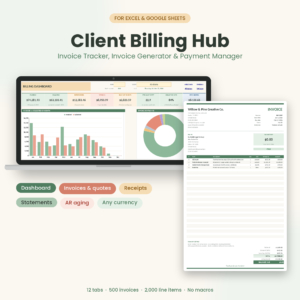
Client Billing Hub Invoice Tracker Spreadsheet
Price: $6.49 | Best for: Freelancers who live in Google Drive
A 12-tab workbook that you upload to Google Drive and open with Sheets, where formulas, dropdowns, colors and charts carry over. Pick an invoice number and a print-ready invoice fills in. It logs full and part payments, prints numbered receipts, builds client statements and shows aging and a dashboard. Follow the Sheets steps in the 14-page guide, then add your clients and services.
Once it is in your Drive, you can check a client’s balance from your phone while you wait for a coffee.
If you sell products, not hours
Product sellers have an extra layer. Each invoice comes from an order with several items, shipping, maybe sales tax, and it changes your stock. Doing that in a home-built sheet gets messy fast.

Tallyhive Small Business Spreadsheet
Price: $35.99 | Best for: Makers and Etsy or website sellers
A 30-tab connected workbook for Excel and Google Sheets. Log a multi-item order with discounts, shipping and sales tax, and it updates your stock and customer records. Type an order number and a printable invoice and packing slip fill in. Payment status (Paid, Partial, Unpaid, Overdue or Cancelled) updates on its own. Start by adding your products, then log one test order.
The Petal & Ledger hub in the quick picks table is a smaller connected option if 30 tabs feels like too many.
Keeping your books in the same Drive
Invoices are one side of the money. The other is expenses, tax set-asides and mileage. Keeping a bookkeeping workbook next to your invoices in the same Drive folder means you can see income and costs in one place, from any device.
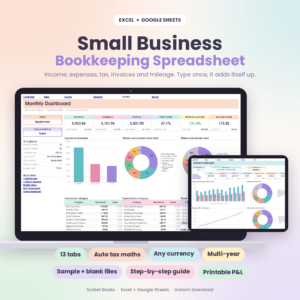
Sorbet Books Bookkeeping Spreadsheet
Price: $17.00 | Best for: Freelancers and small shops
A 13-tab bookkeeping workbook for Excel 2010 or newer and Google Sheets, with no Google-only formulas. It includes income and expense logs, an Invoices tab with Paid, Part paid, Open, Due soon and Overdue status and days late, a tax summary, mileage log, budget and profit and loss. A sample file and a blank file come with a 23-page guide. Explore the sample first, then start fresh.
Checking invoices from your phone
One quiet bonus of working in Google: your invoices travel with you. The Google Sheets and Google Drive phone apps let you open your log, check whether a client has paid and find an old PDF while you are out. A cleaner standing on a client’s doorstep can confirm last month’s invoice was settled before she starts. A tutor can resend a missing PDF from the car park.
Typing a whole invoice on a small screen is fiddly, so most people keep the creating for a laptop and use the phone for checking and resending. If you do edit on the phone, zoom in and double-check the numbers before you download the PDF. A slipped thumb can turn 4 hours into 44.
A simple monthly invoicing routine
Google tools will not remind you to bill, so give yourself a small rhythm.
- 1st of the month: create and send invoices for last month’s regular clients. Add each to the log.
- Every Friday: sort the log by status and look for TRUE in the Overdue column. Send a short, friendly reminder to each one.
- When money lands: type the paid date straight away, even from your phone.
- Last working day: download a backup of the log and file any receipts in your Drive folder.
That is roughly 30 minutes a month for a business with ten clients. Small effort, and you always know where you stand.
Keeping your Google Drive tidy
A little structure stops your invoices disappearing into a Drive full of school forms and holiday photos.
- Make one folder called Business, with subfolders for Invoices, Receipts and Templates.
- Inside Invoices, make a folder per year.
- Save every invoice PDF with the same pattern: number, client, month.
- Star your master template so it sits at the top of your Drive.
- Once a month, download a copy of your log as an Excel file and keep it offline too.
That last step is your safety net. If you ever lose access to your account, you still have your records.
Mistakes to avoid
- Editing the master. Always make a copy first, or one day you will overwrite last month’s invoice.
- Sharing an edit link with clients. Send PDFs only.
- Skipping invoice numbers. Keep them in order. Your log makes this easy.
- Trusting a formula you never tested. Try a fake invoice with easy numbers, such as 2 x $10, and check the result.
- Forgetting the due date. Put a real date on every invoice.
For a broader set of ideas, our list of the best Google Sheets templates covers other everyday uses.
Frequently asked questions
Does Google have a free invoice template?
Google Docs and Google Sheets both have template galleries, and depending on your account they may include invoice layouts. If yours does not, a simple table in Docs or a few formulas in Sheets does the same job.
Can I send an invoice straight from Google Sheets?
Download the invoice tab as a PDF and attach it to an email in Gmail. That way the client gets a fixed copy and cannot see the rest of your workbook.
Is Google Docs or Sheets better for invoices?
Docs is easier for one or two simple invoices a month. Sheets is better for anything regular, because it adds up totals and can track payments.
Can I use Excel invoice templates in Google Sheets?
Many work well once uploaded to Google Drive and opened with Sheets. Check the listing, as some Excel templates are not tested in Sheets.
How do I keep my Google invoices safe?
Keep your Google account secured with a strong password and two-step sign-in, send PDFs rather than links, and download a monthly backup of your invoice log.
Can I add my logo to a Google invoice?
Yes. In Docs, use Insert, Image. In Sheets, insert the image over the cells at the top of your invoice tab and resize it so it prints neatly.
Your next step
Open Google Sheets today and make a Log tab with seven columns: number, date, client, total, due date, paid date and status. Add your last five invoices. If you want the invoice page, receipts and statements already built around that log, the Client Billing Hub Invoice Tracker Spreadsheet drops straight into your Drive.