An invoice sheet template for Excel and Google Sheets does two jobs. It builds a clean invoice you can send, and it remembers that invoice afterwards, so you always know who has paid and who has not. Get both right and billing stops being a chore you put off until Sunday night.
This guide is for sole traders, freelancers and small shops who already live in spreadsheets, or want to. You will learn the difference between a printable invoice sheet and an invoice log, what changes between Excel and Google Sheets, how to set one up in an evening, and the slip-ups that cause wrong totals.
By the end you should know exactly which kind of sheet fits the way you work.
Quick picks: invoice sheets that open in Excel and Google Sheets
| Product | Best for | Price | Link |
|---|---|---|---|
| Client Billing Hub Invoice Tracker Spreadsheet | Printable invoices plus payment tracking | $6.49 | View |
| Tallyhive Small Business Spreadsheet | Makers who invoice orders and track stock | $35.99 | View |
| Sorbet Books Bookkeeping Spreadsheet | An invoice log inside colorful, simple books | $17.00 | View |
| Clear Ledger Bookkeeping Spreadsheet | Online sellers who need invoices tied to income | $9.95 | View |
Two kinds of invoice sheet, and why it matters
People search for “invoice sheet” and mean two quite different things. Picking the wrong one is the most common reason a template gets abandoned after a month.
The printable invoice sheet
This is the page your client sees. Your logo, their address, the line items, the total and how to pay. You fill it in, save it as a PDF and send it. A good one fills in client details from a list and works out totals by itself.
The invoice log
This is the list only you see. One row per invoice: number, client, date, amount, due date, amount paid and status. It answers the question “who still owes me?” in about three seconds.
You need both. A printable sheet with no log means you are hunting through sent emails every month. A log with no printable sheet means you are making invoices somewhere else and typing the numbers twice. The best invoice workbooks join them, so the invoice you print and the row in your log are the same record. For more on the tracking side, see our guide on building an invoice tracker spreadsheet.
What every invoice sheet needs
Whether you build your own or buy one, check it has these cells and columns. Miss one and you will feel it the first time a client pays half.
- Invoice number that never repeats. A formula that suggests the next free number is a nice touch.
- Invoice date and due date, with the due date worked out from your terms (date plus 14, for example).
- Client name and billing address, ideally pulled from a client list with a dropdown.
- Line items with description, quantity, unit price and line total.
- Subtotal, discount, tax and total, all calculated.
- Amount paid and balance due, so part payments make sense.
- Status: Paid, Part paid, Unpaid or Overdue, set by formula rather than by memory.
- Payment details: bank account name, number or payment link, written in full.
Money cells should be rounded to two decimals at each step. Otherwise a total of 1,249.995 can show as 1,250.00 on screen and 1,249.99 in your log, and you will spend half an hour chasing a one-cent gap.
Excel or Google Sheets: what changes
Most invoice templates are built as .xlsx files and open in both programs. The maths works the same. A few practical things differ.
Opening the file
In Excel, double-click and go. In Google Sheets, upload the .xlsx file to Google Drive, open it, and choose File, Save as Google Sheets so you get a native copy that saves as you type.
Printing and PDFs
Excel gives finer control over page breaks and margins. Google Sheets prints through File, Download, PDF, where you choose the paper size, fit to width and whether gridlines show. Set it once and the next invoice is quick.
Working on the go
Google Sheets wins here. A cleaner finishing a job at 4pm can log the payment on a phone from the car. Excel desktop needs a laptop, though the Excel mobile app can handle simple entries.
Sharing
If a partner or bookkeeper needs to see your invoices, Sheets lets you share a link with view-only access. Never share the edit link with a client.
One honest note: some workbooks are built and tested for Excel only. Always check the listing says Google Sheets before you buy for Sheets.
Set up your invoice sheet in one evening
Give yourself about 45 minutes. Make a cup of tea first.
- Fill in your settings. Business name, address, email, currency symbol, tax rate and default payment terms.
- Add your clients. Start with the ones you bill every month. Add the rest when you next invoice them.
- Add your products or services. Name, unit (hour, item, visit) and usual price.
- Enter your last three invoices. Real ones from the past month. This tests the sheet and fills your log with true numbers straight away.
- Log any payments you have already received against them.
- Print one invoice to PDF and open it on your phone to see what the client sees.
If everything adds up, you are done. That first clean PDF, with your own name at the top and the maths right, is a small, satisfying moment.
The Client Billing Hub is built for exactly this setup, in either program.
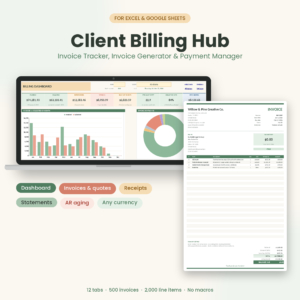
Client Billing Hub Invoice Tracker Spreadsheet
Price: $6.49 | Best for: Service businesses in Excel or Sheets
A 12-tab .xlsx workbook that works in Excel and in Google Sheets once uploaded to Drive. It builds print-ready invoices and quotes from an invoice number, logs full and part payments, prints receipts and client statements, and shows AR aging on a dashboard. Room for 500 invoices and 1,000 payments. Start on the Settings tab, then add your clients and enter last month’s invoices.
A worked month on an invoice sheet
Take Marcus, who runs a mobile dog grooming van with about 40 regular clients. Most pay on the day. A handful of busy households pay monthly.
On 1 March he creates five monthly invoices, numbers 0231 to 0235, each listing the grooms from February. His sheet fills in each client’s address and the price per groom from his service list. He saves five PDFs and emails them before 9am.
By 10 March, three have paid. He logs each one, and the status column flips to Paid. On 12 March, one client pays half and promises the rest at payday. Marcus logs the part payment, and the row shows Part paid with a balance of 45.00. On 15 March, invoice 0235 passes its due date and the status turns to Overdue on its own.
He sends one polite reminder. The money arrives on the 18th. At the end of the month his dashboard shows every February groom billed and collected. No sticky notes, no guessing, and no awkward conversation with a customer who had already paid.
When your invoices should live inside your books
If you send only a handful of invoices a month but want proper books for tax time, a bookkeeping spreadsheet with an invoice log may suit you better than a dedicated billing file. You make the invoice however you like, then log it in your books, where it sits beside your income, expenses and tax.
The win is one file instead of two. When a payment lands, you record it once as income and the invoice marks itself paid. If you are still getting your head round bookkeeping in a spreadsheet, our step-by-step guide on how to do bookkeeping in Excel walks through the basics.
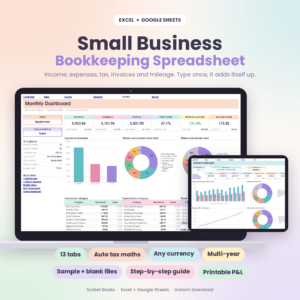
Sorbet Books Bookkeeping Spreadsheet
Price: $17.00 | Best for: Beginners wanting books plus invoice log
A colorful, beginner-friendly bookkeeping workbook for Excel 2010 or newer and Google Sheets, with 13 connected tabs. The Invoices tab tracks who owes you, with automatic Paid, Part paid, Open, Due soon and Overdue status and average days to get paid, next to income and expense logs, a budget, a tax summary and a print-ready profit and loss. Explore the sample file first, then fill in Setup in the blank one.
Online sellers who get paid after platform fees might prefer Clear Ledger, where typing the invoice number on an income row marks that invoice paid, even for part payments.
Invoice sheets for makers who sell products
Product sellers have a different problem. One invoice might list six items from three product lines, plus shipping. When you send it, your stock should go down too. A plain invoice sheet cannot do that, and keeping stock in a second file means the two drift apart within weeks.
A connected business workbook solves it. The order becomes the invoice, the invoice becomes income, and the stock count drops. A candle maker selling 30 jars at a Saturday market and 12 more online on Sunday sees one updated stock figure on Monday morning.

Tallyhive Small Business Spreadsheet
Price: $35.99 | Best for: Makers, Etsy and craft-fair sellers
One .xlsx workbook with 30 linked tabs, tested in Excel for the web and Google Sheets. Orders feed a printable invoice and packing slip, customer records, sales reports and the profit and loss dashboards, while inventory, a pricing calculator and a bill calendar sit alongside. Type an order number and the invoice fills in. Set up your products first, then log your next order and print its invoice.
Which invoice sheet should you pick?
Match the sheet to the way money moves in your business, not to the prettiest preview image. A quick way to decide:
- You bill clients for time or services, several times a week: pick a billing workbook with a printable invoice, a payment log and client statements. Statements alone will save you hours with clients who pay in batches.
- You send fewer than ten invoices a month and mainly want tidy books: a bookkeeping spreadsheet with an invoice log is enough. One file, one place to look at tax time.
- You sell physical products and ship orders: choose a workbook where orders, invoices and stock are linked, or you will end up counting jars by hand.
- You work from your phone a lot: make sure whatever you choose is listed as working in Google Sheets.
Still unsure? Look at last month. Count how many invoices you sent and how many came back late. If the late ones bother you more than the sending, put tracking first.
Printing tips that make a spreadsheet look like a proper invoice
- Turn off gridlines before printing or downloading the PDF.
- Set the print area to just the invoice, not the helper columns beside it.
- Choose “fit to page width” so the invoice never splits onto two pages.
- Use US Letter in the US and Canada, A4 almost everywhere else.
- Name the PDF with the invoice number and client: “0231 Patel March.pdf”.
- Open the PDF on your phone before sending. If it reads well there, it reads well anywhere.
Mistakes that break invoice sheets
- Typing over formula cells. One stray number in a total cell and every future invoice is wrong. Use a template with locked formula cells.
- Copying the whole sheet for each invoice. After 60 tabs called “Invoice (47)”, nothing can be found. One invoice page plus a log is cleaner.
- Changing an invoice after it is sent. Issue a credit note or a new invoice instead, so your records match what the client holds.
- No backup. Excel users should keep a copy in cloud storage. Sheets users should download a copy each quarter.
- Mixing personal and business payments in the same log. Keep them apart from day one.
Frequently asked questions
Can I use an Excel invoice template in Google Sheets?
Usually, yes. Upload the .xlsx file to Google Drive and open it with Sheets. Most standard formulas carry over. Check the product listing first, as some workbooks are tested for Excel only.
How do I make invoice numbers go up automatically?
A simple way is a formula that finds the highest number in your invoice log and adds one. Good templates show the next free number for you.
Is an invoice made in a spreadsheet valid?
Yes. What makes an invoice valid is the information on it, such as your details, the client’s details, a unique number, dates, amounts and any tax details your country asks for, not the software used.
What is the difference between an invoice sheet and an invoice tracker?
The invoice sheet is the document you send. The tracker is the list of every invoice and its payment status. Many workbooks include both.
Can I email an invoice straight from Google Sheets?
Sheets can email a file as an attachment from the File menu, but most people download the PDF and attach it to a normal email. That way you can write a short, personal message.
Your next step
Tonight, pick the program you actually open every day, Excel or Google Sheets, and enter your last three real invoices into one workbook. Seeing true numbers on a dashboard is the fastest way to know if it fits. For invoices and payment tracking that work in both, try the Client Billing Hub Invoice Tracker Spreadsheet.