A personal expense tracker answers one question better than anything else: where did my money actually go? Not where you think it went, or where you meant it to go. Where it went. An Excel template makes that answer easy to see, because you type each purchase once and the totals, categories and charts take care of themselves.
This guide covers the columns and categories that make a tracker useful, how to build a simple one in Excel in about 20 minutes, when a ready-made personal expense tracker Excel template saves you time, and a 30-day tracking challenge with a full worked example. It finishes with how to read your results, what to do if you also earn side income, and the mistakes that make people give up in week two.
Quick picks: expense tracker templates
| Product | Best for | Price | Link |
|---|---|---|---|
| Calm Cash Budget & Goal Planner | Personal tracking with monthly dashboards and need/want tags | $19.00 | View |
| Soft Ledger Budget Planner Printable | Printable pages plus an Excel spreadsheet for totals | Original price was: $12.99.$8.99Current price is: $8.99. | View |
| TallyBloom Tax-Ready Bookkeeping Spreadsheet | Side hustlers and self-employed people tracking business costs | Original price was: $19.00.$13.00Current price is: $13.00. | View |
| Sorbet Books Bookkeeping Spreadsheet | Small sellers who want invoices, P&L and tax in one file | $17.00 | View |
What a personal expense tracker is for
An expense tracker is a record, not a plan. A budget says “I will spend $400 on groceries.” A tracker says “I spent $463.” You need the record first, because a plan built on guesses usually fails by the middle of the month.
Tracking does three jobs well:
- It shows the truth. Most people underestimate small, frequent spending by a wide margin. Coffee, snacks, delivery fees and app purchases add up quietly.
- It finds the leaks. Forgotten subscriptions, a weekly habit that costs more than you realized, fees you did not know you were paying.
- It gives your budget real numbers. After a month or two of tracking, your budget targets come from evidence, not hope.
What a tracker is not: a judgment. You are collecting information. A $14 lunch is a data point, not a failure. Keep that in mind and tracking feels far less like a chore.
The columns every expense tracker needs
Whether you build your own or use a template, each purchase should capture six things. Fewer and you lose useful detail. More and logging gets slow enough that you stop.
| Column | Why it matters |
|---|---|
| Date | Lets you total by week or month and spot which days you spend most |
| Amount | The number itself. Use positive numbers for spending to keep formulas simple |
| Category | Groups spending so you can see the big picture |
| Paid with | Debit card, credit card, cash or transfer, so you can match against statements |
| Need or want | A quick tag that shows how much of your spending is truly flexible |
| Note | A few words: “birthday gift for Sam”, “work lunch”. Helps when you review |
The need-or-want column is the one most trackers skip, and it is often the most revealing. Two people can spend $300 on food. If one tags $260 of it as need and the other tags $150, they have very different amounts of room to change.
Choosing categories that tell you something
Twelve to fifteen categories suit most people. Broad enough that every purchase has an obvious home, specific enough that the totals mean something.
A starter set
- Housing (rent or mortgage, home insurance)
- Utilities and phone
- Groceries
- Eating out and takeout
- Coffee and snacks
- Transport (gas, transit, parking, rides)
- Subscriptions
- Shopping (clothes, home goods, electronics)
- Personal care
- Health
- Gifts and occasions
- Entertainment
- Other
Two tips. First, keep groceries and eating out separate. Combined, they hide one of the easiest places to save. Second, if “Other” grows past about 10 percent of your total, look inside it. A category is hiding in there.
Build a simple tracker in Excel in 20 minutes
If you like making your own tools, here is a quick build. It gives you a working tracker with automatic monthly totals.
- Make the log. On a sheet called Expenses, type the six column headers in row 1. Click any header and press Ctrl+T to turn it into an Excel Table. Name the table Expenses.
- Add a category list. On a second sheet called Lists, type your categories in column A.
- Add dropdowns. Select the Category column in the table, go to Data, then Data Validation, choose List, and point it at your category list. Do the same for Need or want (two options) and Paid with.
- Add a month column. Add a seventh column called Month with the formula =TEXT([@Date],”yyyy-mm”). It fills itself for every new row.
- Build the summary. On a third sheet, list categories down column A and months across row 1. In each cell, use =SUMIFS(Expenses[Amount],Expenses[Category],$A2,Expenses[Month],B$1).
- Add a chart. Select the current month’s column and insert a bar chart. Sort largest to smallest.
That is a real, working tracker. For a quicker look, a PivotTable on the Expenses table with Category in rows and Month in columns does the same summary in a few clicks. If you want ideas for turning the summary into a proper dashboard, our guide to what a budget dashboard in Excel should show covers the most useful views.
Or start with a ready-made template
Building your own is satisfying, but it has a hidden cost. Most homemade trackers stop at the log and one summary. Monthly dashboards, bill reminders, savings goals and year-end reviews take far longer to build than the log itself, and that is usually where DIY trackers stall.
A template makes sense when you want those extras without the evenings of formula work, or when you have tried building one before and it never quite got finished. It is also handy for people who share money with a partner and want a layout both can follow.
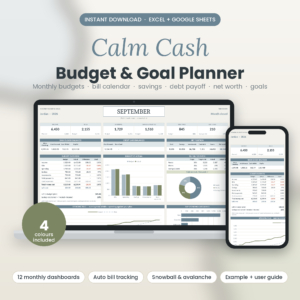
Calm Cash Budget & Goal Planner
Price: $19.00 | Best for: people who want tracking plus dashboards
Calm Cash is an annual budget spreadsheet for Excel 2016 and later, Microsoft 365, Excel for Mac and Google Sheets, with 23 connected tabs. One transactions log for the year feeds 12 monthly dashboards with budget versus actual, a 50/30/20 check, a spending pace chart and top categories, plus an annual review, a bill calendar, savings and sinking funds. Transactions get an automatic Need/Want tag. Fill in the Setup page, then log one week.
The 30-day tracking challenge
The best way to start is a single month of tracking every purchase. No budget, no targets, no changes. Just record. The rules are short:
- Log every purchase, including cash and tiny amounts.
- Log daily if you can, or at least every two days from your bank app.
- Tag each one need or want, honestly.
- Do not try to spend less this month. Just watch.
Rule four matters. If you change your behavior while tracking, you never learn what normal looks like.
Worked example: Aisha’s first month
Aisha takes home $3,700 a month. She guessed she spent around $2,500. Her 30-day tracker said otherwise.
| Category | Spent |
|---|---|
| Rent | $1,250 |
| Groceries | $410 |
| Eating out and takeout | $265 |
| Coffee and snacks | $74 |
| Transport | $190 |
| Utilities and phone | $210 |
| Subscriptions | $86 |
| Shopping | $230 |
| Personal care | $95 |
| Gifts | $60 |
| Other | $90 |
| Total | $2,960 |
Three things stood out. Coffee was 17 separate purchases, most on workdays before 9 a.m. Two of her six subscriptions, $27 a month together, had not been opened in months. And $190 of her eating out happened on Fridays, the night she was most tired.
She made three small changes: a thermos on four workdays, two subscriptions cancelled, and one planned Friday takeout with a set amount. Month two came in about $120 lower without feeling like a sacrifice. More important, the extra $740 a month that used to vanish now had a plan: $400 to savings and $340 to her card. She said seeing that number every month was the first time money felt like hers.
Reading your results: five questions
At the end of the month, open your summary and work through these. It takes about 20 minutes.
- What were my top five categories? They usually make up most of your spending, so that is where change has the biggest effect.
- What share was tagged want? Not to cut it all, but to know how much room you have.
- Which subscriptions did I actually use? Cancel anything you did not open this month.
- Which days of the week cost the most? A pivot by weekday often shows a clear pattern.
- What is my daily average for flexible spending? Take everything except fixed bills and divide by 30. That one number is easy to remember and easy to track.
That daily number is surprisingly powerful. If your flexible spending averages $38 a day, a $60 day is not a disaster. It just means a lighter day tomorrow. Some trackers turn this into a weekly and daily spending figure for you, which saves the arithmetic.
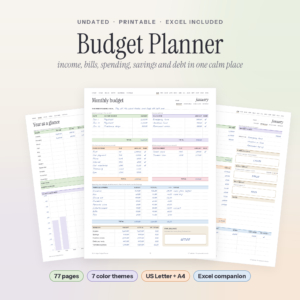
Soft Ledger Budget Planner Printable
Price: Original price was: $12.99.$8.99Current price is: $8.99. | Best for: trackers who want a daily spending number
Soft Ledger is a 77-page undated printable budget planner with an Excel spreadsheet that totals everything. Each month has four linked pages: plan on Budget, see your weekly and daily spending number on Overview, record purchases on the Daily log, and wrap up on Review, with a Year at a glance sheet for twelve months of progress. It works in any currency. Print the Daily log and keep it where you empty your pockets each evening.
Once you have two or three months of real numbers, you are ready to turn them into a monthly budget. Our guide on setting up a monthly budget spreadsheet you will not have to rebuild picks up from there.
If you also earn side income
Many people track personal spending and then realize part of it is really business spending: craft supplies for an online shop, mileage for pet sitting, software for freelance design. Mixing the two causes problems. Your personal numbers look worse than they are, and you lose track of costs you may be able to deduct at tax time.
The fix is to keep two trackers, or at least two clearly separate tabs. Personal spending in one. Side-business income and costs in the other, with categories that match your tax return. A separate bank account or card for the side business makes this far easier.
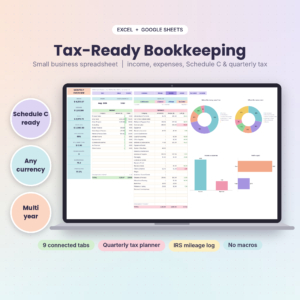
TallyBloom Tax-Ready Bookkeeping Spreadsheet
Price: Original price was: $19.00.$13.00Current price is: $13.00. | Best for: side hustlers and sole proprietors
TallyBloom is a bookkeeping spreadsheet for Excel and Google Sheets built for self-employed people and side hustles. It logs income, expenses and work miles, maps 26 expense categories to IRS Schedule C lines, counts meals at 50 percent automatically and estimates quarterly tax set-asides. Outside the US, everything but the Tax Center and mileage rates works in any currency. Move last month’s side-business costs out of your personal tracker and into its expense log.
If your side income has grown into a small shop with invoices and sales tax, the Sorbet Books Bookkeeping Spreadsheet in the quick picks table adds invoices, a profit and loss report and multi-year comparisons.
Mistakes that make people quit tracking
- Logging once a month. Thirty days of receipts at once is exhausting. Daily or every two days keeps it to a minute or two.
- Too many categories. Forty categories means forty decisions. Start with twelve.
- Skipping cash. Cash spending disappears from the record unless you note it. Keep receipts in one place, or jot amounts in your phone.
- Counting card payments as spending. The spending happened when you used the card. The payment is just money moving between accounts.
- Judging yourself. A tracker is information. Shame makes people stop looking, and looking is the whole point.
- Stopping after month one. The second and third months are where patterns become clear and changes start to stick.
Frequently asked questions
How do I make a personal expense tracker in Excel?
Create a table with Date, Amount, Category, Paid with, Need or want and Note columns. Add dropdowns for categories, then use SUMIFS or a PivotTable to total spending by category and month.
What categories should a personal expense tracker have?
Twelve to fifteen broad ones: housing, utilities, groceries, eating out, coffee and snacks, transport, subscriptions, shopping, personal care, health, gifts, entertainment and other.
How often should I update my expense tracker?
Daily is ideal and takes a minute or two. Every two or three days from your bank app also works. Weekly is the longest gap before details start slipping.
Is an expense tracker the same as a budget?
No. A tracker records what you spent. A budget plans what you will spend. Track for a month or two first, then build a budget from the real numbers.
Can I use an Excel expense tracker on my phone?
Yes. Save the file to OneDrive and open it in the free Excel mobile app. Adding a row works well on a phone; reviewing is easier on a computer.
Your next step
Start your 30-day challenge today. Open a blank Excel sheet, type the six column headers, and log everything you spent yesterday from your bank app. Then keep going for 30 days without changing a thing. When you want monthly dashboards, need/want tags and a bill calendar ready to go, log your month in the Calm Cash Budget & Goal Planner instead.