“Editable” is one of the most confusing words in the planner world. To one person it means changing the headings and fonts. To another it means typing into the boxes. To a third it means picking a cover, a color theme and a pile of stickers on an iPad. All three are real, and each suits a different kind of planner.
This guide sorts out what you can truly change in personalized planner templates you can edit, so you buy the right kind the first time. You will see the three levels of editing, what each one is good for, step-by-step ways to make a template your own, and four Taskdale planners that sit at different points on that scale.
If you have ever bought a “customizable” planner and then found you could not change a single word on the page, this is for you.
Quick picks
| Product | Best for | Price | Link |
|---|---|---|---|
| Clearweek Weekly Planner Printable | Changing headings, labels, fonts and colors in Word | $5.00 | View |
| Willowday Undated Digital Planner | Choosing themes, covers and stickers on a tablet | Original price was: $6.49.$2.49Current price is: $2.49. | View |
| Tidework 2027 Digital Work Planner | A work planner with fillable printable templates | $17.49 | View |
| Horizon Digital Planner 2027 2028 2029 | A three-year digital planner with four color themes | Original price was: $3.49.$0.89Current price is: $0.89. | View |
The three levels of “editable”
Before you buy, decide which level you need. It saves a lot of frustration.
Level 1: fully editable source files
These come as Word documents, Google Docs or spreadsheets. You can change any text on the page: rename “Main focus” to “Must do”, swap the font, change the table colors, add a line for the dog walk. This is the deepest level of personalization. It suits people with very specific routines, small businesses wanting their own labels, and anyone who knows exactly what they want a page to say.
Level 2: fillable PDFs
The layout stays fixed, but every line and box is a form field. You click and type, tick checkboxes, then save or print. You cannot rename the headings, but you can fill the whole planner on a computer, which many people find neater than handwriting. It suits people who like the design as it is but prefer typing.
Level 3: decorate and arrange (digital planners)
In a hyperlinked digital planner opened in an app like GoodNotes or Notability, you write with a stylus and add stickers, photos and text boxes on top of the pages. You usually choose from several color themes and covers, and you can duplicate or delete pages. The printed headings stay the same, but the planner can look very different from anyone else’s copy.
Most people do not need level 1. But if you do, nothing else will satisfy you, so it is worth knowing before you spend money.
When you want to change the words on the page
Here is a common scenario. A freelance photographer wants a weekly planner where “Main focus” reads “Shoots this week” and one of the priority lines becomes “Edits due”. A fillable PDF cannot do that. A Word template can, in about two minutes.
Editable Word templates also help with language. A family that plans in Spanish, or a school that wants its own terms on the page, can rename everything. And they let you match colors to a brand or a binder.
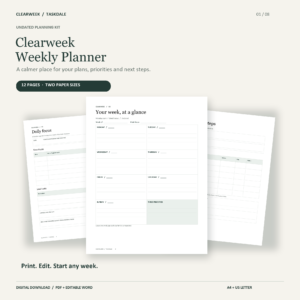
Clearweek Weekly Planner Printable
Price: $5.00 | Best for: freelancers who want their own labels
An undated weekly planner with appointments, tasks and three priorities on one page, in Monday-start and Sunday-start versions, each with lined and open writing space, in US Letter and A4. It includes editable Word source files, so you can change text, labels, fonts and table colors, plus PDFs and six supporting worksheets for week setup, a task inbox, daily focus, project next steps, a routine tracker and a weekly review. Open the Word file, rename two headings to fit your week, and print a test page.
How to personalize a Word planner template in ten minutes
- Save a copy first. Keep the original untouched in case you want to start again.
- Rename headings. Click into any heading and type your own words.
- Change the font. Select all (Ctrl+A or Cmd+A) and pick a font you like. Keep it readable at small sizes.
- Change table colors. Click inside a table, then use the table design or shading options.
- Add fixed items. If every Monday has a 9:00 team call, type it into the Monday box so it prints every week.
- Print a test page and check that nothing has spilled onto a second page.
That fifth step is underrated. Pre-printing the things that happen every week, bin night, piano lessons, the payroll run, saves you writing them 52 times a year. It is the kind of small tweak that makes a planner feel built just for you.
Making a digital planner look like yours
Digital planners do personalization differently. You do not edit the printed text, but you can change almost everything about how the planner looks and what is in it. A good one gives you several color themes, a choice of covers and a large sticker set.
Undated digital planners add one more kind of freedom. You write the dates in yourself, so you can start in any month and keep using the same file across years.
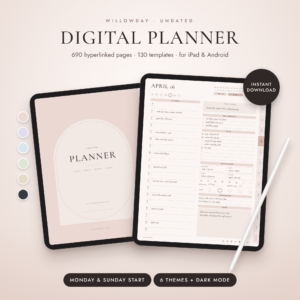
Willowday Undated Digital Planner
Price: Original price was: $6.49.$2.49Current price is: $2.49. | Best for: tablet users who like to decorate
An undated hyperlinked digital planner for iPad and Android tablets with 690 pages, six color themes in Monday and Sunday start, 130 templates, 921 stickers, 36 covers and six matching notebooks, plus printable inserts in US Letter and A4. It has 72 weekly pages and 366 daily pages, so long months never run out of room. Pick your theme and cover first, then write the dates into the first monthly calendar.
Personal touches that take five minutes
- Swap the cover for one in your favorite color, or drop in a photo.
- Add a photo sticker of your family, your pet or your goal to the year page.
- Make a sticker set for recurring events: a small icon for gym days, payday or school holidays.
- Use text boxes to rename sections in your own words, typed on top of the printed headings.
- Delete pages you never use. If you skip the meal pages, remove them and the file feels lighter.
Our guide to digital planner stickers explains how to import, sort and reuse sticker sets so decorating takes seconds, not hours.
Personalizing a work planner
Work planners need a different kind of personal touch. Less decoration, more structure: your meeting types, your client names, your project categories. A good digital work planner pairs linked pages with a set of templates you can print or fill in, so team meetings and client calls each get the page that suits them.
Having a minimal black and white edition alongside a colored one is useful too. You can use color on the tablet and print the plain version for a meeting where you want paper on the table.
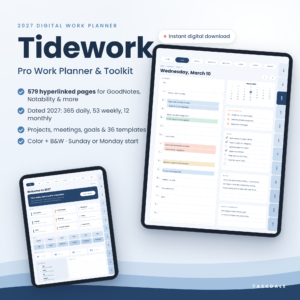
Tidework 2027 Digital Work Planner
Price: $17.49 | Best for: managers, consultants and team leads
A hyperlinked 2027 work planner for GoodNotes, Notability, Noteful, Noteshelf, Xodo and other PDF apps, in four versions: Color and Minimal black and white, each in Sunday and Monday start, with 579 pages each. It covers daily, weekly and monthly planning with project and meeting templates, and adds a 36-template printable library as fillable PDFs in US Letter and A4. Set up the project pages for your current work first, then add meeting notes as they come.
One simple way to make a work planner personal is a color code for clients. Assign each main client a highlighter color and use it everywhere: on the calendar, in meeting notes and on the task lists. After a week you will spot each client’s work at a glance.
Choosing your look for the long run
If you plan to use one file for several years, it is worth choosing a theme you will not tire of. Bright rainbow pages are cheerful in January and can feel loud by June. Soft, quiet colors tend to age better.
A multi-year planner raises the stakes, so having several themes to choose from at the start matters.
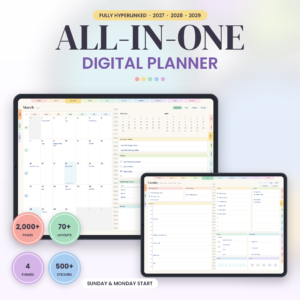
Horizon Digital Planner 2027 2028 2029
Price: Original price was: $3.49.$0.89Current price is: $0.89. | Best for: tablet planners thinking three years ahead
A hyperlinked PDF planner covering January 2027 to December 2029, with eight PDF files in one download: four color themes (Pastel Rainbow, Blush Pink, Sage and Sand, and Ocean Mist), each in Sunday-start and Monday-start versions. It includes monthly, weekly and daily pages, 57 ready-made templates, six notebook styles, 548 PNG stickers and 32 cover designs. Open two themes side by side for a few minutes before you commit, and pick the one that feels calm on a tired day.
If you are weighing up multi-year planners, our comparison of the best 3 year digital planners looks at how a few options differ.
Ideas for personalizing any planner
Whatever level of editing you have, these ideas make a planner feel like yours.
- A personal welcome page. Your name, the year, and one sentence about what you want this year to feel like.
- A favorite quote or verse at the top of each month.
- Your own color key. Four colors, written on the first page: work, family, health, money.
- A “this week I’m proud of” line added to every weekly page.
- Fixed recurring items pre-printed or pre-typed so you never write them again.
- A photo of the place you are saving for, on the money page.
None of these take long. Each one turns a generic template into something that feels written for you, and that feeling is a big part of why people keep opening a planner.
A worked example: one template, two very different weeks
To see how far a single editable template can stretch, picture two people starting from the same Word weekly planner.
Jordan is a dog groomer who works from a van. In the Word file, Jordan renames “Main focus” to “Bookings full?” and changes the three priority lines to “Van maintenance”, “Supplies to order” and “Follow-up texts”. Monday and Thursday get “Restock shampoo” typed in, because that happens every week. The table color changes to the same teal as the van. Printed on A4 and clipped to a board on the dashboard, it now reads like a page made for a grooming business.
Priya is a nursing student on placement. She keeps “Main focus” but renames the priorities to “Shift”, “Study” and “Rest”. She adds a line under each day for her shift time and types “Lecture 9:00” into Tuesday and Friday. She changes the font to something larger, because she reads the page at 6 a.m. before coffee.
Same template. Two pages that look nothing alike, each taking under fifteen minutes to set up. That is the real value of a fully editable file: it adapts to a life you could not have predicted when it was designed.
Common mistakes when customizing
- Buying the wrong kind of editable. If you need to rename headings, a fillable PDF will disappoint you. Check for Word or Docs files.
- Over-decorating. Three hours spent on stickers in week one often leads to burnout by week four. Decorate lightly, plan heavily.
- Breaking the layout. In Word, adding too many lines can push a page onto two sheets. Print a test after each change.
- Changing everything at once. Use a template as it comes for a week before editing. You will know what truly needs changing.
- Sharing edited files. Personal-use planners are for your household. Do not pass edited copies to friends or a team unless the license allows it.
Frequently asked questions
Can I edit the text in a planner template?
Only if it comes as an editable source file, such as a Word document. Clearweek includes editable Word files where you can change text, labels, fonts and table colors. Fillable PDFs let you type into fields but not change the headings.
What is the difference between fillable and editable?
Fillable means you can type into set boxes and lines. Editable usually means you can change the page itself, including headings, layout and colors.
How do I personalize a digital planner?
Choose a color theme and cover, add stickers and photos, type text boxes over headings, and delete pages you will not use. Most of this takes a few minutes in GoodNotes or Notability.
Can I change the colors in a planner template?
In a Word template, yes, by changing table shading and font colors. In digital planners, you choose from the color themes included in the download.
Are personalized planner templates reusable?
Undated templates can be printed or reused every year for your own use. Dated digital planners like Horizon cover the years they are built for.
Your next step
Write down the two headings you most wish your current planner said differently. If you need to change them, start with the Clearweek Weekly Planner Printable, open the Word file, rename those two headings, and print your first truly personal week.